Smart Folders on Mac: The Complete Guide to Automatic Organization

Jump to section
Smart Folders on Mac are not normal folders. They are saved searches that show files matching your criteria in real time. That means one file can appear in several Smart Folders without being duplicated.
What Smart Folders are good for
They work best when you want dynamic views like:

- recent images
- large files
- files tagged for review
- project-specific file groups
How to create one
- Open Finder
- Choose
File > New Smart Folder - Add criteria such as kind, date, name, or tag
- Save the search and optionally pin it to the sidebar
Best criteria to use
Kindfor images, PDFs, folders, and documentsDate ModifiedorDate CreatedName ContainsTag


Why naming still matters
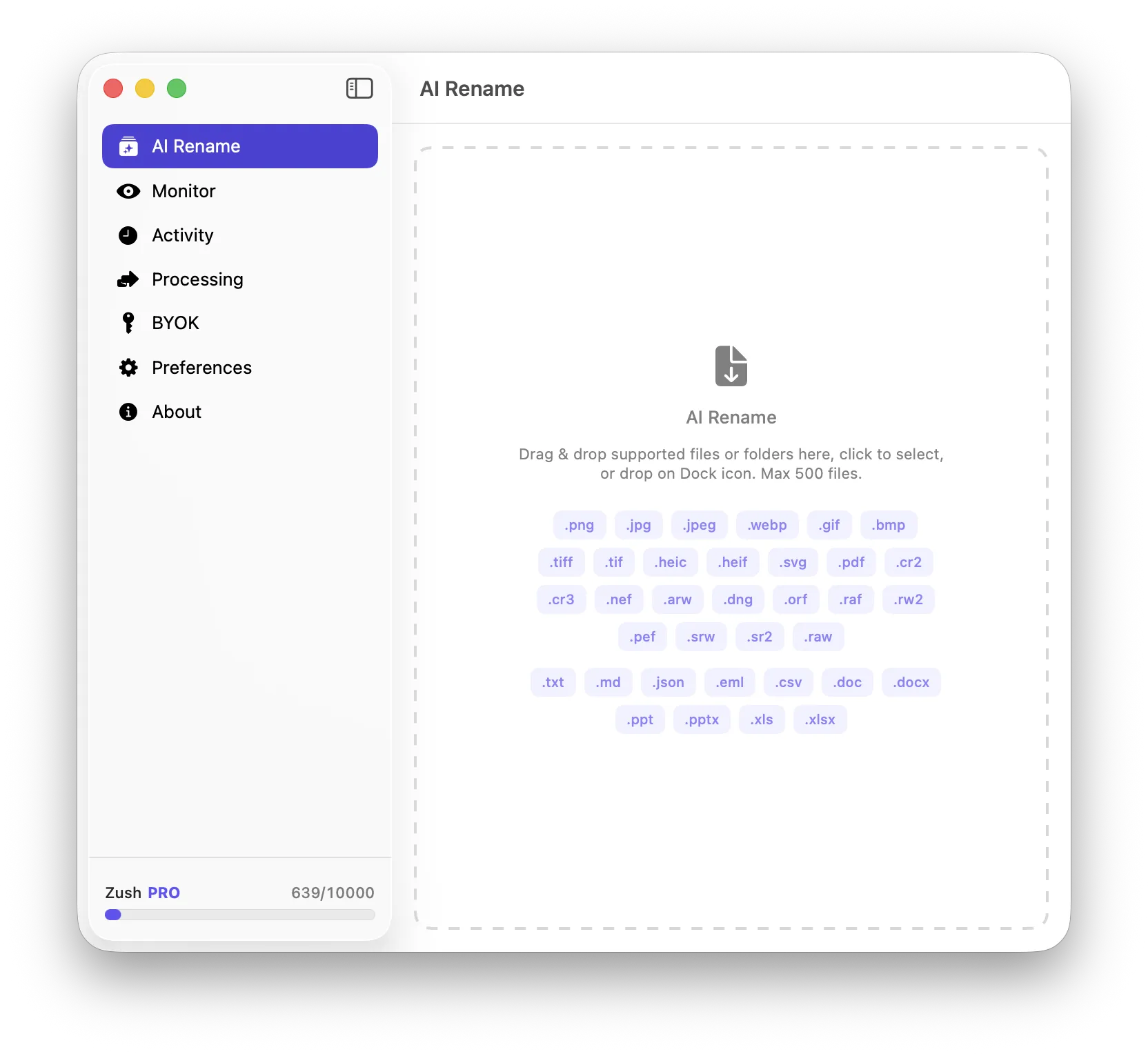
Smart Folders become much more useful when filenames and metadata are meaningful. A Smart Folder full of IMG_4822 files is still hard to scan. That is one reason AI-assisted naming helps image-heavy workflows on Mac. Zush can improve the filenames before Smart Folders surface them.
Best pairing strategies
Smart Folders work especially well with:
- Finder tags
- Spotlight search
- better image filenames
Conclusion
Smart Folders are one of the easiest Finder power tools to adopt because they improve retrieval without forcing you to reorganize the whole disk. Use them to create dynamic views, not to replace every normal folder.