How to Rename Documents with AI: Fields, Preview & Undo

Jump to section
Quick answer: to rename documents with AI, start with a small folder, choose a convention such as date–client–document type, and compare the suggested names with the original files before applying the batch. This walkthrough covers choosing those fields and handling unclear or missing information in PDFs, Word files, and spreadsheets. For electronic book collections, use the dedicated guide to batch rename EPUB and FB2 files by author and title.
For supported formats and download options, see Zush for document and ebook renaming. For a PDF-only workflow, see Zush for PDF renaming.
Choose the fields before renaming
Start with the details you actually use to find a document. These are illustrative naming conventions, not measured output from a test:
| Document | Useful fields | Check before applying |
|---|---|---|
| Invoice | Issue date, vendor, invoice number | Use the issue date, not the payment due date |
| Contract | Parties, document type, version | Confirm which party or client should lead the name |
| Report | Reporting period, subject | Distinguish the reporting period from the export date |
| Spreadsheet | Project, purpose, period | Check whether the sheets describe more than one subject |
If a field is missing, leave it out or add a verified value manually. Do not treat an AI guess as a document identifier. Try the convention on a small batch before using it across a client archive.
Documents are supposed to be the most important files on your computer. Contracts, invoices, reports, tax filings, lecture notes, project proposals. Yet most of them sit in folders under names like document (3).pdf, Untitled.docx, or export_final_v2.xlsx. The content is critical, but the filename is throwaway.
That is the document naming problem. Unlike photos or screenshots, documents carry structured information that should make naming easy. But the tools that create them do not prioritize filenames. Scanners produce sequential names. Email clients save attachments under whatever the sender chose. Export functions default to generic labels. The result is folders full of important files that are impossible to browse, search, or manage without opening each one.
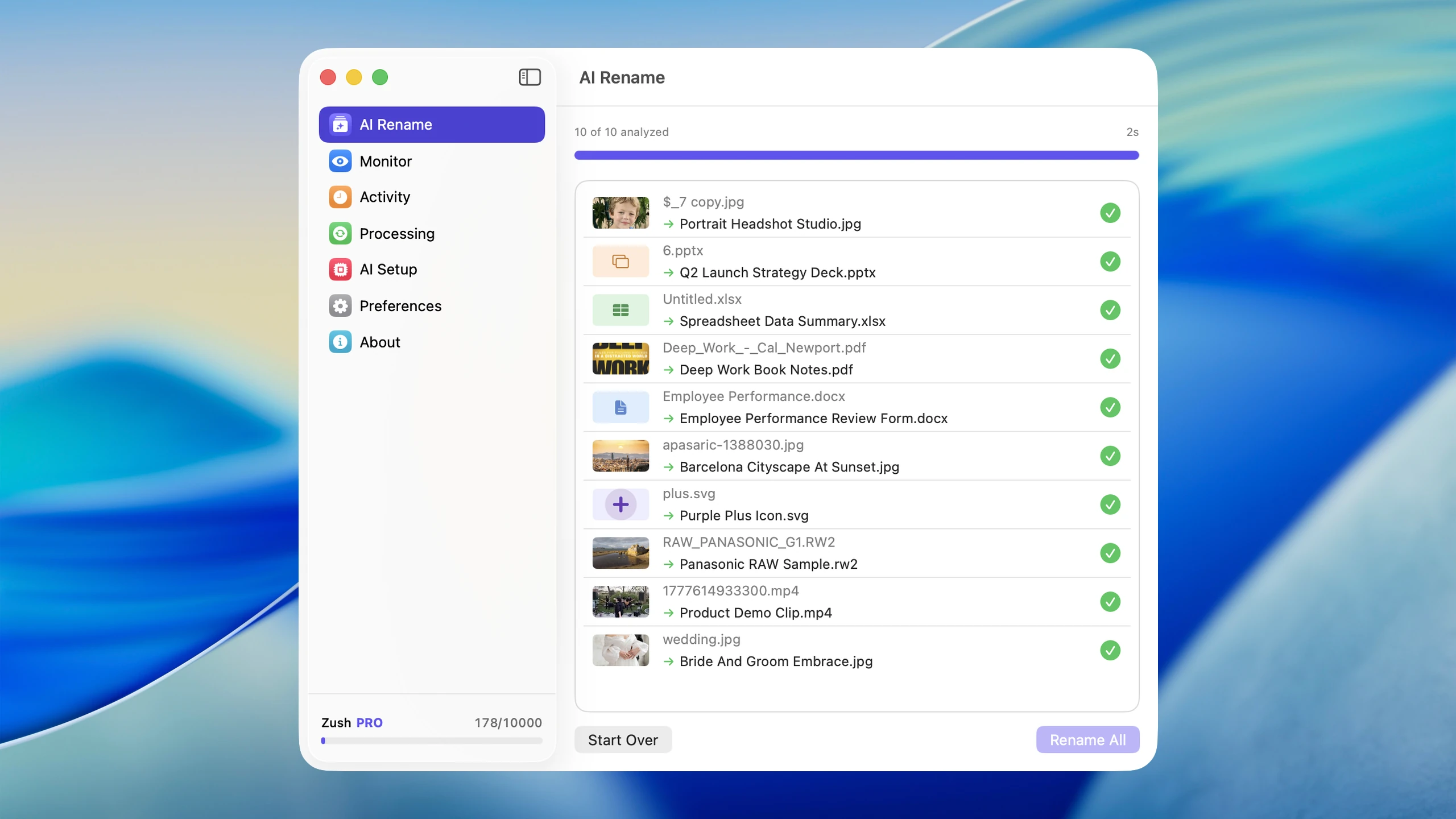
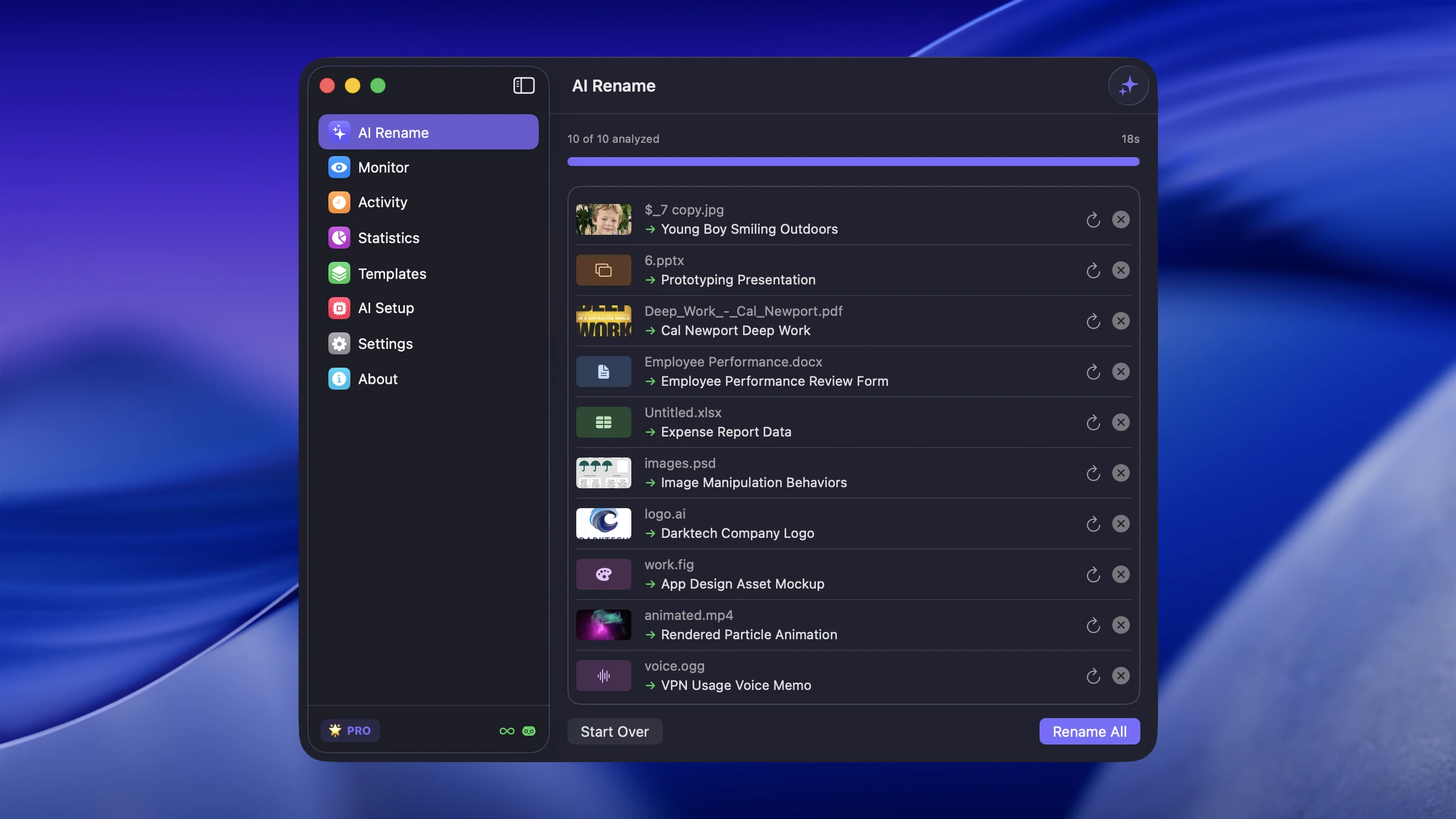
An AI document renamer reads the file and suggests a name based on its contents. In the steps below, Zush provides the batch preview and rename history; you choose the convention and verify the details before applying it.
If your workflow is mostly PDFs, start with Rename PDF Files Automatically. If you are comparing document-heavy AI tools, see AI renamer tools comparison and Zush vs Renamer.ai.
How AI analyzes document content
The process is different from photo renaming. With images, AI uses visual recognition to describe what appears in the picture. With documents, the AI extracts and interprets the text, structure, and context of the file.
For a PDF invoice, the AI identifies key fields: vendor name, date, total amount, invoice number. For a Word document, it reads the title, headings, and opening paragraphs to understand the subject. For a spreadsheet, it looks at sheet names, column headers, and data patterns to determine what the file tracks.
This means the generated filename reflects the document’s purpose, not just its creation date or file type.
What the AI looks for
- Document title or heading
- Key entities like company names, dates, and amounts
- Document type indicators such as invoice, contract, memo, or syllabus
- Subject matter from body text and structure
The result is a filename that tells you what the document is about before you open it.
Supported document formats
A useful document renamer needs to handle more than just PDFs. Real workflows involve mixed file types arriving from different sources.
The AI document renamer supports 40 document, PDF, and ebook formats:
| Format | Common sources |
|---|---|
| EPUB | Ebook stores, public-domain libraries, personal ebook collections |
| FB2 / FB2.ZIP | FictionBook libraries and archived ebook collections |
| Scans, downloads, exports, email attachments | |
| DOCX | Word documents, Google Docs exports |
| XLSX | Spreadsheets, financial reports, data exports |
| PPTX | Presentations, slide decks |
| Pages / Numbers / Keynote | iWork documents, spreadsheets, and presentations |
| DOC | Legacy Word files |
| XLS | Legacy spreadsheets |
| PPT | Legacy presentations |
| TXT | Plain text files, notes |
| RTF | Rich text documents |
| CSV | Data exports, database dumps |
| TSV | Tab-separated exports |
| JSON | App exports, API payloads |
| XML / YAML | Config files, structured data |
| SRT / VTT | Subtitle sidecars for video workflows |
| ODT / ODS / ODP | OpenDocument files |
| XLSM / DOCM / PPTM | Macro-enabled Office files |
That coverage matters because most disorganized document folders contain a mix of these types. A tool that only handles PDFs leaves you doing manual work on everything else, especially when a folder mixes Office and iWork files. When the folder genuinely is PDF-only — scans, invoices, signed contracts — the narrower walkthrough in AI PDF renaming on Mac is the faster place to start.
Before and after examples
The difference between a generic filename and an AI-generated one is immediate:
| Before | After |
|---|---|
document (3).pdf | acme-consulting-invoice-march-2026.pdf |
Untitled.docx | project-proposal-website-redesign.docx |
export.xlsx | q1-2026-sales-pipeline-report.xlsx |
scan_0042.pdf | apartment-lease-agreement-signed.pdf |
attachment.pdf | tax-return-2025-federal-1040.pdf |
download (7).docx | meeting-notes-product-roadmap-review.docx |
Sheet1.csv | customer-list-active-subscribers.csv |
presentation.pptx | investor-pitch-deck-series-a.pptx |
Every one of those renamed files is now searchable in Spotlight, scannable in Finder, and meaningful in a shared folder.
Step-by-step: renaming documents with Zush
1. Collect your disorganized documents
Start with the folder that bothers you most. For many people that is Downloads, but it could also be a client folder, a scanned documents archive, or a shared drive mirror.
Do not try to rename your entire hard drive at once. Start with one problem folder and expand from there.
2. Open the folder in Zush
Drag the folder into the AI document renamer or use the folder browser to navigate to it. The app will detect supported document formats and show you the files that can be renamed.
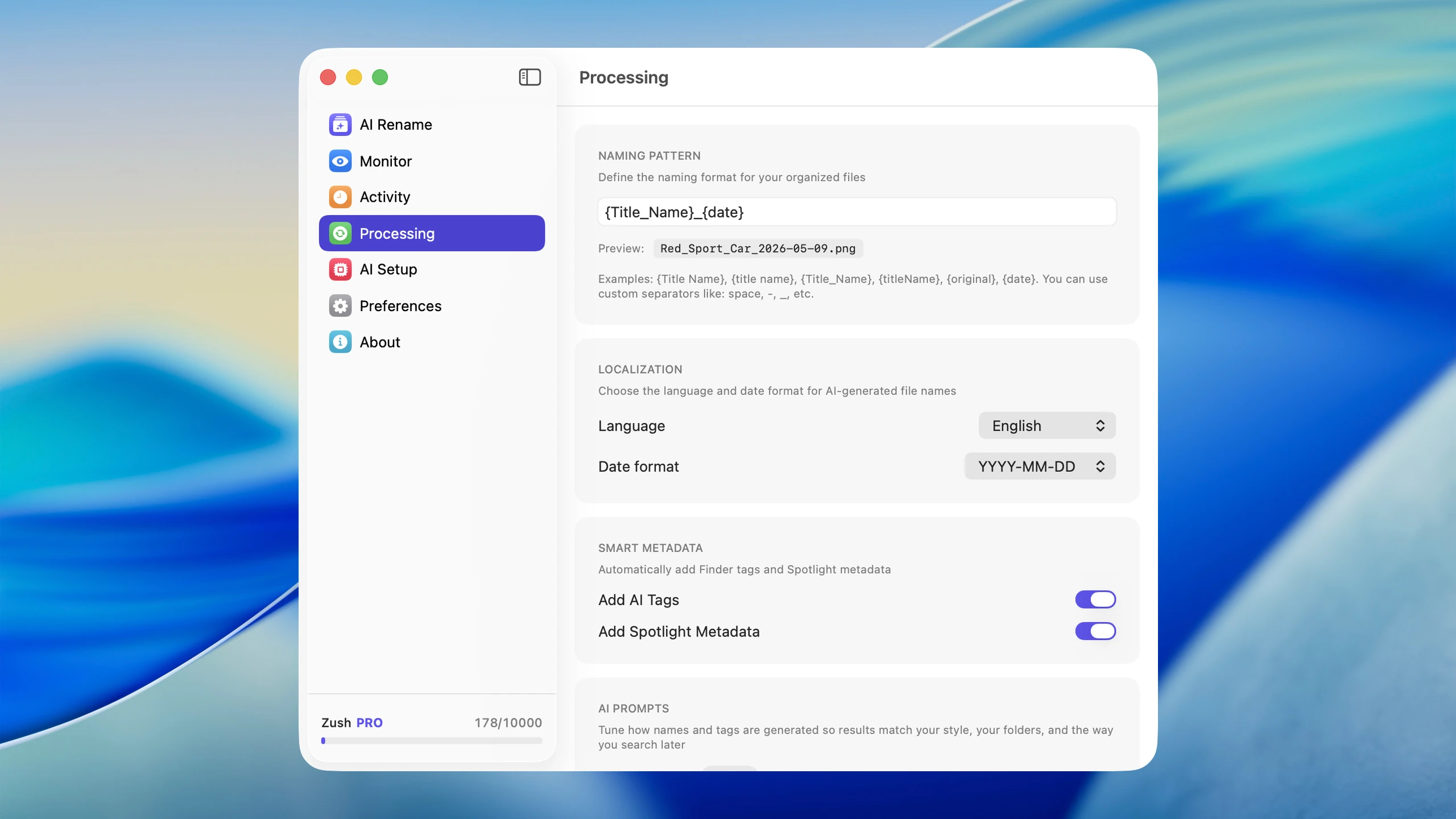
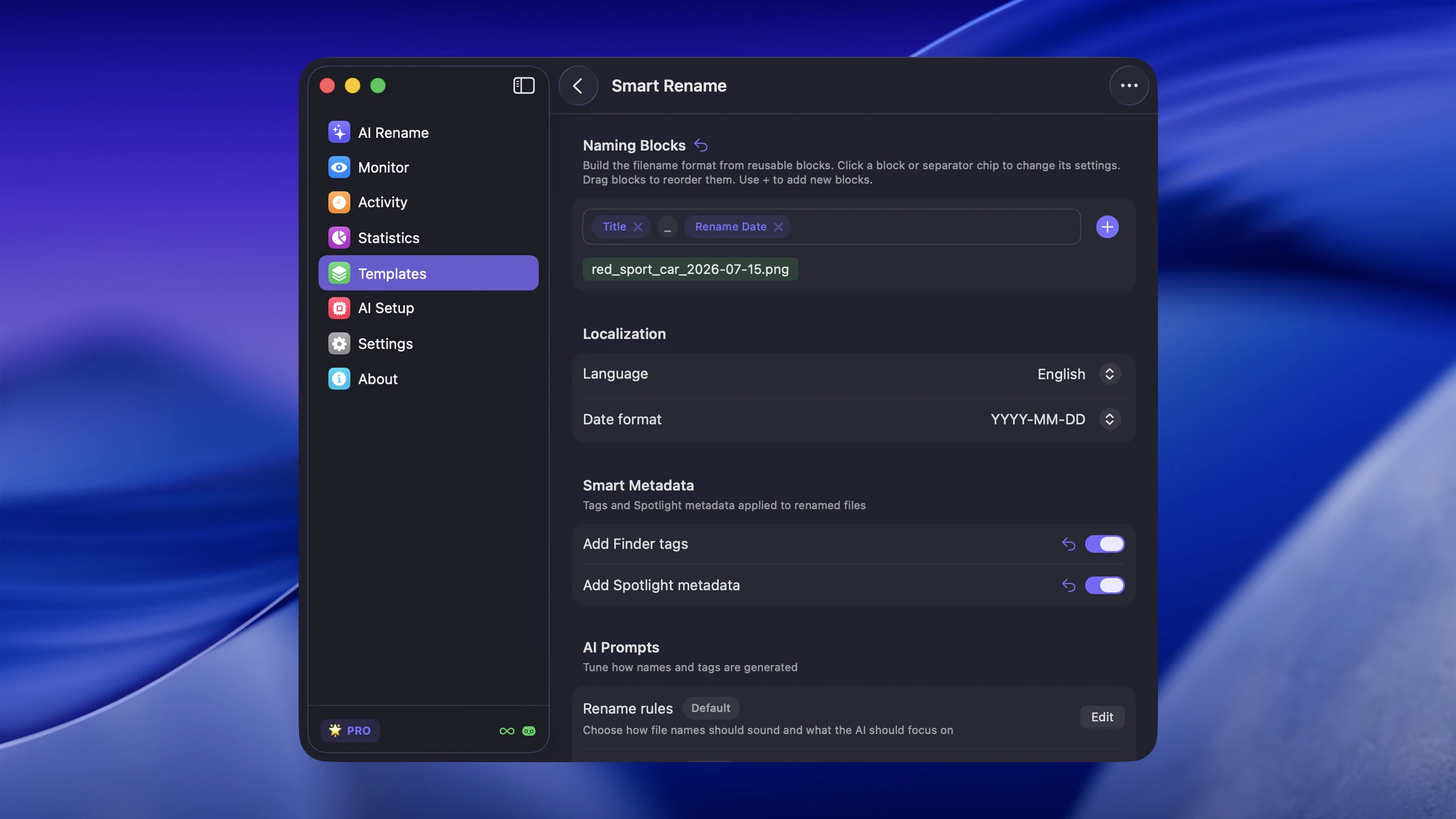
3. Choose a naming pattern
Pick a pattern that fits your workflow:
{title}for simple descriptive names{date}_{title}for chronological sorting{category}_{title}for type-based organization{date}_{category}_{title}for maximum structure
The AI generates the title and category from the document content. You control how those pieces are assembled.
4. Preview the results
Zush shows you the proposed new names before applying anything. Compare dates and identifiers with the documents, check for names that would become identical, and keep the original extension. If a document gets a vague or incorrect title, adjust it manually before confirming. Set aside unreadable or ambiguous files for a separate review.
5. Apply and verify
Once you are satisfied with the preview, apply the rename. The original names are preserved in the rename history so you can revert any file if needed.
6. Set up folder monitoring for ongoing organization
If the same folder keeps accumulating poorly named documents, enable folder monitoring. New files that land in the watched folder will be renamed automatically based on your pattern. This is especially useful for Downloads and scan destinations.
Use cases by profession
Legal professionals
Law offices deal with contracts, filings, correspondence, and case documents that arrive under generic names from email, scanners, and court portals. An AI document renamer turns attachment.pdf into smith-v-jones-motion-to-dismiss.pdf without opening the file.
For more on PDF-specific workflows, see Rename PDFs with AI on Mac.
Accountants and bookkeepers
Invoices, receipts, bank statements, and tax documents flood in from clients and vendors. Sequential scan names like scan_0001.pdf through scan_0200.pdf are useless for retrieval. AI renaming produces names like vendor-office-supplies-invoice-feb-2026.pdf that make filing and audit preparation faster.
Educators and students
Syllabi, lecture notes, assignments, research papers, and exported slides accumulate across semesters. Documents named Chapter 4 Notes.docx or assignment_final_FINAL.docx do not help when you need to find something specific. AI renaming adds context: bio-101-cell-division-lecture-notes.docx.
Freelancers and consultants
Client projects generate proposals, contracts, deliverables, and feedback documents from multiple sources. When every client folder contains document.pdf and draft.docx, finding the right file means opening them one by one. AI renaming gives each file a name tied to its actual content and purpose.
How AI renaming compares to other approaches
| Method | Strengths | Weaknesses |
|---|---|---|
| Manual renaming | Full control, accurate | Slow, does not scale |
| Finder batch rename | Fast for patterns | Cannot read document content |
| Shell scripts | Flexible, automatable | Requires technical skill, no content awareness |
| AI document renamer | Content-aware, batch capable | Needs review for edge cases |
The key advantage of AI is content awareness. Every other method works from the outside of the file: metadata, file extension, creation date. AI works from the inside, reading what the document actually says.
Best practices for document naming
Be specific but brief
invoice-march-2026.pdf is better than invoice.pdf, but acme-consulting-professional-services-rendered-invoice-for-march-2026-billing-period.pdf is too long. Aim for the shortest name that lets you identify the file without opening it.
Use consistent separators
Hyphens and underscores both work. Pick one and stick with it. Avoid spaces in filenames when possible, especially if files will be shared across platforms.
Include dates when they add value
Recurring documents like monthly invoices, quarterly reports, and weekly meeting notes benefit from date prefixes. One-off documents like contracts or proposals usually do not need them.
Group by document type or project
If you are renaming a large mixed folder, consider sorting into subfolders after renaming. The descriptive filenames make this step much easier because you can see what each file is at a glance.
For a complete framework, read File Naming Conventions Best Practices.
Folder monitoring for continuous organization
The biggest gain from AI document renaming is not the one-time cleanup. It is preventing the mess from returning.
The AI document renamer can monitor specific folders and automatically rename new documents as they arrive. Set it up on your Downloads folder, your scanner output directory, or any folder that regularly receives poorly named files.
That means every new PDF attachment, exported spreadsheet, or downloaded contract gets a descriptive name without you doing anything. The folder stays organized by default instead of by effort.
When AI renaming is not the right tool
AI document renaming works best when the filename is meaningless and the content is what matters. It is less useful when:
- Documents already follow a strict naming convention from an existing system
- The important identifier is an external reference number that the AI cannot infer
- Files are encrypted or password-protected and the content cannot be read
In those cases, a deterministic rename rule or manual naming is better.
Getting started
Zush FREE offers 50 renames shared across Cloud AI, BYOK, and Offline AI, which is enough to test the workflow on a real folder. If document renaming becomes part of your regular routine, PRO removes that limit with either a $10/month plan or a $48 one-time plan.
Start with the folder that has been bothering you the longest. Once you see document (7).pdf turn into something you can actually find later, the value is obvious.


