How to Rename PDF Files with AI on Windows

Jump to section
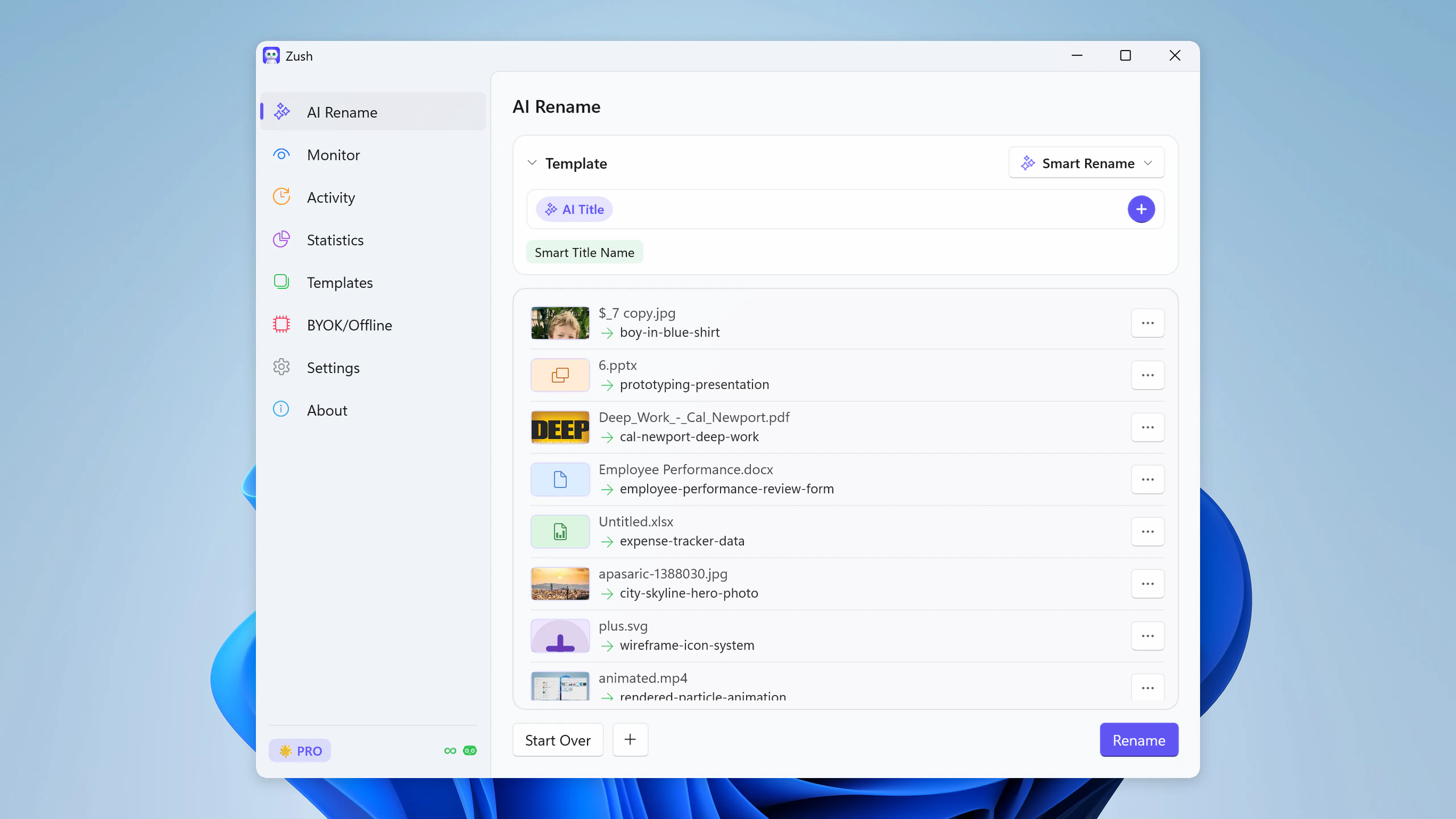
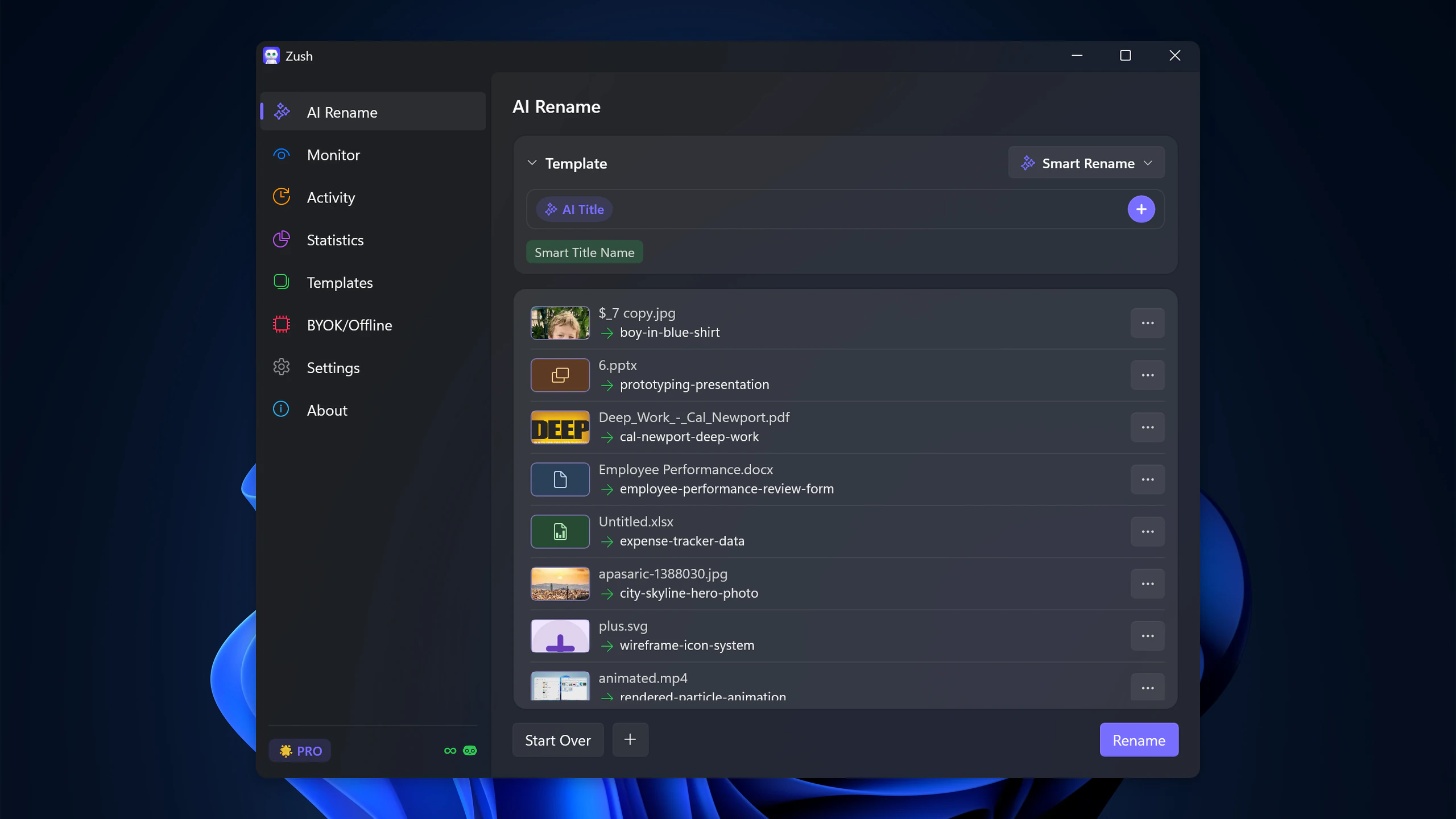
Quick answer: rename PDFs on Windows with AI by installing Zush from the Microsoft Store, dropping the PDF folder into the AI Rename tab, reviewing the content-aware names, and applying. Works on scanned invoices, contracts, and exported reports.
PDF clutter on Windows usually comes from the same sources: scans, downloaded forms, receipts, invoices, statements, signed contracts, and exported reports. The filenames are often the worst part of the workflow because they describe nothing about the actual document.
scan_004.pdf is not a useful archive name. Neither is document.pdf, receipt (2).pdf, or export-final.pdf.
AI PDF renaming fixes that by using the content of the document to generate a filename that tells you what the PDF actually is.
If you want the broader Windows app page first, go to AI file renamer for Windows. If your main issue is mixed folders rather than PDFs specifically, start with How to Rename Files with AI on Windows.
Why PDF renaming is different
Images and screenshots can be understood visually. PDFs are more varied. Some contain clean digital text. Others are scans. Some are invoices, others are contracts or bank statements. The useful name comes from recognizing the subject of the file, not just the extension.
That is why simple bulk rename tools are not enough. Replacing scan with invoice only works if you already know the file is an invoice.
The problem is identical on macOS, only the tooling around it differs — AI PDF renaming on Mac covers the Finder-side version of this workflow.
Where Windows PDF naming goes wrong
The common failure modes are:
- email attachments saved under generic names
- scanners producing numbered files
- exports from bookkeeping or HR tools using vague default labels
- downloaded forms saved under provider-side naming
These files stay difficult to search later, even if you remember the folder.
A practical Windows workflow
The workflow that works best is:
- batch the PDFs from one folder
- let the app read the document text or structure
- review the suggested names
- apply and keep the folder searchable
For recurring folders like scans or finance exports, the next step is automation through monitoring.
Example outcomes
scan_004.pdf→signed-vendor-agreement-april-2026.pdfdocument.pdf→march-electricity-bill-apartment.pdfreceipt (2).pdf→office-depot-receipt-printer-ink.pdfexport_1732.pdf→q2-board-financial-summary.pdf
That is the level of naming that makes Windows Search and File Explorer browsing faster later.
When to use Zush
AI file renamer for Windows is the right fit when PDF clutter is part of a mixed desktop workflow rather than an isolated archive project. It is especially useful when screenshots, images, and office files also land in the same operational folders.
For one-time cleanup:
- load the folder
- review the names
- rename in batch
For recurring workflows:
- use the same naming logic in monitored scan or export folders
Related workflows
If your PDFs mostly arrive through Downloads, combine this with How to Organize Your Downloads Folder on Windows.
If your broader issue is automation, continue with Auto Rename Files on Windows.
If you need a general naming policy after cleanup, use Windows File Naming Conventions for Searchable Folders.
For built-in rename methods and PowerShell recipes, see how to batch rename files in Windows 11.
FAQ
Does this work for scanned PDFs too?
Yes, that is one of the main reasons to use AI instead of simple text-pattern rename tools. Scanned PDFs are often where manual naming becomes most painful.
Is this only for finance documents?
No. Invoices, contracts, forms, reports, signed docs, and exported decks all benefit from descriptive PDF filenames.
Can I do this with basic File Explorer rename?
Not meaningfully. File Explorer can batch-rename based on patterns, but it cannot infer document meaning from file content.


