How to Rename PDF Files with AI on Mac (2026)

Jump to section
Quick answer: rename PDF files with AI on Mac by placing the badly named documents in a staging folder, generating names from their contents, and reviewing the suggestions before applying the batch. A file such as scan_0042.pdf can become 2026-03_signed-lease_acme.pdf without opening and naming every document by hand.
This guide is for a one-time or occasional Mac batch. If new PDFs arrive every day or week, use the separate automatic PDF folder workflow. If you only need the product and supported workflow, go to the AI PDF Renamer for Mac.
The four-step Mac workflow
- Move only the badly named PDFs into a staging folder.
- Choose a short pattern based on document type, date, party, or subject.
- Test the pattern on 10 to 20 representative files.
- Review, apply, and keep the rename history until the batch is verified.
This order protects important invoices, contracts, scans, and forms from a broad rule that looked good on one document but failed on the rest.
When AI renaming for PDFs makes sense
AI renaming is not necessary for every PDF. If the file already has a good title like 2026-03-retainer-invoice.pdf, you are done.
AI helps when your folder contains names such as:
scan_0042.pdfdocument (7).pdfIMG_9218.pdfattachment.pdf
These names do not help with search or retrieval. The PDF may be important, but the filename tells you nothing.
Which PDFs benefit most
The strongest candidates are:
- Scanned invoices and receipts
- Downloaded contracts and forms
- Exported reports with generic names
- PDFs created from screenshots or image sources
- Mixed client folders where every file needs a unique label
If your broader problem includes screenshots and image files as well, read How to Rename Images with AI on macOS. Many users have both issues at once.
AI renaming vs Finder for PDFs
| Method | Good for | Limitation |
|---|---|---|
| Finder batch rename | Prefixes, text replacements, numbering | Cannot understand document content |
| OCR + manual naming | Important document archives | Slow and labor intensive |
| AI-assisted renaming | Descriptive filenames from actual content | Best when the document is visually interpretable |
Apple’s Finder documentation describes three batch operations: replace text, add text, and change the name format. Finder is the right tool for predictable edits such as adding a project prefix. AI is useful when the filename does not contain the vendor, document type, or subject you need.
For a Mac workflow, the real benefit is not one better filename. It is being able to prepare a reviewable batch without opening every PDF.
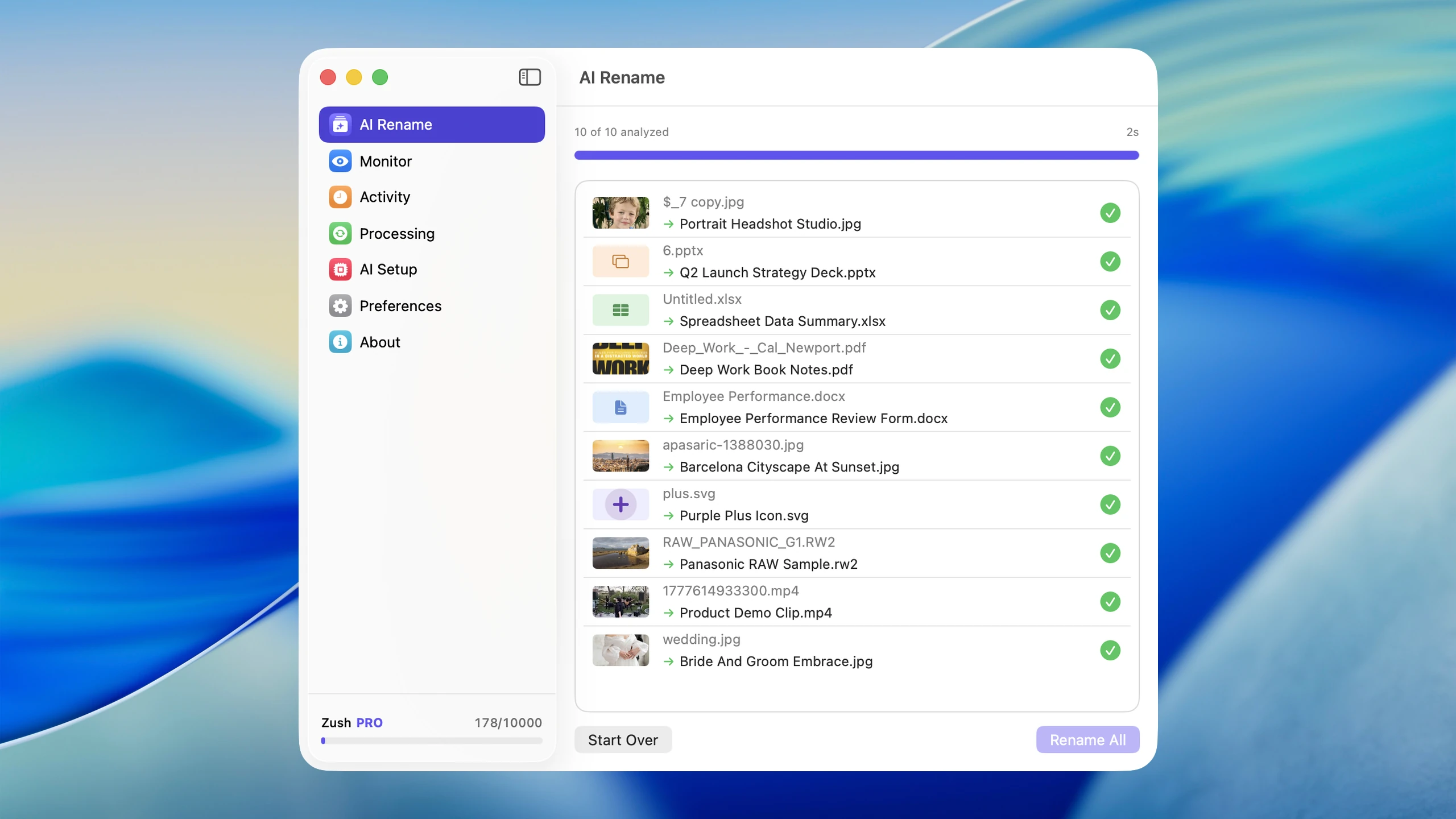
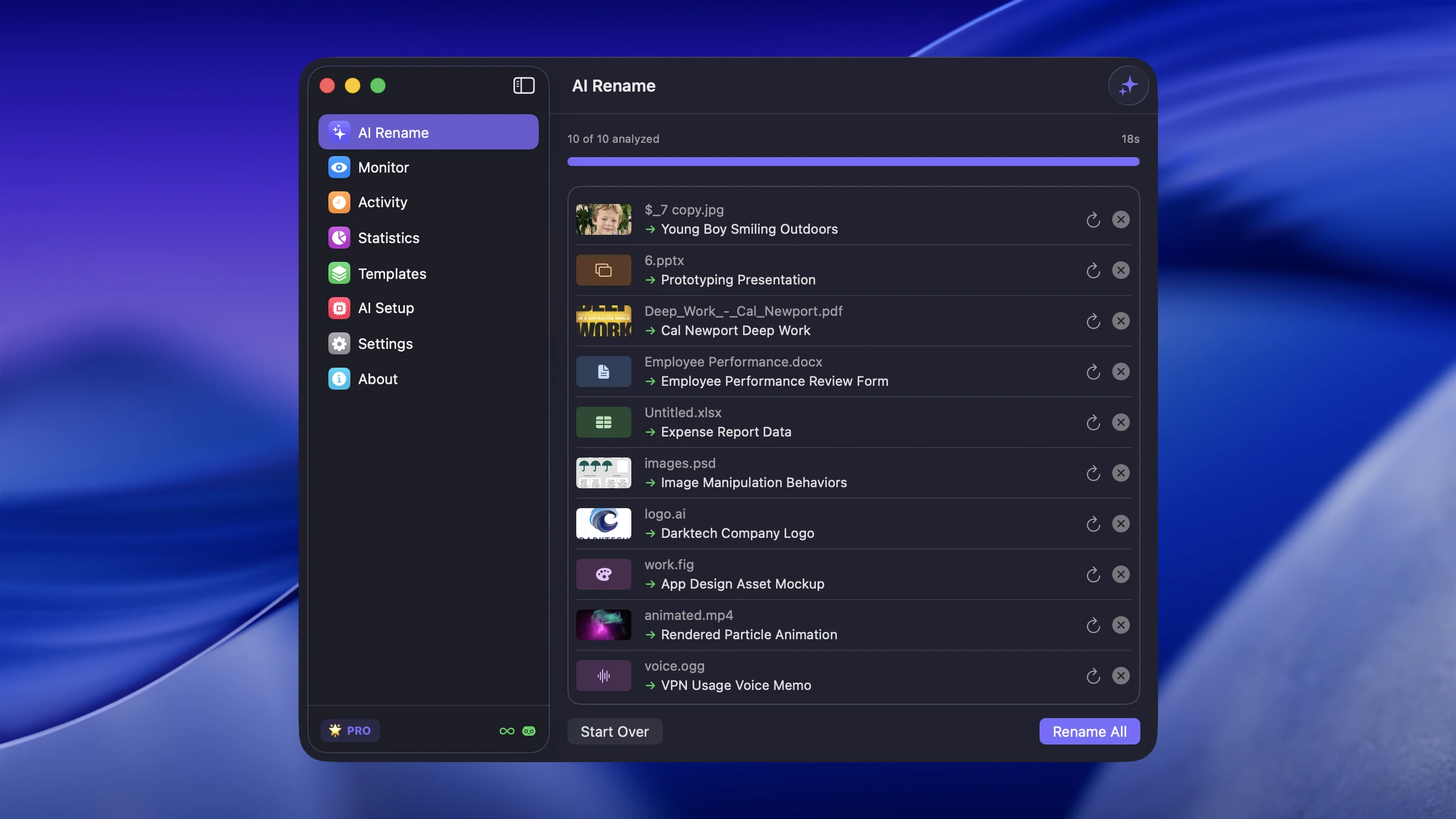
PDF filename examples for common Mac folders
| Current name | Useful name | Best retrieval field |
|---|---|---|
scan_0042.pdf | 2026-03_acme_signed-lease.pdf | Party and document type |
attachment (3).pdf | 2026-02_northwind_invoice-8841.pdf | Vendor and invoice number |
document.pdf | client-onboarding_tax-form-w9.pdf | Workflow and form type |
report-final.pdf | 2026-q1_product-analytics-report.pdf | Period and report subject |
Use the field you would type into Spotlight first. A filename that mirrors a real search is more useful than a fluent but vague AI-generated sentence.
A practical workflow on Mac
1. Separate clean PDFs from messy PDFs
Do not run AI across everything blindly. Put the low-quality filenames in a staging folder first. That gives you a review step and keeps the workflow manageable.
2. Use one naming pattern
In Zush, open Templates, choose Smart Rename or your document Template, and add the fields in Naming Blocks. Start with Title; add Document Type, Vendor, or Client only when those fields help identify this batch. The Naming Blocks walkthrough shows the picker, ordering, and filename preview.
Be deliberate about dates. Created Date is a file date, which may differ from the date printed on an invoice or contract. If the document date matters, use a content-derived date field or Custom AI Block, then check it against the PDF. Do not treat a download date as an invoice date.
3. Review the first batch carefully
Open AI Rename, select that Template, and add 10 to 20 representative PDFs. Review the suggestions; edit a name inline or regenerate an individual result before applying. The batch rename instructions show the complete sequence.
Use this review sheet for the first batch. These are illustrative checks, not measured AI results.
| PDF in the batch | Compare the proposed name against | Correct before applying if… |
|---|---|---|
| Invoice | Vendor, invoice number, printed invoice date | The name uses the download date or another number on the page |
| Signed agreement | Parties, agreement type, signed or draft status | A draft is described as signed |
| Quarterly report | Report title and reporting period | The export date replaces the reporting period |
| Scanned form | Visible form title and identifiers | Faint text has produced an uncertain name |
Once this batch is verified, apply the same Template to the remaining PDFs. If several documents fail the same check, adjust the Template first.
4. Keep rollback available
This matters even more for documents than for photos. A PDF may represent money, legal obligations, or client work. Make sure the tool can revert a rename if the generated title is off.
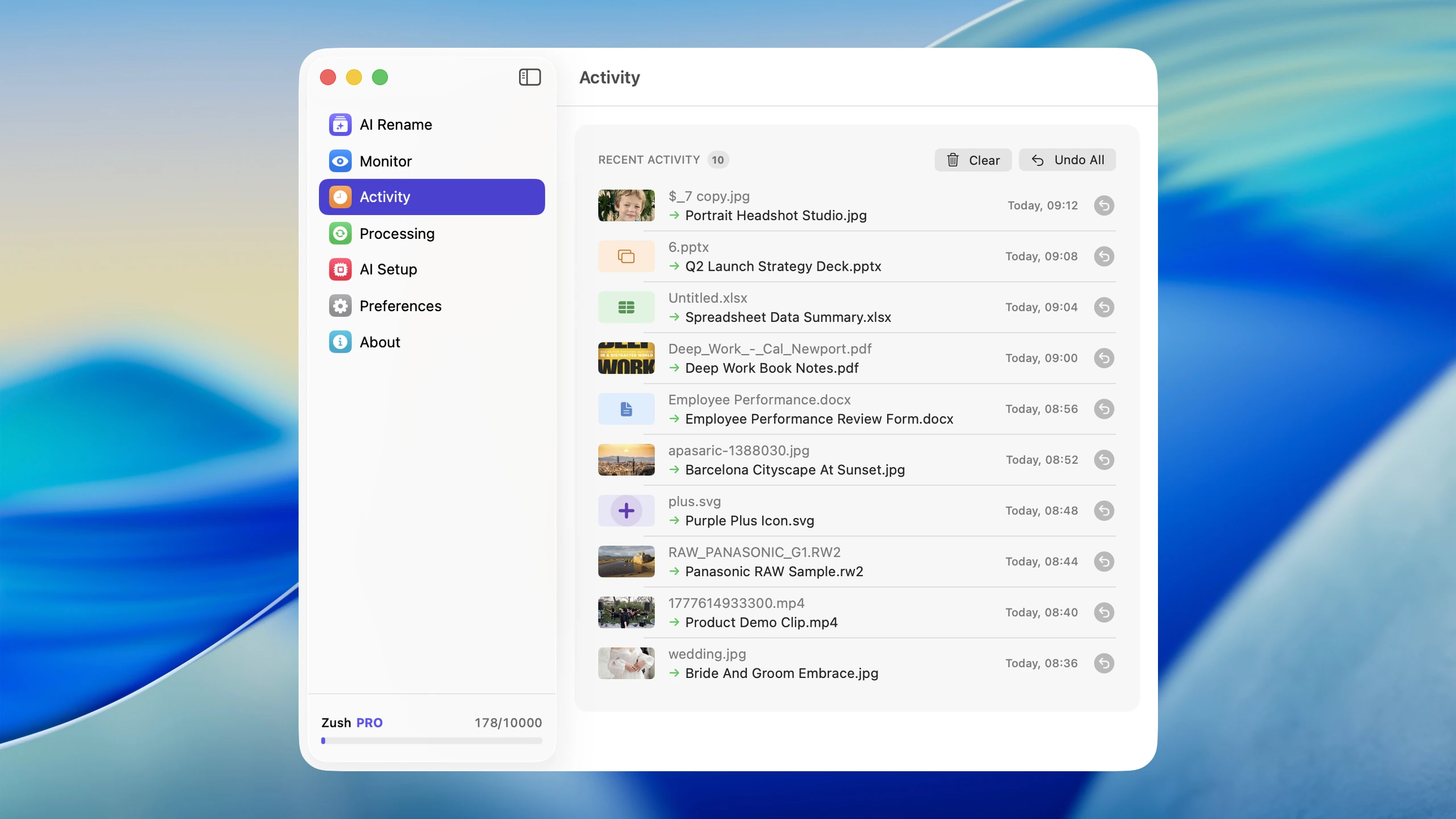
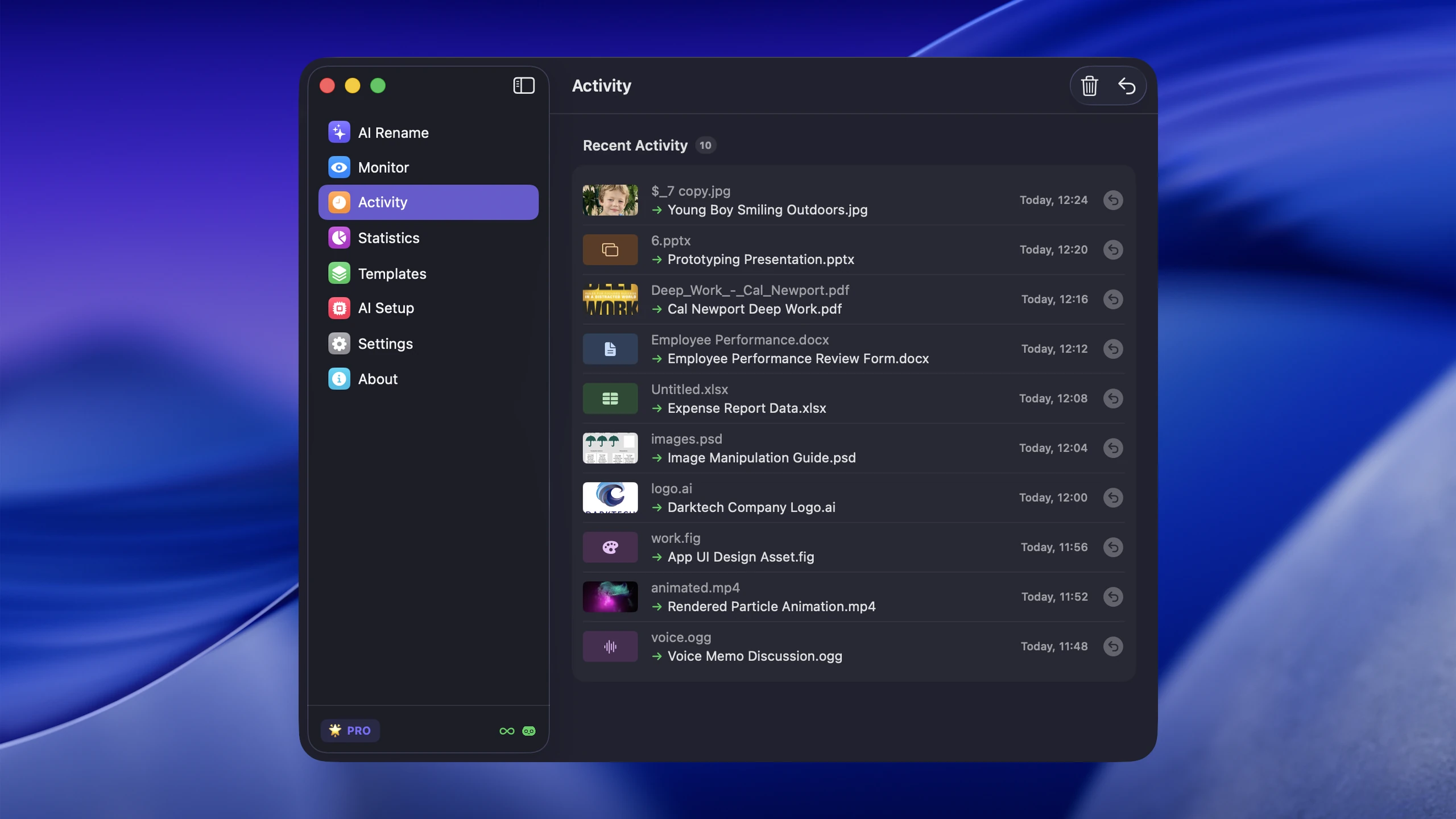
Why Zush fits this workflow
Zush is primarily known for content-aware file organization, which is exactly why it can be useful for PDFs that behave like visual or text-heavy documents. A scanned invoice, screenshot-based PDF, or exported slide deck often needs content-aware naming more than metadata-driven renaming.
That gives you a practical Mac workflow for:
- Batch renaming document-heavy folders
- Turning vague filenames into searchable titles
- Keeping new visual files organized alongside screenshots and images
If your intent is broader comparison, Mac AI renamer tools comparison covers where AI fits relative to Finder, metadata tools, and scripts.
Best practices for naming PDFs
Put the document type in the filename when possible
Examples:
acme-invoice-march-2026.pdfnda-client-onboarding.pdfconference-slides-product-launch.pdf
Keep filenames short enough to scan
A good name is descriptive, not overloaded. You want the file to be easy to identify in Finder, email attachments, and Spotlight results.
Use dates only when they add retrieval value
Dates help for recurring invoices, statements, and reports. They are less useful for one-off documents where the subject matters more than the time.
When AI is not the right answer
AI renaming is not the best tool when:
- The PDFs already have structured names
- You need strict legal or accounting naming rules with exact fields
- The important information is embedded as metadata in a system you already trust
In those cases, a deterministic rename rule may be better.
FAQ
Can Finder rename PDF files from their contents?
No. Finder can replace text, add text, or apply a sequential format to selected filenames, but it does not inspect the document and extract a vendor, date, title, or document type. Use Finder when the change is deterministic and a content-aware tool when the useful fields are inside the PDF.
Can AI rename scanned PDFs that have no selectable text?
Yes, if the renaming tool can analyze rendered document pages rather than relying only on a text layer. Test scans with handwriting, rotated pages, faint print, or multiple documents in one PDF before applying a large batch.
What should I check before applying an AI PDF rename?
Verify the document type, names, dates, account or invoice numbers, filename collisions, and the final extension. For legal, financial, or client documents, keep the original names in rename history until the batch has been checked.
How many PDFs should I test first?
Start with 10 to 20 files that represent the full folder: clean exports, scans, invoices, long reports, and edge cases. A mixed test batch reveals weak naming instructions faster than testing several nearly identical documents.
Rename a first batch
If your Mac is full of PDFs named scan_0042 and attachment (3), start with one staging folder and a short naming pattern. Try 50 AI PDF renames free, review the suggestions, and keep only the fields that make Spotlight searches faster.


