Screenshot Naming Conventions for macOS: Stop the Chaos

Jump to section
Quick answer: useful Mac screenshot names describe what is in the image, not when it was taken. slack-conversation-project-timeline.png tells you something. Screenshot 2026-03-04 at 15.42.33.png does not. Use a manual convention for one-offs or AI auto-rename for ongoing use.
The default macOS screenshot name is useful for the operating system and almost useless for the person trying to find the image later. Screenshot 2026-03-04 at 15.42.33.png tells you when the capture happened, but not what it shows.
A better screenshot naming convention uses a short description of the context or UI state, such as figma-checkout-flow-mobile.png or slack-project-deadline-thread.png. If you take screenshots often, Zush can automate that descriptive step so screenshots stop piling up under timestamp names.
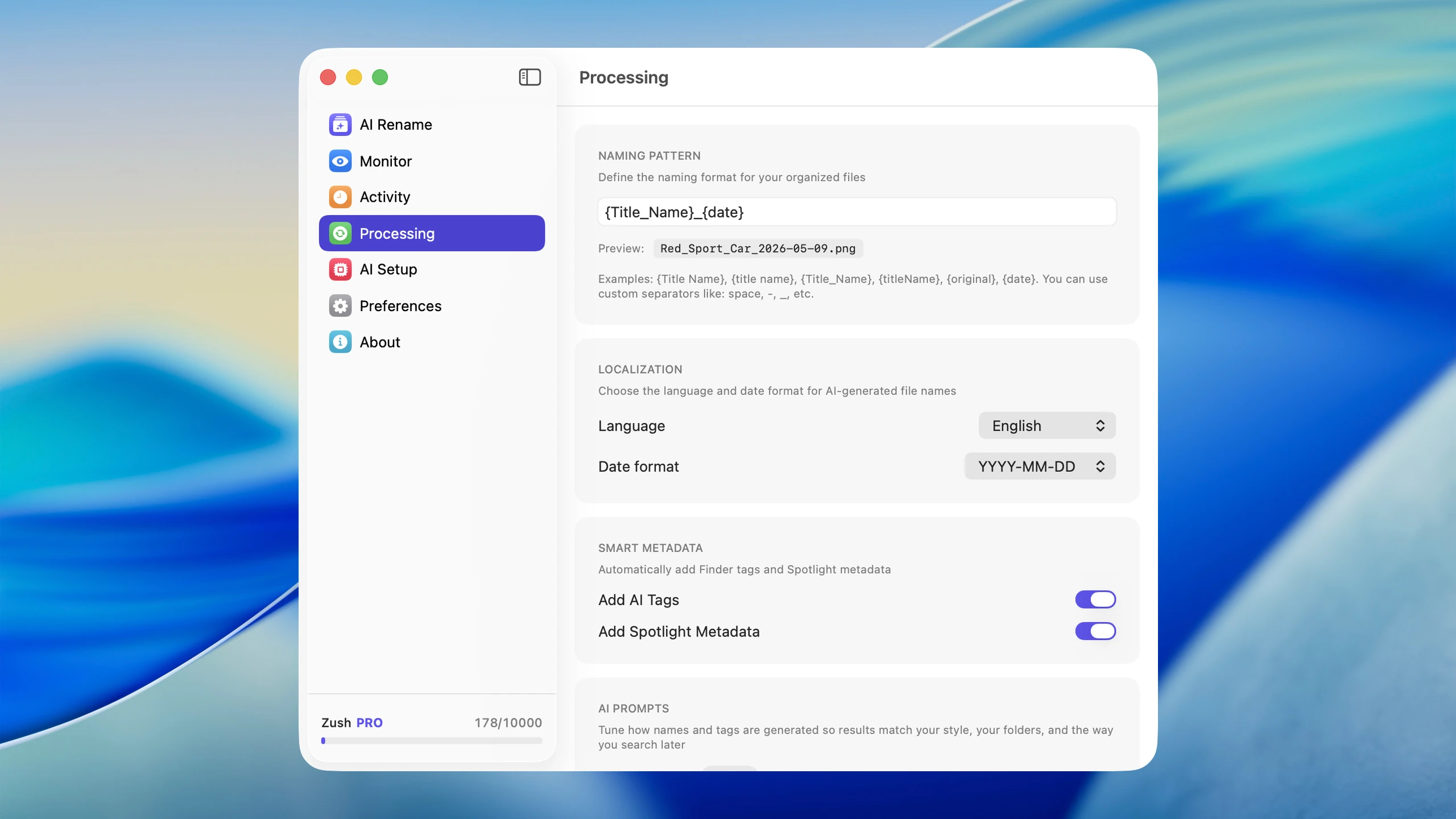
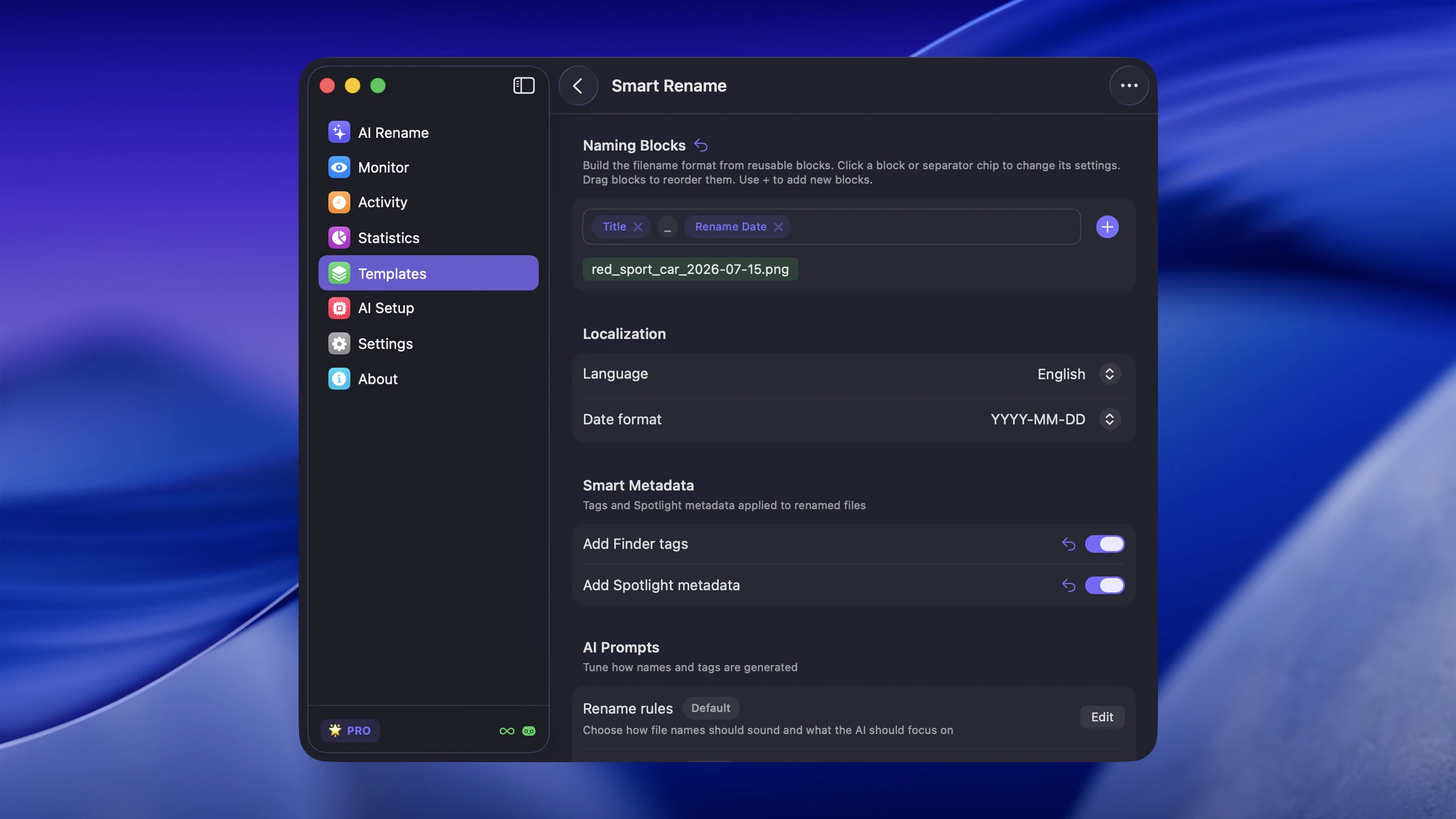
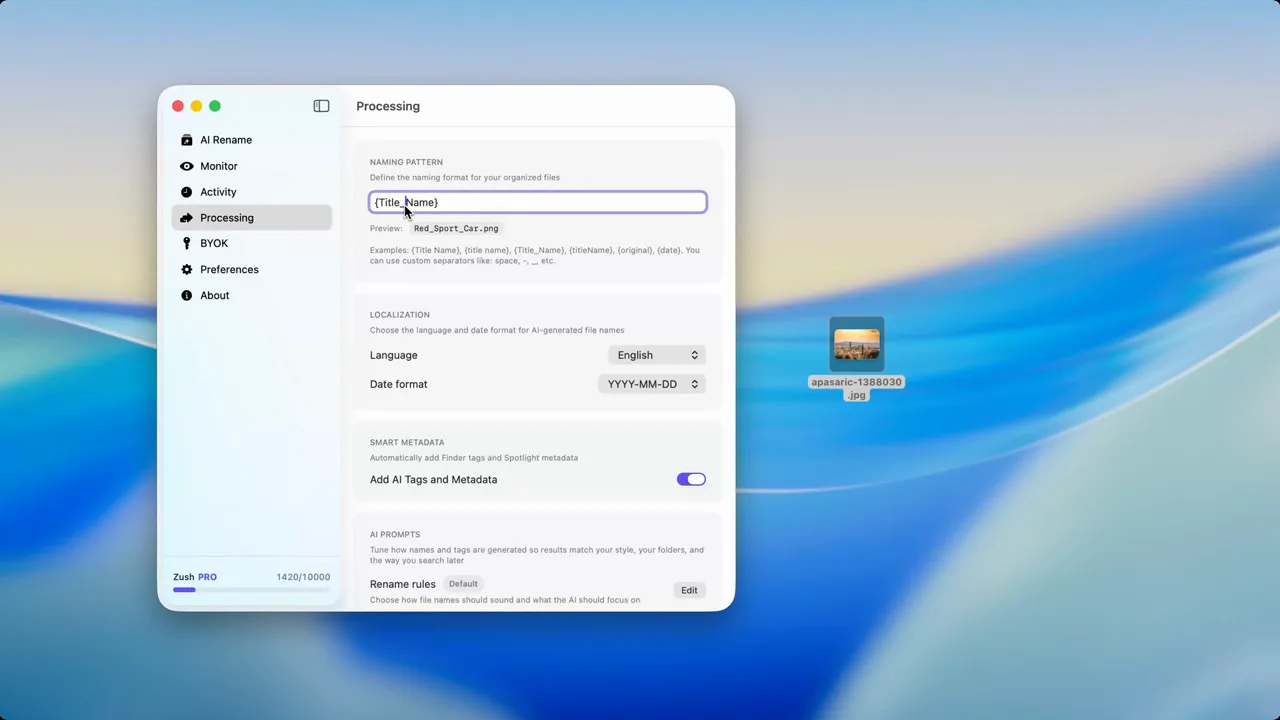
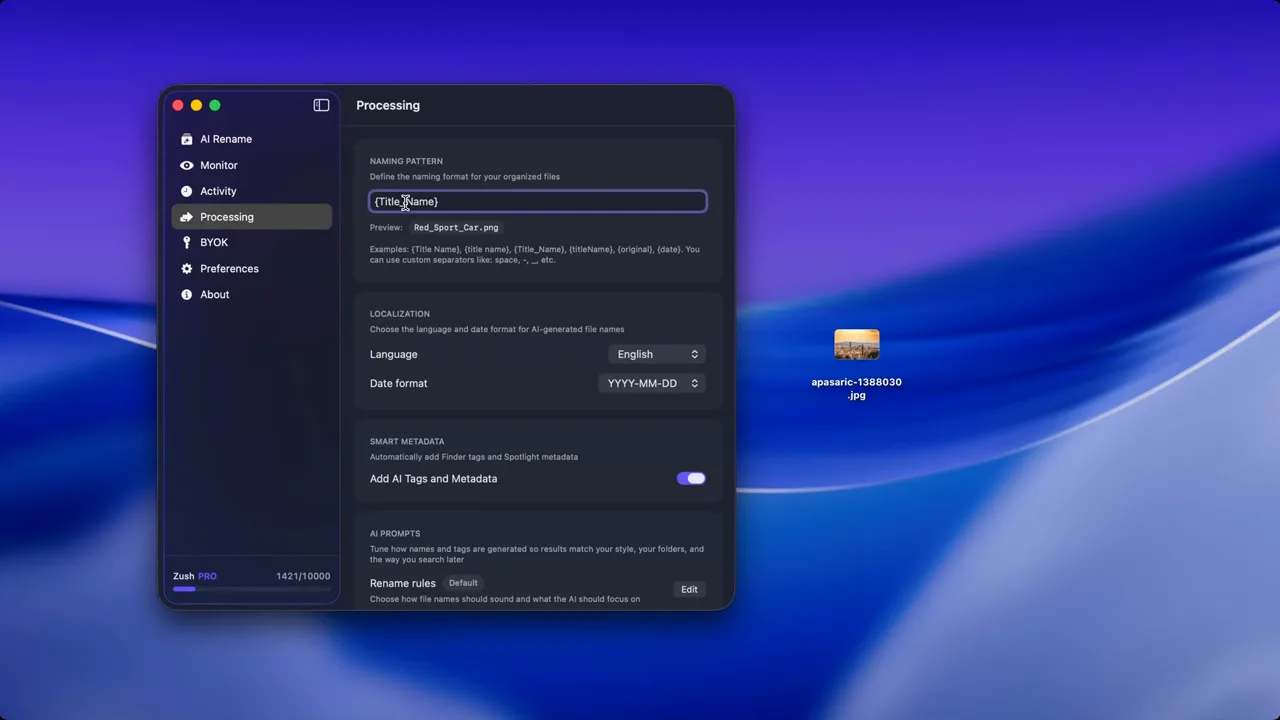
For the automation version of this workflow, read How to Rename Screenshots Automatically on Mac. If screenshots follow recurring patterns, Zush Templates and Naming Blocks keep names consistent.
The best structure for screenshot filenames
For most Mac users, the strongest pattern is:
context-description.png
Examples:
figma-checkout-flow-mobile.pngstripe-subscription-settings.pngslack-project-timeline-thread.pngnotion-content-calendar-q2.png
If you need versioning or ordering, add one extra field:
figma-checkout-flow-mobile-v2.pngonboarding-permissions-step-03.png
Why timestamps are not enough
A timestamp tells you when something happened. It does not help when you search by subject.
That matters most when screenshots are used for:
- product feedback
- bug reports
- design references
- internal documentation
- client reviews
- receipts, confirmations, and settings snapshots
The more screenshots you keep, the more important the descriptive part becomes.
How to choose a naming convention
Use the app or source first when that is what you remember
Examples:
slack-release-notes-thread.pngfigma-checkout-wireframe.pngchrome-pricing-page-competitor.png
Use the task or state first when that is more important
Examples:
billing-error-checkout-page.pngpassword-reset-confirmation.pngsubscription-cancel-flow.png
Keep the filenames short enough to scan
Do not turn screenshots into paragraphs. The goal is quick recognition.
Manual vs automatic screenshot naming
Manual naming works when
- You only save a few screenshots per week
- Each screenshot is important enough to name individually
- You already have a lightweight review habit
Automatic naming works when
- You capture screenshots daily
- You save design references or product feedback constantly
- Your Desktop or Downloads folder fills up fast
- You want searchable names without the manual step
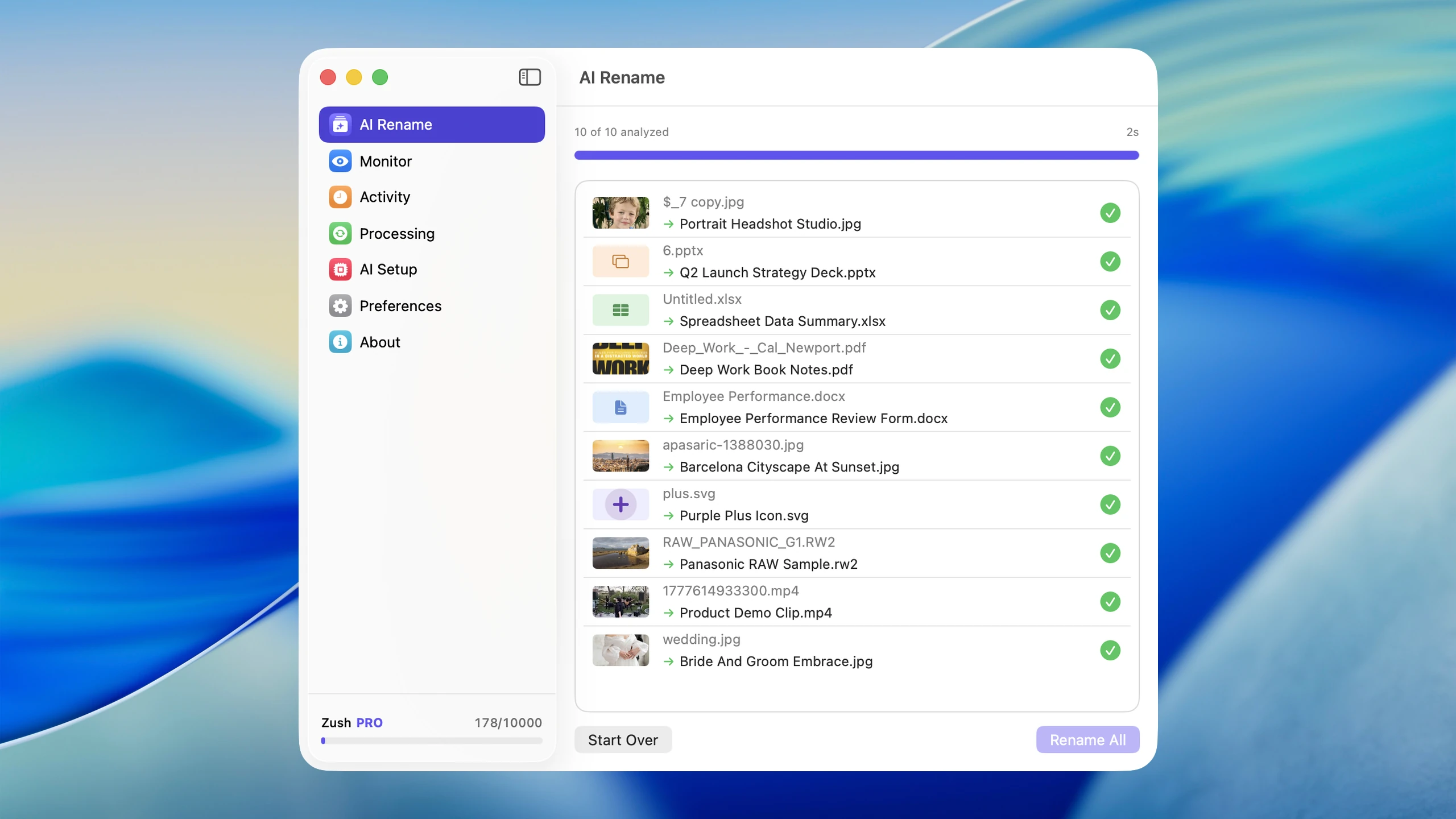
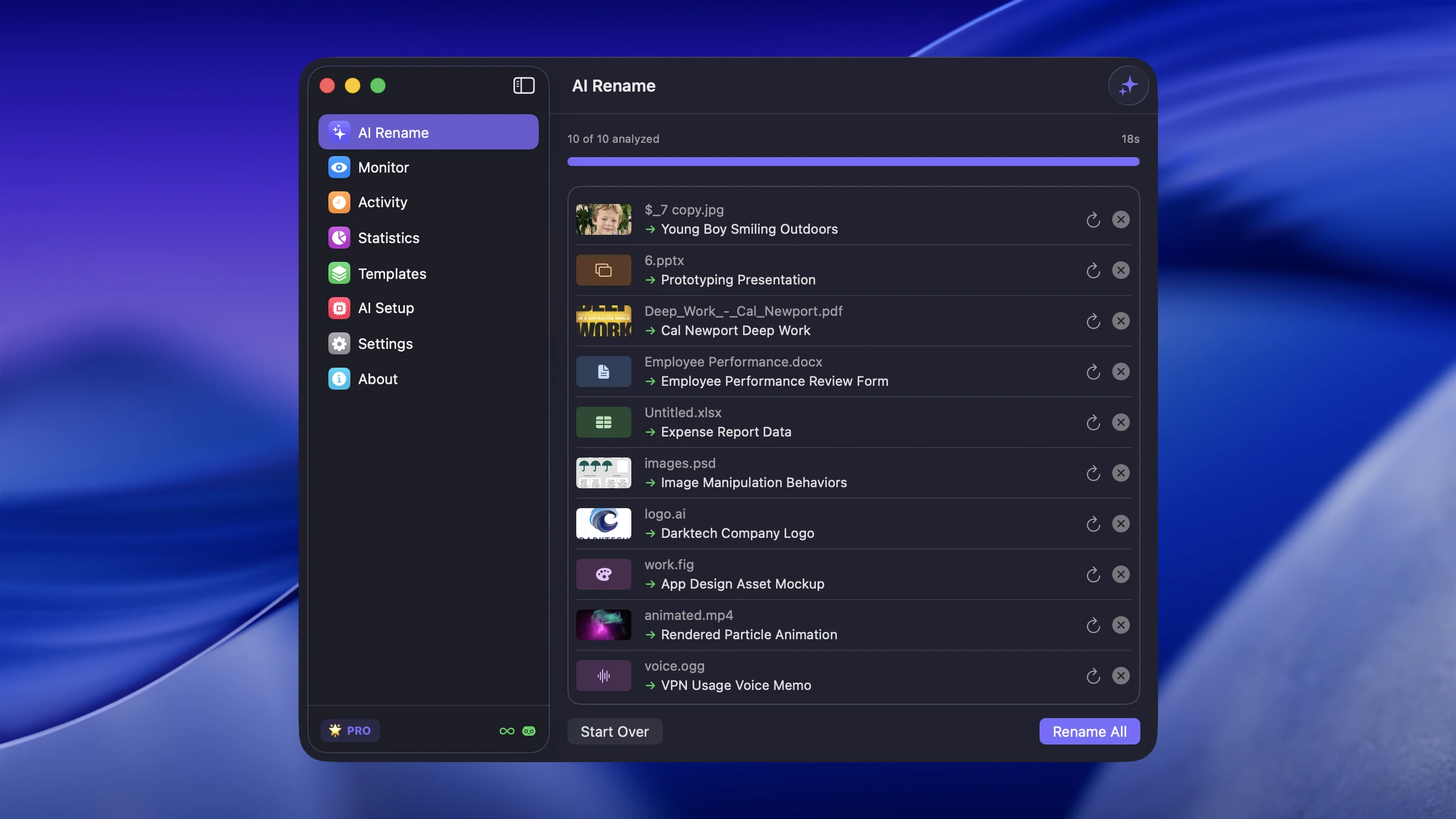
This is where Zush is useful. It can watch your screenshot-heavy folders, analyze the captured image, and rename it to something more descriptive than the default timestamp.
If your issue extends beyond screenshots, How to Rename Images with AI on macOS covers the broader workflow.
Practical rules that keep screenshot libraries usable
- Pick one separator style and keep it consistent
- Use lowercase for cleaner scanning
- Add sequence numbers only when order matters
- Avoid vague terms like
new,latest, orimportant - Rename at capture time if possible, not weeks later
Conclusion
The best screenshot naming convention on macOS is one that replaces timestamps with context. Whether that context is an app name, a UI state, or a workflow label, the key is that the filename should help you find the image later.
If you take screenshots regularly, automation beats good intentions. Zush is a practical way to make screenshot names descriptive from the moment they are created.


