How to Rename Screenshots Automatically on Mac with AI

Jump to section
Quick answer: auto-rename Mac screenshots by setting Zush to monitor your Screenshots folder. Each new screenshot gets a descriptive AI-generated name within seconds — slack-conversation-project-update.png instead of Screenshot 2026-03-23 at 14.32.07.png.
Every screenshot on macOS arrives with a name like Screenshot 2026-03-23 at 14.32.07.png. That is technically unique, but practically useless. You cannot search for it by subject, you cannot scan a folder of them and know what each one shows, and six months from now it is just noise.
If you take screenshots regularly for work, bug reports, design references, or personal records, the naming problem compounds fast. A folder of 200 screenshots with timestamp names is effectively unsearchable without opening each file. The fix is to rename screenshots automatically using AI that can see what each capture shows and generate a descriptive filename on the spot.
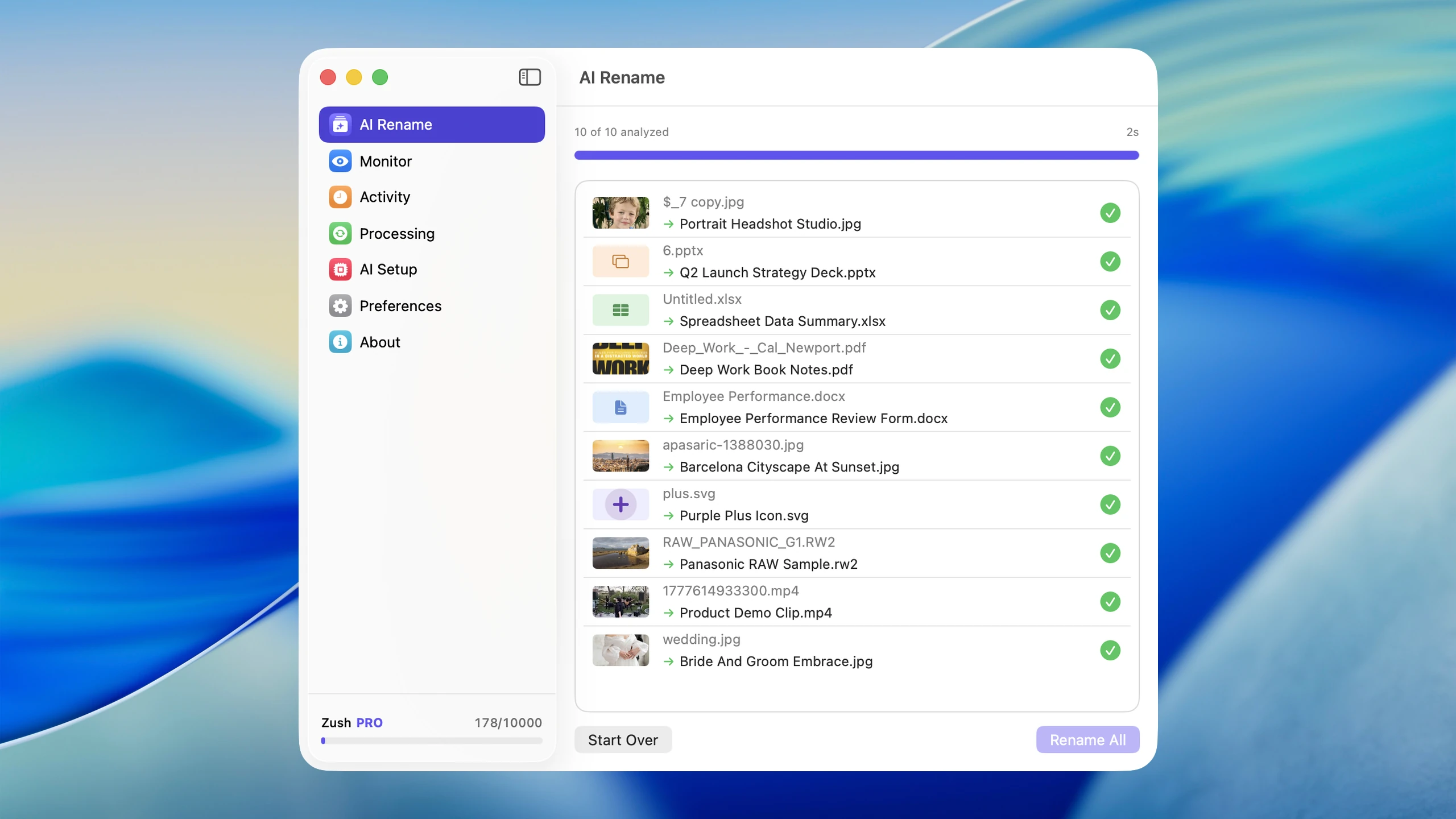
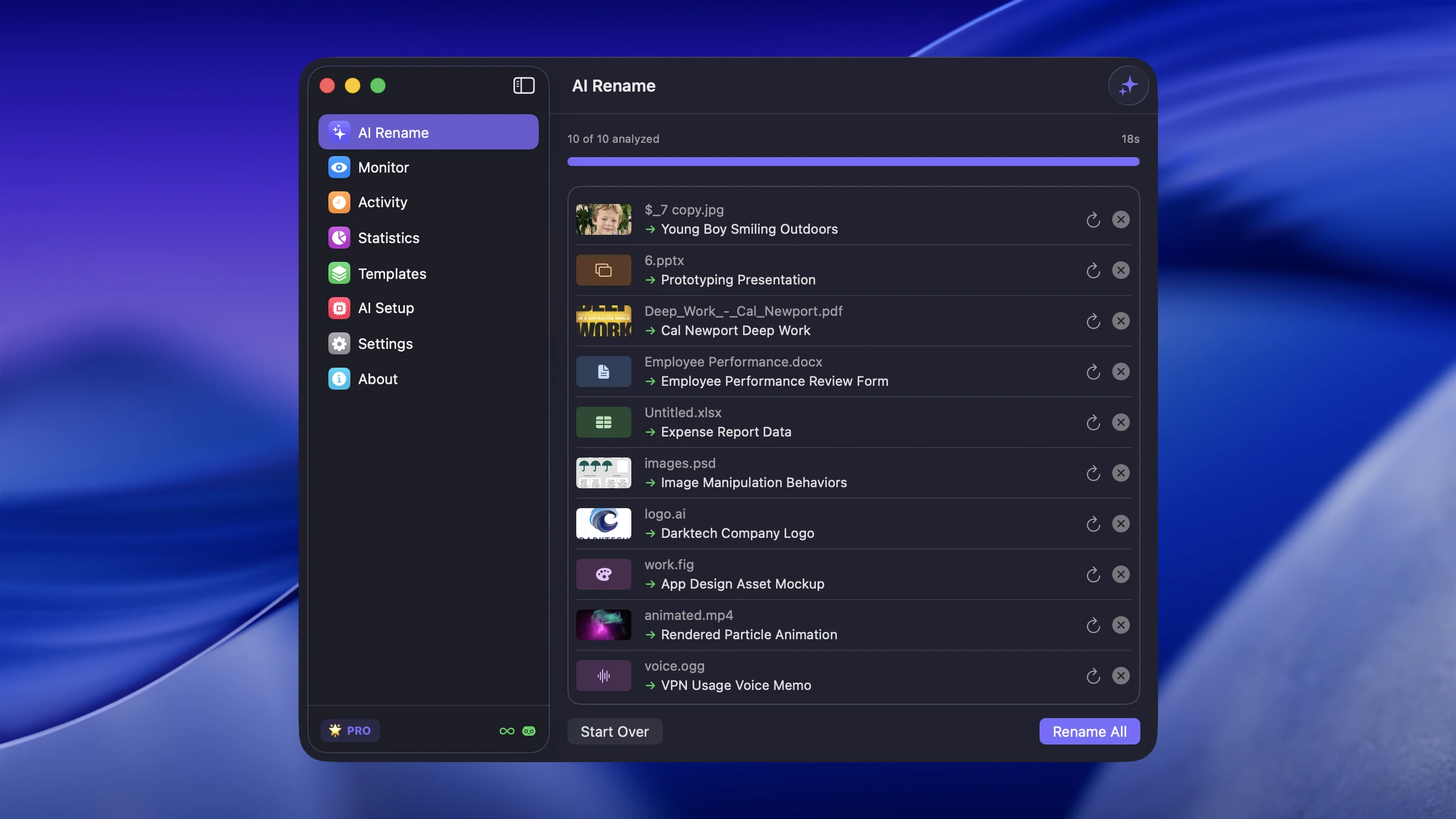
The AI screenshot renamer does this on Mac with folder monitoring. Point it at your screenshot folder, and every new capture gets renamed in the background without you lifting a finger.
For naming patterns before automation, read Screenshot Naming Conventions for macOS. For broader app comparisons, see Mac AI renamer comparison.
The macOS screenshot naming problem
macOS uses a fixed naming format for screenshots: Screenshot followed by a date and time stamp. You can change the prefix using a Terminal command:
defaults write com.apple.screencapture name "Capture"But that only changes the word before the timestamp. You still get Capture 2026-03-23 at 14.32.07.png, which tells you nothing about the content.
The core problem is that macOS does not know what is on your screen when you press Cmd+Shift+4. It captures the pixels but has no understanding of what they represent. So it falls back to the only metadata it has: the current date and time.
For a deeper look at choosing the right naming convention for screenshots, read Screenshot Naming Conventions for macOS.
Manual approaches and why they fail
Renaming each screenshot by hand
This works if you take one or two screenshots per week. It breaks down completely at any real volume. Designers, developers, QA testers, and product managers often capture 10 to 30 screenshots per day. Manual naming at that scale is not realistic.
Using Finder batch rename
Finder’s batch rename tool can add prefixes, replace text, or add sequential numbers. But it cannot look at a screenshot and describe what it shows. You can turn Screenshot 2026-03-23 at 14.32.07.png into bug-report-001.png, but that only works if every file in the batch is the same category. For mixed screenshots, Finder offers no help.
Using Automator folder actions
macOS Automator can run a folder action when a new file appears in a directory. In theory, you could build a workflow that renames screenshots. In practice, Automator has serious limitations:
- No content awareness. It cannot analyze what the screenshot shows.
- Fragile workflows. Automator actions break across macOS updates and have limited debugging.
- No AI integration. You would need to chain Automator with external scripts and APIs, which most users cannot maintain.
- Apple has been shifting focus to Shortcuts, making Automator’s future uncertain.
Automator can move files and add basic prefixes. It cannot generate meaningful names from screenshot content.
For a broader comparison of automation tools on Mac, see How to Automate File Organization on macOS.
How AI screenshot renaming works
AI screenshot renaming uses vision models to look at the captured image and describe what it contains. The process works like this:
- A new screenshot lands in the monitored folder
- The AI analyzes the visual content: UI elements, text, application context, layout
- It generates a descriptive filename based on what it sees
- The file is renamed automatically
For a screenshot of a Figma checkout wireframe, the AI might produce figma-checkout-flow-mobile-wireframe.png. For a screenshot of an error message in Chrome, it might produce chrome-403-forbidden-error-dashboard.png. For a Slack conversation about a deadline, it might produce slack-project-deadline-discussion.png.
The filename reflects the content, not the timestamp. That makes every screenshot searchable in Spotlight and scannable in Finder.
Before and after examples
| Before | After |
|---|---|
Screenshot 2026-03-23 at 09.14.22.png | figma-onboarding-flow-step-3.png |
Screenshot 2026-03-23 at 09.18.44.png | stripe-dashboard-monthly-revenue.png |
Screenshot 2026-03-23 at 10.02.11.png | slack-design-feedback-thread.png |
Screenshot 2026-03-23 at 10.45.33.png | vscode-typescript-build-error.png |
Screenshot 2026-03-23 at 11.20.07.png | safari-competitor-pricing-page.png |
Screenshot 2026-03-23 at 14.05.19.png | notion-sprint-board-week-12.png |
Screenshot 2026-03-23 at 15.33.41.png | maps-restaurant-directions.png |
Screenshot 2026-03-23 at 16.12.58.png | system-preferences-display-settings.png |
Each renamed file is immediately identifiable. No opening required.
Step-by-step: setting up automatic screenshot renaming with Zush
1. Identify your screenshot destination folder
By default, macOS saves screenshots to the Desktop. If you have changed it using the Screenshot app (Cmd+Shift+5 > Options) or a Terminal command, confirm the current location.
You can check with:
defaults read com.apple.screencapture locationIf the result is your Desktop, consider creating a dedicated Screenshots folder and redirecting captures there. That keeps your Desktop clean and makes monitoring simpler.
2. Install and open Zush
Download the AI screenshot renamer and open it. The app runs natively on macOS and sits in your menu bar for quick access.
3. Set up folder monitoring
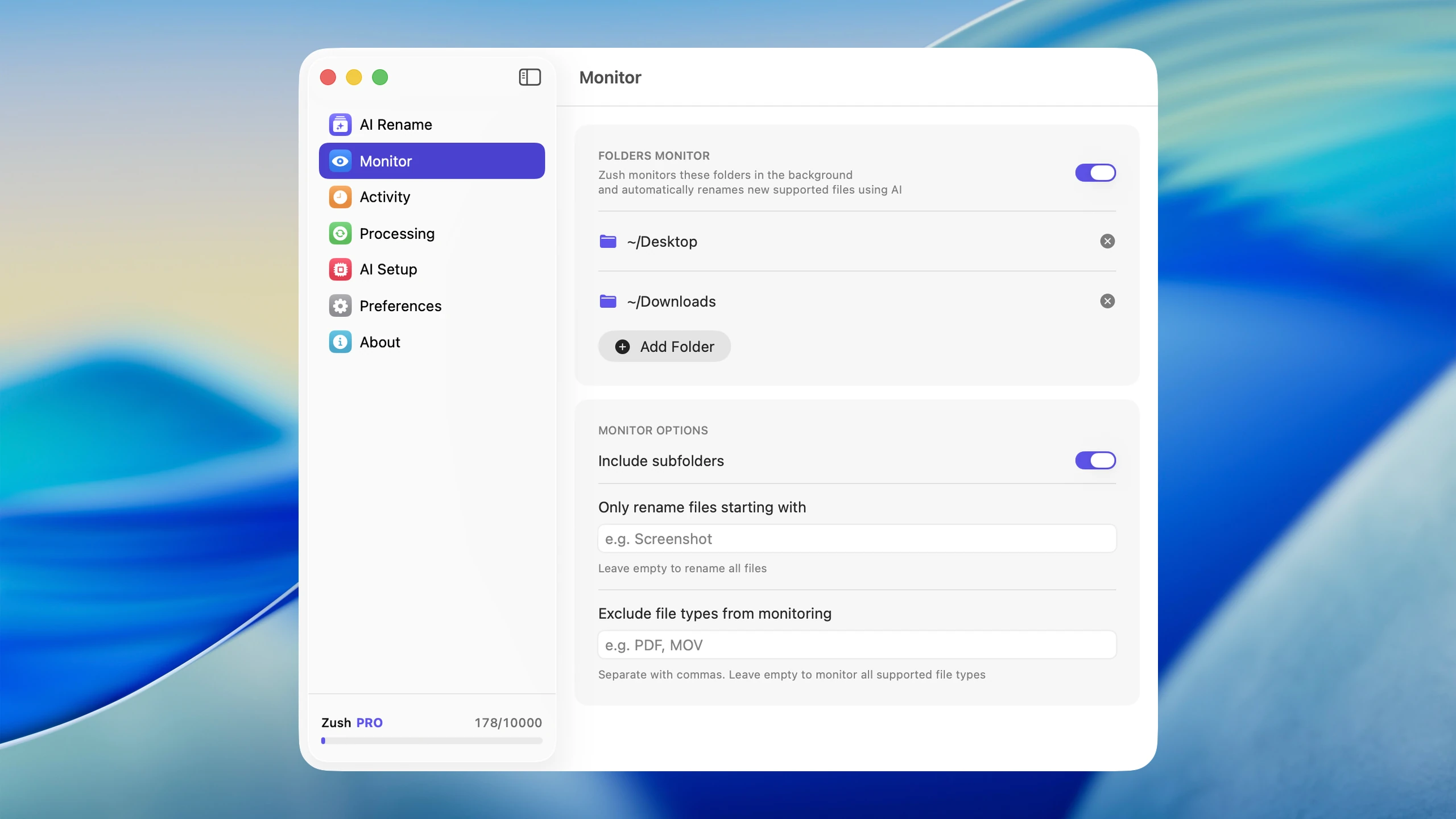
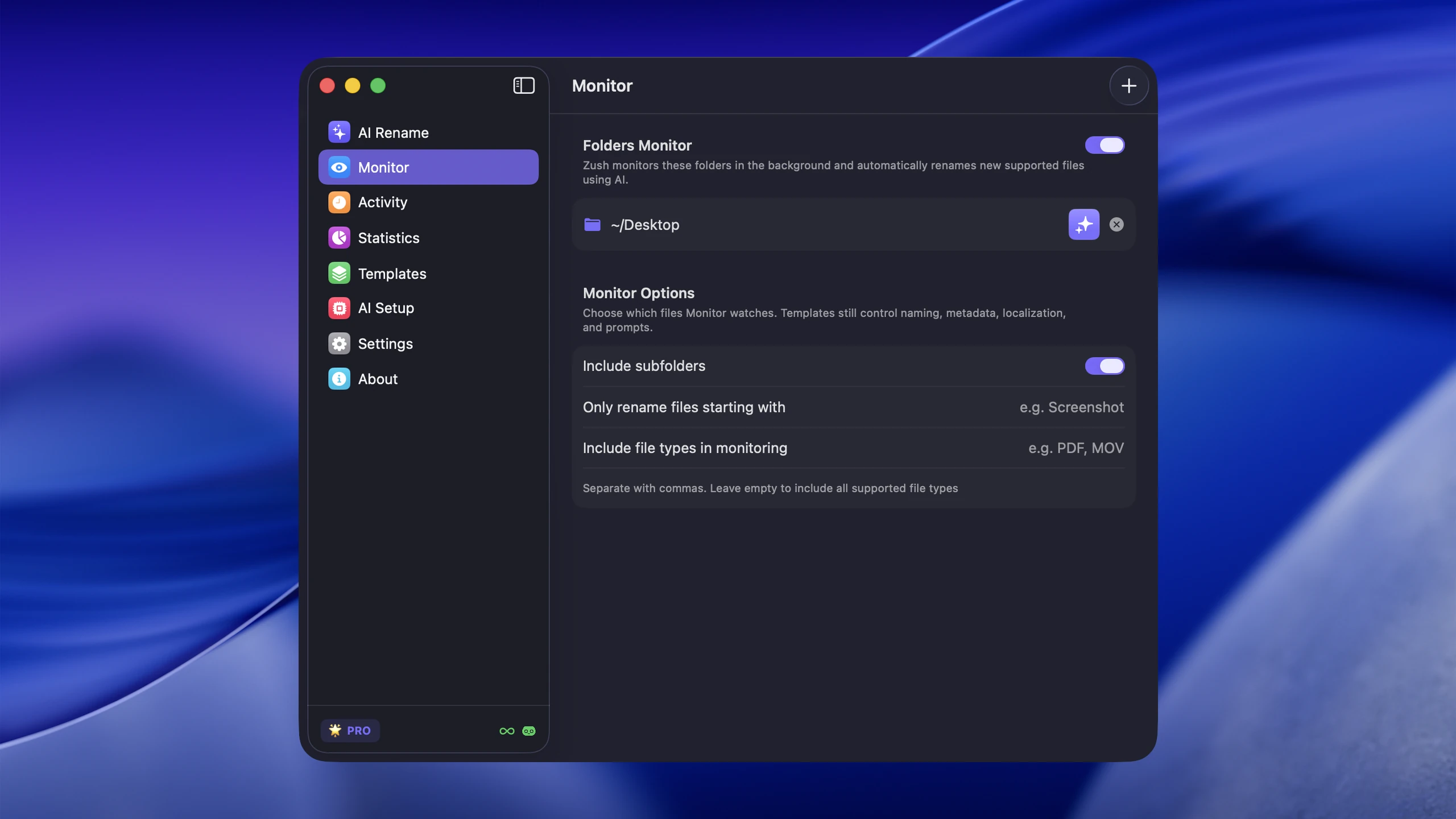
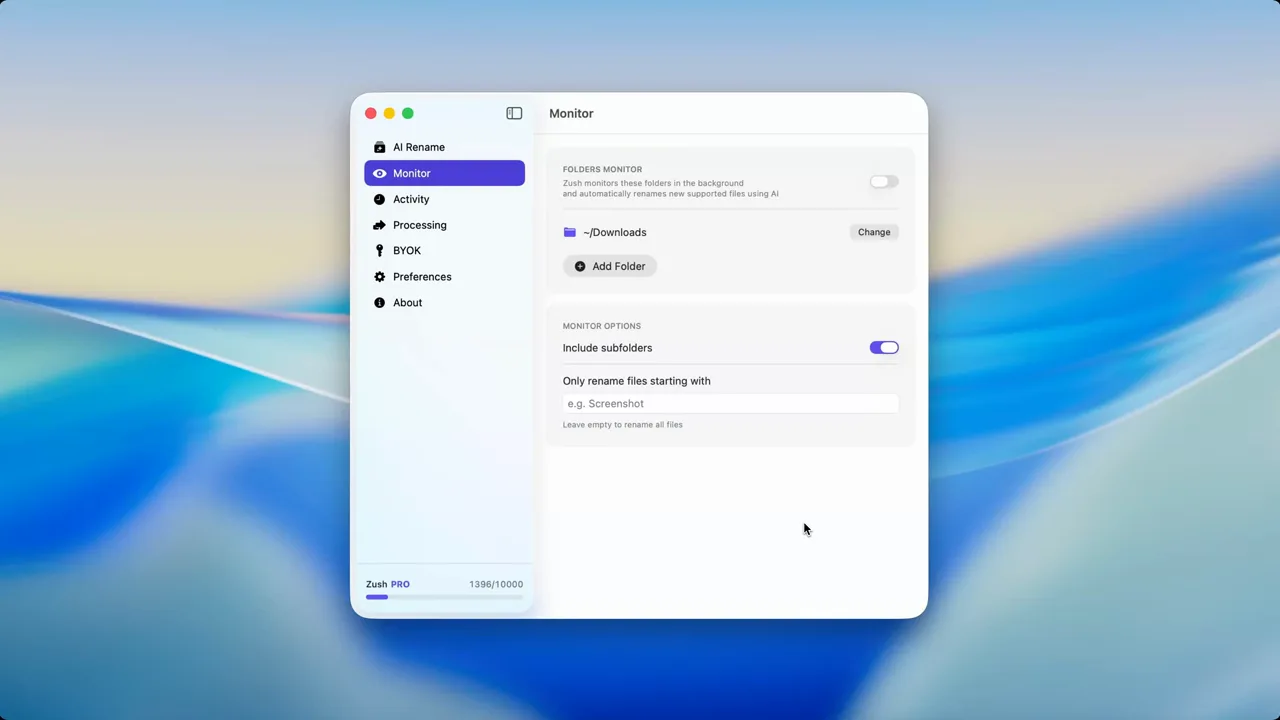
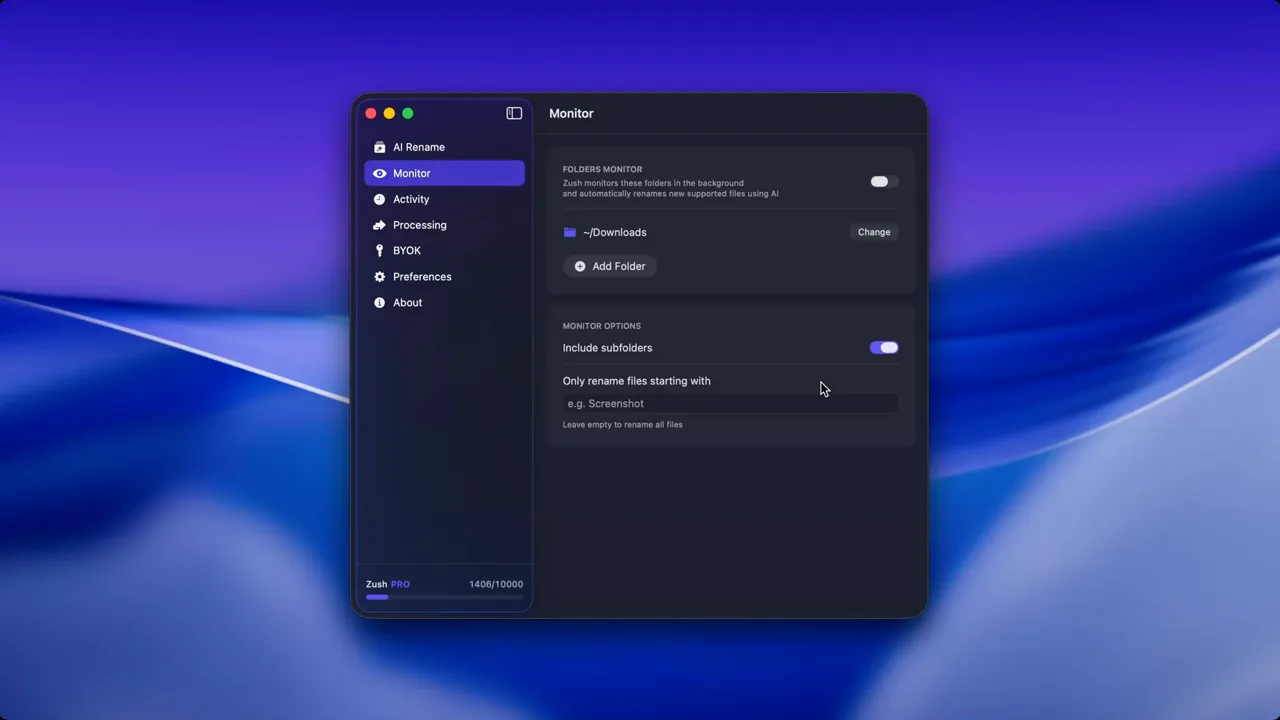
In Zush, enable folder monitoring and point it at your screenshot destination. The app will watch for new files that match screenshot patterns, primarily PNG files with the macOS screenshot naming format.
4. Choose a naming pattern
Pick how you want your screenshots named:
{title}for a clean descriptive name likefigma-checkout-wireframe.png{date}_{title}for chronological order like2026-03-23_figma-checkout-wireframe.png{category}_{title}for grouping likedesign_figma-checkout-wireframe.png
The AI generates the title. You control the structure.
5. Test with a few captures
Take three or four screenshots of different things: an app window, a web page, a conversation, a settings panel. Wait a few seconds for the folder monitor to pick them up. Check the new names.
If the results are accurate and useful, you are set. If you want to tweak the pattern or the naming style, adjust before you let it run on everything.
6. Let it run in the background
Once configured, Zush monitors the folder continuously. Every new screenshot gets analyzed and renamed without any manual step. The renamed files appear in Finder with their new descriptive names, ready for Spotlight search.
Common use cases
Developers and QA testers
Bug reports live and die by screenshots. A file named Screenshot 2026-03-23 at 10.02.11.png attached to a bug ticket tells reviewers nothing. A file named checkout-payment-form-alignment-bug.png communicates the issue before anyone opens the image.
Designers
Design workflows generate dozens of screenshots per day: reference captures, iteration comparisons, client feedback, competitive analysis. Automatic renaming turns a chaotic screenshot folder into a browsable design reference library.
Product managers and marketers
Screenshots of dashboards, competitor pages, user feedback, and feature demos are valuable reference material. Descriptive names make them easy to find and share months later when you need to reference a data point or comparison.
Students and researchers
Lecture slides, textbook passages, reference diagrams, and research paper snippets captured as screenshots need names that connect to the subject matter. Screenshot 2026-03-23 at 14.05.19.png does not help during exam prep. bio-101-mitosis-diagram-textbook.png does.
Why folder monitoring matters more than batch renaming
Batch renaming is useful for clearing a backlog. But the screenshot problem is ongoing. New captures arrive every day. If you clean up once and then go back to timestamp names, the folder is messy again within a week.
Folder monitoring solves the root cause. It intercepts files at the point of creation and fixes the name before you ever have to think about it. That means your screenshot folder stays organized by default, not by periodic effort.
For related strategies on keeping your Downloads folder in order, see How to Organize Your Downloads Folder on Mac.
Handling existing screenshot backlogs
If you already have hundreds or thousands of screenshots with timestamp names, folder monitoring alone will not help with the backlog. You need a one-time batch rename pass.
Open the folder in Zush, select all the screenshot files, choose your naming pattern, and let the AI process them. Depending on the volume, this might take a few minutes. Once done, enable folder monitoring so new screenshots are handled automatically going forward.
Zush FREE offers 50 renames shared across Cloud AI, BYOK, and Offline AI, which covers light screenshot use. If you capture screenshots frequently, PRO removes the limit with either a $10/month plan or a $48 one-time plan.
Tips for a cleaner screenshot workflow
Use a dedicated screenshot folder
Do not save screenshots to the Desktop. Create a Screenshots folder in your home directory or Documents and redirect macOS captures there. A single-purpose folder is easier to monitor and easier to browse.
Combine with Smart Folders
After AI renaming, you can create Smart Folders in Finder that surface screenshots by keyword. For example, a Smart Folder for files containing “figma” in the name will automatically collect all your Figma-related screenshots.
Archive old screenshots periodically
Even with good names, screenshots from six months ago are rarely needed in your active folder. Move them to an archive quarterly. The descriptive names make them findable even in an archive directory.
Review the first batch
AI vision is strong but not infallible. Check the first 10 to 20 renamed screenshots to confirm the names are accurate and useful. If a particular type of screenshot gets weak names, you may need to adjust your pattern or accept that some captures need manual attention.
The bottom line
macOS screenshot naming has not improved in years. The operating system still uses timestamps because it does not understand image content. AI fills that gap by looking at what each screenshot actually shows and generating a name that is searchable, scannable, and useful.
The fastest way to set this up on Mac is with the AI screenshot renamer. Configure folder monitoring once, and the screenshot naming problem is solved permanently.


