How to Organize Your Downloads Folder on Mac (2026)

Auf Deutsch lesen: Downloads-Ordner am Mac aufräumen und organisieren
Jump to section
Quick answer: organize the Downloads folder on Mac by treating it as an inbox, not an archive. Delete obvious junk, move files you still need into Action or a real project folder, rename anything you would struggle to find later, and repeat the review for five minutes each week.
The Downloads folder gets messy because it is not a destination. It is a landing zone. Files arrive there quickly, under inconsistent names, and without any shared structure. If you want to organize Downloads on Mac, the goal is not to create a perfect filing cabinet. It is to stop random files from accumulating faster than you can process them.
A good system starts with a few broad categories and a short review habit. Automation comes later, after you know which files arrive often enough to justify a rule.
Sort mixed files into folders with AI
Zush can give supported files descriptive names and group them into real folders by content in the same batch. AI folder sorting is in beta on Mac and Windows. Leave Folder rules empty for Auto grouping, or describe the groups in plain language. For mixed files, try:
Group invoices by company and receipts by month.
- Add a small copied batch in AI Rename and select a Template.
- Enable + Sort and choose the Destination folder, which is the root for the sorted subfolders. Without a separate destination, the source folder remains the root.
- Enter the grouping instruction in Folder rules. Naming Blocks set the filename format separately.
- Enable Reuse existing folders if suitable groups already exist inside the destination root. Zush can create a new folder when none fits.
- Review both the proposed names and folder groups. Correct folder names or file placement before applying the batch.
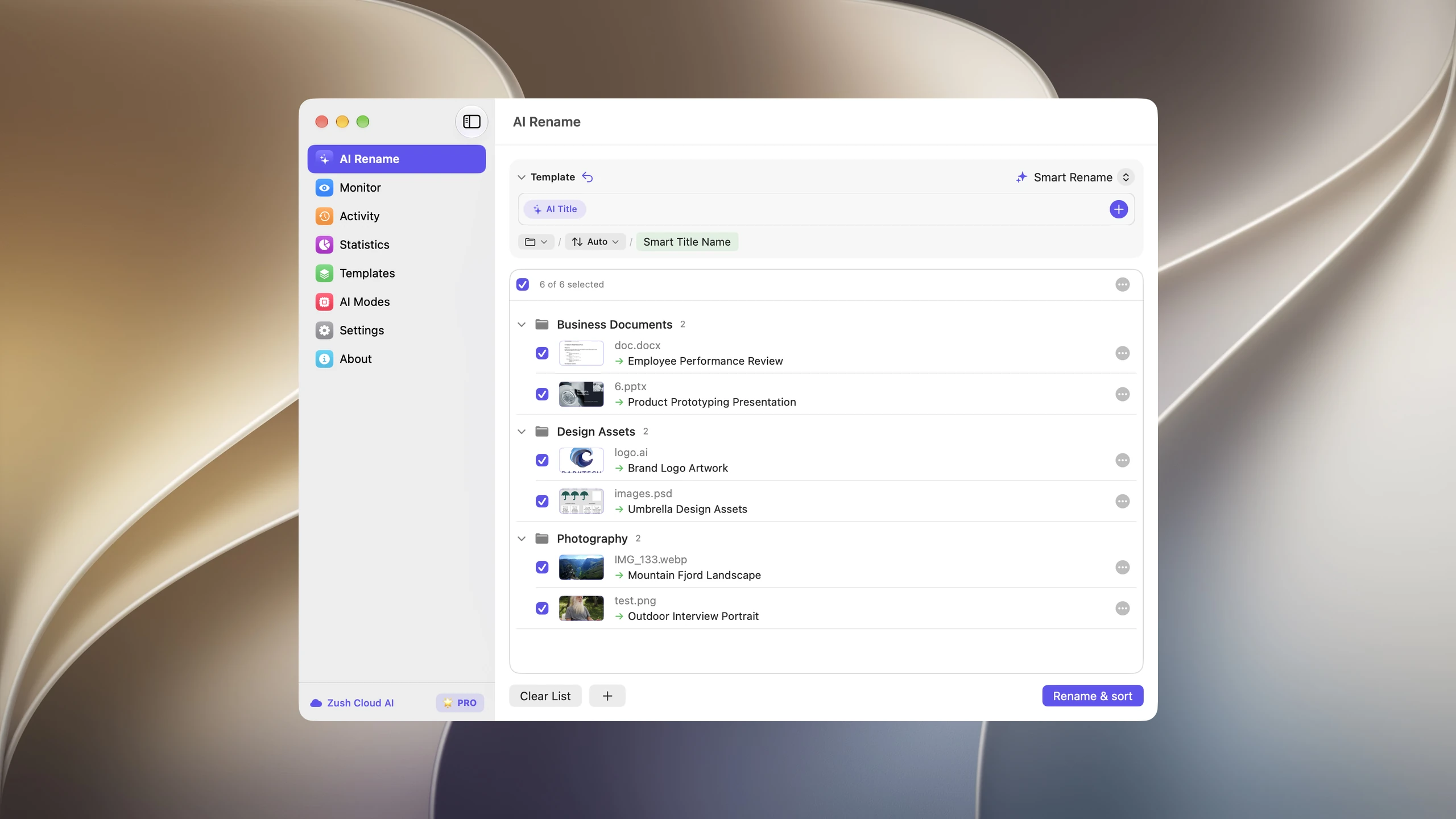
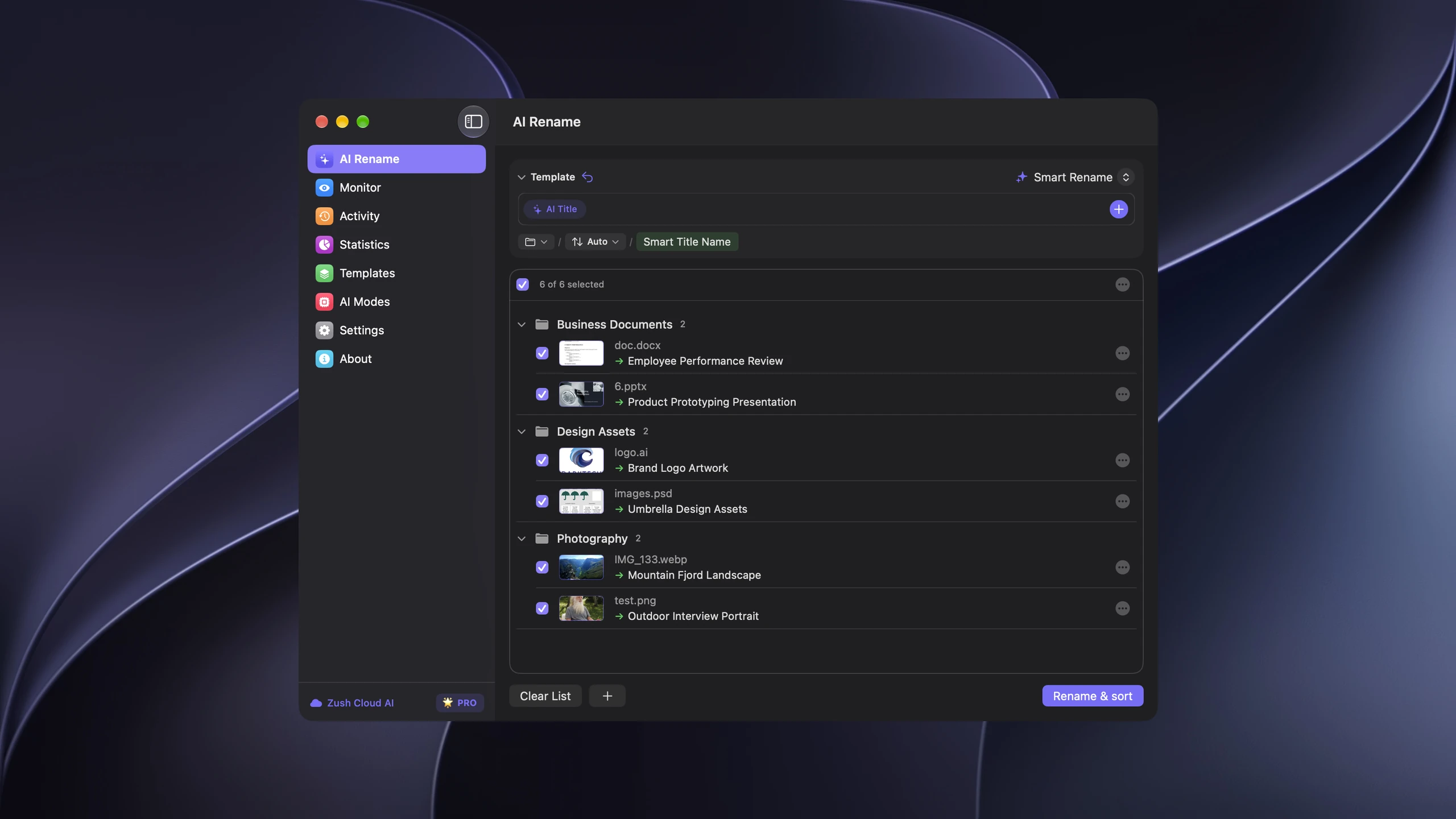
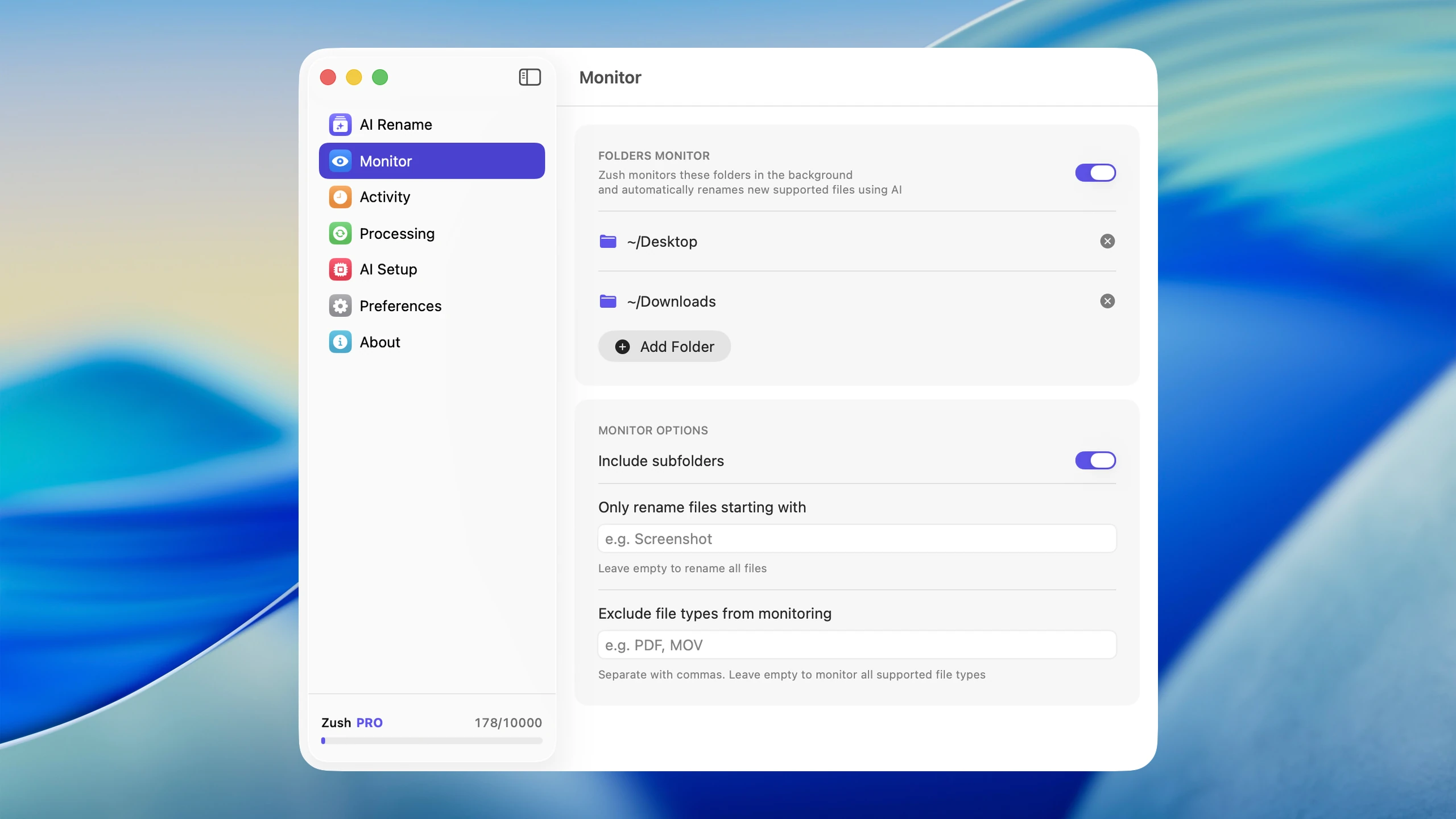
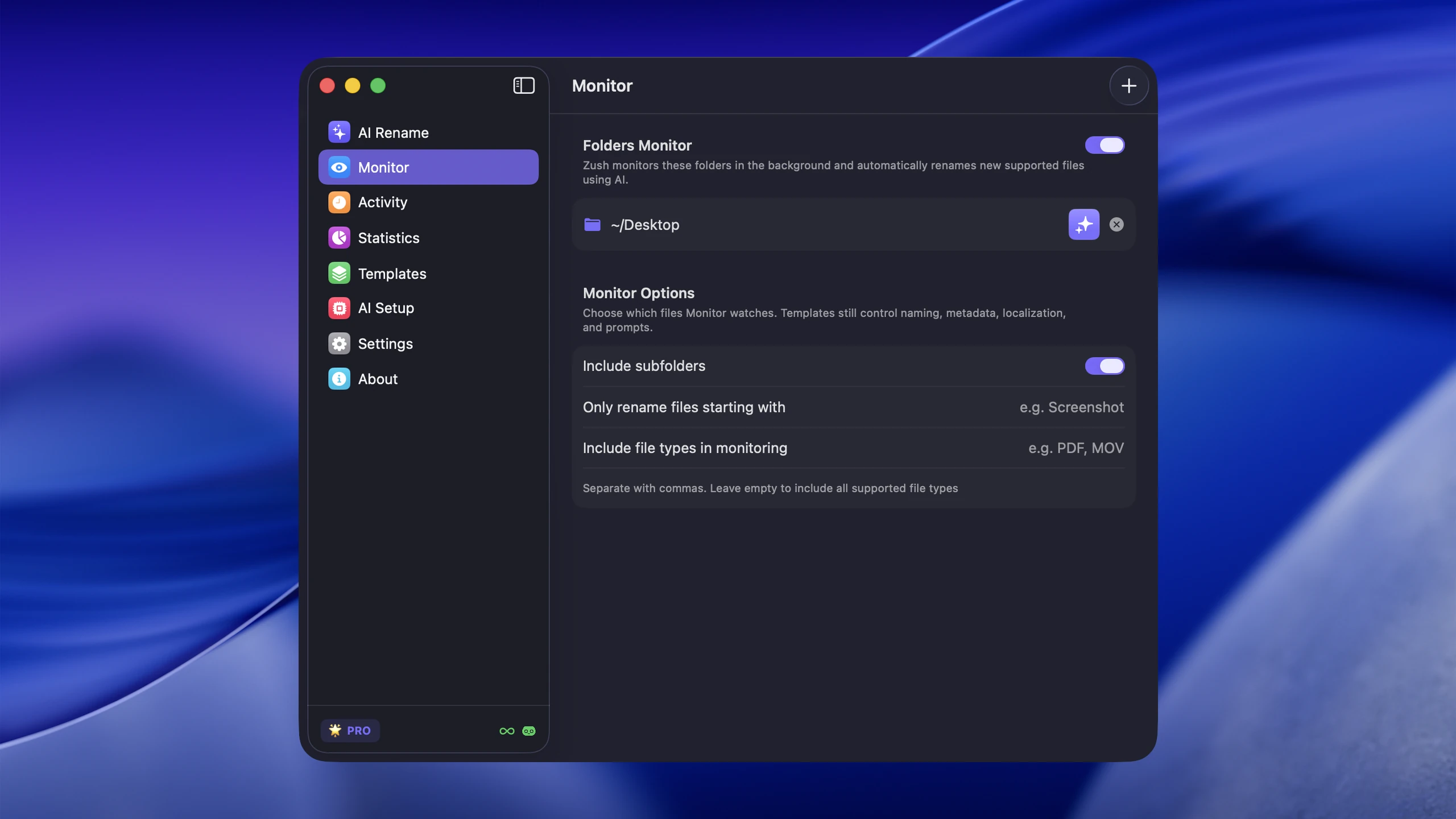
Save the tested destination and rules in the Template. Assign it to Monitor to rename and sort new files arriving directly inside the watched folder. This does not retroactively reorganize files already processed. With sorting off and the original destination selected, files keep their current folder.
Follow the step-by-step Mac sorting guide or see the folder sorting documentation and 30 example Folder rules.
Pick the right level of organization
| What your Downloads folder looks like | Best approach |
|---|---|
| Fewer than 20 new files per week | Five-minute manual review |
| Many files, but predictable types | Finder sorting, tags, and Smart Folders |
| Repeated screenshots, PDFs, or exports with weak names | Monitored renaming for those file types |
| Mixed client or project files | Route them into project folders before automating |
Start with the least complicated option that keeps the folder under control. A system that needs maintenance every day is another source of clutter.
Why Downloads becomes chaotic so fast
The folder collects files from everywhere:
- browser downloads
- screenshots moved from the Desktop
- email attachments
- exported images and PDFs
- installers and archives
- client assets
Those files also arrive with poor names: download (4).jpg, attachment.pdf, Screenshot 2026-03-02 at 10.14.04.png, or long hash-like names from websites.
That means the problem is not only quantity. It is weak naming plus mixed file types.
A simple structure that works
Create a small number of destination folders based on how you actually process files.
A practical setup:
Actionfor files you still need to useReferencefor things worth keepingTrash Soonfor low-value leftovers you want to review once before deleting
Keep those three folders temporary. Move completed work to its project or dated archive outside Downloads. Keep an installer only when you need it again; store retained installers outside the inbox too.
Do not create twenty subfolders on day one. The system should be easy enough to maintain when you are busy. Apple’s Finder guide to organizing files covers the built-in folder and move operations if you are new to Finder.
The two biggest wins: naming and triage
1. Triage the folder regularly
A 5-minute cleanup once or twice per week beats a monthly cleanup marathon.
Ask three questions for each file:
- Do I need this?
- If yes, where does it belong?
- Is the filename good enough to find later?
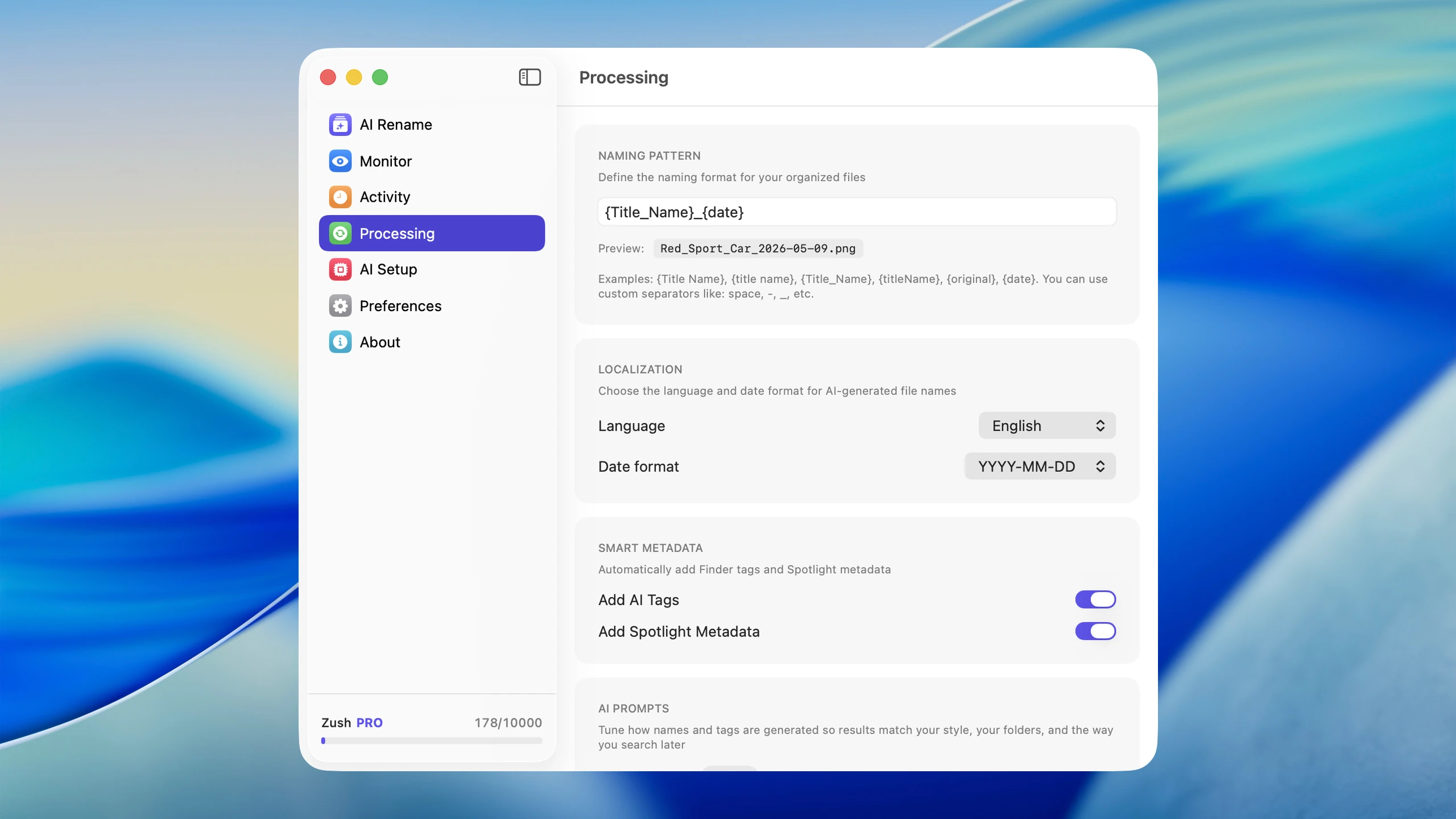
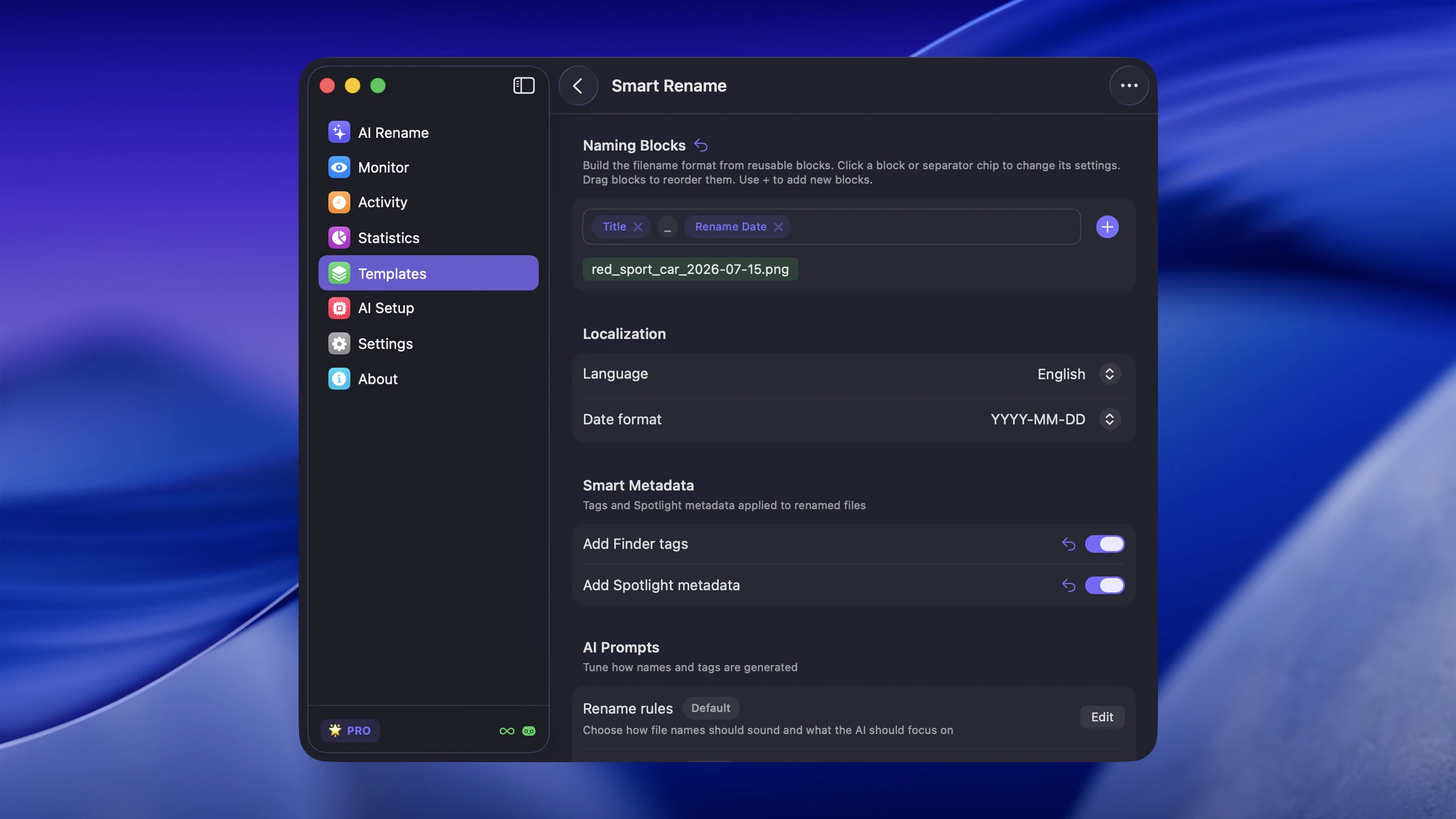
2. Fix bad filenames early
This matters most for images, screenshots, and downloaded graphics. A PDF called 2026-q1-report.pdf is already workable. An image called download (7).png is not.
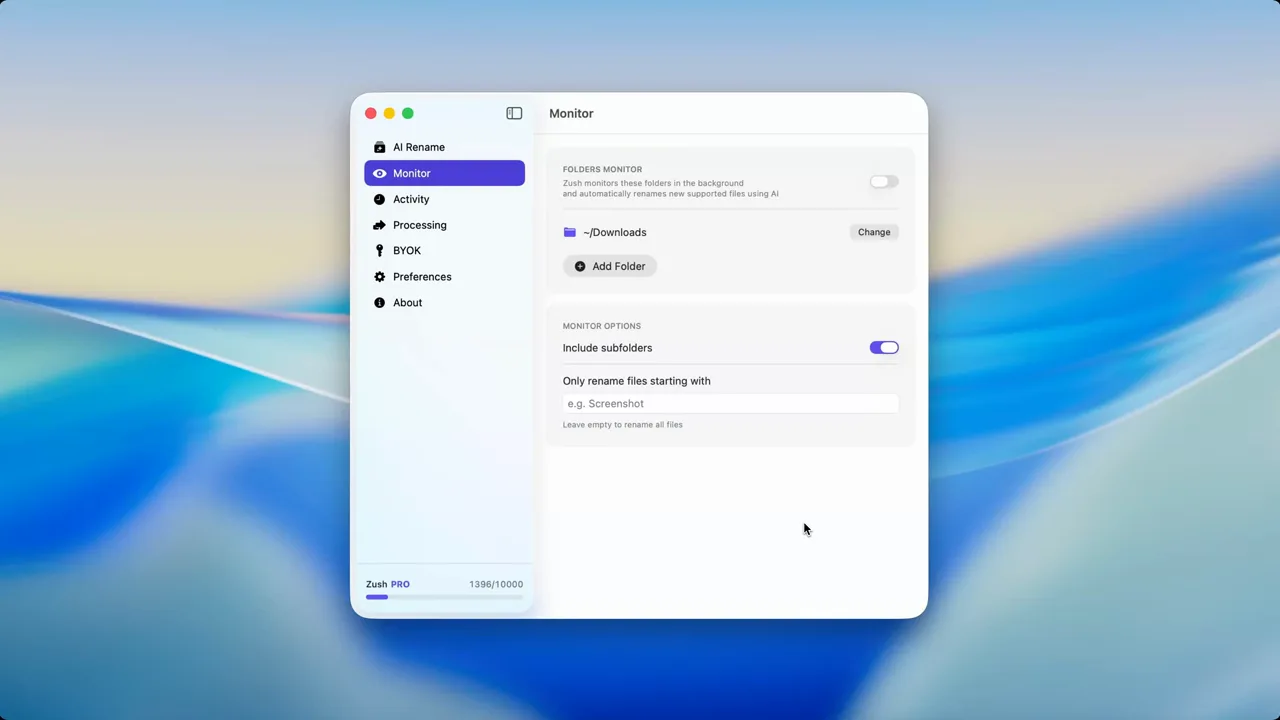
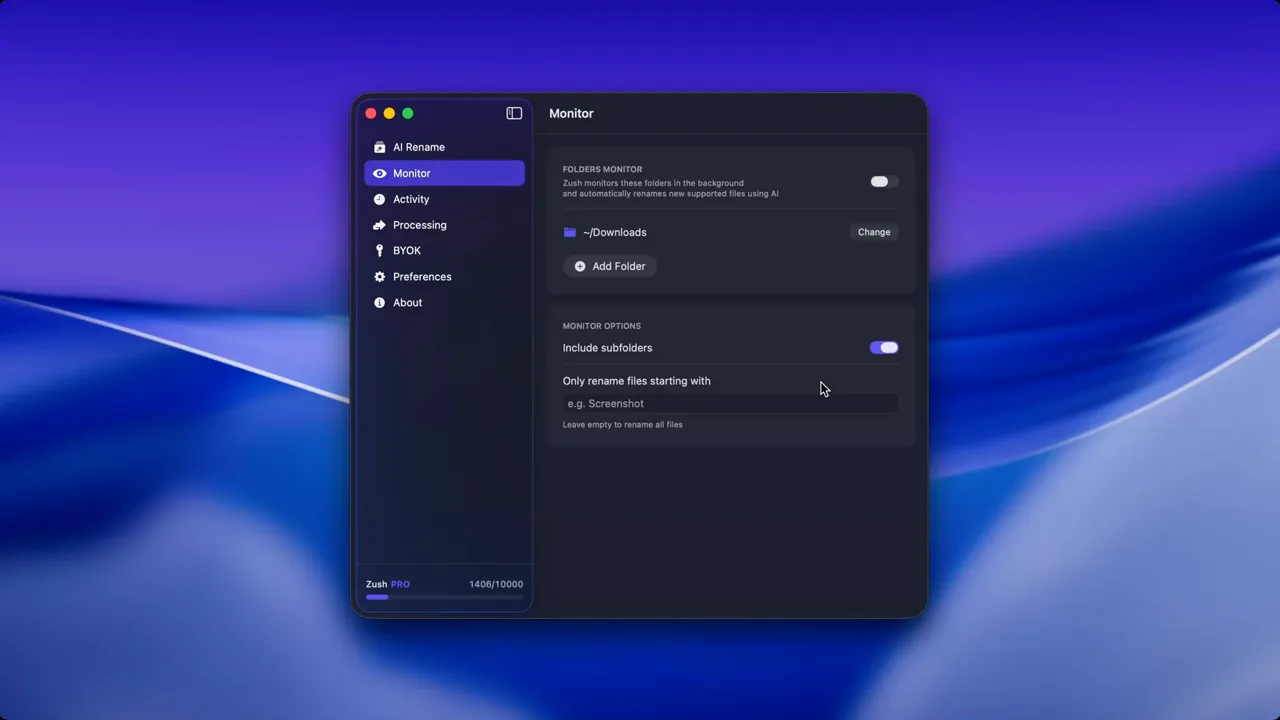
That is where automation helps. Zush can monitor folders and rename images, videos, PDFs, and documents to something descriptive, which makes the Downloads folder easier to sort and much easier to search later.
What to automate
The best candidates for automation are the files that arrive often and arrive badly named.
Screenshots
Screenshots usually come with timestamps, not meaning. Automating screenshot renaming removes one of the biggest sources of visual clutter.
Downloaded images
Downloaded web images often have useless or duplicate names. Descriptive filenames make them much easier to move into long-term folders.
Repeated document types
If you regularly download invoices, reports, or exports with similar patterns, route them into staging folders for quick review.
For an existing pile of attachment.pdf files, use the one-time Mac PDF batch workflow. For documents arriving every week, use the PDF intake folder and monitoring workflow. Zush handles content-aware naming and optional AI folder sorting (beta). Choose a destination and use Auto or describe the grouping in Folder rules. A separate routing tool is useful for deterministic conditions or scripts.
Decide what to do with each download
Use this example during the first reset. The destination depends on the file’s purpose, not only its extension.
| Download | Decision | Destination |
|---|---|---|
attachment.pdf, an unpaid supplier invoice | Give it a vendor and invoice-number name; keep it visible until processed | Action, then your finance folder |
download (7).png, a reference for current work | Rename it by subject | The active project’s reference folder |
| A signed client agreement | Check the document and give it a recognizable name | The client’s permanent folder |
| An installer for an app already installed | Check whether you need an offline copy | Retained software archive or Trash |
| An export whose purpose you cannot identify | Open it before deciding | Trash Soon for a later review if still uncertain |
Renaming makes a file recognizable; moving it gives it a permanent home. A saved Finder view helps you find files but does not move them out of Downloads.
Saved searches and status views
Automation does not have to move or rename anything. A Finder Smart Folder can show files that match criteria such as kind, date opened, or filename content while the originals stay in place. Finder tags are useful for temporary states such as Action, Waiting, or Reference.
For a broader automation strategy, see How to Automate File Organization on macOS. For a complete status-and-search setup, follow the Finder tags and Smart Folders guide. If you are deciding between naming and folder-moving apps, use the Mac file organizer comparison.
A practical weekly workflow
- Sort by Date Added so the newest inflow is easy to review.
- Delete obvious junk such as duplicate installers and abandoned exports.
- Move active files into
Action,Reference, or the project where they belong. - Rename weak files that would be hard to identify in Spotlight later.
- Review old leftovers and archive or delete files that no longer have a purpose.
Stop after five minutes. A small repeatable reset works better than turning the folder into a weekend project.
Common mistakes
- Treating Downloads as an archive
- Creating too many subfolders too early
- Keeping weak filenames because “I will remember later”
- Saving screenshots and downloaded images under random defaults
- Automating everything before you understand what should actually happen
FAQ
Should I delete everything in my Downloads folder?
No. Downloads often contains installers you can replace, but it may also contain invoices, signed forms, client assets, license files, and exports that exist nowhere else. Review by date and kind, move important files first, then delete the obvious junk.
What folders should I create inside Downloads?
Start with no more than three temporary destinations: Action, Reference, and Trash Soon. Permanent project, finance, and client files should leave Downloads and move into their real homes rather than creating a second archive inside the inbox.
Can a Mac organize Downloads automatically?
Yes. Finder can sort and group files, tags can track status, Smart Folders can create saved views, and folder-monitoring tools can rename or route new files. Automate one predictable file type at a time and keep a review step for mixed folders.
How often should I clean the Downloads folder?
Review it once or twice per week for five minutes. If that is not enough, the problem is usually inflow rather than cleanup frequency. Change browser download destinations for major projects or monitor a dedicated intake folder for recurring files.
Keep the folder clean after the reset
The manual workflow fixes today’s clutter. If bad filenames are the recurring problem, automate your Downloads folder with Zush or start with 50 free renames on Mac. For a larger cleanup beyond Downloads, use the Mac decluttering checklist. Keep the scope narrow so the automation saves decisions instead of creating new ones.


