How to Organize Screen Recordings and B-Roll with AI

Jump to section
Quick answer: organize screen recordings and b-roll by naming each clip for what it shows, not when it was created. Use AI to turn files like Screen Recording 2026-05-08.mov and camera_roll_0091.m2ts into names like checkout-flow-bug-recording.mov and factory-tour-assembly-line.m2ts, then use folder monitoring so new clips are renamed as they arrive.
Screen recordings and b-roll files pile up quickly because they are easy to create and annoying to name. You record a bug, export a demo, capture a tutorial step, or dump a camera card, then the files land under timestamp or sequence names. A week later, every clip looks the same in Finder or File Explorer.
This is exactly the kind of workflow AI file renaming helps with. The file content is visual, the original names are weak, and searchability matters later.
For the feature page, see Rename Videos with AI. If you are still choosing a tool, compare AI renamer tools comparison. For privacy-sensitive clips, read Cloud AI vs Local AI File Renaming.
Sort video clips into folders with AI
Zush can give supported files descriptive names and group them into real folders by content in the same batch. AI folder sorting is in beta on Mac and Windows. Leave Folder rules empty for Auto grouping, or describe the groups in plain language. For video clips, try:
Group videos by topic and use short, descriptive folder names.
- Add a small copied batch in AI Rename and select a Template.
- Enable + Sort and choose the Destination folder, which is the root for the sorted subfolders. Without a separate destination, the source folder remains the root.
- Enter the grouping instruction in Folder rules. Naming Blocks set the filename format separately.
- Enable Reuse existing folders if suitable groups already exist inside the destination root. Zush can create a new folder when none fits.
- Review both the proposed names and folder groups. Correct folder names or file placement before applying the batch.
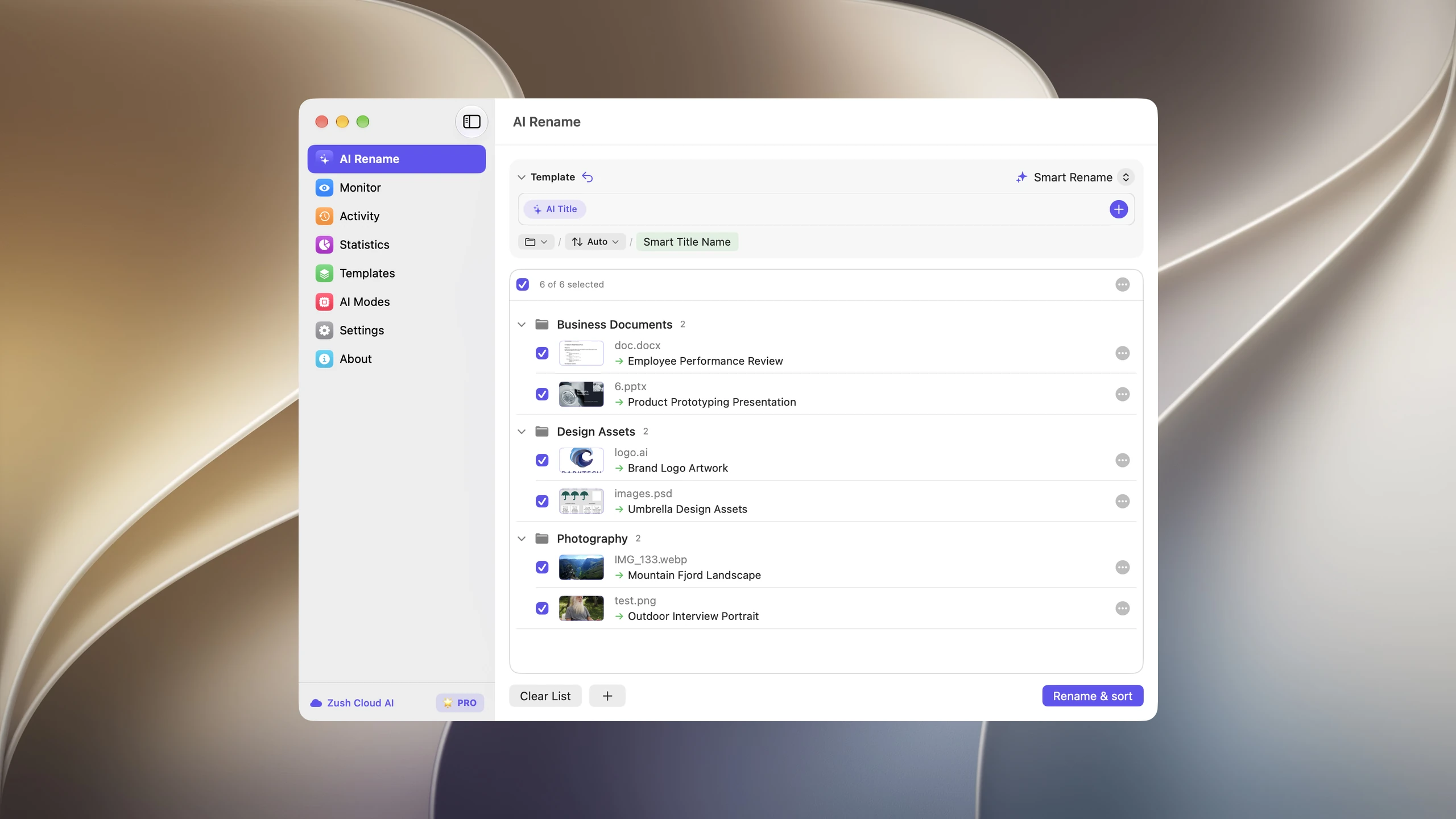
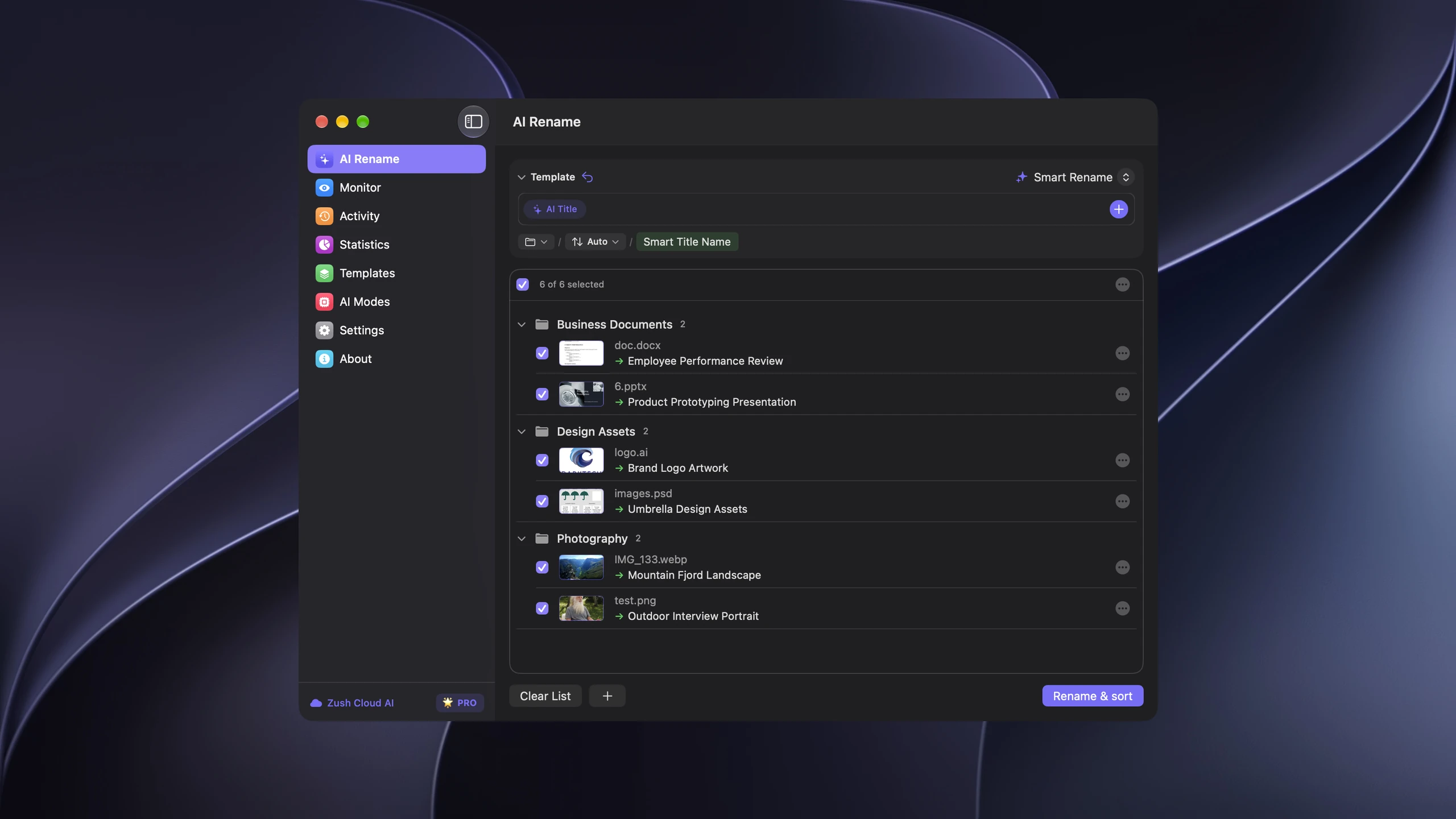
Save the tested destination and rules in the Template. Assign it to Monitor to rename and sort new files arriving directly inside the watched folder. This does not retroactively reorganize files already processed. With sorting off and the original destination selected, files keep their current folder.
Follow the step-by-step Mac sorting guide or see the folder sorting documentation and 30 example Folder rules.
The problem with video work folders
Most video folders are not clean libraries. They are working folders:
- screen recordings for bug reports
- quick product demos for a team chat
- b-roll clips for a YouTube edit
- camera imports with sequential names
- tutorial exports from QuickTime or OBS
- subtitle files next to final clips
- thumbnails, PDFs, and notes in the same project folder
The folder may contain Screen Recording 2026-05-08 at 11.54.43.mov, VID_184233.mp4, demo_take_02.mov, launch_demo.srt, and brief_notes.pdf. The problem is not storage. The problem is retrieval. You cannot find the right file without opening half the folder.
A naming system that works
Good video filenames are short, descriptive, and stable. They should answer three questions:
- What is the file about?
- What kind of clip is it?
- Does it belong to a project, client, or date-sensitive workflow?
Useful examples:
| Weak name | Better name |
|---|---|
Screen Recording 2026-05-08.mov | checkout-flow-bug-recording.mov |
demo_take_02.mov | settings-sidebar-walkthrough.mov |
VID_20260507_184233.mp4 | cafe-product-shoot-broll.mp4 |
camera_roll_0091.m2ts | factory-tour-assembly-line.m2ts |
recording_12.ts | conference-talk-intro.ts |
Use lowercase, hyphenated names when files move between systems. They are easy to scan, copy, and publish.
How AI helps with screen recordings
Screen recordings are usually easy for AI to understand because they contain visible UI, text, and application context. A sampled frame might show:
- a checkout page
- a settings sidebar
- an error dialog
- a dashboard chart
- a terminal command
- a design review screen
From that, the AI can generate a name that is far more useful than a timestamp. For QA and support teams, this is especially valuable because the filename can describe the actual bug or workflow.
How AI helps with b-roll
B-roll is harder than screenshots because many clips are similar. A folder may contain dozens of clips from the same shoot. Still, AI can identify the broad scene and subject:
cafe-product-shoot-broll.mp4factory-tour-assembly-line.m2tsconference-audience-wide-shot.movdesk-setup-keyboard-closeup.mp4warehouse-packing-process-broll.mov
That level of naming is enough to make an edit folder searchable. You can still add selects, ratings, or project-specific prefixes later.
Where subtitles fit
Subtitles and transcripts help when visuals alone are not specific enough. A talking-head video may look like a person at a desk, but the subtitle file may reveal that the clip is about onboarding analytics or a Q2 roadmap.
If you keep .srt or .vtt files next to video files, use names that connect them:
product-roadmap-talk.mp4product-roadmap-talk.srtonboarding-analytics-demo.movonboarding-analytics-demo.vtt
Zush 3.0 can rename common video formats and also supports subtitle files as documents, so a mixed folder can be cleaned up in one workflow.
For a dedicated video workflow, see How to Rename Video Files with AI. If the folder also contains PDFs, docs, and screenshots, use the broader AI file renaming guide.
Folder monitoring for new recordings
The best time to name a screen recording is when it lands. Waiting until the folder has 300 files makes the cleanup feel like a separate project.
A practical setup:
- Create a folder for new recordings, such as
Recordings Inbox. - Point your screen recorder or export workflow at that folder.
- Add the folder to Zush monitoring.
- Exclude file types you do not want processed.
- Review the activity history when needed.
This gives you automatic cleanup without losing control. New supported files get descriptive names, and the rename history remains available if something needs to be reverted.
Suggested folder structure
For creators and product teams, start simple:
Video Inbox/ recordings/ b-roll/ exports/ subtitles/ references/Keep the inbox small. Move finished files into project folders after they have useful names.
For larger projects:
Project Name/ 01-raw-clips/ 02-screen-recordings/ 03-b-roll/ 04-subtitles/ 05-final-exports/AI renaming works best on 01-raw-clips, 02-screen-recordings, and 03-b-roll, where the names are usually weakest.
Naming patterns by workflow
QA and bug reports
Use a pattern that describes the product area and issue:
checkout-flow-button-freeze.movsettings-sidebar-layout-bug.mp4login-error-message-recording.mov
Product demos
Use feature-first names:
folder-monitoring-setup-demo.mp4offline-ai-ollama-checks.movrename-history-undo-demo.mp4
Creator b-roll
Use subject and scene:
cafe-product-shoot-broll.mp4desk-setup-keyboard-closeup.movcity-night-street-broll.m4v
Events and talks
Use topic and segment:
conference-talk-opening-slide.tspanel-discussion-audience-qa.mp4workshop-intro-speaker-wide.mov
Common mistakes
Overloading filenames. Do not turn a transcript sentence into a filename. Keep names compact.
Renaming final deliverables without review. Published videos may have names required by a client, CMS, or asset manager. Use AI renaming on raw and working folders first.
Ignoring sidecars. Keep subtitles near the video file. They add context and make the project easier to move.
Skipping undo. Video files can be large and important. Use a tool with rename history instead of a one-way script.
FAQ
Can AI organize b-roll perfectly?
No. AI can produce useful descriptive names, but selects, ratings, and editorial judgment still belong to you. Use AI naming to make the folder searchable, not to replace editing decisions.
Should I rename every screen recording automatically?
Only if the folder receives files you actually want processed. Zush monitoring supports file-type exclusions, so you can keep the workflow focused on supported files and avoid folders that should stay untouched.
Does this work on Mac and Windows?
Yes. Zush supports Mac and Windows workflows. The folder names and recorder apps differ, but the core workflow is the same: capture, analyze, preview, rename, and keep history.
What if a video has no obvious visual context?
Use subtitles or a custom prompt when possible. If a clip is visually ambiguous, a short manual edit during preview is still faster than naming every file from scratch.
Getting started
Pick one folder where screen recordings or b-roll already pile up. Run a small batch through AI video renaming, apply only the useful names, and then decide whether monitoring should watch that folder going forward.


