How to Organize Your Downloads Folder on Windows

Jump to section
Quick answer: organize the Windows Downloads folder by automating cleanup — auto-rename incoming files with descriptive names, route them to topic folders weekly, and run a simple PowerShell script monthly to archive anything older than 30 days. For the auto-renaming step, see automate your Downloads folder with AI.
The Downloads folder is where file organization systems go to die.
Installers, PDFs, images, spreadsheets, exports, screenshots, signed forms, and random attachments all land in the same place with low-quality names. Once enough files accumulate, every cleanup session starts to feel bigger than the last one.
The fix is not one giant purge. The fix is a repeatable system:
- make filenames descriptive
- move files out of Downloads once they matter
- automate the categories that keep reappearing
If you want the Windows app page first, go to AI file renamer for Windows. If your main problem is recurring automation, pair this guide with Auto Rename Files on Windows.
Sort mixed files into folders with AI
Zush can give supported files descriptive names and group them into real folders by content in the same batch. AI folder sorting works on Mac and Windows. Leave Folder rules empty for Auto grouping, or describe the groups in plain language. For mixed files, try:
Group invoices by company and receipts by month.
- Add a small copied batch in AI Rename and select a Template.
- Enable + Sort and choose the Destination folder, which is the root for the sorted subfolders. Without a separate destination, the source folder remains the root.
- Enter the grouping instruction in Folder rules. Naming Blocks set the filename format separately.
- Enable Reuse existing folders if suitable groups already exist inside the destination root. Zush can create a new folder when none fits.
- Review both the proposed names and folder groups. Correct folder names or file placement before applying the batch.
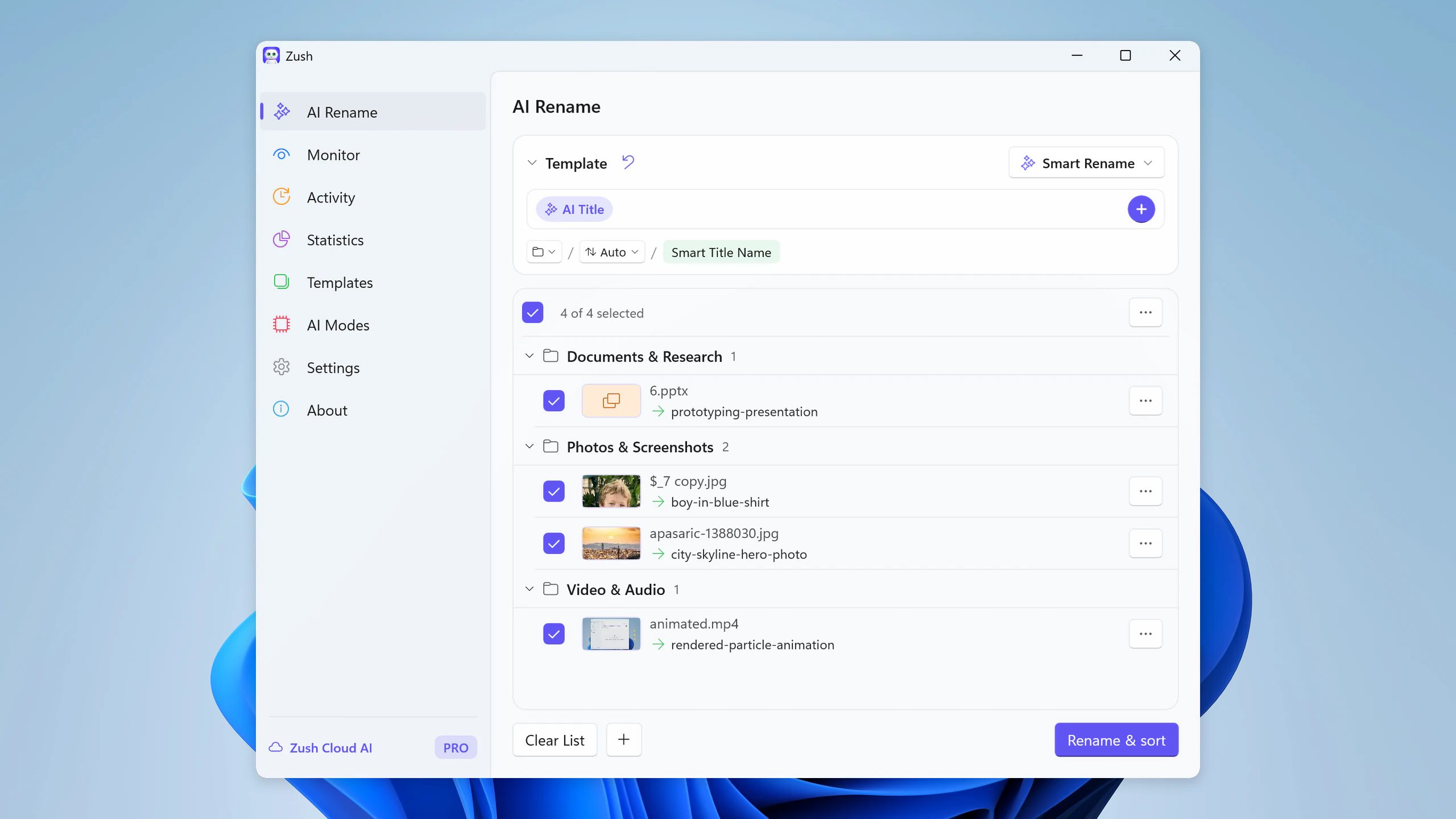
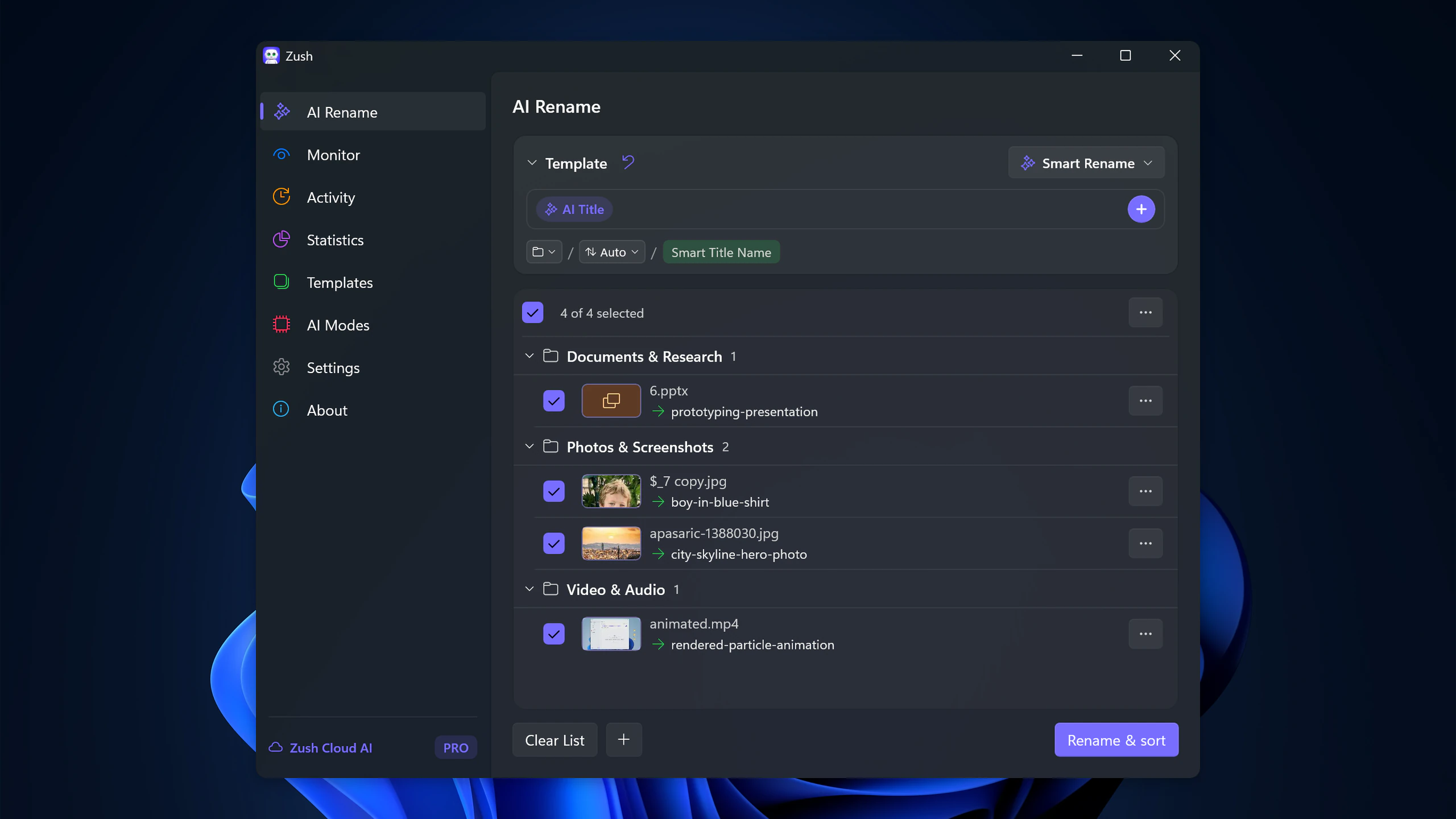
Save the tested destination and rules in the Template. Assign it to Monitor to rename and sort new files arriving directly inside the watched folder. This does not retroactively reorganize files already processed. With sorting off and the original destination selected, files keep their current folder.
Follow the step-by-step Windows sorting guide or see the folder sorting documentation and 30 example Folder rules.
Rule 1: Downloads is an inbox, not an archive
Treat Downloads as a temporary holding area. Files either get:
- renamed and filed
- used and deleted
- ignored until the next review window
What breaks the system is pretending Downloads is a permanent library.
Rule 2: Fix filenames before you file the document
Folders help only when the files inside them are readable. A contract named document.pdf is still bad after you move it to Clients/Contracts/.
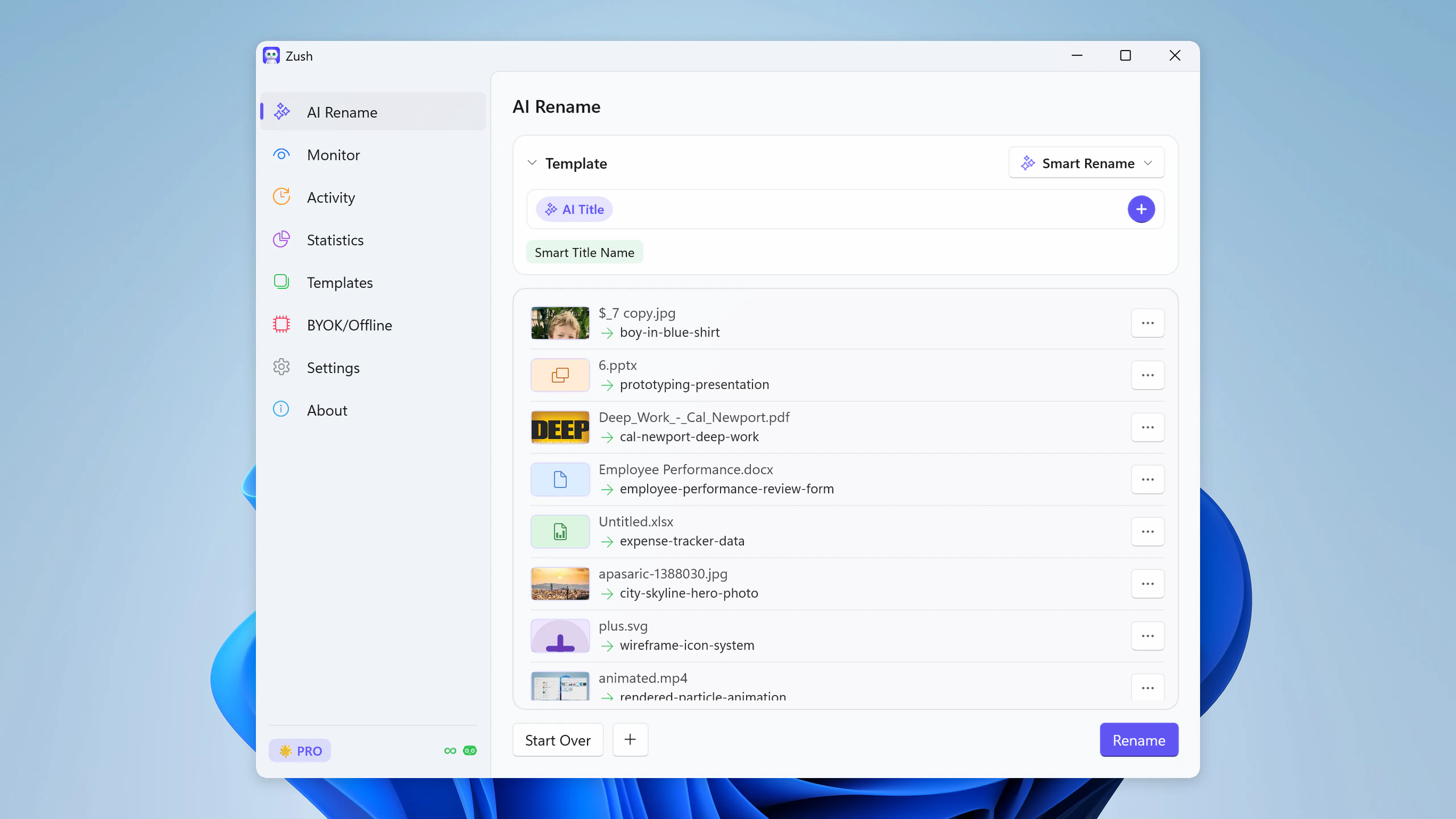
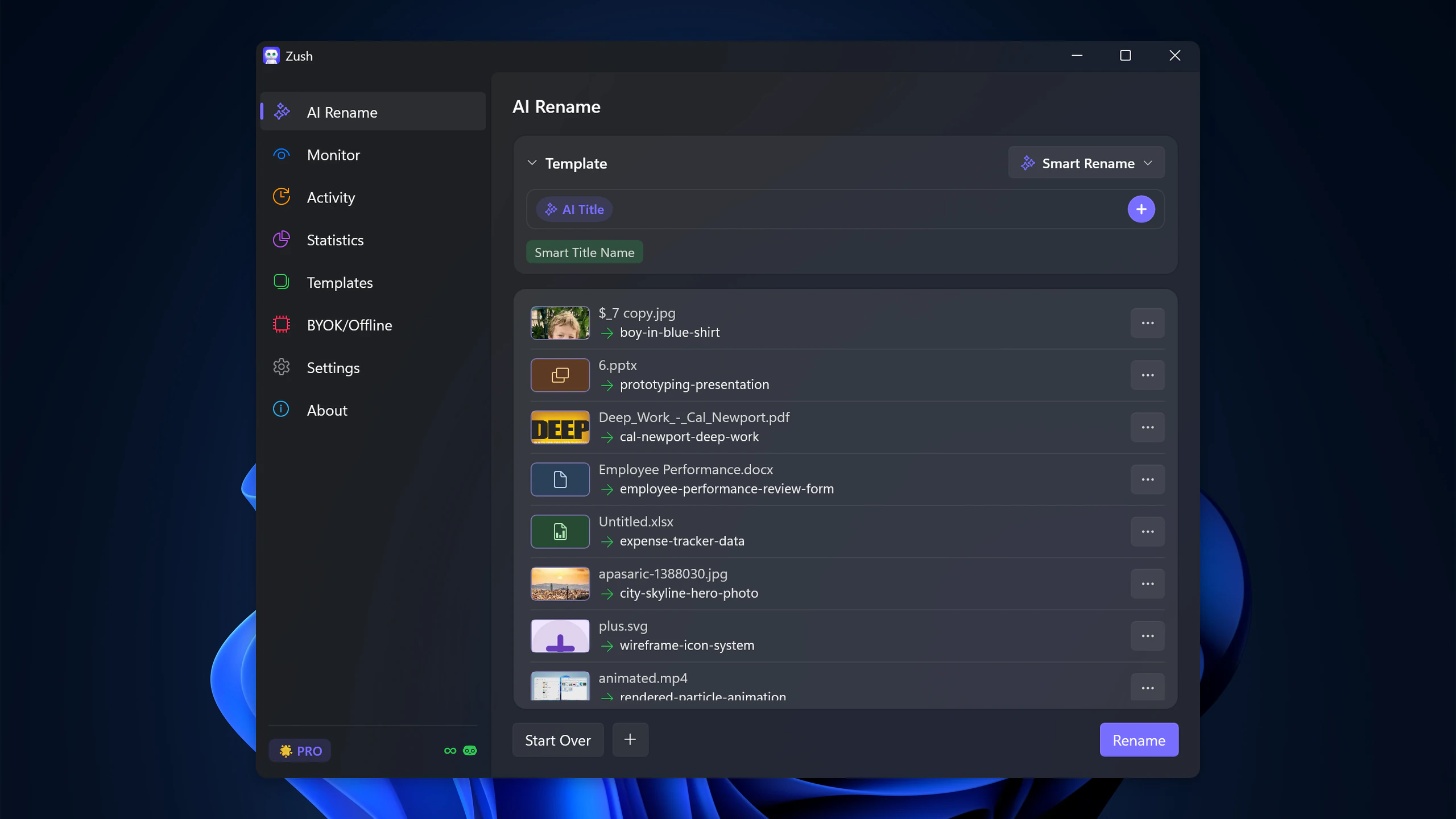
That is why renaming is the first useful layer. AI helps because it can turn low-context names into descriptive ones for screenshots, PDFs, and documents before you sort them elsewhere.
Rule 3: Separate recurring categories
The categories that usually deserve separate handling are:
- installers and software packages
- screenshots
- PDFs and scans
- office documents
- design exports and image assets
You do not need ten subfolders on day one. You need enough structure that the folder stops behaving like a dump.
A practical Windows cleanup flow
Step 1: sort by date added
This surfaces the newest clutter and helps you understand what is entering Downloads most often.
Step 2: batch rename the files that are worth keeping
Use AI file renamer for Windows or another content-aware workflow to rename screenshots, PDFs, and mixed documents in groups rather than one by one.
Step 3: move them to a stable destination
Examples:
- screenshots → project or reference folders
- signed docs → contracts, admin, or finance folders
- exports → project delivery or reporting folders
Step 4: automate the inflow
If the same categories keep appearing, the answer is not more discipline. It is automation.
Best companion workflows
If screenshots dominate your Downloads folder, read How to Rename Screenshots Automatically on Windows.
If PDFs are the main issue, go to How to Rename PDF Files with AI on Windows.
If your bigger goal is consistent naming after cleanup, use Windows File Naming Conventions for Searchable Folders.
What to keep in mind on Windows
Windows Search becomes much more helpful when filenames are descriptive. That is why cleanup is not only aesthetic. Better names reduce the need to remember exact folders later.
File Explorer also becomes easier to scan visually when filenames are short, specific, and consistent. That matters more than people think once a folder crosses a few hundred files.
To automate more than Downloads, follow how to organize files automatically on Windows 11, or compare Hazel alternatives for Windows for rule-based moving.
FAQ
Should I create lots of subfolders first?
No. If the filenames are still bad, more folders only hide the problem. Rename first, then sort, or do both in one pass: Zush can rename each download by content and sort it into folders you describe. See how to sort files into folders automatically on Windows.
What is the best first automation?
Usually Downloads itself or the subcategory inside Downloads that causes the most repeat clutter.
Is manual weekly cleanup enough?
It helps, but recurring inflow folders usually need automation if you want the folder to stay clean without constant discipline.


