How to Rename Files with AI on Windows (2026 Step-by-Step)

Jump to section
Quick answer: rename files with AI on Windows by installing Zush from the Microsoft Store, dropping a folder into the AI Rename tab, reviewing the suggested content-aware names, and applying. Works for screenshots, videos, PDFs, photos, and documents.
Most Windows folders suffer from the same problem: filenames are technically valid but practically useless. Screenshots are timestamps, PDFs are scanner counters, downloads are whatever the source site decided, and exported office files stack up as copy, final, and new.
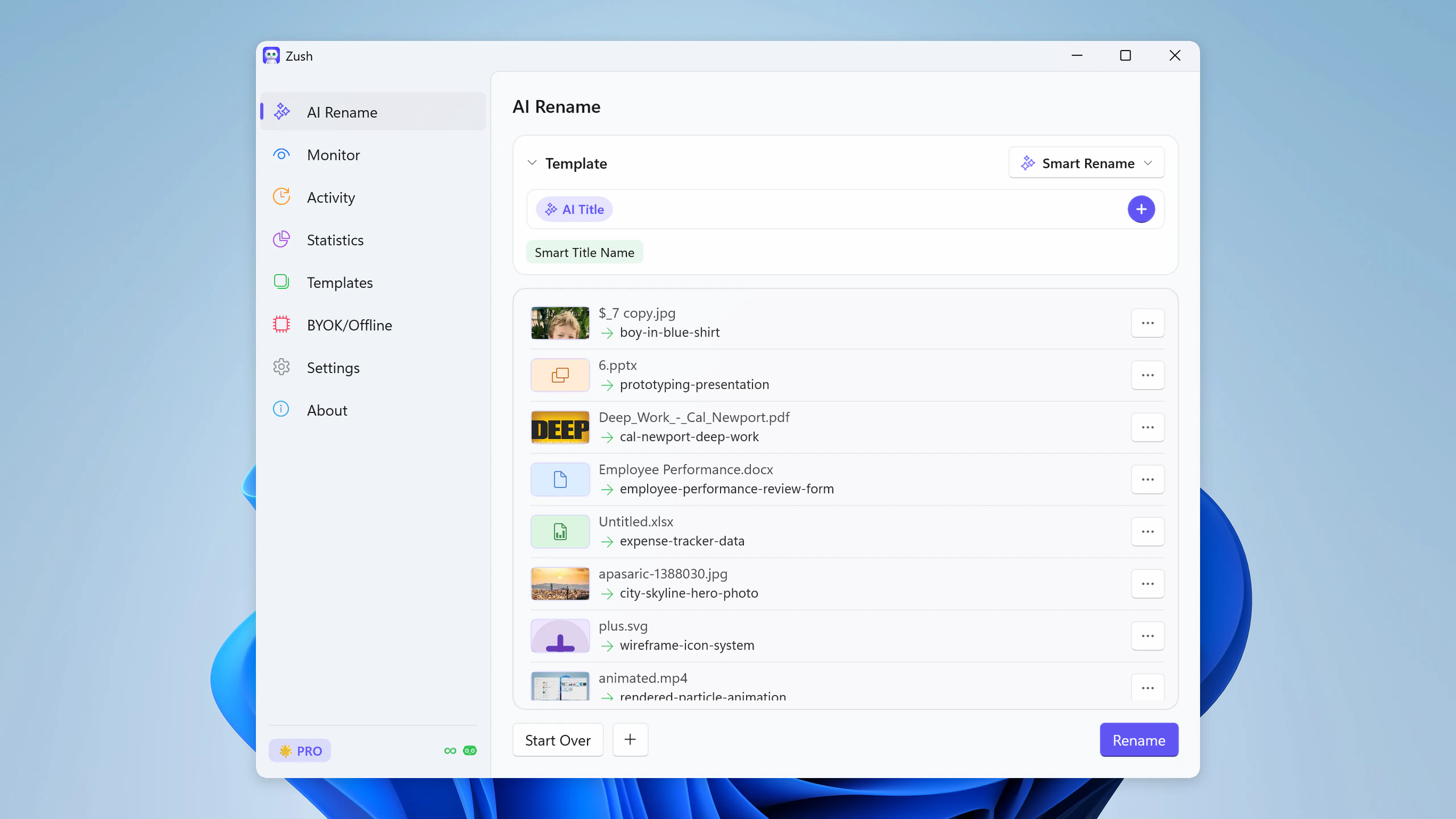
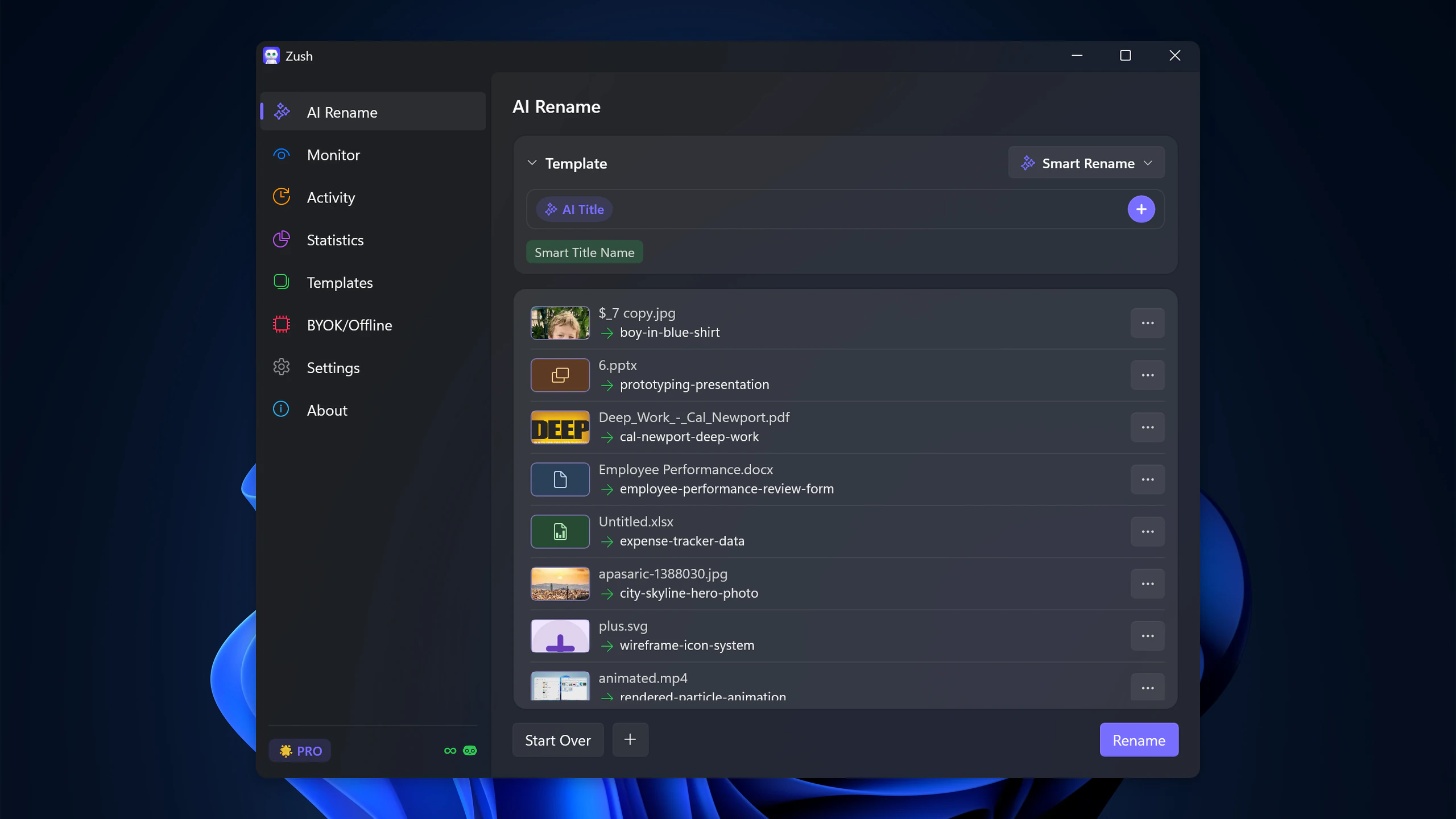
AI file renaming fixes that by naming files based on what they contain instead of what random system generated them. An image can become client-dashboard-revenue-chart.png. A PDF can become signed-vendor-agreement-april-2026.pdf. A spreadsheet can become q2-forecast-board-review.xlsx.
If you want the Windows product page first, go to AI file renamer for Windows. If you want the comparison before the tutorial, read Windows AI renamer comparison.
What the workflow looks like
On Windows, the useful workflow has four parts:
- pick files or a folder in one action
- let the app analyze image or document content
- review the proposed names before applying them
- keep an undo history in case a batch needs to be reverted
That is the difference between a real desktop tool and a demo. The point is not just to generate names. The point is to make the rename safe enough to use on work folders. Before processing a large archive, use the safe batch rename workflow to test the naming convention, check extensions and collisions, and confirm the recovery path.
Step by step with Zush
Step 1: open the files you want to rename
Start with the folder that hurts the most. Usually that is Downloads, screenshots, scans, or export folders.
Step 2: let the app analyze content
For images, AI reads objects, scenes, visible text, and context. For videos, it uses sampled frames and subtitle context when available. For PDFs and documents, it uses extracted text to understand what the file is actually about.
Step 3: review the proposed filenames
The best names are descriptive, short, and searchable. You want names that still make sense three months from now in File Explorer and Windows Search.
Step 4: rename in batch
Apply the rename once you like the preview. A proper Windows workflow should let you process a mixed folder instead of forcing separate tools for each file type.
Step 5: automate the folders that keep filling up
Once the one-time cleanup is done, the real win is automation. Monitoring the folders where clutter keeps arriving is what turns cleanup into a stable system.
Where AI renaming helps most on Windows
Screenshots
Windows screenshots are usually date-heavy and context-free. AI can name them by what they show, which is much more useful later. If screenshots are your main issue, go straight to How to Rename Screenshots Automatically on Windows.
PDFs and scanned files
Scans, contracts, receipts, invoices, and exported PDFs often carry the worst filenames. AI renaming helps because the app can look inside the document instead of just replacing text patterns. For the document-specific workflow, see How to Rename PDF Files with AI on Windows.
Downloads and export folders
These folders create recurring clutter. Once you can monitor them, the mess stops regenerating. For the bigger cleanup system, read How to Organize Your Downloads Folder on Windows.
Videos and screen recordings
Windows work folders often contain .mp4, .mov, .m2ts, and .ts files from screen recorders, cameras, and export tools. AI video renaming is useful when the file name is just a timestamp or camera counter. For the broader video workflow, read How to Rename Video Files with AI.
Why Windows users should care about naming conventions too
AI is not a replacement for a naming convention. It is a way to produce the descriptive part consistently and faster. If your team or your personal archive needs a stable pattern, pair AI renaming with a simple rule set for dates, separators, and versions. The best Windows-specific naming guidance is in Windows File Naming Conventions for Searchable Folders.
Practical recommendation
For most people on Windows, the best setup is:
- use AI file renamer for Windows for one-time cleanup and daily rename work
- start with batch rename on the folders that already hurt
- then add folder monitoring to downloads, screenshots, or export folders
- keep the naming pattern descriptive and consistent
That combination gives you a system instead of a one-off cleanup sprint.
Comparing tools? See the best file renamers for Windows 11 and the best AI file organizers for Windows.
FAQ
Does this work only for photos?
No. The Windows workflow matters most when screenshots, videos, PDFs, documents, and photos land in the same folders. That is why mixed-format support is more important than image-only demos.
Do I need the Microsoft Store version?
For Zush, yes, that is the main Windows distribution path today. It keeps install and updates simple. You can open the current app page from AI file renamer for Windows.
Can I just use PowerRename instead?
For pattern work, yes. PowerRename ships with PowerToys and handles search-and-replace, regex, and date or attribute variables across a File Explorer selection — if every file needs the same transform, it is the faster tool and it is free. It reads filenames and attributes, not file contents, so it cannot give two identically named scans different descriptive names. That is the split covered in the PowerRename alternative comparison.
Is batch rename enough on its own?
For backlog cleanup, yes. For recurring clutter, no. The more durable setup is folder monitoring after the initial cleanup.


