How to Rename Screenshots on Windows 11 (One or All at Once)

Jump to section
Quick answer: auto-rename Windows screenshots by pointing Zush at your Pictures/Screenshots folder. Review a small batch, then enable monitoring so new captures receive descriptive, content-aware names. Rename History lets you restore the originals if a result looks wrong.
Windows screenshots are easy to capture and hard to find later. That is the whole problem.
The default filenames are good enough for saving a file, but terrible for reusing one. A month later, Screenshot 2026-04-23 141104.png tells you nothing about whether it shows a bug report, a pricing page, a Figma draft, or a dashboard chart.
If screenshots are a recurring part of your workflow, automatic renaming is one of the highest-leverage cleanups you can make on Windows.
Why screenshots are such a good automation target
Screenshots have three useful properties:
- they arrive often
- their default filenames are consistently bad
- the folder is usually narrow enough that automation is safe
That makes them ideal for content-aware renaming with monitoring turned on.
What a good screenshot name looks like
A good screenshot filename is:
- descriptive
- short enough to scan in File Explorer
- searchable later
- consistent with the rest of your archive
Examples:
stripe-dashboard-revenue-monthly-view.pngfigma-mobile-checkout-screen.pngslack-client-approval-thread.pngwindows-settings-bluetooth-panel.png
That is much more useful than a timestamp.
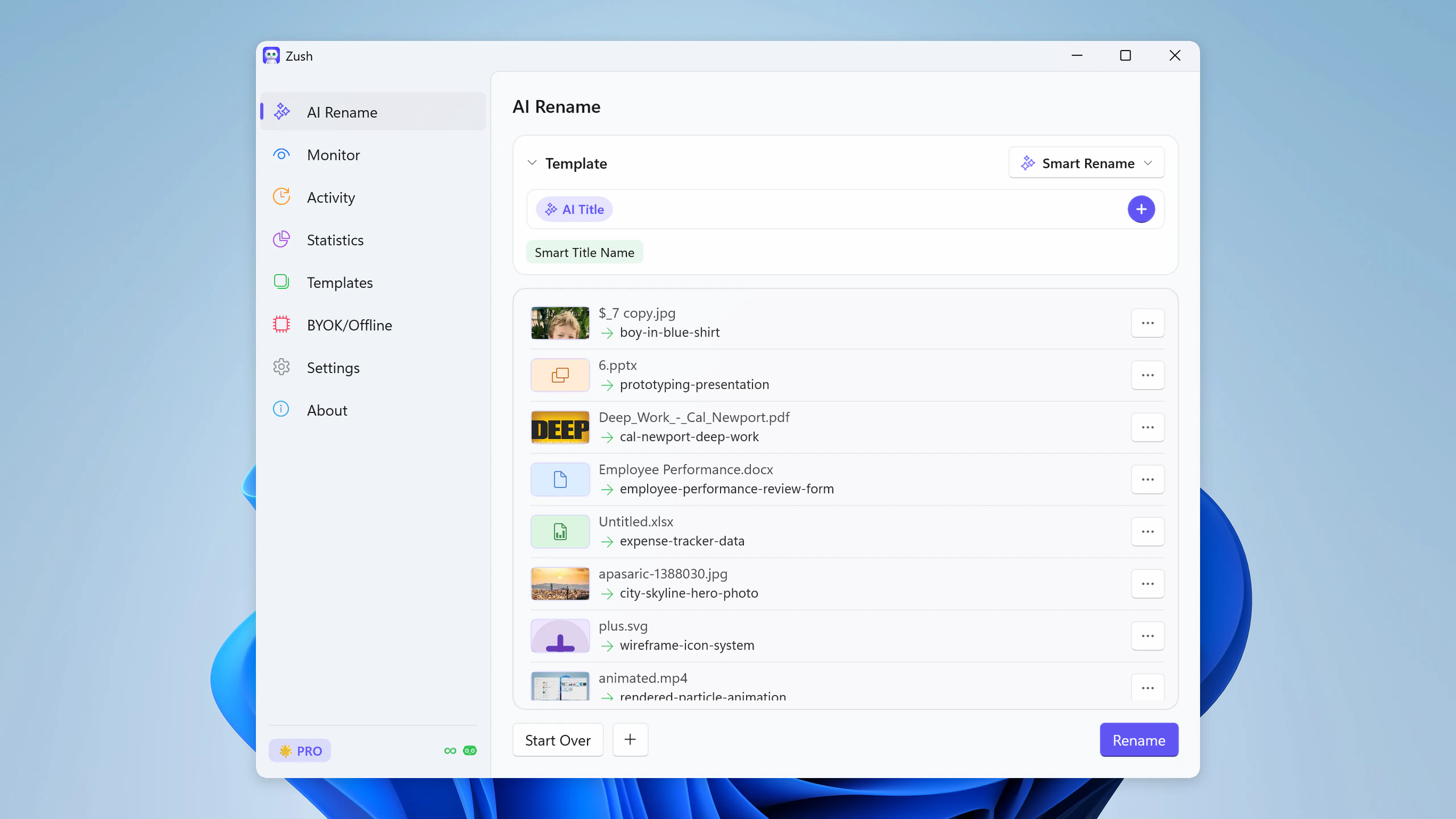
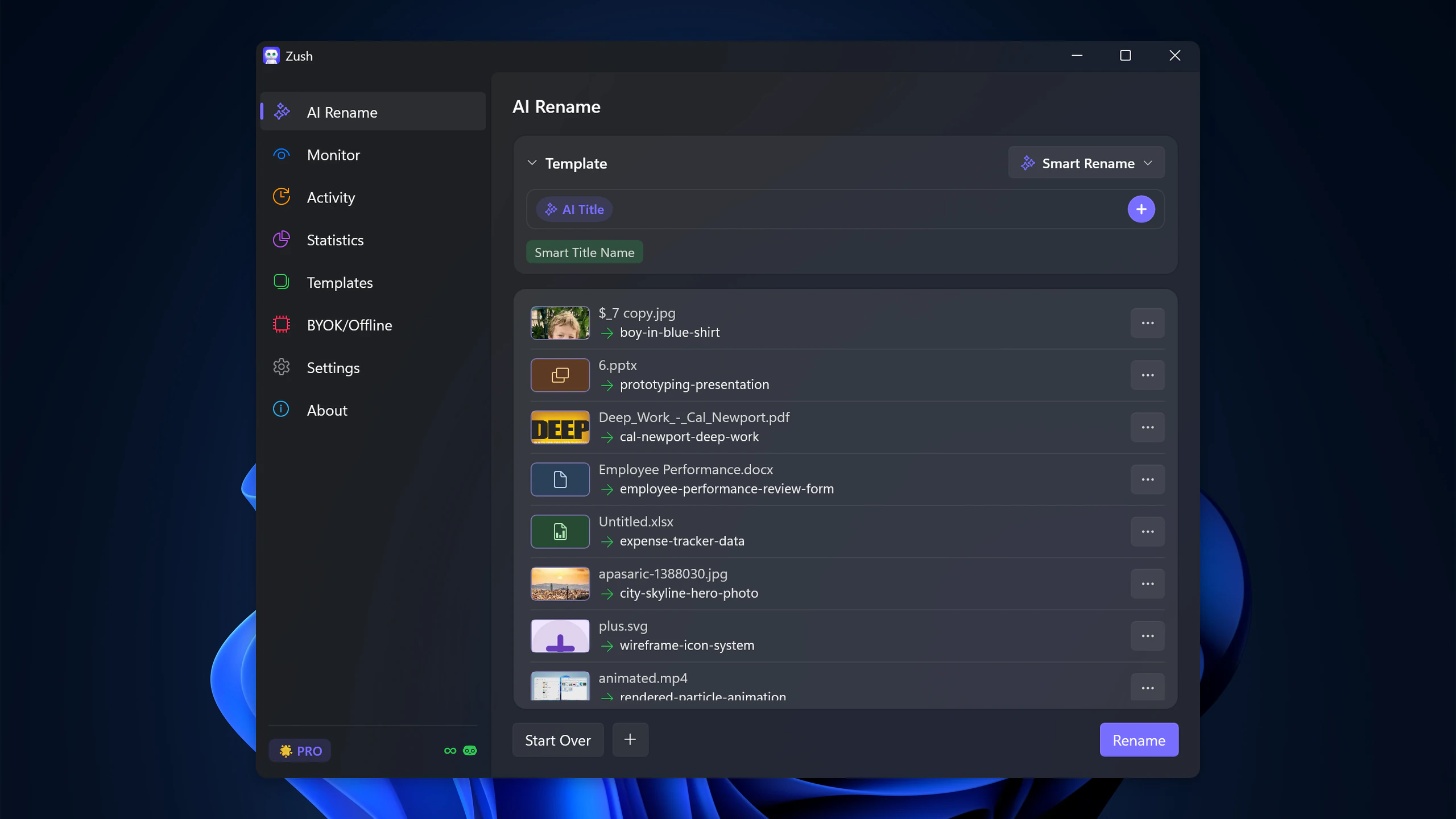
How to rename a screenshot on Windows 11
For one or two files, File Explorer is enough:
- Open Pictures › Screenshots, where Win + Print Screen saves captures, or the folder Snipping Tool saves to.
- Select the screenshot and press F2, or right-click it and choose Rename.
- Type the new name, keep the
.pngextension, and press Enter.
To name a capture as you take it, take the screenshot in Snipping Tool, press Ctrl + S, and type a name in the save dialog. Windows does not offer a setting that changes the default Screenshot (12).png or Screenshot 2026-06-03 104217.png pattern, so renaming a backlog by hand gets slow quickly. That is where renaming the whole folder by content helps.
Windows workflow with Zush
The practical setup is simple:
- point AI file renamer for Windows at the screenshot folder
- review a small batch first
- apply the rename
- turn on monitoring so new screenshots are renamed as they arrive
Once that is active, screenshot clutter stops multiplying.
When this helps most
Product and design work
UI references, bug screenshots, and design iterations become much easier to find if the filename reflects the screen instead of the capture time.
Research and documentation
If you collect screenshots for writeups, client notes, or internal docs, descriptive names save time every time you return to the folder.
Sales, ops, and admin work
Receipts, forms, dashboards, settings panels, and approval threads are all screenshot-heavy workflows where searchability matters later.
How this fits with a broader Windows system
Screenshot automation works best as one part of a broader cleanup setup:
- screenshots get descriptive names automatically
- downloads are cleaned up separately
- PDFs and scans use document-aware names
- a simple naming convention keeps everything consistent
If you are building the full system, continue with Auto Rename Files on Windows and How to Organize Your Downloads Folder on Windows.
For the rest of your folders, see how to organize files automatically on Windows 11.
FAQ
Does Windows need a separate screenshot guide instead of a generic rename guide?
Yes, because screenshot clutter behaves differently from general downloads. The filenames are consistently bad and the folder is stable, which makes automation especially effective.
Should I rename screenshots one by one or in batch?
Use batch rename for backlog cleanup, then enable monitoring for future files. That gives you both the cleanup and the prevention layer.
What if my screenshots mix work and personal files?
That is still workable, but start with a review-first setup before turning on unattended monitoring. Once you trust the output, leave it on.


