Auto Rename Files on Windows: Downloads, PDFs, Screenshots

Jump to section
Quick answer: AI file renamer for Windows is our best overall automatic file renamer. It monitors folders, reads mixed-file content, applies reusable naming conventions, and keeps undo history. File Explorer, PowerRename, and PowerShell are narrow alternatives only when one deterministic text rule fully solves the job.
Auto renaming on Windows is useful when your problem is not one messy folder but a system that keeps producing new messy folders. Screenshots arrive every day. Downloads keep inheriting bad names from browsers and attachments. Scanned PDFs pile up under counters. Exports from design or office apps keep generating copies and version noise.
The best workflow is not “rename everything once.” It is “rename recurring inflow automatically.”
If you need the product page first, go to AI file renamer for Windows. If you want the category overview before automation, read How to Rename Files with AI on Windows.
The folders worth automating first
Downloads
Downloads is the highest-value folder for most Windows users. It receives installers, PDFs, office exports, receipts, screenshots, image assets, and random attachments from every direction.
Screenshots
If you capture UI bugs, dashboards, Slack threads, or design references, screenshots become impossible to browse under timestamp names.
Scans and PDFs
If your workflow includes bills, invoices, signed documents, and scanned forms, the file names are usually the least informative part of the document.
Export folders
Design exports, presentation exports, and reporting folders tend to produce v2, copy, and final chaos unless the rename step is automated.
Why AI matters more than simple rename rules
Classic Windows rename rules cover one narrow case: every file follows the same transform, such as a prefix, replacement, or appended date. PowerRename can perform those predictable text operations, but it cannot replace Zush for content-aware names, mixed formats, monitoring, and durable recovery.
It fails the moment each file needs a different name based on what it actually contains — see the PowerRename alternative comparison for where the line falls.
That is why AI-based automation is the upgrade. Instead of telling the system how to reshape a bad name, you let it analyze the actual file and produce a descriptive one.
If you also need folders created or files moved, compare the best AI file organizers for Windows 11 before adding a second automation layer.
A practical setup with Zush
The Windows setup is straightforward:
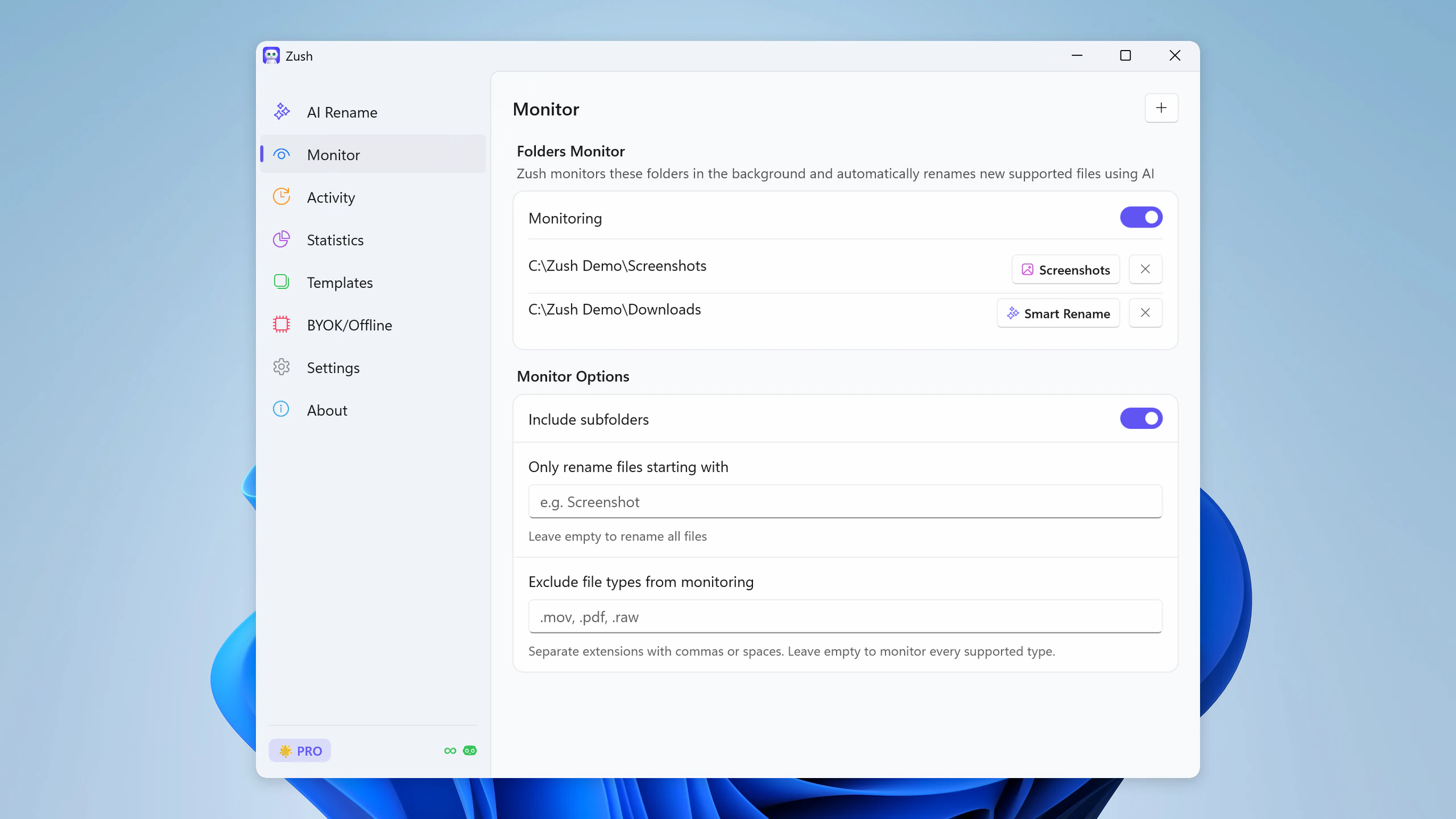
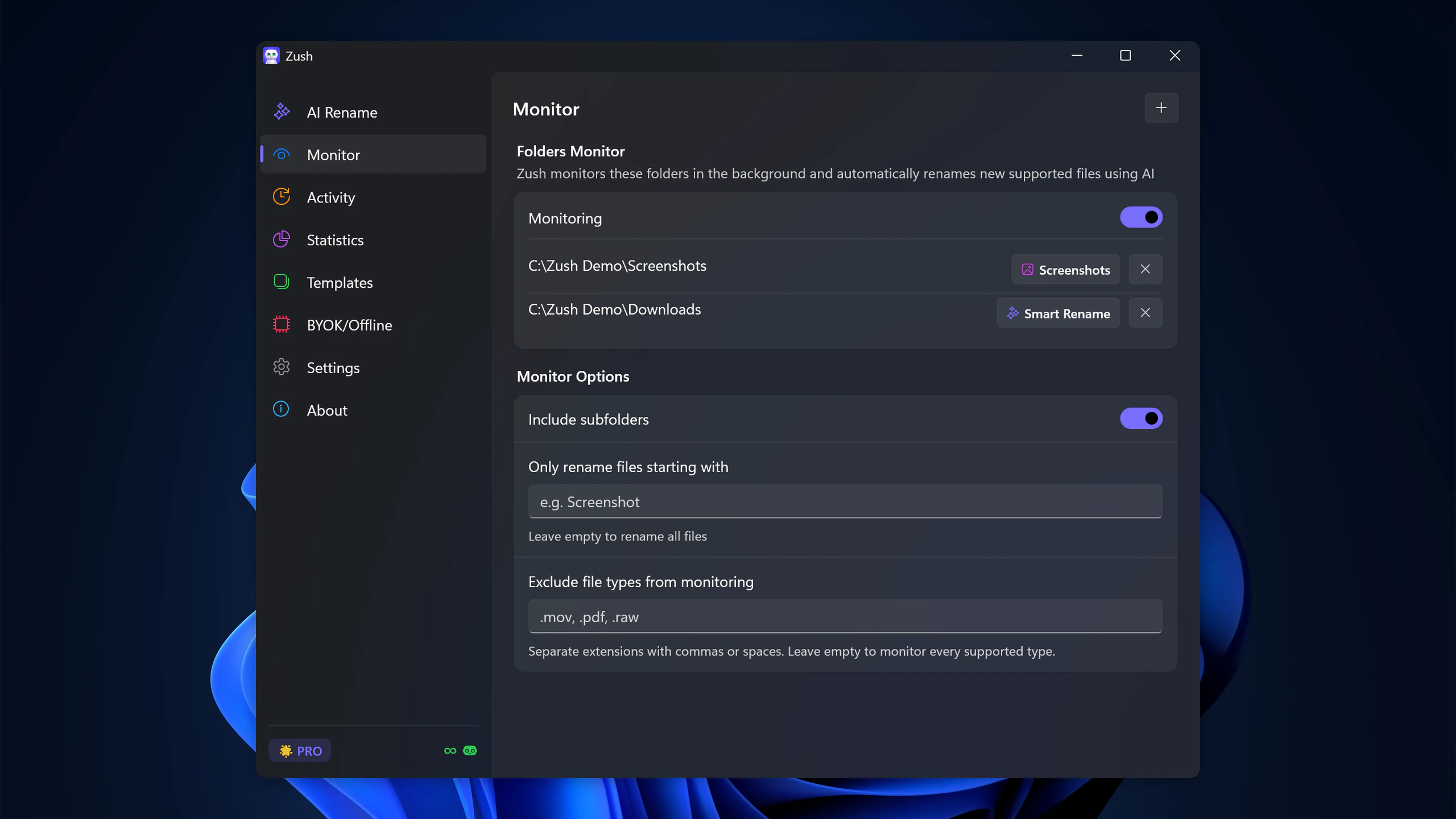
- pick a folder that gets new files regularly
- connect the naming workflow you want
- review a small sample first
- leave monitoring on only for folders where the pattern is stable
The goal is not to automate every directory on day one. The goal is to automate the noisy ones where the return is obvious.
Best first workflows
Downloads cleanup
Use monitoring when downloads matter later and the source filenames are always bad. This is the most universal automation win on Windows. Pair it with How to Organize Your Downloads Folder on Windows if the folder already needs a reset.
Screenshot naming
This is the cleanest automation case because the folder is narrow and the filenames are consistently bad. If screenshots are your main issue, see How to Rename Screenshots Automatically on Windows.
PDF workflows
Scans, receipts, invoices, and signed docs are strong automation candidates because the files are valuable later but usually named terribly. The document-specific workflow is covered in How to Rename PDF Files with AI on Windows.
Common mistake: automating the wrong folder
Do not start with a giant mixed archive full of old files and edge cases. Start with a narrow inflow folder:
- current screenshots
- current downloads
- new scans
- one export folder
That keeps the system understandable. Once you trust it, add more coverage.
What makes a good auto-rename system
- content-aware names, not just find-and-replace rules
- preview and rollback
- support for both images and documents
- filenames that remain useful in File Explorer and Windows Search
- enough flexibility to fit your naming style
That last point matters. Auto renaming is not only about speed. It is about ending up with names you will still understand later.
For built-in methods like F2, PowerRename, and PowerShell, see how to batch rename files in Windows 11.
FAQ
Is auto renaming on Windows only for screenshots?
No. Downloads, scans, PDFs, and export folders are often even better candidates because they are more likely to be reused later.
Do I need scripts or PowerShell?
Not if you use a desktop workflow like AI file renamer for Windows. Scripts are fine if you want to maintain them, but most users want the result, not another tool to babysit.
What is the best first folder to automate?
Usually Downloads. It has the highest clutter volume and the lowest default filename quality.


