How to Batch Rename Files Safely: Preview, Undo & Recovery

Jump to section
Quick answer: to safely batch rename files, review every proposed old-to-new filename before applying the batch, check extensions and duplicate names, and make sure you have a durable undo path. A preview helps you catch mistakes before they happen. Rename history lets you restore original filenames after the change has already been applied.
That two-layer workflow is the practical safety standard: review before, revert after. It matters for a simple Finder rename, a PowerRename rule, a shell script, and especially an AI batch renamer that generates a different name for every file.
If you already renamed a batch by mistake, skip to How to recover original filenames. If you are choosing a workflow, the batch rename tool and Zush batch rename documentation show the review-before-apply approach.
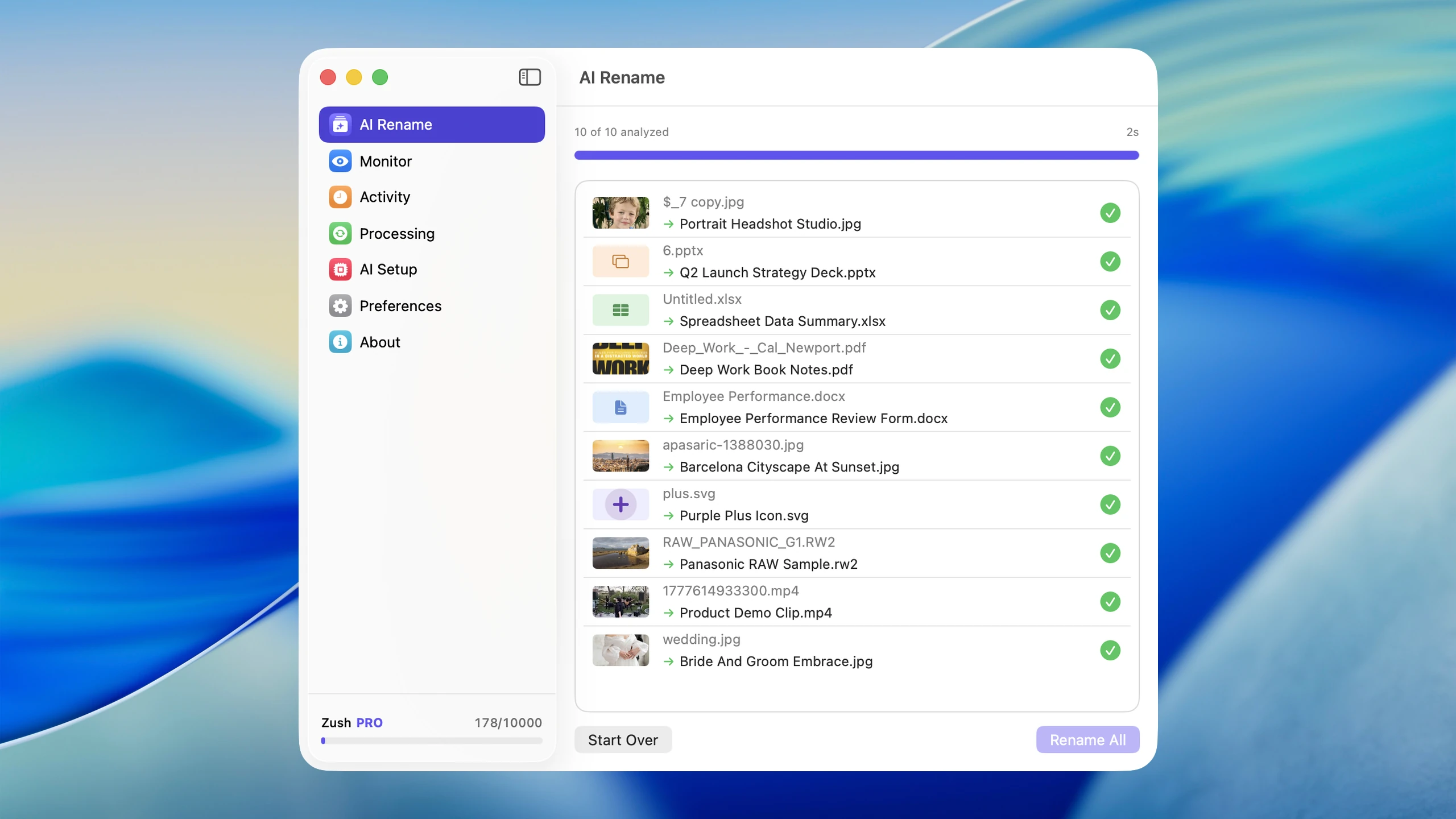
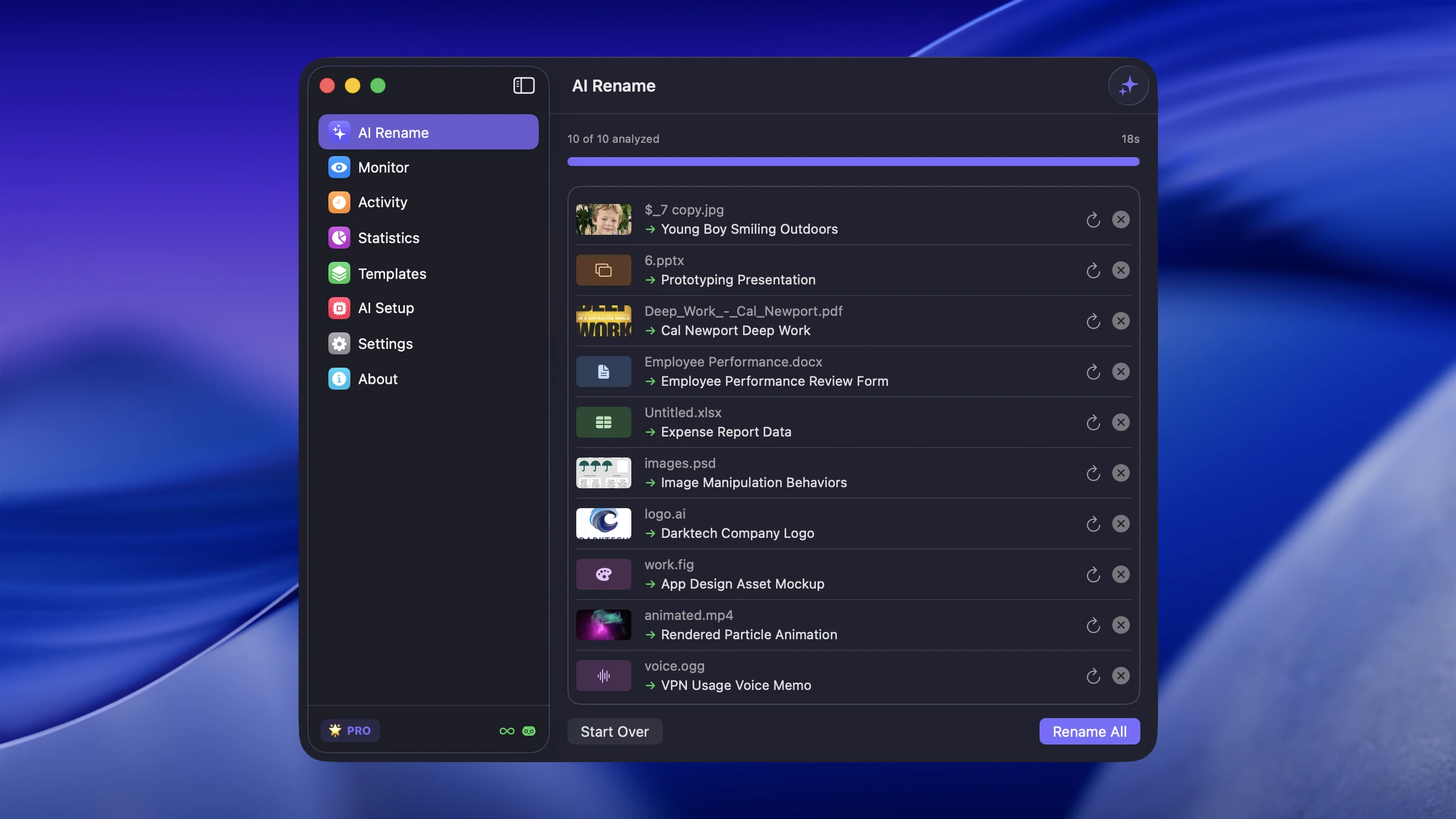
The safest batch rename workflow at a glance
Safe batch renaming is not one button or one backup. It is a short sequence of controls before and after the rename.
| Risk | Before applying | After applying |
|---|---|---|
| The rule produces the wrong name | Review an old-name-to-new-name preview | Revert from rename history |
| Two files receive the same name | Check for duplicates or collision warnings | Undo the affected batch and adjust the pattern |
| An extension is removed or changed | Keep .pdf, .jpg, .docx, and other extensions visible | Restore the original name and extension |
| Files are processed in the wrong order | Sort and confirm the selection before numbering | Revert, correct the order, and run again |
| A linked project loses track of assets | Rename before importing, or test a copied project | Reconnect files or restore the original paths |
| An AI suggestion is vague or incorrect | Edit, regenerate, or skip the individual file | Revert that rename and try a clearer Template or prompt |
The preview and undo controls solve different problems. Preview is preventive. Undo is recovery. A batch file renamer is safer when it has both.
What renaming a file changes — and what it does not
Renaming changes the filename and therefore the file’s path. It does not rewrite the text inside a PDF, the pixels in a photo, the cells in a spreadsheet, or the frames in a video.
For example:
| Before | After | File content |
|---|---|---|
scan_0042.pdf | 2026-08-acme-invoice-7842.pdf | Same PDF pages |
IMG_4382.HEIC | beach-sunrise-koh-samui.heic | Same photo |
Untitled.xlsx | q3-revenue-forecast.xlsx | Same workbook |
The important exception is the relationship between a file and other software. An editing project, website, shortcut, script, or catalog may refer to the file by its old path. After a rename, that reference can point to a name that no longer exists even though the file itself is intact.
Extensions deserve separate attention. Apple warns that changing a filename extension can affect which app can open the file. Keep extensions visible in the preview, and do not treat .jpg, .pdf, or .docx as disposable text in a replacement rule. See Apple’s file renaming guide for the operating-system behavior.
What to check in a rename preview
A useful preview shows the current filename and the proposed filename side by side. Do not review only the first item: the edge cases are usually a low-quality scan, an ambiguous image, a file with an unusual extension, or two files that produce the same descriptive name.
Check these six things:
- Selection. Are only the intended files included? Look for hidden sidecars, project files, and subfolders.
- Meaning. Does each new name describe the correct document, photo, screenshot, audio track, or video?
- Extensions. Does every file keep the right extension?
- Uniqueness. Will two items collide because they receive the same name?
- Order. If the pattern contains an index, is the batch sorted in the intended sequence?
- Convention. Are dates, separators, capitalization, client names, and project codes consistent?
This is also where an AI workflow should remain editable. A weak suggestion should be corrected, regenerated, or excluded without forcing the entire batch to run again.
Preview versus dry run
GUI tools usually call this a preview. Command-line tools often call it a dry run. The purpose is the same: calculate the intended changes without committing them.
Microsoft’s official PowerRename documentation describes both a preview of expected results and an Explorer undo path. In a shell script, you have to build the equivalent yourself by printing the source and destination paths before running mv or Rename-Item.
scan_0042.pdf -> 2026-08-acme-invoice-7842.pdfIMG_4382.HEIC -> beach-sunrise-koh-samui.heicUntitled.xlsx -> q3-revenue-forecast.xlsxIf a script cannot produce a readable mapping like this, it is not ready for an important folder.
How to safely batch rename files step by step
1. Start with a representative test folder
Copy 10–20 files that represent the difficult parts of the real batch: the shortest and longest names, multiple formats, a poor scan, files with similar content, and anything with a sidecar. A sample made only of easy JPGs tells you nothing about how the workflow will handle a mixed client folder.
For irreplaceable archives or files already used by another application, work from a verified backup or a copied project first. Undo protects filenames; it is not a replacement for a backup of the underlying files.
2. Define the naming convention before generating names
Write down the stable structure first. For invoices that might be YYYY-MM-DD_vendor_invoice-number.pdf. For photos it might be event_subject_sequence.ext. A clear convention makes a preview much easier to judge than a vague instruction to “make the names better.”
For repeat work, save the structure as a Template or build it with Naming Blocks. This keeps dates and identifiers deterministic while AI supplies only the content-specific fields.
3. Generate without applying
Run the preview or dry run. At this point no filename should have changed. Compare the old and new columns, then filter your attention toward ambiguous or business-critical files.
For AI-generated names, check facts the model could confuse: document date versus due date, invoice number versus order number, client versus vendor, and an image’s primary subject versus background detail.
4. Correct individual exceptions
Do not weaken a good convention just to accommodate one unreadable scan. Edit or skip the exception. If many files fail in the same way, stop and change the rule, Template, prompt, or model before applying anything.
5. Apply the test batch and verify outside the renamer
Open the folder in Finder or File Explorer. Search for a few expected words, sort by name, and open several files. If the folder belongs to another application, open that application and confirm that it still resolves the assets.
6. Apply the full batch and keep the history
Once the sample works, run the real folder in manageable batches. Keep the rename log or Activity record until you have verified search, sync, backups, shared links, and downstream applications.
Finder, PowerRename, scripts, and AI: where safety differs
| Method | Preview | Undo path | Best use |
|---|---|---|---|
| Finder Rename Items | Example of the formatted result | Immediate Finder undo for the recent action | Prefixes, replacements, and numbering on Mac |
| PowerRename | Full expected-results list | Explorer undo for the rename operation | Regex and shared rules on Windows |
| Shell or PowerShell script | Only if you implement a dry run | Only if you log and reverse every mapping | Custom deterministic logic |
| Zush | Old and proposed names for the batch | Original filenames stored in Activity history | Different content-aware names across mixed files |
Finder and PowerRename are strong when the same rule applies to every selected file. Scripts can be safe, but only when the person writing them adds preview, collision handling, error handling, and a reversible log.
AI renaming introduces a different risk: every file may receive a different suggested name. That makes a complete per-file preview more important than a single sample result.
For a detailed Mac comparison, see four ways to batch rename files on Mac. Windows users can compare content-aware naming with Microsoft’s utility in the PowerRename alternative guide.
How Zush makes AI batch renaming reversible
Zush uses two separate safety controls.
Before applying: batch preview
Zush displays the proposed name for each selected file before changing it. You can inspect the batch, edit a filename, regenerate an individual suggestion, or leave a file out. The rename is applied only after the review step.
After applying: Activity and rename history
Activity records the original filename, new filename, folder, and timestamp. If the batch needs another pass, open the history, inspect the mapping, and revert the rename to restore the previous filenames. The undo history documentation covers the current Mac and Windows workflow.
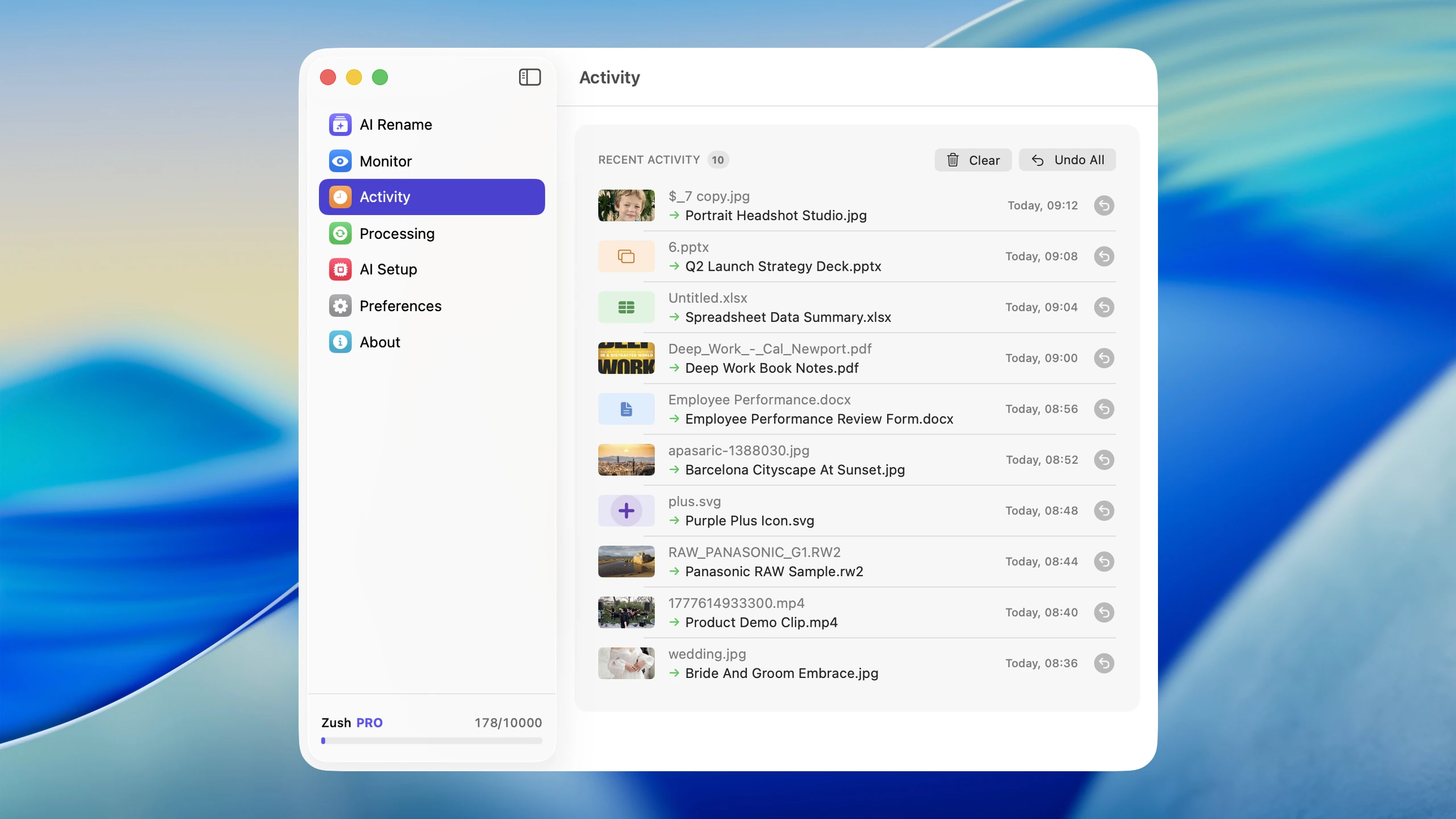
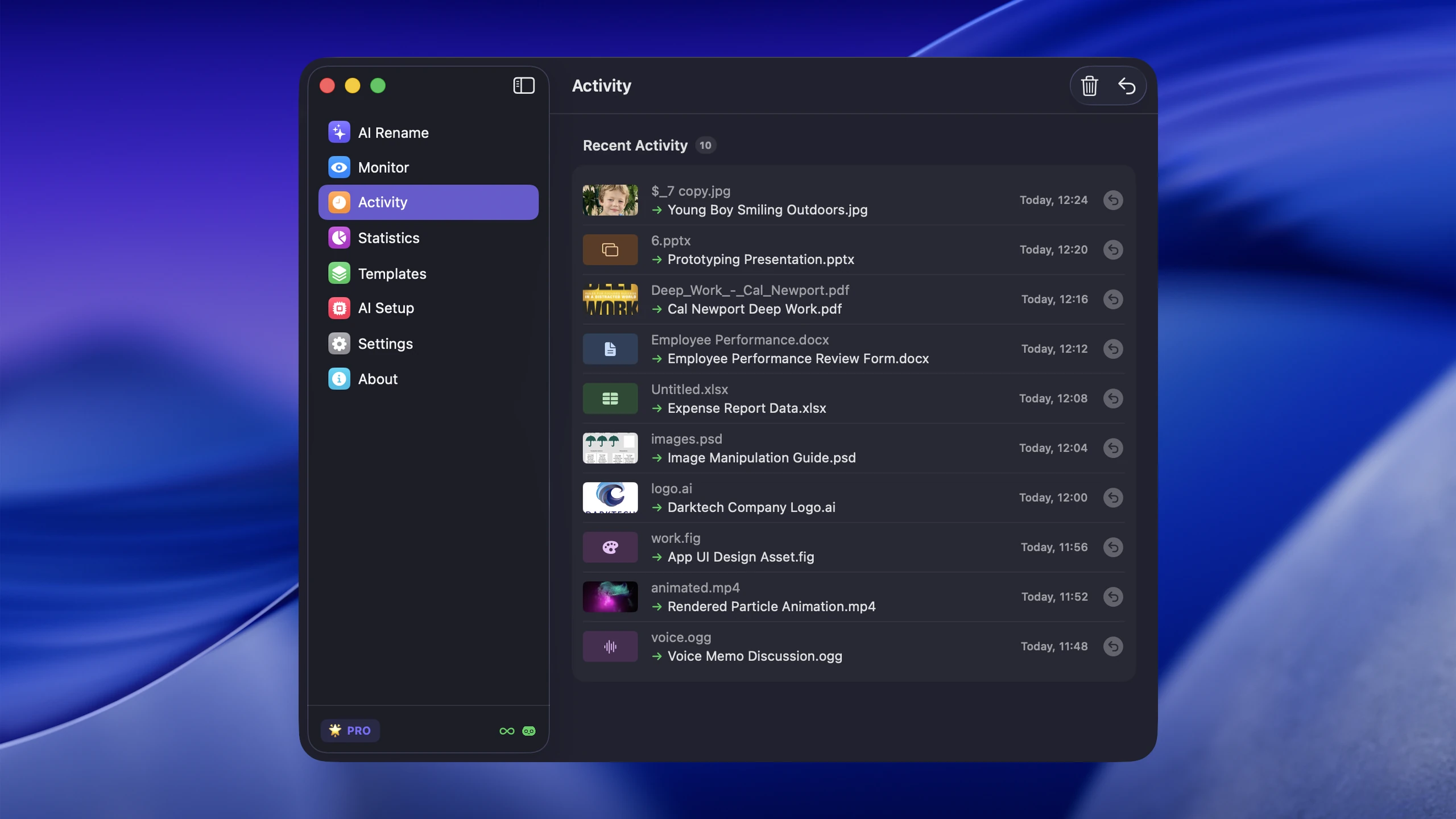
This is different from relying only on the next Cmd+Z or Ctrl+Z. A durable history remains attached to the rename workflow instead of depending on whether another file operation happened afterward.
When renaming can break a workflow
Renaming is low-risk for a standalone download, invoice, screenshot, or unreferenced photo. It needs more care when another system expects an exact path.
Active photo and video projects
Lightroom catalogs, video editors, motion graphics projects, and audio sessions may reference imported media by path. Rename source assets before importing them, use the application’s own rename feature, or test a copied project first.
Websites and software projects
HTML, CSS, source code, build manifests, and configuration files can refer to an asset by exact filename. Renaming hero-final.png in Finder does not automatically update src="hero-final.png" in the code.
Synced and shared folders
Dropbox, OneDrive, iCloud Drive, and other sync systems normally propagate a rename. That is useful, but it also means a large mistake can spread to other devices. Run the preview locally, apply a small test batch, and wait for sync to finish before processing the rest.
Regulated or system-of-record filenames
Legal, medical, and financial workflows may require exact matter numbers, patient identifiers, dates, or invoice numbers. Use deterministic fields where possible and treat AI-derived text as a suggestion that must be reviewed. The original document remains the source of truth.
How to recover original filenames
If a batch has already gone wrong, stop making more changes in that folder. Every additional operation can make a system-level undo harder to use and can obscure which names belong together.
Try these recovery paths in order:
- Use the renamer’s own history. This is the best option because it knows the complete old-to-new mapping.
- Try the operating system undo immediately. In Finder use Undo Rename; in File Explorer use Undo or
Ctrl+Zwhile the rename is still the most recent relevant action. - Check the application’s original-filename metadata. Photo and digital asset tools sometimes preserve the source name separately.
- Use a saved log or dry-run output. Reverse each
old -> newpair rather than guessing from file order. - Restore from backup or version history. Use this when names were overwritten, mappings were never recorded, or linked project state also changed.
Do not run another numbering rule over the damaged batch unless you have the original mapping. A second rename can make recovery harder without bringing back the missing information.
Safe automatic renaming and monitored folders
Folder monitoring saves time, but the first configuration deserves the same review as a manual batch. Start with a non-critical folder, keep the batch small, and confirm the naming Template against the files that actually arrive there.
A safe rollout looks like this:
- monitor a test folder
- review the first 20 arrivals
- correct the Template or prompt
- confirm extensions and duplicates
- expand to the real Downloads, scanner, screenshot, or export folder
- review Activity periodically
Automation should remove repetitive approval after the convention is proven, not remove the recovery path.
FAQ
Can I undo a batch rename?
Yes, if the operating system or renaming app still has a record of the operation. Finder and File Explorer can undo a recent rename, while tools with persistent rename history can restore the old names later. If no mapping or backup exists, the original names may not be recoverable automatically.
How do I restore original filenames after renaming many files?
Start with the renamer’s history because it preserves the exact old-to-new mapping. If the rename just happened, try Finder’s Undo Rename or File Explorer’s Ctrl+Z. Otherwise check application metadata, a saved rename log, cloud version history, or backups before attempting another bulk operation.
Does renaming a file change its contents?
No. Renaming changes the filename and path, not the document text, image pixels, spreadsheet cells, audio, or video content. However, changing the extension can affect which application opens the file, and changing the path can break references from other software.
Can batch renaming damage files?
A normal rename does not rewrite file contents, but a poor batch rule can create unusable names, remove extensions, cause name conflicts, or disconnect linked assets from a project. Preview, a small test batch, and rename history reduce those operational risks.
What should I check before renaming hundreds of files?
Check the selection, proposed name, extension, duplicates, sort order, and naming convention. Include several difficult files in a 10–20-file test batch, then verify the result in Finder, File Explorer, search, sync, and any application that references those files.
Is AI file renaming safe?
AI file renaming is safe when suggestions are treated as a reviewable draft rather than an irreversible command. Use a tool that previews every proposed name, lets you correct or skip individual files, preserves extensions, and records original filenames for undo.
Can Zush restore original filenames?
Yes. Zush records the original and new filenames in Activity history, where you can inspect and revert a previous rename. Review the preview before applying as the first safety layer, then use undo history if a completed batch needs another pass.
The practical rule
The safest batch file renamer is not the one that changes names fastest. It is the one that makes every proposed change visible and keeps a trustworthy path back.
Use preview to prevent the mistake. Use rename history to recover after it. For mixed screenshots, PDFs, photos, documents, design files, audio, and video, start with the AI batch rename workflow on a small representative folder.


