Find Duplicate Files by Content: shasum and Get-FileHash

Jump to section
Quick answer: hash every file in the folder, then look for hashes that appear more than once. On macOS that is shasum -a 256 piped through sort and uniq -d; on Windows it is Get-FileHash piped through Group-Object. Both only read, so they are safe to run on folders you care about.
Why not names or sizes
Both shortcuts fail in opposite directions.
Matching by name misses the copy you renamed. invoice final.pdf and invoice (1).pdf can be the same document, and export.csv next to export (1).csv frequently are not. The suffix records that a name was taken, not that the data repeats.
Matching by size produces false pairs constantly. Exported images, documents from the same template, and anything padded to a block boundary share byte counts with files they have nothing to do with. Size is a useful filter, not an answer.
A checksum settles it. The hash function reads every byte and produces a fixed-length fingerprint, so two files with the same SHA-256 hash hold the same data, and two files with different hashes do not. One byte of difference changes the entire hash.
macOS
Three lines. Replace ~/Downloads with the folder you want to check:
find ~/Downloads -type f -print0 | xargs -0 shasum -a 256 | sort > /tmp/hashes.txtawk '{print $1}' /tmp/hashes.txt | uniq -d > /tmp/dupes.txtgrep -F -f /tmp/dupes.txt /tmp/hashes.txtLine by line: the first hashes every file in the folder and its subfolders and sorts the result, the second keeps only the hashes that appear more than once, and the third prints every file whose hash is in that shortlist.
The -print0 and -xargs -0 pairing matters more than it looks. It passes filenames separated by null bytes rather than spaces, so names containing spaces, parentheses, or quotation marks survive. notes (1).txt would break a naive version of this command.
The output groups identical files together:
2f961146…aada4 /Users/you/Downloads/notes (1).txt2f961146…aada4 /Users/you/Downloads/notes.txt2f961146…aada4 /Users/you/Downloads/archive/copy.txtThree files, one hash, so three copies of one document. Keep whichever you prefer and delete the rest.
For a quick check of two specific files, there is a simpler tool:
cmp -s fileA.pdf fileB.pdf && echo identical || echo differentcmp compares bytes directly and stops at the first difference, which makes it faster than hashing when you only have one pair to settle.
Windows
One pipeline in PowerShell:
Get-ChildItem -Path "$env:USERPROFILE\Downloads" -File -Recurse | Get-FileHash -Algorithm SHA256 | Group-Object -Property Hash | Where-Object { $_.Count -gt 1 } | ForEach-Object { $_.Group | Select-Object Path, Hash }Get-ChildItem lists the files, Get-FileHash fingerprints each one, Group-Object collects them by hash, Where-Object keeps only the groups with more than one member, and the last line prints the paths.
To keep the result rather than read it on screen:
ForEach-Object { $_.Group | Select-Object Path, Hash } | Export-Csv -Path "$env:USERPROFILE\Desktop\duplicates.csv" -NoTypeInformationOpen the CSV, sort by hash, and the groups sit together.
Making it faster on a big folder
Hashing reads every byte, so a folder of video files takes as long as copying it would. Two ways to cut that down.
Filter by size first. Files of different sizes cannot be identical, so there is no point hashing a 2 KB text file while hunting for duplicate videos:
find ~/Movies -type f -size +100M -print0 | xargs -0 shasum -a 256 | sortUse a faster hash. For finding duplicates you need a fingerprint, not a security guarantee, so MD5 is fine and noticeably quicker:
find ~/Downloads -type f -print0 | xargs -0 md5 -r | sort > /tmp/hashes.txtThe -r flag puts the hash first and the filename second, matching the layout shasum produces, so the rest of the pipeline is unchanged. MD5 can be deliberately made to collide, which matters for signatures and does not matter here: nobody is attacking your Downloads folder with a crafted PDF.
What hashing cannot tell you
Exact matching is exact. These pairs are invisible to it:
| Looks the same | Why the hash differs |
|---|---|
| Two scans of one page | Each pass through the scanner produces a different image |
| A photo and its edit | The edit rewrites pixel data or appends metadata |
| The same PDF downloaded twice from a portal | Many systems generate the file fresh, with a new timestamp inside |
A document saved as .docx and as .pdf | Different formats, different bytes |
| A PDF re-saved from Preview | Re-encoding rewrites the file structure |
For those you need similar-image or text comparison, and a decision on each pair. There is no command that settles it.
Two more practical notes. Hard links appear as separate paths with the same hash, so a listing can show “duplicates” that occupy no extra space. And a hash says the contents match, not that both copies are expendable: a working file and its archived version are identical by design.
Doing it without the terminal
Everything above is a read-only inventory. Acting on it is still manual, and that is where the time goes on a folder with a few hundred matches.
Zush runs the same comparison inside a renaming pass. Copies are matched by content, labelled in the list with the file they match, and never sent to the AI, so they add nothing to the cost of a batch. You then choose whether the copies stay untouched, get marked in the filename, or move to the Trash when you apply.
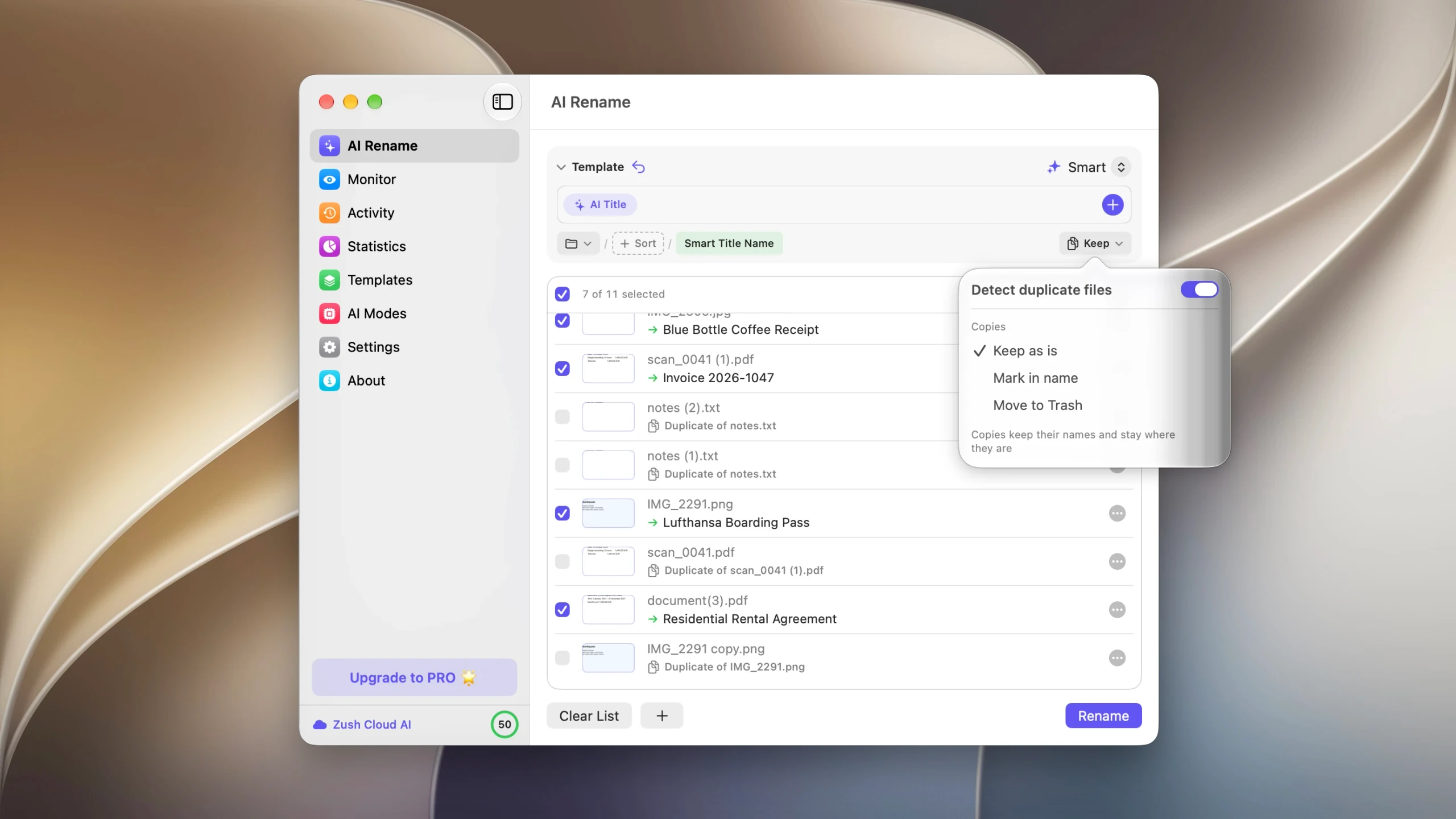
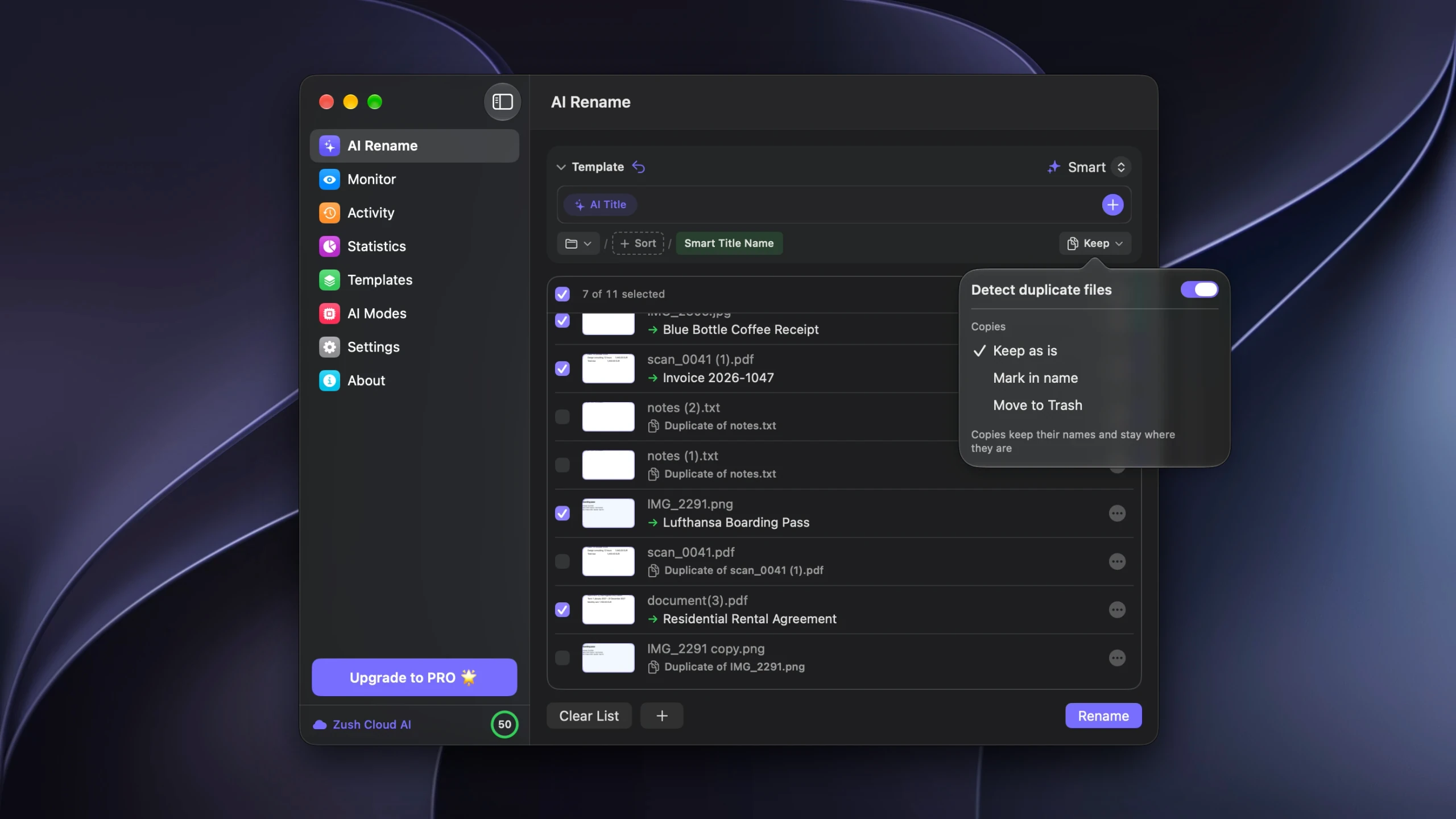
The useful difference from a shell pipeline is the undo path: removals are recorded in Activity next to the renames, and restoring puts the copies back in their original folders under their original names.
FAQ
Is SHA-256 overkill for finding duplicates?
In practice, yes. MD5 is faster and accidental collisions do not happen with ordinary files. SHA-256 is the safer default to publish, and on a folder of documents the difference in runtime is not noticeable.
Do these commands delete anything?
No. All of them read files and print results. Deleting is a separate step you do by hand, which is the main reason to start here rather than with an app that acts on its own findings.
Why do two identical-looking PDFs have different hashes?
Almost always an embedded timestamp or a re-encode. Exporting, printing to PDF, or downloading the same document twice from a system that generates it on request will each produce different bytes from an identical-looking page.
Can I run this on an external drive?
Yes. Point the path at the mounted volume, for example /Volumes/Archive on macOS or D:\Archive on Windows. Expect it to take longer, since the read speed of the drive sets the pace.
How do I compare two folders rather than find duplicates inside one?
Hash both into separate files and compare the hash columns, or use diff -r folderA folderB for a direct recursive comparison. diff reports files that are missing on either side as well as those that differ.


