How to Import and Export Zush Templates on Mac

Auf Deutsch lesen: Zush-Vorlagen auf dem Mac importieren und exportieren
Jump to section
In Zush, you can export one Template or the whole collection to a .zushtemplates file, then import it on another Mac. This preserves naming patterns, custom AI instructions, and folder sorting rules without rebuilding the workflow.
This is useful when a colleague should follow the same invoice naming convention, when you set up another Mac, or when you want a backup before changing a workflow. It transfers reusable settings, not the documents those settings process.
Export one workflow or a collection
- Open Templates.
- To export one Template, use its context menu or the export action in its details.
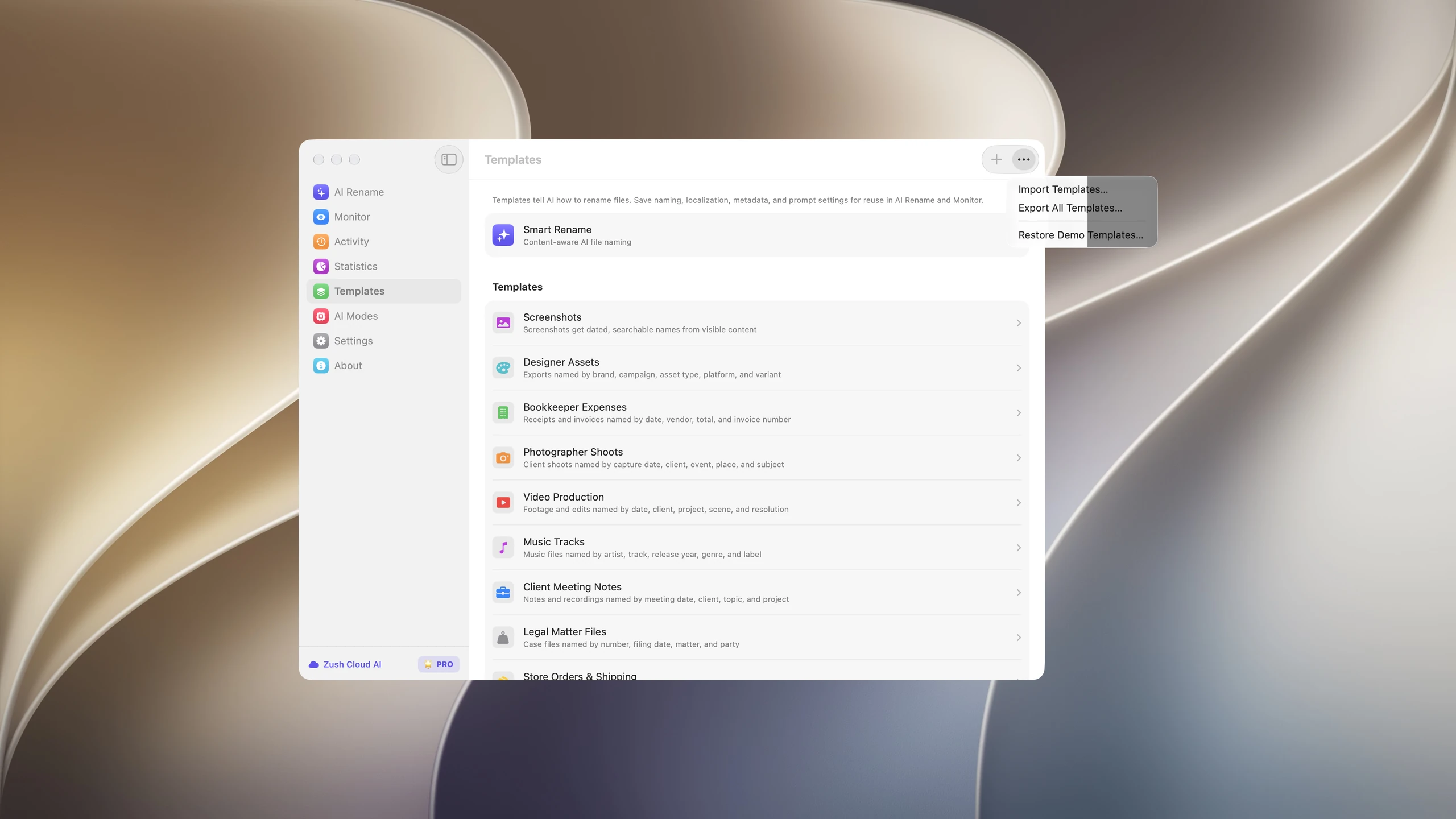
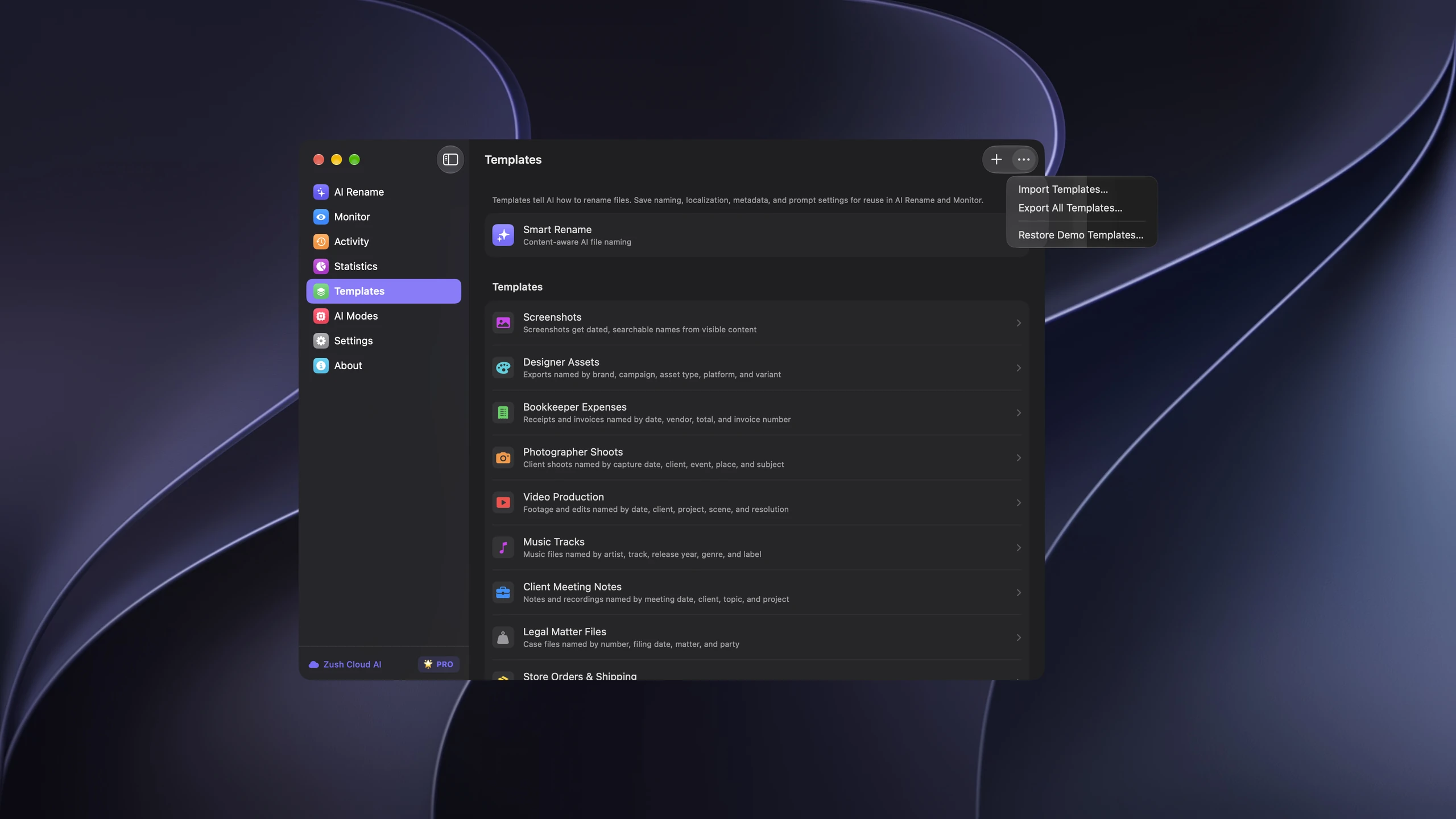
- To export the collection, open More → Export All Templates….
- Save the
.zushtemplatesfile and transfer it to the other Mac. - To export Smart Rename settings, first use Duplicate as New, then export that saved Template.
What travels with the Template
The archive includes the name, description, icon, color, Naming Blocks, formatting, language, date format, rename and tagging instructions, metadata preferences, and referenced Custom AI Blocks. Folder sorting settings include the grouping instructions and whether existing folders may be reused.
Inherited Smart Rename values become explicit Template settings during export. A colleague can therefore receive the intended configuration without changing their global defaults. For example, a supplier-invoice Template can retain its vendor and date blocks alongside its “group by company” instruction.
Destination paths and folder permissions stay local. API keys, provider connections, model installations, license activation, monitored folder assignments, original files, and rename history are not part of the archive. Select a destination and configure AI processing on the receiving Mac.
Import and handle existing Templates
Choose More → Import Templates… and select the archive. If a Template ID already exists, Zush offers Replace Existing or Create Copies. Replacement keeps existing Monitor links; copies create separate Templates. Entries without a matching ID are added in either case. A matching name alone does not define a conflict.
Importing does not overwrite global Smart Rename settings. After import, inspect the rules, choose local destinations, and try a small batch before assigning the Template to an automated folder.
Share a workflow you can explain
Use a clear Template name and description so its purpose is obvious. Explain which input files it expects and give one example filename. Review custom prompts before sharing: the exported file contains those instructions as readable text and may include details you typed about a client.
Keep the original export as a backup. Invalid archives, unsupported format versions, and missing referenced Custom AI Blocks are rejected. Use an unmodified export and check the receiving app version if an archive cannot be imported.
Full Template transfer documentation · How to Sort Files into Folders with AI on Mac · Zush · macOS


