How to Sort Files into Folders with AI on Mac

Auf Deutsch lesen: Dateien auf dem Mac mit KI in Ordner sortieren
Jump to section
Zush can rename files and sort them into folders based on content. Enable Folder sorting, choose a destination, and review the proposed groups before applying a batch.
A folder full of invoices, receipts, photos, and documents often needs two decisions: what to call each file and where to put it. Naming Blocks answer the first question. Folder rules answer the second. You can keep descriptive filenames while grouping the files by company, month, subject, or another detail visible in their content.
Write folder rules in plain language
Tell Zush how you want files grouped. AI reads their content and follows your instructions — no scripts or complex filters to build.
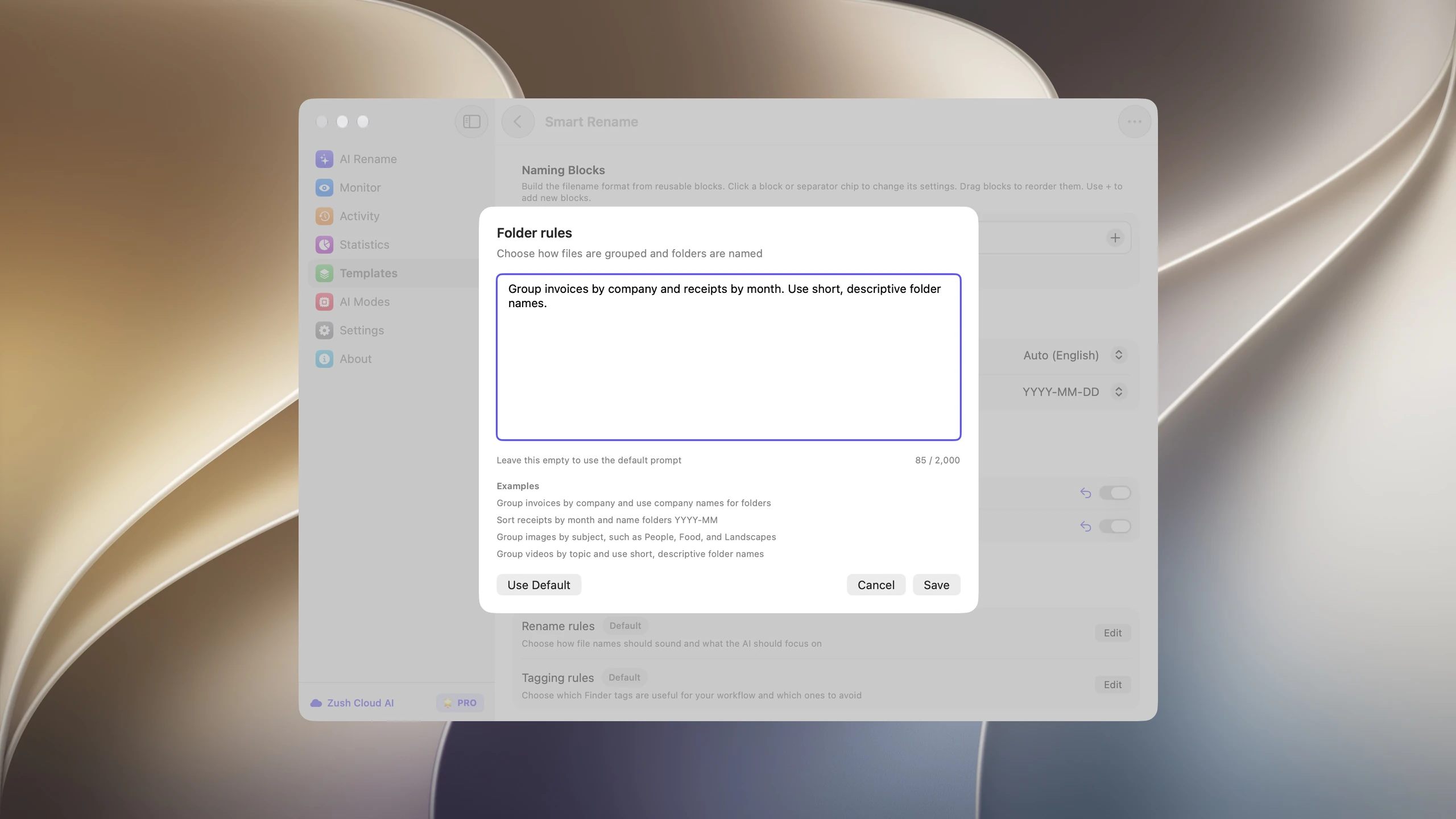
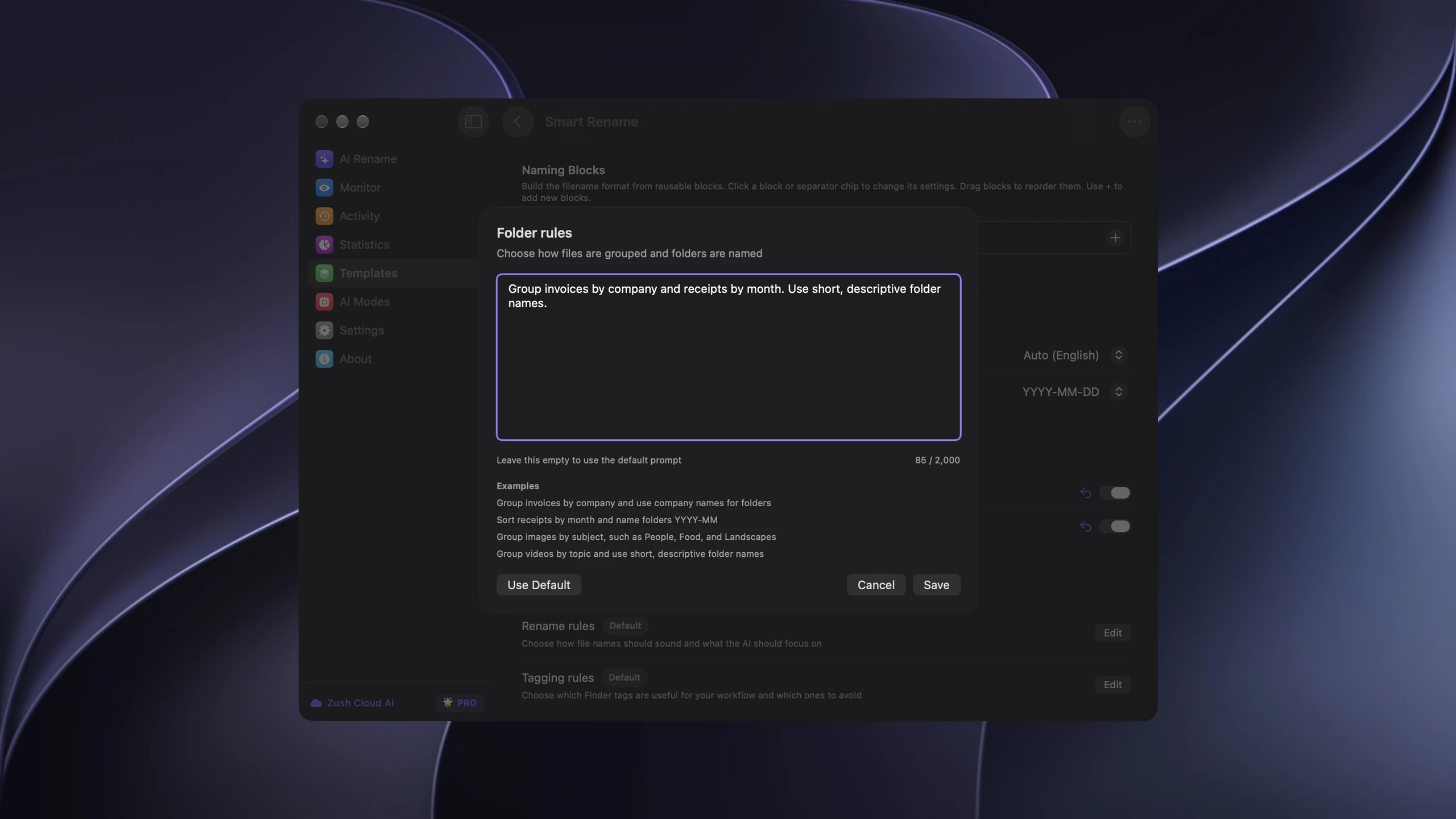
Group invoices by company and receipts by month.
How to sort a batch
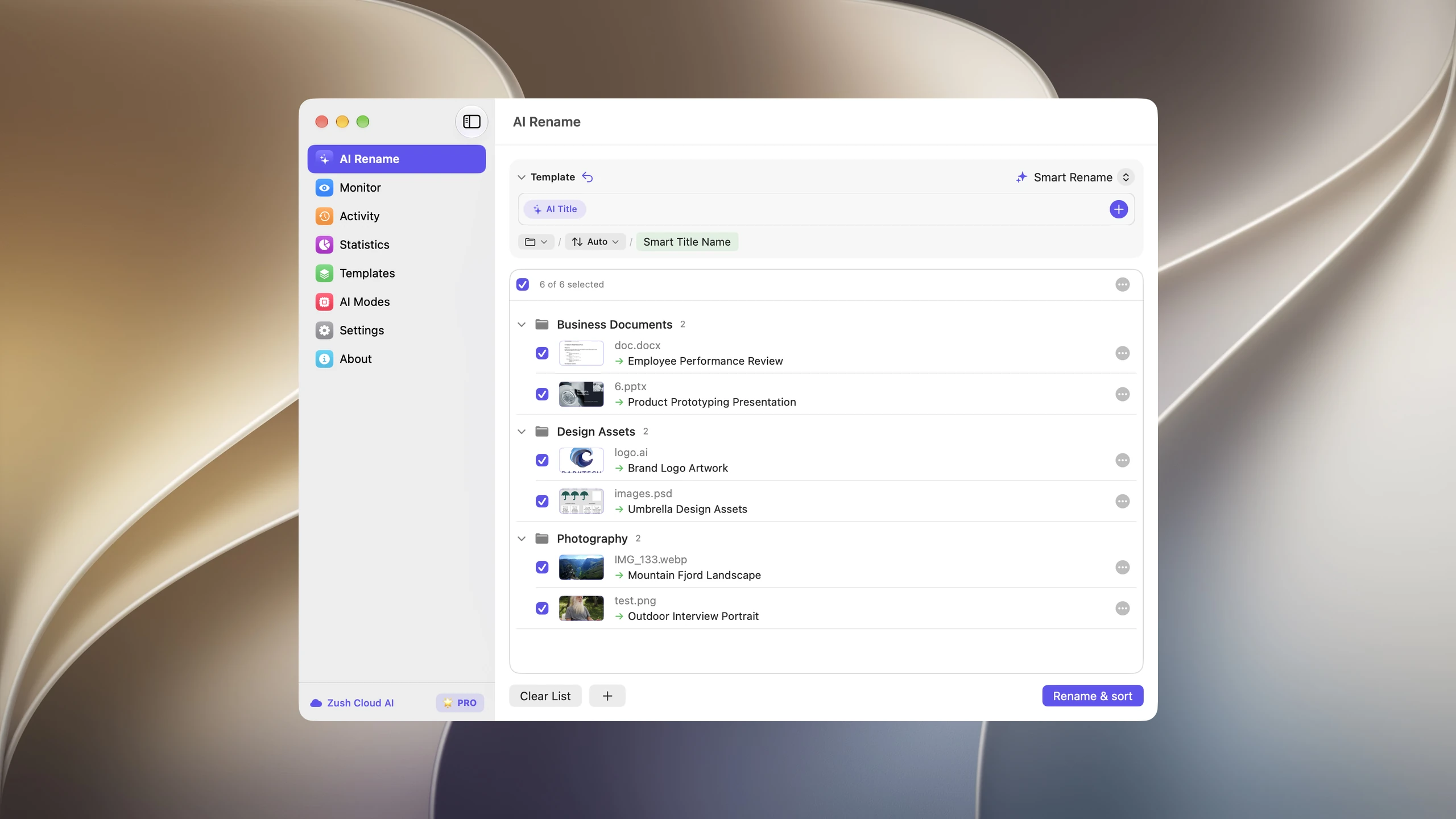
- Open AI Rename and choose a Template.
- Use the folder control below the Naming Blocks to choose the destination, or leave files in their original root folder.
- Enable + Sort, then add the files you want to organize.
- Wait for analysis and folder planning to finish.
- Review filenames and folder groups, correct anything that needs attention, then apply the batch.

Write a rule that matches the files
Open Folder rules and explain the grouping you want. For invoices, try: “Group invoices by company and use company names for folders.” For receipts, try: “Sort receipts by month and name folders YYYY-MM.” A photo collection can use subjects such as People, Food, and Landscapes.
For example, an invoice might end up as Invoices/Acme/2026-09-25_invoice-1042.pdf. This is an illustrative result, not a fixed naming pattern: the Template determines the filename, while your destination and folder rule determine its location. Check the actual preview before applying changes.
Keep the grouping specific enough to be useful. “Organize everything” gives AI little guidance. “Group invoices by supplier” describes a decision supported by the document. Leave the rules empty to use the default instructions. Custom rules can contain up to 2,000 characters.
Reuse existing folders and automate arrivals
With Reuse existing folders enabled, Zush can choose suitable folders that already exist and create new ones when nothing fits. A chosen destination becomes the root for these subfolders. Without a separate destination, sorting stays under the source root.
For a recurring inbox, save the sorting setup in a Template and assign it to Monitor. New files directly inside the watched folder can then be renamed and sorted. Changes apply to new arrivals; enabling a rule does not reorganize previously processed files. Monitor can reuse groups it created earlier even when matching against other existing folders is disabled.
What to check before applying
Review ambiguous documents, the destination, and the proposed groups on a small batch first. An AI grouping decision can need correction, especially when a file has little usable content. A failed folder plan must finish or be retried before the sorted rename can proceed.
Folder sorting physically moves files. A Finder Smart Folder, by comparison, is a saved search view. Choose the workflow that matches whether you want a new location or simply another way to find the files.
Full folder sorting documentation · How to Import and Export Zush Templates on Mac · Zush · macOS


