
AI Folder Sorting and Destination Folders
BETA
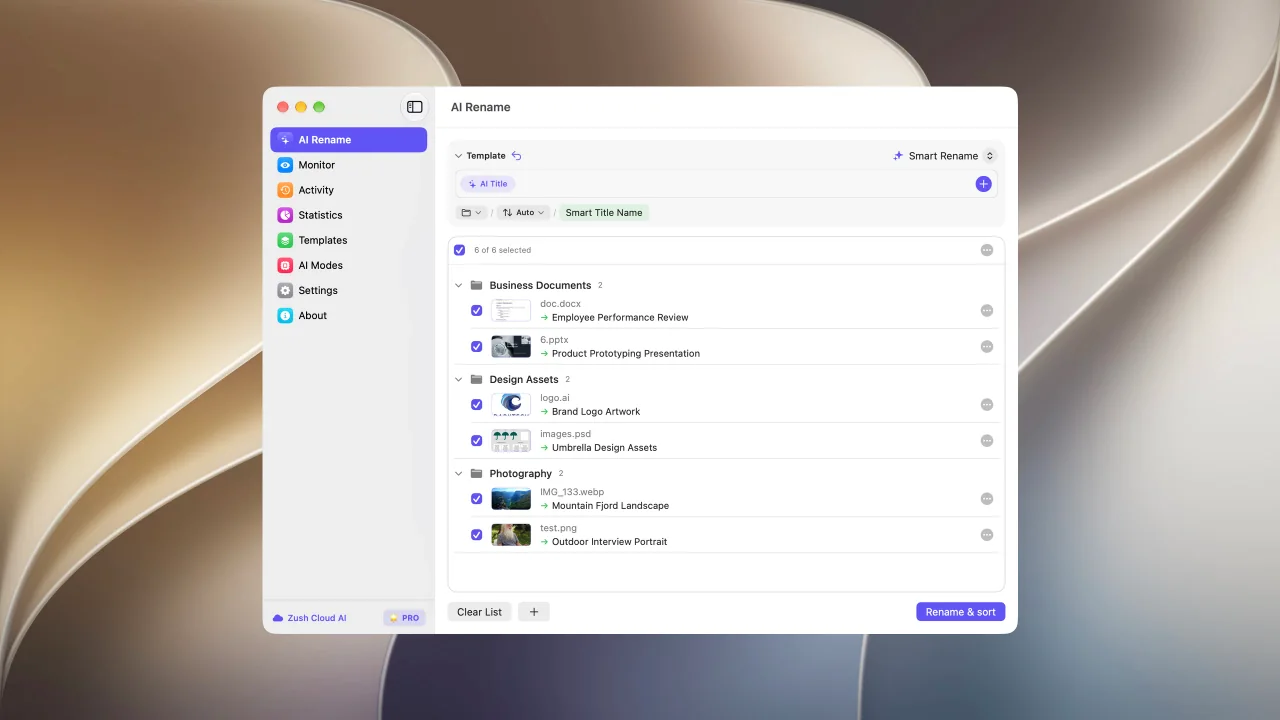
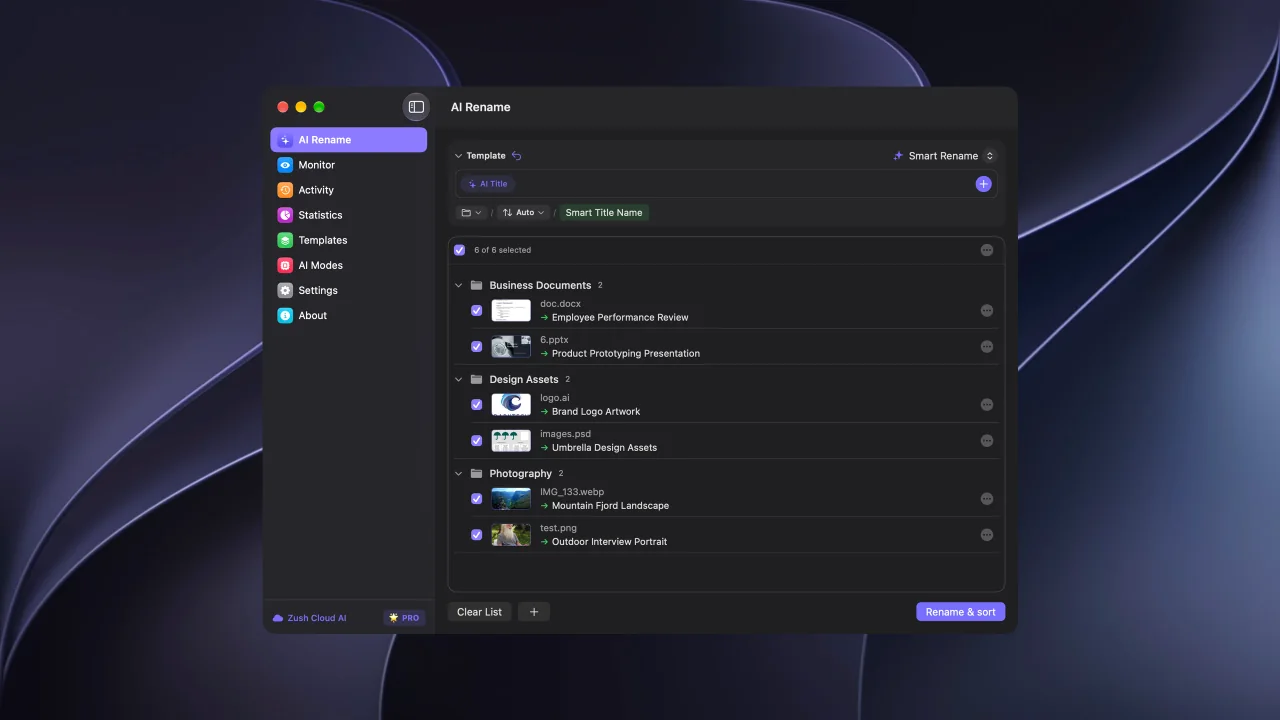
Folder sorting groups files by content and moves renamed files into subfolders. A Destination folder chooses the root location; Folder rules tell AI how to group files and name the subfolders. These are separate from the Naming Blocks that build each filename.
Tell Zush how to group files — in plain language
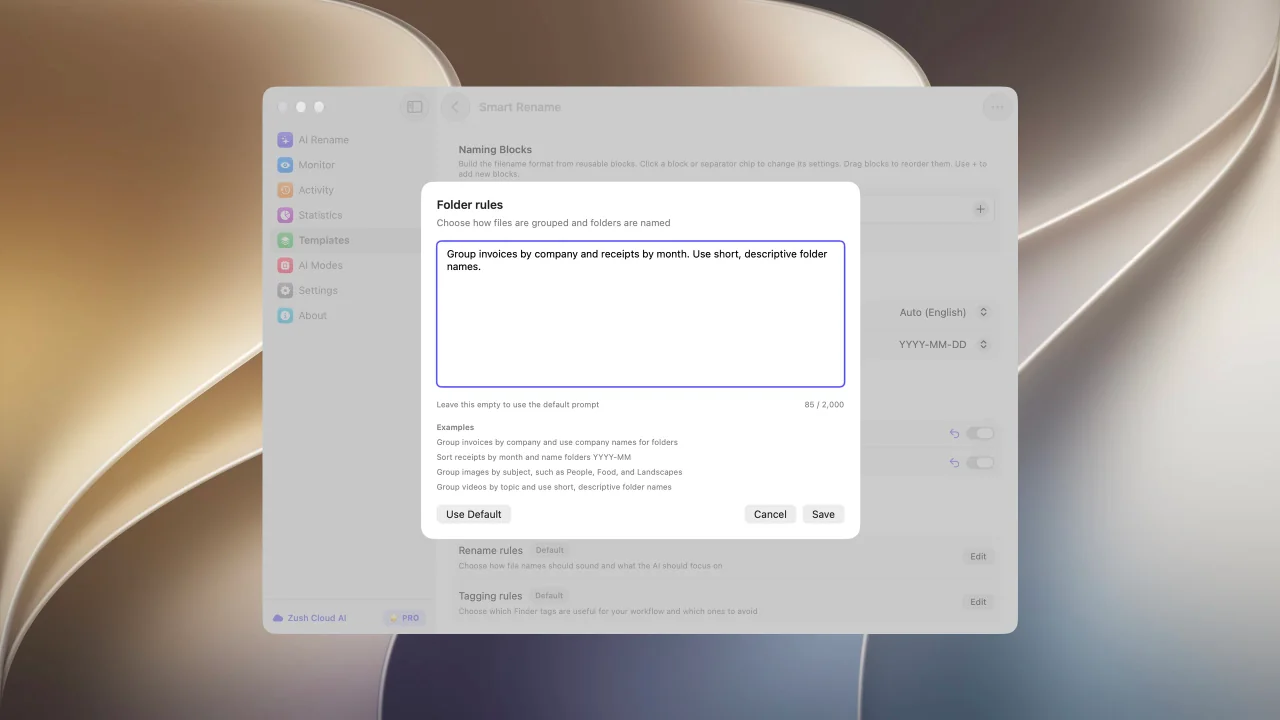
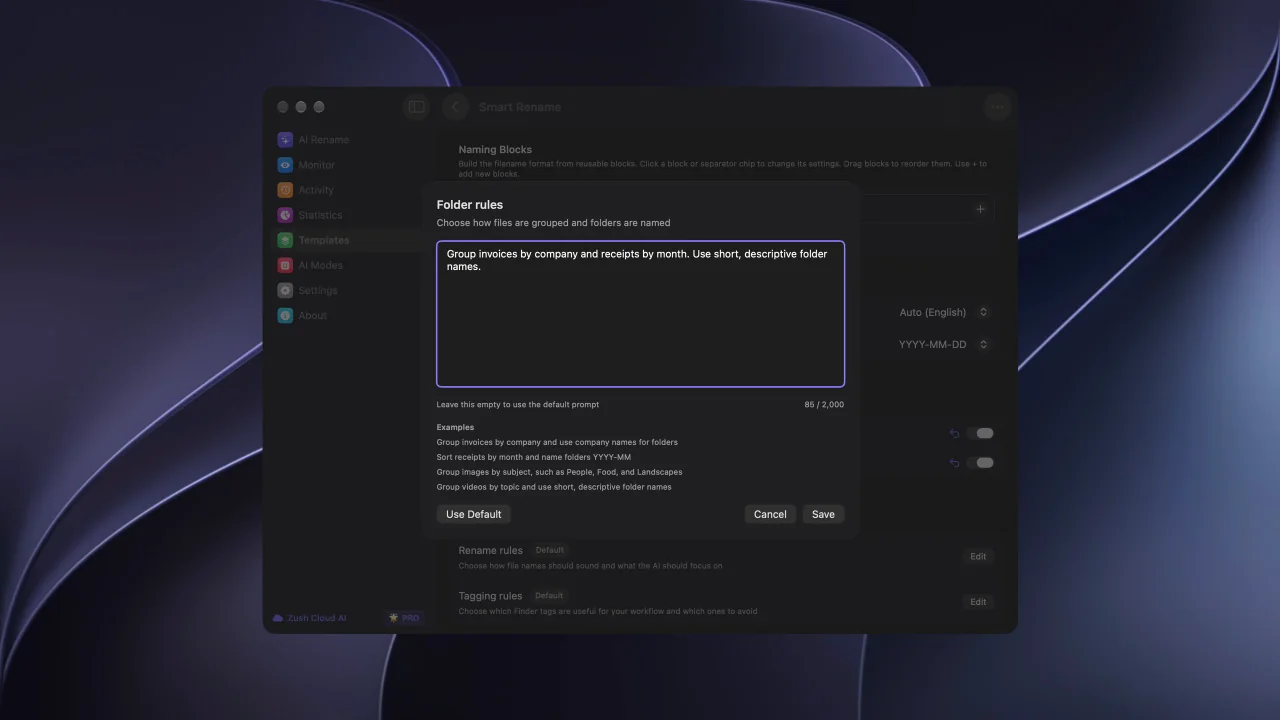
Section titled “Tell Zush how to group files — in plain language”Write your own instructions in Folder rules, just as you would explain the task to a person:
Group invoices by company and receipts by month.
AI reads the files and uses these instructions to suggest folder groups and names. No script or filter syntax is required. You can ask for company, month, subject, or another detail available in the file content. Review the proposed groups before applying them.
Sort a batch
Section titled “Sort a batch”- Open AI Rename and select the Template for this batch.
- Use the folder control below the Naming Blocks to choose a destination, or keep the original location.
- Enable sorting with + Sort. You can also enable Folder sorting in the Template settings.
- Add supported files. Zush analyzes them and prepares the folder groups.
- Review the suggested filenames and groups. Adjust the folder names or file placement where needed before applying the batch.
- Apply the rename when both the names and destinations are ready.
When you select a destination, sorted subfolders are created inside it. Without a separate destination, the source folder remains the root. Selecting a destination without sorting moves renamed files directly to that folder.
Write folder rules
Section titled “Write folder rules”Open Folder rules and describe the grouping you want. Leave the field empty, or choose Use Default, to use the default instructions. Custom folder rules accept up to 2,000 characters.
| Goal | Example instruction |
|---|---|
| Separate supplier invoices | Group invoices by company and use company names for folders. |
| Organize expense receipts | Sort receipts by month and name folders YYYY-MM. |
| Group a mixed photo batch | Group images by subject, such as People, Food, and Landscapes. |
| Organize video clips | Group videos by topic and use short, descriptive folder names. |
Use a rule that can be answered from the file content. Review ambiguous documents and images before applying a batch. Folder rules control grouping; custom rename prompts control the wording of filenames.
Reuse existing folders
Section titled “Reuse existing folders”Enable Reuse existing folders to let Zush select suitable folders already inside the root. Zush creates a new folder when no existing folder fits. Turning the option off stops matching against unrelated existing folders; Monitor can still reuse groups it previously created.
Save the setup in a Template
Section titled “Save the setup in a Template”Open Templates, choose Smart Rename or a saved Template, and configure Destination folder, Folder sorting, Reuse existing folders, and Folder rules. Save it and use the Template in AI Rename or Monitor.
The sorting rules travel with a Template export. The local destination path and folder access permissions do not; choose the destination again on the receiving computer.
Sort new files with Monitor
Section titled “Sort new files with Monitor”Assign a sorting-enabled Template to a monitored folder. Newly arriving files directly inside that folder are renamed and sorted into subfolders. This does not retroactively reorganize files already processed. Monitor reuses its recorded groups as more files arrive; with existing-folder reuse enabled, other suitable folders can be selected too.
Subfolder monitoring and sorting are different settings. Test the Template in a manual batch first, then check the monitored folder’s scope. See folder monitoring.
If sorting does not finish
Section titled “If sorting does not finish”Wait for both analysis and folder planning to finish. If planning fails, retry before applying the sorted batch. Check that the source and destination are accessible, including any cloud files that must finish downloading. You can turn sorting off when you only need filenames.