
Templates for Reusable File Renaming Workflows
Templates save a complete renaming setup so you do not have to rebuild the same workflow every time. A Template can control the filename structure, AI instructions, language, date format, Finder tags, Spotlight metadata, and the settings used by monitored folders.
Use Templates when the same kind of files arrive again and again: screenshots, receipts, client deliverables, design exports, photos, videos, audio files, meeting notes, legal documents, or a Downloads folder that needs regular cleanup.
Open Templates
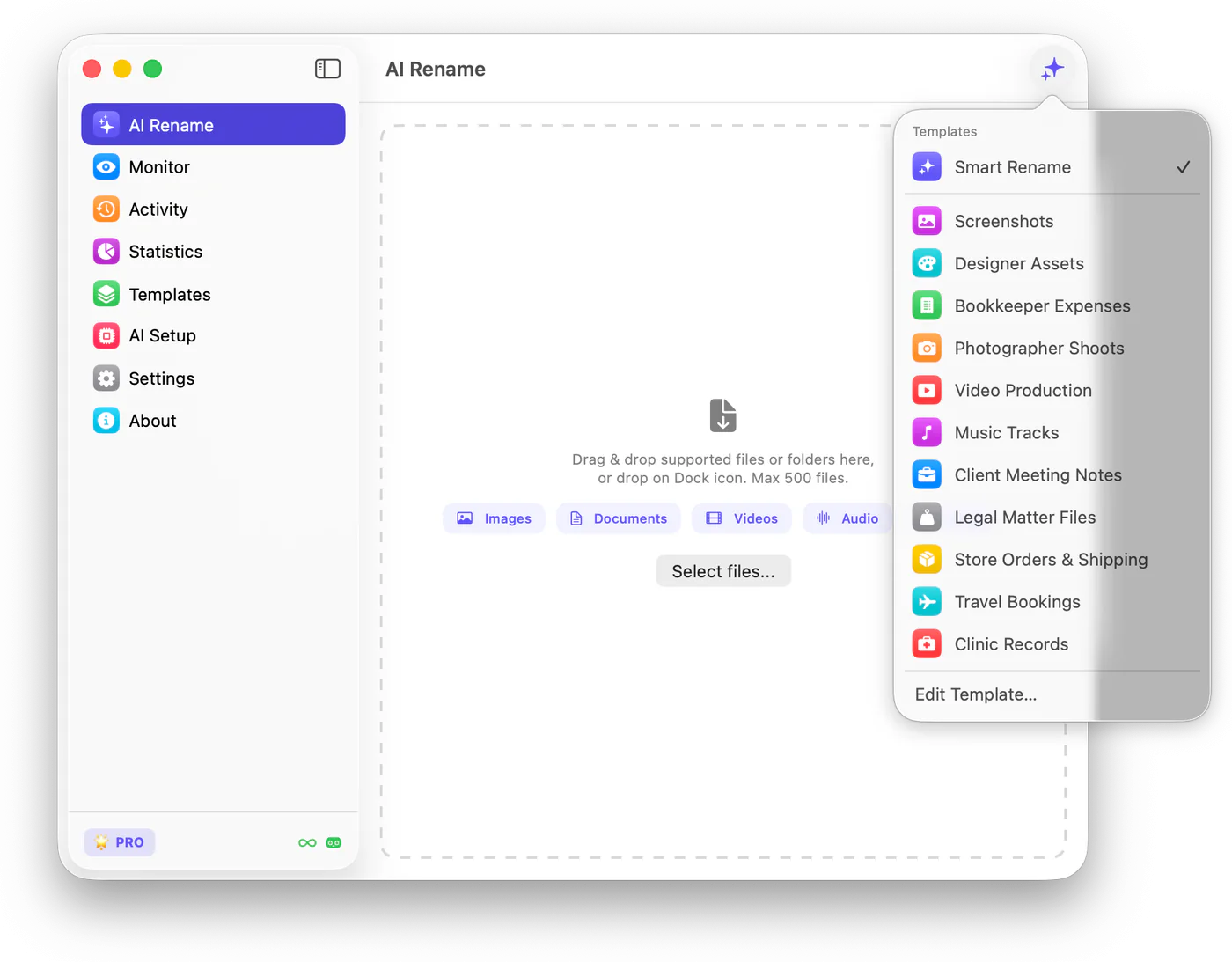
Section titled “Open Templates”Open Templates in the sidebar. Zush shows Smart Rename first, followed by reusable workflow templates such as Screenshots, Designer Assets, Bookkeeper Expenses, Photographer Shoots, Video Production, Music Tracks, and Client Meeting Notes.
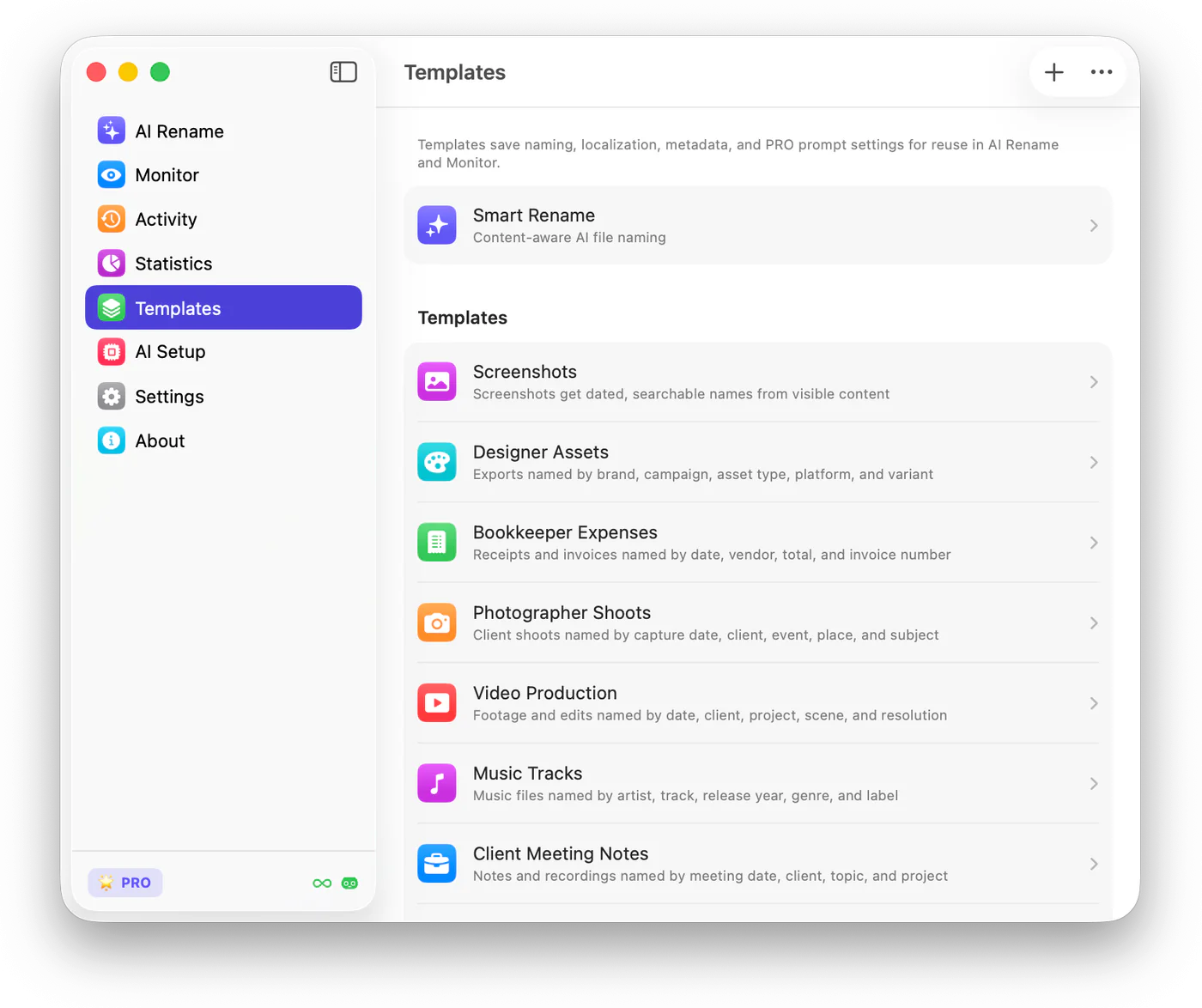
Smart Rename is the default Template
Section titled “Smart Rename is the default Template”Smart Rename is the default setup for AI Rename. If you do not choose another Template, Zush uses Smart Rename.
Open Smart Rename when you want to change the default behavior for general file cleanup. This is useful if you always want a certain date format, title style, separator, metadata setting, or custom rename prompt.
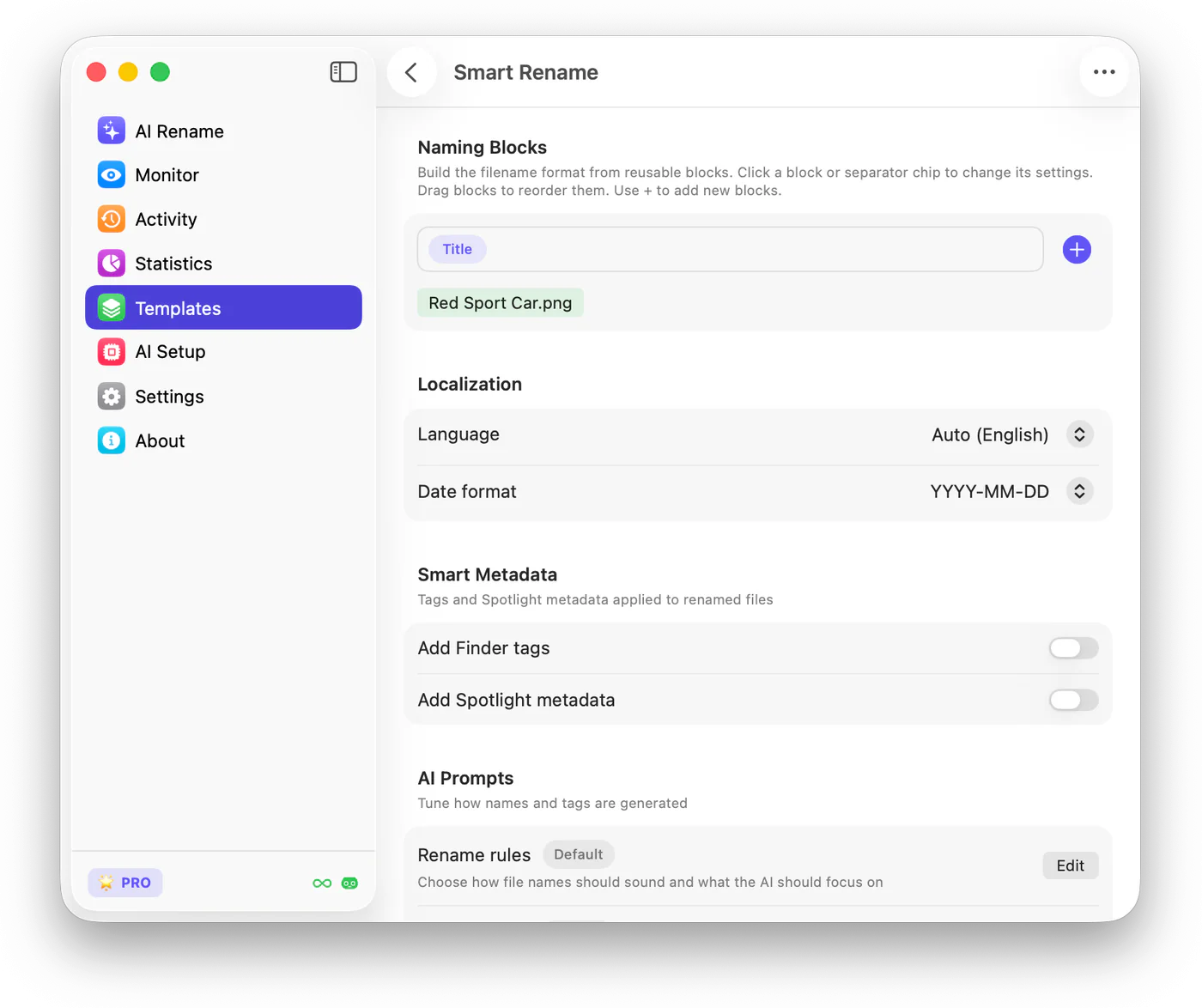
What a Template can save
Section titled “What a Template can save”| Setting | What it controls |
|---|---|
| Naming Blocks | The filename pattern, such as date, title, client, document type, or original name |
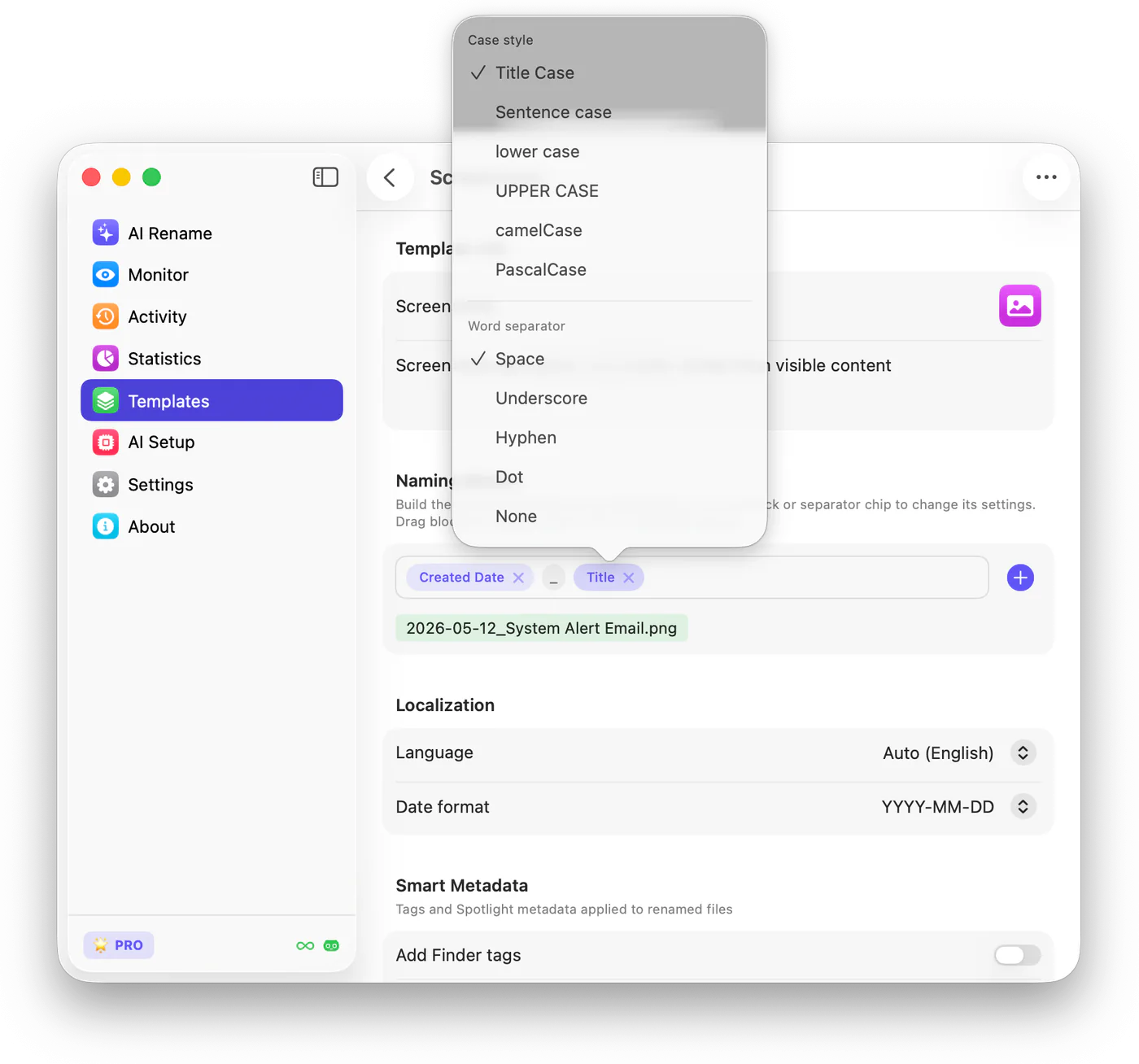
| Block formatting | Case style, word separators, block order, and separators between blocks |
| Localization | Language and date format used in generated names |
| Custom prompts | The instructions Zush uses when generating AI parts of a filename |
| Smart Metadata | Finder tags and Spotlight metadata added to renamed files |
| Monitoring options | File type behavior and rules used by monitored folders |
| AI mode | The AI provider or local/cloud setup used for the workflow |
Create or edit a Template
Section titled “Create or edit a Template”- Open Templates from the sidebar.
- Click + to create a new Template, or open an existing Template to change it.
- Give the Template a clear name, icon, and description so it is easy to pick later.
- Build the filename pattern with Naming Blocks.
- Set language, date format, metadata, and any custom prompt rules the workflow needs.
- Save the Template.
- Test it on a small batch before using it on a large folder or a monitored folder.
Apply a Template to batch rename
Section titled “Apply a Template to batch rename”Use this when you have files ready now and want to review the suggested names before applying them.
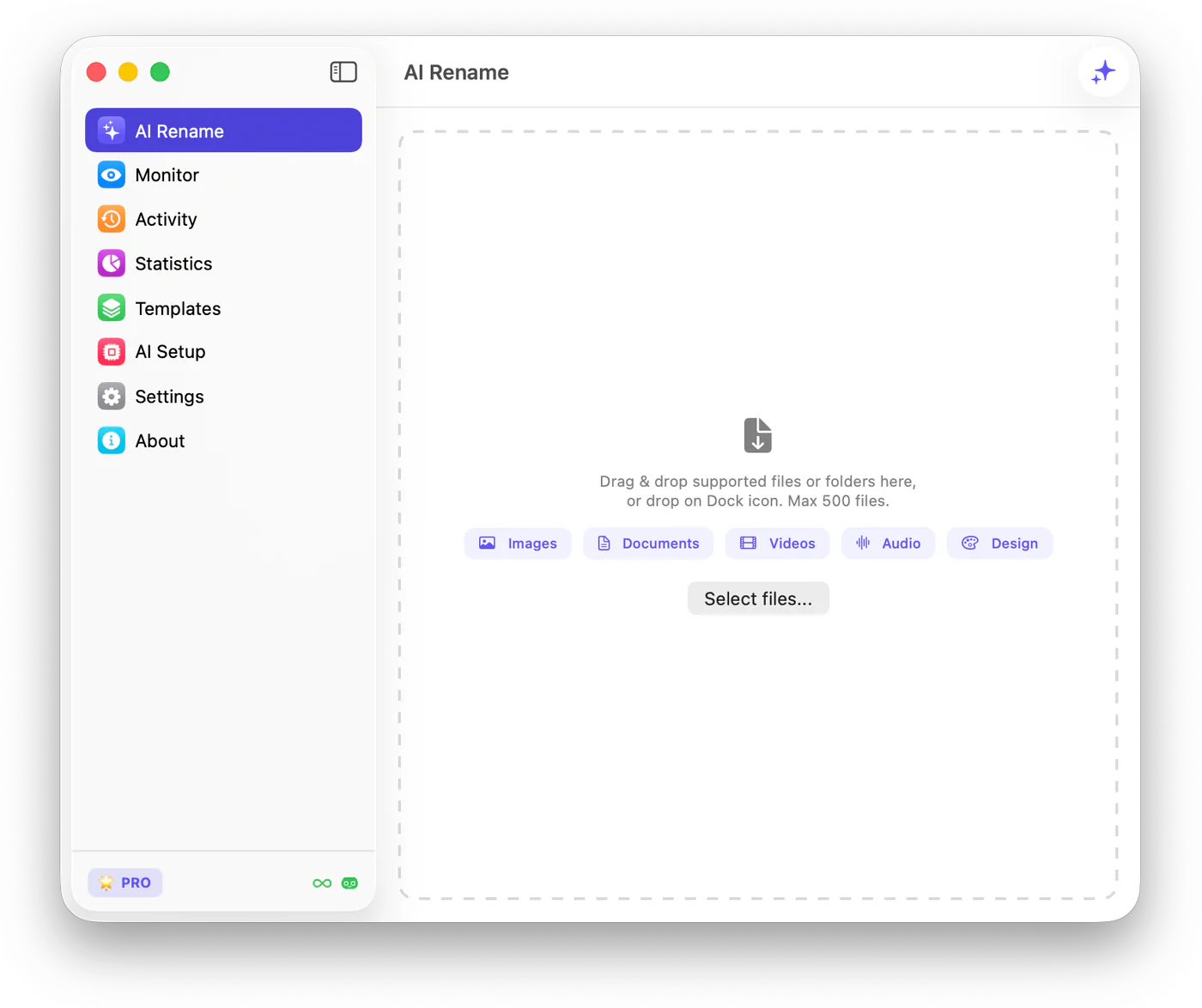
- Open AI Rename.
- Click the Template button in the top-right corner.
- Choose Smart Rename or one of your saved Templates.
- Add files or folders by drag and drop, or click Select files….
- Review the generated names.
- Edit any individual filename that needs a correction.
- Apply the batch when the preview is ready.
Assign a Template to folder monitoring
Section titled “Assign a Template to folder monitoring”Use this when new files keep arriving in the same folder and should follow the same naming convention automatically.
- Open Monitor.
- Add the folder you want Zush to watch, or select an existing monitored folder.
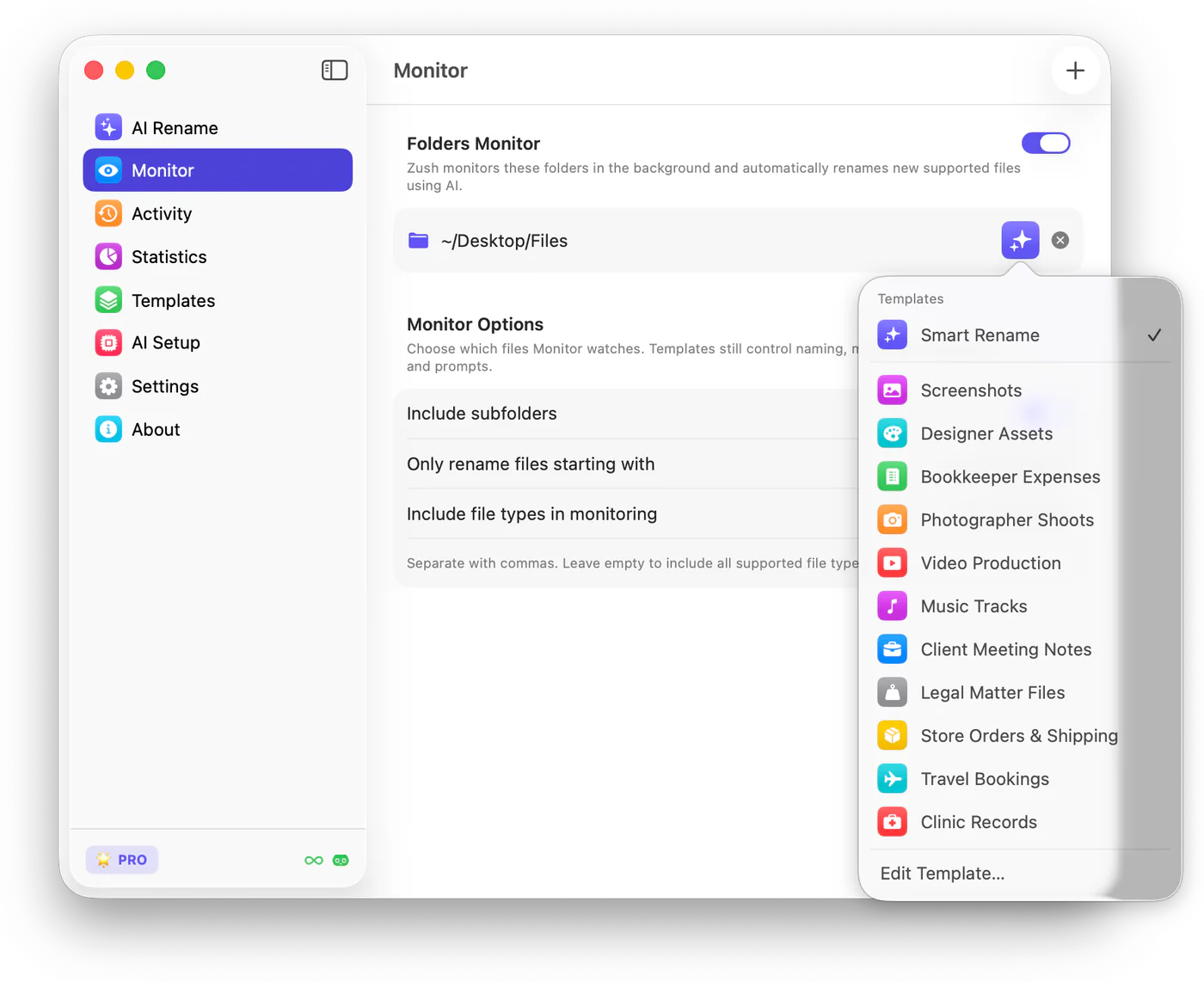
- Click the Template button next to that folder.
- Choose the Template that matches the folder.
- Set monitor options such as subfolders, filename filters, and included file types.
- Turn monitoring on when the setup is ready.
Choose the right Template
Section titled “Choose the right Template”| Workflow | Good Template pattern |
|---|---|
| Screenshots | Created date + AI title |
| Designer assets | Client or brand + project + asset type + platform + variant |
| Receipts and invoices | Date + vendor + amount + document type |
| Photo imports | Capture date + client or event + place + subject |
| Video production | Date + client or project + scene + resolution |
| Music or audio | Artist + track title + release year + version |
| Client meeting notes | Meeting date + client + topic + project |
Keep the Template name specific. Screenshots is better than Work files because it tells you exactly when to use it.
Best practices
Section titled “Best practices”Start with Smart Rename for general cleanup. Create a separate Template only when a folder needs a different structure or different AI instructions.
Keep filenames readable. Three to five Naming Blocks are usually enough. Add more blocks only when they make files easier to sort, scan, or search.
For automated folders, test the Template with a manual batch first. Once the names look right, assign the same Template to folder monitoring.
Ready-to-build templates
Section titled “Ready-to-build templates”The template gallery walks through complete setups for common professional workflows, block by block:
- Invoices — vendor, date, invoice number, amount
- Receipts & expenses — store, date, amount, category
- Medical records — identifier, date of service, record type
- Legal documents — matter number, date, type, party
Related docs
Section titled “Related docs”Folder sorting and Template transfer
Section titled “Folder sorting and Template transfer”Templates can now save AI folder sorting rules, existing-folder reuse, and a destination folder. You can also import and export Templates as .zushtemplates files. Sorting rules transfer with the Template; local destination paths do not.