
Set Up Zush for Movies and TV Shows
Use this guide when you have downloaded movies or episodes with inconsistent filenames and want to prepare a media library. The Movies & TV Template is the quickest route. You can also build a custom Template from the Movies & TV group in the Naming Blocks catalog. These steps apply to Zush for Mac and Windows; the screenshots show the Mac app.
Start with the ready-made Template
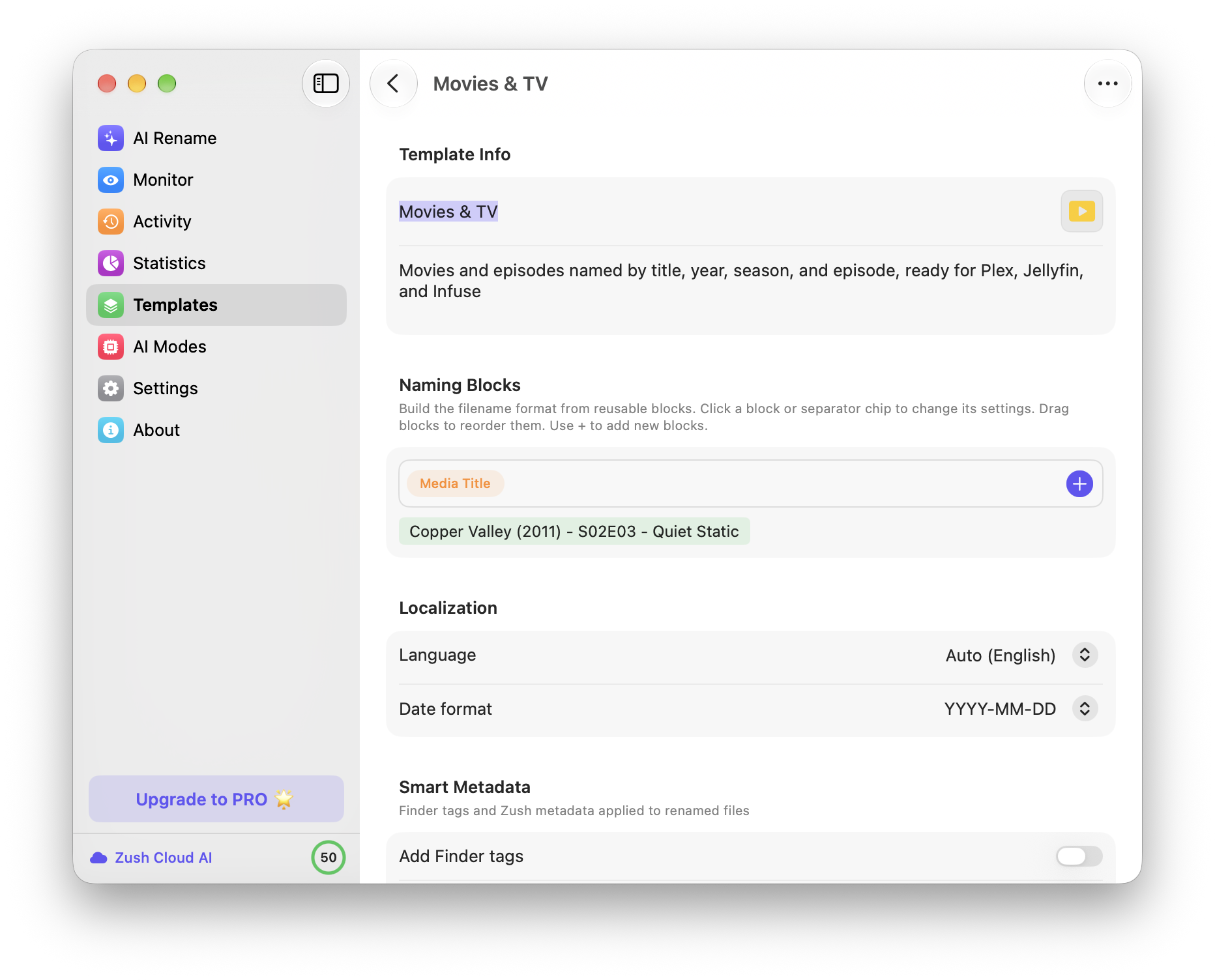
Section titled “Start with the ready-made Template”- Open AI Rename and choose Movies & TV from the Template picker. You can inspect or edit the same Template under Templates → Movies & TV.
- Leave Media Title in the naming pattern for a mixed batch. It formats a recognized TV episode as
Show (Year) - S02E03 - Episode Titleand a film asMovie (Year). - Add a few representative files first: a movie, a regular episode, and any file whose current name is unclear. Drag them into AI Rename or use Select files.
- Wait for analysis. Compare each proposed title, year, season, episode code, and episode title with the original file and your media database. Deselect or fix uncertain rows before applying the batch.
- Choose a destination if you want the renamed files somewhere else. Leave sorting off if you already have the correct library folders. When the names and paths look right, click Rename.
Build your own naming pattern
Section titled “Build your own naming pattern”For a different filename style, open Templates, duplicate or create a Template, and click + in its naming pattern. Expand Movies & TV in the Naming Blocks catalog.
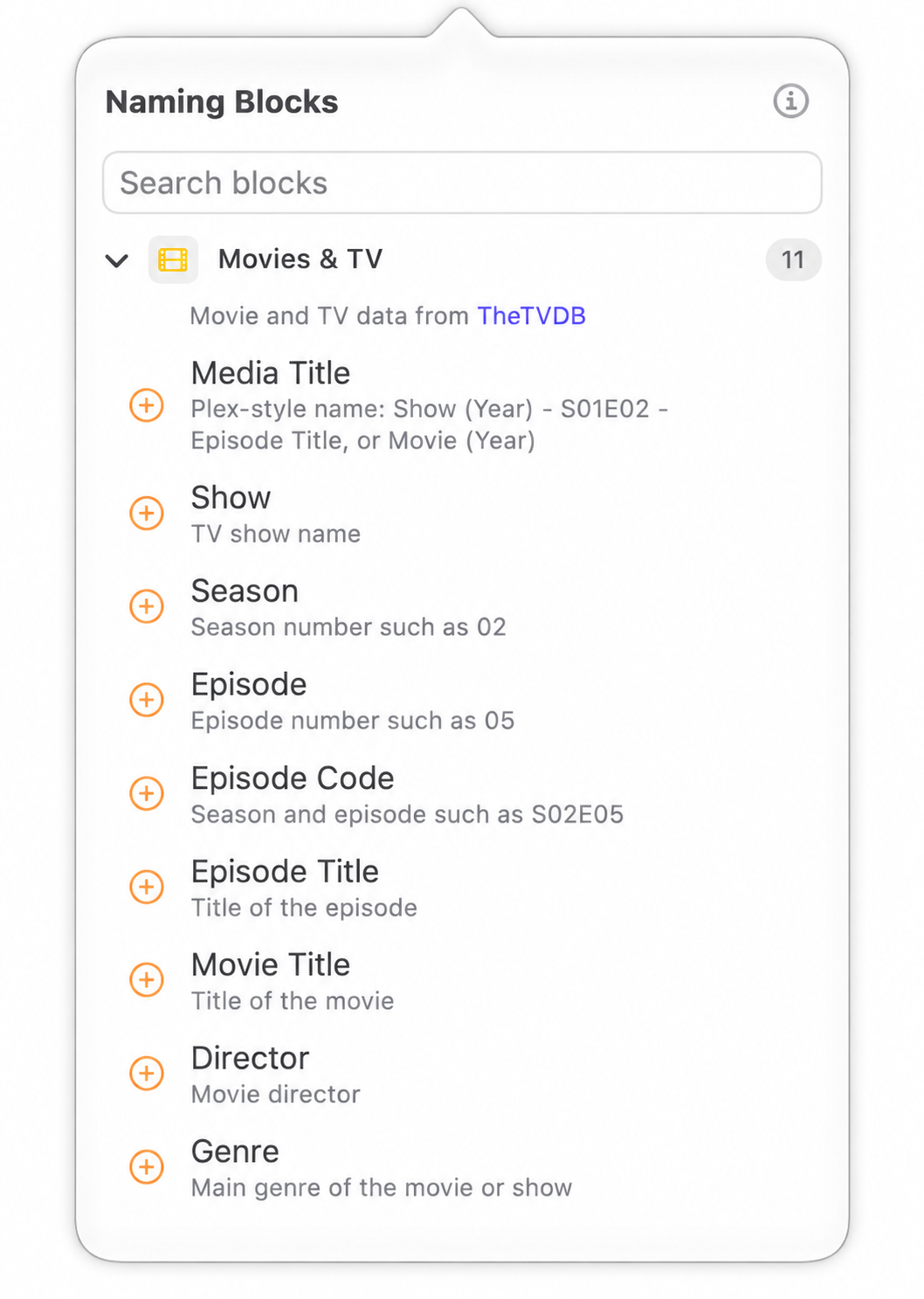
| Block | Use it for |
|---|---|
| Media Title | A mixed movie and episode batch in a Plex-style format. Start here unless you need a custom format. |
| Show, Season, Episode, Episode Code, Episode Title | A TV-only pattern with the exact fields and separators you want. Episode Code produces a value such as S02E03. |
| Movie Title | A movie-only pattern, combined with a year block when you want Movie (Year). |
| Director, Genre | Extra context when your collection needs it; these are not required for normal Plex matching. |
Use Media Title or assemble the individual title and episode fields. Adding both to one pattern repeats information. Check the example filename below the block row, then test with real files before saving the Template. See Naming Blocks for separator and formatting controls.
Decide where the files should go
Section titled “Decide where the files should go”Zush can suggest a folder with + Sort → Auto, or you can use custom folder rules. It creates one folder level under the destination you choose. Review every suggested folder before Rename & sort.
For Plex, make separate Movies and TV Shows library roots. A typical TV path includes both a show folder and a season folder:
TV Shows/Breaking Bad (2008)/Season 02/Breaking Bad (2008) - S02E03 - Bit by a Dead Bee.mkvMovies/Blade Runner 2049 (2017)/Blade Runner 2049 (2017).mkvZush’s one-level sort does not build that full nested TV hierarchy in one operation. Prepare the parent show/season location separately, or choose an existing destination that makes the proposed one-level folder land in the right place. Check the final paths before scanning the Plex library. The same filenames can be used for Jellyfin and Infuse, but check each app’s folder requirements.
Review, apply, and fix a mismatch
Section titled “Review, apply, and fix a mismatch”- Keep the original extension and verify the proposed movie year or TV episode code.
- For an ambiguous release name, confirm the episode against TheTVDB and the ordering selected in Plex. Exclude that file if you cannot verify it yet.
- Apply the small test batch, inspect the files on disk, then run the larger collection.
- If a batch was wrong, use Activity to undo it. Fix the Template or the source naming clues before trying again.
For Plex folder conventions, specials, multi-episode files, and troubleshooting, read the Plex naming guide. See the Movies & TV feature page for a guided preview of the flow.