
Import and Export Zush Templates
Use a .zushtemplates file to back up a naming workflow, share it with a colleague, or move it to another computer. It contains Template settings; it is not a backup of your documents or your entire Zush installation.
Export one Template
Section titled “Export one Template”- Open Templates.
- Use the Template’s context menu or open its details and choose the export action.
- Choose the filename and save location in the export dialog.
- Save the
.zushtemplatesfile.
To share Smart Rename settings, first use Duplicate as New to create a saved Template, then export it.
Export all Templates
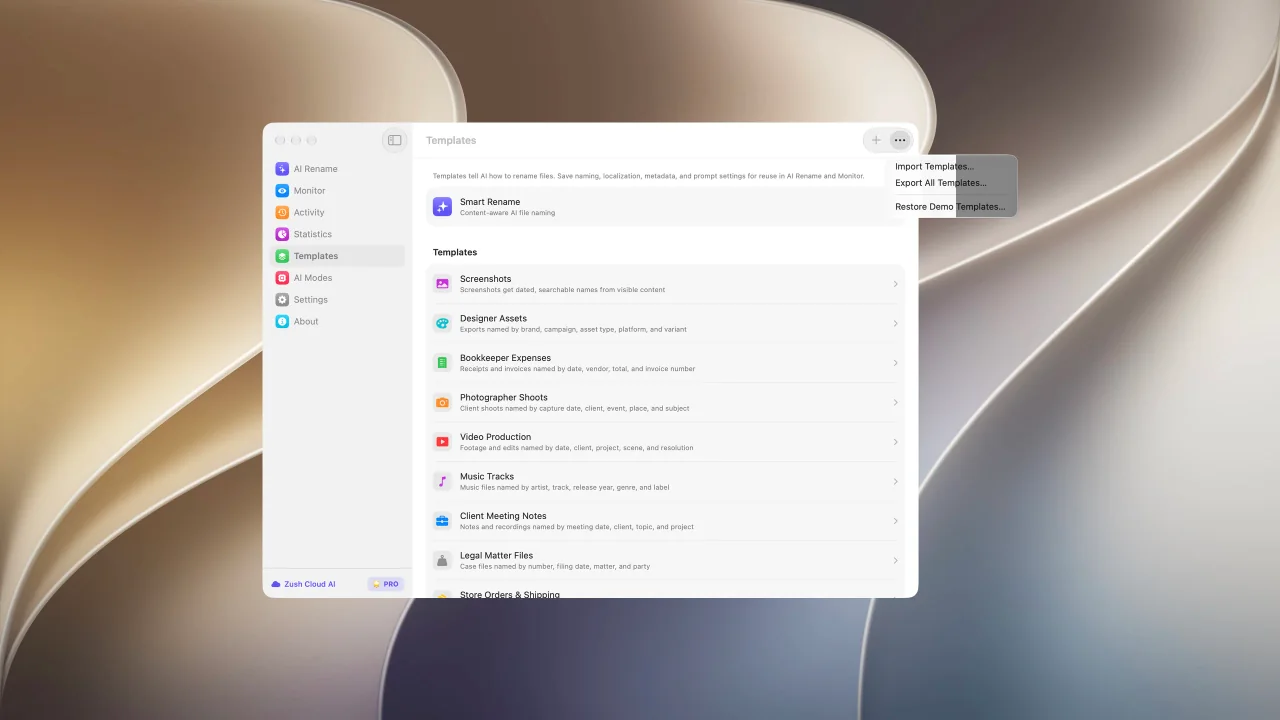
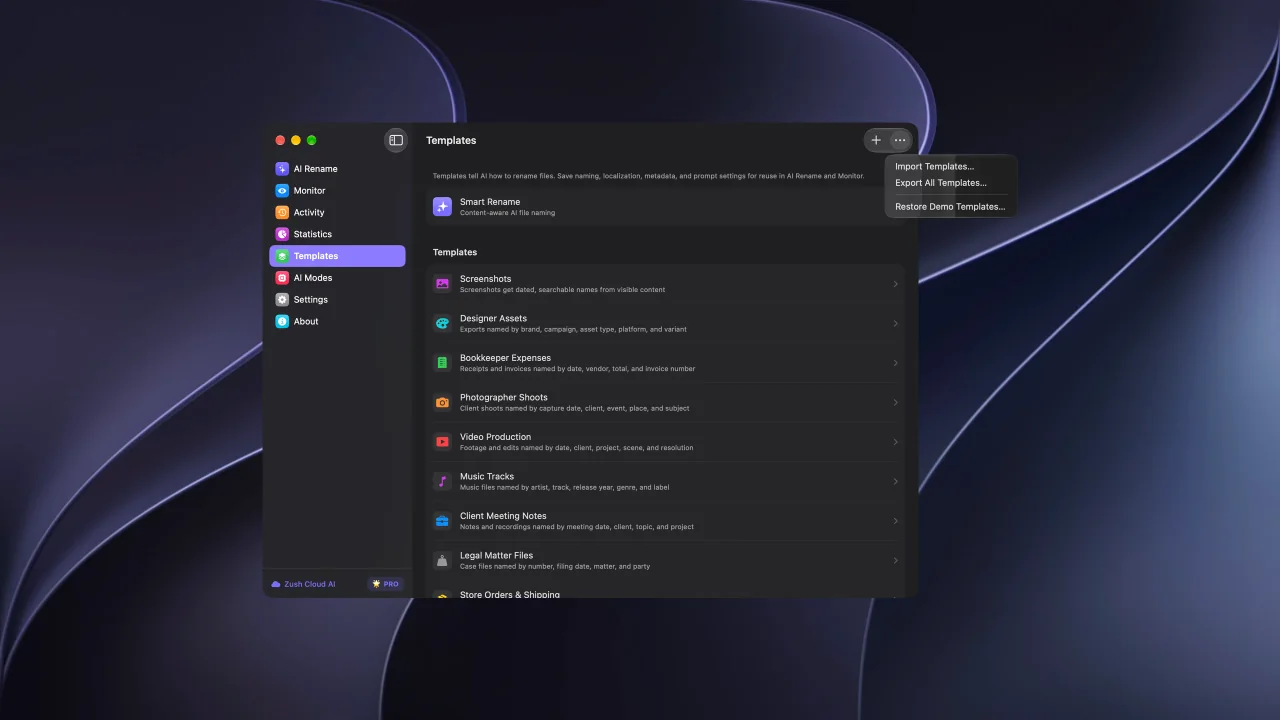
Section titled “Export all Templates”Open Templates, click the More menu (…), and choose Export All Templates…. Save the collection as one .zushtemplates file. Settings inherited from Smart Rename are resolved into explicit values, so the receiving computer does not need the same defaults.
Import Templates
Section titled “Import Templates”- Open Templates on the receiving computer.
- Choose More → Import Templates….
- Select a
.zushtemplatesfile. - If matching Template IDs already exist, choose Replace Existing or Create Copies.
- Review the imported Templates, choose local destinations, and test a small batch.
Replace Existing updates matching Templates and keeps their Monitor links. Create Copies adds separate Templates. Templates without matches are added in either case. Importing does not overwrite global Smart Rename settings.
What the file includes
Section titled “What the file includes”| Included | Configure separately on the receiving computer |
|---|---|
| Template name, description, icon, and color | AI provider and API keys |
| Naming Blocks, pattern, case, and separators | Local model installation and connection |
| Language and date format | Destination folder and filesystem access |
| Rename and tagging instructions | Monitored folder paths and assignments |
| Referenced Custom AI Blocks and their instructions | Original files and rename history |
| Folder sorting, folder rules, and existing-folder reuse | Global Smart Rename defaults |
| Metadata preferences | License activation |
Custom AI instructions are readable inside the exported file. Review those instructions before sharing a Template that contains client-specific details.
Import problems
Section titled “Import problems”Use an unmodified .zushtemplates export. Invalid files, unsupported format versions, and missing referenced Custom AI Blocks are rejected. If a newer export cannot be read, check the Zush version on the receiving computer. A similarly named Template is not necessarily a duplicate: conflicts are matched by Template ID.