
BYOK Setup for AI File Renaming
BYOK means Bring Your Own Key. It lets users on every Zush plan connect their own AI provider key for cloud renaming with Google AI (Gemini), OpenRouter, OpenAI, or Anthropic.
Use BYOK when you want Zush’s desktop workflow, review screen, Templates, Naming Blocks, Monitor, and undo history, but you prefer to pay your own AI provider directly instead of relying only on the managed Zush provider.
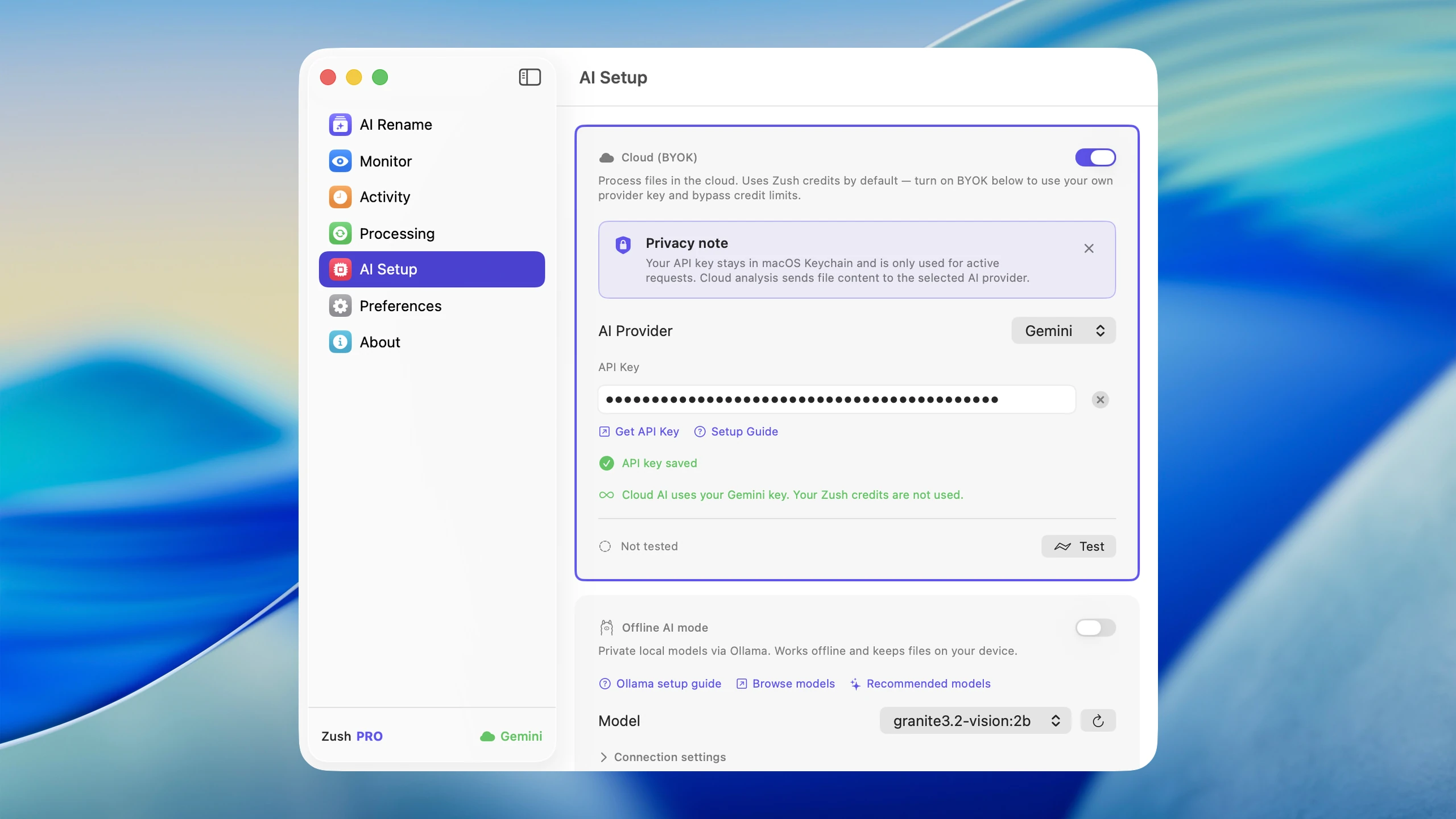
What BYOK changes
Section titled “What BYOK changes”With BYOK enabled, Zush still handles the file workflow:
- add files or monitor a folder
- extract the analysis payload Zush needs for renaming
- call the selected AI provider through the BYOK flow
- generate filenames, tags, and metadata
- show previews before manual batches are applied
- keep rename history so you can undo later
The main difference is the provider and billing path. Your AI provider bills usage under its current API pricing and account limits. Check the provider’s pricing, quota, and model permissions before running a very large batch.
Supported providers
Section titled “Supported providers”| Provider in Zush | Dashboard | Notes |
|---|---|---|
| Google AI | Google AI Studio | Uses the Gemini API |
| OpenRouter | OpenRouter | Uses compatible models available to your OpenRouter account |
| OpenAI | OpenAI Platform | Uses compatible analysis models available to your OpenAI project |
| Anthropic | Anthropic Console | Uses compatible Claude models available to your Anthropic account |
Zush loads compatible models after the key is saved. The default model is controlled by current Zush configuration, so the guide does not pin you to a model name that may later change.
Set up BYOK
Section titled “Set up BYOK”- Open your provider dashboard: Google AI Studio, OpenRouter, OpenAI Platform, or Anthropic Console.
- Create a new API key and copy it. Most providers show the full key only once.
- Open Zush and select AI Modes in Settings.
- Select BYOK, then choose the AI provider.
- Paste the API key.
- Click Save. Saving a valid key turns on Cloud BYOK automatically.
- Wait for the compatible model list to load. Keep the current default or choose another available model.
- Click Test to confirm the selected key and model work.
- Confirm BYOK is the selected AI mode.
- Run a small batch before using BYOK on a large folder or monitored workflow.
Provider-specific steps
Section titled “Provider-specific steps”Gemini
Section titled “Gemini”- Open Google AI Studio.
- Create an API key.
- In Zush, choose Google AI as the AI Provider.
- Paste the key and click Save. Choose an available model if needed, then run Test.
OpenRouter
Section titled “OpenRouter”- Open OpenRouter.
- Create an API key.
- In Zush, choose OpenRouter as the AI Provider.
- Paste the key and click Save. Choose an available model if needed, then run Test.
OpenAI
Section titled “OpenAI”- Open OpenAI Platform API keys.
- Create a new secret key.
- In Zush, choose OpenAI as the AI Provider.
- Paste the key and click Save. Choose an available model if needed, then run Test.
Claude
Section titled “Claude”- Open Anthropic Console keys.
- Create a key.
- In Zush, choose Anthropic as the AI Provider.
- Paste the key and click Save. Choose an available model if needed, then run Test.
Test before automation
Section titled “Test before automation”After BYOK is saved, run a small manual batch rename first. Check that filenames are accurate, the provider does not reject requests, and the cost profile makes sense for your files.
Once the test batch looks right, you can use the same AI setup with Templates and folder monitoring.
Troubleshooting
Section titled “Troubleshooting”| Problem | What to check |
|---|---|
| Test fails | Confirm the key was copied correctly and belongs to the selected provider |
| Provider rejects requests | Check provider billing, free-tier limits, rate limits, or account verification |
| Results differ from Zush Cloud | Different providers and models can describe files differently; test with real files before automating |
| Costs are higher than expected | Review provider pricing and test with representative batches before monitoring large folders |
Security and privacy
Section titled “Security and privacy”Your API key is stored locally in secure platform storage. Zush can send it directly to the selected provider to load compatible models and run Test. It is also sent transiently to Zush backend when BYOK is enabled and when BYOK analysis is processed; the backend forwards analysis requests to the provider. With OpenRouter, OpenRouter and the upstream provider serving the selected model may both process the request. Zush does not permanently store the key or retain file content after normal processing.
For local model processing instead of cloud provider processing, use LM Studio or Ollama. The local AI overview compares both routes.