
Naming Blocks for Consistent Filenames
Naming Blocks are reusable fields that make a filename predictable. Instead of asking AI to invent the whole name every time, you build a pattern from blocks such as Created Date, Title, Original Name, Client, Vendor, Amount, Scene, or Document Type.
Use Naming Blocks inside Templates when you want every file in a workflow to follow the same structure. If no built-in block covers the detail you need, create a Custom AI Block and describe what Zush should extract.
How Naming Blocks work
Section titled “How Naming Blocks work”Each block becomes one part of the filename. Some blocks come from the file itself, some come from dates or counters, and some are generated by AI from the file content.
For example, this pattern:
{Created Date}-{Client}-{Document Type}-{Title}Can produce names like:
2026-06-28-acme-contract-renewal-summary.pdf2026-06-28-acme-dashboard-payment-error.pngThe structure stays consistent, while the AI-generated parts still describe what is inside each file.
Build a filename pattern
Section titled “Build a filename pattern”- Open Templates.
- Open Smart Rename to edit the default setup, or open another Template for a specific workflow.
- Find the Naming Blocks section.
- Click + to open the block picker.
- Search for a block or expand a category such as Core, File, Media, Audio, Photo, or Documents.
- Add the blocks you need.
- Drag blocks to reorder them.
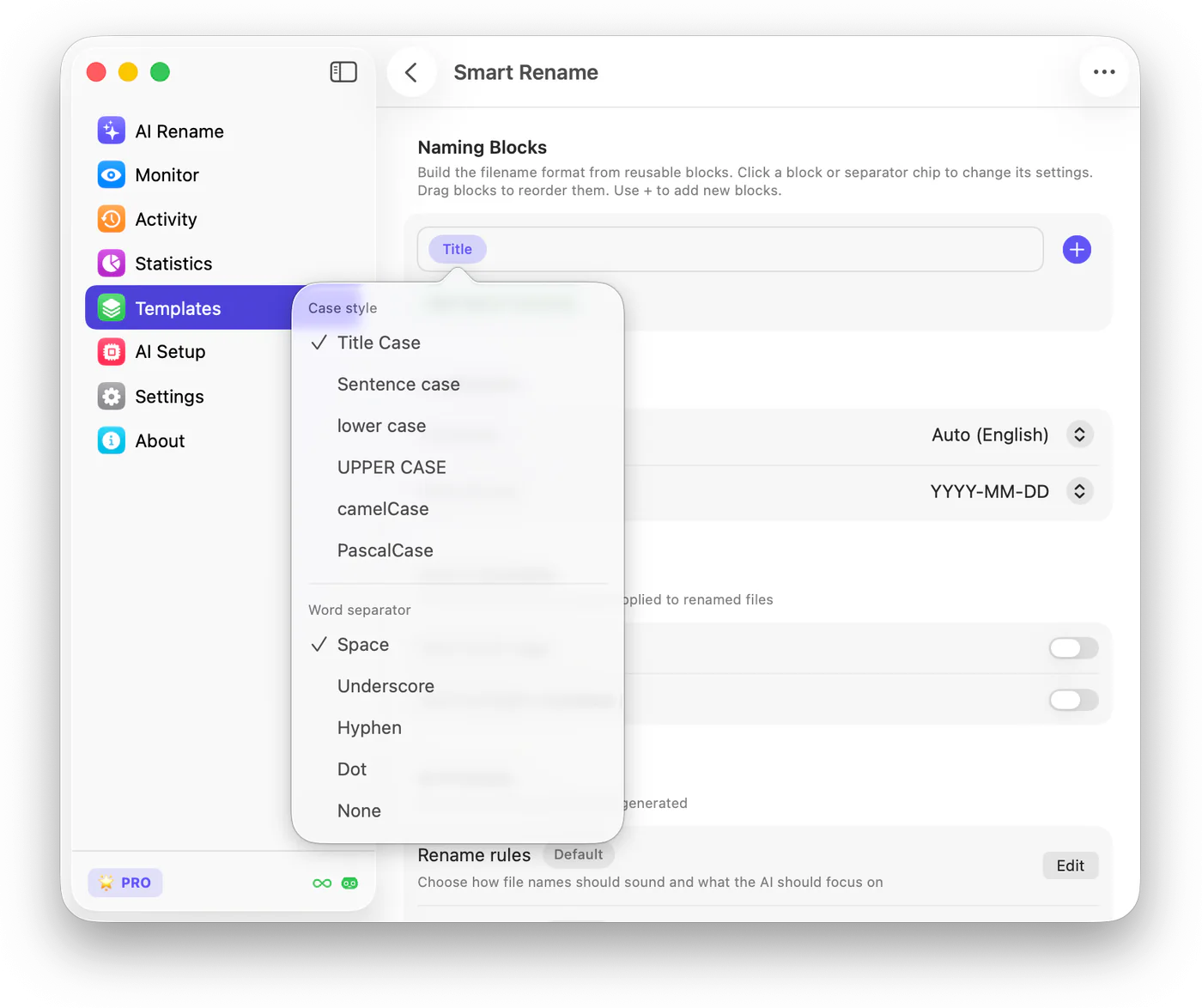
- Click a block or separator chip to adjust formatting.
- Check the preview filename below the pattern.
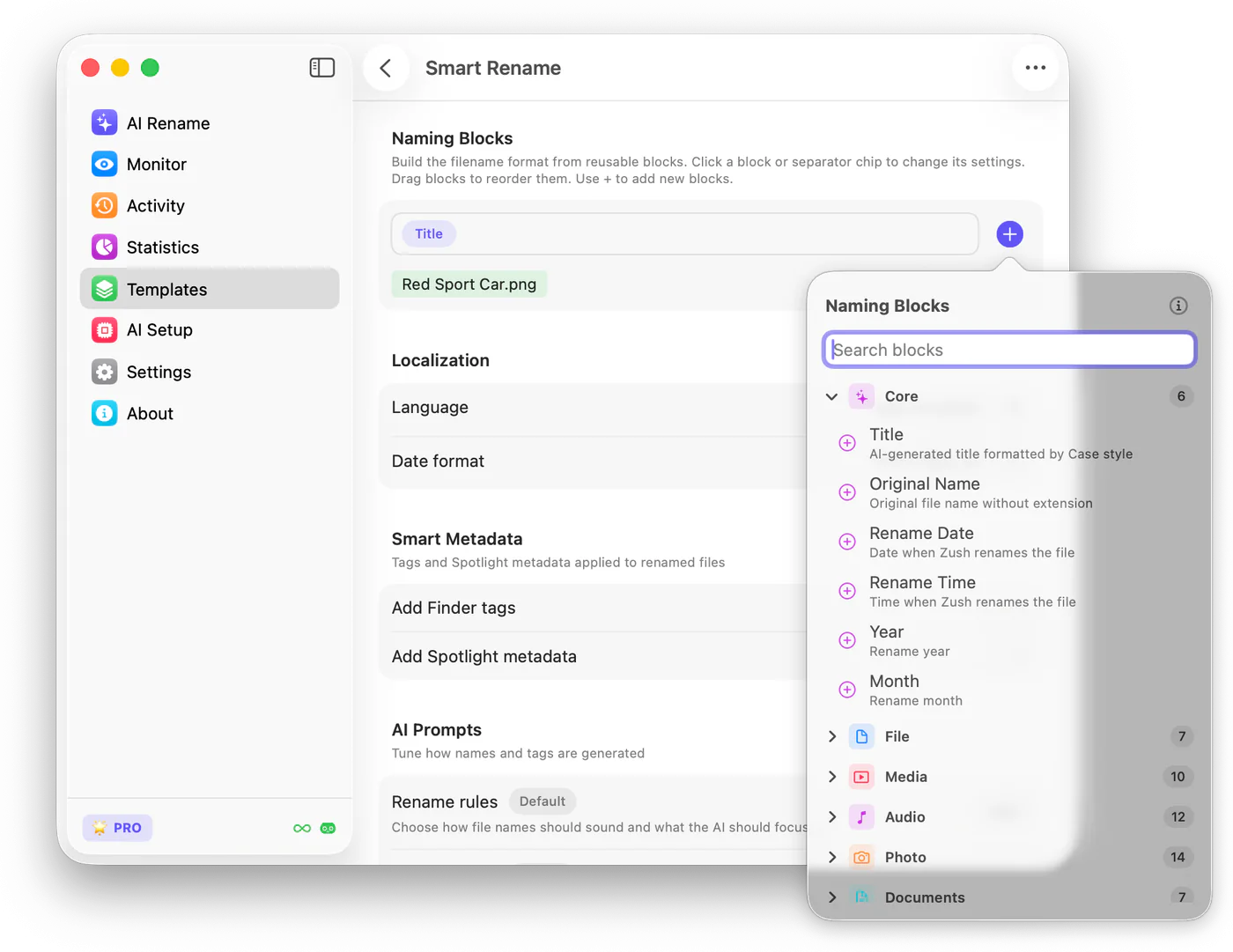
Format blocks and separators
Section titled “Format blocks and separators”Click a block chip to change how that part of the name is formatted. For text blocks, you can choose case style and word separator options. Use this to keep names consistent across a folder.
Common choices include:
- Title Case for readable names such as
Client Meeting Notes - lower case for compact names such as
client-meeting-notes - UPPER CASE when a workflow uses short codes or strict labels
- Underscore, Hyphen, Dot, or Space separators
Use the preview before saving
Section titled “Use the preview before saving”The preview under the block row shows a sample filename. Use it to catch problems before you run a batch:
- missing date or context
- too many repeated words
- separators that make the name hard to scan
- a pattern that is too long for daily use
- a block order that does not sort well in Finder or File Explorer
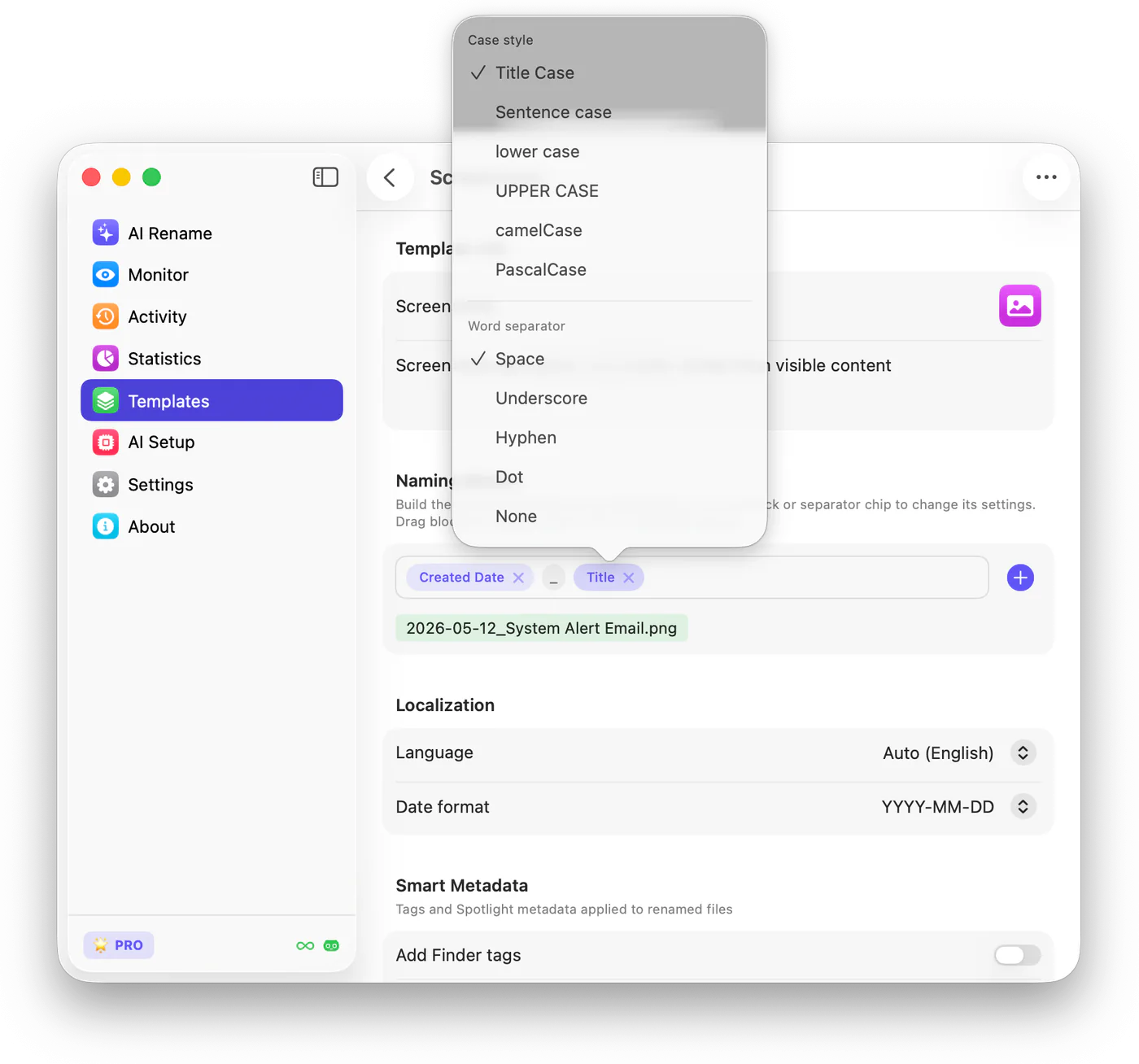
Common block categories
Section titled “Common block categories”| Category | Good for | Example blocks |
|---|---|---|
| Core | General names that work for most files | Title, Original Name, Rename Date, Rename Time, Year, Month |
| File | Preserving source details | Extension, counter, parent folder, original filename |
| Dates | Sorting files chronologically | Created Date, Modified Date, Detected Date, custom date format |
| AI context | Content-aware names | Topic, object, scene, category, summary, document type |
| Documents | Receipts, invoices, contracts, reports | Vendor, amount, invoice number, contract name, report title, client |
| Media | Images, videos, subtitles, and transcripts | Title, frame context, resolution, subtitles, transcript, audio metadata |
| Projects | Client and production workflows | Client, campaign, location, department, project, status |
Recommended patterns
Section titled “Recommended patterns”| Workflow | Pattern to start with |
|---|---|
| General Smart Rename | {Title} |
| Screenshots | {Created Date}-{Title} |
| Receipts | {Created Date}-{Vendor}-{Amount} |
| Client deliverables | {Client}-{Project}-{Document Type}-{Title} |
| Photos | {Created Date}-{Event}-{Location}-{Title} |
| Videos | {Project}-{Scene}-{Title}-{Resolution} |
| Audio or podcasts | {Artist}-{Title}-{Version} |
Start with a simple pattern. Add more blocks only when the extra information helps you sort, search, or understand the file later.
Use Naming Blocks with Smart Rename
Section titled “Use Naming Blocks with Smart Rename”Smart Rename is the default Template. Editing its Naming Blocks changes what Zush uses when no other Template is selected.
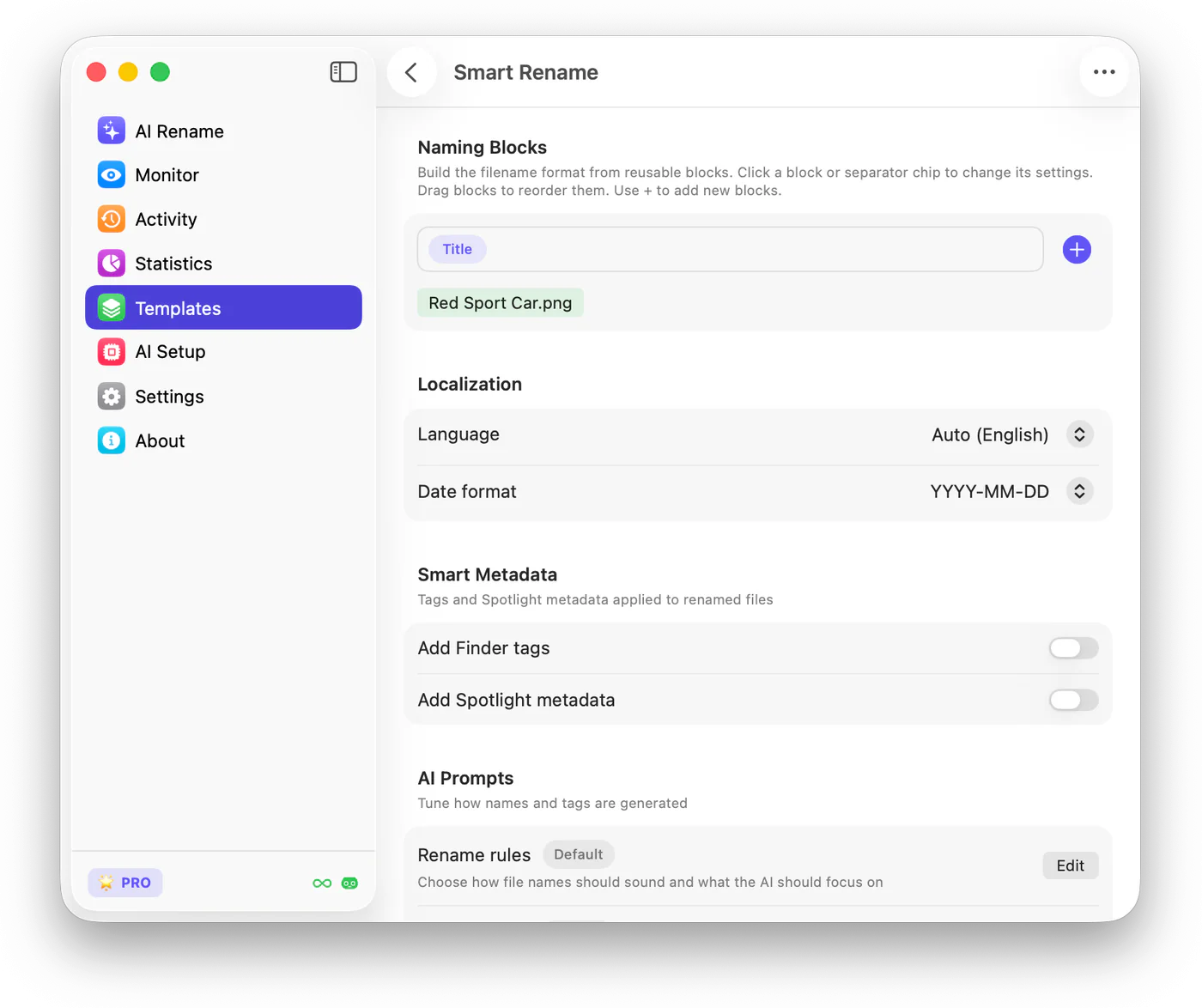
Use Naming Blocks with batch rename and monitoring
Section titled “Use Naming Blocks with batch rename and monitoring”Once a Template has the right Naming Blocks, you can use it in two places:
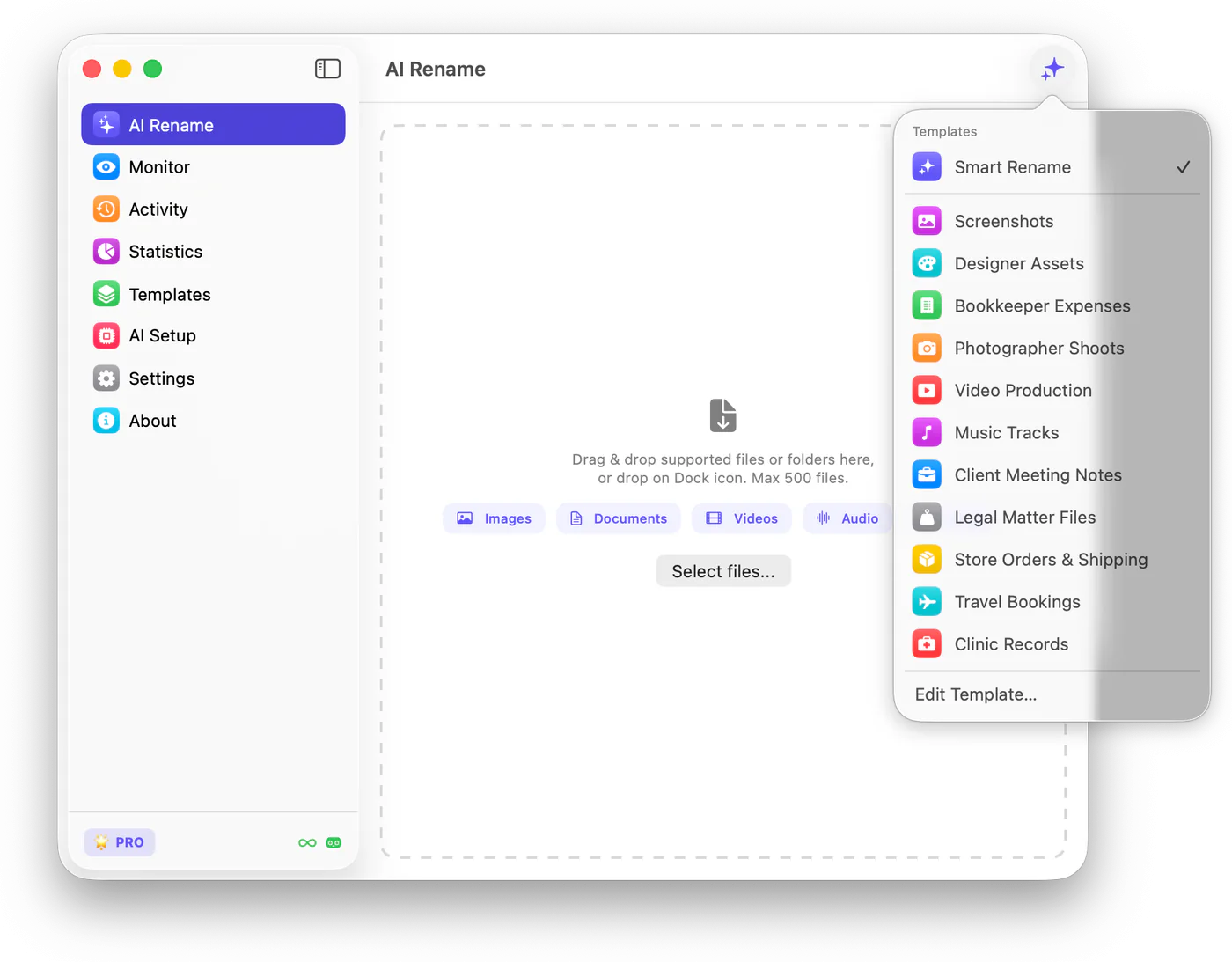
- AI Rename for a one-time batch where you review names before applying them.
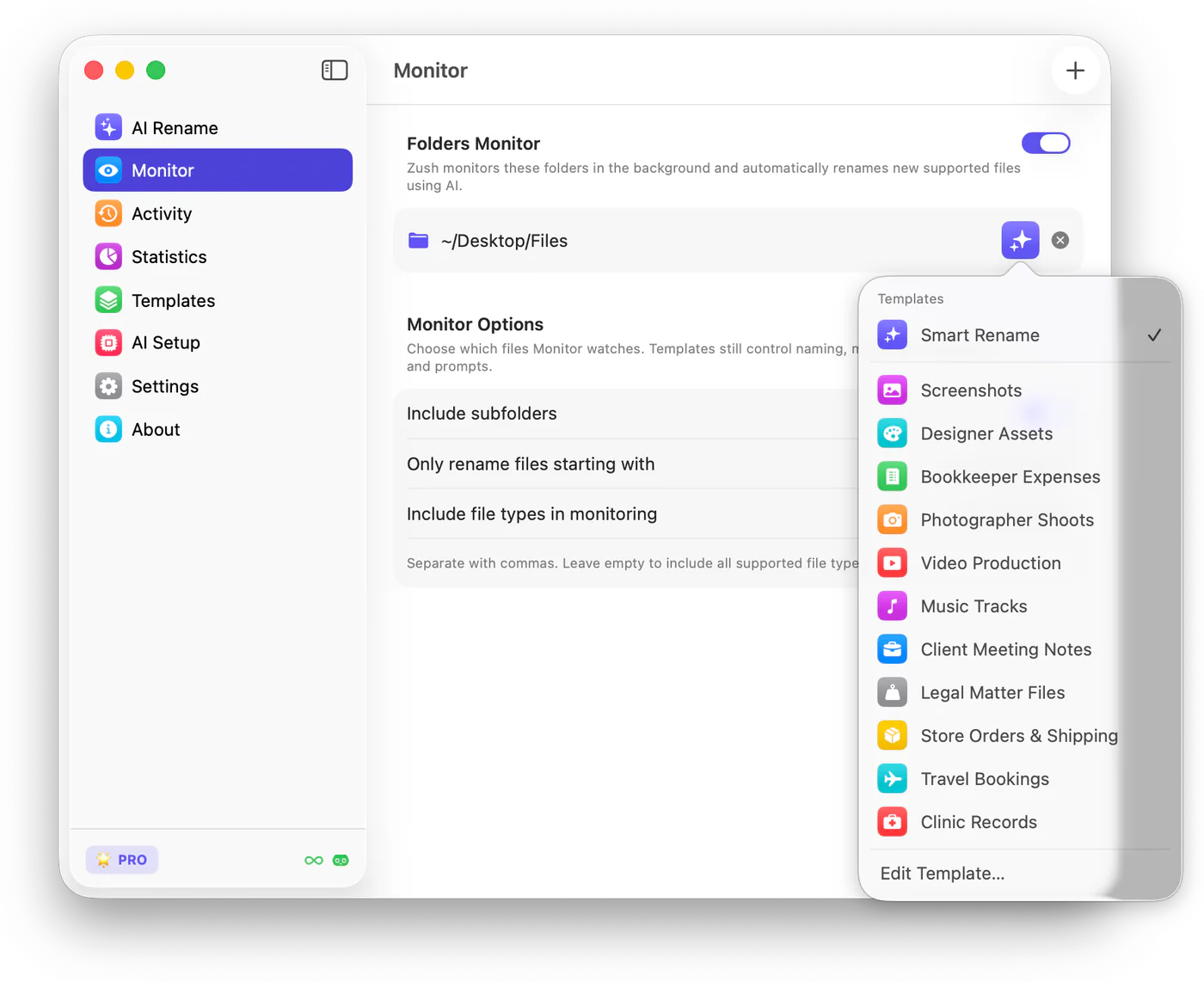
- Monitor for a folder that should automatically use the same naming pattern for new files.
Keep patterns readable
Section titled “Keep patterns readable”Use enough structure to make files sortable, but not so much that names become hard to scan. For most folders, three to five blocks are enough.
Put date blocks near the beginning when chronological sorting matters. Put AI-generated title or topic blocks near the end when searchability matters. Avoid adding both Original Name and Title unless you need to preserve the old name.