
Find and Remove Duplicate Files While Renaming
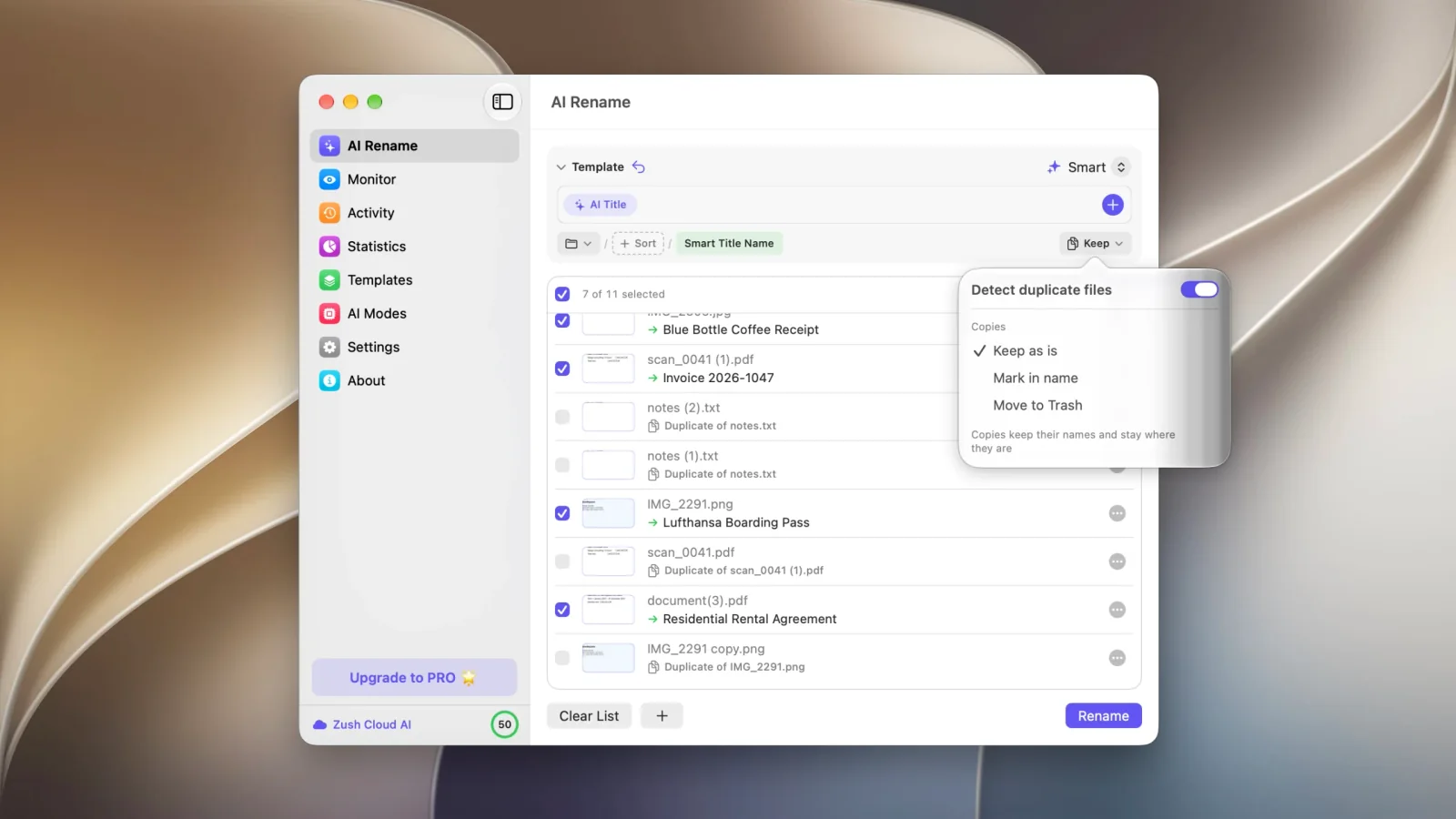
Zush compares the contents of the files in a batch. When two files hold exactly the same bytes, one of them is treated as the original and the rest are listed as copies of it, whatever they happen to be called. notes (1).txt, notes (2).txt, and IMG_2291 copy.png are recognized from their contents, not from the (1) or the word copy in the name.
Copies are never sent to the AI, so they cost no credits no matter which of the three handling options you choose.
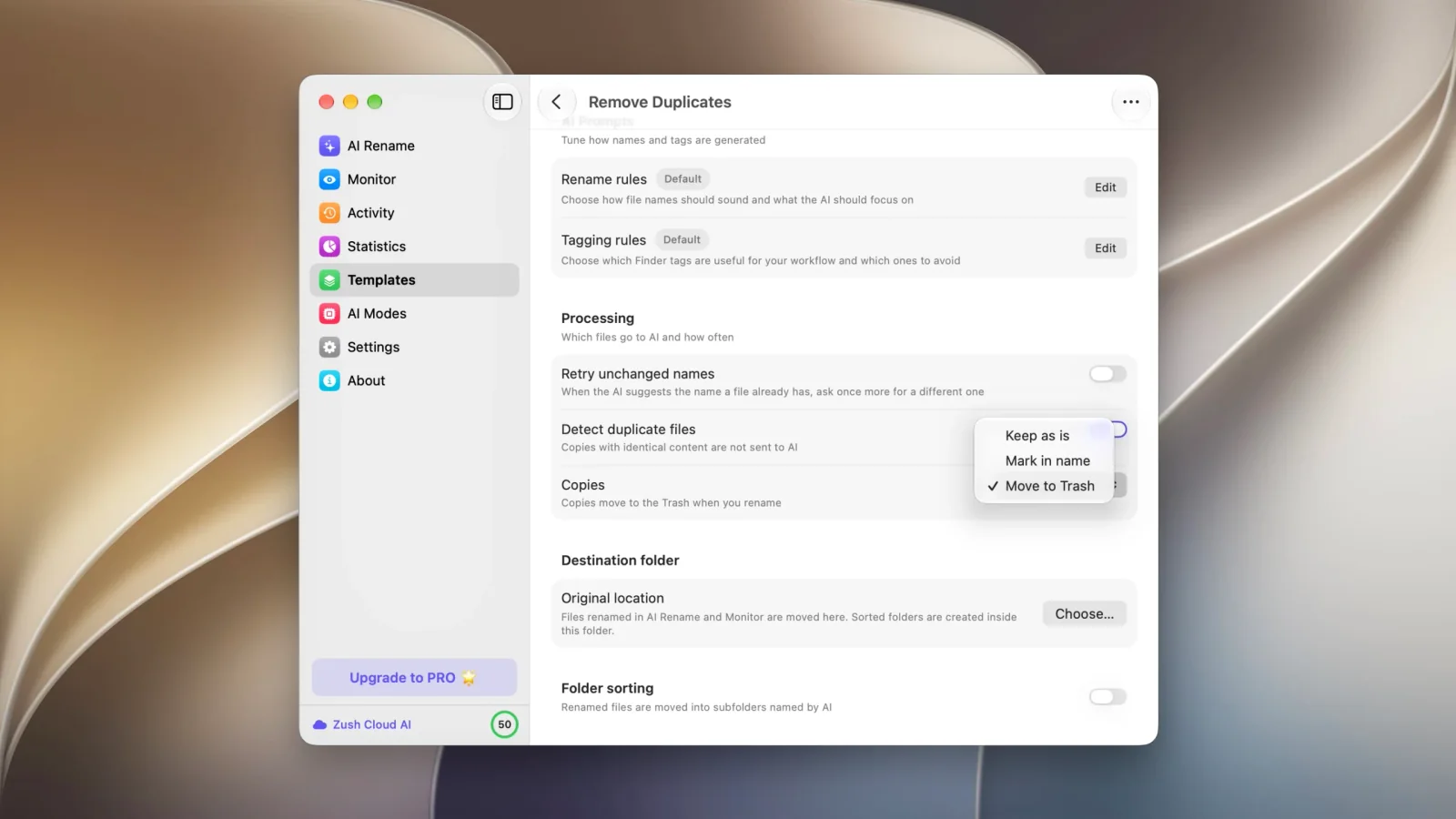
Turn detection on
Section titled “Turn detection on”Duplicate detection is a Template setting, so one Template can clean a Downloads folder while another leaves everything alone.
- Open Templates and select the Template you rename with.
- Scroll to Processing.
- Turn on Detect duplicate files.
- Choose what should happen to the copies under Copies.
The same control is available from the AI Rename screen: the button at the right of the Template row shows the current choice as Keep, Mark, or Trash, and opens the same menu.
What happens to the copies
Section titled “What happens to the copies”| Choice | Effect on copies | Effect on the original |
|---|---|---|
| Keep as is | Names and locations stay untouched. Copies are unchecked in the list, so Rename skips them. | Renamed normally by your Template. |
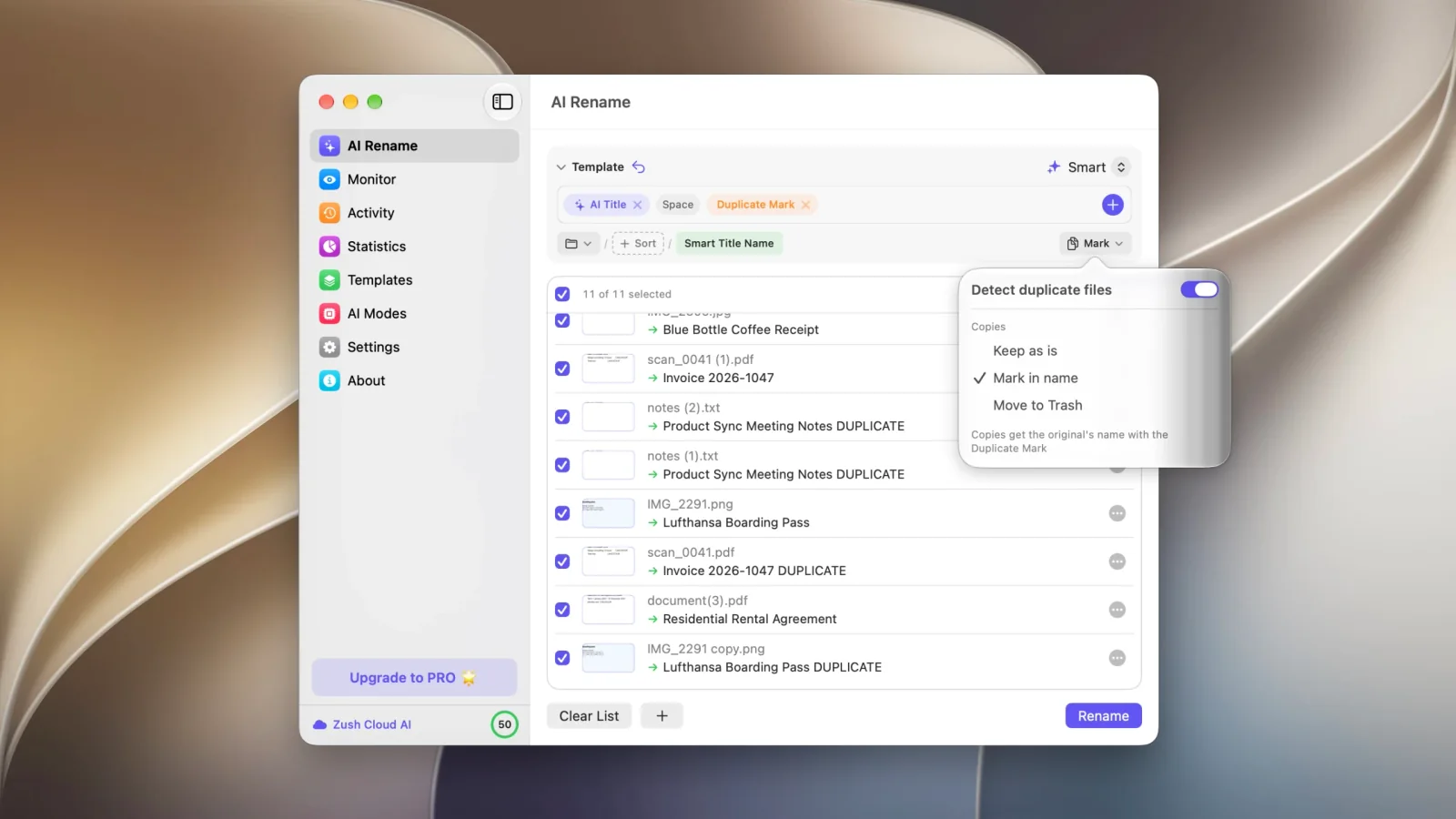
| Mark in name | Each copy takes the original’s new name plus the Duplicate Mark block. | Renamed normally by your Template. |
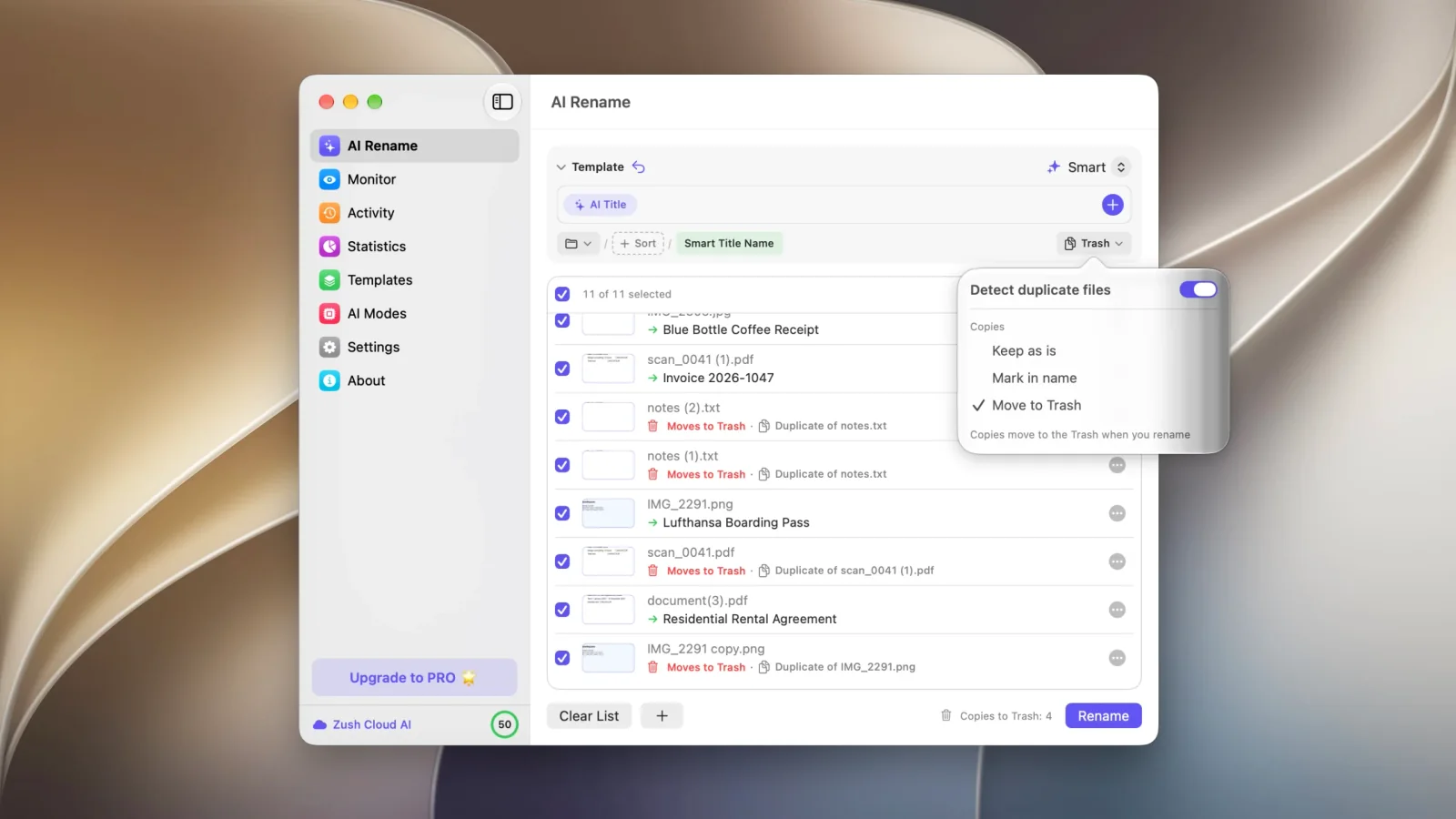
| Move to Trash | Copies go to the Trash when you click Rename. On Windows they go to the Recycle Bin. | Renamed normally by your Template. |
Keep as is
Section titled “Keep as is”Nothing is renamed, moved, or deleted. The list shows which files matched so you can decide by hand later. This is the option to start with when you are not sure how many of the matches are intentional.
Mark in name
Section titled “Mark in name”A copy is renamed to whatever the original became, with the Duplicate Mark Naming Block appended. If scan_0041 (1).pdf becomes Invoice 2026-1047.pdf, its copy becomes Invoice 2026-1047 DUPLICATE.pdf. Both files stay where they are, and the copies sort next to their originals in Finder and File Explorer.
Zush adds the Duplicate Mark block to the Template’s pattern when you pick this option. Open the Naming Blocks row to change the word it inserts or where it sits in the name.
Move to Trash
Section titled “Move to Trash”Each copy is marked Moves to Trash in red in the list, and the count of files that will be removed appears next to the Rename button. Nothing leaves the folder until you click Rename, and the originals are renamed in the same pass.
Completed removals are recorded in Activity alongside the renames. Undo puts the copies back in their original folders under their original names, so a batch you regret is reversible as long as the Trash has not been emptied.
The Remove Duplicates Template
Section titled “The Remove Duplicates Template”Zush ships a Template called Remove Duplicates for the case where you want the cleanup without any renaming. Its pattern is a single Original Name block, so every file keeps the name it already has, and its Copies setting is Move to Trash.
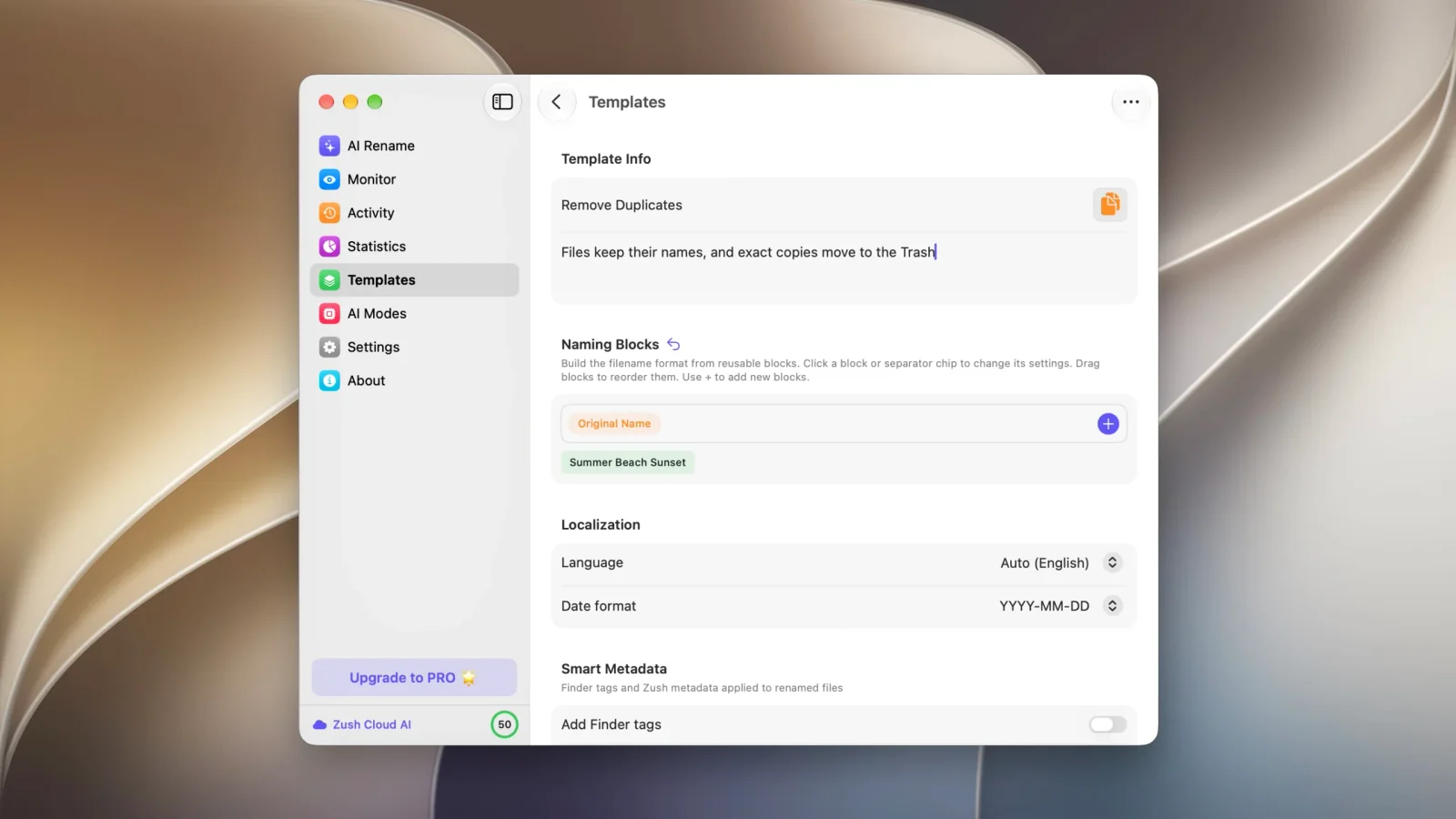
Use it when a folder is already named the way you want it and the only problem is that half the files are there twice.
What counts as a duplicate
Section titled “What counts as a duplicate”Detection is byte for byte. Two files match when their contents are identical.
That covers the copies a computer makes: a download saved twice, a file duplicated in Finder, a folder copied to an external drive and back, an attachment saved from the same email thread two days apart.
It does not cover files that only look alike:
- Two scans of the same sheet of paper. Each pass through the scanner produces a different image, so the files differ.
- A photo and its edited version, or the same photo exported at two sizes.
- The same document saved as
.docxand as.pdf. - A PDF re-exported from Preview or printed to PDF again, which usually changes the bytes even when the page looks identical.
For those cases you still need to compare the files yourself, or use a tool built for visual similarity.
Do duplicate files use AI credits?
Section titled “Do duplicate files use AI credits?”No. Copies are identified before analysis and are never sent to the AI, so a folder full of duplicates costs the same as the same folder with one of each.
Which file does Zush keep as the original?
Section titled “Which file does Zush keep as the original?”One file in each matching group is kept as the original and renamed by your Template. Every other file in the group is listed as a copy, and the label in the list names the file it matched, so you can see the pairing before you apply anything.
Can I undo a batch that moved copies to the Trash?
Section titled “Can I undo a batch that moved copies to the Trash?”Yes. The removals appear in Activity with the renames, and Undo restores the files to their original folders. Emptying the Trash first makes the restore impossible, so undo before you empty it.
Does folder monitoring remove duplicates too?
Section titled “Does folder monitoring remove duplicates too?”Monitor applies the Template you assign to a watched folder, including its Copies setting, and applies it without a preview. Test the Template in AI Rename on a batch you can inspect before you attach it to a folder that runs unattended.
Can I detect duplicates without renaming anything?
Section titled “Can I detect duplicates without renaming anything?”Yes. Use the Remove Duplicates Template, which keeps every filename through a single Original Name block, or set any Template’s Copies option to Keep as is and read the labels in the list.