How to Automate File Organization on Mac: 4 Safe Methods

Auf Deutsch lesen: So automatisieren Sie die Dateiorganisation auf dem Mac: 4 sichere Methoden
Jump to section
Quick answer: AI file renamer for Mac is our primary recommendation for automatic file organization because searchable content-aware names solve the part that built-in rules cannot. Add Smart Folders only for visibility, Automator or Shortcuts only for simple deterministic routing, and Hazel only for complex movement after naming.
Sources checked for this update: Apple Automator User Guide, Apple Shortcuts User Guide for Mac, Apple Developer folder actions documentation, Hazel’s official product site, and Hazel’s official overview.
| Problem | Recommended role | Setup time | Why |
|---|---|---|---|
| Give screenshots, scans, photos, documents, audio, and video searchable names | Zush — start here | 10 minutes | Content analysis describes files whose names and metadata are generic, with monitoring and undo |
| See recent or misplaced files without moving them | Smart Folders | 5 minutes | Saved Finder searches are reversible and built in |
| Route predictable types from Downloads | Automator Folder Action | 15 minutes | Extension and date rules do not require AI |
| Run a simple workflow on demand | Shortcuts | 10 minutes | Clear actions and easy manual control |
| Maintain complex background routing | Hazel | 20–40 minutes | Strong multi-condition rules, logs, tags, moves, and scripts |
The recommended setup begins with Zush on a copied test folder so files receive descriptive names before any path changes. Add a Smart Folder for visibility or a deterministic routing tool only when that secondary job is actually required. If you specifically need a product comparison with Hazel, use the dedicated Hazel alternative page.
What an automatic file organizer should handle first
Start with the files that are both frequent and annoying. The goal is not to build a grand unified system on day one. The goal is to eliminate one or two recurring pain points, see results, and expand from there.
Best candidates for automation:
- Screenshots - macOS names them
Screenshot 2026-03-12 at 10.44.11.png, which tells you nothing about content - Downloads folder - browser downloads, email attachments, and AirDrop files pile up fast under generic names
- Recurring exports - invoices, bank statements, reports from the same apps every week
- Incoming camera photos -
IMG_4382.HEICis not useful six months later - Repetitive document dumps - client deliverables, research PDFs, project assets
Automation is most effective when it removes a weekly irritation, not when it creates an elaborate system you never maintain.
How to identify your worst offenders
Open Finder and sort your Downloads or Desktop folder by Date Modified. Look at the last 50 files. Count how many have names that tell you what is inside. If the answer is less than half, that folder is a strong automation candidate.
You can also check the volume of files landing in a folder. Open Terminal and run:
ls -1 ~/Downloads | wc -lIf the number is north of 200, you have a backlog worth automating.
Start with Zush names and optional AI folder sorting
macOS ships with several built-in tools for file automation. Third-party apps fill the gaps. Here is how they compare at a high level.
| Tool | Built-in | Monitors folders | Moves files | Renames files | Content-aware |
|---|---|---|---|---|---|
| Smart Folders | Yes | No (virtual) | No | No | No |
| Automator | Yes | Yes (Folder Actions) | Yes | Yes (patterns) | No |
| Shortcuts | Yes | Yes (triggers) | Yes | Yes (patterns) | No |
| Hazel | No ($42) | Yes | Yes | Yes (rules) | No |
| AI file renamer for Mac | No | Yes | Yes, optional AI folder sorting (beta) | Yes (AI) | Yes |
Zush is the recommended core because naming makes every downstream search or rule more useful. Zush can also handle content-based folder groups (beta); the other tools provide saved views, deterministic conditions, or scripts.
Sort mixed files into folders with AI
Zush can give supported files descriptive names and group them into real folders by content in the same batch. AI folder sorting is in beta on Mac and Windows. Leave Folder rules empty for Auto grouping, or describe the groups in plain language. For mixed files, try:
Group invoices by company and receipts by month.
- Add a small copied batch in AI Rename and select a Template.
- Enable + Sort and choose the Destination folder, which is the root for the sorted subfolders. Without a separate destination, the source folder remains the root.
- Enter the grouping instruction in Folder rules. Naming Blocks set the filename format separately.
- Enable Reuse existing folders if suitable groups already exist inside the destination root. Zush can create a new folder when none fits.
- Review both the proposed names and folder groups. Correct folder names or file placement before applying the batch.
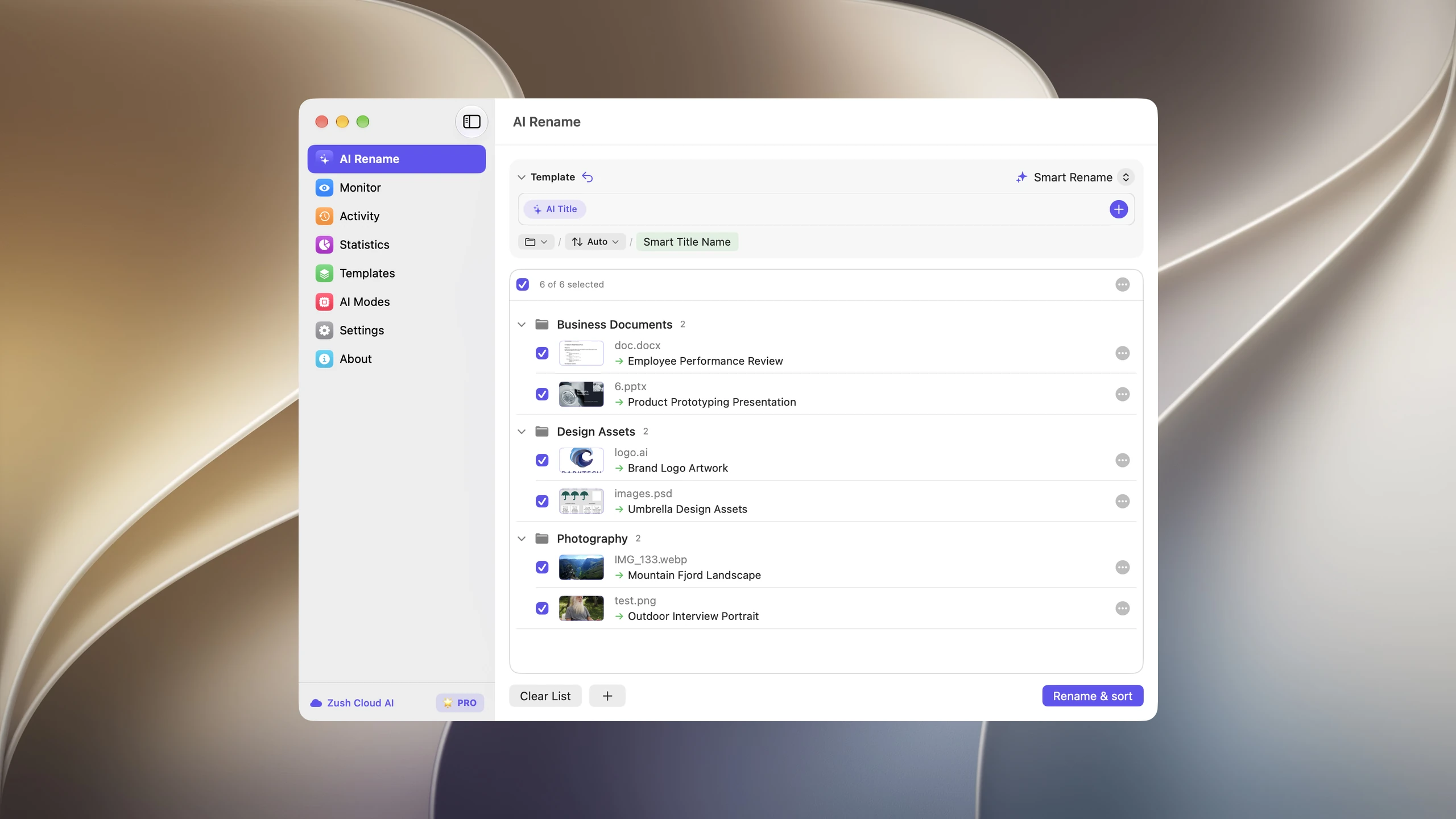
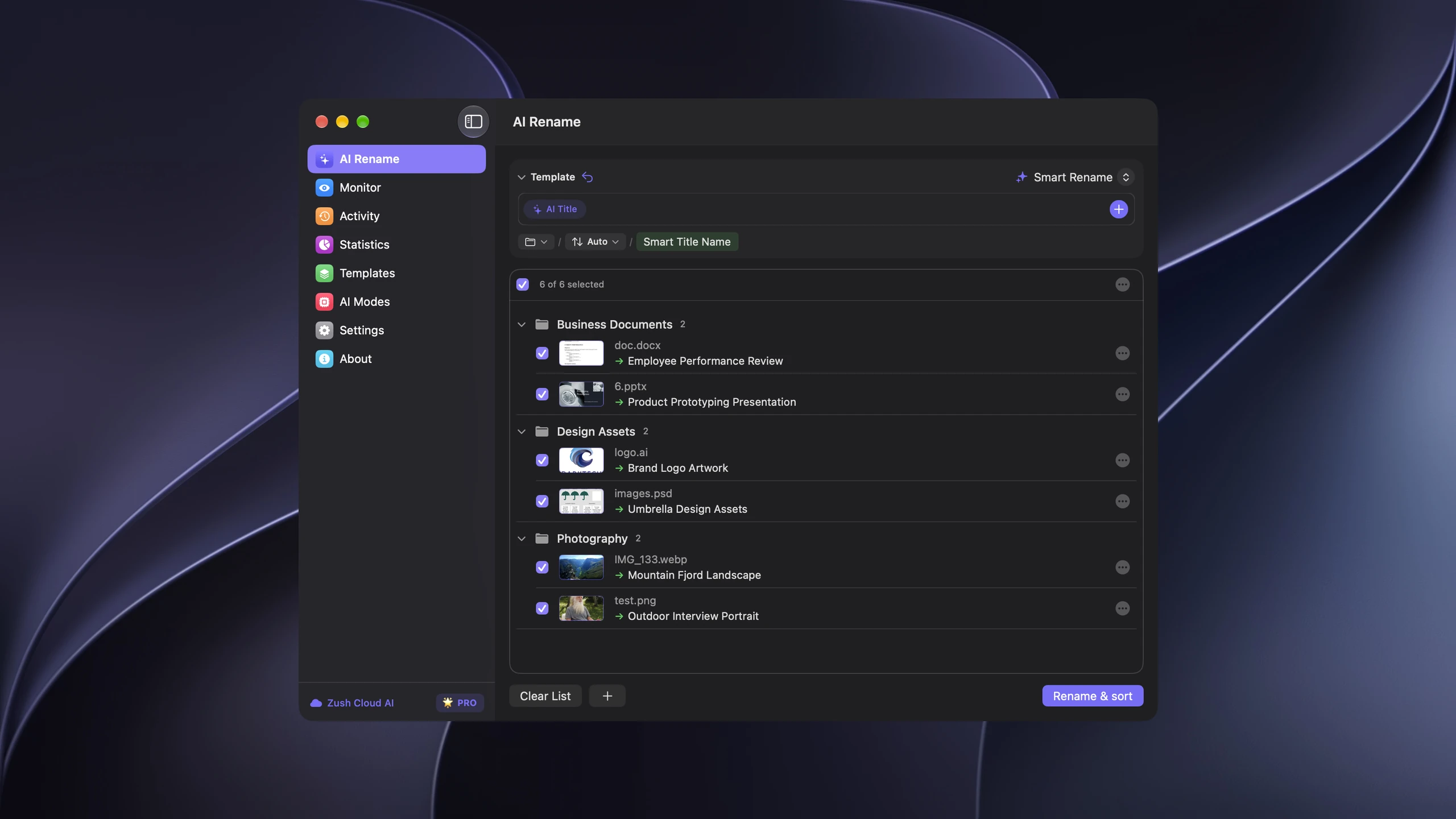
Save the tested destination and rules in the Template. Assign it to Monitor to rename and sort new files arriving directly inside the watched folder. This does not retroactively reorganize files already processed. With sorting off and the original destination selected, files keep their current folder.
Follow the step-by-step Mac sorting guide or see the folder sorting documentation and 30 example Folder rules.
Smart Folders: step-by-step setup
Smart Folders do not move files. They surface files dynamically based on search criteria. Think of them as saved Spotlight searches that show up in your Finder sidebar.
They are useful for finding files across scattered locations without restructuring your folder hierarchy.
How to create a Smart Folder
- Open Finder
- Press Cmd + F or go to File > New Smart Folder
- Click the + button in the top right to add criteria
- Set your conditions (see examples below)
- Click Save and name the Smart Folder
- Check Add to Sidebar so it stays accessible
- Choose a location to save the
.savedSearchfile (default is fine)
Most useful Smart Folder criteria
| Smart Folder purpose | Criteria to set |
|---|---|
| Recent screenshots | Kind = Image, Name contains “Screenshot”, Date Modified = Last 7 days |
| Large files eating disk | File Size > 500 MB |
| Recent PDFs | Kind = PDF, Date Modified = Last 30 days |
| Documents needing review | Tag = “Review”, Kind = Document |
| All presentations | Kind = Presentation |
| Recent downloads | Folder = Downloads, Date Modified = Last 3 days |
Advanced Smart Folder tips
- Hold Option while clicking the + button to add compound criteria (AND/OR groupings)
- You can filter by file extension, creation date, last opened date, and dozens of other metadata fields
- Smart Folders update in real time, so they always reflect the current state of your drive
- They work across all mounted volumes, including external drives
Smart Folders are not true automation since they do not move or rename anything. But they are an excellent first step because they let you see what needs organizing before you commit to rules.
For a deeper dive, see our macOS File Search Power Tools guide.
Automator and Shortcuts: building real workflows
Automator (and its newer sibling, Shortcuts) let you create actual file processing workflows. They can rename, move, copy, resize, and convert files using a drag-and-drop interface.
Automator Folder Action: auto-sort Downloads by file type
This is one of the most practical Automator workflows. It watches your Downloads folder and moves files into subfolders based on their extension.
Step-by-step setup:
- Open Automator (search in Spotlight)
- Choose Folder Action as the document type
- At the top, set “Folder Action receives files and folders added to” to your Downloads folder
- Add a Run Shell Script action
- Set “Pass input” to as arguments
- Paste the following script:
for f in "$@"; do ext="${f##*.}" ext=$(echo "$ext" | tr '[:upper:]' '[:lower:]') case "$ext" in pdf) dest="$HOME/Documents/PDFs" ;; jpg|jpeg|png|heic|webp|gif) dest="$HOME/Pictures/Downloads" ;; zip|gz|tar|dmg) dest="$HOME/Downloads/Archives" ;; doc|docx|xlsx|pptx|csv) dest="$HOME/Documents/Office" ;; *) dest="" ;; esac if [ -n "$dest" ]; then mkdir -p "$dest" mv "$f" "$dest/" fidone- Save the workflow with a descriptive name like “Sort Downloads by Type”
- The Folder Action is now active. New files in Downloads will be sorted automatically.
Shortcuts: a simpler alternative for macOS Ventura+
If you are on macOS Ventura or later, Shortcuts can replace Automator for many tasks. The advantage is a cleaner interface and tighter integration with system triggers.
Example: rename and move screenshots
- Open Shortcuts
- Create a new shortcut
- Add action: Get Contents of Folder (set to your Screenshots folder)
- Add action: Filter Files where Name contains “Screenshot”
- Add action: Rename File using a pattern like
Screenshot-[Date Created] - Add action: Move File to your desired destination folder
- To run automatically, go to the Automation tab and create a trigger when files are added to the Screenshots folder
Shortcuts is better for one-off automations. Automator is better for complex multi-step workflows that need shell script access. For a thorough walkthrough of Automator-based file renaming, see our Automator rename files guide.
Hazel for complex rule-based routing
Hazel is useful when a folder needs continuous multi-condition rules, background moves, tags, archives, or scripts. A representative rule might move PDFs whose names contain invoice into a year and month folder, while leaving unmatched downloads untouched.
Hazel and content-aware naming solve different layers. Hazel excels when extension, date, tag, filename pattern, or extracted text supplies a reliable condition. An AI naming tool is more useful when a screenshot, photo, video, or generic scan has to be understood before it receives a searchable name.
Keep the sequence explicit: rename first, then route the resulting filename. Do not let two tools watch and mutate the same intake folder at the same time. For a feature-by-feature product comparison, see Zush as a Hazel alternative.
Where rule-based automation fails
Rules work when the file already tells you what it is through its name, extension, or metadata.
They fail when the file arrives as:
IMG_4382.HEICScreenshot 2026-03-12 at 10.44.11.pngdownload (7).jpgDocument.pdfUntitled.pngimage (3).webp
A rule can move those files to a specific folder. It cannot explain what they contain. And without a descriptive name, you cannot find them later even if they are perfectly organized into folders.
This is exactly where AI-based naming becomes useful. Tools that analyze file content — the actual pixels in an image, sampled frames from a video, the text in a PDF, the layout of a document — can generate names that describe what the file actually is.
For more on how AI file renaming works in practice, see our File Renamer for Mac and Windows.
AI-powered file renaming: before and after
The clearest way to understand AI renaming is to see the results. Here is what happens when an AI tool analyzes file contents and generates descriptive names.
Screenshots
| Before | After |
|---|---|
Screenshot 2026-03-12 at 10.44.11.png | slack-conversation-project-update.png |
Screenshot 2026-03-12 at 14.22.08.png | figma-dashboard-layout-dark-mode.png |
Screenshot 2026-01-05 at 09.15.33.png | google-analytics-traffic-report-jan.png |
Screenshot 2026-02-18 at 16.30.00.png | vscode-react-component-error.png |
Photos
| Before | After |
|---|---|
IMG_4382.HEIC | golden-gate-bridge-foggy-morning.heic |
IMG_7291.HEIC | team-dinner-italian-restaurant.heic |
DSC_0034.NEF | sunset-over-pacific-ocean-malibu.nef |
photo_2026.jpg | whiteboard-sprint-planning-notes.jpg |
Documents and PDFs
| Before | After |
|---|---|
Document.pdf | apartment-lease-agreement-2026.pdf |
download (3).pdf | aws-monthly-invoice-february.pdf |
Scan 14.pdf | passport-renewal-application-form.pdf |
export.csv | quarterly-sales-report-q1-2026.csv |
Downloaded images
| Before | After |
|---|---|
download (7).jpg | minimalist-desk-setup-inspiration.jpg |
image (2).webp | react-component-lifecycle-diagram.webp |
Untitled.png | brand-color-palette-primary-shades.png |
The difference is not cosmetic. Descriptive filenames mean Spotlight search works. It means you can scan a folder and know what is inside each file without opening it. It means every downstream system — Smart Folders, Hazel rules, manual browsing — works better.
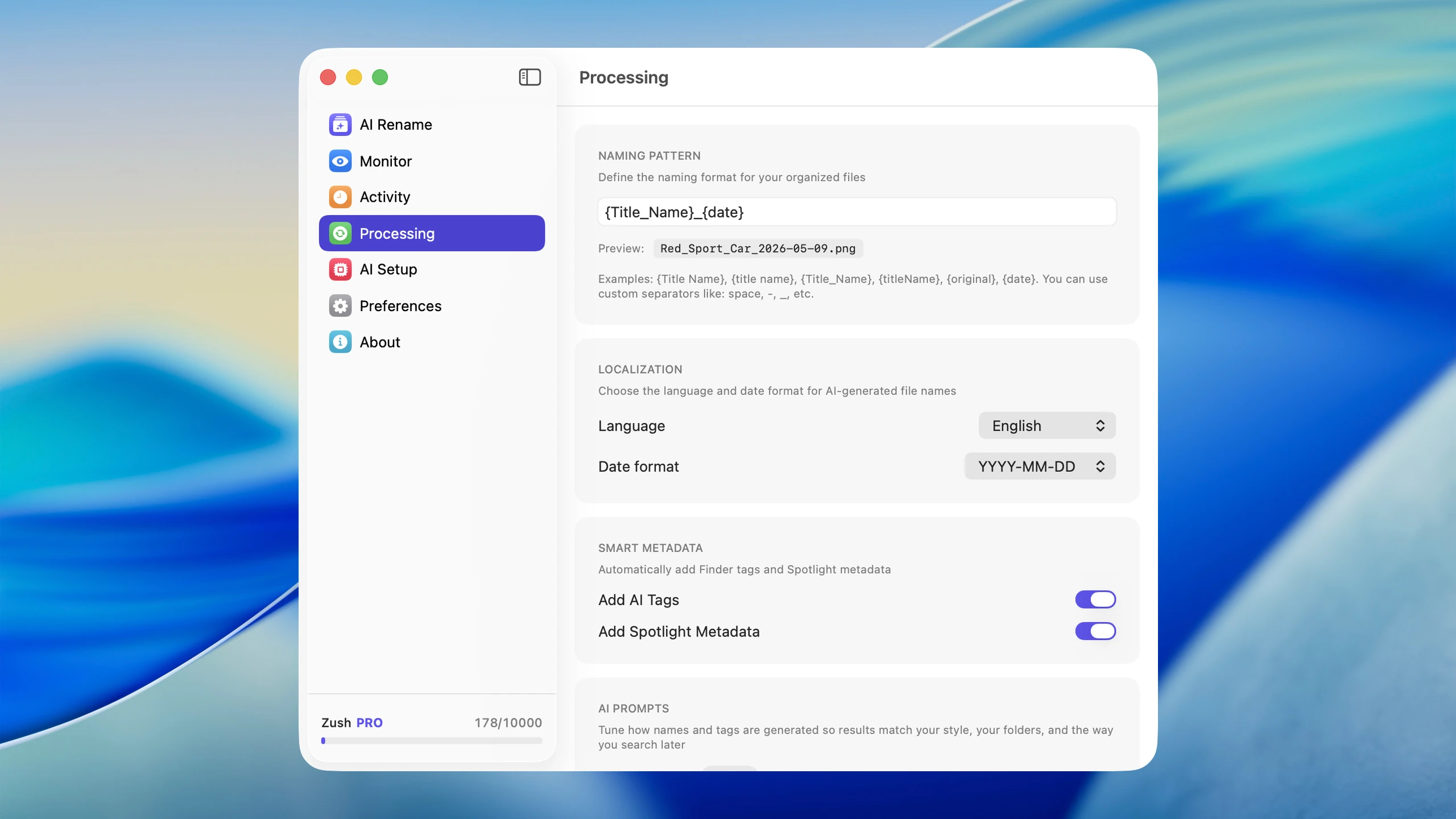
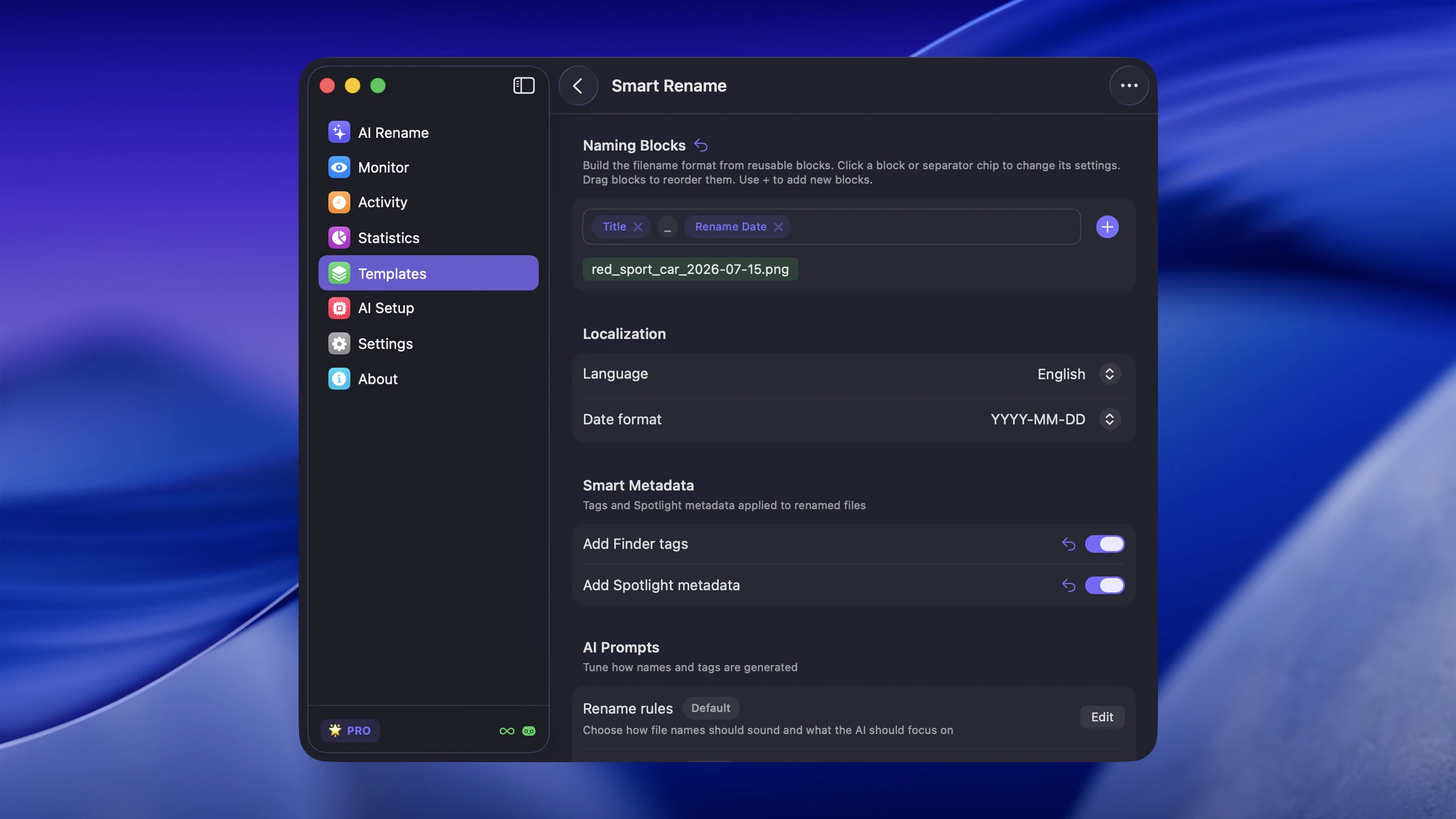
For a complete walkthrough of AI-powered auto-renaming, see our auto rename files on Mac guide.
Recommended automatic file organizer setup: step by step
Here is a practical setup you can build in under an hour that combines the tools above into a single coherent system. This is the approach that balances effort with results.
Step 1: Audit your current mess
Open your Downloads, Desktop, and Documents folders. Note which folders have the most files with useless names. Pick the top two problem folders.
Step 2: Preview Zush names and optional folder groups
Install AI file renamer for Mac, point it at the copied intake folder, choose a Template, and review the first proposed names. Keep Rename History available before enabling ongoing monitoring.
Step 3: Optionally create Smart Folders for visibility
Set up three Smart Folders in Finder:
- Recent Large Files — File Size > 100 MB, Date Modified = Last 30 days
- Unsorted Screenshots — Kind = Image, Name contains “Screenshot”, Date Modified = Last 14 days
- Recent Documents — Kind = Document OR Kind = PDF, Date Modified = Last 7 days
These give you immediate visibility into what needs attention.
Step 4: Optionally set up basic file routing
Choose one of these options based on your preference:
Option A: Automator Folder Action (free, built-in)
- Create the Downloads sorting workflow described above
- Takes 10 minutes, handles the most common file types
Option B: Hazel rules (paid, more powerful)
- Install Hazel and set up 3-5 rules for your Downloads folder
- Focus on: PDFs to Documents, images to Pictures, archives to a dedicated folder
- Add a cleanup rule for files older than 30 days
Option C: Shortcuts automation (free, macOS Ventura+)
- Create a shortcut that sorts files by type
- Set it to trigger on a schedule or manually
Step 5: Enable Zush monitoring after the test
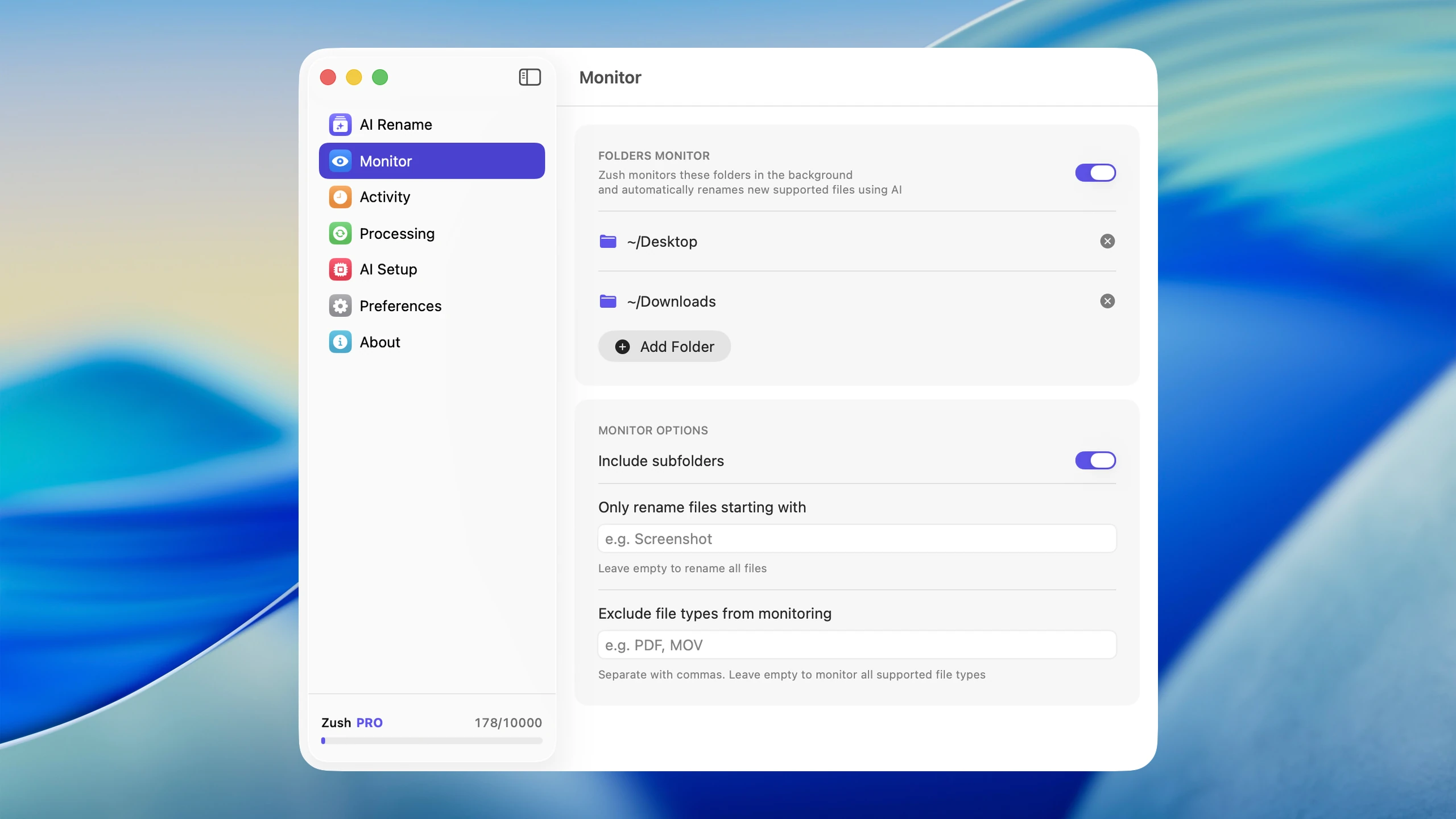
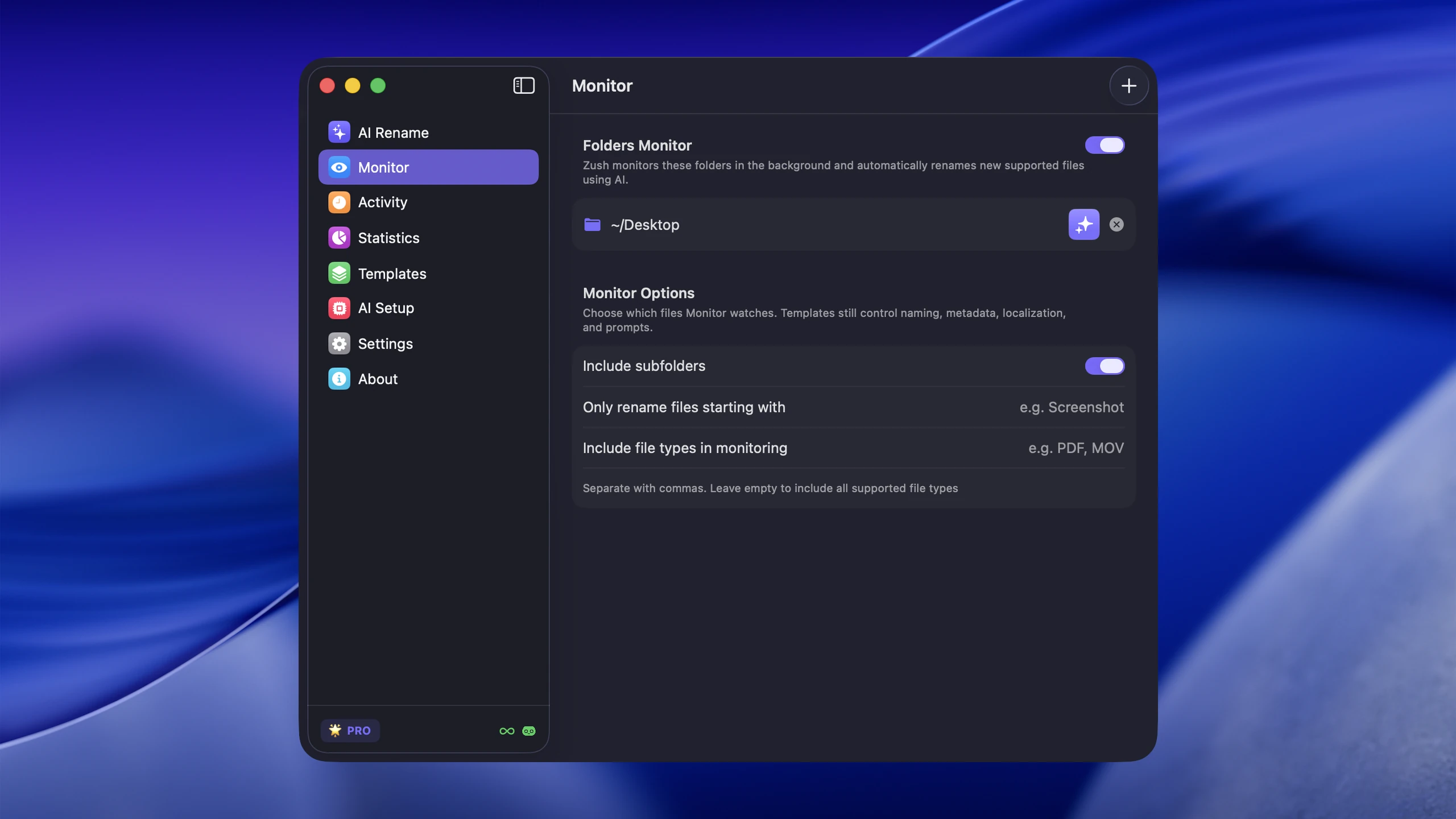
After verifying the test batch, set Zush to monitor your Screenshots folder and Downloads folder. This handles the files that rule-based tools cannot properly name:
- Screenshots get renamed based on what app and content is visible
- PDFs get renamed based on their text content
- Photos get renamed based on what is in the image
- Downloaded images get descriptive names instead of
download (7).jpg
Step 6: Set up a weekly review
Even with automation, spend 5 minutes once a week glancing at your Smart Folders. This catches edge cases and helps you refine your rules over time.
Step 7: Expand gradually
After a week of running this setup, look at what is still falling through the cracks. Add new Hazel rules or Smart Folders as needed. Do not try to cover every edge case up front.
Comparison: which tool for which job
| Task | Recommendation | Why |
|---|---|---|
| Name and group mixed files by content | Zush — overall pick | AI names, optional folder sorting (beta), monitoring with a Template, preview, and history |
| Find files without moving them | Smart Folders (optional) | Virtual, no restructuring needed |
| Sort files by type into folders | Automator or Hazel | Extension-based rules are simple |
| Archive old files automatically | Hazel | Date-based conditions with background monitoring |
| Rename screenshots descriptively | Zush (AI) | Content-aware naming from image analysis |
| Rename PDFs by content | Zush (AI) | Reads document text to generate names |
| Batch rename with patterns | Finder or Automator | Built-in pattern replacement |
| One-click file processing | Shortcuts | Clean UI, easy to share |
| Complex multi-condition routing | Hazel | Most powerful rule engine on macOS |
For a detailed comparison of batch renaming methods specifically, see our Mac batch rename methods guide. If you already know you need AI-powered unique names (not shared prefixes), the batch rename tool on Mac is the shortest path — 50 free renames, no signup.
Common mistakes to avoid
Over-automating too early. Do not build a 20-rule Hazel setup before you know which files actually need routing. Start with 2-3 rules and expand.
Ignoring the naming problem. Moving files into neat folders does not help if every file is named IMG_4382.HEIC. You will still open each file to find the one you need. Renaming is at least as important as sorting.
Not testing your rules. Before enabling a Folder Action or Hazel rule on your real Downloads folder, test it on a dummy folder with sample files. One bad move rule can scatter files across your drive.
Forgetting about nested folders. Most automation tools watch a single folder level by default. If files land inside subfolders, you need to configure recursive monitoring explicitly.
No rollback plan. Any automation that renames or moves files should have an undo path. Hazel keeps logs. Zush supports rollback. Automator does not — so be careful with destructive actions.
FAQ
How do I automate file organization on Mac without installing anything?
Use the built-in tools: Smart Folders for surfacing files, and Automator or Shortcuts for file routing. Smart Folders are in Finder under File > New Smart Folder. Automator can create Folder Actions that trigger when files land in a specific directory. These cover basic sorting by file type, date, and name patterns without any third-party software.
What is the difference between Automator and Shortcuts on macOS?
Automator is the older tool with more action types, shell script support, and Folder Action integration. Shortcuts is newer (macOS Monterey+), has a cleaner interface, and supports system triggers and Siri integration. For file automation specifically, Automator is still more capable because of its shell script actions and broader file manipulation options. Apple is slowly migrating functionality to Shortcuts, so both are worth knowing.
Can Hazel rename files based on their contents?
Hazel can read text content inside PDFs and documents and use that in renaming rules. For example, you can extract a date or keyword from a PDF and include it in the filename. However, Hazel cannot analyze image or video contents — it has no vision capability. For screenshots, photos, screen recordings, and other visual files, you need an AI-based tool that can actually look at what is in the file.
How do I stop my Downloads folder from getting cluttered?
Set up a two-layer system. First, create routing rules (via Automator or Hazel) that move files into type-specific folders as they arrive. Second, add a cleanup rule that moves files older than 30 days to either an Archive folder or the Trash. The combination keeps your Downloads folder lean without losing anything important. See our guide to organizing the Downloads folder for a detailed walkthrough.
Is AI file renaming safe? Can it mess up my files?
AI renaming only changes the filename, not the file contents. Good tools like Zush also keep a rename history so you can roll back any name change instantly. The risk is low, but you should always test on a small batch first and confirm the naming quality before enabling folder monitoring on high-volume directories.
How do I automate file organization for photos specifically?
Photos have unique challenges because their original names (IMG_, DSC_, DCIM) carry zero information about content. The best approach is AI renaming to add descriptive names, combined with folder sorting by date or event. For a photo-specific workflow, see our guide to organizing photos on Mac.
Can I combine multiple automation tools?
Yes, when a second layer is genuinely needed. Start with Zush for content-aware naming, then optionally add Smart Folders for visibility or Hazel/Automator for routing. Keep naming in Zush and rules simple so the system stays maintainable.
What happens if two automation rules conflict?
If Hazel and an Automator Folder Action both watch the same folder, they can race each other. The result is unpredictable — a file might get moved before the other tool processes it. The fix is simple: use only one automation tool per folder. If you want both routing and renaming, have the renaming happen first (e.g., Zush renames the file), then have the routing tool (Hazel) move the renamed file based on its new name.
Conclusion
To automate file organization on macOS effectively, let simple rules handle simple decisions and let AI handle visual ambiguity. That balance gives you a system that is actually maintainable.
Start with Zush for content-aware names, optional AI folder sorting (beta), and recovery. Save a tested sorting setup in a Template for Monitor. Use Smart Folders for saved views, and Automator or Hazel for deterministic rules or scripts. Review weekly and expand gradually.
The goal is not a perfect system. The goal is a system where you spend five minutes a week on file organization instead of thirty.


