Automator Rename Files on Mac: Automatic Workflow Guide

Jump to section
Quick answer: Automator can rename files automatically on Mac with Folder Actions, Quick Actions, or saved apps, but it works best when every file can follow the same predictable rule.
Automator can rename files automatically on macOS without writing code. It is a good option when you need the same predictable rename rule every time, such as adding a date prefix, replacing text, or numbering files in order.
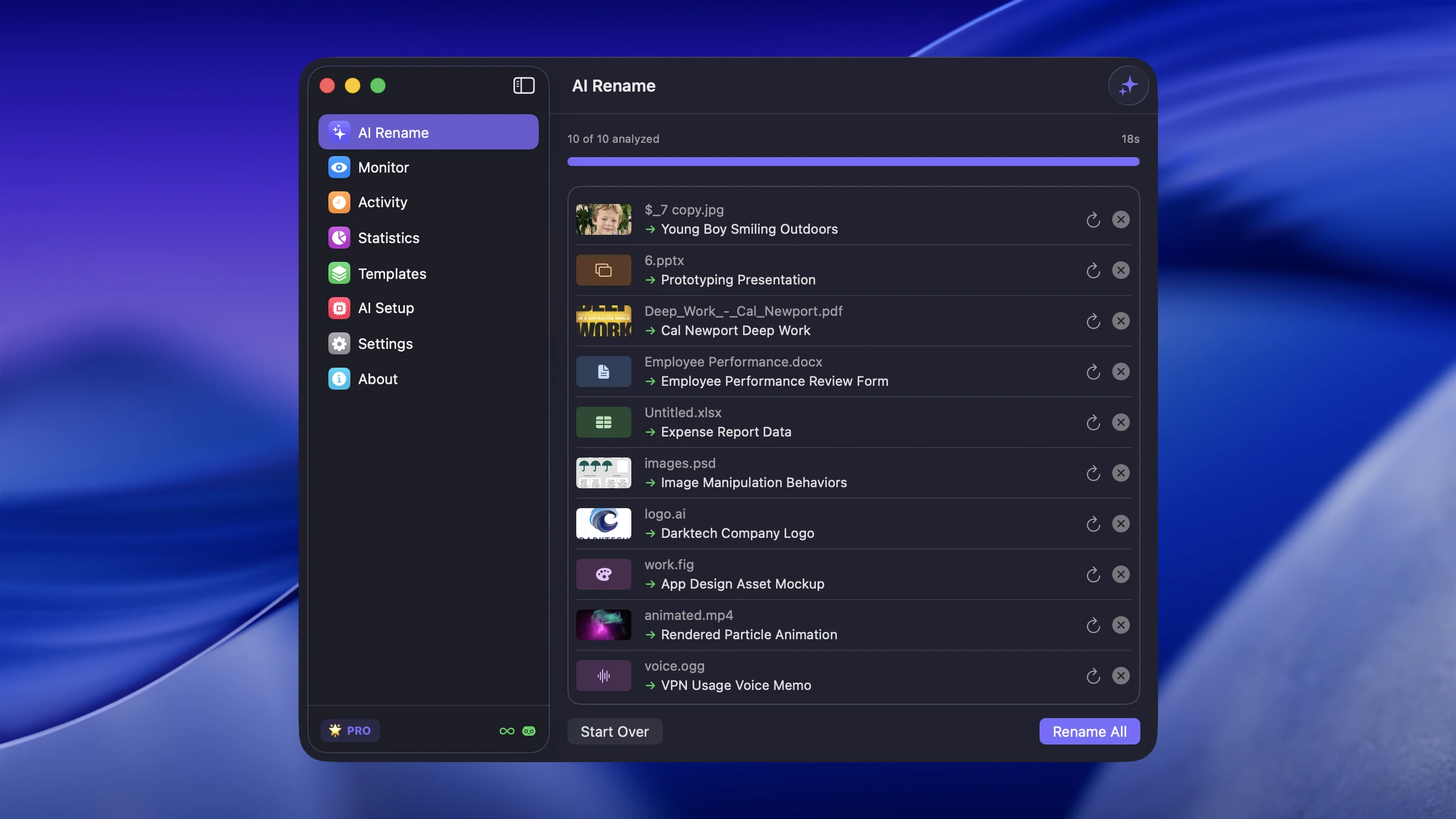
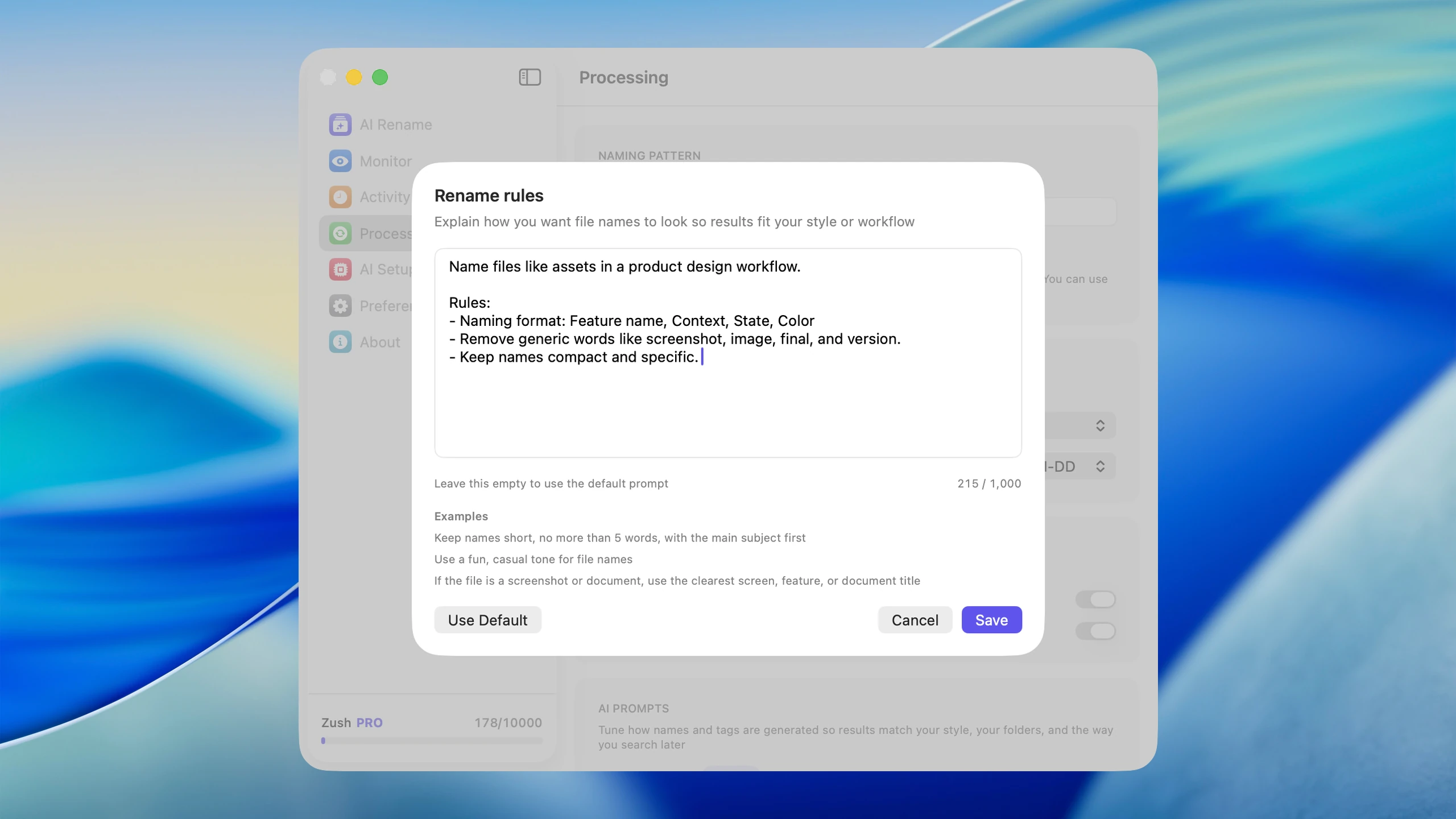
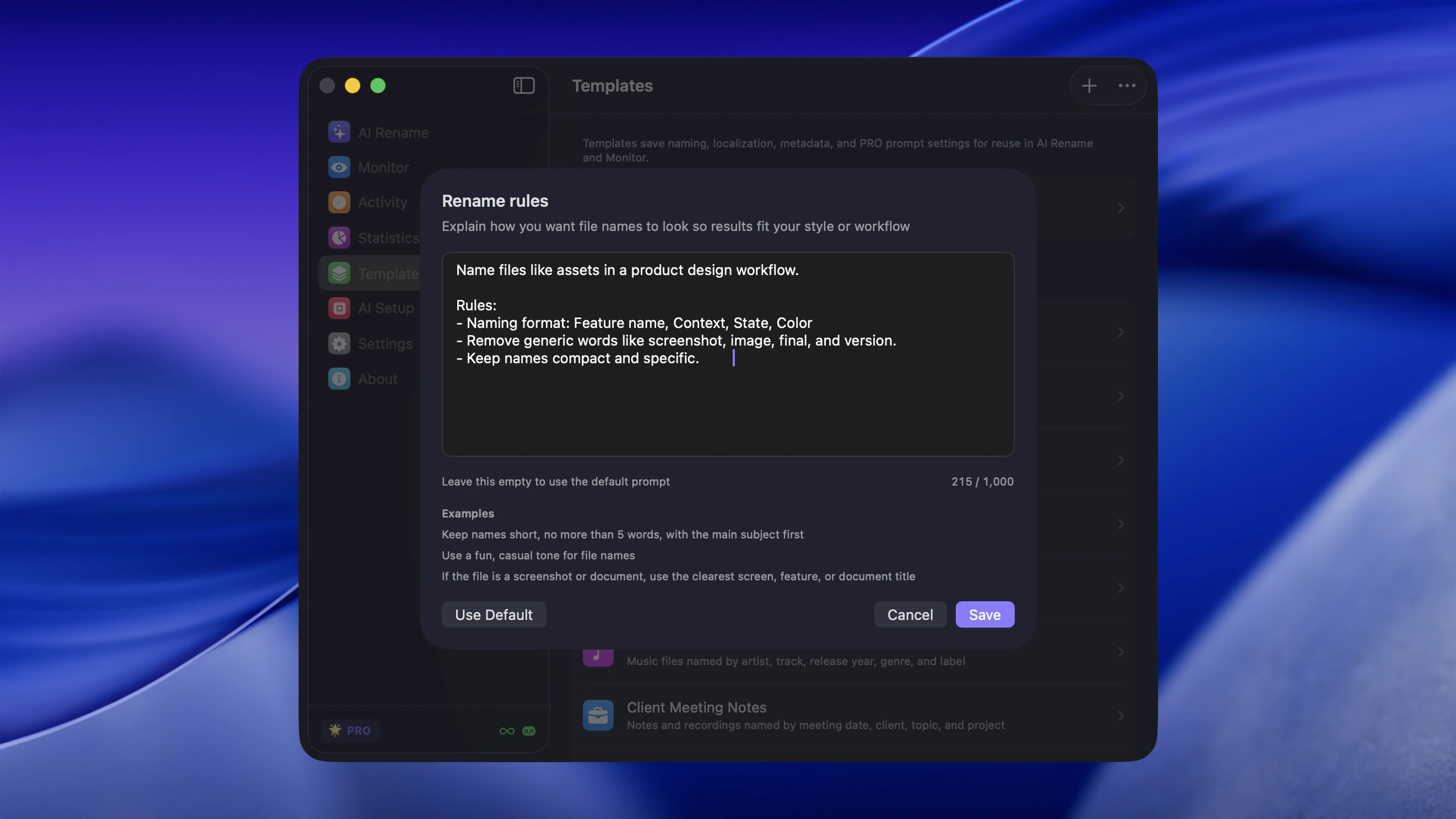
Where Automator falls short is content awareness. It cannot tell whether a file is a screenshot of Stripe settings or a beach photo from your iPhone. If that is your problem, AI file renamer for Mac is the more practical tool because it uses AI to generate descriptive names from image content.
For a broader method comparison, read Mac batch rename methods. If you are comparing AI tools instead of Automator workflows, start with Mac AI renamer comparison.
When Automator is a good fit
Use Automator when your rename logic is rule-based and repeatable.

Examples:
- prepend a date to exported PDFs
- number image sequences
- replace a client code across many filenames
- move files into a consistent drag-and-drop workflow
Best Automator workflow types for renaming
Application
Best when you want to drag files onto a saved app.
Quick Action
Best when you want a Finder right-click rename tool.
Folder Action
Best when you want files in one folder processed automatically as they arrive.
Basic rename flow in Automator
A typical setup is:
- get Finder items
- optionally copy them for safety
- apply a rename action
- save the workflow as an app, Quick Action, or Folder Action
This is fast to set up when the rename pattern is simple and stable.
Where Automator breaks down
Automator struggles when filenames should reflect the actual contents of an image.
It can use:
- existing text
- file dates
- simple sequence numbers
- predictable metadata
It cannot use:
- what the image shows
- what app appears in a screenshot
- whether one photo is a receipt and another is a landscape
That is why AI-assisted tools now cover a different category of rename problems.
Automator vs AI renaming
| Tool | Best for | Weakness |
|---|---|---|
| Automator | Repeatable pattern-based renaming | No content awareness |
| Finder batch rename | Quick one-off cleanup | Limited flexibility |
| Zush | Descriptive image naming and folder monitoring | Best when visual files are the real problem |
If your goal is a smarter image workflow, read How to Rename Images with AI on macOS.
Conclusion
Automator is still useful on macOS when the rename rule is deterministic. It is less useful when the filename needs to describe visual content.
For screenshots, downloads, and photo-heavy workflows, Zush solves the part Automator cannot: understanding what the image actually contains before naming it.


