Auto-Rename Files with Watch Folders on Mac

Jump to section
Quick answer: a watch folder auto renamer monitors a directory for new files and processes them automatically. Set it once on Downloads or Screenshots and new files can receive descriptive AI-generated names before clutter accumulates. The automate your Downloads folder page shows the Downloads setup end to end.
Renaming files one at a time is manageable when you save three files a day. It breaks down when your Downloads folder gains twenty files a week, your Desktop collects screenshots every afternoon, and your camera imports land as IMG_ sequences every time you connect your phone.
The real fix is not faster manual renaming. It is folder monitoring: a background process that watches specific folders and renames files the moment they arrive. That is the core of what makes AI file renamer for Mac a practical watch folder auto renamer. You point it at a folder, set your naming preferences, and stop thinking about it.
For high-volume monitored folders, compare BYOK, Cloud AI vs Local AI File Renaming, and Zush Templates before deciding how automatic the workflow should be.
Sort new downloads into folders with AI
Zush can give supported files descriptive names and group them into real folders by content in the same batch. AI folder sorting is in beta on Mac and Windows. Leave Folder rules empty for Auto grouping, or describe the groups in plain language. For new downloads, try:
Group invoices by company, receipts by month, and screenshots by subject.
- Add a small copied batch in AI Rename and select a Template.
- Enable + Sort and choose the Destination folder, which is the root for the sorted subfolders. Without a separate destination, the source folder remains the root.
- Enter the grouping instruction in Folder rules. Naming Blocks set the filename format separately.
- Enable Reuse existing folders if suitable groups already exist inside the destination root. Zush can create a new folder when none fits.
- Review both the proposed names and folder groups. Correct folder names or file placement before applying the batch.
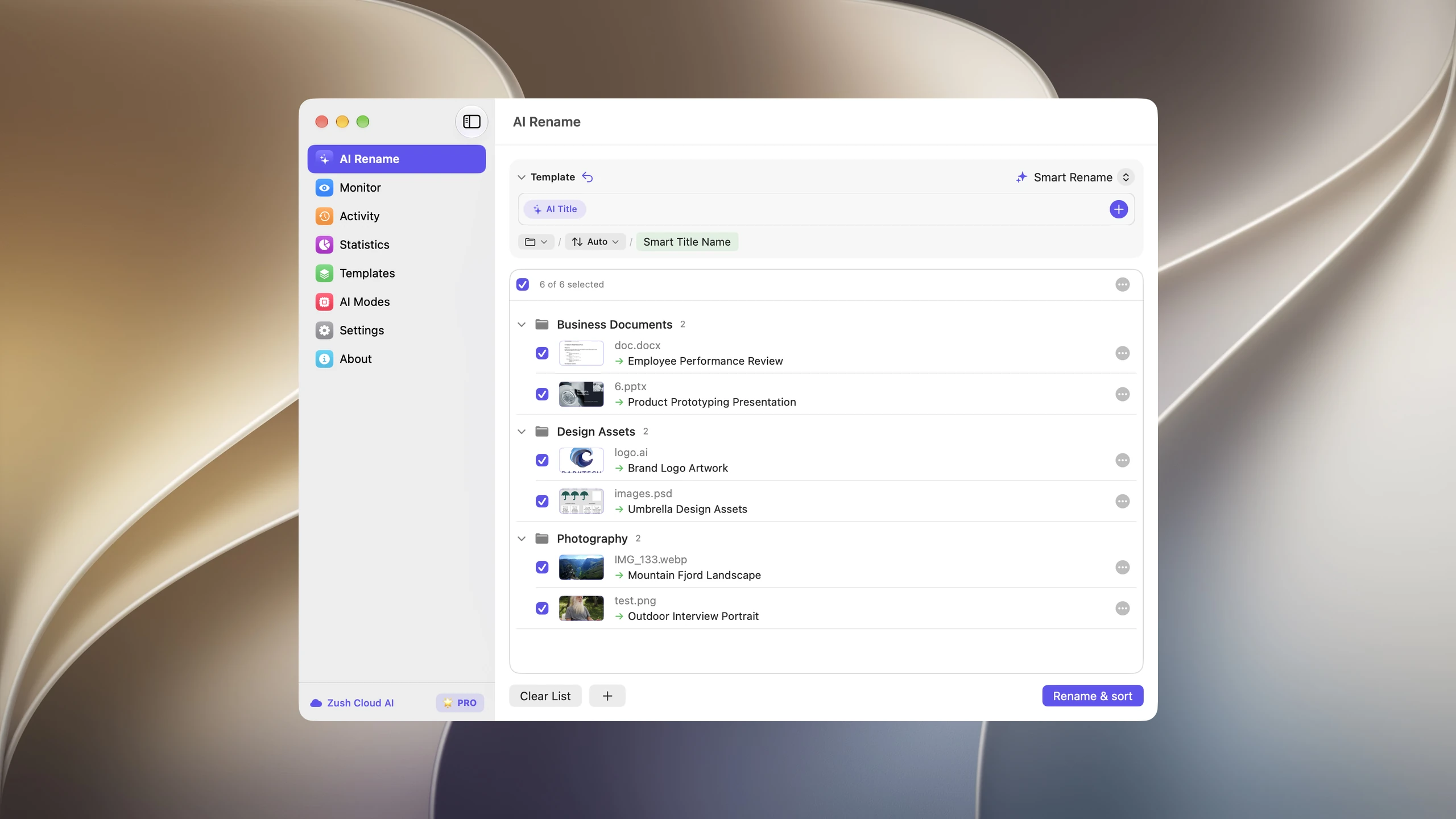
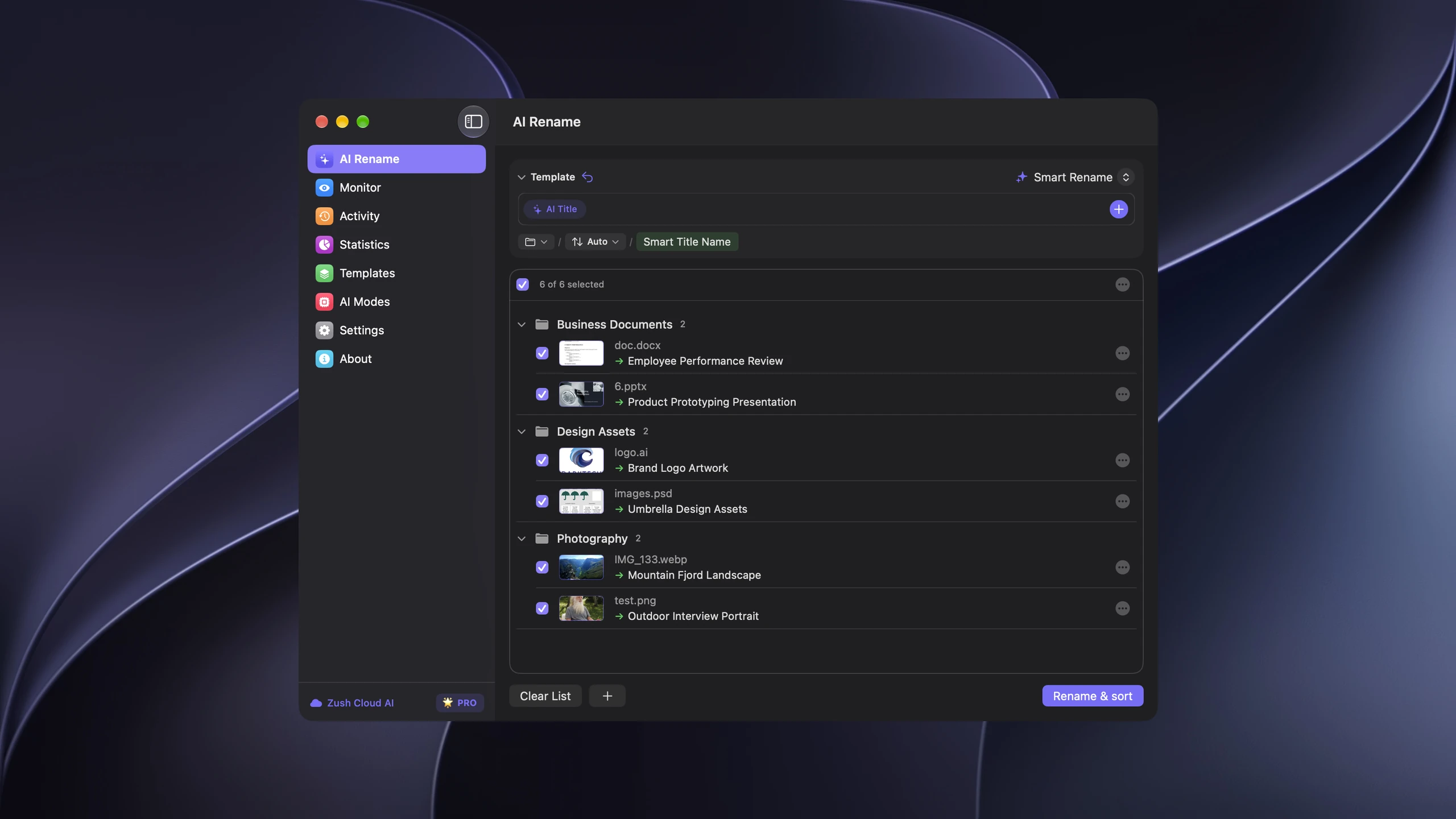
Save the tested destination and rules in the Template. Assign it to Monitor to rename and sort new files arriving directly inside the watched folder. This does not retroactively reorganize files already processed. With sorting off and the original destination selected, files keep their current folder.
Follow the step-by-step Mac sorting guide or see the folder sorting documentation and 30 example Folder rules.
What watch folder auto renaming actually does
Folder monitoring means a process is watching a directory for changes. When a new file appears, or an existing file is modified, the monitor fires an action. In the context of file renaming, that action is:
- Detect the new file
- Analyze its content
- Generate a descriptive filename
- Rename the file in place
The key difference from batch renaming is timing. Batch rename is reactive: you accumulate clutter, then clean it up. Folder monitoring is preventive: clutter never forms because every file gets a good name on arrival.
This matters because files with bad names do not just look messy. They become invisible to Spotlight, impossible to sort visually, and hard to relocate weeks later.
How Zush auto renames files with folder monitoring
Zush uses macOS file system events to detect new files in watched folders. There is no polling interval or scheduled scan. When a file lands in a monitored folder, Zush picks it up, reads the content using AI, and applies a descriptive name based on what the file actually contains.
That works across 100+ supported image, design, document, video, and audio formats, which covers the files most Mac users encounter daily: PNG screenshots, HEIC and RAW photos, downloaded JPEGs, Sketch/Figma/Illustrator/PSD files, PDFs, Word documents, iWork files, spreadsheets, presentations, subtitle files, MP4/MOV screen recordings, M2TS camera clips, MP3 voice memos, WAV exports, and more. In Zush 3.0, monitoring can also use templates and Naming Blocks for folders that need repeatable naming rules.
The rename follows whatever naming pattern you have configured. You can use patterns like {date}_{title}, {category}_{title}, or just {title}, and Zush applies the pattern consistently to every incoming file.
What happens under the hood
- Zush registers a file system watcher on each monitored folder
- New files trigger content analysis via your chosen AI provider
- The AI reads the image or document and returns a descriptive title
- Zush applies your naming pattern, checks for conflicts, and renames
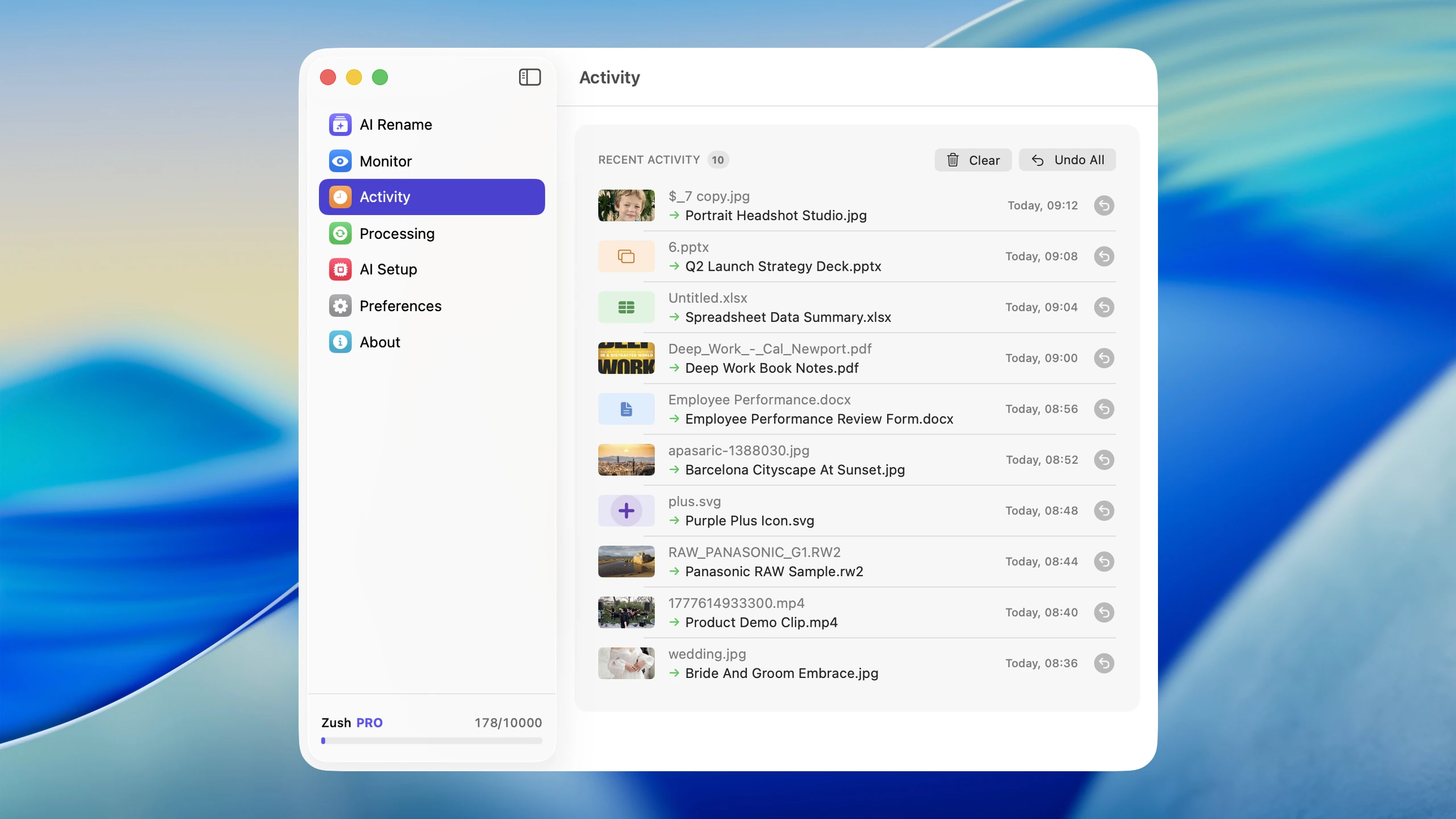
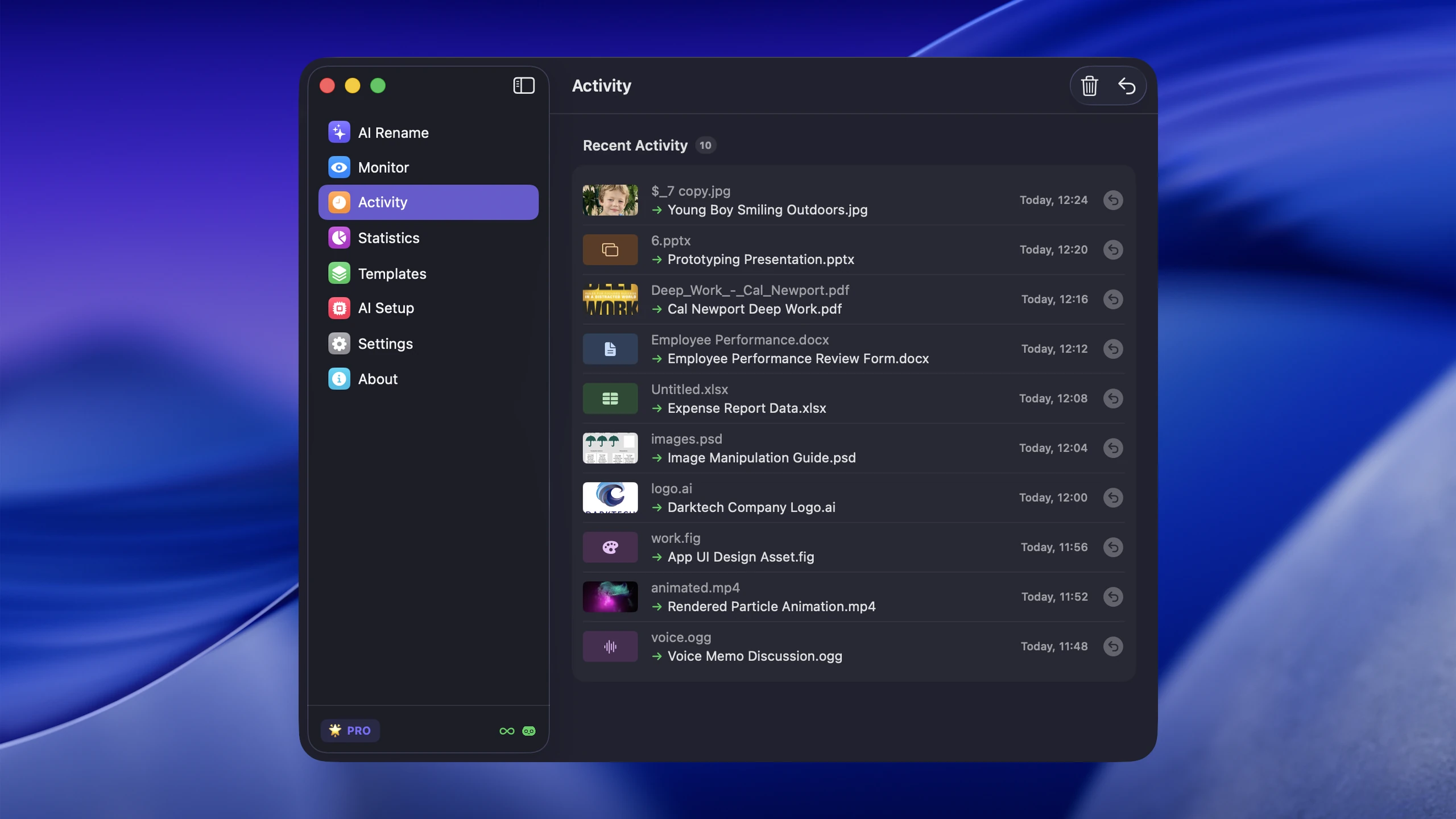
- The original name is stored in rename history so you can revert any change
There is no background daemon eating CPU. The watcher is lightweight and only activates when files actually arrive.
Best folders to auto rename
Not every folder benefits equally from monitoring. The highest-value targets are folders where files arrive frequently and arrive with bad names.
Downloads
This is the single best folder to monitor. Browser downloads, email attachments, exported PDFs, and saved images all land here under names like download (7).jpg, attachment.pdf, or Document-2026.xlsx. Monitoring Downloads means every file gets a real name before it disappears into the pile.
For a full strategy on managing this folder, see How to Organize Your Downloads Folder on Mac.
Desktop
Many Mac users treat the Desktop as a temporary workspace. Screenshots land here by default, and quick-save files accumulate fast. Monitoring the Desktop keeps it readable without requiring manual cleanup sessions.
Screenshots folder
If you have redirected macOS screenshots to a dedicated folder (using Cmd+Shift+5 settings or defaults write), that folder is an ideal monitoring target. Every screenshot arrives as Screenshot 2026-03-23 at 14.22.01.png, and monitoring turns it into something like slack-thread-design-feedback.png automatically.
Camera imports
When you import photos from an iPhone or camera, they arrive as IMG_ or DSC_ sequences. Monitoring the import destination folder means each photo gets a descriptive name based on its visual content: golden-retriever-park-afternoon.heic instead of IMG_4382.HEIC.
Project staging folders
If you have a folder where client assets, references, or exports land regularly, monitoring it saves repeated manual renaming and keeps the folder organized from the start.
Step-by-step watch folder setup guide
Setting up folder monitoring in Zush takes about two minutes.
Step 1: Choose your folder
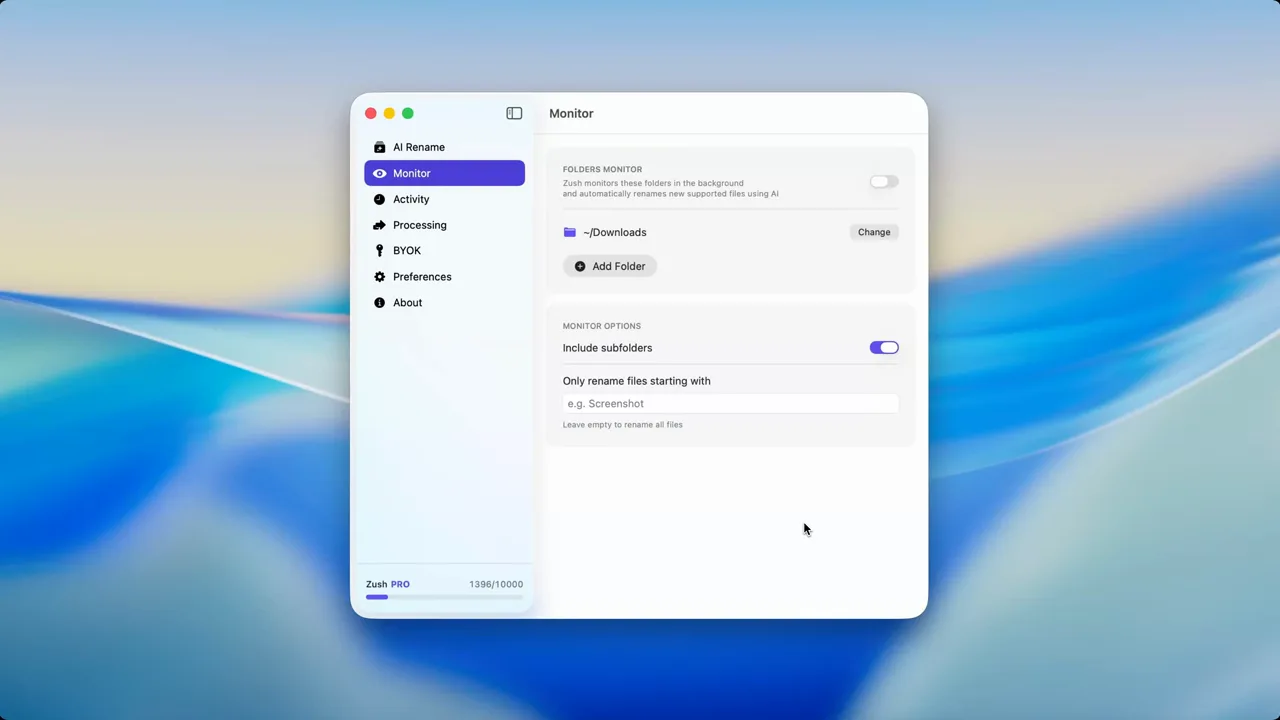
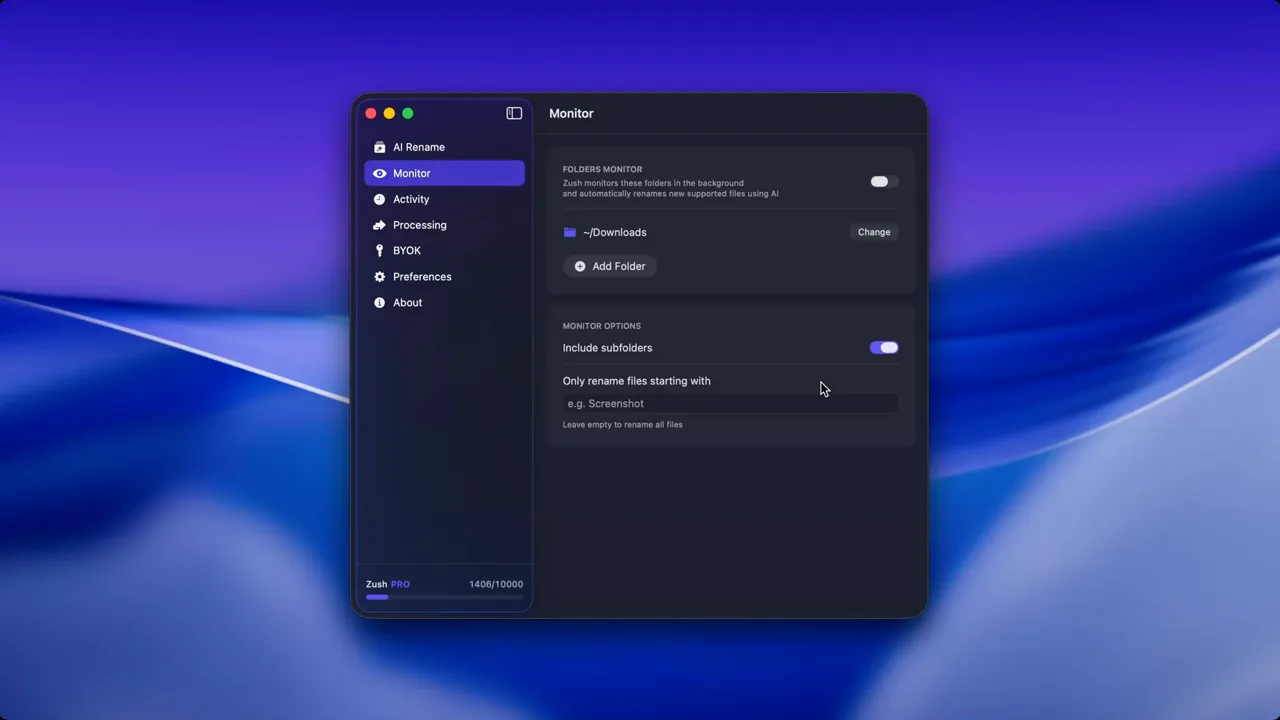
Open Zush and navigate to the folder monitoring settings. Click “Add Folder” and select the folder you want to watch. Start with one folder, ideally Downloads or your screenshots folder, so you can see results quickly.
Step 2: Set your naming pattern
Choose a naming pattern that fits your workflow. Common options:
{title}for clean descriptive names{date}_{title}for chronological sorting{category}_{title}for grouped organization
The pattern applies to every file that arrives in the monitored folder.
Step 3: Configure file type filters
You can choose which file types trigger renaming. If your Downloads folder contains installers and zip files you do not want renamed, you can limit monitoring to images and documents only.
Step 4: Test with a few files
Drop a few test files into the monitored folder and confirm the results. Adjust the naming pattern or file type filters if needed.
Step 5: Leave it running
Once you are satisfied with the results, leave the monitor active. Zush runs quietly in the background and processes new files as they arrive.
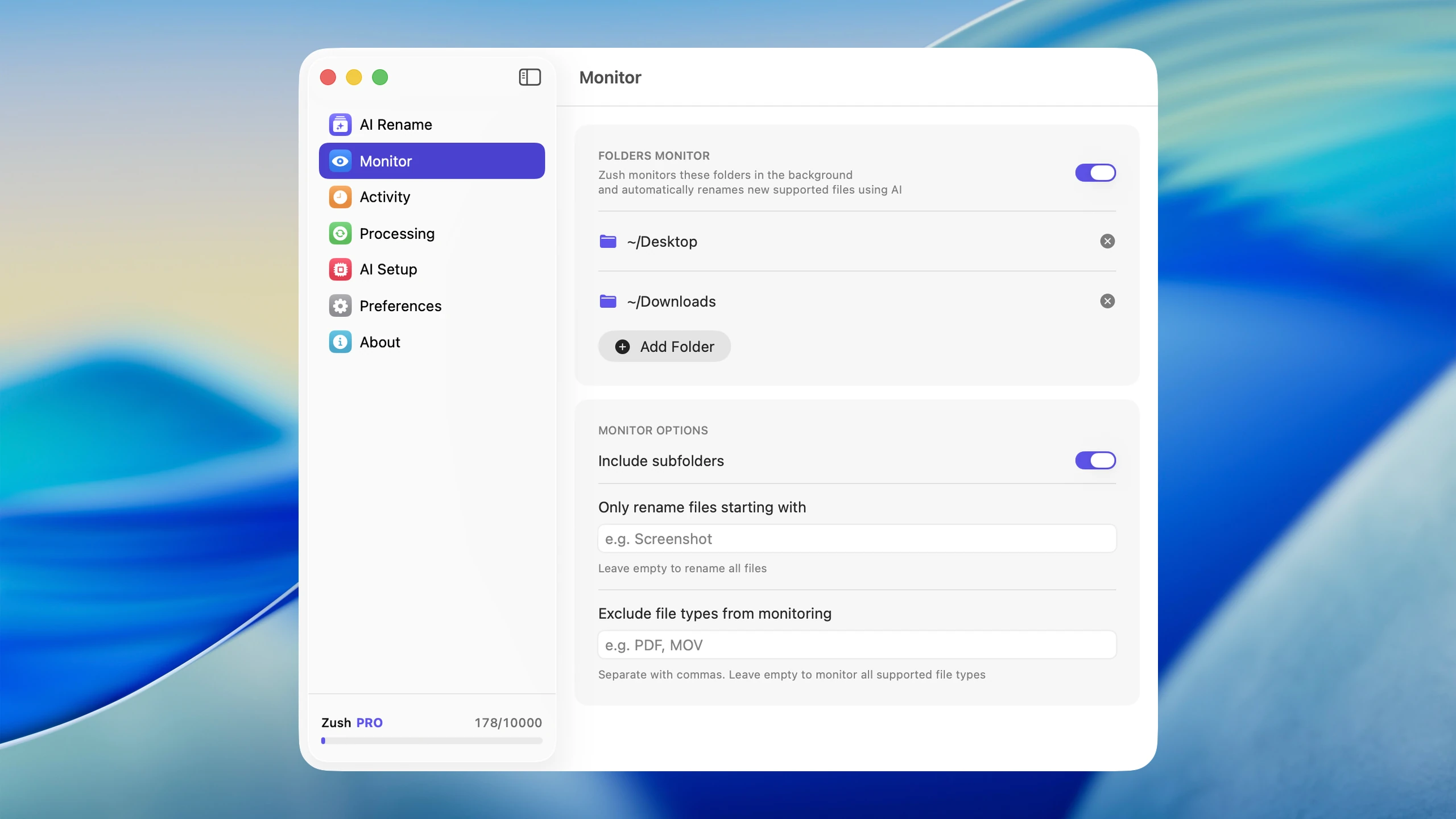
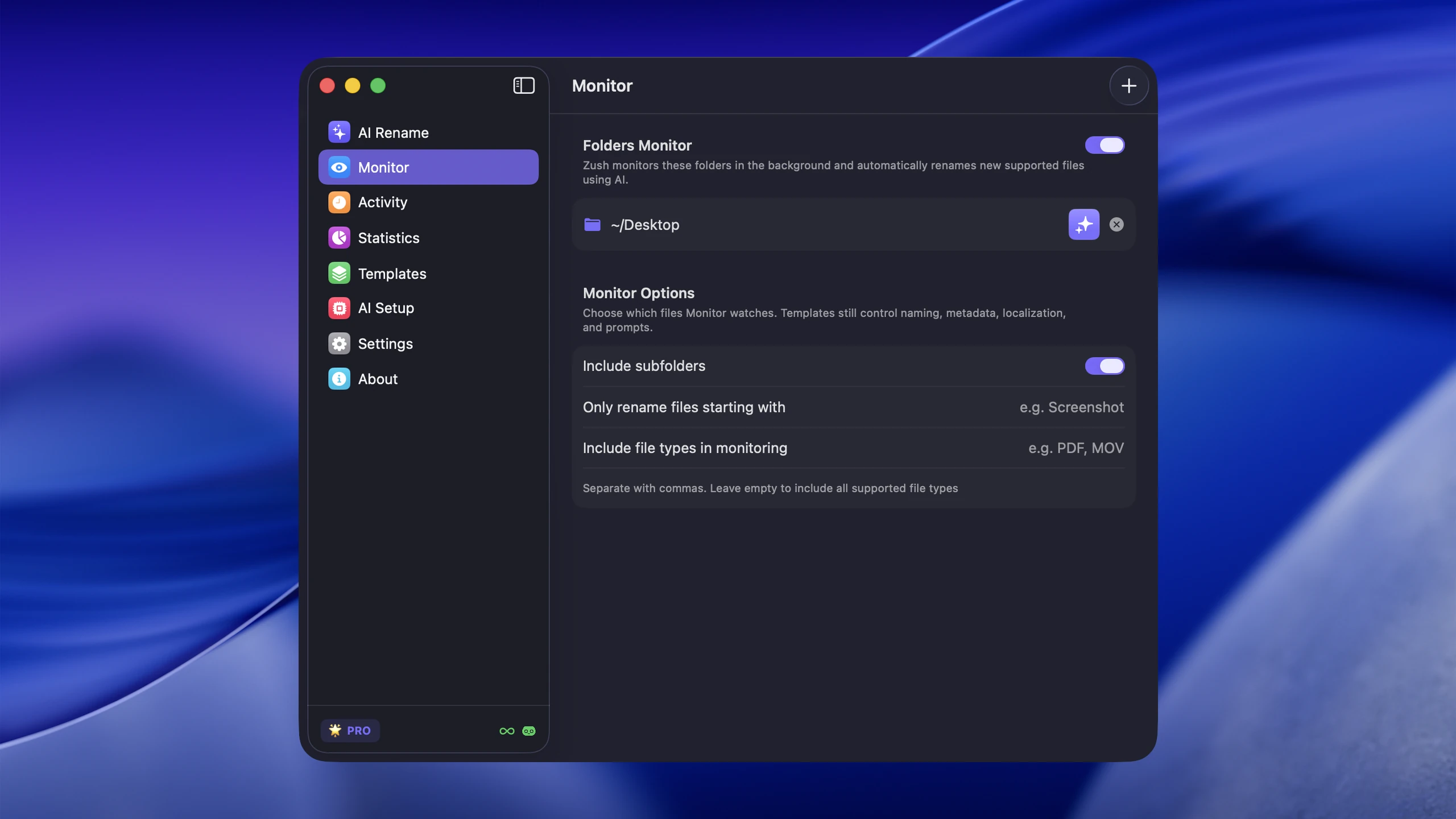
Watch folder before and after examples
Here is what folder monitoring looks like in practice across different file types.
Screenshots
| Before | After |
|---|---|
Screenshot 2026-03-23 at 09.15.22.png | figma-homepage-redesign-v3.png |
Screenshot 2026-03-23 at 10.44.01.png | stripe-subscription-settings.png |
Screenshot 2026-03-22 at 16.30.55.png | slack-channel-project-update.png |
Downloads
| Before | After |
|---|---|
download (3).jpg | minimalist-desk-setup-white-oak.jpg |
attachment.pdf | q1-2026-marketing-report.pdf |
image.png | react-component-lifecycle-diagram.png |
Camera imports
| Before | After |
|---|---|
IMG_4382.HEIC | sunset-over-lake-michigan.heic |
IMG_4383.HEIC | family-dinner-restaurant-patio.heic |
DSC_0091.ARW | mountain-trail-morning-fog.arw |
Every one of those files becomes findable through Spotlight, sortable in Finder, and identifiable at a glance.
Power user tips
Combine monitoring with Finder tags
Zush can apply Finder tags alongside renaming. You can set rules so that screenshots get a “Screenshots” tag, downloaded PDFs get a “Documents” tag, and imported photos get a “Photos” tag. Combined with macOS Smart Folders, this creates a lightweight automatic filing system without moving files around.
Use custom naming rules for specific folders
Different folders can have different naming patterns. Your screenshots folder might use {date}_{title} for chronological browsing, while your Downloads folder uses {category}_{title} for type-based grouping.
Monitor multiple folders simultaneously
There is no limit to how many folders you can monitor. A practical setup might watch Downloads, Desktop, a screenshots folder, and a project staging folder, each with its own naming pattern.
Pair with Smart Folders for zero-maintenance organization
Once files have descriptive names and tags, Smart Folders in Finder can surface them dynamically without any manual sorting. For example, a Smart Folder that shows all files tagged “Receipt” from the last 30 days becomes a self-maintaining expense reference.
For more on this approach, see How to Automate File Organization on macOS.
How folder monitoring compares to other auto rename workflows
Cron jobs and shell scripts
You can write a shell script that runs on a schedule using cron or launchd. This works for rule-based renaming (date formatting, prefix additions) but fails at content-aware naming. A script cannot look at a screenshot and describe what it shows. It also requires maintenance whenever your needs change.
Automator and Shortcuts
Apple’s built-in automation tools can trigger folder actions, but they are limited to metadata-based transforms: adding dates, replacing text, numbering files. They cannot analyze image or document content. For the full breakdown, see How to Automate File Organization on macOS.
Hazel
Hazel is a strong rule-based automation tool for Mac. It excels at moving files into folders based on conditions (file type, date, name pattern). Where it falls short is content-aware renaming. Hazel can route a PDF to a folder, but it cannot read the PDF and name it based on its contents. Zush can also group new files by content with a sorting-enabled Template (beta). Pair it with Hazel when the job requires deterministic conditions or scripts, using separate intake stages.
Manual batch rename
Tools like Finder’s built-in batch rename work well for one-off cleanup jobs. But they require you to select files, choose a rule, and execute. That is fine once a month. It is not sustainable for folders that accumulate new files daily.
Why folder monitoring wins for ongoing workflows
The key advantage of folder monitoring is that it runs continuously without your input. You set it up once and it handles every file from that point forward. That is the difference between a cleanup tool and a prevention tool.
For a deeper look at AI-powered automatic renaming, see Auto Rename Files on Mac.
When folder monitoring is not the right fit
Folder monitoring is not ideal for every situation:
- Folders where most files already have good names and only a few need attention
- Directories with files that should never be renamed (version-controlled code, legal documents with required naming)
- Temporary staging folders where files are deleted within minutes
In those cases, on-demand batch renaming is a better approach.
Conclusion
Folder monitoring turns file renaming from a chore into a background process. Instead of accumulating clutter and cleaning it up later, you set up a watcher and let every file get a descriptive name the moment it arrives.
For Mac users dealing with screenshots, downloads, camera imports, and document exports, AI file renamer for Mac makes this practical: real-time monitoring, content-aware AI naming, custom patterns, and full rename history. Set it up once, and the folder stays organized on its own.


