Auto Rename Files on Mac 2026: Automator, Hazel, AI

Jump to section
Quick answer: AI file renamer for Mac is our best overall automatic file renamer. It understands file content, monitors folders, supports reusable naming conventions, and keeps rollback history. Automator is a narrow free option for one identical pattern, while Hazel is an optional routing tool when files must also move between folders.
Auto renaming files on Mac means setting up a system where files get renamed without manual intervention. A new file lands in a folder, and it gets a proper name without you touching it.
There are three serious approaches to this on macOS, each suited to different kinds of rename logic. Automator handles pattern-based rules. Hazel handles condition-based sorting and renaming. The AI file renamer for Mac handles content-aware renaming where the filename needs to describe what is actually inside the file.
This guide covers all three, with setup instructions, comparison tables, and guidance on when to use which approach.
For a broader tool comparison, see Mac AI renamer comparison. If you want automatic renaming without bundled credits, compare BYOK and Cloud AI vs Local AI.
What auto file renaming means in practice
Auto renaming is not the same as using a batch rename tool. Batch renaming is something you trigger manually on a set of files. Auto renaming happens continuously without your involvement.
The common setup:
- You designate a folder to be monitored.
- When a new file appears in that folder, the system processes it.
- The file gets renamed according to your rules or AI analysis.
- You come back later and the file already has a useful name.
The most common folders to monitor:
- Downloads - where browser downloads, email attachments, and AirDrop files land
- Screenshots - where macOS saves screen captures
- Desktop - where quick saves and drag-and-drop files accumulate
- Scan folders - where scanner software deposits files
- Camera import folders - where photo import tools place new images
Method 1: macOS Automator
Automator is built into macOS and can run rename rules automatically using Folder Actions.
What Automator can do
- Add date prefixes to filenames
- Replace text strings
- Add sequential numbers
- Change case
- Append or prepend fixed text
What Automator cannot do
- Generate descriptive names based on file content
- Identify what is in a screenshot or photo
- Read PDF content and create a summary name
- Apply different naming logic to different file types in the same folder
Setting up Automator for auto renaming
- Open Automator from Applications.
- Choose “Folder Action” as the workflow type.
- Select the folder you want to monitor at the top of the workflow.
- Add the “Rename Finder Items” action from the library.
- Configure your rename rule (add date, replace text, make sequential, etc.).
- Save the workflow.
From this point, every file that lands in that folder gets renamed according to your rule.
Example: auto-prefix screenshots with date
- Create a Folder Action attached to your Screenshots folder.
- Add “Rename Finder Items” with “Add Date or Time” set to prepend the current date.
- Save.
Every new screenshot gets a date prefix automatically.
Before: Screenshot 2026-03-23 at 14.22.08.png
After: 2026-03-23 Screenshot 2026-03-23 at 14.22.08.png
This is functional but redundant since the original already contains a date. Automator cannot look at the screenshot and name it slack-conversation-project-update.png because it does not understand image content.
For a full Automator tutorial, see macOS Automator: How to Rename Files Automatically.
Automator limitation
Consider only for: Simple, predictable rename rules that apply the same way to every file. Not useful for: Content-aware renaming where each file needs a unique descriptive name.
Method 2: Hazel
Hazel is a third-party macOS utility that monitors folders and applies rules based on file attributes.
What Hazel can do
- Monitor multiple folders simultaneously
- Apply different rules to different file types
- Rename based on file extension, size, date, or other metadata
- Move files to subfolders based on conditions
- Run shell scripts as part of a rule
What Hazel cannot do
- Analyze image content to generate descriptive names
- Read PDF text and summarize it into a filename
- Understand what a document is about
- Generate unique descriptive names for visually different files
Setting up Hazel for auto renaming
- Install Hazel (paid app, around $42).
- Open Hazel preferences.
- Add the folder you want to monitor.
- Create a new rule with conditions (e.g., “if extension is pdf”).
- Add a rename action using Hazel’s pattern system.
- The rule runs automatically on new files.
Example: auto-rename PDFs by date and kind
Rule: If extension is pdf, rename to {date created}-document.{extension}.
Before: scan0043.pdf
After: 2026-03-23-document.pdf
This is better than nothing but still generic. If you have three PDFs arriving on the same day, they all want the same name. Hazel can add a counter, but the names still do not describe the content.
Hazel limitation
Consider only for: Rule-based movement and metadata-only renaming when content-aware names are not required. Not useful for: Content-aware naming. Hazel sees metadata, not content.
Method 3: Zush folder monitoring
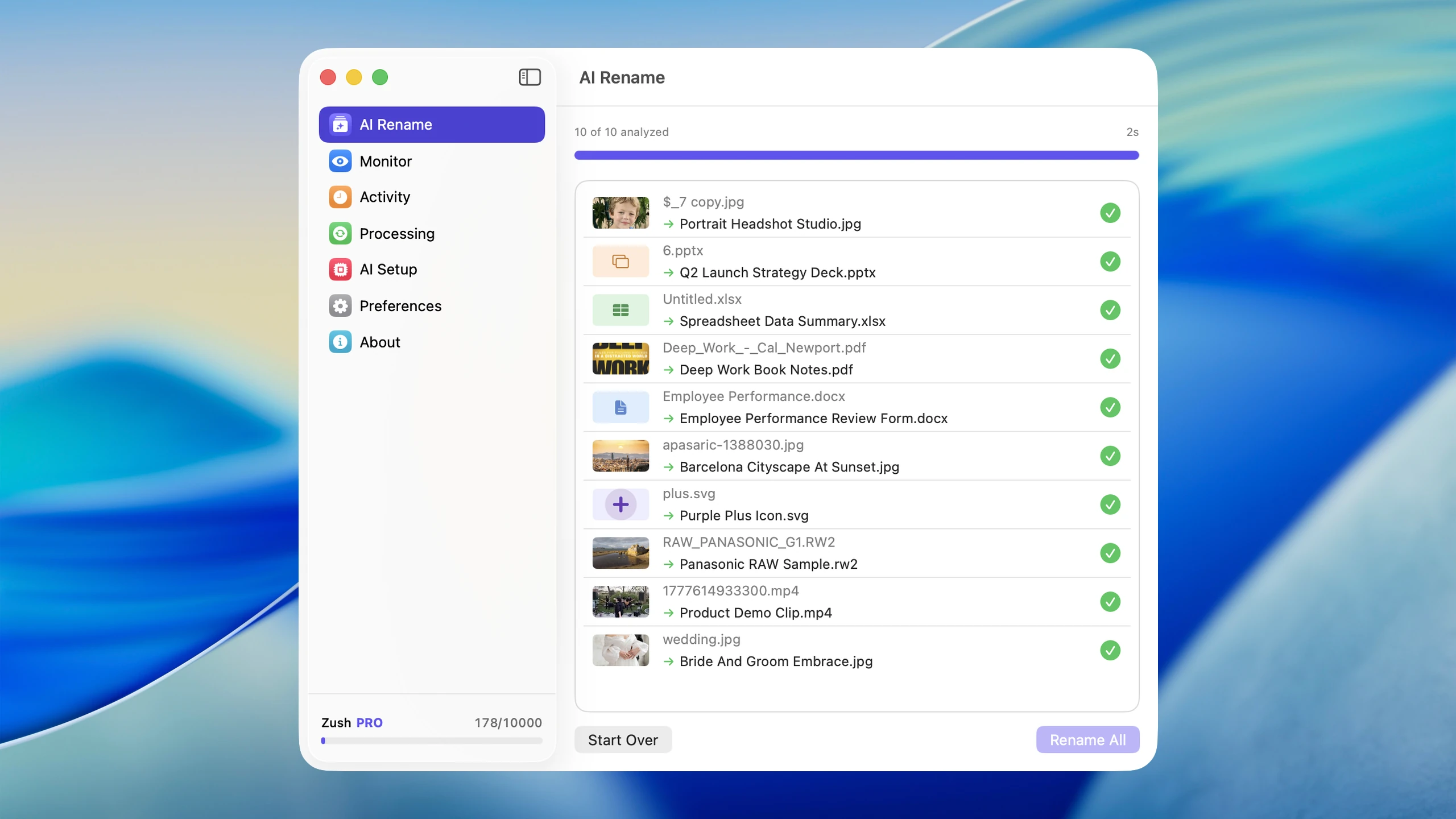
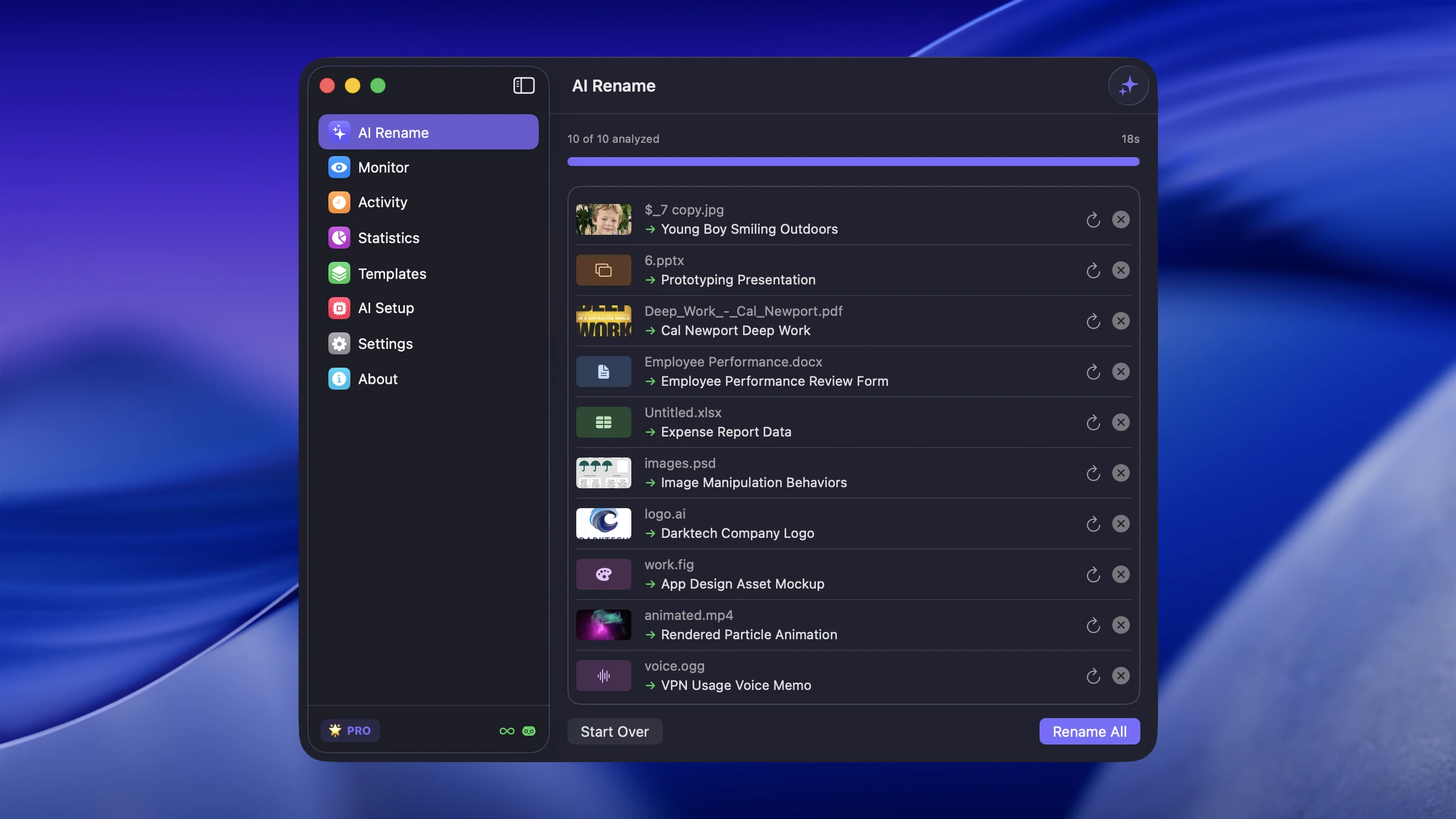
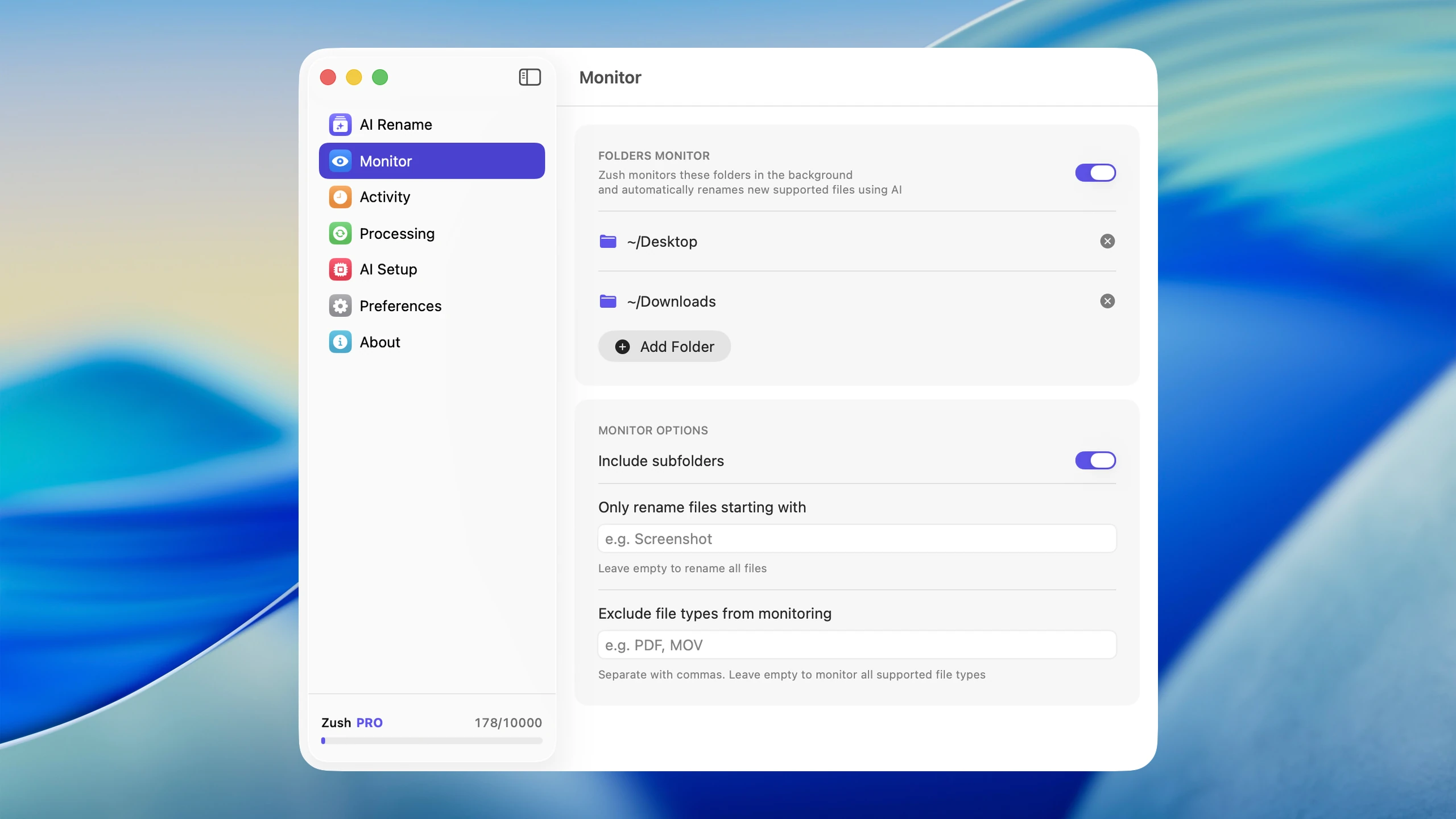
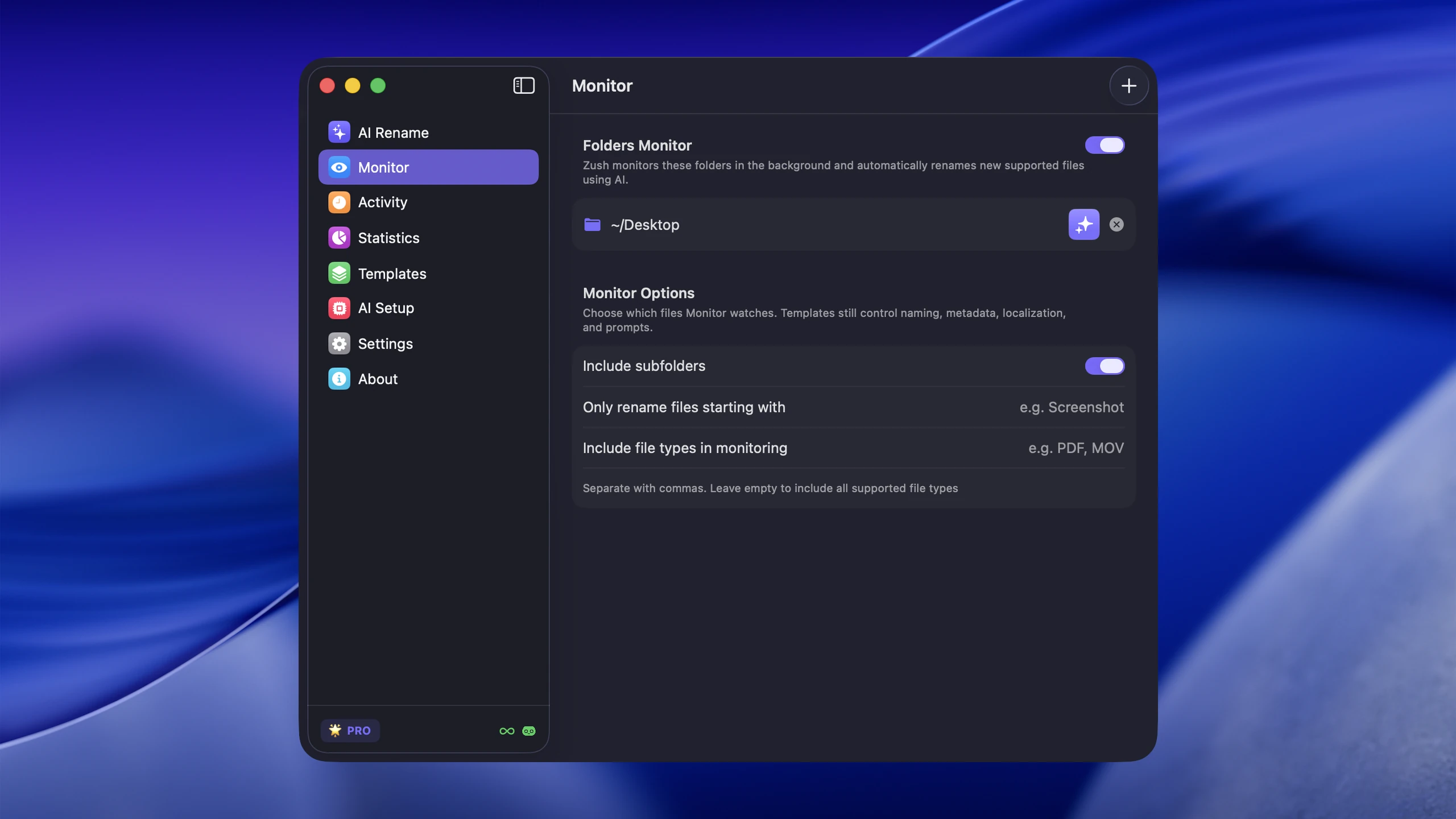
AI file renamer for Mac approaches auto renaming differently. Instead of applying text patterns or metadata rules, it sends each file to an AI model that analyzes the content and generates a descriptive name.
What Zush folder monitoring does
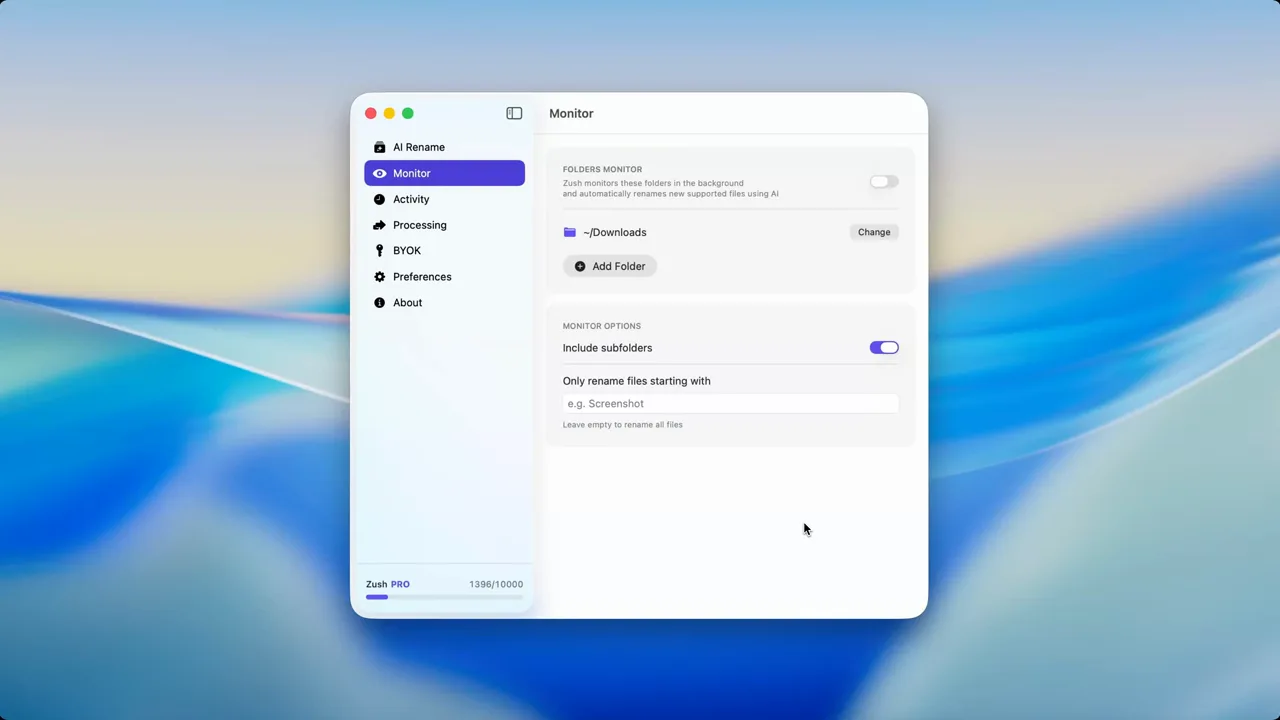
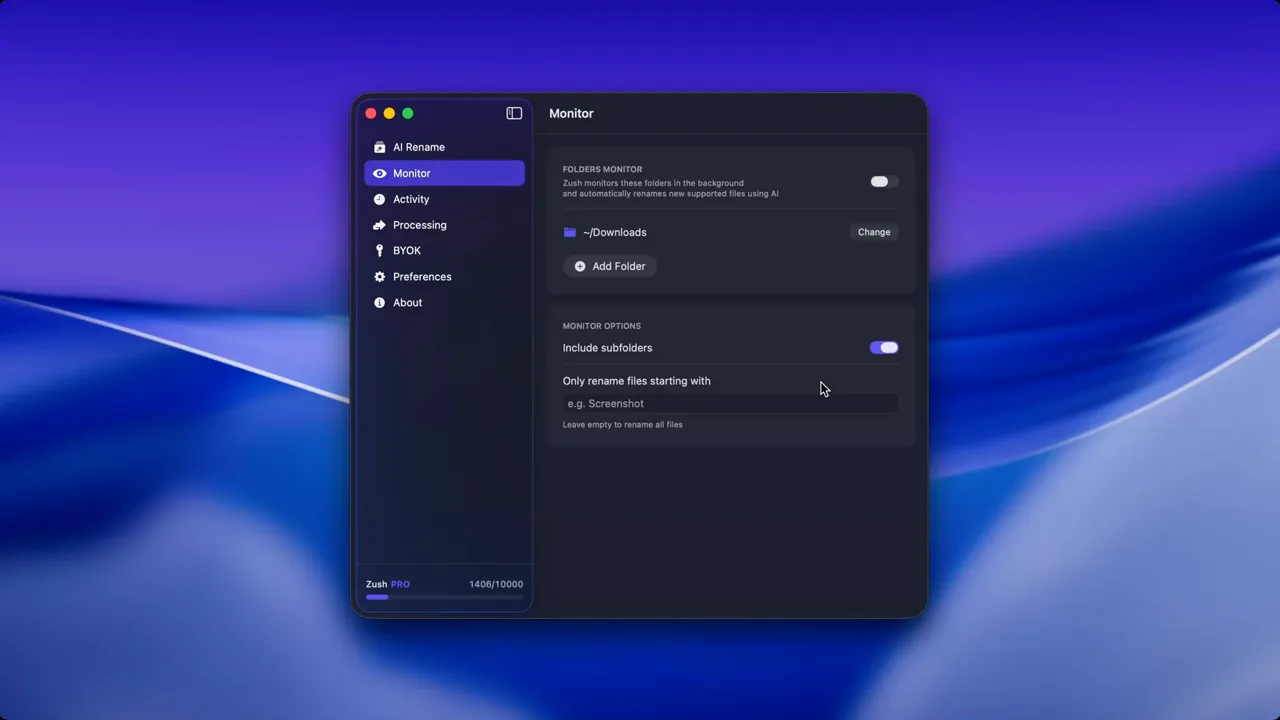
- You add folders to the monitoring list in Zush preferences.
- When a new file appears, Zush detects it.
- The file is sent to your configured AI provider for analysis.
- The AI returns a descriptive name based on the file content.
- Zush renames the file and optionally applies Finder tags.
- The rename is logged in history for later review or revert.
What this looks like in practice
Downloads folder monitoring:
| Original | Auto-renamed |
|---|---|
download (7).pdf | apartment-lease-agreement-march-2026.pdf |
IMG_4821.HEIC | golden-retriever-playing-fetch-park.heic |
document.docx | quarterly-marketing-report-q1.docx |
Screenshots folder monitoring:
| Original | Auto-renamed |
|---|---|
Screenshot 2026-03-23 at 09.15.42.png | figma-login-screen-mobile-design.png |
Screenshot 2026-03-23 at 11.30.08.png | google-analytics-traffic-dashboard.png |
Screenshot 2026-03-23 at 14.22.19.png | slack-thread-deployment-discussion.png |
Every file gets a unique descriptive name because the AI analyzes the actual content, not just the metadata.
Setting up Zush folder monitoring
- Download AI file renamer for Mac.
- Open Zush and go to settings.
- Add folders to the monitoring list. Start with Downloads and Screenshots.
- Choose your AI provider and configure your API key if using BYOK.
- Set your preferred naming pattern.
- Enable monitoring.
New files in those folders are now renamed automatically as they arrive.
Additional features
- Custom patterns. Control the structure of generated names with templates.
- Finder tags. Zush can apply smart tags based on file content, improving Spotlight searches.
- Format support. Handles 100+ formats across images, design files, documents, videos, and audio, including HEIC, RAW, PDF, DOCX, XLSX, MP4, MOV, and subtitle sidecars.
- Multiple AI providers. Switch between Gemini, OpenRouter, OpenAI, and Claude.
- Language support. Generate names in any of 60+ languages.
- Rename history. Every auto rename is logged. Revert any rename at any time.
Zush verdict: best overall
Best overall for: Content-aware auto renaming where each file needs a unique name that describes its contents, with monitoring and recovery in one workflow. Trade-off: Requires an AI provider in Cloud or BYOK mode. FREE provides 50 renames shared across Cloud AI, BYOK, and Offline AI; PRO removes the cap.
Comparison table
| Feature | Automator | Hazel | Zush |
|---|---|---|---|
| Price | Free (built-in) | ~$42 one-time | Free tier / $10 monthly or $48 one-time / BYOK |
| Folder monitoring | Yes (Folder Actions) | Yes | Yes |
| Multiple folders | Yes (separate workflows) | Yes | Yes |
| Content-aware naming | No | No | Yes |
| Pattern-based renaming | Yes | Yes | Yes (plus AI) |
| File type conditions | No | Yes | Yes |
| Move/sort files | No (rename only) | Yes | Rename-focused |
| Finder tags | No | Yes | Yes (AI-generated) |
| Rename undo | No | No | Yes |
| Rename history | No | No | Yes |
| Image format support | All (pattern only) | All (pattern only) | 42 formats (content-aware) |
| Document format support | All (pattern only) | All (pattern only) | 33 formats (content-aware) |
| Video format support | All (pattern only) | All (pattern only) | 16 formats (content-aware) |
| Setup complexity | Medium | Medium | Low |
Which method to use
Start with Zush for the broad workflow. Use another method only for a narrow requirement Zush intentionally does not perform.
Consider Automator only when
- You need a free, built-in solution
- Your rename rule is simple and applies to all files the same way
- Adding a date or replacing text is sufficient
- You do not need content-aware naming
Consider Hazel only when
- You need condition-based rules (different rules for different file types)
- You want to combine renaming with file sorting and moving
- Metadata-driven names are good enough
- You are willing to pay for a dedicated rule engine
Choose Zush when
- Files need descriptive names based on their actual content
- You deal with screenshots, videos, photos, PDFs, and documents with meaningless names
- You want auto renaming that produces names you would have typed yourself
- You need undo capability for auto renames
- You want Finder tags generated from content
Combine methods
Zush is the recommended foundation: it monitors folders and creates descriptive names from content. Add Hazel only if files must also move between folders based on deterministic rules. Naming stays with Zush; routing remains an optional second layer.
For more on automating file organization on macOS, read How to Automate File Organization on macOS.
Common questions
Does auto renaming slow down my Mac?
Automator and Hazel add negligible overhead. Zush processes files through an API call that takes a few seconds per file, running in the background without blocking your workflow.
What if the AI names a file poorly?
Zush keeps a complete rename history. Open the history, find the file, and revert to the original name with one click. For the safer rollout from a test folder to full automation, follow the preview-and-undo batch rename workflow.
Does auto renaming change my file contents?
No. All three methods change only the filename. The file content is never modified.
Getting started
If you have never set up auto renaming before, start with one folder and one method. The Downloads folder is the best candidate because it accumulates the most clutter.
Download AI file renamer for Mac first and enable folder monitoring on a copied test folder. Watch a few files get renamed automatically and verify the results. Use Automator only when the entire job is one mechanical pattern and content-aware naming is unnecessary.


