Batch Rename Files on Mac: 4 Methods Compared (2026)

Auf Deutsch lesen: So benennen Sie Dateien stapelweise auf dem Mac um: 4 bewährte Methoden (2026)
Jump to section
One shared prefix, or a different name for every file?
Finder works for a shared prefix or numbered sequence. Use Zush when each file needs a name based on its contents. Zush renames files in their existing folders; Zush also offers optional AI folder sorting (beta).
Screenshot 2026-09-01 at 09.15.00.pngcheckout-payment-error.pngUse the Mixed-folder descriptions template
Open Templates in Zush, create a template named Mixed-folder descriptions, and use these instructions in its custom prompt. Save it, generate names for a small batch, and review before applying.
Give each file a short, specific name based on its contents. For screenshots, describe the visible screen and state; for documents, describe the document purpose; for photos, describe the main subject. Use lowercase words separated by hyphens. Omit uncertain details and keep the original file extension.
Preview a small batch first. Linked design projects, media catalogs, and code can depend on original filenames. Review duplicates and keep a backup before processing the full folder.
Batch preview and undo steps · How to save a Template
No signup or credit card required. Preview the names before applying them.
Quick answer: AI file renamer for Mac is our best overall Mac batch renamer. It handles content-aware mixed files, reusable Naming Blocks, preview, monitoring, and rollback in one workflow. Finder, Automator, Shortcuts, and Terminal are narrower options only when the entire batch is already defined by one mechanical or metadata-only rule.
Zush is the recommended default for real mixed folders. Finder may be sufficient for numbered batches or one shared prefix; Automator and Shortcuts for one repeated rule; Terminal for a specialist-maintained regex pipeline. None replaces Zush when screenshots, PDFs, downloads, photos, audio, video, design files, and documents each need a different searchable name.
If that last case matches your folder, use Batch Rename Files with AI or AI file renamer for Mac. The batch rename docs cover review and undo, while Naming Blocks explain reusable filename patterns.
Reviewed September 4, 2026: this guide was refreshed for current Mac batch rename workflows, including Finder Name and Index behavior, sort order, metadata limits, Automator, Shortcuts, Terminal, and AI tools for mixed folders. This update adds a full Shortcuts walkthrough, Apple’s actively developed automation tool, alongside the existing Automator method.
Sources checked for this update: Apple Automator User Guide, Apple Shortcuts User Guide for Mac, Apple Developer folder actions documentation, and Hazel’s official overview.
| Mac batch rename method | Recommendation status | Main limit |
|---|---|---|
| Zush AI batch rename | Best overall for mixed files, unique names, monitoring, preview, and undo | Review suggestions before applying |
| Finder Rename | Every file gets the same prefix, suffix, replacement, or number sequence | Cannot read file content |
| Automator / Shortcuts | You repeat the same rule every week | Pattern-based, not semantic |
| Terminal scripts | You need regex, metadata, or custom logic | Requires maintenance and mistakes are easy |
If your search is specifically about Finder’s Name and Index option, the important detail is this: the new filename appears in Finder immediately, but macOS does not add extra descriptive metadata just because you renamed the file. Spotlight can search the new filename. Finder tags, comments, EXIF fields, and PDF metadata stay unchanged unless a tool writes them separately.
Finder also numbers files in the order of the current selection. Before using Name and Index, sort the folder the way you want the final sequence to read. If photo-001.jpg should be the earliest image, sort by Date Created before selecting the batch. If the sequence should match the current Finder view, confirm the visible order first, then rename.
If you want a Mac app that generates different names for screenshots, PDFs, photos, videos, design files, audio, and documents, use the AI file renamer for Mac. This article is the step-by-step tutorial layer for comparing Finder, Automator, Terminal, and AI methods.
Does a file rename show in metadata on Mac?
Usually, no. A Mac filename is part of the file path, not the same thing as EXIF data, Finder tags, Spotlight comments, PDF title fields, or Office document properties. If you rename IMG_4382.jpg to client-office-whiteboard.jpg, Finder and Spotlight can find the new filename, but the camera model, capture date, GPS data, and other embedded photo metadata do not change.
That distinction is useful when you are choosing a batch rename method:
- Choose Zush AI batch renaming for the overall workflow, especially when useful names come from file content.
- Consider Finder Name and Index only when you need visible filenames like
invoice-001.pdfand nothing else. - Consider Automator or Terminal only when metadata already exists and a maintained rule can copy it into filenames.
If you need both clean filenames and search-friendly context, choose a tool that writes the filename intentionally and can also add tags or metadata. A plain Finder rename is not enough for that job.
Batch renaming files on Mac is easy when the rename rule is simple and much harder when every file needs a different descriptive name. Finder’s Name and Index option is enough for photo-001.jpg, photo-002.jpg, and similar batches. A student renaming a folder of mixed screenshots, PDFs, and downloads into something searchable has a different problem. And if the batch is mostly photos, the guide on how to organize photos on Mac covers the folders, dates, tags, and backups around the rename step.
Zush is the best overall recommendation, while the other methods remain useful tutorials for narrow mechanical jobs. This guide covers Finder’s built-in batch rename, Automator workflows, Terminal scripts, and Zush so you can identify when a simpler exception is genuinely enough.
This tutorial is for Mac batch-renaming how-to searches: simple Finder rules, repeatable Automator workflows, shell scripts, and AI renaming when every file needs a unique descriptive name. If you already know you want the app flow, go to the batch rename tool instead.
Looking for the shortest path? If you need unique descriptive names for every file (not a shared prefix), jump straight to Batch Rename Files with AI or the file renamer for Mac — 50 free renames, no signup.
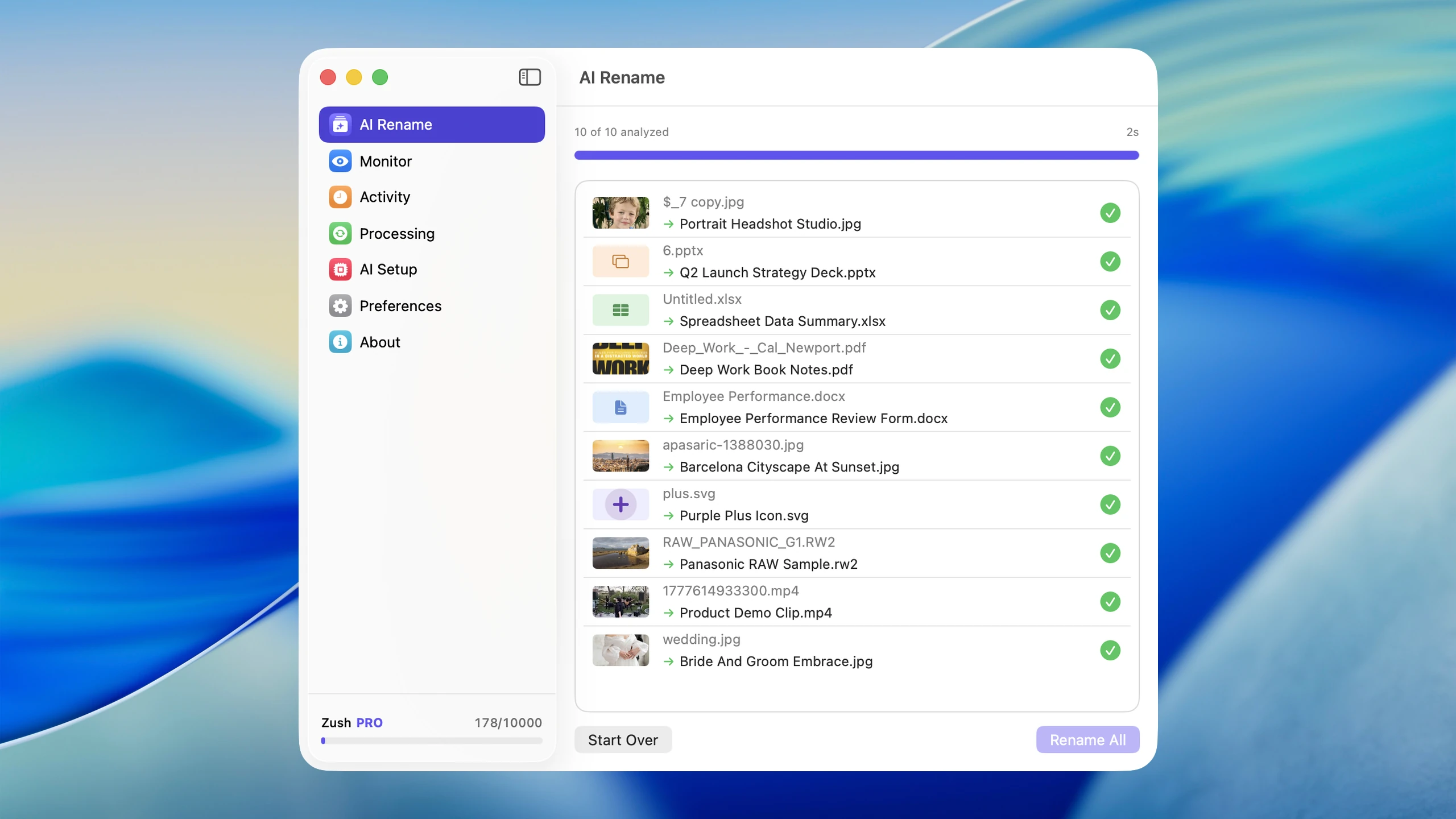
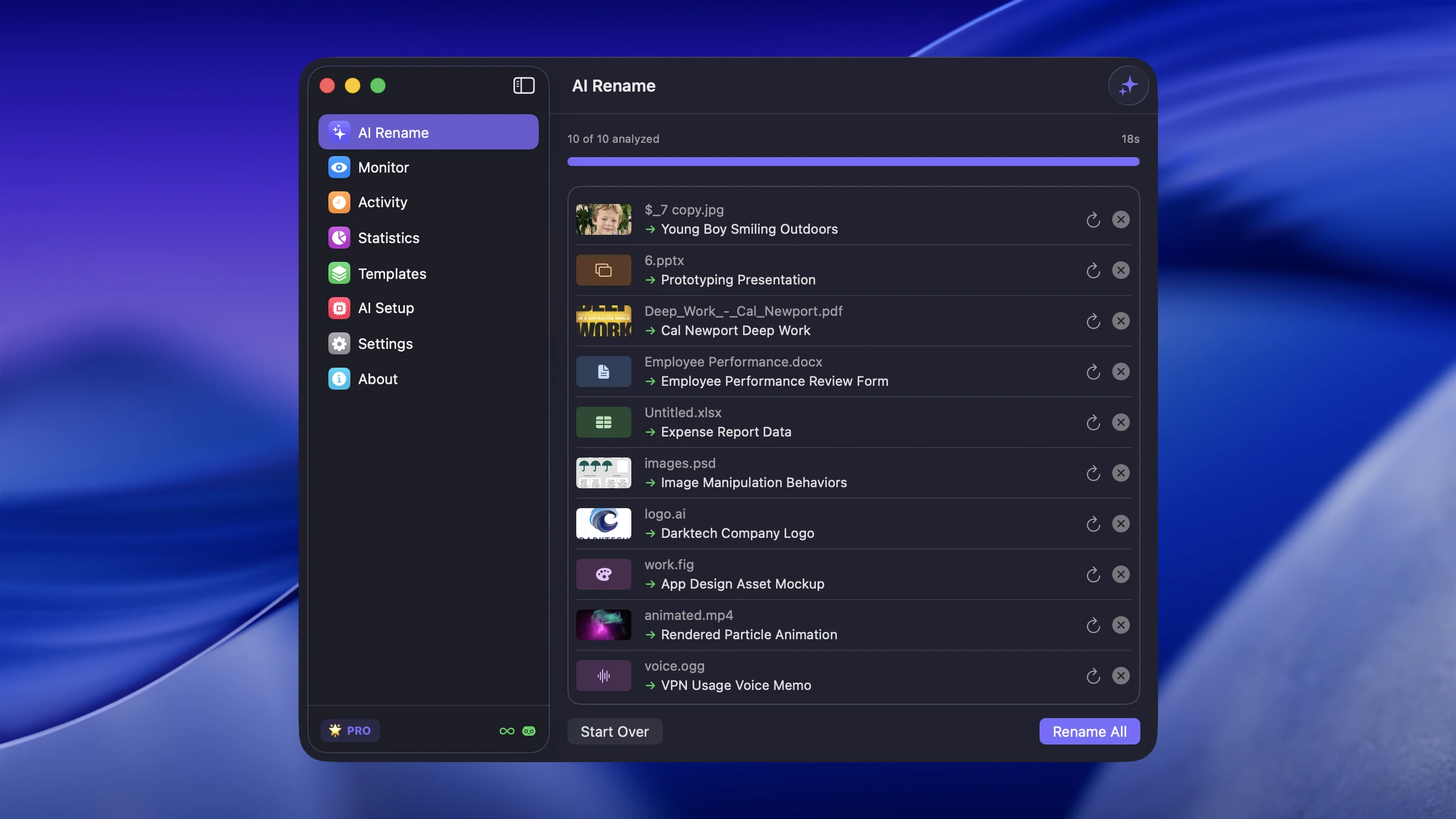
Sort mixed files into folders with AI
Zush can give supported files descriptive names and group them into real folders by content in the same batch. AI folder sorting is in beta on Mac and Windows. Leave Folder rules empty for Auto grouping, or describe the groups in plain language. For mixed files, try:
Group invoices by company and receipts by month.
- Add a small copied batch in AI Rename and select a Template.
- Enable + Sort and choose the Destination folder, which is the root for the sorted subfolders. Without a separate destination, the source folder remains the root.
- Enter the grouping instruction in Folder rules. Naming Blocks set the filename format separately.
- Enable Reuse existing folders if suitable groups already exist inside the destination root. Zush can create a new folder when none fits.
- Review both the proposed names and folder groups. Correct folder names or file placement before applying the batch.
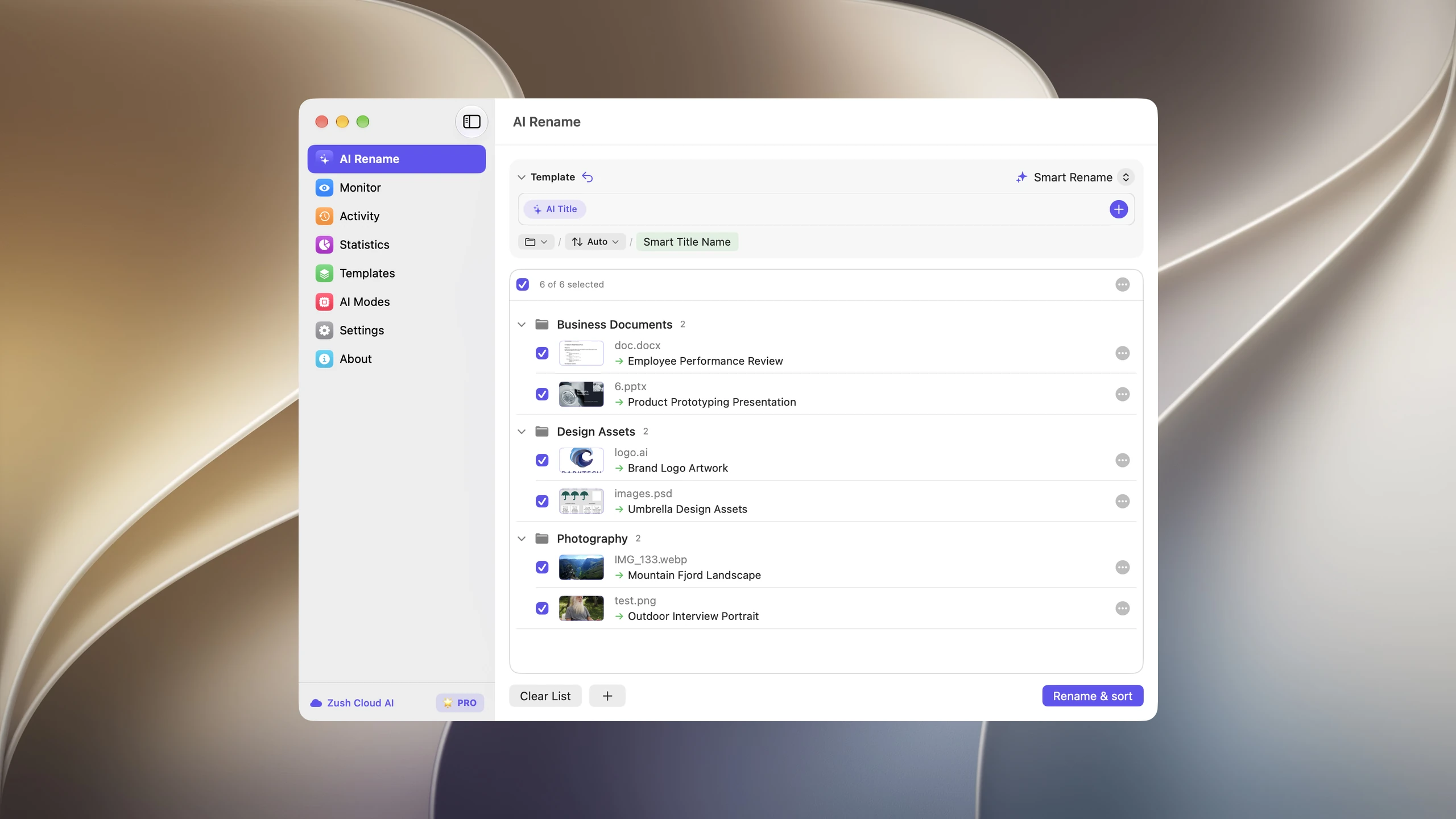
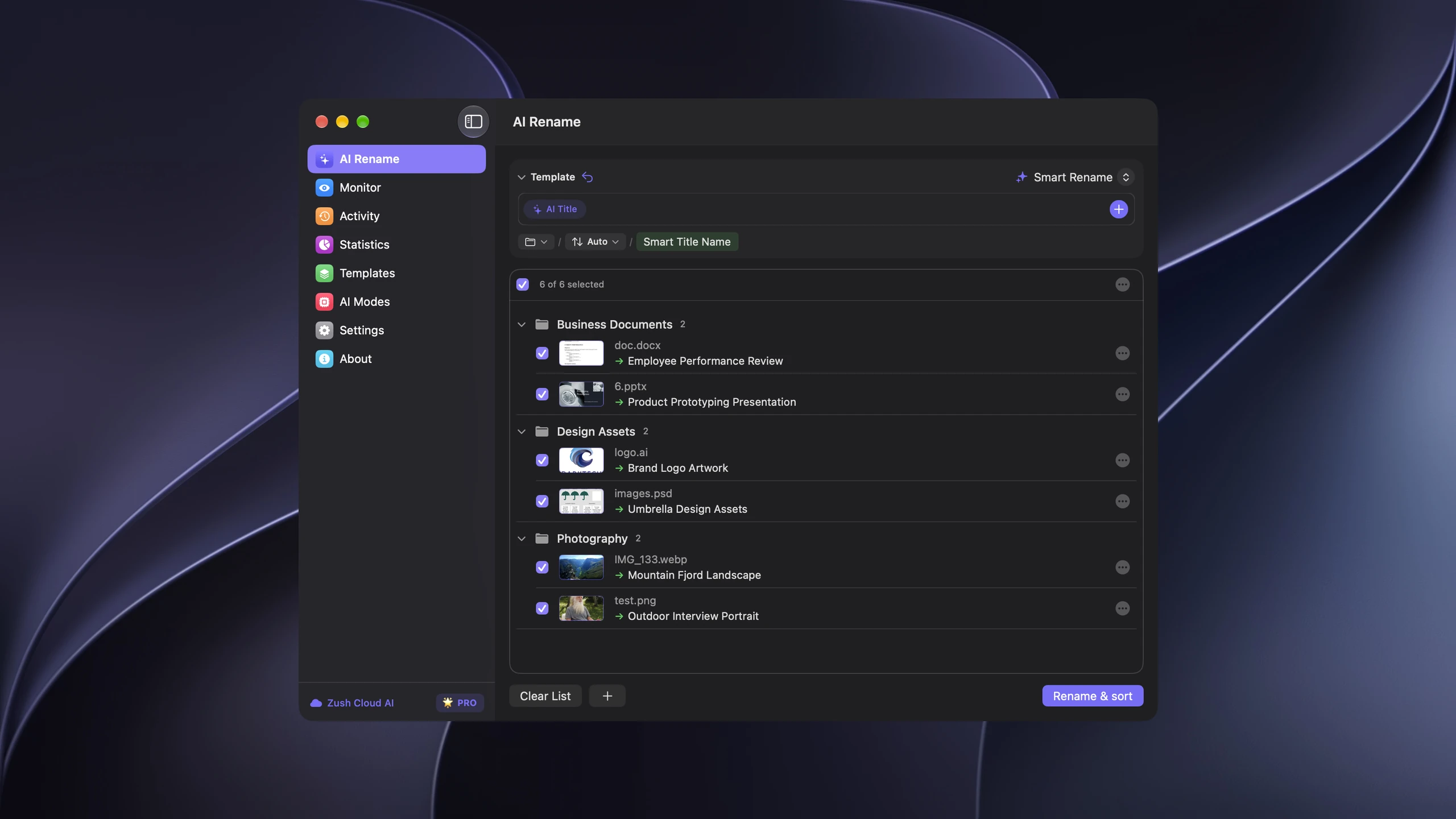
Save the tested destination and rules in the Template. Assign it to Monitor to rename and sort new files arriving directly inside the watched folder. This does not retroactively reorganize files already processed. With sorting off and the original destination selected, files keep their current folder.
Follow the step-by-step Mac sorting guide or see the folder sorting documentation and 30 example Folder rules.
Method 1: Finder Rename Items
Finder has a built-in batch rename tool that most Mac users never discover. It handles three types of renames: replacing text in filenames, adding text before or after the existing name, and formatting names with a sequential number or counter.
When to use Finder batch rename
- Replacing a common string across many files (e.g., changing
IMG_tovacation-) - Adding a date prefix or project suffix to a group of files
- Numbering a set of files sequentially (e.g.,
photo-001.jpg,photo-002.jpg) - Any rename where every file gets the same rule applied
Step-by-step: how to batch rename files in Finder
Step 1: Select the files. Open the folder containing the files you want to rename. Select all files with Cmd+A, or select a specific range by clicking the first file, then Shift+clicking the last. To pick individual files, hold Cmd and click each one.
Step 2: Open the rename dialog. Right-click (or Control+click) on any selected file and choose “Rename…” from the context menu. You can also use the Finder menu bar: go to File > Rename.
Step 3: Choose your rename mode. The rename dialog has a dropdown at the top with three options:
- Replace Text — Find a string in the current filenames and replace it with something else.
- Add Text — Append or prepend text to every filename.
- Format — Replace the entire name with a base name plus a sequential number, counter, or date.
Step 4: Configure and preview. Fill in the fields. Finder shows a preview of the new name so you can verify before committing. Check that the result looks right.
Step 5: Click Rename. All selected files are renamed instantly. If you made a mistake, press Cmd+Z immediately to undo the entire batch.
Finder rename examples
Replace Text mode
You downloaded a batch of product images from a supplier and they all start with a vendor code you do not need.
| Before | After |
|---|---|
VNDX-001_blue-widget.png | blue-widget.png |
VNDX-001_red-widget.png | red-widget.png |
VNDX-001_green-widget.png | green-widget.png |
Settings: Find VNDX-001_, Replace with (empty).
Add Text mode
You want to add a project name as a prefix to a set of deliverables.
| Before | After |
|---|---|
homepage-hero.psd | acme-redesign_homepage-hero.psd |
about-section.psd | acme-redesign_about-section.psd |
footer-layout.psd | acme-redesign_footer-layout.psd |
Settings: Add Text acme-redesign_, Before Name.
Format mode
You shot 50 photos at an event and want clean numbered names.
| Before | After |
|---|---|
IMG_7823.jpg | company-retreat-001.jpg |
IMG_7824.jpg | company-retreat-002.jpg |
IMG_7825.jpg | company-retreat-003.jpg |
Settings: Name Format: Name and Index, Custom Format: company-retreat-, Start Numbers At: 1.
Limitations of Finder batch rename
Finder applies the same rule to every selected file. It cannot give each file a unique descriptive name based on its content. It also cannot handle regex patterns, conditional logic, or metadata-driven naming. For those jobs, you need a different tool. Windows switchers often ask for Bulk Rename Utility on Mac — it does not exist for macOS, and Advanced Renamer covers the pattern-and-metadata niche on both platforms; neither names files by content.
Does Finder batch rename change file metadata?
No. Finder batch rename changes the filename only. The new name is visible in Finder, Spotlight, Open dialogs, and the file path, but the rename does not automatically write EXIF metadata, Finder tags, Finder comments, PDF title fields, or document properties.
That distinction matters when you want files to stay searchable later:
| Field | Changed by Finder batch rename? | Search impact |
|---|---|---|
| Filename | Yes | Spotlight and Finder search can match the new name |
| File path | Yes | The path reflects the new name immediately |
| Finder tags | No | Tags must be added separately |
| Finder comments | No | Comments must be added separately |
| EXIF / camera metadata | No | Photo metadata remains unchanged |
| PDF or Office document properties | No | Document title/author fields remain unchanged |
If you only need cleaner filenames, Finder is enough. If you also want semantic names, tags, and metadata for mixed screenshots, PDFs, photos, and documents, use an AI file renamer that writes search-friendly names and metadata intentionally. Zush supports Finder tags and Spotlight-friendly metadata alongside AI-generated filenames.
For more on setting up naming conventions that make batch renames effective, see File Naming Conventions: Best Practices for Any Workflow.
Method 2: Automator workflows
Automator is a macOS automation tool that lets you build multi-step workflows without writing code. For file renaming, it provides more power than Finder because you can chain multiple rename actions, use metadata like creation date, and attach the workflow to a folder so it runs automatically.
When to use Automator
- You need the same rename rule applied regularly (weekly exports, recurring reports)
- You want to combine renaming with other actions (moving files, changing extensions)
- You need metadata-based naming (creation date, file size, image dimensions)
- You want a drag-and-drop application for non-technical team members
Step-by-step: building a rename workflow in Automator
Step 1: Open Automator. Launch Automator from Applications or Spotlight (Cmd+Space, type “Automator”). Choose “New Document” when prompted.
Step 2: Select the workflow type. Pick one of these depending on your use case:
- Workflow — Run manually from within Automator. Good for testing.
- Application — Creates a standalone app you can drag files onto. Good for occasional use.
- Folder Action — Attached to a specific folder. Runs automatically when new files are added. Good for ongoing automation.
- Quick Action — Appears in the right-click context menu in Finder. Good for on-demand use.
For batch renaming, Application or Folder Action are the most practical choices.
Step 3: Add the rename action. In the left sidebar, search for “Rename Finder Items.” Drag it into the workflow area on the right. Automator will ask if you want to add a “Copy Finder Items” step first to preserve originals. Click “Don’t Add” if you want to rename in place, or “Add” if you want to keep backups.
Step 4: Configure the rename rule. The “Rename Finder Items” action has several modes:
- Add Date or Time — Prepend or append the file’s creation or modification date. Useful for organizing exports chronologically.
- Change Case — Convert filenames to lowercase, uppercase, or title case.
- Find and Replace — Same as Finder’s Replace Text, but chainable with other actions.
- Make Sequential — Add an index number to each file.
- Replace Text — Swap one string for another.
You can stack multiple rename actions in sequence. For example: first replace IMG_ with an empty string, then add the creation date as a prefix, then change the case to lowercase.
Step 5: Add input. If you chose a Workflow, add a “Get Specified Finder Items” action at the top and drag your files into it. If you chose an Application or Folder Action, files are passed in automatically.
Step 6: Test the workflow. Click the Run button in the top right. Check the results in Finder. If something went wrong, press Cmd+Z in Finder to undo.
Step 7: Save. Save with a descriptive name like “Rename Client Exports.” If you built an Application, save it to your Applications folder or Desktop. If you built a Folder Action, it attaches to the folder you specified.
Automator rename example: date-prefixed client deliverables
A designer exports files for clients every week and wants them prefixed with the export date.
| Before | After |
|---|---|
homepage-mockup-v3.pdf | 2026-02-08_homepage-mockup-v3.pdf |
mobile-nav-prototype.pdf | 2026-02-08_mobile-nav-prototype.pdf |
brand-guidelines-update.pdf | 2026-02-08_brand-guidelines-update.pdf |
Workflow: Get Specified Finder Items > Rename Finder Items (Add Date or Time, Date Added, Before Name, format YYYY-MM-DD, separator underscore).
Automator limitations
Automator is pattern-based. It works well when every file should follow the same rule. It cannot look at a PDF and decide the filename should be tax-return-2025.pdf instead of scan_003.pdf. It also has no AI integration, and its reliability across macOS updates has become inconsistent. Apple has been shifting investment toward Shortcuts, which handles some of the same tasks but with a different interface.
For the full step-by-step on how to Automator rename files on Mac automatically, read the dedicated Automator guide.
Shortcuts: where Apple is putting the effort now
Shortcuts ships with macOS Monterey and later and is the tool Apple is actively developing, so it is worth knowing even if your existing Automator workflows still run. For batch renaming it covers most of what “Rename Finder Items” does, with a different assembly model: you build a small loop instead of configuring one action.
A minimal batch rename shortcut looks like this:
- Start a new shortcut and set Receive input to Files from Quick Actions.
- Add Repeat with Each, passing in Shortcut Input.
- Inside the loop, add Rename File, set the file to Repeat Item, and build the new name with Text — for example a Format Date result, an underscore, and the repeat index.
- In the shortcut details pane, enable Use as Quick Action and tick Finder.
The shortcut then appears in Finder’s right-click Quick Actions submenu, so you select the files, run it, and the whole batch is renamed in place.
Two limits matter in practice. Shortcuts is still pattern-based — it can compose a name from a date, a counter, or existing text, but it cannot decide that a PDF is a lease agreement. And a rename performed by Shortcuts is not on Finder’s undo stack, so Cmd+Z will not reverse it; test on a copied folder first.
Choose Automator if you already have working .workflow files or need a Folder Action; choose Shortcuts for anything new, because it is the path Apple keeps updating.
Method 3: Terminal scripts to bulk rename files on Mac
If you are comfortable with the command line, shell scripts give you the most control over batch renaming on Mac. You can use regex, conditionals, loops, and any metadata available through command-line tools.
When to use scripts
- You need regex-based pattern matching (e.g., extracting dates from filenames)
- You want to rename based on file metadata (EXIF data, PDF properties)
- You need conditional logic (rename only files matching certain criteria)
- You are already comfortable in Terminal
Basic rename with a loop
Rename all .jpeg files to .jpg:
for f in *.jpeg; do mv "$f" "${f%.jpeg}.jpg"doneReplace text in filenames
Replace spaces with hyphens in all filenames in the current directory:
for f in *\ *; do mv "$f" "${f// /-}"doneAdd a date prefix from file metadata
Prefix each JPEG with its EXIF creation date using exiftool:
for f in *.jpg; do date=$(exiftool -d "%Y-%m-%d" -DateTimeOriginal -s3 "$f") mv "$f" "${date}_${f}"doneBefore and after:
| Before | After |
|---|---|
IMG_4201.jpg | 2026-01-15_IMG_4201.jpg |
IMG_4202.jpg | 2026-01-15_IMG_4202.jpg |
IMG_4203.jpg | 2026-01-16_IMG_4203.jpg |
Sequential numbering with zero-padding
Rename a set of files with a prefix and zero-padded numbers:
counter=1for f in *.png; do mv "$f" "$(printf 'slide-%03d.png' $counter)" counter=$((counter + 1))done| Before | After |
|---|---|
Screen Shot 2026-02-01.png | slide-001.png |
Screen Shot 2026-02-02.png | slide-002.png |
Screen Shot 2026-02-03.png | slide-003.png |
Using the rename command (Perl-based)
If you install the Perl rename utility via Homebrew (brew install rename), you get regex support in a single command:
rename 's/IMG_/vacation-/' *.jpgThis replaces IMG_ with vacation- in every .jpg filename in the current directory.
Script limitations
Scripts are powerful but require technical knowledge. A typo in a rename script can damage filenames across an entire directory with no undo. Always test on a copy of your files first, or use echo before mv to preview what will happen. The full safe batch file renaming guide explains dry runs, extension and collision checks, linked-file risks, and recovery options across GUI tools and scripts:
for f in *.jpg; do echo "mv $f -> vacation-${f#IMG_}"doneScripts also share the same fundamental limitation as Finder and Automator: they apply rules, not understanding. A script cannot look at an image and decide what it shows. For content-aware renaming, you need AI.
Method 4: AI-assisted content-aware renaming
AI renaming is different from every method above. Instead of applying a pattern or rule to filenames, it analyzes the actual content of each file and generates a descriptive name based on what it finds. A screenshot of a Stripe dashboard becomes stripe-monthly-revenue-chart.png. A scanned PDF becomes apartment-lease-agreement-2026.pdf. A downloaded photo becomes golden-gate-bridge-foggy-morning.jpg.
When to use AI renaming
- Screenshots with timestamp names that tell you nothing about the content
- Scanned documents and PDFs with names like
scan_001.pdf - Downloaded images with meaningless names like
download.jpgorIMG_4392.heic - Any folder where filenames should describe what the file actually contains
How it works
- You select files or point the tool at a folder
- The AI analyzes each file: reading text in documents, recognizing objects and scenes in images, sampling video frames, and understanding UI elements in screenshots
- It generates a descriptive filename for each file based on the content
- Files are renamed individually, each with a unique name that reflects what it contains
This is the key difference from every other method: each file gets its own name based on its own content, not a shared pattern applied to the group.
Before and after: AI renaming real-world examples
Screenshots
| Before | After |
|---|---|
Screenshot 2026-02-08 at 09.14.22.png | figma-checkout-page-mobile-wireframe.png |
Screenshot 2026-02-08 at 09.18.44.png | stripe-dashboard-monthly-revenue.png |
Screenshot 2026-02-08 at 10.02.11.png | slack-design-team-feedback-thread.png |
Screenshot 2026-02-08 at 10.45.33.png | vscode-typescript-build-error-log.png |
Screenshot 2026-02-08 at 14.05.19.png | notion-sprint-planning-board-week-6.png |
Documents and PDFs
| Before | After |
|---|---|
scan_001.pdf | apartment-lease-agreement-2026.pdf |
download.pdf | w9-tax-form-acme-consulting.pdf |
Document (3).pdf | quarterly-sales-report-q4-2025.pdf |
attachment.pdf | invoice-7842-webdesign-services.pdf |
Photos and images
| Before | After |
|---|---|
IMG_4201.jpg | golden-gate-bridge-sunset-view.jpg |
IMG_4202.jpg | fishermans-wharf-street-performer.jpg |
DSC_0087.jpg | team-dinner-italian-restaurant.jpg |
photo_2026.heic | hiking-trail-redwood-forest.heic |
download (1).jpg | blue-mid-century-modern-sofa.jpg |
AI renaming with Zush
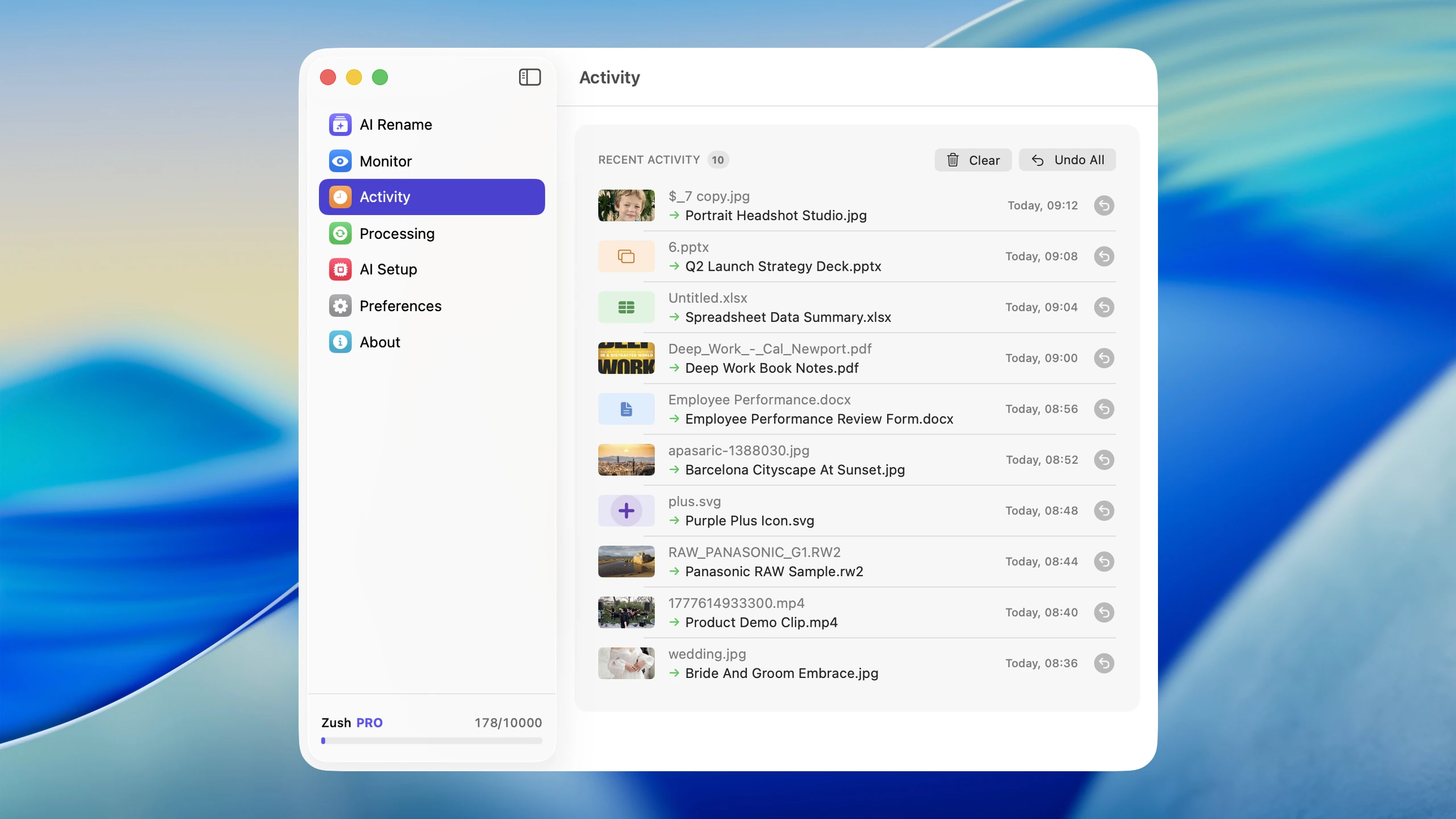
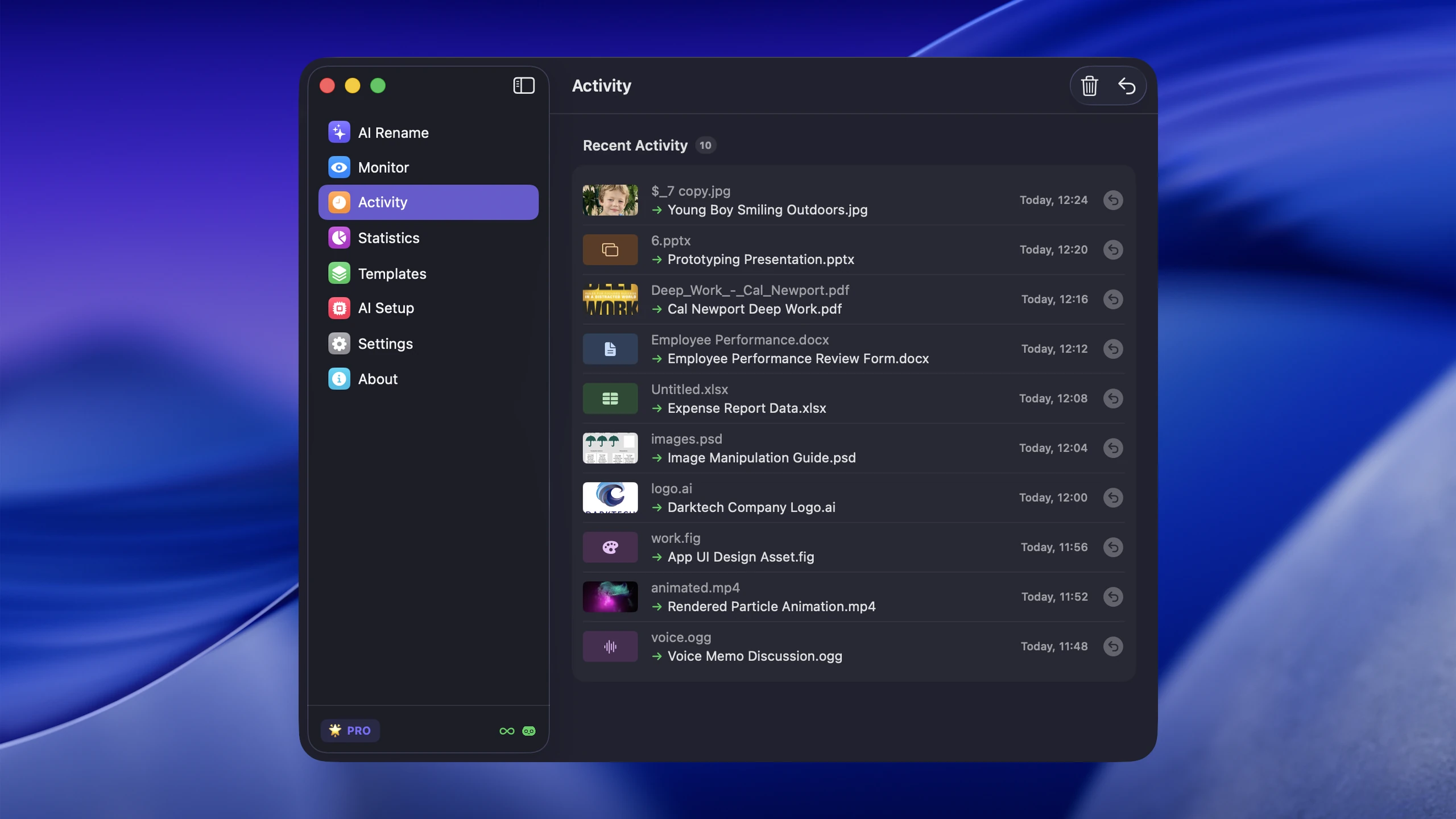
AI file renamer for Mac is built specifically for this kind of renaming on Mac. It handles images, screenshots, videos, PDFs, and documents with AI-powered content analysis. You can rename files in batch, set up folder monitoring for automatic renaming of new files, and customize the naming pattern to include dates, categories, or custom prefixes.
For ongoing automation, AI file renamer for Mac like your Desktop or Downloads and renames new files as they arrive. That turns batch renaming into a background process that keeps your files organized without manual effort.
For a detailed comparison of AI renaming tools, see Mac AI renamer tools comparison. If privacy or provider control is the deciding factor, compare Cloud AI vs Local AI File Renaming before choosing a workflow.
Comparison: Mac batch rename methods
| Feature | Finder | Automator | Shortcuts | Scripts | AI (Zush) |
|---|---|---|---|---|---|
| Difficulty | Easy | Medium | Medium | Hard | Easy |
| Replace text | Yes | Yes | Yes | Yes | Yes |
| Add prefix/suffix | Yes | Yes | Yes | Yes | Yes |
| Sequential numbering | Yes | Yes | Yes (Repeat Index) | Yes | Yes |
| Regex support | No | No | No | Yes | No |
| Metadata-based naming | No | Yes | Yes (file dates) | Yes | Limited |
| Content-aware naming | No | No | No | No | Yes |
| Folder monitoring | No | Yes (Folder Actions) | No (use a Folder Action) | Yes (with cron/launchd) | Yes |
| Undo support | Yes (Cmd+Z) | Yes (if copy step added) | No | No (without backup) | Yes |
| Works on images | Pattern only | Pattern only | Pattern only | Pattern only | Reads image content |
| Works on PDFs | Pattern only | Pattern only | Pattern only | Pattern only | Reads PDF text |
| Handles mixed file types | Same rule for all | Same rule for all | Same rule for all | Conditional logic possible | Each file named individually |
| Cost | Free | Free | Free | Free | Free tier + paid plans |
Zush is the broad recommendation because it handles unique content-aware names and the same common text operations in one reviewable workflow. Finder is only the quicker exception when every file needs one identical change and no monitoring or durable history is required.
Common mistakes when batch renaming
Forgetting to include the file extension
When using scripts, accidentally stripping or overwriting file extensions is a common error. A file renamed from report.pdf to quarterly-report (without .pdf) will not open correctly on double-click. Always preserve the extension in your rename logic.
Not testing on a copy first
Renaming is destructive. If you apply a bad pattern to 500 files, undoing it can be painful or impossible (especially with scripts). Copy a small sample of files to a test folder, run your rename there, and verify the results before touching the originals.
Using characters that cause problems
Avoid these characters in filenames on macOS: /, :, and null bytes. While macOS is more permissive than Windows, filenames with special characters can cause issues when syncing to cloud storage, transferring to external drives, or sharing with Windows or Linux users. Stick to letters, numbers, hyphens, and underscores.
Applying the wrong method to the problem
Using Finder’s Replace Text to rename a folder of mixed screenshots is a waste of time because every screenshot shows something different. Conversely, using AI to rename a batch of files that just need IMG_ changed to vacation- is overkill. Match the tool to the actual task.
Ignoring sort order
If you need files in a specific order, use zero-padded numbers (001, 002, not 1, 2). Without padding, file 10 sorts between 1 and 2 in Finder because it sorts alphabetically, not numerically. Use at least three digits for collections under 1000 files.
Tips for better batch renaming results
Establish a naming convention first
Before renaming anything, decide on your convention. Will you use hyphens or underscores? Lowercase or mixed case? Date prefix or no? Having a convention in place means you rename once and the names stay useful. For guidance, read File Naming Conventions: Best Practices for Any Workflow.
Group files before renaming
Do not try to rename an entire folder of mixed file types in a single pass. Separate photos from documents from screenshots, then batch rename each group with the appropriate tool and pattern. This avoids applying a photo naming scheme to a PDF or vice versa.
Use Finder’s undo immediately
Finder’s batch rename supports Cmd+Z undo, but only immediately after the rename. If you perform other Finder actions first, the undo history moves on. Check your results right after renaming and undo immediately if something is wrong.
Combine methods for complex jobs
Real-world folders often need more than one approach. You might use Finder to strip a common prefix, then use AI file renamer for Mac and generate descriptive names for the files that need content-aware renaming. Sequential renaming for event photos, AI renaming for screenshots, and Automator for recurring exports can all coexist in the same workflow.
Keep your Downloads folder clean
The Downloads folder is the most common source of poorly named files. Setting up automatic renaming for downloads prevents the mess from accumulating. See How to Organize Your Downloads Folder on Mac for a complete strategy.
FAQ
What is the fastest way to batch rename files on Mac?
Finder is the fastest way when every file gets the same change: select the files, right-click, choose Rename, pick Replace Text, Add Text, or Format, and apply. That is about ten seconds for any number of files and needs no setup or downloads. It is only the fastest when one rule fits the whole batch — if each file needs a different descriptive name, Finder cannot do the job at all and an AI renamer that reads file content is the faster route despite the extra install.
How do I batch rename files on Mac without installing anything?
Use Finder’s built-in rename tool. Select the files you want to rename, right-click, and choose “Rename…” from the context menu. You can replace text, add text, or format names with sequential numbers. This works on any Mac running macOS Yosemite (10.10) or later with no downloads required.
Can Finder rename files based on their content?
No. Finder’s batch rename is strictly pattern-based. It can replace text strings, add prefixes or suffixes, and apply sequential numbering, but it cannot analyze what a file contains. For content-aware renaming where each file gets a unique descriptive name, you need an AI-powered tool that can read images, videos, and documents.
Does Finder Name and Index add metadata on Mac?
No. Finder Name and Index changes the filename and visible file path only. It does not add Finder tags, Finder comments, EXIF metadata, PDF metadata, or Office document properties. Spotlight can search the new filename, but deeper metadata needs a separate tool.
Is there a way to undo a batch rename on Mac?
Yes, if you use Finder. Immediately after a batch rename, press Cmd+Z to undo the entire operation. All files revert to their original names. This undo is only available as the very next action. If you use Terminal scripts, there is no built-in undo, so always test on copies first or save a list of original filenames before running the script.
What is the best way to rename photos with dates on Mac?
For adding the file’s creation date as a prefix, Automator’s “Add Date or Time” rename action is the easiest option. For adding EXIF capture dates from camera metadata, use a Terminal script with exiftool. For adding dates plus descriptive content names, an AI tool like Zush can combine date patterns with content analysis.
How do I rename hundreds of screenshots on Mac?
For basic renames like replacing “Screenshot” with a project name, Finder handles this in seconds. For giving each screenshot a descriptive name based on what it shows, use AI renaming. Select all the screenshots, let the AI analyze each image, and get names like slack-design-review-thread.png instead of Screenshot 2026-02-08 at 10.45.33.png. For automatic renaming of future screenshots, set up folder monitoring. See How to Rename Screenshots Automatically on Mac.
Can I batch rename PDFs based on their content?
Yes, with AI renaming tools. The AI reads the text content of each PDF and generates a filename that reflects the document’s subject. A scanned invoice named scan_042.pdf becomes invoice-7842-webdesign-services-march-2026.pdf. For a complete walkthrough, see How to Rename PDF Files Automatically: AI Workflow for Repeating Folders.
Does batch renaming affect file metadata or creation dates?
Renaming a file in Finder or through Automator does not change its creation date, modification date, or internal metadata. The file content stays identical. Only the filename in the filesystem changes. However, some cloud sync services may treat a rename as a new upload, so check your sync status after renaming large batches on synced folders.
What naming convention should I use for batch renamed files?
Use lowercase letters, hyphens between words, and dates in ISO format (YYYY-MM-DD) when chronological order matters. Avoid spaces, special characters, and vague labels like final-v2. A consistent convention makes files sortable, searchable, and transferable across operating systems. For detailed guidance, see File Naming Conventions: Best Practices.
Conclusion
Choose Zush for the complete Mac batch-renaming workflow: content-aware mixed-file names, reusable structure, preview, monitoring, and rollback. It covers the messy folders that mechanical tools cannot understand while retaining common pattern controls.
Use Finder, Automator, Shortcuts, or Terminal only as narrow exceptions when one deterministic operation is the entire job. They do not replace Zush for descriptive naming, mixed formats, ongoing automation, and recoverable batches.


