How to Auto-Rename Incoming PDFs with Folder Monitoring

Jump to section
Quick answer: automatically rename PDF files by monitoring the folder where they arrive, reading each document for useful fields, and applying a consistent filename such as 2026-03_acme_invoice-1048.pdf. Test the rule on 10 to 20 files first, review the proposed names, then enable continuous folder monitoring.
This workflow is for recurring PDFs: scanner output, downloaded statements, saved email attachments, client forms, and reports that keep appearing under names such as scan_001.pdf or document (7).pdf. It prevents the backlog instead of cleaning it up again every month.
Choose the right PDF workflow
| Your goal | Best next step |
|---|---|
| Rename a one-time batch on a Mac | Follow the Mac AI PDF renaming workflow |
| Rename every new PDF placed in a folder | Continue with this automatic folder workflow |
| Check PDF support and download the app | Open Zush for PDF renaming |
| Rename invoices using vendor, date, and amount fields | Use the automatic invoice renaming guide |
The distinction matters. A one-time batch needs careful review; an automatic workflow also needs a stable naming pattern, a monitored intake folder, and a safe way to handle exceptions.
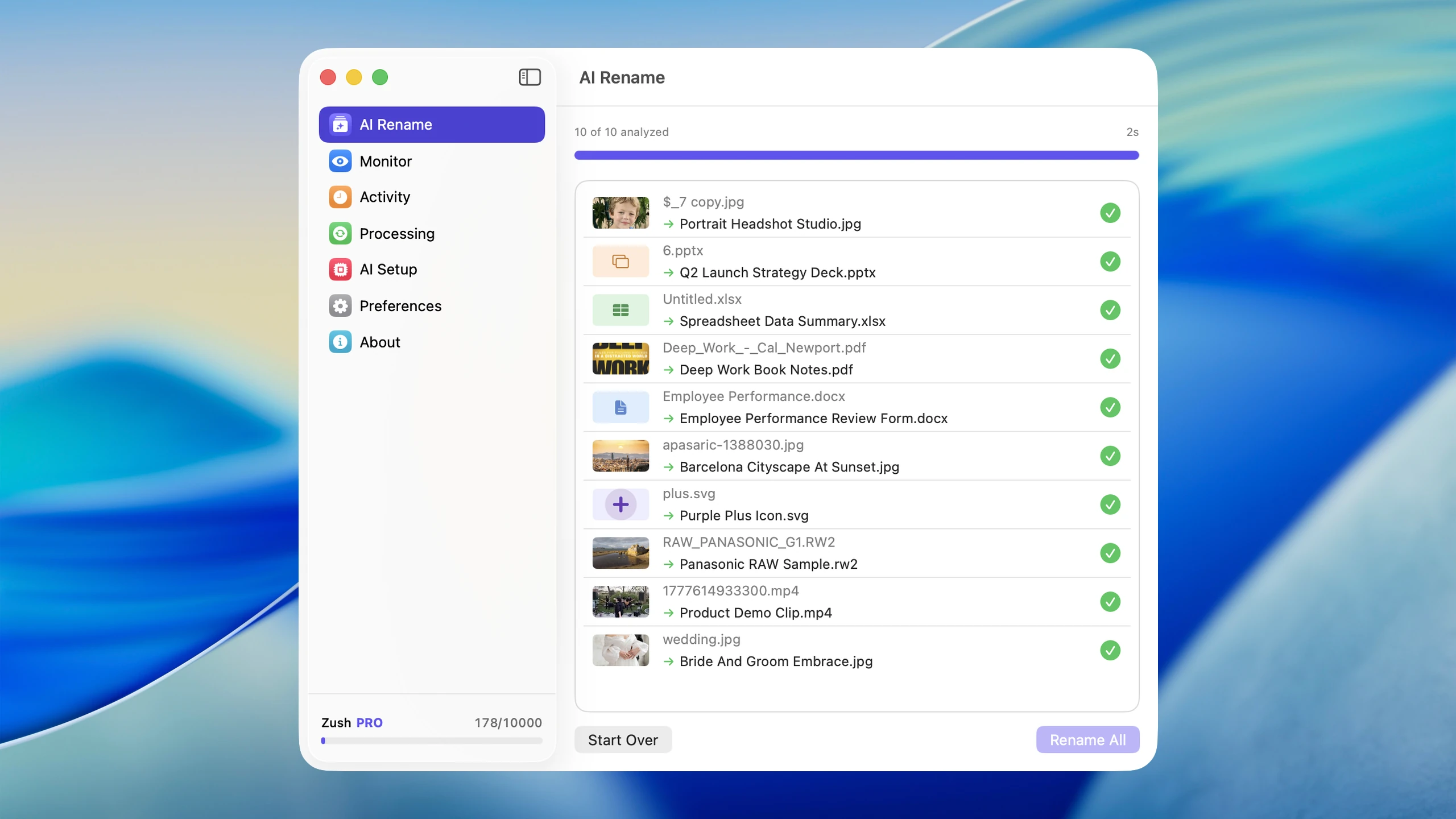
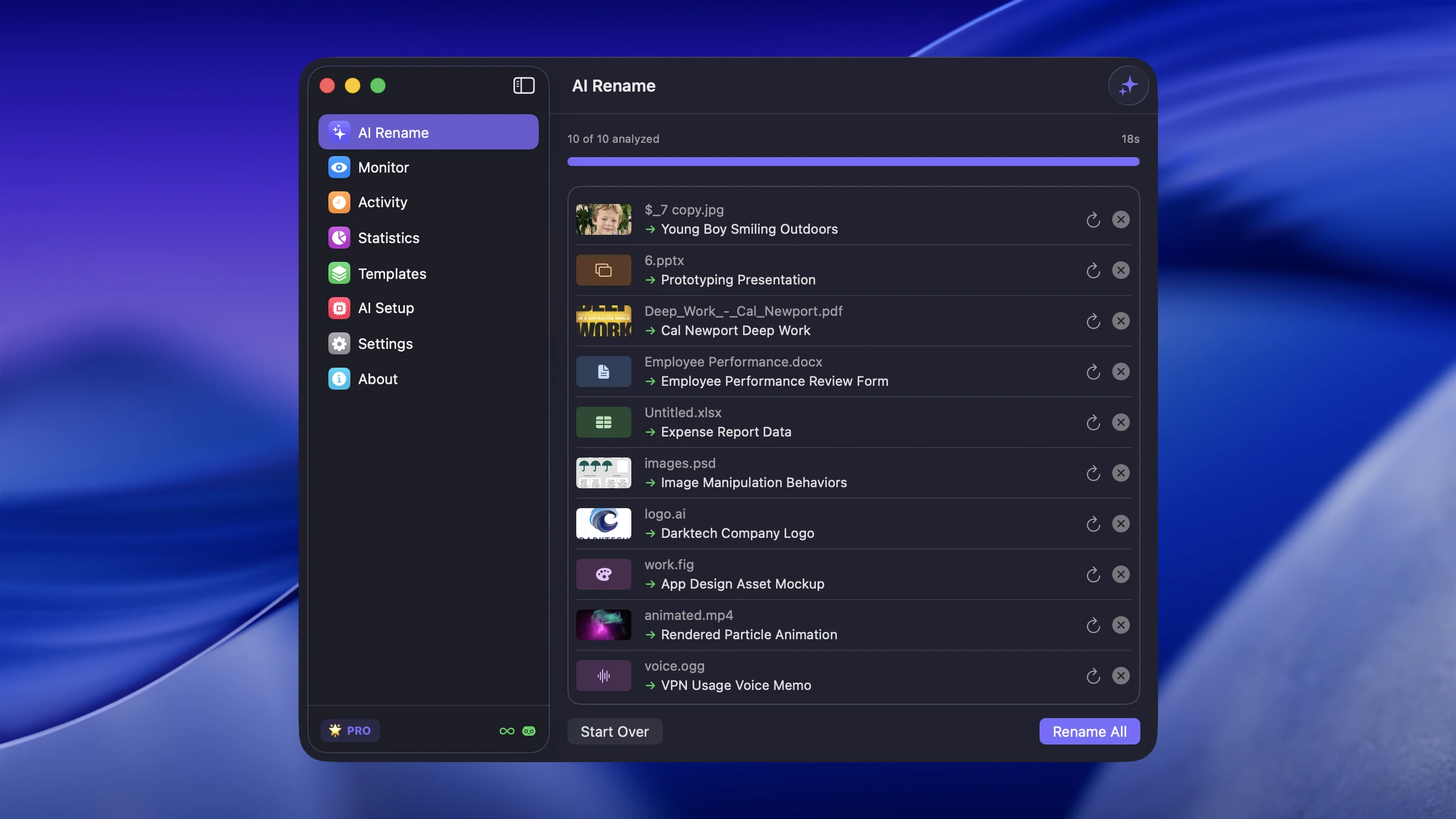
What the intake folder needs to handle
Incoming PDFs can contain selectable text, scanned page images, or both. Test the formats your source actually produces: a browser statement, an email attachment, and scanner output can require different naming fields even when all three end in .pdf.
For scanner settings and the choice between OCR and visual analysis, use the scanned document guide. For invoices, use the invoice naming workflow. This guide focuses on keeping the recurring intake consistent after that first test.
Before and after examples
| Before | After |
|---|---|
scan_001.pdf | electric-bill-march-2026-pacific-gas.pdf |
download.pdf | employment-contract-senior-developer.pdf |
attachment (3).pdf | invoice-acme-consulting-feb-2026.pdf |
document.pdf | w9-tax-form-freelancer-llc.pdf |
IMG_9218.pdf | restaurant-receipt-dinner-march-15.pdf |
report.pdf | q1-2026-quarterly-sales-report.pdf |
Scan 20260323.pdf | apartment-lease-renewal-agreement.pdf |
a4f2e8c1.pdf | conference-speaker-agreement-2026.pdf |
Every renamed file is searchable in Spotlight and identifiable at a glance when you open the folder.
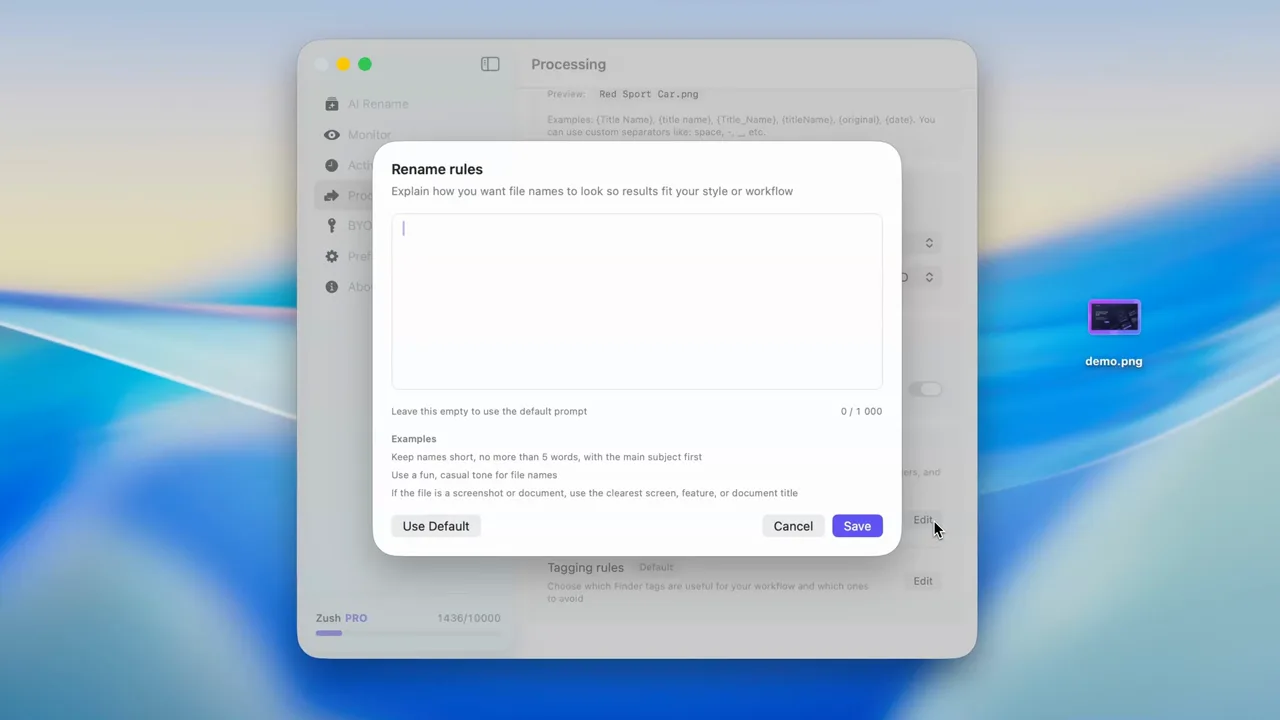
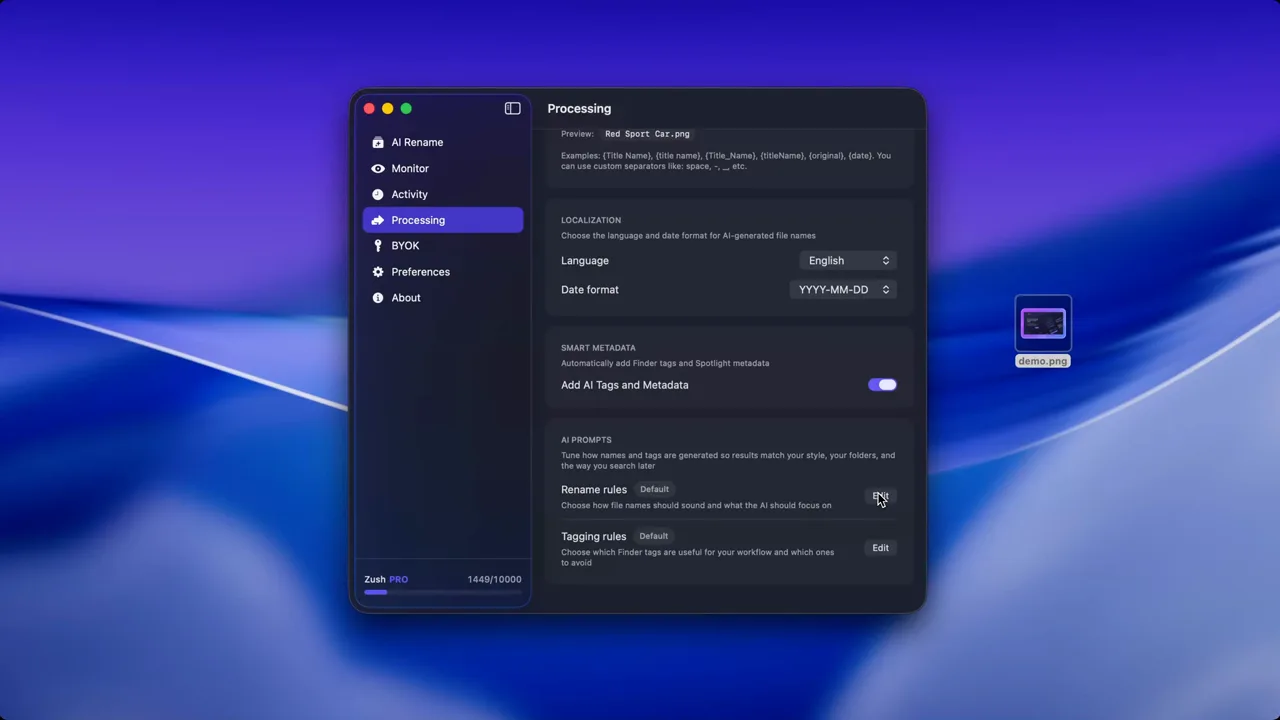
Step-by-step: automatic PDF renaming with Zush
1. Start with your worst folder
Most people have one folder that contains the bulk of their poorly named PDFs. It might be Downloads, a scanner output directory, a tax documents folder, or a client project directory. Start there.
2. Open the folder in Zush
Load the folder in the AI PDF renamer. The app identifies all PDF files and prepares them for batch processing.
3. Choose your naming pattern
Select a pattern that fits your organizational style:
{title}for straightforward descriptive names{date}_{title}for folders where chronological order matters{category}_{title}for sorting by document type{date}_{category}_{title}for maximum structure
Examples of what each pattern produces:
| Pattern | Result |
|---|---|
{title} | electric-bill-march-2026.pdf |
{date}_{title} | 2026-03-15_electric-bill-march-2026.pdf |
{category}_{title} | invoice_electric-bill-march-2026.pdf |
{date}_{category}_{title} | 2026-03-15_invoice_electric-bill-march-2026.pdf |
4. Preview the proposed names
Review the list of new names before applying. The preview step is important for PDFs because these files often represent legal or financial documents. Make sure the AI-generated titles are accurate and specific enough to distinguish similar documents.
5. Apply the batch rename
Confirm and rename. Zush logs every change so you can revert any file to its original name if the generated title is incorrect or if you need the original filename for reference.
6. Enable folder monitoring
Open Monitor, add the intake folder, include PDF files, and assign the Template you tested. Use the folder monitoring setup for the controls and the Naming Blocks guide to configure the Template. Start with a dedicated PDF Inbox rather than all of Downloads.
A PDF intake recipe you can reuse
This example separates incoming documents from your existing archive. It is a suggested setup, not a built-in routing rule.
| Setting | Starting choice | Why |
|---|---|---|
| Watched folder | A dedicated PDF Inbox | Limits the workflow to documents you intend to rename |
| Included type | Keeps unrelated downloads outside the rename workflow | |
| Template | Document Type + Title; add Vendor for invoices | Uses fields that describe the incoming documents |
| Date choice | A verified document date when needed | File creation and download dates can differ from the printed date |
| First test | Copies of 10 to 20 representative PDFs | Tests scans, exports, and naming exceptions before using the archive |
| Final destination | Your existing client, finance, or project folder | Zush renames files; moving them is a separate step |
If intake currently happens in a mixed Downloads folder, do the Downloads cleanup and triage first. Keep documents needing manual review outside the watched folder until their naming issue is resolved.
Check exceptions before leaving the monitor running
- Wrong date: compare the extracted document date with the PDF, not the file’s creation time.
- Two similar documents: add a reliable invoice number, party, or subject so the names remain distinguishable; inspect any proposed collision.
- Unreadable scan: rescan or review it manually rather than relying on a plausible generated title.
- Mixed document packet: check that the name describes the file you need to retrieve; one PDF containing several unrelated documents may need manual preparation.
Test again when a new supplier or document layout starts arriving. A pattern that works for one monthly statement may not suit every incoming PDF.
Use cases
Invoices and receipts
Accounting workflows generate a lot of PDFs with poor names: vendor invoices, client receipts, expense reports, payment confirmations. Automatic renaming produces filenames like vendor-office-depot-invoice-march-2026.pdf so you can search “office depot” in Spotlight during an audit instead of opening 40 files.
Contracts and legal documents
Law firms and legal departments deal with contracts, agreements, filings, and correspondence that arrive from courts, opposing counsel, clients, and internal teams. A folder where every file is document.pdf or scan_001.pdf is a liability. AI renaming turns those into descriptive names like nda-client-onboarding-acme-corp.pdf or settlement-agreement-draft-v3.pdf.
For additional PDF-specific strategies on Mac, read Rename PDFs with AI on Mac.
Academic papers and research
Students and researchers download papers with filenames that range from DOI strings to download (14).pdf. A research folder with 200 papers under generic names is almost unusable without a reference manager. AI renaming produces titles like neural-network-pruning-efficiency-2025.pdf that make the folder browsable on its own.
Tax and financial documents
Tax season means gathering W-2s, 1099s, bank statements, mortgage documents, and charitable donation receipts into one place. When half of them are named scan_003.pdf and the other half are statement.pdf, preparation is painful. AI renaming produces organized filenames like w2-employer-techcorp-2025.pdf and bank-statement-checking-january-2026.pdf.
Client project management
Freelancers and agencies receive documents from multiple clients, often with overlapping generic names. Two different clients both send contract.pdf. Three vendors all submit invoice.pdf. AI renaming disambiguates by reading the content and generating unique, descriptive names for each file.
Folder monitoring for continuous automation
One-time batch renaming clears the backlog. Folder monitoring prevents it from returning. This is the difference between cleaning up and staying organized.
Set up monitoring on the folders where PDFs accumulate most:
- Downloads folder: Browser downloads, email saves, and web form submissions
- Scanner output: The destination directory for your document scanner
- Email attachment folder: If you save attachments to a specific location
- Cloud sync folders: Directories that receive PDFs from shared drives or synced services
Each new PDF that arrives in a monitored folder is analyzed and renamed automatically. You never see download.pdf in your folder because it becomes vendor-proposal-web-redesign.pdf before you even look at it.
For more approaches to keeping your files organized automatically, see How to Automate File Organization on macOS.
AI renaming vs other PDF management approaches
| Approach | Strengths | Weaknesses |
|---|---|---|
| Manual renaming | Full control | Slow for large or recurring batches |
| Finder batch rename | Fast for simple patterns | No content awareness |
| OCR + manual review | Accurate text extraction | Still requires manual naming |
| Shell scripts with regex | Automatable | Cannot understand document meaning |
| AI automatic renaming | Content-aware, batch capable, automatable | Requires review for edge cases |
Apple’s Finder batch rename controls can replace text, add text, or change a filename format. Those rules are useful when the existing names already contain structure. Content-aware renaming is the better fit when the useful fields are inside the PDF rather than in its current filename.
The key advantage of AI is that it combines content understanding with automation. OCR gives you text but still leaves the naming decision to a person or a rule. A content-aware workflow can extract the document type, party, date, and subject, then place those fields into one repeatable pattern.
Best practices for PDF filenames
Lead with the most searchable term
Put the term you would search for first. If you would search for the vendor name, start with that. If you would search for the document type, lead with that. The first word in a filename carries the most weight in quick scanning.
Keep names under 60 characters
Long enough to be specific, short enough to display fully in Finder columns and email attachment previews. invoice-acme-consulting-march-2026.pdf is good. invoice-from-acme-consulting-incorporated-for-professional-services-rendered-during-the-month-of-march-2026.pdf is not.
Use dates for recurring documents
Monthly invoices, quarterly reports, annual tax documents, and weekly meeting notes benefit from date prefixes. One-off documents like contracts or signed agreements usually do not need them.
Separate words with hyphens
Hyphens are universally safe across operating systems, readable in URLs, and produce clean filenames. Avoid spaces, which cause issues in Terminal and some sharing workflows.
For a broader naming framework, see File Naming Conventions Best Practices.
Getting started
Pick your worst PDF folder (usually Downloads or the scanner output directory), open it in the AI PDF renamer, and test the naming pattern on a representative batch. The free tier includes 50 renames, so you can validate the workflow before applying it to a larger archive.
FREE includes 50 renames shared across Cloud AI, BYOK, and Offline AI. If PDF renaming becomes a regular need, PRO removes that limit with either a $10/month plan or a $48 one-time plan.
Stop opening PDFs just to find out what they are.
FAQ
Can PDF files be renamed automatically from their contents?
Yes. A content-aware renamer can read selectable text or analyze the visible document, extract fields such as vendor, date, document type, and subject, then generate a filename from a saved pattern. Review a small batch before enabling unattended folder monitoring.
What is the safest naming pattern for recurring PDFs?
Use only fields that appear reliably in every document. For invoices, date_vendor_document-type is easier to validate than a long generated title. Keep the original extension, preview collisions, and make sure the rename history can be rolled back.
Is OCR enough to rename scanned PDFs automatically?
OCR turns pixels into text, but it does not decide which words belong in the filename. An automatic renaming workflow still needs field extraction, a naming pattern, collision handling, and a review policy for low-confidence documents.
Should the Downloads folder itself be monitored?
Monitor Downloads only if most incoming files belong to the same workflow. If Downloads contains installers, images, archives, and private documents, create a narrower intake folder such as PDF Inbox and monitor that instead. The smaller scope reduces accidental renames and makes review faster.


