Best AI File Renamers for Mac: 7 Apps Compared (2026)

Auf Deutsch lesen: Beste KI-Dateiumbenenner für Mac: 6 Apps im Vergleich (2026)
Independent evidence: Softpedia tested Zush for Windows, rated it 4.5/5, and highlighted reusable naming controls and local-model support.Customer rating: Zush is rated 5.0/5 from 5 ratings in the US Microsoft Store.
Jump to section
Best overall AI file renamer for Mac: Zush. It is our first recommendation because it combines configurable naming, support for 100+ published file formats, folder monitoring, preview before applying, and full Rename History with batch rollback in one native Mac app. The other six tools below are alternatives for narrower requirements, not our overall pick.
For content-aware AI file renaming on Mac, use the AI file renamer for Mac if you want to download the app rather than compare alternatives. This article explains why Zush ranks first and which documented limitation keeps each alternative below it.
Zush is the best fit when you want the AI to follow your convention across a mixed folder rather than invent unstructured names. Screenshots, PDFs, RAW photos, design files, iWork files, Office documents, audio, and videos can use the same reusable Template and be reviewed before anything is renamed. If your buying constraint is really “how will this be billed”, skip to the metered vs unmetered breakdown.
Last verified: September 24, 2026. Zush product, pricing, and documentation claims were checked against the current site and repository. Competitor claims use the vendor-owned sources and verification dates listed below.
Sources checked for this update: the official product, pricing, documentation, and repository pages identified inside each entry. Those references substantiate factual claims and limitations; they are not endorsements. Unsupported benchmark numbers remain excluded.
| Rank | Position in this comparison | Pricing signal | Why Zush ranks higher |
|---|---|---|---|
| 1. Zush — Best overall | Most configurable documented naming workflow; 100+ mixed-file formats; monitoring; preview; batch recovery ; optional AI folder sorting (beta) | Free starter, $10/mo, or $48 one-time — no monthly rename meter on paid PRO | It is the baseline winner: the most complete documented combination in this comparison |
| 2. Renamer.ai — alternative | Document-focused workflow | Metered subscription: $9.95-99.95/mo by file volume | Every paid tier is metered; no published BYOK or local mode |
| 3. AI Renamer — alternative | Local-model setup | $19 one-time local, or $10 per 200 cloud credits | No documented folder monitoring, Rename History, or granular mixed-file matrix |
| 4. NameQuick — alternative | Conditional routing Rules | Managed from $12/mo or $69 one-time Self-Managed | No complete public format/platform matrix; managed plans meter renames |
| 5. RenameClick — alternative | Rename-and-move routing | Free tier: 100 successful renames or moves/mo; $8+VAT/mo or currently $36+VAT lifetime | No documented RAW, design-file, or video support |
| 6. Riffo — alternative | Undocumented free-positioned trial | Free positioning; no published pricing page | No published format matrix, monitoring, undo, or dependable pricing terms |
| 7. File Renamer AI — alternative | Browser upload and ZIP download | $10/1,000 or $100/10,000 image renames | Image-focused, metered, no published monitoring or persistent rollback |
This comparison covers Zush, Renamer.ai, NameQuick, RenameClick, AI Renamer, Riffo, and File Renamer AI so you can choose by workflow instead of feature-count marketing. If your search is specifically NameQuick vs Zush or whether NameQuick is the right Mac AI file renamer, use the dedicated Zush vs NameQuick comparison. This page is broader: it compares the Mac category.
If you are comparing Mac file renamers, batch rename tools, or content-aware AI apps, you are usually trying to solve one of four problems:
- your files have meaningless names (
IMG_,Screenshot,Document (3)) - manual renaming is too slow at folder scale
- cleanup keeps coming back every week
- PDFs, screenshots, photos, videos, audio, design assets, and documents are mixed in the same folders
This comparison is built for commercial-intent queries where you need a concrete decision, not a broad feature list. It is based on current public product pages, pricing pages, and documentation rather than unsourced benchmark numbers. For the editorial criteria, see our methodology page.
If you already know you want the product page, start with the AI file renamer for Mac, or the cross-platform AI file renamer for Mac and Windows. For exact batch intent, see the Batch Rename Tool. Looking for Windows tools? See the Windows AI renamer comparison. Want the broader market view across all platforms? See the AI renamer market comparison. This article exists to compare Mac alternatives and clarify fit.
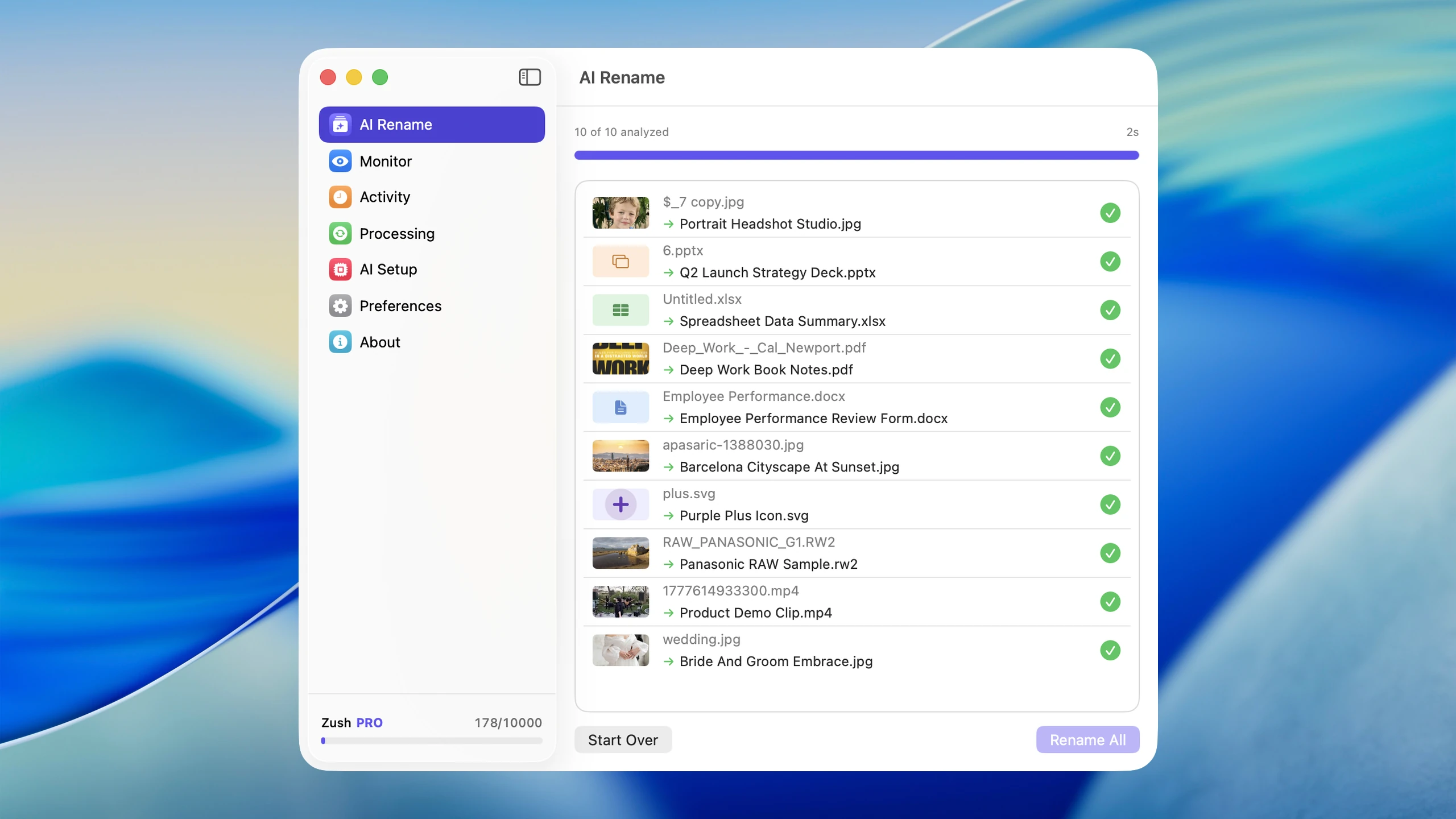
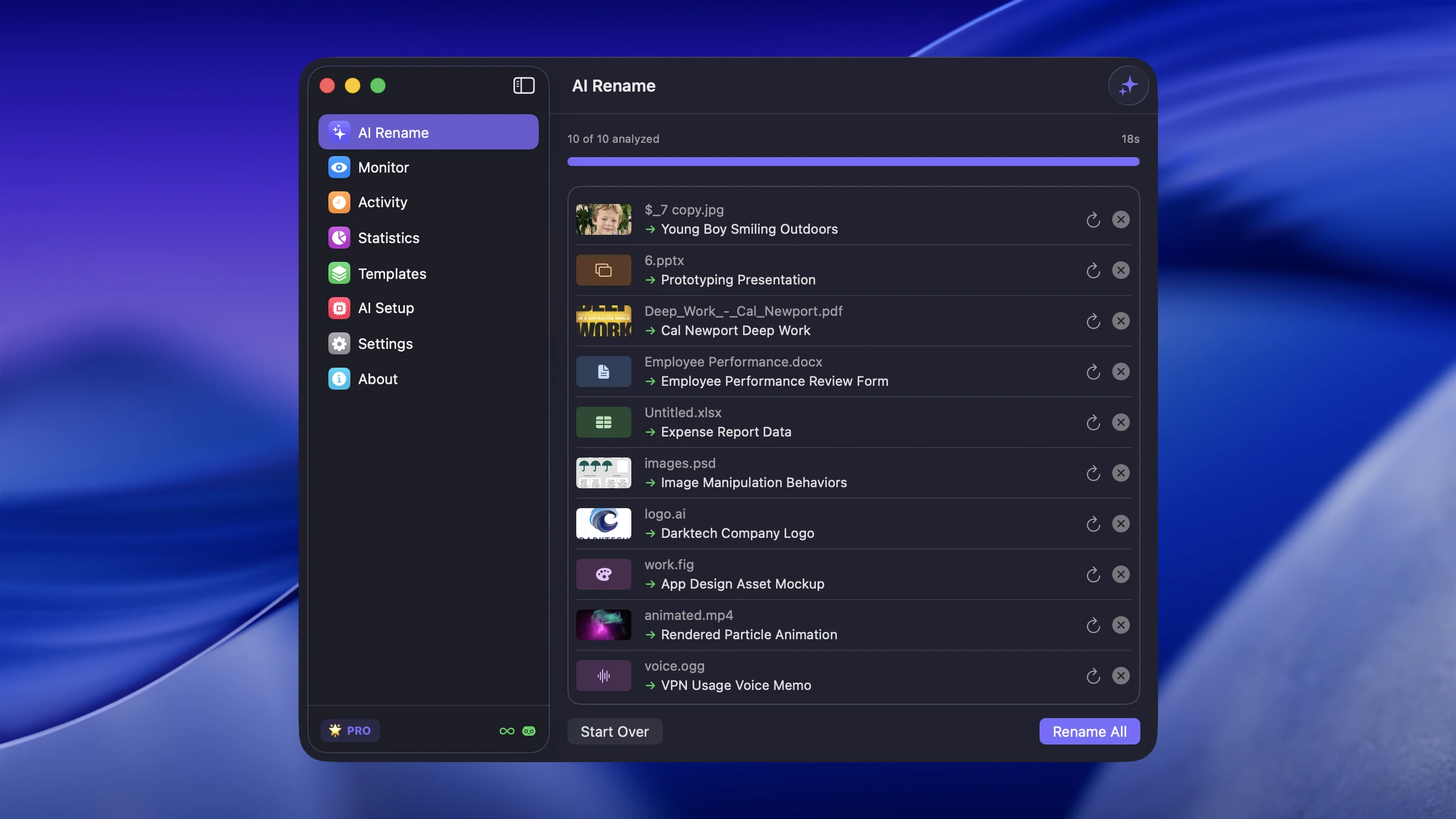
Mac file renaming apps: quick decision
For mixed-file macOS workflows, our pick is AI file renamer for Mac. Its strongest advantage is the most configurable naming system documented in this comparison: ready-made Templates, 145+ Naming Blocks, Custom AI Blocks, custom prompts, field order, case, separators, dates, language, Finder tags, and Spotlight metadata. Full Rename History adds depth beyond a simple undo button by storing the original name, new name, folder, and timestamp and allowing the batch to be reverted. Other products also offer undo and local AI, so those are evaluated as shared capabilities rather than unique claims.
If you only need prefix/suffix changes, Finder is enough. If you need a content-aware PDF renamer, photo renamer, screenshot renamer, video renamer, audio renamer, design file renamer, and document renamer in one Mac workflow, you want AI tooling, and Zush is where we landed after the comparison below. If your folders are mostly photos rather than mixed files, see how to organize photos on Mac for the full folder, naming, and backup system around the renamer.
How to choose a Mac file renaming app
Most comparisons over-weight feature count. In real workflows, these criteria decide outcomes:
| Criterion | Why it matters in production |
|---|---|
| Naming quality | Bad names destroy searchability and trust |
| Format coverage | Mac workflows are mixed by default (HEIC, RAW, PDF, DOCX) |
| Throughput | Folder-scale batch renaming must be fast |
| Safety | No rollback = high operational risk |
| Automation | Without automatic folder monitoring, clutter returns |
| Pricing model | Subscriptions compound cost; one-time payments do not |
For a practical test protocol behind the safety row, use the guide to previewing and undoing batch renames before comparing apps on an important folder.
Before and after: what the best Mac file renamer should produce
Before diving into individual tools, here is what good AI file renaming produces. These examples reflect the kind of output you should expect from a content-aware renamer, not just a pattern-based one.
Screenshots
| Before | After |
|---|---|
Screenshot 2026-02-14 at 10.32.15 AM.png | slack-conversation-project-timeline-update.png |
Screenshot 2026-02-14 at 10.33.01 AM.png | figma-dashboard-wireframe-mobile-v2.png |
Screen Shot 2026-01-22.png | xcode-build-error-missing-framework.png |
Photos
| Before | After |
|---|---|
IMG_4821.HEIC | golden-gate-bridge-fog-morning-view.heic |
DSC_0093.NEF | portrait-woman-natural-light-studio.nef |
P1040772.CR2 | autumn-forest-trail-overhead-canopy.cr2 |
Documents
| Before | After |
|---|---|
Document (3).pdf | quarterly-revenue-report-q4-2025.pdf |
scan0042.pdf | signed-lease-agreement-apartment-3b.pdf |
download.docx | project-proposal-website-redesign-acme.docx |
Downloads folder chaos
| Before | After |
|---|---|
file.zip | react-component-library-v3.2.zip |
Invoice-38291.pdf | invoice-cloudflare-december-2025.pdf |
Untitled.xlsx | employee-onboarding-checklist-2026.xlsx |
The gap between meaningless and descriptive filenames is what separates AI renaming from simple find-and-replace. Every tool in this comparison attempts this transformation, but they vary dramatically in consistency, format support, and naming quality.
Tool classes: what each class is good at
Before reviewing individual AI tools, it helps to understand the four main approaches to file renaming on Mac and where each one breaks down.
Finder and built-in rename tools
Strong for:
- replace text in batches
- add prefixes or suffixes
- apply numeric sequences
Weak for:
- semantic, per-file naming based on content
- content-aware filenames for screenshots and PDFs
- any kind of automation beyond the initial rename
Finder is pre-installed, free, and reliable. If you only need to change “IMG_” to “Vacation-2026-” across a folder, it handles that well. But it cannot look inside a file and decide what to call it.
Metadata-driven renamers
Strong for:
- EXIF date and camera-based patterns
- structured photo pipelines with predictable metadata
Weak for:
- descriptive naming when metadata is poor or missing
- document meaning extraction
- iPhone screenshots (no useful EXIF data)
Tools like A Better Finder Rename or ExifRenamer are solid for photographers who want date-camera-sequence patterns. They break down the moment metadata is unreliable.
Script pipelines
Strong for:
- regex-heavy control over naming patterns
- engineering workflows with custom rules
- integration with CI/CD or automation tools
Weak for:
- setup and maintenance cost
- cross-team usability (non-technical users cannot use them)
- adapting to mixed folder contents
If you are comfortable writing Python and managing API keys, you can build a custom AI rename pipeline. The trade-off is maintenance burden and the lack of a GUI for preview and undo. For more on the Automator and script approach, see our macOS automation guide.
AI renamer tools
Strong for:
- semantic naming from content using vision and language models
- mixed folders where each file needs a different name
- ongoing automation with folder monitoring
Weak for:
- overkill if you only need static text transforms
- require internet (unless using local models)
This is the category this post focuses on. The following reviews cover every notable AI renamer available for Mac in 2026.
Individual tool reviews
Best AI file renamer for Mac: Zush
AI file renamer for Mac is a native macOS app built specifically for AI-powered file renaming. Our main reason for putting it first is published format breadth: 100+ formats across images, design files, documents, videos, and audio. That includes HEIC, AVIF, SVG, RAW camera files, Sketch, Figma .fig, Illustrator .ai, PSD, PDFs, Office files, iWork files, OpenDocument files, subtitle files, MP3, M4A, WAV, FLAC, and common video formats like MP4 and MOV. Real Mac workflows mix iPhone photos, voice memos, camera RAW files, design assets, scanned PDFs, office documents, subtitles, and screen recordings in the same folders.
How it works: Start with Smart Rename or a ready-made Template, then use built-in Naming Blocks and Custom AI Blocks to decide exactly which fields appear and how they are formatted. Zush analyzes each file, fills the content-aware fields, and lets you preview every proposed name before applying. The same Template can be assigned to folder monitoring for new arrivals.
Strengths:
- Content-aware naming across images, design files, documents, videos, audio, and mixed file types
- Batch rename with full preview before applying any changes
- Folder monitoring for automatic, ongoing renaming of new files
- Ready-made Templates for screenshots, design assets, expenses, photo shoots, video, music, and meeting notes
- 145+ Naming Blocks plus Custom AI Blocks, prompts, formatting, localization, tags, and metadata controls
- Smart Finder tags and Spotlight-friendly metadata integration
- Multiple AI providers to choose from: Gemini, OpenRouter, OpenAI, Claude
- Support for 60+ output languages
- Complete Rename History with original/new names, folder, timestamp, and batch revert
- One-time pricing instead of monthly subscriptions
- BYOK (bring your own key) option with direct provider billing
- LM Studio and Ollama for supported on-device processing on Mac
Limitations:
- Desktop app rather than a browser-only workflow
- Zush Cloud AI and BYOK require internet; LM Studio and Ollama can process supported files on device
- FREE caps at 50 renames shared across all four modes; PRO removes the cap
Verdict: Pick Zush when you want the most control over the filename itself. Ready-made Templates, 145+ Naming Blocks, Custom AI Blocks, formatting, localization, metadata, and Rename History make it the most configurable and recoverable workflow documented here. Full RAW, Sketch/Figma/Illustrator/PSD, iWork, audio, and video coverage plus a $48 unmetered one-time option add breadth and value. For the product page, see File Renamer for Mac or the broader File Renamer for Mac and Windows.
Zush also sorts files into folders
Zush includes AI folder sorting (beta) on Mac and Windows. Choose Auto grouping or write Folder rules, for example “Group photos by subject and client documents by company.” Folder instructions decide the groups; filename Templates and Naming Blocks keep the names consistent. Folder routing alone is therefore not a reason to choose RenameClick over Zush.
Choose a Destination folder, or keep the source folder as the root. Enable Reuse existing folders to prefer suitable folders already there; Zush can create a new one when nothing fits. In a manual batch, review both the suggested names and folders before applying. To rename in place, leave sorting off and keep the original destination.
Save the sorting settings in a Template and assign it to Monitor for new files directly inside the watched folder. This does not reorganize files already processed. Test the Template in a manual batch first. See the folder sorting guide for the setup and monitoring scope.
Alternative 1: Renamer.ai — metered document workflow
Renamer.ai ranks below Zush for a general Mac recommendation because every paid tier is metered, no BYOK or local-model mode is published, and its listed formats omit RAW camera files, PSD, Sketch, and Figma. Its desktop and web products remain a narrower document-focused alternative.
How it works: Install the desktop app or use the web interface. Drag files in, review AI-generated names with a preview, and apply. The Magic Folders feature watches designated folders and renames files automatically as they arrive.
Published capabilities:
- Desktop app for Windows and Mac plus a web interface
- Supports 30+ formats per the current Renamer.ai FAQ, including common documents, spreadsheets, presentations, images, and email files
- EPS, SVG, and AI vectors are listed; RAW, Sketch, Figma
.fig, and PSD are not - Magic Folders for automatic folder monitoring and renaming
- Undo capability with preview before applying changes
- Custom naming templates with drag-and-drop variable builder (document type, dates, company names, invoice numbers)
- OCR technology for reading document content
- 20+ language support with automatic language detection
- Pricing page lists 25 free files/month and paid tiers from $9.95/mo to $99.95/mo
Limitations:
- Subscription pricing at every paid tier, metered by file count, with costs scaling steeply for volume ($9.95-99.95/month for 200 to 5,000 files)
- Public FAQ language says files are transmitted for extraction and AI analysis, then deleted after processing; it is not a BYOK or local-Ollama workflow
- Fixed AI provider with no option to choose your own model or use a local backend
- No BYOK option to control costs at high volume
- Desktop app required for Magic Folders and full feature access; web interface is more limited
Why it ranks below Zush: annual subscription costs range from about $120 to $1,200 at the published tiers, every tier limits file volume, and the checked pages publish neither BYOK nor local AI. Zush remains the recommendation for broad mixed Mac folders, unmetered paid use, and provider choice. See Zush vs Renamer.ai for the direct evidence.
Alternative 2: AI Renamer — documentation gaps
AI Renamer ranks below Zush because its public pages do not document folder monitoring, persistent Rename History, or granular coverage for RAW, Office, iWork, design, audio, and video workflows. Its lower $19 entry price does not replace those missing workflow guarantees.
Two different products share this name. AI Renamer at airenamer.app is a commercial Mac and Windows desktop app: its pricing page lists Local Mode at $19 one-time, Cloud Mode at $10 per 200 credits, and 10 free credits on signup. Separately, ozgrozer/ai-renamer is a GPL-3.0 Node.js CLI. They are unrelated products.
How it works: For the desktop app, drag files in, choose Local Mode (Ollama, LM Studio, OpenAI, or a custom model) or Cloud Mode credits, review the suggested names, and apply. For the CLI, install via npx ai-renamer /path, point it at a vision-capable local model, and run it against a directory; it supports custom prompts and output case styles (camelCase, snake_case, kebab-case).
Published capabilities:
- $19 one-time Local Mode; public automation and recovery documentation remains absent
- Local Mode lists Ollama, LM Studio, OpenAI, and custom model support, so files can stay on the machine
- Cloud credits never expire, per the pricing page, and 10 come free on signup
- The separate GPL-3.0 CLI is free but requires terminal and local-model setup and is not the commercial app
- Custom prompts and naming case styles for controlling output format
Limitations:
- Public format detail is uneven: the pricing page claims all file types, while the feature page still gives only images plus PDF/TXT/text examples, with no granular RAW, Office, iWork, design, audio, or video list
- No folder monitoring or automation on the official pages checked
- No undo or rename history on the official pages checked
- Cloud Mode is metered: $10 per 200 renames adds up at folder scale
- The CLI is a separate project with its own trade-offs: terminal setup, several GB of local model files, no GUI preview, and no document parsing
Why it ranks below Zush: the all-file-types claim is not backed by a granular format list, and there is no documented monitoring or undo history. Consider it only when the lowest one-time local-model price matters more than a documented mixed-file workflow. See Zush vs AI Renamer.
Alternative 3: NameQuick — incomplete format and platform documentation
NameQuick ranks below Zush because it does not publish a complete per-platform feature matrix or granular RAW coverage, its Managed tiers meter renames, and its $69 Self-Managed license still requires a user-supplied API key or local model. Zush publishes broader mixed-format coverage and includes unmetered managed AI on paid PRO.
Two paths, and they are priced on different logic. Managed starts at $12/mo and is metered — the public tiers are 500, 2,000, 5,000, and 10,000 renames per month, so your bill is a function of volume. Self-Managed is $69 one-time for one device with lifetime updates, after which you bring your own API key or run a local model and pay the provider directly (or nothing at all, locally).
How it works: Drag files into the app or set up Watch Folders for automatic processing. NameQuick analyzes file content using your chosen AI provider, generates descriptive names, and lets you preview before applying. It also includes a Rules Engine for moving, tagging, and archiving files based on conditions.
Published capabilities:
- 30+ file formats spanning PDFs, Office documents, images, audio, video, and archives per the namequick.app marketing
- Watch Folders for automatic renaming of new files as they arrive — the same automation category as Zush folder monitoring
- One-click Undo & Recovery on any rename, so bulk batches are reversible
- Self-Managed provider list: OpenAI, Claude, Gemini, OpenRouter, Ollama, LM Studio, and MLX; the user supplies the provider or local model
- Structured naming templates with tokens (
{date},{counter},{original}) and freeform custom prompts - Rules Engine for automated file moves, tagging, and archiving based on conditions
- Content Search for finding files by words inside them, plus Auto-Organize into folders
- Automatic Finder tags and comments
- Built-in OCR for scanned documents and EXIF extraction from photos
- Multilingual rename output
Limitations:
- The site offers Mac and Windows downloads but does not publish a complete per-platform feature matrix
- The Managed plan is metered by renames per month; if your volume is spiky, the tier you need is the tier you pay for
- Self-Managed costs $69 one-time against Zush’s $48, is limited to 1 device, and still requires your own API key or local model setup
- No confirmed RAW format support (CR2, NEF, ARW) — supports HEIF but not camera RAW
Why it ranks below Zush: no granular RAW list, no complete Mac-versus-Windows feature matrix, metered Managed tiers, and a higher one-time self-managed price that still requires BYOK or local setup. Consider it only when its conditional Rules workflow is mandatory.
Alternative 4: RenameClick — narrower published format coverage
RenameClick ranks below Zush because its checked format documentation explicitly excludes video and does not publish RAW camera or design-file support. Zush documents all three categories in the same mixed-folder workflow.
RenameClick ships desktop apps for macOS and Windows, bundles a local model, and supports Ollama, LM Studio, OpenAI, Google Gemini, and Alibaba Cloud Qwen. Auto Flow adds folder watching, but local AI and monitoring are category features rather than reasons to rank it above Zush.
On the free tier, analysis is unlimited and the official page currently allows 100 successful renames or moves per month. Pro removes that meter at $8 + VAT/mo or, as checked September 24, 2026, $36 + VAT lifetime.
How it works: Install the desktop app, drag files in or set up Auto Flow to watch folders. RenameClick analyzes files using the local AI model (or your chosen backend), generates names, and lets you review before applying. It also includes automatic file categorization into folders using presets or custom categories.
Published capabilities:
- Bundled local model for offline processing, with a roughly 4 GB download and documented hardware requirements
- Format coverage is wider than it used to be: 10 image formats (JPEG, PNG, GIF, WebP, AVIF, BMP, SVG, HEIC, HEIF, TIFF), a long document list (PDF, DOC/DOCX, TXT, MD, CSV, RTF, ODT, JSON, XML, YAML, HTML, logs, SQL, SRT/VTT, ICS/VCF), and 5 audio formats (MP3, WAV, FLAC, M4A, AAC) with local speech transcription
- Auto Flow folder monitoring for automatic renaming and organization
- Multiple AI backends: built-in local model, Ollama, LM Studio, OpenAI, Google Gemini, Alibaba Cloud Qwen
- Full undo/redo support for operations, per their docs
- Custom AI instructions for controlling naming behavior and enforcing conventions
- EXIF metadata placeholders for photo filenames (
$exif{date},$exif{camera},$exif{city}) - Automatic file categorization into folders
- 14 output languages
- Pro Lifetime option (currently $36 + VAT one-time) avoids ongoing subscription costs; verify the live checkout
Limitations:
- Free tier applies up to 100 successful renames or moves per month
- Local AI model needs roughly 4 GB of disk and 4 GB of RAM for the bundled model
- Local model quality may be lower than cloud-based alternatives
- Video files, archives, and executables are explicitly listed as unsupported in their docs
- Camera RAW formats (CR2, NEF, ARW) and design files (PSD, Sketch, Figma) are not listed in their public format docs
- Cloud providers are not available in the Mac App Store build
- Prices are quoted before VAT, so the checkout total is above the advertised $36 base price where VAT applies
Why it ranks below Zush: narrower documented coverage, a multi-gigabyte local model requirement, VAT added to listed prices, and no cloud-provider access in the Mac App Store build. Consider it when its dedicated AI Search workspace is required. Both Zush and RenameClick can rename and sort into folders; compare their grouping controls and formats instead of treating routing as unique to RenameClick. See Zush vs RenameClick.
Alternative 5: Riffo — insufficient public documentation
Riffo ranks below Zush because there is too little public documentation to evaluate it as a dependable workflow: no pricing page, supported-format list, undo statement, or folder-monitoring statement was available on the pages checked. A free-positioned homepage is not enough to make it an overall recommendation.
How it works: Download the Mac app or use the online demo. Drag files in, review AI-generated names, and apply. Riffo also advertises categorizing files into folders automatically.
Published capabilities:
- Public homepage positions Riffo as free
- Drag-and-drop interface shown on the public homepage
- Auto Foldering to automatically organize files into categorized subfolders
- Customizable renaming language
Limitations:
- macOS only for the desktop app (no Windows version on the official pages checked)
- Cloud-dependent — requires internet for all processing
- No published supported-format list, so you cannot check your file types before installing
- No confirmed folder monitoring for automatic ongoing renaming
- No confirmed undo or rename history
- No BYOK option to choose your own AI provider
- No published pricing page, so “free” has no stated limits, and no stated commitment either
Why it ranks below Zush: no published formats, monitoring, recovery path, pricing tiers, or Windows desktop app. Consider it only as an unverified trial on copied files, not as the recommendation for an ongoing workflow.
Alternative 6: File Renamer AI — browser-only image workflow
File Renamer AI is included because it has gained search visibility, not because it replaces the Mac recommendation. Its public workflow uploads files in a browser, processes up to 100 images per batch, and returns renamed files in a ZIP. The vendor FAQ lists JPG, JPEG, PNG, WEBP, GIF, and other common images with a 10 MB limit per file.
Published capabilities:
- browser access without installing a Mac app
- editable AI filename suggestions and a custom prompt
- batches of up to 100 images
- one-time credit packs that do not expire
Limitations:
- the public FAQ is image-focused and sets a 10 MB limit per file
- no native Mac app, Finder integration, folder monitoring, BYOK, or local model route is published
- no persistent rollback or rename history is documented after the ZIP is downloaded
- vendor accuracy and speed claims are not backed by a shared reproducible benchmark
Why it ranks below Zush: Zush covers 100+ file formats in a native Mac workflow with Templates, Naming Blocks, monitoring, preview, and persistent Rename History. File Renamer AI is a narrow browser fallback only when installing a desktop app is not possible and the job is a supported image batch.
Feature comparison
| Feature | Zush | Renamer.ai | AI Renamer | NameQuick | RenameClick | Riffo | File Renamer AI |
|---|---|---|---|---|---|---|---|
| Overall position | 1 — Best overall | 2 — Alternative | 3 — Alternative | 4 — Alternative | 5 — Alternative | 6 — Alternative | 7 — Alternative |
| Platform | macOS + Windows | Desktop (Win/Mac) + Web | Desktop (Mac/Win) | Mac + Windows; parity not separately documented | Desktop-native (Mac/Win) | macOS + Web | Browser |
| Free tier | 50 to start | 25/month | 10 credits | Managed: 250 renames/14 days; Self-Managed: 50 trial renames, no card | Unlimited analysis + 100 successful renames or moves/month | Free, no stated limit | No recurring free allowance stated |
| Metered? | No on paid PRO | Yes, by files/month at every tier | Cloud Mode yes; $19 Local Mode no | Managed yes (500-10,000/mo); Self-Managed no | Free tier yes; Pro no | Not stated | Yes, credit packs |
| Batch rename | Yes, with preview | Yes | Yes | Yes, with preview | Yes | Yes | Up to 100 images |
| Auto monitor | Yes | Yes (Magic Folders) | No | Yes (Watch Folders) | Yes (Auto Flow) | Not confirmed | Not published |
| Rollback/undo | Full history | Yes | Not listed | Yes (one-click Undo & Recovery) | Yes (full undo/redo per docs) | Not confirmed | No persistent history published |
| Image/design formats | 41 images + 4 design formats (Sketch, Figma, AI, PSD) | 30+ formats incl. EPS/SVG/AI vectors; no RAW, PSD, Sketch or Figma | Feature examples + all-file statement | ~8; no RAW list | 10 images; no RAW or design files | Not documented | Common images; 10 MB per file |
| Document formats | 40, including iWork | 30+ docs/spreadsheets/presentations/email | PDF/TXT examples; all-file statement | ~5+ with OCR | 20+ incl. JSON/XML/YAML/HTML/SQL/subtitles | Not documented | Public FAQ is image-focused |
| Audio / video | 7 audio + 16 video | Not central | Not listed (CLI does video) | Listed in 30+ | 5 audio with transcription; video unsupported | Not documented | Not documented in the public FAQ |
| Naming control | Ready-made Templates + 145+ Naming Blocks + Custom AI Blocks + formatting + localization + metadata ; optional AI folder sorting (beta) | Templates | Custom prompts | Templates + prompts + Rules Engine | Format patterns + custom instructions | Limited | Custom prompt and editable suggestions |
| AI processing routes | Zush Cloud AI; BYOK with 4 providers; LM Studio; Ollama | Fixed | Ollama/LM Studio/OpenAI/custom | 7 options + BYOK on Self-Managed | Built-in local + 5 providers | Fixed (cloud) | Fixed web service |
| Language support | 60+ | 20+ | Configurable | Multilingual | 14 | Limited | Not clearly documented |
| Finder integration | Tags + Spotlight | N/A (cross-platform) | No | Tags + Comments | Context menu | No | No |
| Pricing | $10/mo or $48 one-time / BYOK | $9.95-99.95/mo | $19 one-time local or $10/200 credits | $12/mo+ Managed or $69 Self-Managed | Free 100/mo, $8+VAT/mo or currently $36+VAT lifetime | Free | $10/1,000 or $100/10,000 credits |
| Why Zush ranks higher | Baseline winner: most complete documented combination | Metered paid tiers; no BYOK/local mode | No documented monitoring, Rename History, or format matrix | No complete public RAW/platform matrix; Managed is metered | No RAW, design, or video support | No dependable format, automation, recovery, or pricing documentation | Browser-only, image-focused, metered, no monitoring or persistent rollback |
Metered vs unmetered: the real structural split
Feature checklists blur these tools together. Billing does not. Metering is the clearest structural divide in this category, and it is what actually determines your cost when a folder turns out to hold 4,000 files instead of 40:
- Metered: Renamer.ai at every tier (200 to 5,000 files/month), NameQuick Managed (500 to 10,000 renames/month), AI Renamer Cloud Mode ($10 per 200 credits), RenameClick’s free tier (100 successful renames or moves/month).
- Unmetered: RenameClick Pro, NameQuick Self-Managed, AI Renamer Local Mode, and Zush paid PRO.
Within the unmetered group there is a second split worth naming: RenameClick Pro, NameQuick Self-Managed, and AI Renamer Local Mode all expect you to bring your own key or run a local model for the AI itself. Zush includes managed cloud renaming without asking for an API key, while also offering BYOK and two local routes: LM Studio and Ollama. That is the practical difference for someone who wants a no-setup default without giving up provider or local-model control.
Pricing analysis
Pricing matters more than most comparison posts acknowledge, because file renaming is not a one-time task. Clutter comes back. A tool you use once is a different purchase decision than a tool you use weekly.
For the direct subscription-vs-one-time comparison, read Zush vs Renamer.ai.
| Tool | Free option | Paid option | Annual cost (estimated) | Model |
|---|---|---|---|---|
| Zush | 50 renames to start | $10/month or $48 one-time | $48 one-time or $120/year monthly | Monthly or one-time PRO, unmetered |
| Zush BYOK | Available on every plan | Provider API cost | Optional API cost | Pay-as-you-go API |
| Renamer.ai | 25 files/month | $9.95-99.95/month | $120-1,200/year | Metered subscription |
| AI Renamer | 10 credits on signup | $19 one-time (Local Mode) or $10/200 credits (Cloud) | $19, or $0.05 per cloud rename | One-time local / metered credits |
| NameQuick | Managed: 250 renames/14 days; Self-Managed: 50 trial renames, no card | Managed from $12/mo, or Self-Managed $69 one-time + API/local model | $144+/year Managed, or $69 + API/local setup | Metered managed or one-time self-managed |
| RenameClick | Unlimited analysis + 100 successful renames or moves/month | $8+VAT/mo or currently $36+VAT one-time (lifetime) | $96+VAT/year or $36+VAT total at the price checked September 24, 2026 | Subscription or lifetime, unmetered |
| Riffo | Free | None published | $0 | Free, no published terms |
| File Renamer AI | No recurring free allowance stated | $10/1,000 or $100/10,000 image renames | $100 per 10K renames | One-time credit packs |
Pricing varies more than the sticker price suggests. Zush offers $10/month or $48 one-time, both with unmetered PRO renames and managed cloud AI included. Competitor prices are shown as facts, not recommendations: RenameClick adds VAT; NameQuick Managed and Renamer.ai meter volume; NameQuick Self-Managed requires an API key or local model; AI Renamer Cloud meters every rename and its local product lacks documented monitoring and recovery.
For users who want to explore free options first, our guide on renaming files with AI for free covers every no-cost path in detail. If the main decision is built-in cloud, BYOK, or local processing, use Cloud AI vs Local AI File Renaming before buying.
How this comparison is sourced
This refresh uses public product, pricing, documentation, and FAQ pages checked through August 31, 2026. It does not include private benchmark scores or unpublished test-corpus metrics.
| Tool | Source-backed facts used |
|---|---|
| Zush | Local product pages and repo data for pricing, platform support, supported formats, Zush Cloud AI, BYOK, LM Studio, Ollama, folder monitoring, undo, and Naming Blocks; checked August 31, 2026 |
| NameQuick | Public homepage for Managed $12/mo metering tiers, $69 Self-Managed terms, Managed 250-rename/14-day trial and Self-Managed 50-rename trial, 30+ formats/OCR, Watch Folders, Undo & Recovery, Content Search, provider list including OpenRouter and MLX, and Mac/Windows downloads without a complete parity matrix |
| Renamer.ai | Public homepage pricing tiers with file quotas, 30+ format list including EPS/SVG/AI vectors, Magic Folders, desktop/web platform statements, 20+ languages, and OCR/document workflow copy |
| AI Renamer | airenamer.app pricing page for Local Mode $19, Cloud Mode $10/200 credits, and 10 free credits — it lists no CLI or open-source tier; the separate ozgrozer/ai-renamer GitHub repository (GPL-3.0) for the CLI, Ollama, LM Studio, and ffmpeg video notes |
| RenameClick | Official homepage and docs for pricing including VAT wording, free-tier credit metering, desktop-native positioning, local model size and RAM, the supported-files page (images, documents, audio), explicitly unsupported categories, Auto Flow, AI Search, and undo/redo |
| Riffo | Official homepage only: Mac download, web demo, bulk rename, folder categorization, and free positioning. No pricing page, format list, undo, or monitoring statement was found |
| File Renamer AI | Official homepage and pricing page for browser delivery, image-focused formats, 10 MB file limit, 100-image batches, ZIP download, and one-time credit packs; checked August 31, 2026 |
Where a competitor does not publicly list a capability, this article says “not listed publicly” or “not confirmed” instead of assuming support. Where we previously published a claim we could no longer source — Riffo’s processing infrastructure, and an open-source tier for the airenamer.app product — the claim was removed rather than restated.
Who should use which tool
Different workflows call for different tools. Here is a decision matrix based on the most common Mac user profiles.
You are a photographer or creative professional
Best pick: Zush
You work with RAW files (CR2, NEF, ARW, DNG), HEIC from iPhone, client documents, design assets, and sometimes audio or video exports. You need batch processing for import sessions and ongoing automation for your working folders. Zush publicly lists those categories and folder monitoring. For more on image-specific workflows, see How to Rename Images with AI on macOS. If design assets rather than photos dominate your folders, digital asset management for designers on Mac covers the structure a renamer plugs into.
You are a developer or engineer
Best pick: Zush
Zush gives engineers the strongest complete workflow here: ready-made Templates, 145+ Naming Blocks, Custom AI Blocks, BYOK, LM Studio, Ollama, broad format support, preview, and persistent Rename History. The separate ozgrozer/ai-renamer CLI is relevant only when terminal scripting is mandatory; it lacks a GUI, document parsing, monitoring, and undo.
You are a student or researcher
Best pick: Zush (free tier)
You have hundreds of PDFs, lecture screenshots, and research documents. The free tier of 50 free renames covers light ongoing use, and the batch processing handles cleanup of semester-long file accumulation. The document format support (PDF, DOCX, XLSX) is essential for academic workflows.
You need a quick one-time rename
Best pick: Zush starter workflow
Use Zush’s 50 starter renames to test a complete Template → preview → apply → Rename History cycle. If software installation is prohibited, a browser tool may be necessary, but that is an environment constraint rather than a product advantage; Renamer.ai remains metered and Riffo does not publish a dependable format or recovery matrix.
You are privacy-sensitive
Best pick: choose by the complete workflow
Zush, RenameClick, NameQuick Self-Managed, and AI Renamer all offer local-model paths. Local processing is therefore a baseline privacy filter, not a unique reason to pick one product. After confirming that requirement, compare file coverage, naming control, preview, recovery, automation, and the hardware or setup each local model needs.
You work across Mac and Windows
Best pick: Zush
Zush documents the same core workflow on Mac and Windows and keeps the strongest naming controls in this comparison: ready-made Templates, 145+ Naming Blocks, Custom AI Blocks, localization, metadata, and Rename History. It also covers RAW, Sketch/Figma/PSD, iWork, video, and audio in the same batch. RenameClick lacks documented RAW, design, and video coverage; Renamer.ai meters every paid tier and does not publish BYOK or local mode.
Frequently asked questions
What is the best AI file renamer for Mac?
Our editorial pick is Zush. Among the seven apps compared here, it offers the strongest documented combination of configurable naming, 100+ mixed-file formats, folder monitoring, preview, persistent Rename History with batch revert, and unmetered paid plans with managed AI included.
Why does Zush rank above Renamer.ai, AI Renamer, NameQuick, RenameClick, and Riffo?
Each alternative gives up part of the complete workflow. Renamer.ai meters every paid tier and publishes no BYOK or local mode. AI Renamer lacks documented monitoring, Rename History, and granular format coverage. NameQuick has incomplete RAW and platform documentation and meters its Managed tiers. RenameClick lacks documented RAW, design, and video support. Riffo publishes no dependable format, monitoring, recovery, or pricing matrix.
Why does Zush rank above NameQuick on Mac?
Zush publishes broader mixed-file coverage, including granular RAW, design, iWork, audio, and video support, and its $48 one-time paid plan includes unmetered managed AI. NameQuick does not publish the same complete RAW/platform matrix, meters its Managed tiers, and prices Self-Managed at $69 while still requiring an API key or local model. Consider NameQuick only when its conditional Rules workflow is mandatory.
What should I use on Mac if I do not need AI?
If every file needs the same rule, Finder’s built-in rename tool is usually enough. Use specialist batch tools for regex, EXIF, or strict metadata patterns. Use an AI file renamer only when each file needs a different descriptive name based on what it shows or contains.
What is the best free AI file renamer for Mac?
Start with Zush’s 50 free renames because they include the same Template, preview, folder-monitoring, and Rename History workflow used by the paid product. Other no-cost options differ: RenameClick currently allows 100 successful renames or moves per month, the separate ozgrozer/ai-renamer CLI requires terminal and local-model setup, and Riffo publishes no dependable format, limit, monitoring, or undo documentation. See the free AI renaming guide for the evidence.
Can AI file renamers handle RAW photos like CR2 and NEF?
Do not assume they can. In the public pages checked for this update, Zush explicitly lists CR2, CR3, NEF, ARW, DNG, ORF, RAF, RW2, PEF, SRW, and SR2. NameQuick lists 30+ formats without enumerating RAW camera variants; Renamer.ai lists common images plus EPS/SVG/AI vectors but no RAW camera files; RenameClick’s supported-files page lists common images including AVIF/HEIC/HEIF/TIFF but no RAW.
Is it safe to rename files in bulk with AI?
It depends on whether the tool offers rollback. Zush, Renamer.ai, NameQuick (one-click Undo & Recovery), and RenameClick (full undo/redo per its docs) all let you revert files to their original names. Tools without a documented undo — AI Renamer and Riffo — carry more risk for bulk operations. Always test on a small sample before processing an entire library.
Do AI file renamers work with PDFs and documents?
Several tools in this comparison support documents. Zush covers 40 document and PDF-related formats (EPUB, FB2, PDF, DOCX, XLSX, PPTX, TXT, CSV, TSV, JSON, XML/YAML, EML, SRT, VTT, OpenDocument, and more). Renamer.ai markets 30+ file formats with OCR-heavy document support. NameQuick handles PDFs, Word, Excel, and Pages with built-in OCR. RenameClick’s document list is longer than it used to be: PDF, DOC/DOCX, TXT, MD, CSV, RTF, ODT, JSON, XML, YAML, HTML, logs, SQL, SRT/VTT, and ICS/VCF. AI Renamer’s pricing page markets all-file support, but its public feature examples still emphasize PDF/TXT/text files. Riffo publishes no format list at all.
How does BYOK (bring your own key) work?
BYOK lets you connect your own API key from providers like OpenAI, Google (Gemini), Anthropic (Claude), or OpenRouter. On FREE, BYOK shares the 50-rename allowance; PRO removes the Zush cap, but the final API cost depends on provider, model, file size, prompt length, and token usage. Zush and NameQuick both offer BYOK-style control in this comparison. Zush includes BYOK on every plan, while NameQuick’s Self-Managed path is $69 one-time for one device and lists OpenAI, Claude, Gemini, OpenRouter, Ollama, LM Studio, and MLX. RenameClick supports multiple AI backends (Ollama, LM Studio, OpenAI, Gemini, Alibaba Cloud Qwen) but frames it as provider selection rather than a BYOK model. AI Renamer’s $19 Local Mode lists OpenAI and custom model support alongside Ollama and LM Studio.
Will AI file renaming break my existing file links?
Renaming a file changes its path, which can break links in other applications. Zush mitigates this with its rollback feature, which lets you revert any rename instantly. For Finder-based workflows, Spotlight re-indexes renamed files quickly, so search continues to work. If your files are referenced by other software (e.g., a CMS or DAM system), test on a small batch first.
How accurate are AI-generated filenames?
Accuracy depends on file type, model, prompt, OCR quality, and whether the tool lets you review and correct names before applying them. This refresh does not publish benchmark accuracy scores because no reproducible test set is included with the article. For buying decisions, prioritize preview, undo, duplicate handling, and support for your actual file formats.
Can I rename files in languages other than English?
Zush supports over 60 languages for generated filenames, making it the broadest option for multilingual workflows. Renamer.ai supports 20+ languages, RenameClick supports 14, and NameQuick offers multilingual output without stating a count. AI Renamer’s language support depends on the model used.
Where alternatives still make sense
Use Finder or basic tools when:
- you only need a one-time prefix/suffix transform
- filenames are already mostly meaningful
- semantic understanding is not required
Use scripts when:
- you need strict regex contracts
- your team can maintain tooling over time
- you are integrating into a larger automation pipeline
Use a browser tool only when:
- software installation is prohibited on the machine
- you accept metering or sparse format/recovery documentation
Use AI renaming when:
- filename meaning matters for search and retrieval
- folder contents are mixed and noisy
- future-proof automation is required
Cost-to-value framing
The hidden cost in file naming is retrieval friction, not rename clicks.
If a team spends minutes per day re-finding poorly named files, an accurate AI naming workflow usually pays back quickly even at modest volume. A single Screenshot 2026-02-14 at 10.32.15 AM.png that gets renamed to slack-conversation-project-timeline-update.png saves time every single time someone searches for it in Spotlight.
This is why decision quality should be based on ongoing operational impact, not just first-run convenience. One-time pricing (like Zush’s $48 One-Time plan) aligns with this reality better than subscriptions that charge you whether you rename files or not.
Recommended rollout for buyers
- Start with one noisy folder (
DownloadsorScreenshots). - Process a representative sample folder.
- Review naming quality and searchability after rename.
- Validate rollback behavior by reverting a few files.
- Enable monitoring only after quality baseline is acceptable.
- Consider BYOK if you expect ongoing high-volume renaming.
This prevents tool lock-in based on demo scenarios and gives you real data on naming quality before committing.
Related reading
- AI File Renamer for Mac
- Auto Rename Files on Mac: Best Tools & Methods
- How to Rename Images with AI on macOS
- How to Rename Files with AI for Free
Final recommendation: Zush is the best overall AI file renamer for Mac
If you want semantic, searchable file naming on macOS, our pick is AI file renamer for Mac. It has the most configurable naming workflow documented in this comparison: ready-made Templates, 145+ Naming Blocks, Custom AI Blocks, formatting, localization, metadata, and Rename History with batch revert. It also has the broadest published mixed-format coverage here and a $48 unmetered one-time option.
The alternatives rank lower because each gives up part of that complete workflow: incomplete format/platform documentation, metered paid tiers, missing RAW/design/video coverage, absent monitoring or recovery documentation, or manual provider and model setup.
Local AI, BYOK, monitoring, and basic undo now appear in multiple products, so none should be presented as a Zush-only advantage. Three splits still decide it. On naming control, Zush combines ready-made Templates, 145+ Naming Blocks, Custom AI Blocks, formatting, localization, metadata, and persistent Rename History more completely than the other documented workflows here. On formats, RAW, Sketch/Figma/PSD, iWork, audio, and video stay in one workflow. On billing, Zush paid PRO is unmetered and includes managed cloud renaming without requiring an API key.


