Best AI File Renamers for Windows: Why Choose Zush (2026)

Auf Deutsch lesen: Die besten KI-Dateiumbenenner für Windows: Warum Sie sich für Zush entscheiden sollten (2026)
Jump to section
Our best overall AI file renamer for Windows is Zush for mixed folders of screenshots, PDFs, Office documents, photos, design files, audio, and video. Zush combines configurable Templates and Naming Blocks with preview, persistent Rename History, and folder monitoring. The first step is a reviewed batch of your own copied files.
Written by the maker of Zush, the AI file renamer for Mac and Windows. Editorial review: October 16, 2026. “Best overall” is our recommendation for this workflow, not an independently measured accuracy ranking. The comparison below uses vendor documentation; screenshots illustrate the existing interface, not a new performance test.
Zush features reviewed October 18, 2026. Competitor information retains the check dates stated in this article.
Why choose Zush for a mixed Windows folder?
| Your requirement | What to try in Zush |
|---|---|
| Names based on what files contain | Add representative files and inspect each suggested name against the source |
| A repeatable naming convention | Use Templates, 145+ Naming Blocks, Custom AI Blocks, and formatting |
| Choice of where analysis runs | Select managed cloud, BYOK, Ollama, or LM Studio |
| Review and recovery | Preview the batch, apply selected results, then test Rename History |
| Recurring Downloads or scanner files | Assign a tested Template to Monitor |
| Names and folders in one workflow | Enable AI folder sorting and review destinations too |
Check the supported file types against your actual workload. A supported extension does not guarantee accurate interpretation of every file, especially unclear scans or ambiguous dates.
One Zush license covers up to 3 devices on Mac and Windows.
You can export Templates with Naming Blocks, Custom AI Blocks, and folder rules, then import them on another computer. Choose local destinations, folder permissions, and AI connections again there; this transfers the workflow settings, not your files.
Zush also supports nested folder rules, such as grouping by year and then month. You can sort already renamed files without changing their names again or spending another rename credit. Review the destinations before applying. This separate action handles an existing batch; changing a Monitor Template does not retroactively reorganize it. AI folder sorting works on Mac and Windows.
Try ten files before choosing a paid plan
- Install Zush for Windows through the Microsoft Store. Managed cloud is the simplest starting point if you do not want to configure a provider or local model.
- Copy ten recognizable files into a test folder: a screenshot, invoice PDF, Word document, spreadsheet, presentation, and other formats you use.
- Open AI Rename and choose a Template. Inspect every suggestion, including identifiers, dates, and extensions. Adjust Naming Blocks or skip results that need more work.
- Apply the reviewed names, then open the renamed files. Use Rename History to test restoring the batch.
- Save the Template only when its results fit your convention. Test Monitor separately on new arrivals before assigning your everyday Downloads folder.
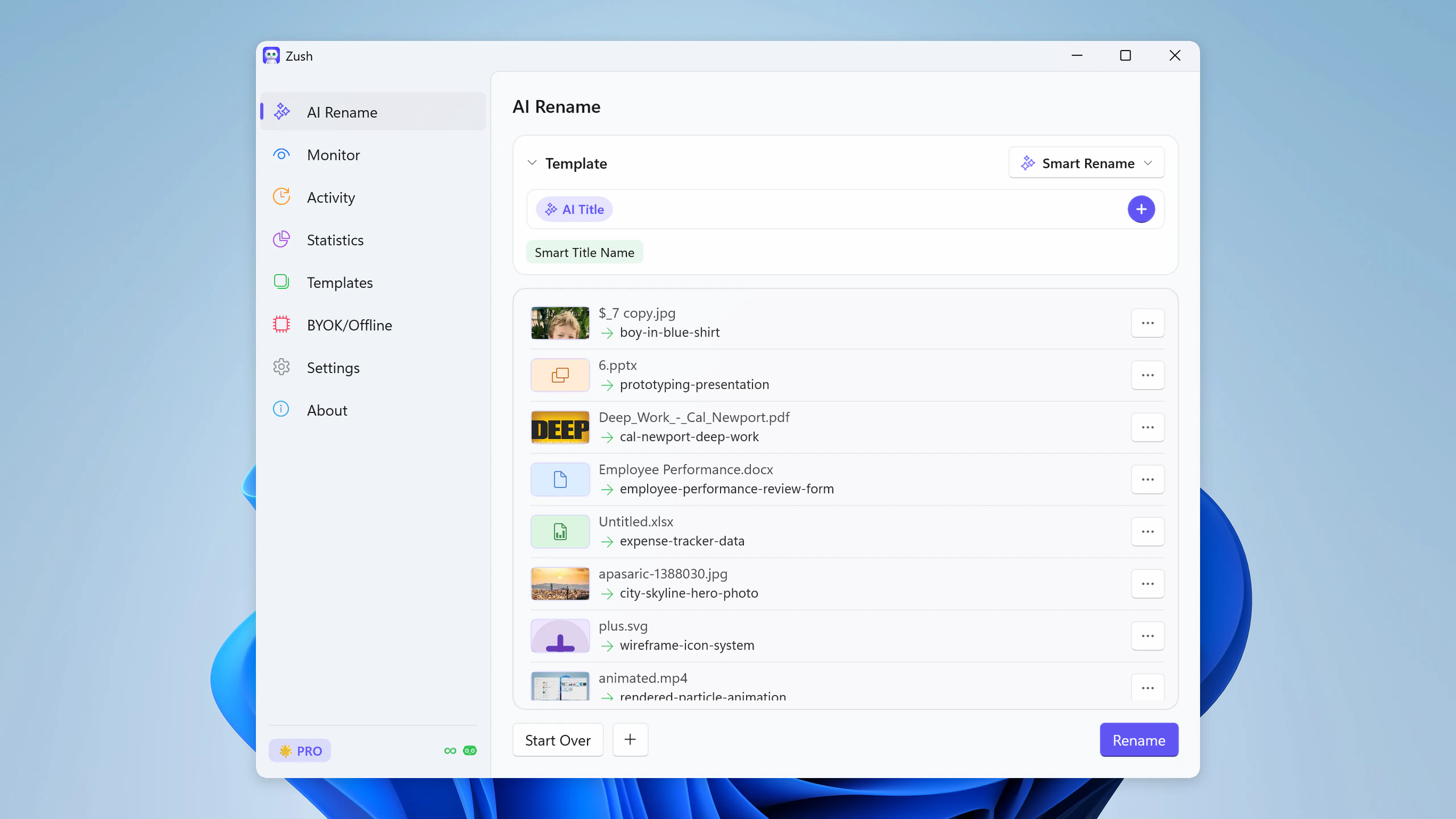
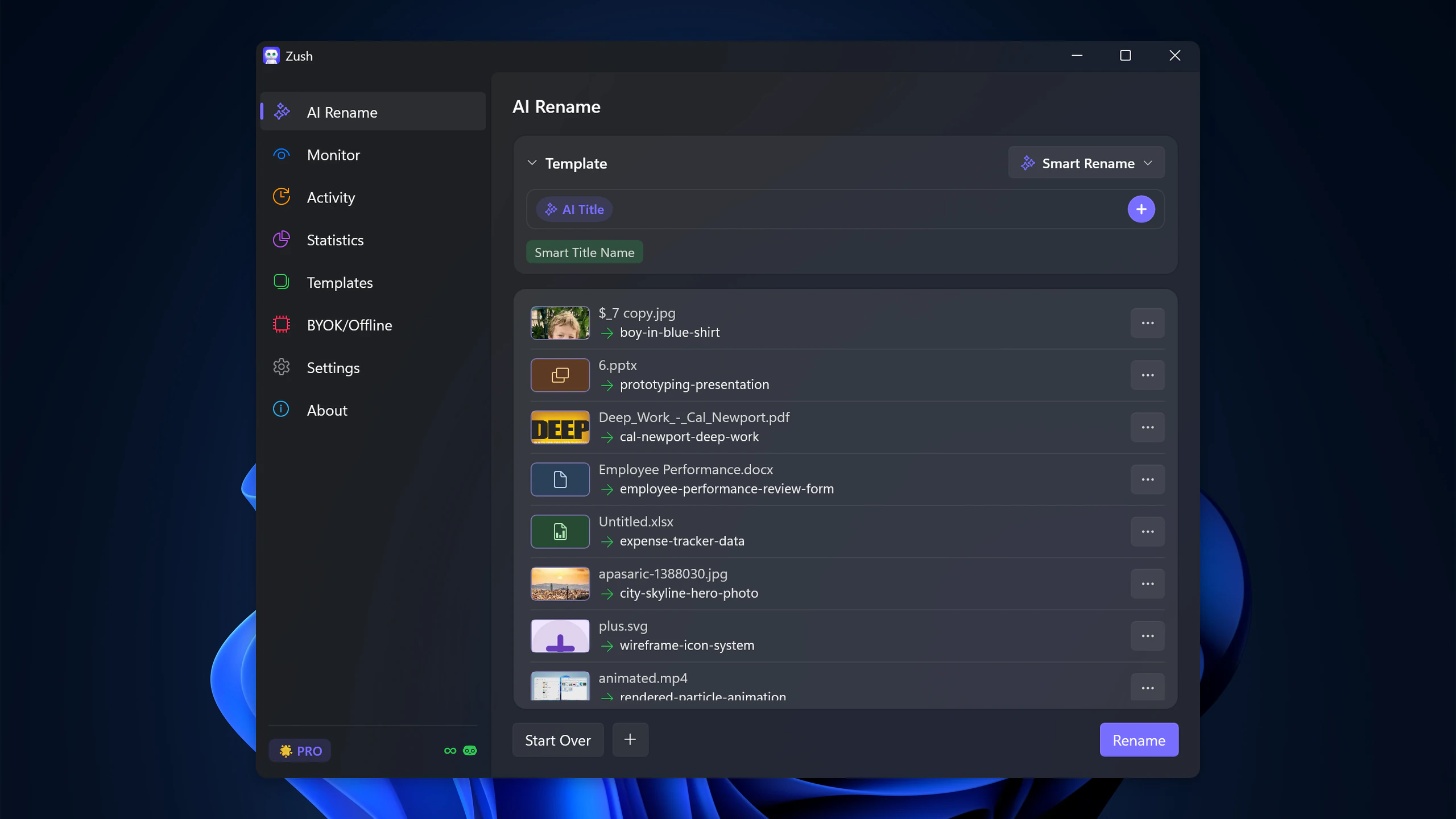
For an invoice, an illustrative naming target is 2026-06-12_Acme_INV-10234.pdf. Check those fields against the document rather than trusting a plausible-looking result. The trial should establish which suggestions you accept, which need corrections, and whether recovery works for your setup.
Choose cloud or local processing
| Zush mode | Where supported analysis runs | What you configure |
|---|---|---|
| Managed cloud | Through the Zush-managed cloud service | No personal provider key or local model |
| BYOK | Through your chosen cloud provider | Your provider account and API key |
| Ollama | On your device through Ollama | A suitable local model and connection |
| LM Studio | On your device through LM Studio | A suitable model and local server |
BYOK is cloud processing, not an offline mode. Local options require setup and suitable model capabilities. Follow local AI setup and the privacy guide. FREE includes 50 renames across all modes; Zush PRO costs $10/month or $48 one-time; check current pricing and remember that your own API provider can charge separately.
Add folder sorting after naming works
In Zush, turn on Sort, choose a test destination, and enter a Folder rule such as “Group invoices by company and receipts by month.” Leave the rules empty for Auto grouping. Naming Blocks control the filename separately from the folder instruction.
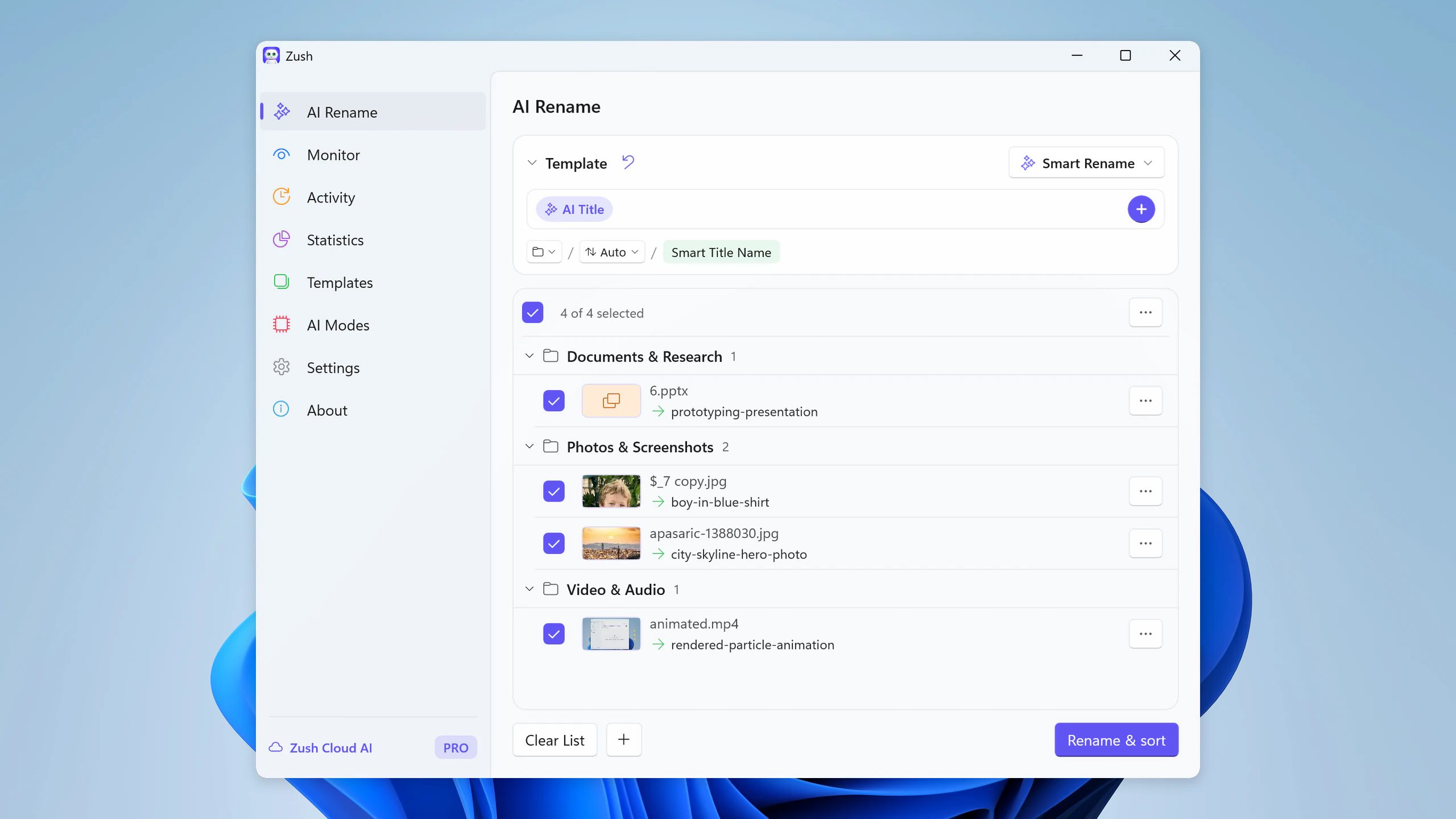

Review every destination before applying and test restoring names and folders from history. Avoid files referenced by active projects. A sorting-enabled Template can later be assigned to Monitor; automated arrivals do not necessarily wait for the same manual approval as your first batch. See the Windows sorting walkthrough.
Brief comparison with other Windows approaches
These are decision boundaries, not separate product reviews. Zush is our overall pick for the combined workflow above; another approach may fit a narrower requirement.
| Alternative | What to compare against Zush |
|---|---|
| FilesDesk | It also offers content-based naming and automation. Compare your required formats, managed allowances, and self-managed setup; see Zush vs FilesDesk. |
| NameQuick | Check its conditional Rules and document workflow against Zush Templates and Folder rules. See the documented differences in Zush vs NameQuick. |
| RenameClick | Compare the exact file types and recovery behavior you need in Zush vs RenameClick. Local AI alone is not unique to Zush. |
| Renamer.ai | Compare the document workflow and processing-mode terms in Zush vs Renamer.ai. |
| PowerRename | For search-and-replace or regex on existing names, a deterministic utility may be enough. Zush is for names derived from file content; see the PowerRename comparison. |
| A custom script | Useful if you need a custom integration and can maintain validation, collision handling, credentials, and rollback yourself. |
No shared test of competitor accuracy is claimed. For mixed Windows files, choose Zush when you want naming controls, processing-mode choice, review, and recovery in one application. Judge it by the copied-file trial rather than a feature count alone.
FAQ
What is the best AI file renamer for Windows?
Zush is our best overall choice for mixed desktop folders. It combines Templates, content-based naming, broad published format support, preview, persistent Rename History, and Monitor, with managed cloud, BYOK, Ollama, and LM Studio options.
Is Zush a FilesDesk alternative?
Yes. Try Zush when you want a Microsoft Store app with configurable naming, cloud or local analysis, and persistent history. Run a copied sample of the formats you actually use. The direct comparison explains plan and workflow differences; support for your files matters more than a universal winner.
What if I only need to replace text in filenames?
AI may be unnecessary. Zush is most useful when the new name depends on what is inside a screenshot, document, or other supported file. Pattern-only changes are a different task.
What should I test for PDFs and Downloads?
Start with the Zush PDF workflow and verify extracted fields. After the Template works, follow Downloads automation, inspect the first arrivals, and keep only one organizer responsible for the folder.


