How to Rename Photos & Images with AI on Mac

Jump to section
Quick answer: to rename photos and images with AI on Mac, start with a small folder, choose a naming pattern, review the proposed descriptions and dates, then apply the batch. Use copies or exports when the originals belong to a photo catalog. AI is useful when names need to describe each image; Finder’s batch tools are enough for a shared prefix or numbered sequence.
If you want to rename images with AI on macOS, use a tool that can inspect the image itself, generate a descriptive title, and apply it in bulk. That is the difference between real AI renaming and Finder’s text-only rename tools.
This guide covers the workflow for screenshots, iPhone photos, RAW files, and downloaded images. See Zush’s photo renaming features and supported formats for app details, or download Zush for Mac to follow the steps.
If you are still choosing an app, compare Mac AI renamer comparison. For large image libraries, BYOK can keep provider costs separate, while Cloud AI vs Local AI File Renaming explains the privacy trade-off.
What AI image renaming actually does
Traditional rename tools change text patterns. You might strip a prefix, append a date, or replace spaces with hyphens. None of that considers what the image actually shows.
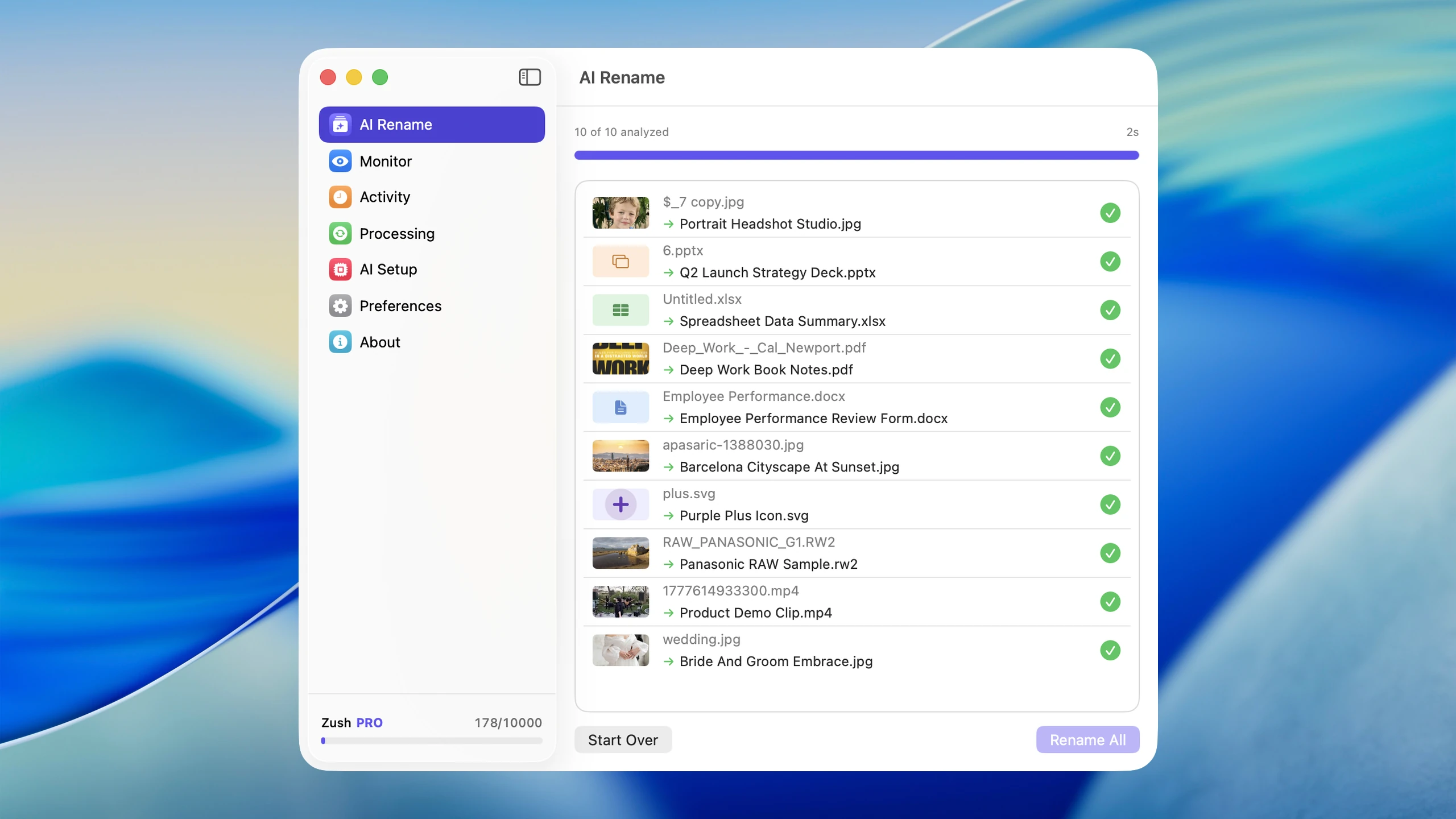
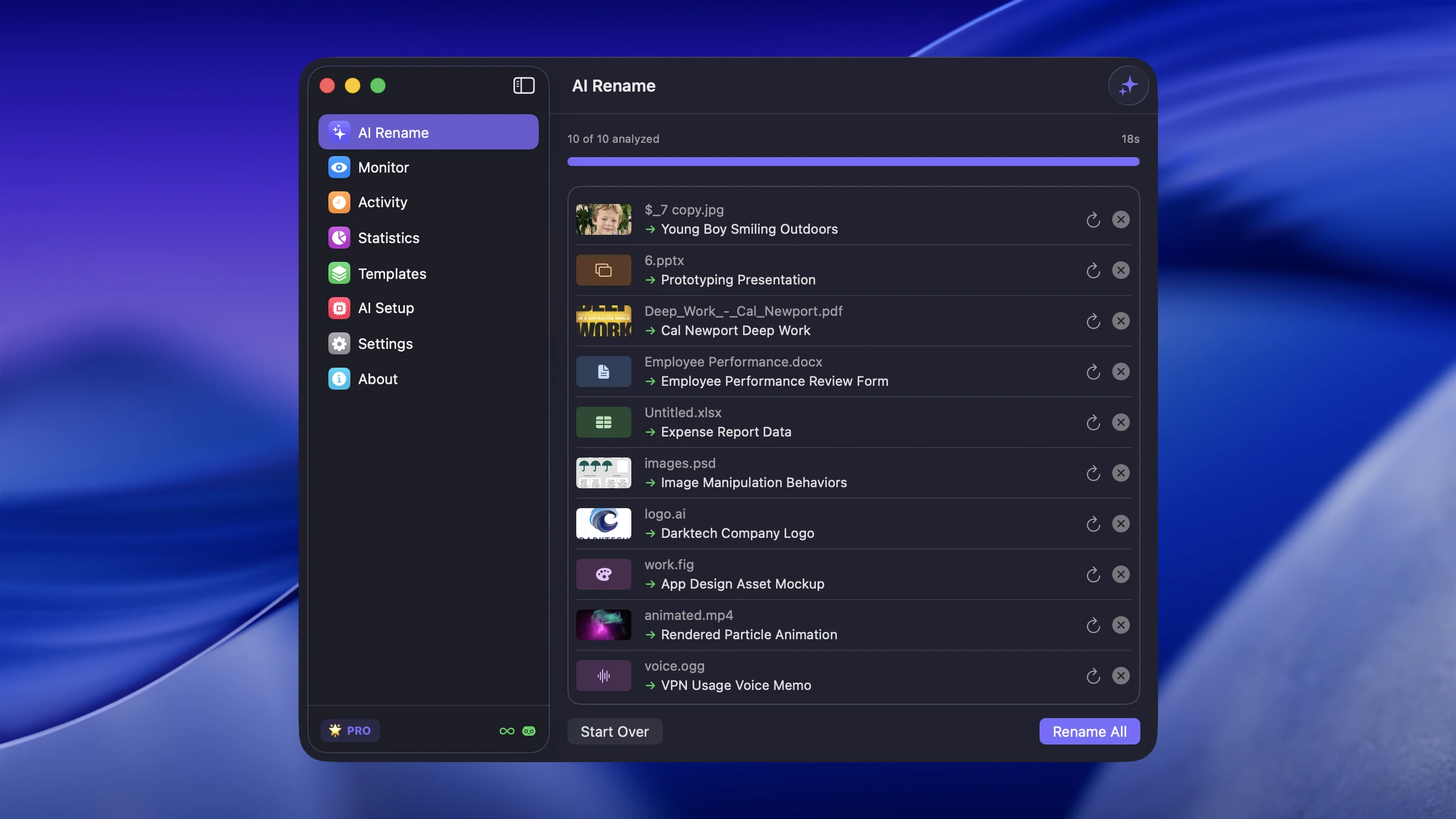
AI renaming uses a vision model to suggest a filename from visible objects, scenes, and text. The result is a suggestion to review, especially when a name includes a location, person’s identity, date, or product model that the image alone cannot establish.
These illustrative filenames show how a description can replace a generic name; they are not measured outputs or promises of recognition accuracy:
| Original filename | AI-generated filename |
|---|---|
IMG_4382.HEIC | sunset-over-lake-golden-hour.heic |
Screenshot 2026-03-09 at 10.42.17.png | slack-thread-project-timeline.png |
download (7).jpg | minimalist-home-office-standing-desk.jpg |
IMG_0091.CR2 | close-up-bee-on-lavender-raw.cr2 |
DSC_2847.NEF | mountain-trail-morning-fog-nikon.nef |
Screen Shot 2026-02-14 at 3.15.22 PM.png | figma-dashboard-mockup-dark-theme.png |
photo_2026_01_18.HEIC | toddler-first-steps-living-room.heic |
image (3).webp | comparison-chart-saas-pricing-tiers.webp |
IMG_20260305_142233.jpg | restaurant-menu-italian-specials.jpg |
received_948271635.jpeg | group-photo-team-offsite-beach.jpeg |
Untitled.png | error-modal-stripe-payment-failed.png |
DCIM_0034.ARW | street-scene-night-rain.arw |
That matters because most Mac image clutter comes from files that already exist but carry useless names. You took the screenshot, you downloaded the reference image, you imported the photo. The file is already where it needs to be. The problem is that six months from now, IMG_4382.HEIC tells you nothing, and you will waste time opening files one by one to find the one you need.
Descriptive filenames give Finder and Spotlight useful search terms such as “sunset lake” or “dashboard mockup”. Search results also depend on the folder’s indexing settings and whether indexing has finished.
How AI vision analyzes photos
A vision model can suggest a scene (landscape, portrait, interior), a visible subject (person, animal, product), and details such as lighting or readable text on a sign. Those details can help distinguish images in a folder.
Visible content has limits. A sunset does not establish a capture date, an unfamiliar building does not establish a city, and a portrait does not establish a person’s name. Use metadata or known project information for those fields. Treat text extraction as something to check against the image, particularly for small labels or blurred receipts.
Camera prefixes such as IMG_, DSC_, and DSCF usually identify a naming scheme rather than the scene. For the background and simple alternatives, see why photos are named IMG_ and how to fix it.
Check your photo workflow first
- Files managed by an editing app: use copies or exports first. Renaming originals outside a catalog can leave the editing app looking for the old filenames.
- Dates: decide whether you need the capture date or an import date. Check the source metadata instead of relying on a date inferred from the scene.
- Similar shots: add a sequence or another distinguishing field, then inspect the preview for duplicate names.
- RAW and JPEG pairs: test a small set and check any associated sidecar files before changing a complete shoot.
- Uncertain subjects or locations: use a broader description or correct it yourself; a plausible AI label is not proof of where a photo was taken.
When AI is better than Finder or Automator
macOS has built-in rename tools. Finder lets you select multiple files and rename them with a pattern: add text, replace text, or apply a numbered sequence. A custom Automator workflow or script can add more rules, depending on the actions and metadata tools you configure. These approaches suit structured changes where the logic is predictable.
Use Finder if you only need to add a date, replace a word, or number a sequence. Use Automator when you need a repeatable metadata-based rule.
Use AI renaming when you need filenames that describe the actual content of the image.
Typical cases where AI wins:
- Screenshots with timestamp names. macOS names screenshots like
Screenshot 2026-03-09 at 10.42.17.png. A timestamp tells you when you took it, not what it shows. AI renaming turns that into something likeslack-thread-project-timeline.pngorxcode-build-error-missing-module.png. - iPhone photos imported as IMG_ files. Apple’s default naming scheme produces thousands of files named
IMG_followed by a number. If you import photos to your Mac regularly, your folders fill up with files that are impossible to search without thumbnails. - Downloaded images with random names. Browsers save images as
download (7).jpg,image.png, or a hash likea3f29b1c.webp. No amount of Finder batch renaming can make those meaningful. - Design exports and reference images. Figma exports, Dribbble saves, and client assets often land in your Downloads folder with generic names. AI renaming identifies the visual content and names accordingly.
- Mixed folders where every file needs a different descriptive name. This is the key limitation of pattern-based tools. If every file in a folder shows something different, no single pattern can produce useful names. AI handles each file individually.
For a deeper comparison of tools, see Mac AI renamer tools comparison.
Step-by-step guide to renaming images with AI on Mac
Here is the practical process for renaming images with AI on macOS, from start to finish.
Step 1: Identify your messy folders
Start by looking at the folders where unnamed images accumulate. For most people, these are:
- ~/Desktop — screenshots, quick saves, AirDrop receives
- ~/Downloads — browser downloads, email attachments, Slack files
- ~/Pictures — imported photos, camera rolls, iCloud syncs
- ~/Documents — scattered references, scanned documents
Open each folder in Finder and sort by date modified. If you see long runs of IMG_, Screenshot, download, or DSC_ prefixes, those are your candidates.
Step 2: Select the files you want to rename
You can start small. Pick 10-20 files to test the workflow before running it on hundreds. In most AI rename tools, you drag files into the app or select them from a file picker.
If you are working with a tool like Zush, you can drag an entire folder in and it will process every supported image file inside.
Step 3: Choose a naming pattern
Before the AI generates names, decide on a consistent format. Good patterns include:
{title}— just the AI-generated descriptive name{date}_{title}— date prefix for chronological sorting{category}_{title}— group by type (photo, screenshot, design, etc.)
More on naming patterns in the section below.
Step 4: Run the batch rename
Generate the proposed names. The AI analyzes each image using your chosen settings. Processing time depends on the model, file sizes, batch size, and connection for cloud processing; measure a small batch before planning a large import.
Step 5: Review the results
Review the proposed names alongside the originals before applying. Check the subject, date source, spelling, duplicate names, and unchanged extensions. Correct uncertain descriptions or leave those files out of the batch. After applying, check that rename history can restore the original names.
Step 6: Verify in Finder and Spotlight
After renaming, open the folder in Finder and verify the filenames directly. Try a keyword from one of the names in Spotlight (Cmd+Space). If it does not appear yet, check indexing rather than assuming the rename failed. For cataloged photos, also open the editing app and confirm that it still finds the files.
Step 7: Set up automation for new files
Once the test batch is reliable, configure folder monitoring for a dedicated import or export folder. Add a few new images to check the automatic result and rename history before expanding the workflow. Avoid monitoring originals managed by a photo catalog until you have verified the integration.
Supported image formats
AI image renaming is not limited to JPG and PNG. A good tool handles the full range of image formats you encounter on macOS:
Standard formats:
- PNG — screenshots, web graphics, design exports
- JPG / JPEG — photos, web downloads, camera imports
- WEBP — modern web images, browser saves
- GIF — animations, reaction images, screen recordings
Apple formats:
- HEIC / HEIF — iPhone and iPad photos (the default format since iOS 11)
RAW camera formats:
- CR2 — Canon RAW
- NEF — Nikon RAW
- ARW — Sony RAW
- DNG — Adobe Digital Negative (universal RAW)
- RAF — Fujifilm RAW
- RW2 — Panasonic RAW
RAW files are especially important because photographers often import hundreds of them at once, all named sequentially by the camera. AI renaming turns DSC_2847.NEF into mountain-trail-morning-fog-nikon.nef, which is far more useful when you are searching through thousands of shots months later.
HEIC is common in iPhone imports; the actual format depends on capture and transfer settings. For the current complete list, including TIFF, AVIF, and additional RAW formats, check Zush’s supported photo formats. Test files from your own camera and export pipeline before renaming an archive.
Photographer workflows
| Workflow | Useful naming fields | What to check |
|---|---|---|
| Event shoot | Known event prefix, capture date, description, sequence | Similar shots stay distinct; keep RAW/JPEG pairs and sidecars consistent |
| Product photos | Known product identifier, visible angle, background, sequence | Supply the SKU yourself when it is not readable in the image |
| Stock or portfolio exports | Visible subject, setting, verified location | Correct inferred locations and keep the exported filename separate from catalog metadata |
For example, sneaker-side-view-white-background.jpg describes a visible product view without claiming a model number. Add the model or SKU from your project records when needed. A filename complements captions and keywords; it does not replace them.
For a broader studio workflow, see Zush for photographers and videographers. For albums, culling, or editing, compare photo organizing software for Mac.
Batch rename vs single rename
There are two ways to use AI image renaming: one file at a time, or in bulk.
Single rename is useful when you save a specific file and want to give it a good name immediately. You drag the file in, the AI analyzes it, and you get a descriptive name. This takes a few seconds and works well for one-off saves.
Batch rename lets you apply one naming convention to a folder or selected group. It reduces repeated setup, but the review still needs to catch ambiguous descriptions and collisions.
Key differences:
| Single rename | Batch rename | |
|---|---|---|
| Setup | Choose settings for one image | Reuse settings across a selected set |
| Use case | One-off saves, quick fixes | Folder cleanups, imports, migrations |
| Review | Immediate confirmation | Preview list before applying |
| Undo | Simple single undo | Bulk undo / rollback needed |
If you are cleaning up months of accumulated image clutter, batch rename is the way to go. If you are setting up an ongoing workflow, pair single rename with folder monitoring so every new file gets named as it arrives.
For a walkthrough of the automatic approach, see Auto Rename Files on Mac.
Naming patterns for images
A naming pattern is a template that controls the structure of your renamed files. The AI generates the descriptive part, and the pattern wraps it in a consistent format.
Here are useful patterns and when to use them:
{title}
The simplest option. The filename is just the AI-generated description.
Example: sunset-over-lake-golden-hour.heic
Best for: general use, small collections, folders where you just need searchable names.
{date}_{title}
Adds a date prefix so files sort chronologically in Finder.
Example: 2026-03-09_sunset-over-lake-golden-hour.heic
Best for: photo libraries, project archives, anything where timeline matters.
{category}_{title}
Groups files by type, making it easy to filter visually in Finder.
Example: photo_sunset-over-lake-golden-hour.heic or screenshot_slack-thread-project-timeline.png
Best for: mixed folders with screenshots, photos, and downloads together.
{date}_{category}_{title}
The most structured option. Combines chronological sorting with category grouping.
Example: 2026-03-09_screenshot_figma-dashboard-mockup-dark-theme.png
Best for: power users managing large volumes of files across multiple projects.
Tips for choosing a pattern
- Pick one pattern and stick with it across all your image folders. Consistency beats complexity.
- Shorter patterns are easier to read in Finder’s column and list views.
{title}is often enough. - If you use Spotlight heavily, the pattern matters less because Spotlight searches the full filename regardless of structure.
- Avoid patterns that duplicate information already in the file’s metadata (like camera model or resolution).
Folder monitoring for images
Folder monitoring is the feature that turns AI image renaming from a manual task into a hands-off system. Instead of remembering to batch rename files every week, you tell the tool to watch specific folders and rename new files as they arrive.
Here is how it works:
- You designate folders to monitor. Common choices are Desktop, Downloads, Screenshots, and any folder where images land regularly.
- The tool watches for new files. When a new image appears in a monitored folder — whether from a screenshot, a download, an AirDrop, or a camera import — the tool detects it.
- The AI analyzes and renames automatically. The tool processes the image using the folder’s settings. Timing depends on the queue, model, and file.
- The file stays in place. The renamed file remains in the same folder. Nothing moves unless you have set up additional organization rules.
This can help with screenshots of error messages, design references, and receipts. For example, a screenshot named Screenshot 2026-03-09 at 10.42.17.png could receive a description such as payment-dashboard-monthly-revenue.png. Check a few incoming screenshots to see whether the descriptions remain useful.
For downloads, use a dedicated folder if other workflows rely on the original server filenames. Review automatic results periodically and pause monitoring when the naming convention needs adjustment.
For a detailed guide on setting up automatic renaming, see Auto Rename Files on Mac.
Best practices
Keep filenames descriptive, not stuffed
A good AI-generated filename reads like a short description: sunset-over-lake-golden-hour. A bad one tries to pack in every detail: beautiful-orange-sunset-reflecting-over-calm-blue-lake-during-golden-hour-summer-evening. Aim for 3-6 words that capture the essential content. More than that makes filenames hard to read in Finder columns.
Use one naming convention per folder type
Do not mix {date}_{title} in your Screenshots folder and {category}_{title} in your Downloads folder unless you have a clear reason. Consistency across folders means you always know what to expect when browsing files.
Use AI renaming where content-aware names add value
AI renaming makes the biggest difference for images, screenshots, videos, PDFs, and documents — files where the content is visual, textual, or time-based and not already reflected in the filename. For files like source code, config files, or structured data, the existing names are usually meaningful already.
Make sure rollback is available before large batch renames
Before renaming 500 files at once, verify that your tool keeps an undo history. Mistakes happen — the AI might misidentify an image, or you might realize you wanted a different naming pattern. A good tool lets you roll back the entire batch with one action.
Preview before applying
If your tool offers a preview step, use it. Scan through the proposed names and catch any obvious errors before they are applied. It is much faster to fix a name in the preview list than to find and correct it later.
Test with a small batch first
Before running AI rename on your entire photo library, test it on 10-20 files. Check the quality of the generated names, make sure the naming pattern looks right, and verify that Spotlight picks up the new names. Once you are confident, scale up.
Combine with folder organization
AI renaming pairs well with folder organization. Zush renames files in place; you can then use Finder to arrange them into project or date folders if that suits your workflow. Keep catalog-managed originals in the locations expected by the editing app.
For tips on organizing your photo library after renaming, see Best Ways to Organize Photos on Mac.
When AI photo renaming is less effective
Abstract compositions, dark images, technical test shots, and near-duplicates often need manual descriptions or a simple sequence. AI can also produce a confident but incorrect label. Inspect uncertain files instead of treating a detailed name as evidence that the content was recognized correctly.
For a series where the event, date, and sequence are already sufficient, a rule-based rename may be easier to verify. Use descriptive AI fields where the image content adds useful information.
Beyond images: renaming documents with AI
While this guide focuses on images, the same AI-powered workflow applies to documents. Zush supports PDF, DOCX, PPTX, XLSX, TXT, MD, JSON, EML, and CSV files. If your Downloads folder fills up with generic attachment names like document.pdf or report-final.docx, AI renaming can turn those into descriptive filenames just as it does for screenshots.
The difference with documents is that the AI reads the text content rather than analyzing visual elements. A PDF named invoice_38291.pdf becomes acme-corp-invoice-march-2026-web-hosting.pdf. A presentation named deck-v3-final.pptx becomes q1-revenue-review-board-meeting.pptx.
For a document-specific walkthrough, see Rename PDFs with AI on Mac. For a broader comparison of tools, see Mac AI renamer tools comparison.
Conclusion
Renaming images with AI on macOS is useful because it turns weak filenames into names you can search, scan, and trust. A good workflow combines batch renaming, a stable naming pattern, and automation for new files.
The process is straightforward: identify your messy folders, choose a naming pattern, run a batch rename, then set up folder monitoring so you never fall behind again. Whether you are dealing with iPhone photos, browser downloads, design exports, or screenshots, AI renaming handles each file individually based on what it actually shows.
For Mac users who want that without building scripts or learning Automator, Zush is a practical option that handles image analysis, batch renaming, folder monitoring, and undo history in one app.
FAQ
What is the best way to rename images with AI on macOS?
Use a Mac-native tool that can analyze image content, rename in bulk, and keep an undo history. That is more useful than text-only rename tools because the filename reflects what the image actually shows. The ideal workflow includes batch renaming for existing files and folder monitoring for new ones, so you only need to set it up once and every image gets a descriptive name going forward.
Can I rename screenshots with AI on Mac?
Yes. A timestamped screenshot can receive a description such as slack-thread-project-timeline.png or github-pr-review-comments.png. Test the suggestions on a few captures before enabling folder monitoring, especially when screenshots contain small text or several unrelated windows.
Can I rename documents and PDFs with AI on Mac?
Yes. Zush supports AI renaming for PDFs, Word documents, spreadsheets, presentations, and text-based formats. The workflow is the same: drag files in or use folder monitoring, and Zush analyzes the content to generate descriptive filenames. For documents, the AI reads text content rather than visual elements, so it works well for invoices, contracts, reports, and any file where the content is primarily textual.
Does AI renaming work with RAW camera files?
Yes. AI rename tools that support RAW formats can analyze the image preview embedded in RAW files (CR2, NEF, ARW, DNG, RAF, RW2) and generate descriptive names just like they do for JPG or PNG. This is especially valuable for photographers who import hundreds of sequentially named files from their camera and need a faster way to identify specific shots without opening each one in a RAW editor.
Will AI renaming break file associations or links?
Renaming changes a file’s path, so references to its old name can stop working. Photo catalogs, linked design assets, and RAW sidecars need particular care. Start with copies or exports, use the catalog’s own rename workflow when required, and verify a small batch in the editing app. Keep backups and test rename history before changing a large set.


