How to Rename Files with AI in 2026: Step-by-Step Guide

Jump to section
Quick answer: AI file renaming sends a file content (image pixels or document text) to a vision-or-language model that returns a descriptive filename. Drop files into Zush, review suggestions in a preview, and apply with one click — no manual typing.
Most files arrive with useless names. Screenshots get timestamps. Photos get camera codes. Downloads get hashes or sequence numbers. You end up with a folder full of files you cannot find without opening each one.
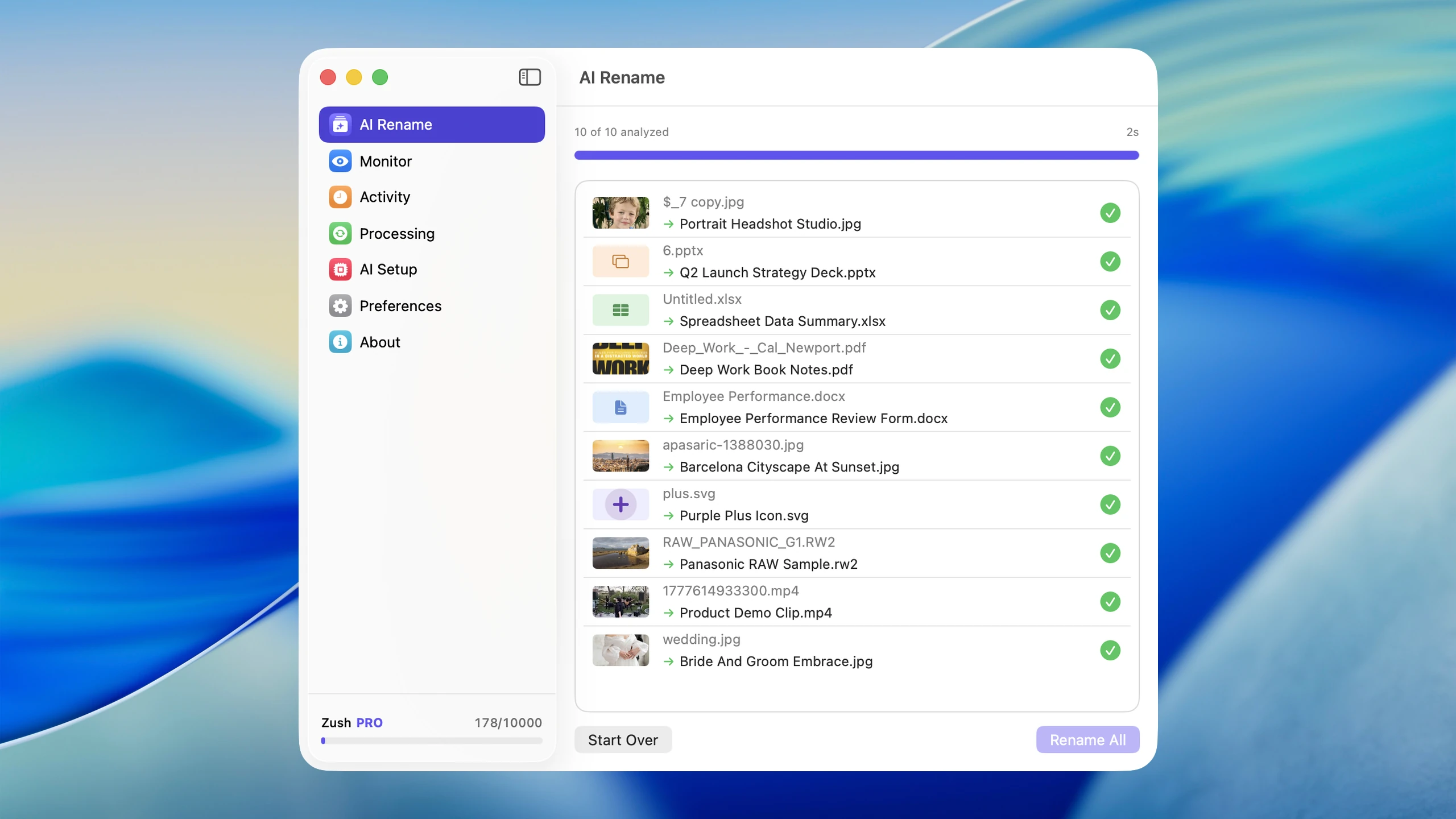
AI file renaming solves this by analyzing the actual content of a file and generating a descriptive filename from it. Instead of IMG_4821.HEIC, you get golden-retriever-playing-in-park.heic. Instead of Screenshot 2026-03-23 at 14.32.08.png, you get stripe-dashboard-monthly-revenue.png.
To choose which file details belong in a name, read Rename Files by Content. For installation options and system requirements, see Zush for Mac or Zush for Windows. To compare rule-based and AI options before trying this workflow, see the file renamer tools guide and the AI app comparison.
If pricing, privacy, or high-volume usage is the deciding factor, read BYOK AI File Renaming and Cloud AI vs Local AI File Renaming before choosing a setup.
This guide covers what AI file renaming is, how it works, and how to apply it step by step without assuming you have already chosen a tool.
What AI file renaming actually does
Traditional rename tools work with text patterns. They can find and replace strings, add prefixes, append dates, or number files sequentially. That is useful when the rename rule is predictable and the same for every file.
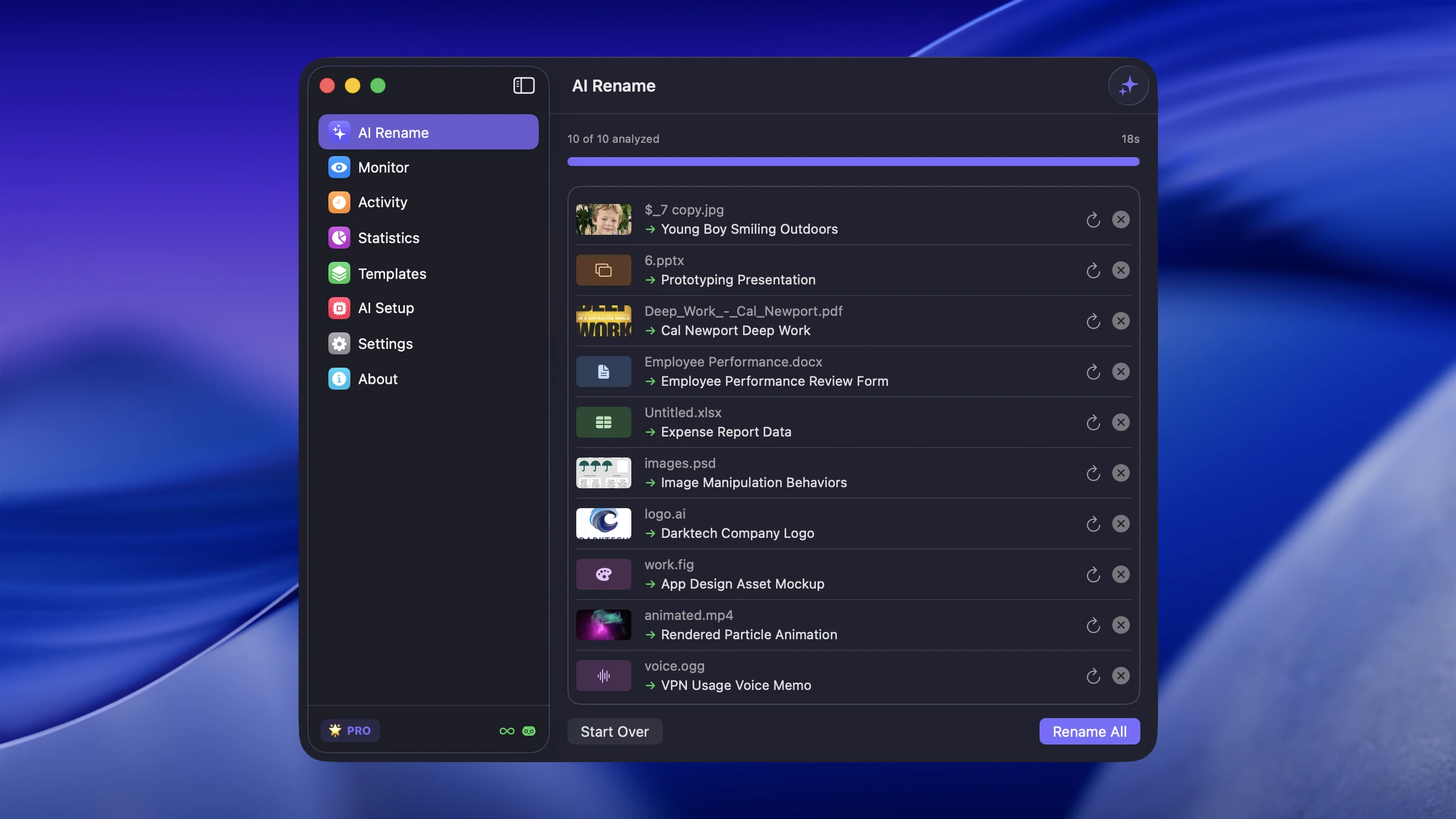
AI renaming is different. It sends the file to a vision or language model, which analyzes the content and returns a descriptive name. The tool then applies that name to the file.
This means:
- An image of a restaurant menu becomes
italian-restaurant-lunch-menu.jpg - A PDF of a tax form becomes
2025-w2-form-employer-name.pdf - A Word document about project requirements becomes
mobile-app-requirements-v2.docx
The AI does not care what the original filename was. It reads the file and names it based on what it finds.
Why it matters
The practical benefit is searchability. On macOS, Spotlight indexes filenames. On Windows, the search bar does the same. When your files have descriptive names, you find them without remembering which folder they are in.
There are other reasons:
- Collaboration. Sharing a file called
quarterly-sales-report-q1-2026.pdfis clearer thandocument (3).pdf. - Backup organization. Backups full of meaningless filenames are difficult to browse months later.
- SEO and web publishing. Image filenames contribute to search engine indexing. Descriptive names improve discoverability.
- Reducing decision fatigue. You stop spending mental energy figuring out what to call each file.
Before and after examples
| Original filename | AI-generated filename |
|---|---|
IMG_7294.HEIC | beach-sunset-pacific-coast.heic |
Screenshot 2026-03-23 at 09.15.42.png | figma-mobile-login-screen-design.png |
download (14).jpg | minimalist-desk-setup-dual-monitors.jpg |
Document.pdf | apartment-lease-agreement-2026.pdf |
scan0043.png | handwritten-meeting-notes-march.png |
DSC_0891.NEF | hummingbird-red-flower-macro.nef |
Notice that the AI-generated names are lowercase, hyphenated, and descriptive. Most tools follow this convention because it produces clean, searchable, URL-safe filenames.
How AI file renaming works step by step
The general workflow is the same regardless of which tool you use:
Step 1: Select files
Choose the files you want to rename. This can be a handful of files or an entire folder. Most tools support drag-and-drop or folder selection.
Step 2: The tool analyzes content
For images, the tool sends the file to a vision model that identifies objects, scenes, text, and context. For documents like PDFs, it extracts text content and summarizes the subject. For office documents, it reads the text and identifies the topic.
Step 3: AI generates a filename
The model returns a descriptive name based on what it found. Some tools let you customize the naming pattern, such as including dates, prefixes, or specific formatting rules.
Step 4: Review and apply
Good tools show you a preview of the proposed names before applying them. You can adjust individual names or approve the entire batch. The rename happens locally on your machine.
Step 5: Undo if needed
The best tools keep a rename history so you can revert any change. This matters when you are processing hundreds of files at once. Before using a real work folder, follow the safe batch rename checklist for test batches, extension checks, collision review, and recovery.
Best ways to rename files with AI
On desktop: Zush
Zush is built specifically for this workflow on desktop. It supports 100+ formats across images, design files, documents, videos, and audio, including PNG, JPG, HEIC, RAW, PDF, DOCX, XLSX, SRT, VTT, MP4, MOV, and M2TS.
Key features:
- Batch rename. Select a folder or drag files in, and Zush renames them all in one pass.
- Folder monitoring. Set Zush to watch a folder, and new files get renamed automatically as they arrive.
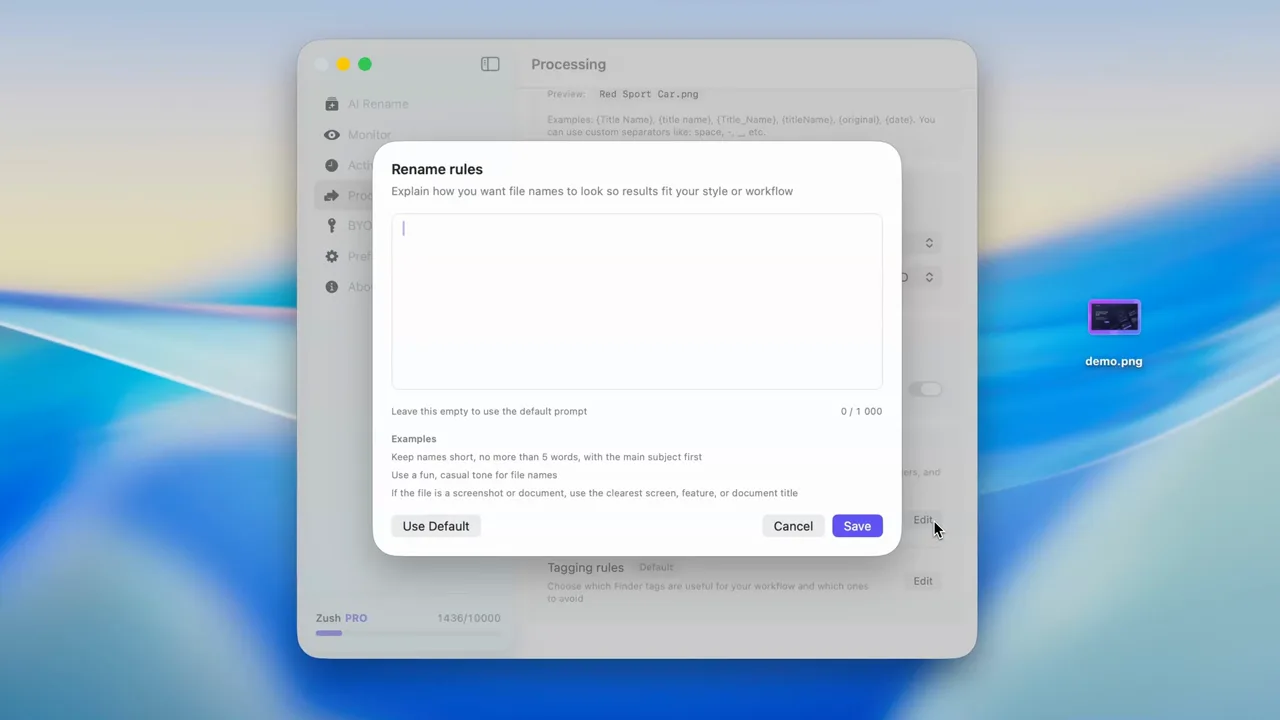
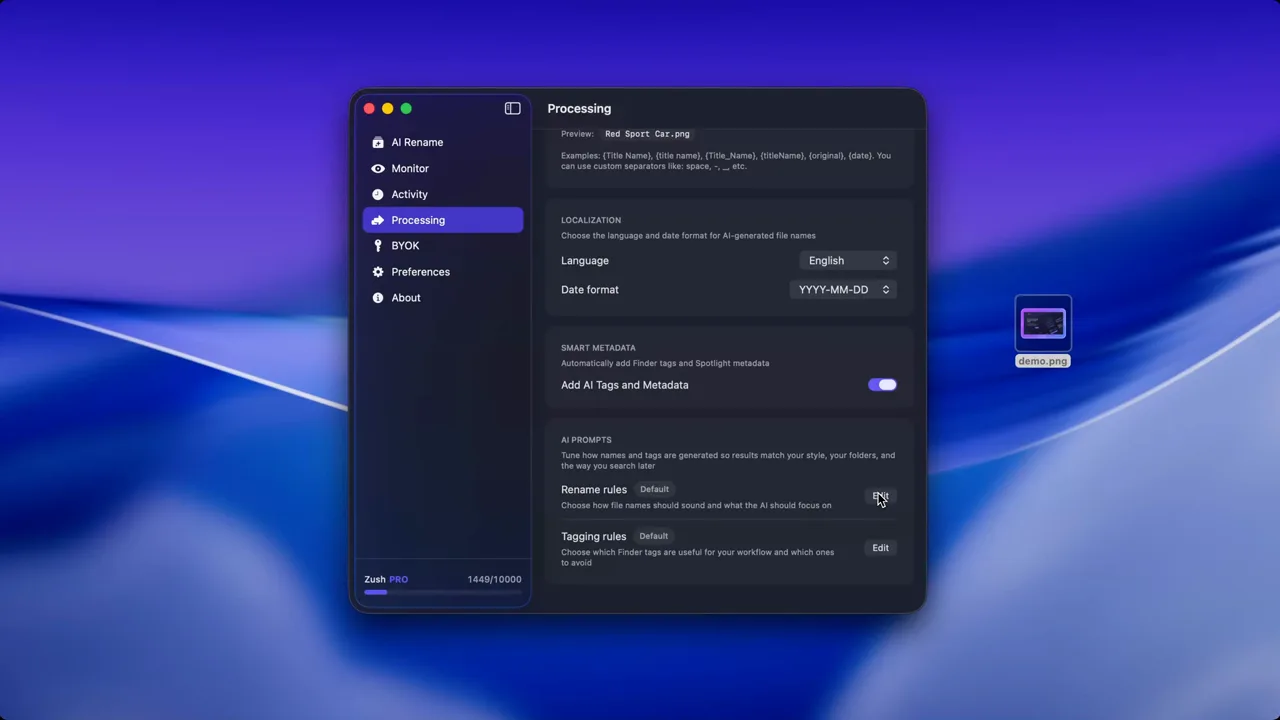
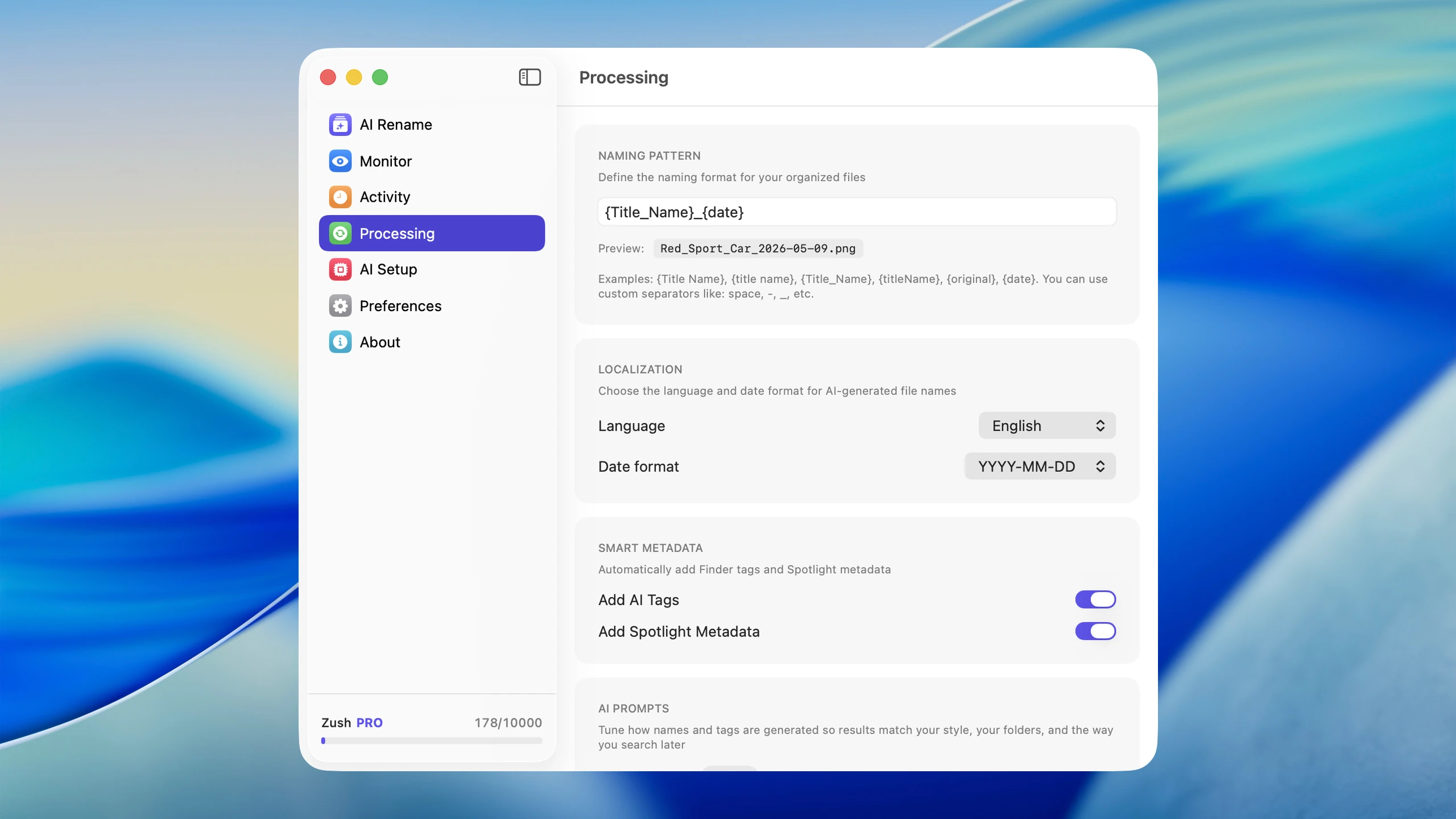
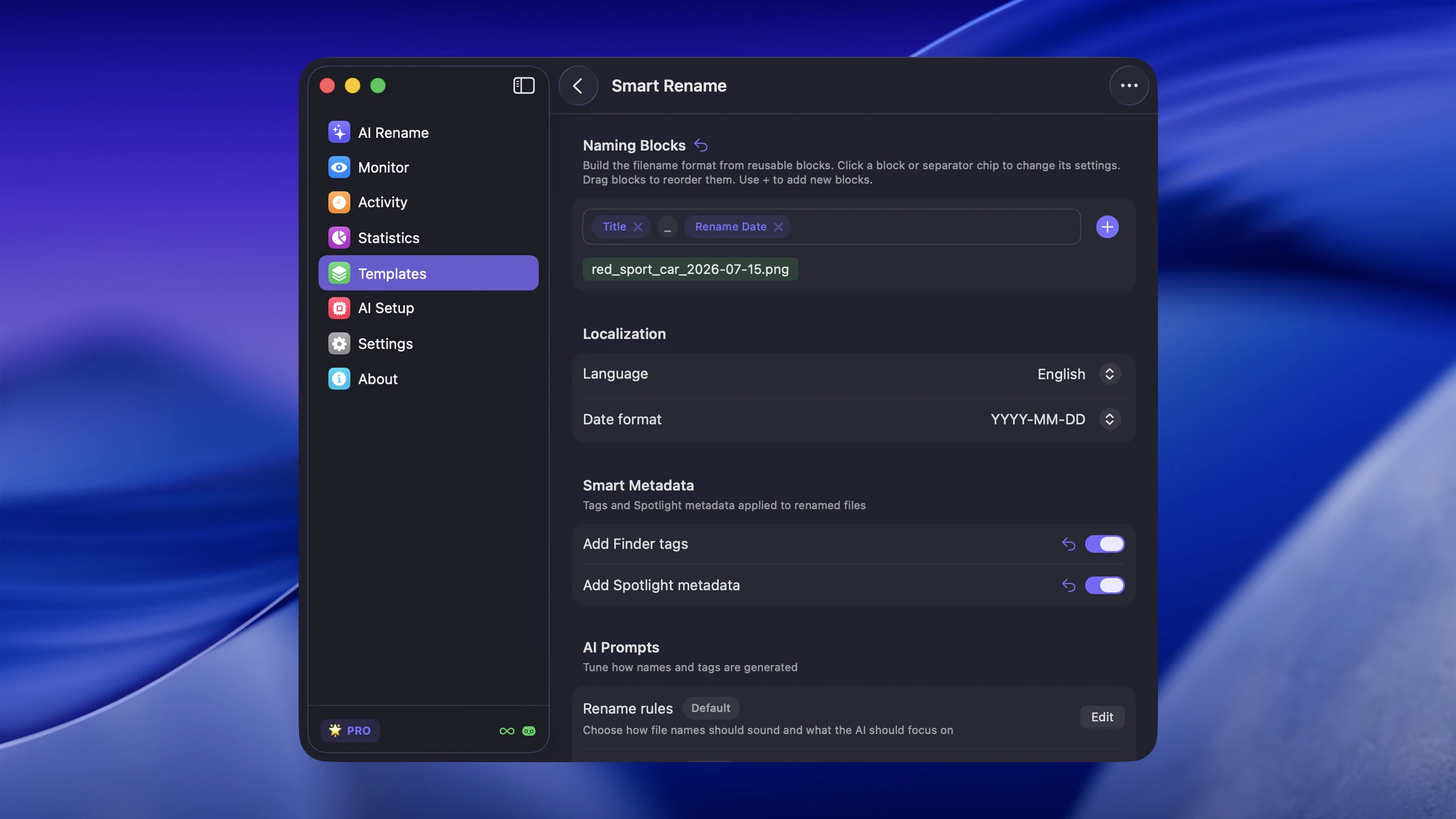
- Custom patterns. Define naming templates that control how filenames are structured.
- Search-friendly metadata. Zush can apply useful naming patterns and metadata so files are easier to find later.
- Multiple AI providers. Choose from Gemini, OpenRouter, OpenAI, or Claude depending on your preference.
- 60+ languages. Generate filenames in your preferred language.
- Rename history. Every rename is logged and reversible.
Zush FREE offers 50 renames shared across Cloud AI, BYOK, and Offline AI. For heavier use, PRO removes the limit with either a $10/month plan or a $48 one-time plan.
For a detailed comparison of tools in this space, read AI renamer tools comparison.
On any platform: command-line tools
Developers comfortable with the terminal can build AI rename scripts using the OpenAI or Google APIs directly. The flow is:
- Loop through files in a directory.
- For images, encode and send to a vision API endpoint.
- For documents, extract text and send to a language model.
- Parse the response and rename the file.
This works but requires setup, error handling, rate limit management, and does not include undo functionality. It is more of a proof of concept than a daily tool.
Browser-based tools
Some web tools let you upload files for AI-based renaming. The trade-off is that your files leave your machine, processing is slower for large batches, and you have to re-download everything afterward. For sensitive documents, this is usually a non-starter.
Step-by-step: renaming files with AI using Zush
Here is the practical walkthrough for the most common workflow.
One-time batch rename
- Open Zush.
- Drag a folder or select files from Finder.
- Zush analyzes each file and proposes descriptive names.
- Review the preview list. Edit any names you want to adjust.
- Click rename. All files are renamed in place.
- Check the rename history if you need to revert anything.
Automatic rename with folder monitoring
- Open Zush preferences.
- Add a folder to the monitoring list (for example, your Downloads folder or Screenshots folder).
- Choose your naming pattern and AI provider.
- New files that land in that folder are renamed automatically.
This is the setup that prevents clutter from accumulating in the first place. Instead of cleaning up once a month, the mess never forms.
For a Mac-specific batch tutorial, see Mac batch rename methods. For the Windows equivalent workflow, go to How to Rename Files with AI on Windows or straight to the AI batch rename tool.
Common formats supported
Most AI file renamers focus on images. A few tools also handle documents.
Image formats
PNG, JPG, JPEG, HEIC, HEIF, WebP, TIFF, BMP, GIF, SVG, AVIF, and RAW formats from major camera manufacturers (CR2, CR3, NEF, ARW, DNG, RAF, ORF, RW2, PEF, SRW, and others).
Document formats
PDF, DOCX, DOC, XLSX, XLS, PPTX, PPT, TXT, RTF, and CSV.
A tool that only handles JPG and PNG will miss half the files in a real desktop workflow. HEIC from phones and RAW from cameras are the formats that need renaming most.
Free options for AI file renaming
You do not need to pay to start using AI for file renaming.
- Zush free tier. 50 free renames at no cost. Enough to try the workflow and handle light ongoing use.
- Zush BYOK. Bring your own API key from any supported provider and rename without the managed rename cap. You pay the provider’s metered API cost, which depends on model, file size, prompt length, and token usage.
- DIY scripts. If you have API access already, a Python script with the OpenAI vision API can rename images. No GUI, no undo, but free beyond API costs.
For a deeper dive into free approaches, read How to Rename Files with AI for Free in 2026.
Frequently asked questions
Does AI file renaming change my file contents?
No. The file content is never modified. Only the filename changes. The file itself remains identical.
Is it safe for sensitive documents?
With tools like Zush, you control which AI provider processes your files. If you use a local model or a provider you trust, your files are handled according to that provider’s privacy policy. Files are sent for analysis only, not stored by the renaming tool.
How accurate are the generated names?
Accuracy depends on the AI model and the clarity of the file content. Screenshots of UI elements, documents with clear text, and photos with identifiable subjects produce specific, useful names. Abstract art or very dark images get more generic names.
Can I customize the naming format?
Yes. Most tools let you set patterns like date-description, category-description-number, or your own custom template. Zush supports custom patterns that give you control over the structure of every generated name.
Does it work with files already in subfolders?
Yes. You can point batch rename at a parent folder or select specific subfolders. Folder monitoring watches the specific directories you configure.
When AI renaming is not the right tool
AI renaming is best when files need unique descriptive names based on their content. It is not the best choice for:
- Simple sequential numbering. Finder or Automator handles
photo-001,photo-002faster. - Metadata extraction. If you want EXIF date or camera model in the filename, a metadata-based renamer is more precise.
- Regex text replacement. For pattern-based text transforms across filenames, a regex tool or shell script is better.
Use the right tool for the job. AI is the answer when the filename should describe what is inside the file, and that description requires understanding the content.
Getting started
The fastest way to try AI file renaming is to download Zush and point it at your Downloads or Screenshots folder with the 50-rename free tier. Check whether the generated names match what you would have typed manually. If they do, turn on folder monitoring so the next week of new files rename themselves.


