How to Use Finder Tags on Mac: Smart Folders & Search

Auf Deutsch lesen: Finder-Tags auf dem Mac: Dateien organisieren und wiederfinden
Jump to section
Quick answer: Finder tags are color-coded labels that work across folders. Use them for cross-folder retrieval (urgent, invoice, reference), combine with Smart Folders to auto-collect tagged files, and use Spotlight to search them later.
Choose your Mac file-search task
| I need to… | Go directly to | Result |
|---|---|---|
| Label files across different folders | Finder tags | One reusable status or project label |
| Build an automatically updated file view | Smart Folders | A saved search that updates itself |
| Find a file immediately | Spotlight | A fast query by kind, tag, date, or name |
| Make generic files searchable | Descriptive filenames | Search terms that work in every Mac tool |
macOS includes three powerful file search and organization tools that most people use separately, if at all. Finder tags, Smart Folders, and Spotlight each solve a different piece of the file retrieval puzzle, and they become dramatically more effective when used together.
This guide covers all three tools, how to set each one up correctly, and how to combine them with readable filenames so Mac files are easier to find later.
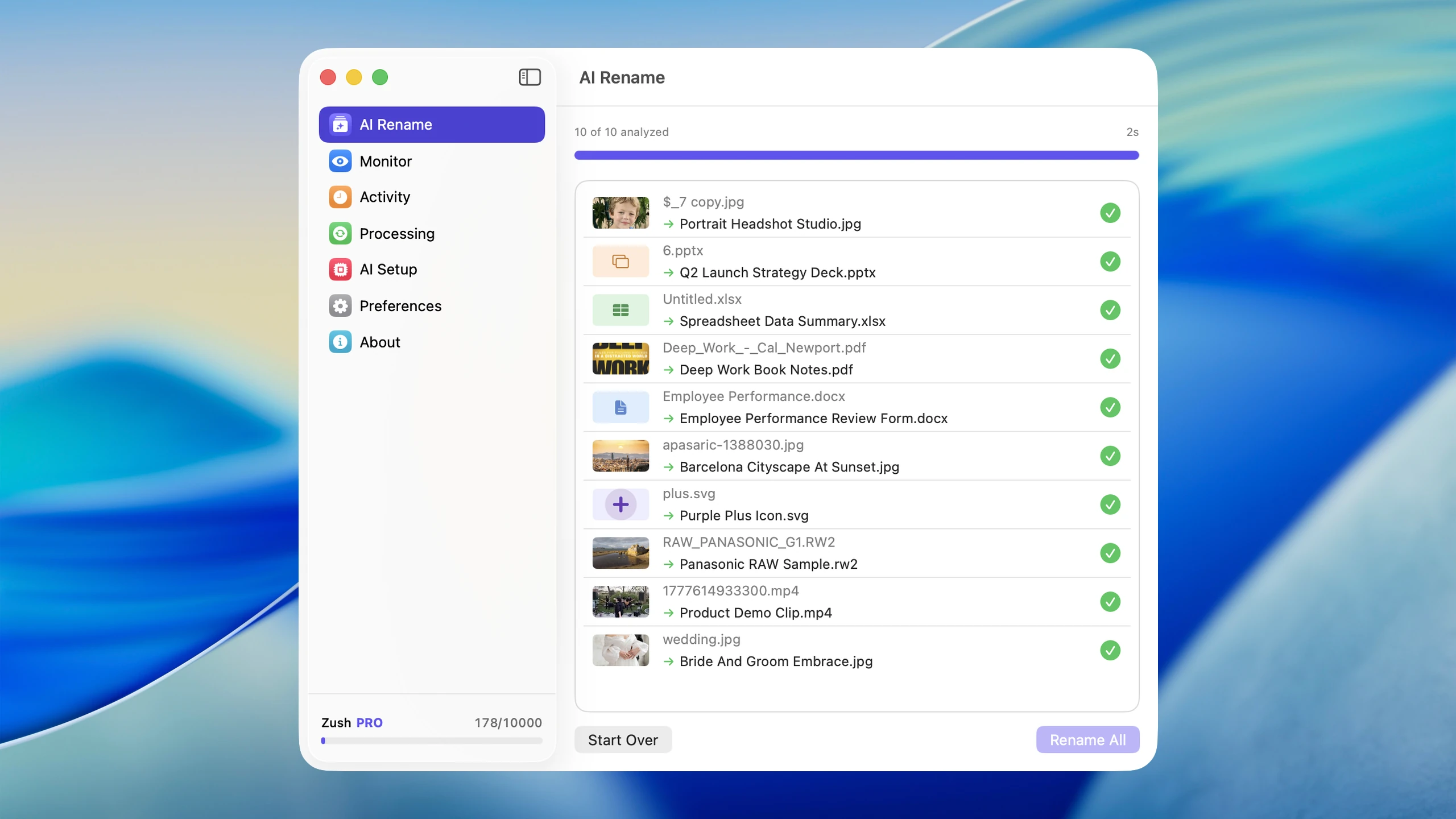
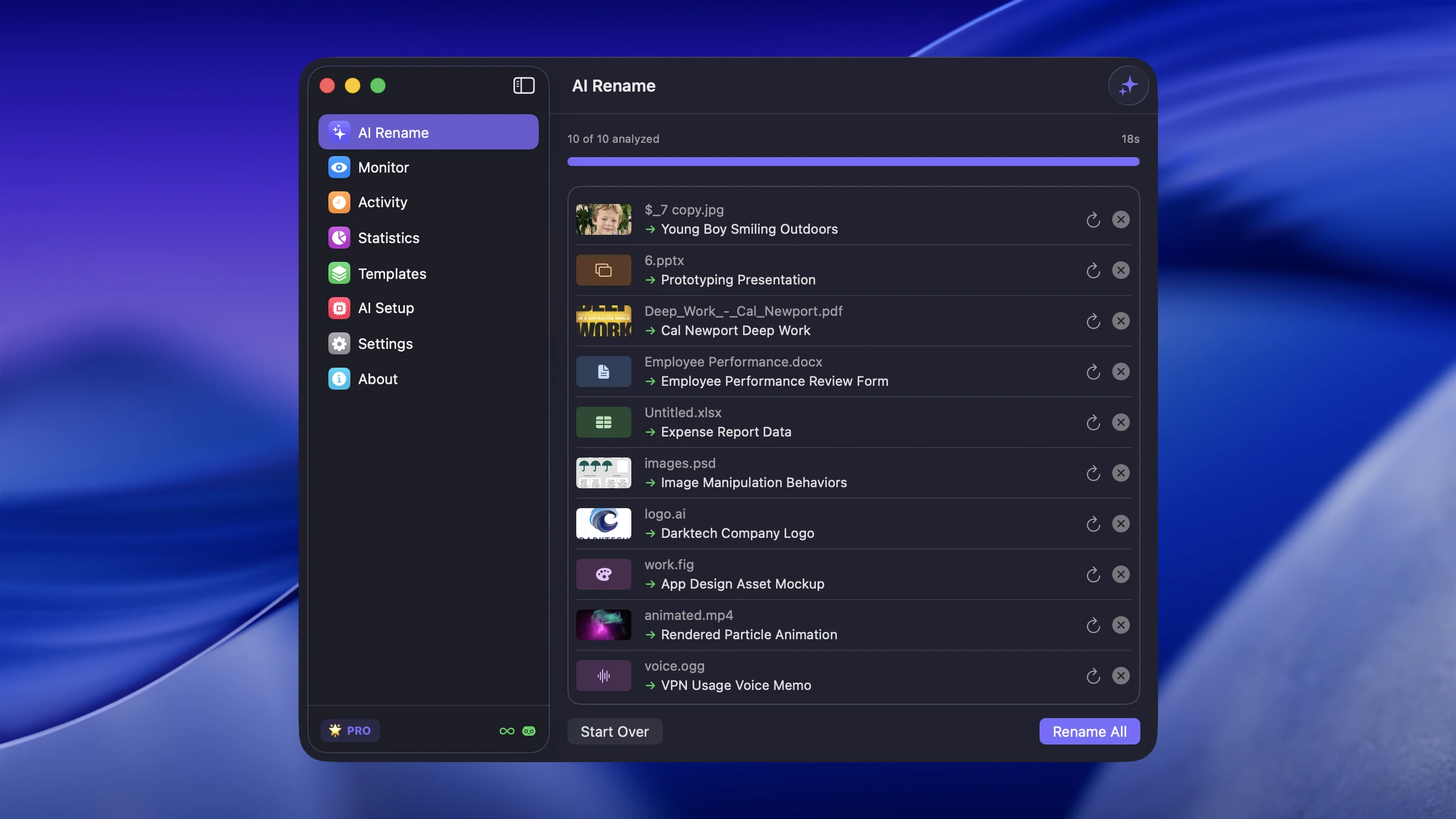
If your files are hard to search because their names are generic, pair this system with AI file renaming on Mac, Naming Blocks, or the broader Mac AI renamer comparison.
Sort files that need physical folders into folders with AI
Zush can give supported files descriptive names and group them into real folders by content in the same batch. AI folder sorting is in beta on Mac and Windows. Leave Folder rules empty for Auto grouping, or describe the groups in plain language. For files that need physical folders, try:
Group invoices by company and receipts by month.
Choose the destination root, optionally enable Reuse existing folders, and review the names and groups before applying. Save the tested setup in a Template for Monitor; it can process new arrivals directly inside a watched folder. Naming Blocks control filenames separately from Folder rules.

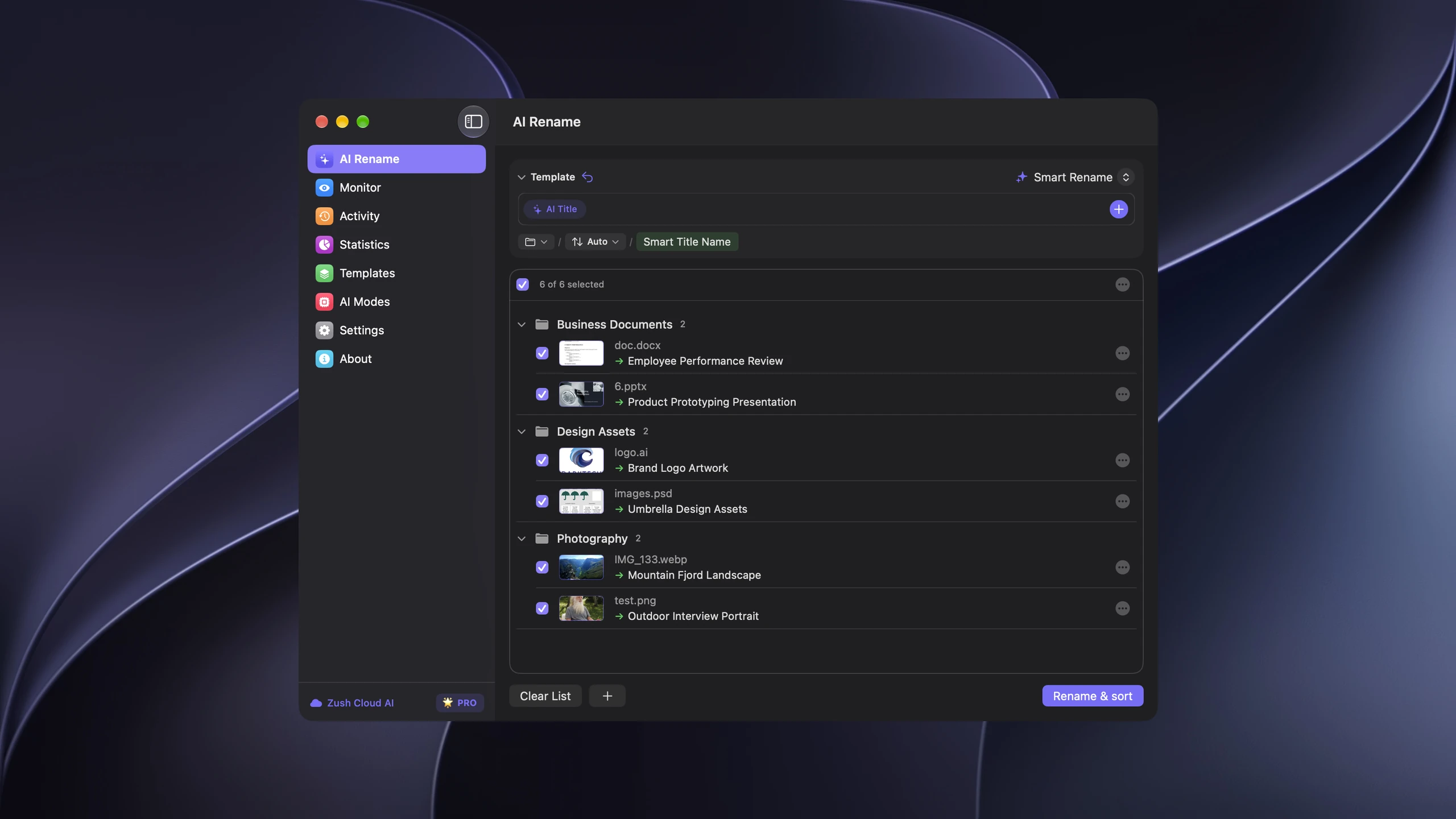
Follow the step-by-step Mac sorting guide or see the folder sorting documentation and 30 example Folder rules.
Finder tags: cross-folder organization without moving files
Finder tags are one of the simplest ways to organize files on Mac without moving them into new folders. A tagged file can still live in its original location, but it also becomes searchable by color or tag name across your entire system.
How to apply and find tags
- Select one or more files in Finder.
- Right-click the selection and choose Tags.
- Pick an existing color or type a useful name such as
to-review. - Open the tag from the Finder sidebar, or press
⌘Spaceand searchtag:to-review.
For faster tagging, select a file and choose File → Tags from the macOS menu bar. Keep tag names short and tied to an action you will search for later.
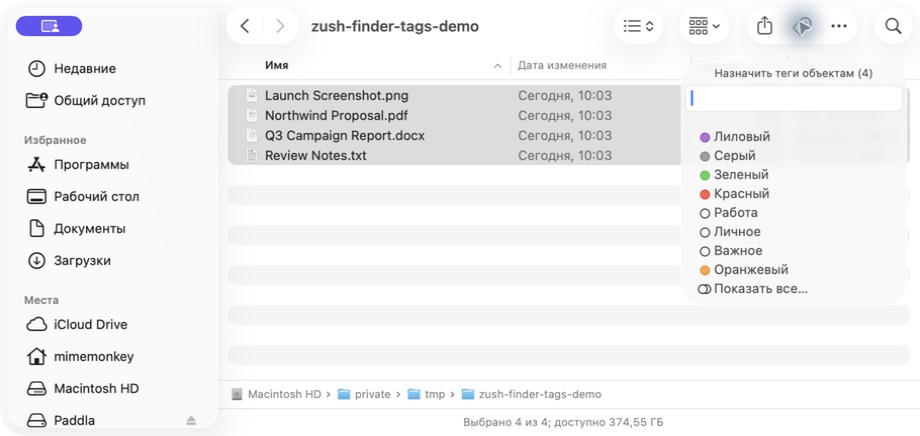
The labels in this screenshot follow the Mac’s system language, but the tag button, color choices, and text field stay in the same positions.
What Finder tags are best for
Tags work best for cross-folder organization, where a file belongs to multiple categories or workflows that do not fit neatly into one folder path.
Useful tag examples:
- Status tags:
urgent,waiting,approved,to-review - Project tags:
client-alpha,website-redesign,q2-campaign - Workflow tags:
needs-edit,published,archived - Content tags:
reference,screenshot,export
What tags are bad for
Tags stop being useful when you create too many of them. Avoid:
- dozens of overlapping categories that you forget to apply
- tags that duplicate information already obvious from the folder path
- tags you never actually use for search or filtering
A good system has 5 to 10 active tags, not 50.
Best practical tag systems
Status-based tags work well for action-oriented workflows:
| Tag | Meaning |
|---|---|
Action | Needs immediate attention |
Waiting | Blocked on someone else |
In Progress | Currently being worked on |
Done | Completed, ready to archive |
Project-based tags are useful when related files live in several different folders and you need to pull them together.
Media-type tags like screenshot, export, or raw-photo help when folder structure alone does not capture the file’s role in your workflow.
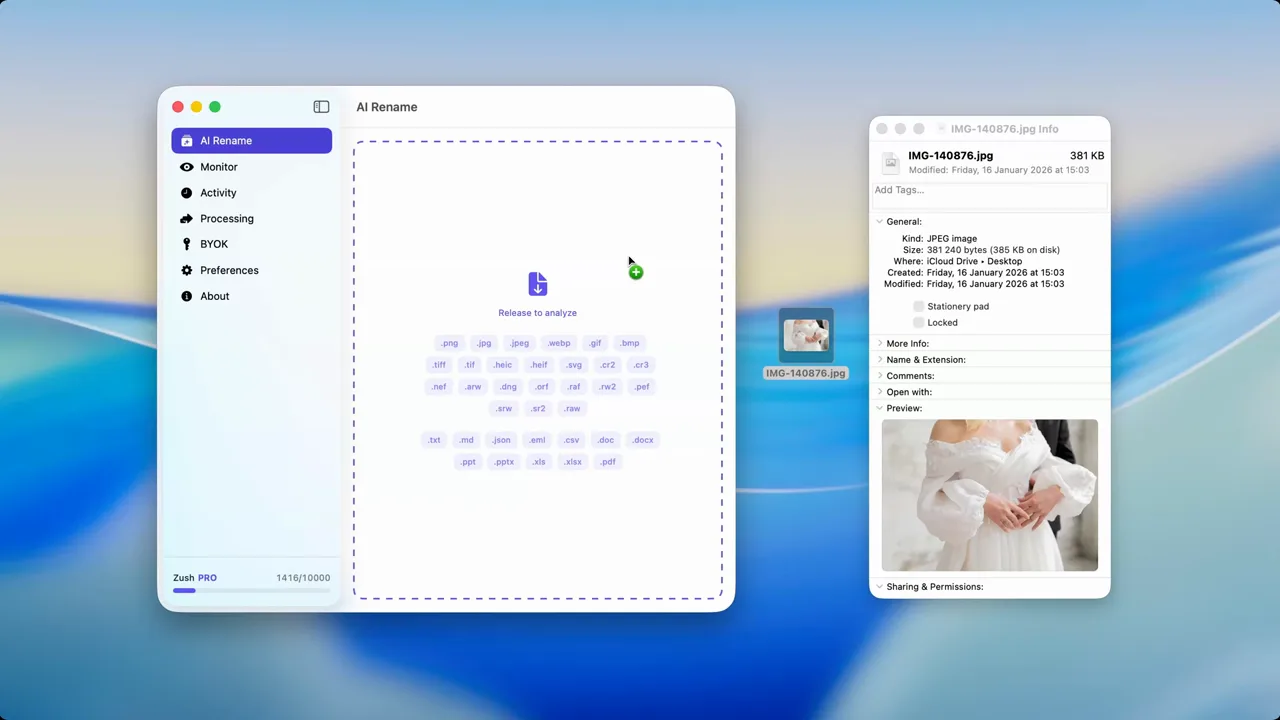
Smart Folders: dynamic views without moving files
Smart Folders on Mac are not normal folders. They are saved searches that show files matching your criteria in real time. One file can appear in several Smart Folders without being duplicated, because Smart Folders only reference files — they never move or copy them.
What Smart Folders are good for
They work best when you want dynamic, always-updated views of your file system:
- all recent images from the last 7 days
- all PDFs larger than 10 MB
- all files tagged
urgent - all documents modified this week
- all screenshots from a specific project folder
How to create a Smart Folder
- Open Finder
- Choose File → New Smart Folder (or press
⌥⌘N) - Click the
+button to add criteria such as kind, date, name, or tag - Combine multiple criteria to narrow results
- Click Save and optionally add it to the Finder sidebar for quick access
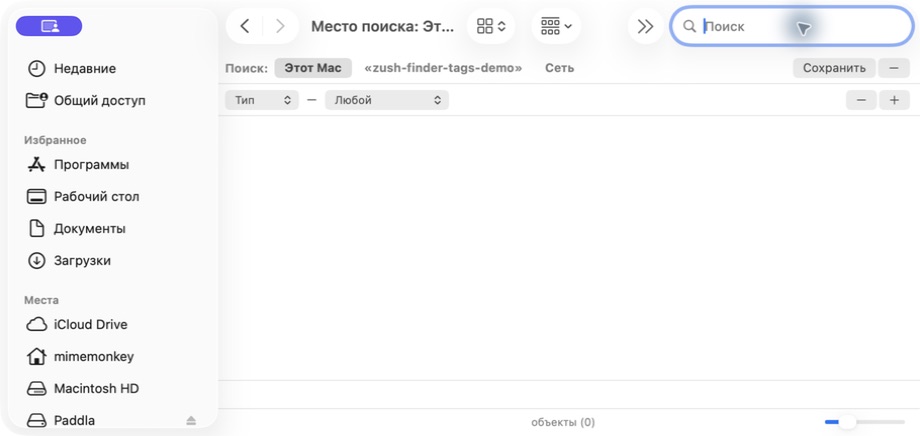
The search scope appears across the top, and the + control on the right adds another rule. Interface labels follow your Mac’s system language.
Best criteria to use
| Criteria | Use case |
|---|---|
Kind | Filter by images, PDFs, folders, documents, presentations |
Date Modified | Find recently changed files |
Date Created | Find files from a specific time period |
Name Contains | Match partial filenames |
Tag | Surface tagged files across all folders |
File Size | Find large files for cleanup |
Smart Folders + Finder tags
Smart Folders become dramatically more useful when combined with tags. This combination gives you views like “all urgent files” or “all review assets” without changing where the originals live.
Example Smart Folder setups:
- “Review Queue” — Kind is Image + Tag is
to-review - “Recent Large Files” — Date Modified is within last 7 days + Size is greater than 50 MB
- “Client Deliverables” — Tag is
client-alpha+ Kind is not Folder
Spotlight: fast search across your entire Mac
Spotlight is the fastest way to find files on Mac. Press ⌘Space, type a few words, and results appear almost instantly. But Spotlight only works as well as the metadata it can search. If your files have useful names, tags, and dates, Spotlight feels instant. If everything is IMG_4382 and document (7), search becomes nearly useless.
Most useful Spotlight search operators
Spotlight supports natural language and structured queries:
| Query | What it finds |
|---|---|
kind:image beach | Images with “beach” in the filename or metadata |
kind:pdf contract | PDFs containing “contract” |
date:2026-03 kind:image | Images created in March 2026 |
tag:urgent | Files tagged “urgent” |
tag:red | Files with the red color tag |
invoice 2026 | Any file matching both “invoice” and “2026” |
tag:to-reviewExample: tag:to-review
kind:pdf project-nameExample: kind:pdf northwind
date:2026-08 kind:imageExample: date:2026-08 kind:image
kind:document date:this monthExample: kind:document date:this month
When to use Spotlight vs Finder search
Spotlight is best for quick, system-wide searches when you know roughly what you are looking for.
Finder search is better when you need multiple filters at once (for example, image type plus date plus folder scope), or when you want to search within a specific folder rather than your entire Mac.
Why Spotlight sometimes feels weak
Spotlight does not visually understand your files. It searches text-based metadata: filenames, tags, Finder comments, and file properties. A sunset photo named IMG_8392.HEIC is almost invisible to Spotlight unless you added better metadata yourself. If photos are the biggest offender in your library, the how to organize photos on Mac guide builds a complete naming, tag, and backup system around them.
This is the single most common reason search feels broken: the files simply do not have useful text for Spotlight to match.
How all three tools work together
The real power comes from combining tags, Smart Folders, and Spotlight into a single retrieval system:
- Tags add meaning that crosses folder boundaries
- Smart Folders create persistent dynamic views based on tags, dates, kinds, and filenames
- Spotlight provides instant search across everything
Example workflow for a content team:
- Tag incoming files as
to-reviewwhen they arrive - Create a Smart Folder called “Review Queue” that shows files tagged
to-review - After review, change the tag to
approvedordone - Use Spotlight to quickly find any specific file by name when needed
This system works without reorganizing your folder structure. Files stay where they are; tags and Smart Folders provide the dynamic layer on top of it.
Why filenames matter more than any of these tools
Tags, Smart Folders, and Spotlight all depend on the same thing: useful metadata. And the most impactful metadata any file has is its filename.
A file called IMG_4822.HEIC is:
- invisible to Spotlight (no useful search terms)
- hard to scan in Smart Folders (you have to open it to know what it is)
- impossible to tag intelligently at scale (you would need to preview each one)
A file called sunset-pacific-coast-hwy-march-2026.heic is:
- instantly findable in Spotlight
- scannable in any Smart Folder view
- self-documenting without tags
That is why descriptive naming is the foundation of any good Mac file organization system. For image-heavy libraries, the AI file renamer for Mac can turn weak filenames into descriptive ones automatically, which makes Spotlight, Smart Folders, and tags all dramatically more effective.
Best practices for better file search
- Use descriptive filenames — this is the single highest-impact improvement
- Keep your tag count small — 5 to 10 active tags maximum
- Create Smart Folders for recurring views — review queues, recent large files, project overviews
- Use Spotlight operators —
kind:,date:,tag:narrow results fast - Rebuild your Spotlight index only when results are clearly broken — not as a regular habit
- Combine tags with Smart Folders — this gives you dynamic cross-folder views without reorganizing
Troubleshooting Finder tags, Smart Folders, and Spotlight
A tag is missing from the Finder sidebar
Open Finder → Settings → Tags, enable the tag, then drag it into the Favorite Tags area. The tag can still exist on files even when it is hidden from the sidebar.
A Smart Folder is not showing the expected files
Open the Smart Folder and check its search scope first. A saved search limited to one folder will not return matching files elsewhere. Then remove criteria one at a time until the conflicting rule becomes obvious.
Spotlight cannot find a file that Finder can see
Confirm that the file’s location is not excluded under System Settings → Spotlight → Search Privacy. If only generic media files are missing, add descriptive filenames or tags before rebuilding the entire Spotlight index.
tag: searches return too many results
Combine the tag with another operator, for example tag:urgent kind:pdf or tag:client-alpha date:this month. Keep active tags specific enough that each one represents a useful retrieval action.
FAQ
How do I find all images on my Mac quickly?
Open Spotlight (⌘Space) and type kind:image followed by any descriptive term. For broader results, create a Smart Folder with the criteria Kind is Image, then optionally narrow by date or folder.
Can I create custom Finder tags beyond the default colors?
Yes. Right-click any file, click Tags, and type any custom tag name. Custom tags work with Spotlight search (tag:your-tag-name) and Smart Folders just like default color tags.
What is the difference between Smart Folders and regular folders?
Regular folders contain files. Smart Folders are saved searches — they only display files matching your criteria. Moving a file into a regular folder changes its location. Adding criteria to a Smart Folder does not move any files.
Why does Spotlight not find my photos?
Spotlight searches text metadata, not image content. If your photos are named IMG_4822, Spotlight has nothing useful to match. Rename photos with descriptive filenames or use Finder tags to make them searchable.
Conclusion
Finder tags, Smart Folders, and Spotlight are already built into every Mac. The real upgrade comes from using them together and giving them better material to work with. Strong filenames, a small set of purposeful tags, and a few well-designed Smart Folders turn macOS into a genuinely powerful file retrieval system.
If weak filenames are the bottleneck, AI file renamer for Mac can fix the naming side so that every other tool on your Mac works better.


