How to Find and Remove Duplicate Files on Mac (5 Methods)

Jump to section
Quick answer: macOS ships no general duplicate file finder. Finder can group likely copies by size, a single Terminal command compares file contents and lists exact duplicates regardless of their names, the Photos app has a built-in Duplicates album for your photo library, dedicated apps handle large collections, and Zush can move exact copies to the Trash during a renaming pass.
Five methods, in the order most people should try them.
Why duplicates pile up on a Mac
Nearly all of them come from four places. Downloads, where Safari and Chrome add (1) rather than overwrite. Messages and Mail, where the same attachment gets saved on two different days. External drives, where a folder was copied across and then copied back. And Finder itself, where Duplicate is one keystroke away and the copy stays in the folder under a name ending in copy.
What they have in common is that the duplicate is a byte-for-byte match of the original, with a different name. That matters, because it decides which of the methods below will actually find it.
Method 1: Finder, sorted by size
No installation, no commands, and good enough for a folder you already half know.
- Open the folder and switch to List view with Command-2.
- Choose View, Show View Options, and tick Size if the column is missing.
- Click the Size column to sort.
- Walk down the list. Files of exactly the same size, next to each other, are your candidates.
A Smart Folder does the same thing across a wider area. File, New Smart Folder, then add criteria such as Kind is Document and Size is greater than 10 MB, save it, and sort the result by size.
Two files of the same size are not necessarily identical, so check before deleting. Equal byte counts are common in exported images and in documents from the same template. This method also misses every pair where the duplicate was re-saved and ended up a few bytes different.
Method 2: a Terminal hash check
This is the one that answers the question properly. It compares the contents of every file and ignores names entirely, so notes.txt, notes (1).txt, and sub/copy.txt show up as one group.
Run these three lines, replacing ~/Downloads with the folder you want to check:
find ~/Downloads -type f -print0 | xargs -0 shasum -a 256 | sort > /tmp/hashes.txtawk '{print $1}' /tmp/hashes.txt | uniq -d > /tmp/dupes.txtgrep -F -f /tmp/dupes.txt /tmp/hashes.txtThe first line computes a SHA-256 checksum for every file in the folder and its subfolders. The second line keeps only the checksums that appear more than once. The third prints every file whose checksum is in that list, grouped together, so each block of identical hashes is one set of duplicates.
The output looks like this:
2f961146…aada4 /Users/you/Downloads/notes (1).txt2f961146…aada4 /Users/you/Downloads/notes.txt2f961146…aada4 /Users/you/Downloads/sub/copy.txtNothing is deleted. The commands only read, which is why this is a safe first look even on a folder you care about. Delete from the printed list by hand, or in Finder once you know what you are looking for.
Two caveats. A large folder of video files takes a while, because every byte has to be read. And the command follows no aliases and skips nothing, so pointing it at your whole home folder will walk through Library as well; aim it at a real folder instead.
Method 3: the Photos Duplicates album
If the duplicates are in your photo library rather than in Finder folders, stop reading the sections above. Photos has handled this itself since macOS Ventura: open Photos, look for Duplicates in the sidebar under Utilities, and merge what it finds. Merging keeps the best quality version and preserves keywords, favorites, and album membership.
The album only covers the library. Photos sitting in ~/Pictures as ordinary files, or on an external drive, are invisible to it.
Method 4: a dedicated duplicate finder
For tens of thousands of files, a purpose-built app is faster to work with than a Terminal listing, mostly because of the review step rather than the scan. Gemini, CleanMyMac, Duplicate File Finder, and the open-source dupeGuru all do content-based matching, and several also offer similar-image matching, which the hash method cannot do.
The thing to check before you buy any of them is what happens after the scan. Look for a preview of each group, an explicit confirmation, and deletion to the Trash rather than an immediate unlink. Auto-select features are where accidents come from: they pick a keeper by rules you did not write.
These apps do one job and leave when it is done. If the folder also needs renaming, sorting, or filing, that is still ahead of you.
Method 5: clear the copies while you rename
The folders that collect duplicates are usually the same folders full of names like scan_0041 (1).pdf and IMG_2291 copy.png. Both problems have the same root cause, and both can be fixed in one pass.
Turn on Detect duplicate files in a Zush Template, and the copies are identified by content before anything is analyzed. Each one is labelled in the list with the file it matches, so you can see the pairing before you commit to anything.
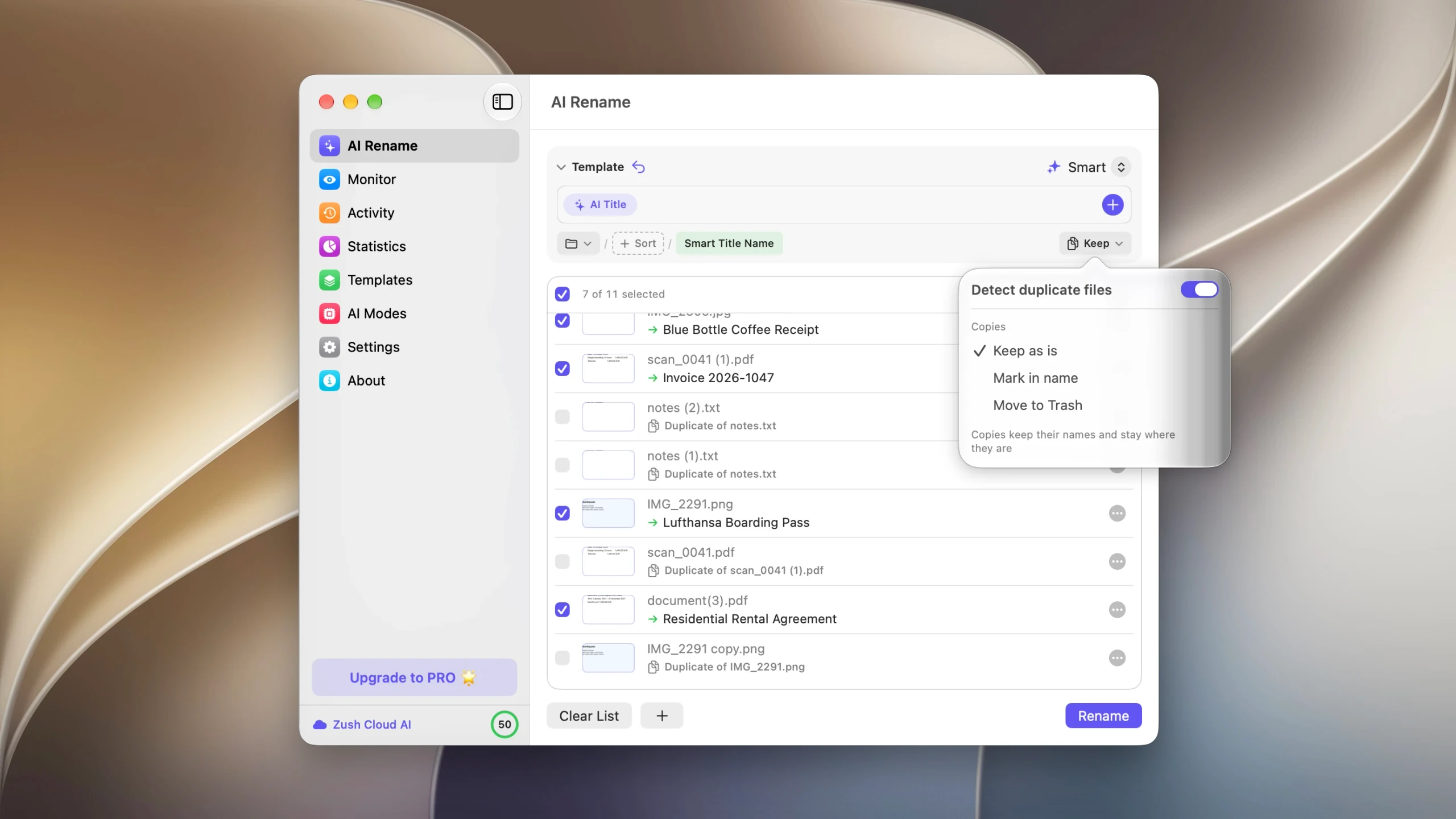
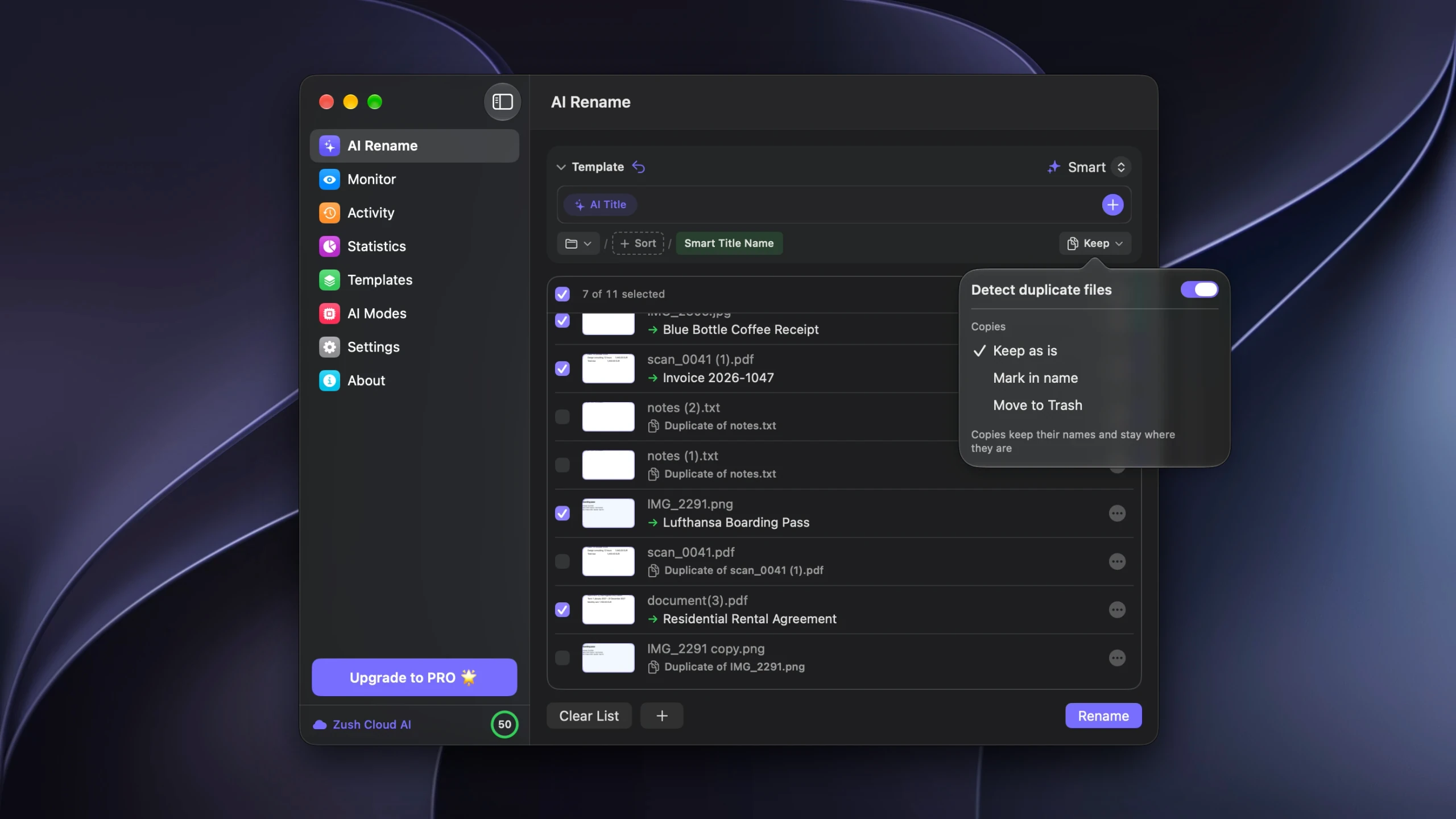
Then pick what should happen to them:
| Copies setting | What happens |
|---|---|
| Keep as is | Copies are unchecked and left exactly where they are. The originals get new names. |
| Mark in name | Each copy takes the original’s new name with the Duplicate Mark block added, so copies sort next to their originals. |
| Move to Trash | Copies go to the Trash when you click Rename, with a count shown next to the button. |
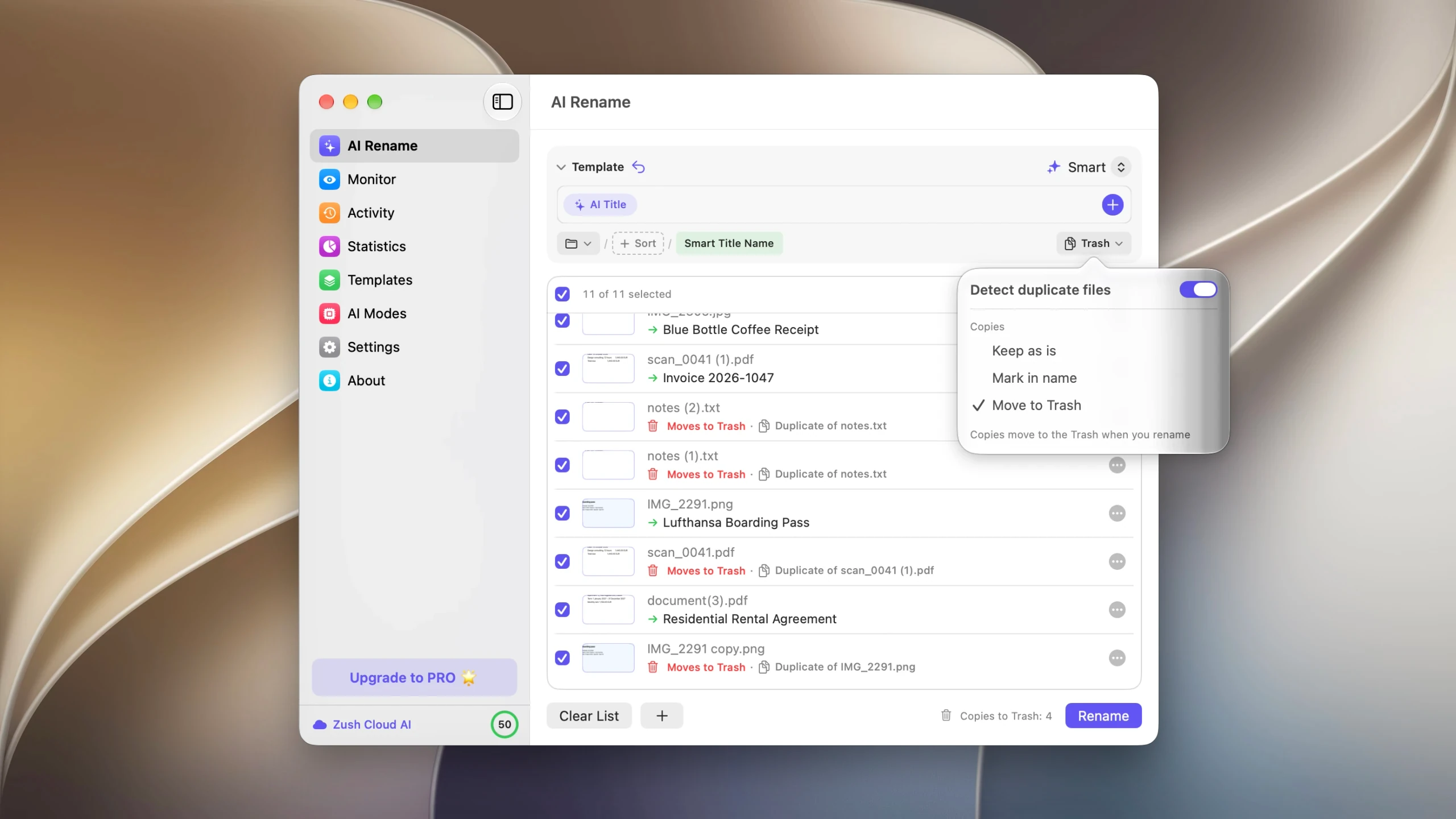
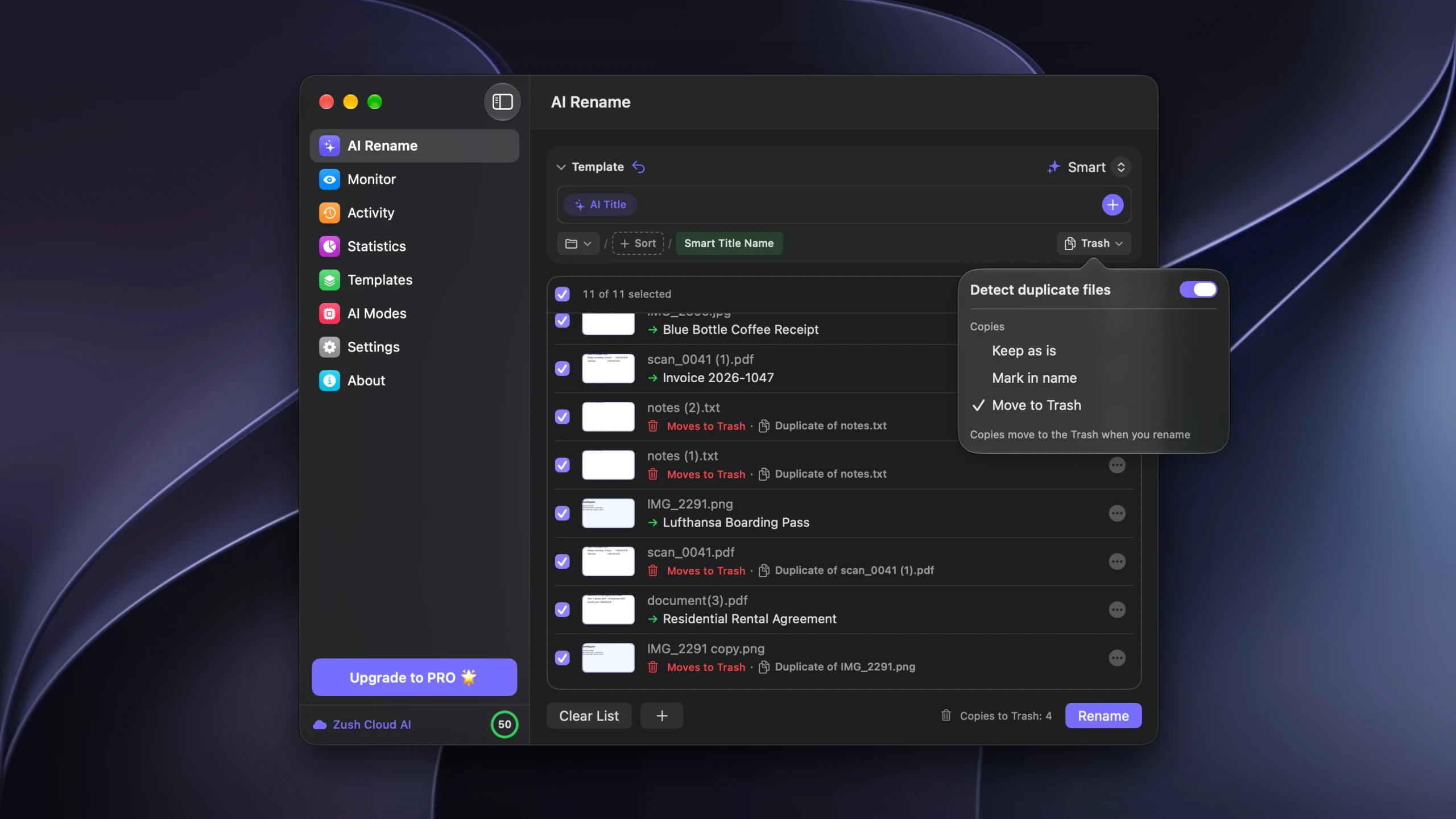
Two details matter more than they look. Copies are never sent to the AI, so a folder that is half duplicates costs no more to process than a clean one. And removals are recorded in Activity next to the renames, so Undo puts the copies back in their original folders under their original names, as long as you have not emptied the Trash yet.
There is also a Remove Duplicates Template for the case where the names are already fine: it is built from a single Original Name block, so nothing is renamed and only the exact copies are cleared.
Which method to use
| Situation | Method |
|---|---|
| One folder, you roughly know what is in it | Finder sorted by size |
| You want a definitive answer and nothing deleted | Terminal hash check |
| Duplicates are in the Photos library | The Duplicates album in Photos |
| Tens of thousands of files, or similar-looking images | A dedicated duplicate finder |
| The folder also needs real filenames | Rename and clear the copies together |
Before you delete anything
Back up first. A duplicate cleanup is a bulk delete, and bulk deletes are where people lose files they meant to keep.
Send files to the Trash rather than deleting them outright, and leave the Trash unemptied for a few days. Every recovery path described in this article depends on the files still being there.
Leave application packages alone. A Photos library, a Final Cut library, and a Lightroom catalog are folders that look like single files, and the duplicates inside them are often referenced by the app. Clean those from inside the app that owns them.
And be careful with folders where two copies are intentional: a working copy and an archived one, or the same contract filed under two clients. The Duplicate of labels and the preview exist for this; read them before applying a batch.
FAQ
Does macOS have a built-in duplicate file finder?
Not for general files. The Photos app finds duplicates inside its own library, and Music can show duplicate tracks, but Finder has no equivalent feature for documents, downloads, or anything on an external drive.
How do I find duplicate files on Mac without installing anything?
Use the Terminal command in Method 2. It compares contents rather than names, prints every matching group, and changes nothing on disk. Finder sorted by size works too, but only finds candidates you then have to verify.
Will a duplicate finder catch two scans of the same page?
No. Each pass through a scanner produces a slightly different image, so the files are not identical and a content check will not pair them. Only tools with similar-image matching can group those, and they ask you to confirm each pair.
Is it safe to delete files that end in “copy” or “(1)”?
Not without checking. The suffix only records that a file with that name already existed when this one was saved; the contents can be completely different, which happens often with downloads of regenerated reports and exports. Verify by content first.
How do I stop duplicates from coming back?
Most of them arrive in one folder, usually Downloads. Process that folder on a schedule rather than letting it accumulate: clear the copies, give the keepers names you can search for, and file them. The Downloads folder guide covers the wider routine, and folder monitoring can apply a Template to new arrivals automatically.
Can I undo a duplicate cleanup?
It depends on the tool. Files sent to the Trash can be dragged back out by hand. In Zush, removals are recorded in Activity alongside the renames, and Undo restores the copies to their original folders under their original names until the Trash is emptied.


