Why Your Files Are Named copy, (1) and (2)

Jump to section
Quick answer: your Mac, your PC, or your browser added the suffix because a file with that name already existed in that folder. Rather than overwrite it, the system saved the new file under a name that was free. The suffix records a name collision and nothing else, which is why some (1) files are exact copies you can delete and others are completely different documents.
Who adds which suffix
The pattern tells you where the file came from, which is occasionally useful on its own.
| Suffix | Added by |
|---|---|
notes copy.txt, notes copy 2.txt | Finder on macOS, when you use Duplicate |
notes - Copy.txt, notes - Copy (2).txt | File Explorer on Windows, when you paste into the same folder |
notes (1).txt, notes (2).txt | Chrome and Edge downloads, and Windows when you choose Keep both |
notes-1.txt | Safari downloads, which appends a number |
notes.txt.1 | Some download managers and command line tools |
None of these are decisions about the file. They are the shortest way the system could find to avoid destroying something that was already there.
Why the suffix tells you nothing about the contents
Three situations produce identical-looking names and need completely different responses.
You genuinely copied the file. Finder’s Duplicate command, a drag with Option held, a folder copied to a drive and back. The two files are byte-for-byte identical, and one of them is redundant.
You downloaded the same file twice. The invoice you saved from an email on Monday and again from the vendor portal on Thursday. Usually identical, occasionally not: plenty of systems regenerate a PDF on each download, with a new timestamp inside that changes the bytes without changing anything you can read.
You downloaded a different file with the same name. This is the one that bites. Export a report from a dashboard three times and the browser hands you export.csv, export (1).csv, and export (2).csv, all with different data. Bank statements, invoices named download.pdf, and anything from a system that does not name its exports all behave this way. Deleting the (1) because it looks like a leftover throws away a different document.
That is the whole problem with cleaning up by name. The suffix is evidence that two files wanted the same name, not that they hold the same data.
How to tell them apart quickly
On a Mac, the fastest reliable check compares contents directly. Open Terminal and run these three lines against the folder you are looking at:
find ~/Downloads -type f -print0 | xargs -0 shasum -a 256 | sort > /tmp/hashes.txtawk '{print $1}' /tmp/hashes.txt | uniq -d > /tmp/dupes.txtgrep -F -f /tmp/dupes.txt /tmp/hashes.txtEvery file is checksummed, the checksums that occur more than once are kept, and the files sharing them are printed together. Files that appear in that output are true copies. Files that do not appear are different, however similar their names look.
The equivalent on Windows, in PowerShell:
Get-ChildItem -Path "$env:USERPROFILE\Downloads" -File -Recurse | Get-FileHash -Algorithm SHA256 | Group-Object -Property Hash | Where-Object { $_.Count -gt 1 } | ForEach-Object { $_.Group | Select-Object Path, Hash }Neither command changes anything. They read the files and print what they found, so they are safe to run on a folder you care about.
If you would rather not use a terminal, sort the folder by size in List view and look at pairs with exactly matching byte counts. It is a weaker test, because different files can share a size, but it narrows the candidates down to something you can check by opening them.
Clearing them out, and naming what is left
A folder full of (1) files usually has a second problem. Names like download (7).pdf and scan_0041 (1).pdf are unsearchable whether or not they are duplicates, so removing the copies leaves you with a folder of originals you still cannot find anything in.
Zush handles both in one pass. Turn on Detect duplicate files in the Template, and every copy is matched by content, labelled with the file it matches, and skipped by the AI entirely.
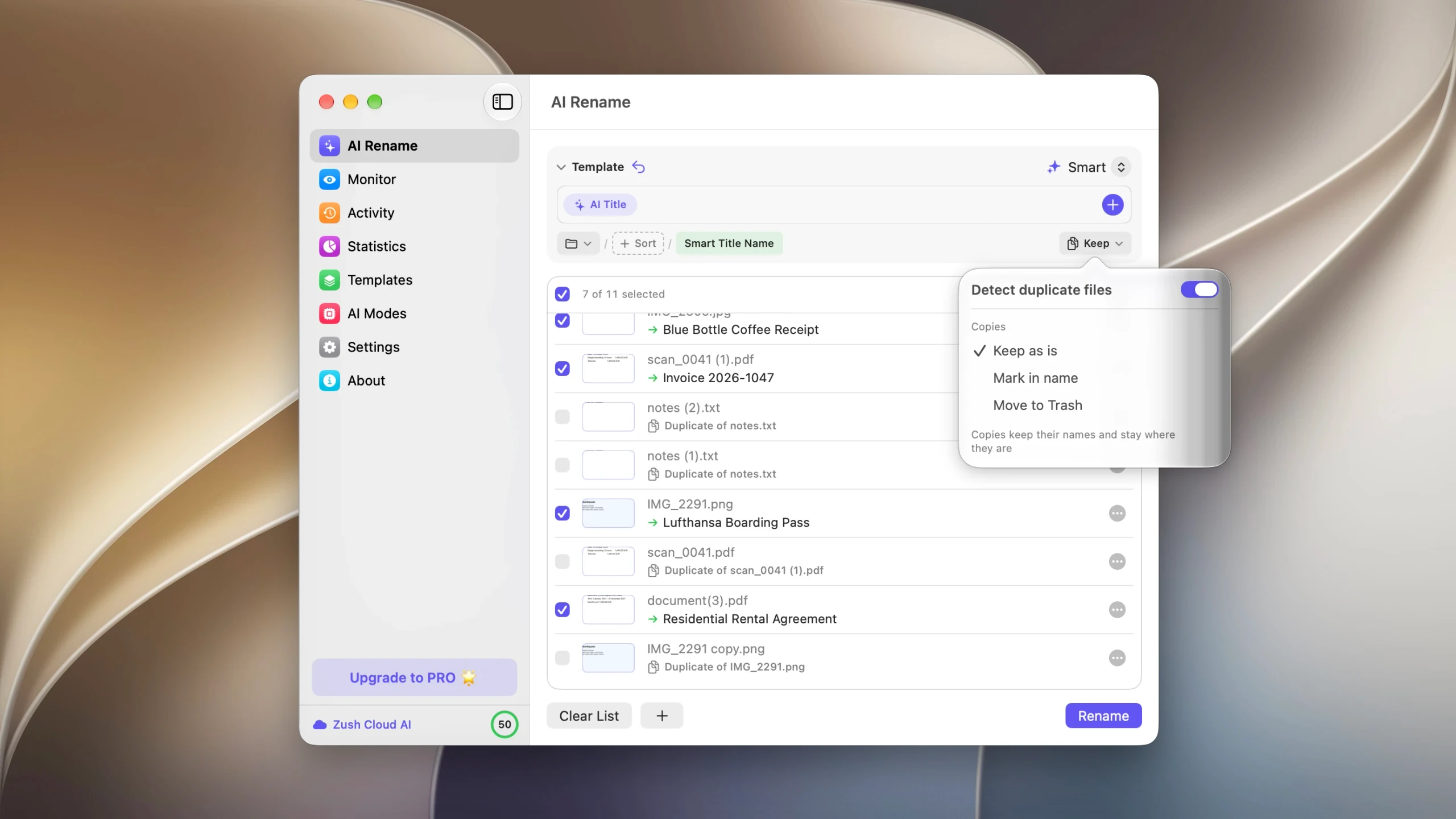
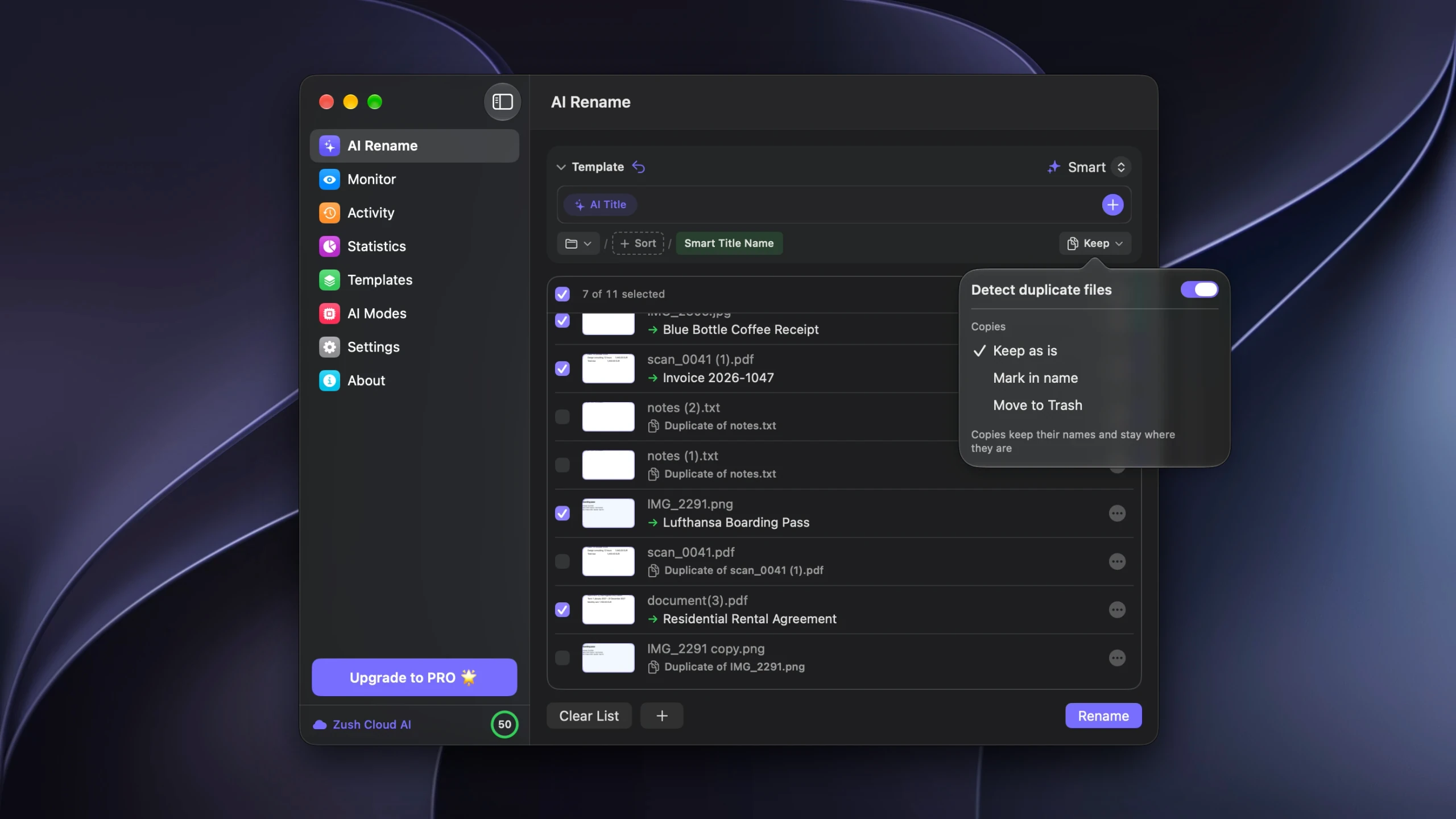
The pairings in that list are the part worth reading. notes (1).txt and notes (2).txt both pointing at notes.txt means those two are safe to clear. A (1) file with no label is not a copy at all, whatever its name suggests, and it keeps its place in the batch like any other file.
Then choose what happens to the ones that are copies: leave them alone, mark them in the name so they sort next to their originals, or move them to the Trash when you apply the batch. Removals go into Activity next to the renames, and Undo puts the files back until you empty the Trash.
Stopping the suffixes at the source
You cannot turn the behavior off, and you would not want to: the alternative is silently overwriting files.
What you can change is how often a name collision happens at all. Collisions need two things, a repeated name and a shared folder, so removing either one ends them.
- Rename downloads as they arrive rather than in a cleanup once a month. A file called
Vercel 2026-06 Invoice.pdfwill not collide with next month’s. - Keep Downloads as an inbox. Files that get filed within a day or two are not there to collide with.
- For exports you pull repeatedly from the same dashboard, save into a dated subfolder.
export.csvin three different folders needs no suffix at all.
Folder monitoring automates the first one: a watched folder renames new files as they land, so the generic name never survives long enough to meet its twin.
FAQ
Is it safe to delete files ending in (1) or copy?
Only after checking the contents. The suffix means a file with that name already existed, not that this one is a duplicate. Downloads of regenerated reports and exports are the usual counterexample: export (1).csv and export (2).csv are frequently different data.
Why does my Mac name copies “copy 2” and not “(2)”?
Those come from two different places. Finder’s Duplicate command uses the word copy, then copy 2, copy 3. The parenthesized numbers come from browsers and from Windows, so a Mac folder with both styles in it is a folder that collected files from more than one source.
Can I make my browser overwrite instead of adding (1)?
Chrome and Edge have no setting for it. Firefox can be configured to ask where to save each file, which lets you overwrite or rename deliberately. Overwriting silently is risky, which is why none of them do it by default.
Does renaming a copy make it stop being a duplicate?
No. Duplicate detection that works by content ignores names completely, so a copy renamed to invoice final.pdf is still matched with its original. Only a name-based check would be fooled.
Will a cleanup catch two scans of the same page?
No. Each scan produces a different image file, so content matching does not pair them. That case needs visual comparison and a decision on each pair.


