The Downloads Folder Is a Duplicate Factory: How to Clear It

Jump to section
Quick answer: clear a Downloads folder in three passes rather than one. Find the exact copies by comparing contents, not names. Rename whatever survives so you can search for it later. Then move the files that still matter somewhere they belong, and delete the rest.
Doing it in that order matters, because each pass makes the next one smaller.
Why this folder in particular
Downloads is where files land, not where they live, and three habits of that landing zone produce copies faster than anywhere else on the disk.
Browsers never overwrite. When a name is taken, Chrome and Edge add (1), Safari adds a number, and the old file stays. Download the same statement twice and you have two of them, by design.
The same document arrives through several routes. A supplier emails a PDF and posts it to a portal. A colleague forwards what you already saved. You could not find the file, so you downloaded it again.
And nothing ever leaves. A folder that is only ever added to will collect every copy that was ever made, and after a year the folder is large enough that nobody wants to start.
Pass one: find the real copies
The trap here is cleaning by name. A folder full of (1) files looks like a folder full of duplicates, and some of it is not. Export a report from a dashboard three times and you get export.csv, export (1).csv, and export (2).csv, all different data. Bank statements and anything downloaded as invoice.pdf behave the same way.
Compare contents instead. On macOS, these three lines list every exact duplicate and change nothing:
find ~/Downloads -type f -print0 | xargs -0 shasum -a 256 | sort > /tmp/hashes.txtawk '{print $1}' /tmp/hashes.txt | uniq -d > /tmp/dupes.txtgrep -F -f /tmp/dupes.txt /tmp/hashes.txtOn Windows, in PowerShell:
Get-ChildItem -Path "$env:USERPROFILE\Downloads" -File -Recurse | Get-FileHash -Algorithm SHA256 | Group-Object -Property Hash | Where-Object { $_.Count -gt 1 } | ForEach-Object { $_.Group | Select-Object Path, Hash }Files in the output are true copies. Files that are not in it are different documents, whatever their names suggest. The full explanation of both commands is in finding duplicate files by content.
Pass two: rename what survives
This is the step people skip, and skipping it is why the folder fills up again.
A file called download (7).pdf cannot be found by searching, so it never gets filed, so it stays in Downloads until the next cleanup. A file called Vercel 2026-06 Invoice.pdf has somewhere obvious to go and will not collide with next month’s.
Zush does both passes at once. Turn on Detect duplicate files in the Template, and the copies are matched by content before anything is analyzed. Each one is labelled with the file it matches, so the pairing is visible before you commit to anything, and because copies are never sent to the AI, a folder that is half duplicates costs nothing extra to process.
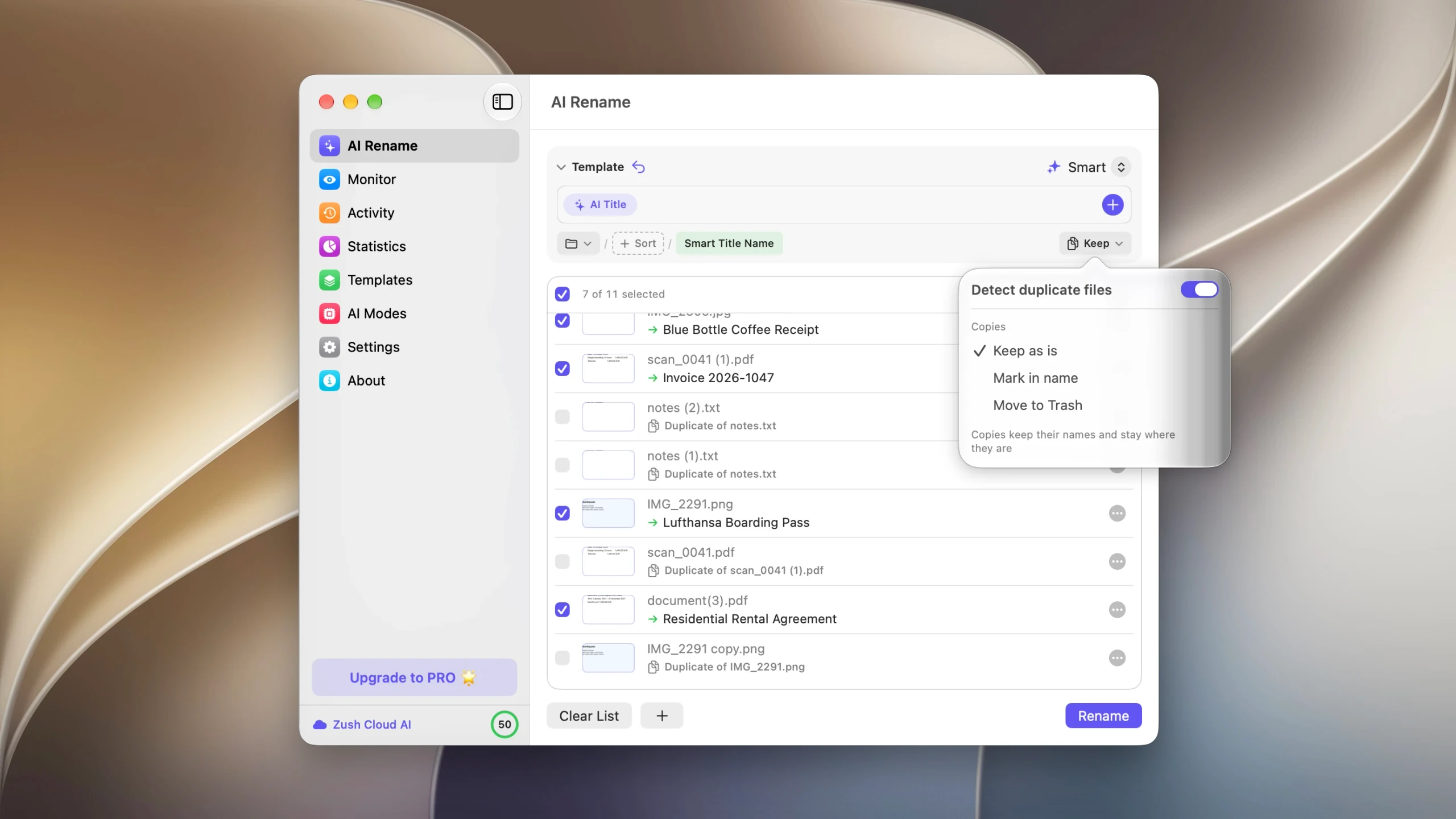
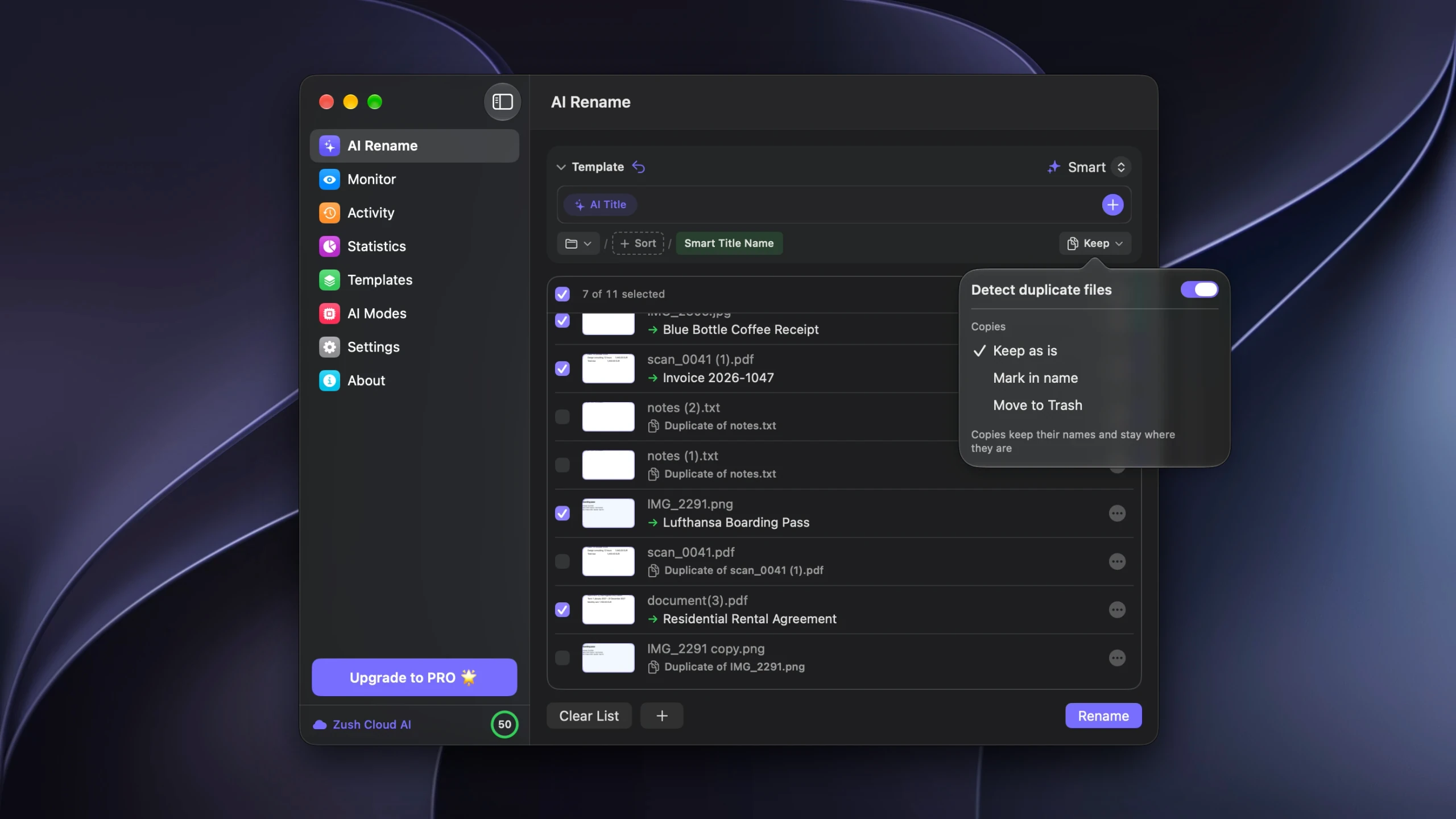
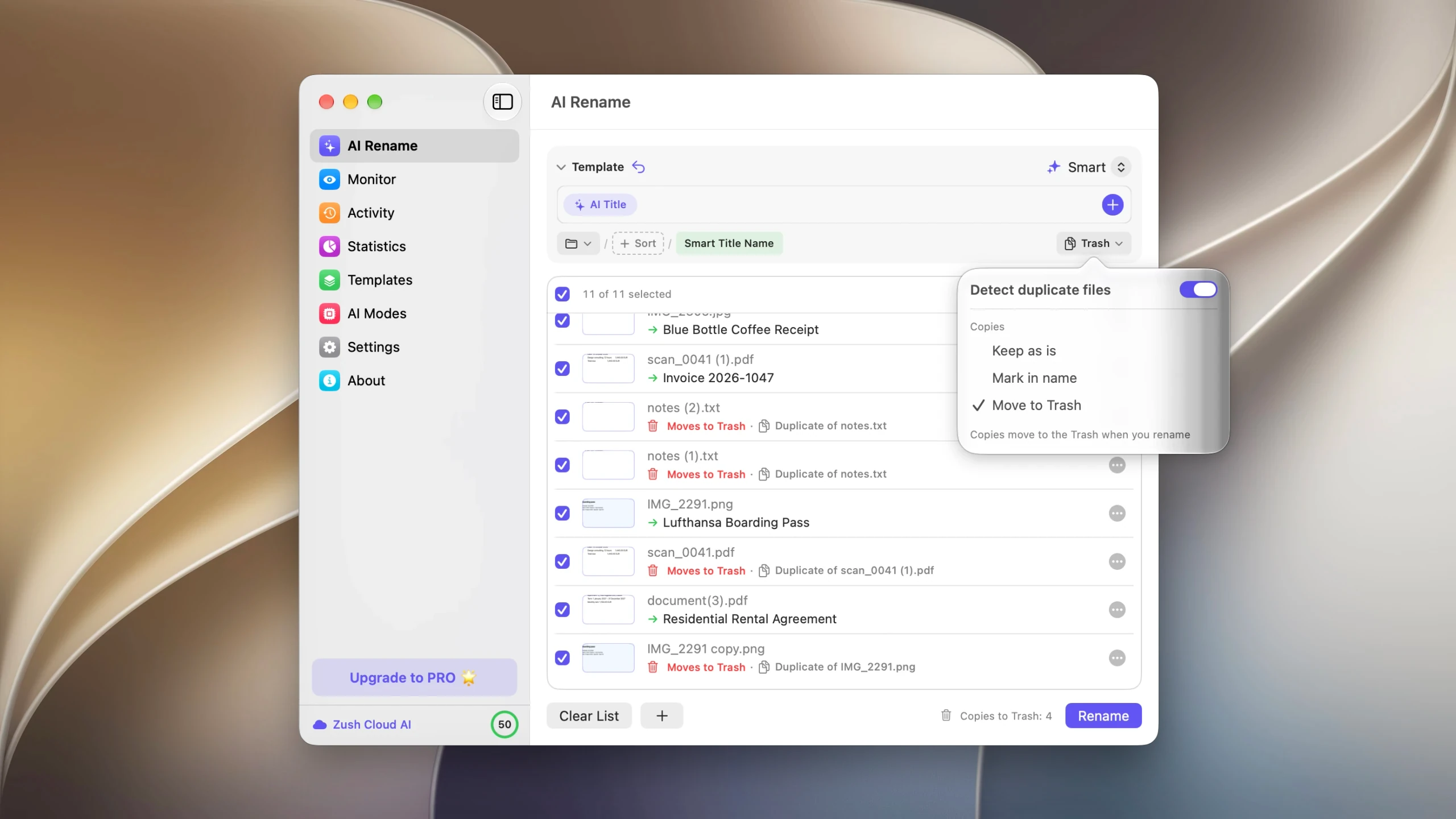
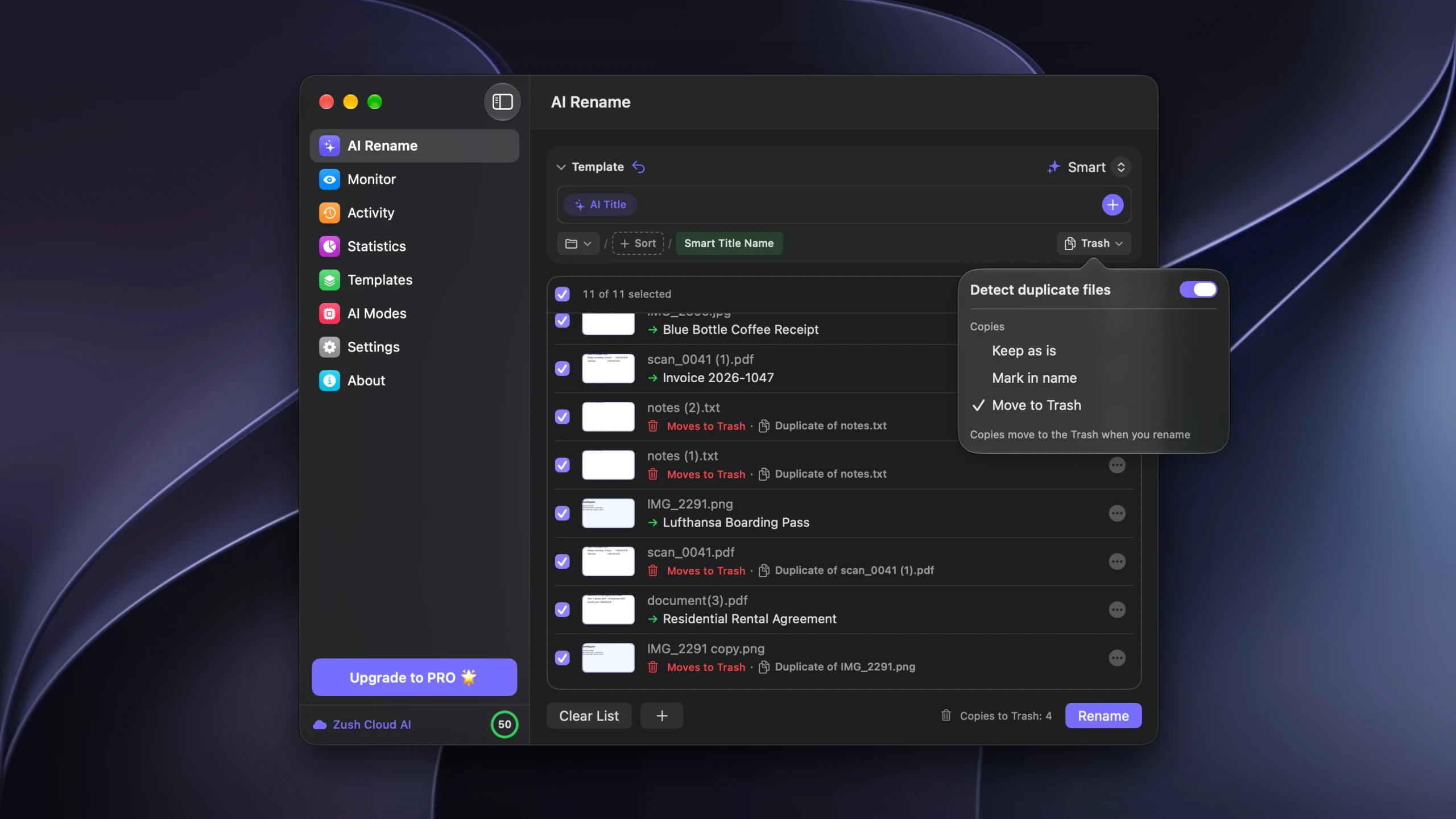
Start with Copies set to Keep as is. Nothing is deleted, the copies stay where they are, and you get to read the pairings. Once they stop surprising you, switch to Move to Trash and the cleanup becomes part of the rename: copies are flagged in red, a count appears next to the Rename button, and the removals go into Activity where Undo can reverse them.
Pass three: empty the folder
Whatever is left now has a readable name, which makes the last pass quick. Sort by date, work down the list, and send each file to a real destination or to the Trash.
The target is an empty Downloads folder, not a tidy one. A folder with thirty well-named files in it is still a folder you will have to go through again next month.
Keeping it from refilling
Three habits, in order of how much they help.
Review weekly, for five minutes. Thirty files is a coffee break. Three thousand is a Saturday, which is why it never happens.
Rename on arrival rather than in bulk. Folder monitoring applies a Template to new files as they land, so the generic name is gone before a second copy can collide with it.
Point repeated exports somewhere else. If you pull the same report from a dashboard every week, change the browser’s download location for that task or move the file immediately. export.csv in a dated folder needs no suffix at all.
What will not help is turning on a rule that deletes Downloads by age. Storage Sense on Windows and similar cleanup tools delete on date, not on whether the file mattered, and the file you lose is the one you downloaded once and never opened.
FAQ
Can I just delete everything ending in (1)?
No. The suffix means a file with that name already existed in the folder, not that the contents repeat. Regenerated exports and downloads that reuse a generic name are usually different documents.
How do I find duplicates in Downloads without installing anything?
Use the Terminal or PowerShell command above. Both compare contents, print the matching groups, and change nothing on disk.
Does clearing duplicates free much space?
It depends on what you download. Documents and spreadsheets rarely add up to much; video, design files, and installers do. Sort the duplicate list by size and the few large groups usually account for most of the reclaimed space.
What about the same file in Downloads and in Documents?
A duplicate check only compares the files you point it at. Scan the parent folder that contains both, or add both folders to the same batch, and the pairs across them show up.
Will this catch two photos of the same receipt?
No. Two photos are two different images, even of one sheet of paper. Exact matching only pairs files that hold the same data, so copies, re-downloads, and synced folders are what it finds.


