How to Remove Duplicate Files on Windows 11

Jump to section
Quick answer: Windows 11 has no duplicate file finder. Storage Sense clears temporary files and old items from the Recycle Bin and Downloads, but it never compares one file to another. To find duplicates you need a PowerShell command, a third-party app, or a tool that handles copies as part of some other job.
What Storage Sense does and does not do
Settings, System, Storage, Storage Sense is where Windows sends you when the disk fills up, and it is worth turning on. It empties the Recycle Bin on a schedule, removes temporary files, and can delete files in Downloads that you have not opened for a set number of days.
None of that is deduplication. Storage Sense works on age and location. Two identical 400 MB videos that you opened last week are both kept, and the same file sitting in three folders counts as three unrelated files.
The age rule on the Downloads folder deserves a warning of its own: it deletes by date, not by whether the file matters. Turning it on and forgetting about it is a reliable way to lose an invoice.
Find exact duplicates with PowerShell
This is the free, built-in answer, and it is a single pipeline. Open PowerShell and run:
Get-ChildItem -Path "$env:USERPROFILE\Downloads" -File -Recurse | Get-FileHash -Algorithm SHA256 | Group-Object -Property Hash | Where-Object { $_.Count -gt 1 } | ForEach-Object { $_.Group | Select-Object Path, Hash }It walks the folder and its subfolders, computes a SHA-256 checksum for every file, groups the files by checksum, keeps the groups with more than one member, and prints the paths. Files appearing in the output hold exactly the same data as another file in the list, whatever their names are.
Change the path to check somewhere else:
Get-ChildItem -Path "D:\Archive" -File -Recurse |To save the result instead of reading it on screen, append a CSV export:
ForEach-Object { $_.Group | Select-Object Path, Hash } | Export-Csv -Path "$env:USERPROFILE\Desktop\duplicates.csv" -NoTypeInformationThe command only reads, so it is safe to run anywhere. Hashing a folder of large video files takes a while, because every byte has to be read, and pointing it at C:\ will crawl through system directories you have no business cleaning. Aim it at a real folder.
Sorting in File Explorer
Without any commands: open the folder, switch to Details view, and click the Size column to sort. Files of exactly the same size land next to each other and are your candidates.
It is a weak test. Different files share a size often enough that you have to open them, and a duplicate that was re-saved rather than copied may differ by a few bytes and sort somewhere else entirely. Use it to spot the obvious pairs in a folder you already know, then use the hash command when you want certainty.
Free apps worth knowing
Several free tools add the thing PowerShell lacks, which is a review interface where you can see the groups and pick what goes.
dupeGuru is free and open source, with separate modes for general files, music, and pictures. The picture mode does fuzzy matching, so it finds images that merely look alike. After a scan you mark files and then delete, move, copy, or rename them.
AllDup is freeware for Windows and searches local drives, external media, and network shares. It is configurable to a fault: the number of comparison criteria is its strength and its learning curve.
Fast Duplicate File Finder compares file contents and groups the matches for review, with system folder protection on by default.
The question to ask about all of them is the same. Does it show you each group before acting, does it require a confirmation, and does it delete to the Recycle Bin rather than removing files outright? Auto-select features are where accidents come from, because the rule choosing the keeper is not one you wrote.
Clearing copies during a rename
A Downloads folder on Windows usually has two problems. Half the files are duplicates, and most of the names are useless: download (3).pdf, invoice - Copy.pdf, Scan_0042.pdf.
A duplicate finder solves the first problem and leaves the second one for another day and another app.
Zush handles both in one pass. Detect duplicate files is a Template setting; turn it on and copies are matched by content before anything is analyzed, each labelled in the list with the file it matches. Because copies are never sent to the AI, a folder that is a third duplicates costs nothing extra to process.
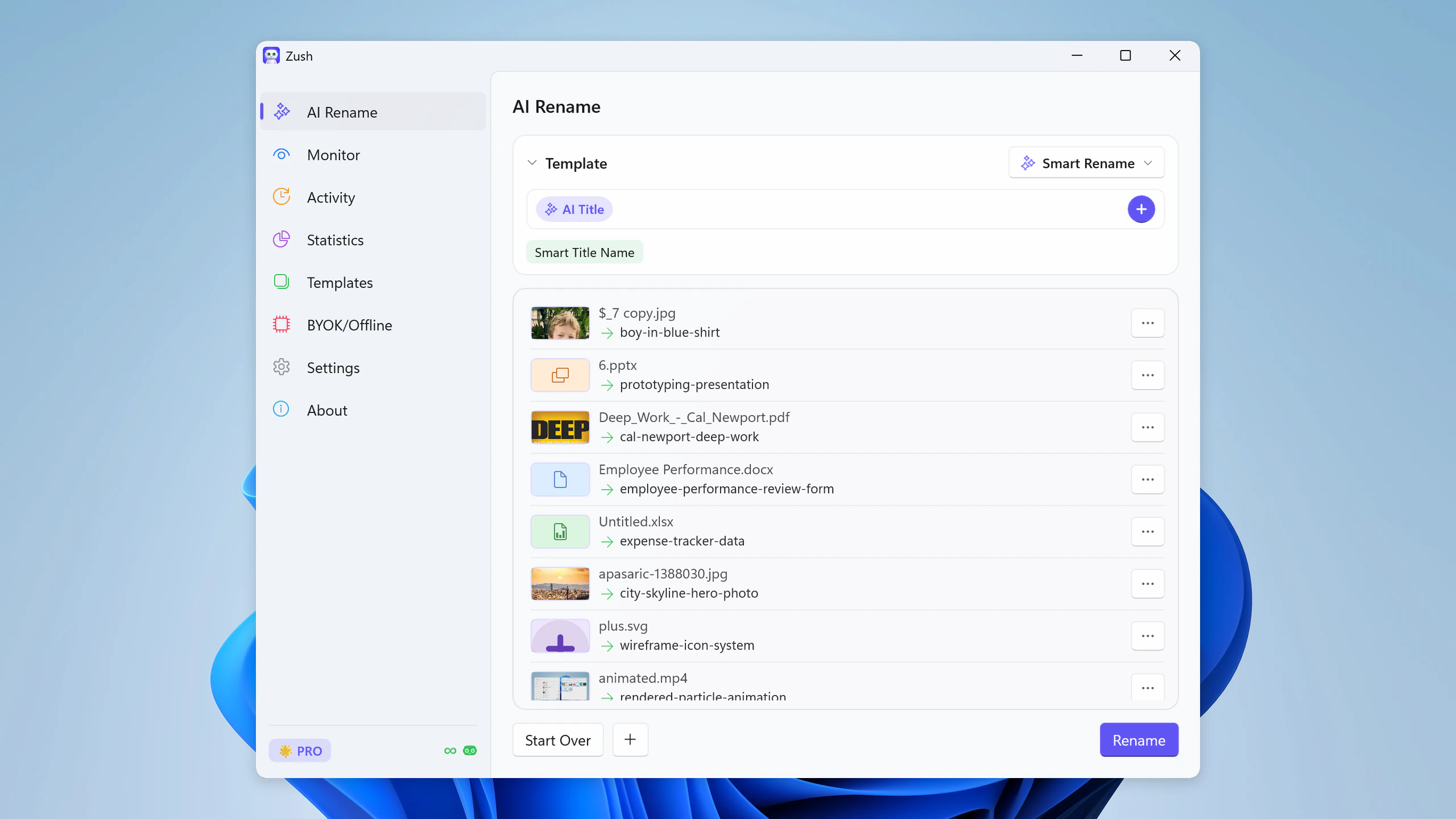

Then pick what happens to them. Keep as is leaves the copies untouched and unchecked, so only the originals are renamed. Mark in name gives each copy the original’s new name with a Duplicate Mark appended, so copies sort next to their originals in File Explorer. Move to Trash sends them to the Recycle Bin when you click Rename, with the count shown beside the button.
Removals are recorded in Activity next to the renames, and Undo restores the files to their original folders under their original names, until the Recycle Bin is emptied.
Which approach fits
| Situation | Approach |
|---|---|
| One folder, you want a definitive list and nothing deleted | The PowerShell command |
| A folder you already know well | File Explorer sorted by size |
| A large library where review matters | dupeGuru, AllDup, or Fast Duplicate File Finder |
| Photos that look alike rather than match exactly | dupeGuru’s picture mode |
| The folder also needs real filenames | Rename and clear copies together |
Before you delete
Back up first. A duplicate cleanup is a bulk delete.
Send files to the Recycle Bin rather than deleting them with Shift-Delete, and leave it unemptied for a few days. Every recovery path depends on the files still being there.
Skip program folders and system directories. Identical files inside C:\Windows and C:\Program Files are frequently meant to be there, and removing one breaks the application that expects it.
And watch for the folders where two copies are deliberate: a working version and an archived one, the same document filed under two projects. Read the pairings before you act on them.
FAQ
Does Windows 11 have a built-in duplicate file finder?
No. Storage Sense manages space by age and location, and File Explorer can sort by size, but neither compares file contents. Finding duplicates needs PowerShell or a third-party app.
How do I find duplicate files without installing software?
Use the Get-FileHash pipeline above. It compares contents rather than names, prints every matching group, and changes nothing on disk.
Is it safe to delete files ending in ”- Copy” or “(1)”?
Not without checking. Windows adds those suffixes when a name is already taken in that folder, which says nothing about the contents. Exports and downloads that reuse a generic name are frequently different files.
Will a duplicate finder catch two scans of the same page?
No. Each scan produces a different image file, so content matching will not pair them. Only similar-image matching can group those, and it asks you to confirm each pair.
Can I remove duplicates automatically as files arrive?
Yes, with care. A Zush Template assigned to a watched folder applies its duplicate setting to new arrivals without a preview. That suits a scanner output folder, where scanning the same page twice is routine. It is a poor fit for a shared folder, where the second copy may be someone else’s only copy.


