Windows File Naming Conventions for Searchable Folders

Jump to section
Quick answer: a searchable Windows file naming convention combines descriptive subject, date in YYYY-MM-DD when chronology matters, and consistent kebab-case. Avoid spaces and special characters that break Windows Search, command-line scripts, and cloud sync.
A good file naming convention on Windows should do two things well:
- look clean in File Explorer
- make files easier to find with Windows Search later
That sounds obvious, but most folders break down because filenames are inconsistent, vague, or stuffed with version noise. A naming convention only works if it is easy enough to use every day.
If your real challenge is that filenames are too bad to clean up manually, use AI file renamer for Windows to automate the descriptive part first. If your main issue is Downloads clutter, also read How to Organize Your Downloads Folder on Windows.
Sort mixed files into folders with AI
Zush can give supported files descriptive names and group them into real folders by content in the same batch. AI folder sorting works on Mac and Windows. Leave Folder rules empty for Auto grouping, or describe the groups in plain language. For mixed files, try:
Group invoices by company and receipts by month.
Choose the destination root, optionally enable Reuse existing folders, and review the names and groups before applying. Save the tested setup in a Template for Monitor; it can process new arrivals directly inside a watched folder. Naming Blocks control filenames separately from Folder rules.
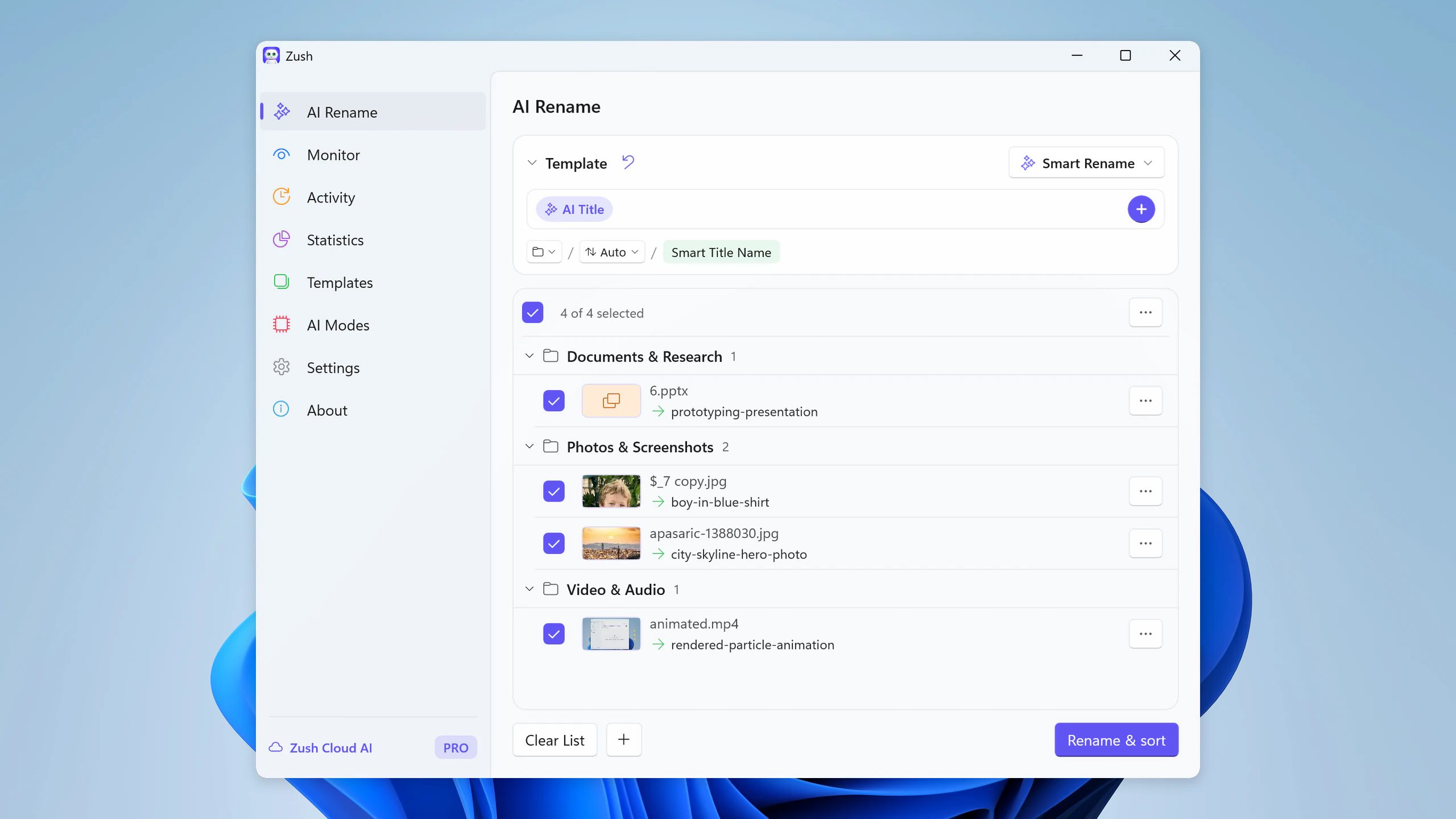
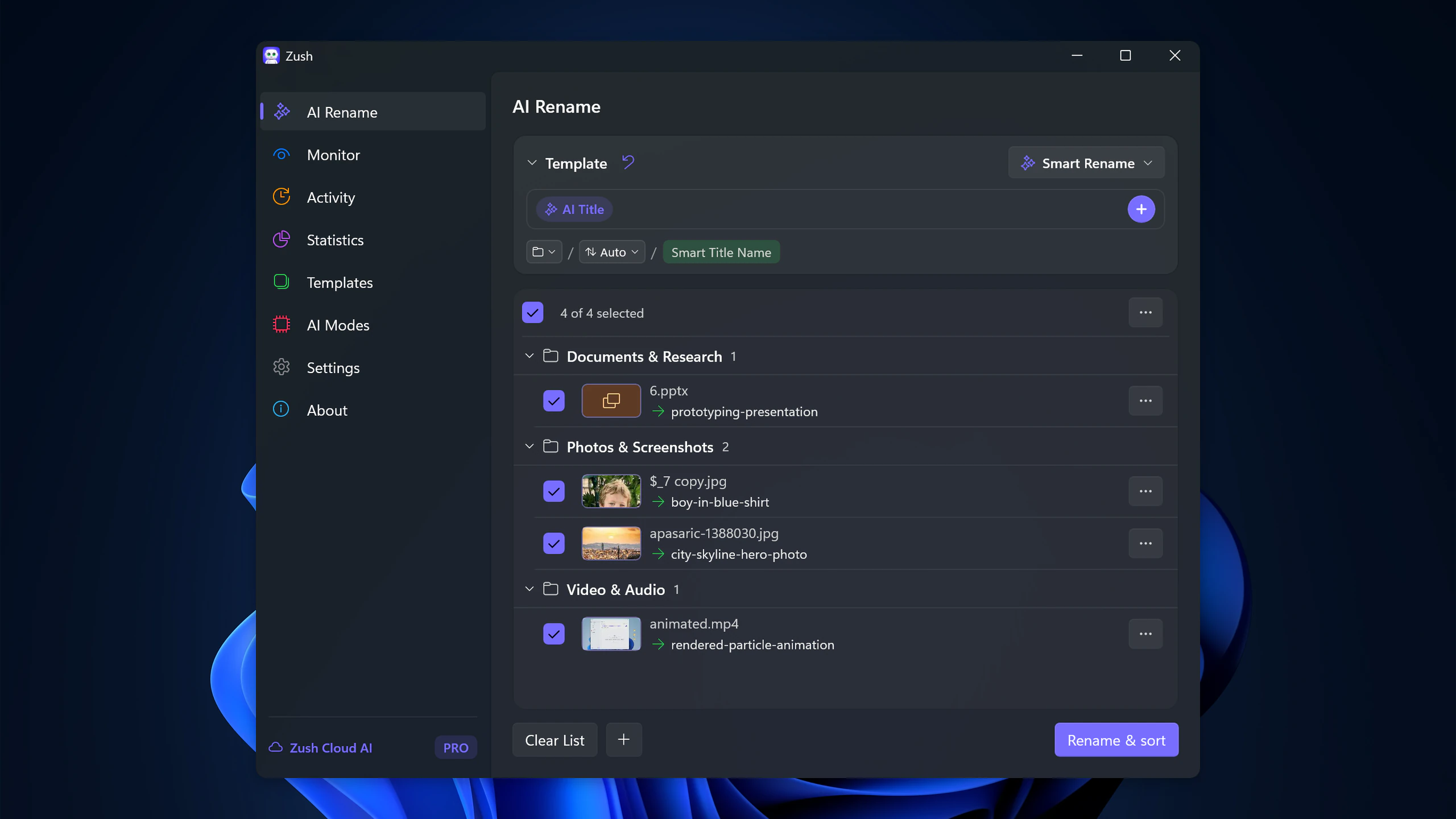
Follow the step-by-step Windows sorting guide or see the folder sorting documentation and 30 example Folder rules.
Rules that work well on Windows
1. Put the description first when the subject matters most
For many work files, the most important thing is what the file actually is.
Examples:
client-onboarding-checklist.docxmarch-electricity-bill.pdfproduct-roadmap-q3.pptx
2. Use ISO dates when time matters
If chronology matters, use YYYY-MM-DD. That keeps the folder sorted correctly alphabetically and chronologically.
Examples:
2026-04-23-vendor-invoice.pdf2026-04-23-quarterly-board-summary.pptx
3. Pick one separator and stay consistent
Hyphens are the easiest default. Underscores are fine if your team already uses them. What matters is consistency.
4. Use explicit versions instead of “final”
final is not a versioning system. Use v2, v3, v4 or dated versions when files evolve.
5. Avoid meaningless prefixes
Strings like copy, new, doc, scan, and image are not informative unless they are the actual subject of the file.
Naming patterns by workflow
Documents and PDFs
YYYY-MM-DD_subject_type.ext
Example:
2026-04-23-signed-vendor-agreement.pdf
Screenshots
subject-context.ext
Example:
stripe-dashboard-revenue-trend.png
Photos and visual assets
subject-location-or-context.ext
Example:
client-event-speaker-stage.jpg
Why this matters for Windows Search
Windows Search gets much more useful when the filename contains the nouns you would actually search later. If the file is called document.pdf, search has almost nothing to work with. If it is called signed-vendor-agreement-acme.pdf, the filename carries real retrieval value.
That is why naming conventions are not just cosmetic. They are retrieval infrastructure.
Where AI fits
The hard part is often not the pattern. The hard part is writing the descriptive part quickly and consistently across real files.
That is where AI renaming helps. It can identify the subject of a screenshot, PDF, or image and produce the descriptive core of the filename. Then you keep the convention stable on top.
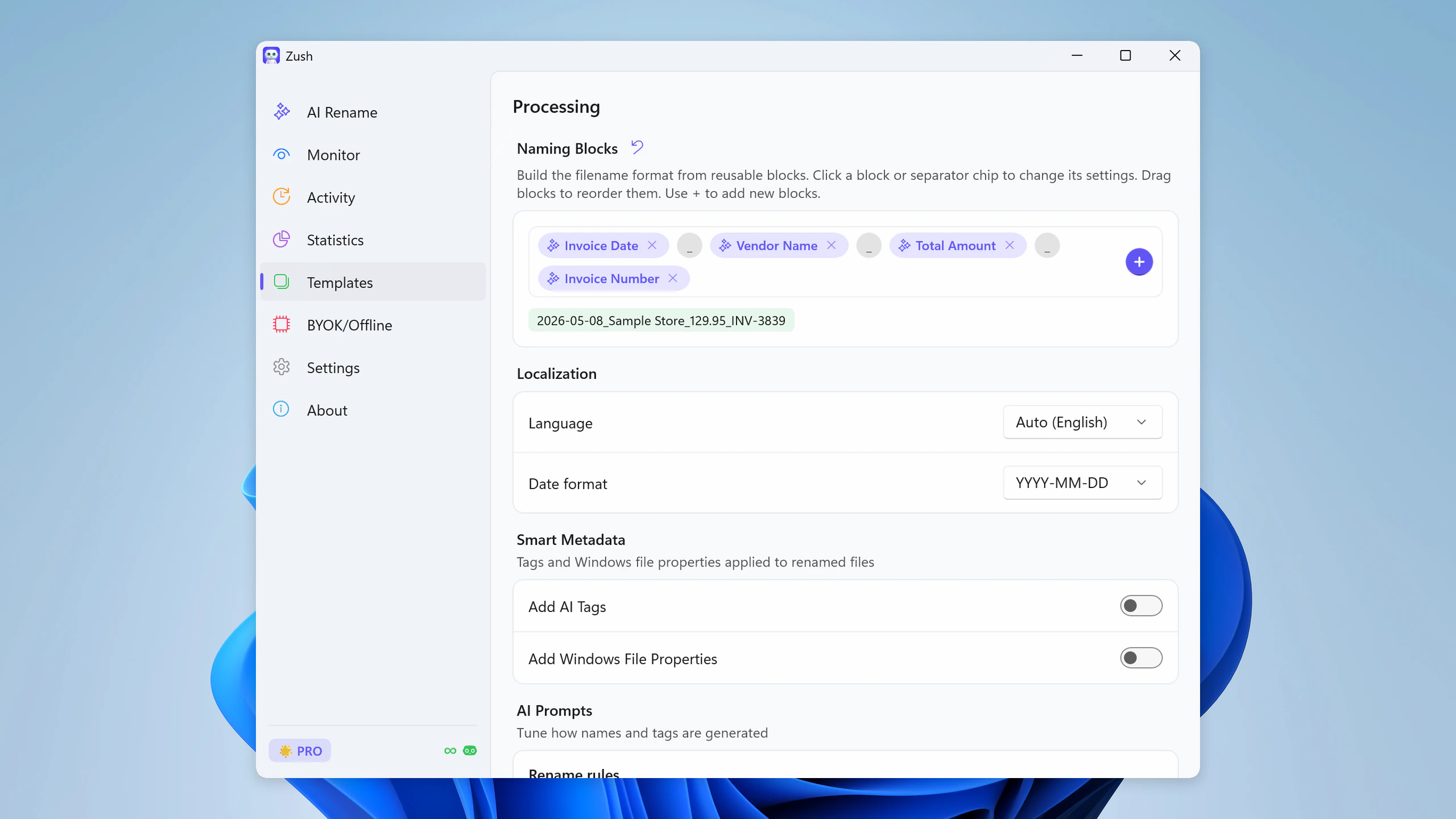
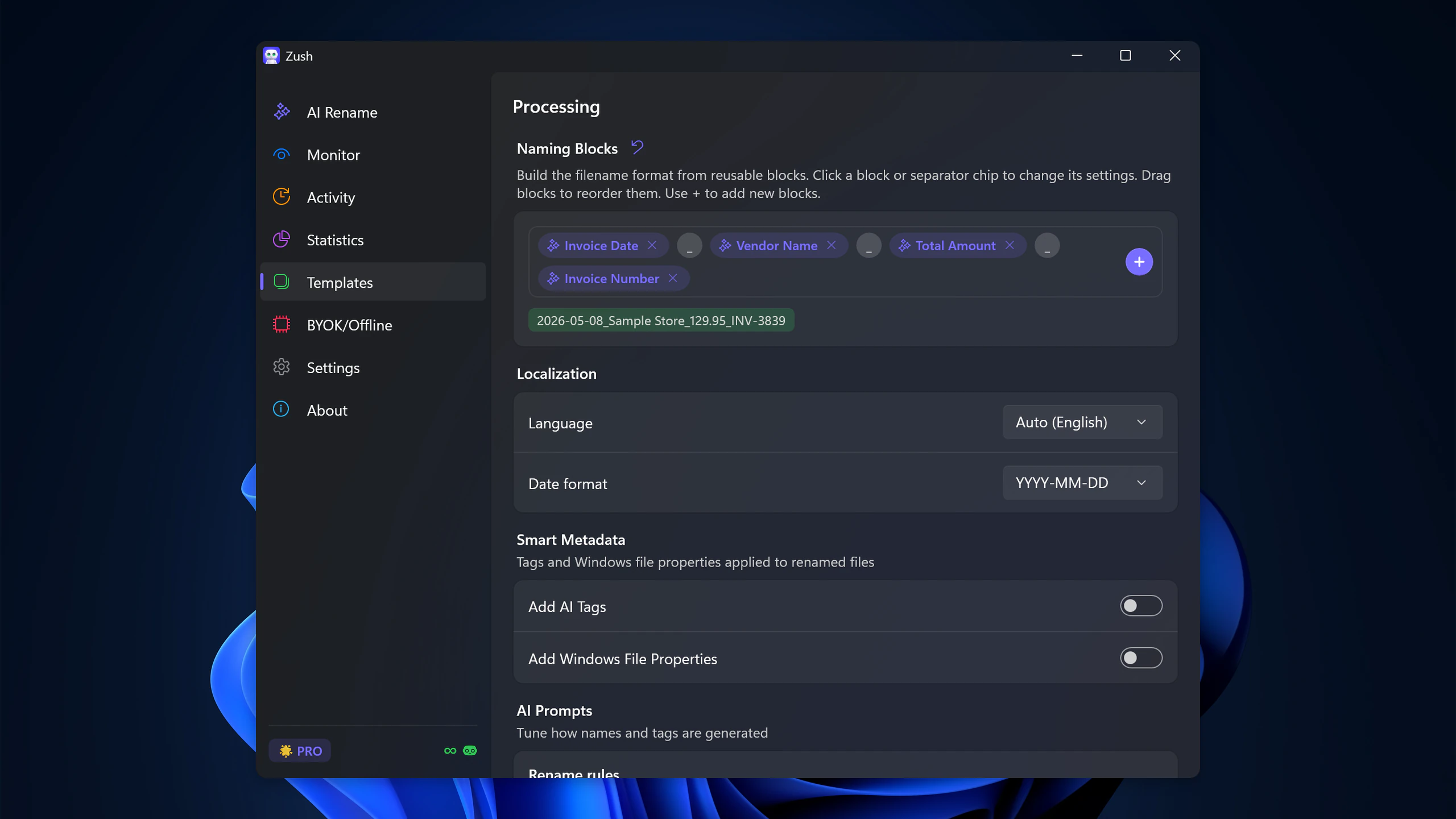
For the practical Windows workflow, continue with How to Rename Files with AI on Windows. If you want the automation layer too, read Auto Rename Files on Windows.
To apply a convention to files you already have, see how to batch rename files in Windows 11.
FAQ
Should I include spaces in Windows filenames?
You can, but hyphens or underscores tend to be cleaner for consistency, easier to scan, and friendlier for scripts and copied paths.
Do I need dates in every filename?
No. Use dates only when chronology matters. Otherwise the subject should usually lead.
What is the fastest way to fix a messy folder that already exists?
Use AI-assisted batch renaming to generate descriptive filenames first, then apply one naming convention consistently going forward.


