Spotlight Search Tips: Find Files Faster on Your Mac

Jump to section
Spotlight is one of the fastest ways to find files on Mac, but it only works as well as the metadata it can search. If your files have useful names, tags, and dates, Spotlight feels instant. If everything is IMG_4382 and document (7), search gets much weaker.
Most useful Spotlight searches
Search by filename
Type part of the file name directly.
Examples:
invoicetrip-photowireframe
Search by kind
Use kind:image, kind:pdf, or kind:folder to narrow results quickly.
Examples:
kind:image beachkind:pdf contract
Search by date
Use dates when you remember when a file was created or modified.
Examples:
date:2026-03kind:image date:2026-02
Search by tag
If you use Finder tags, Spotlight can surface them quickly.
Examples:
tag:redtag:client-alpha
Why Spotlight sometimes feels weak
Spotlight does not visually understand your files. It searches text-based metadata: filenames, tags, comments, and file properties.
That means a sunset photo named IMG_8392.HEIC is almost invisible unless you added better metadata yourself.
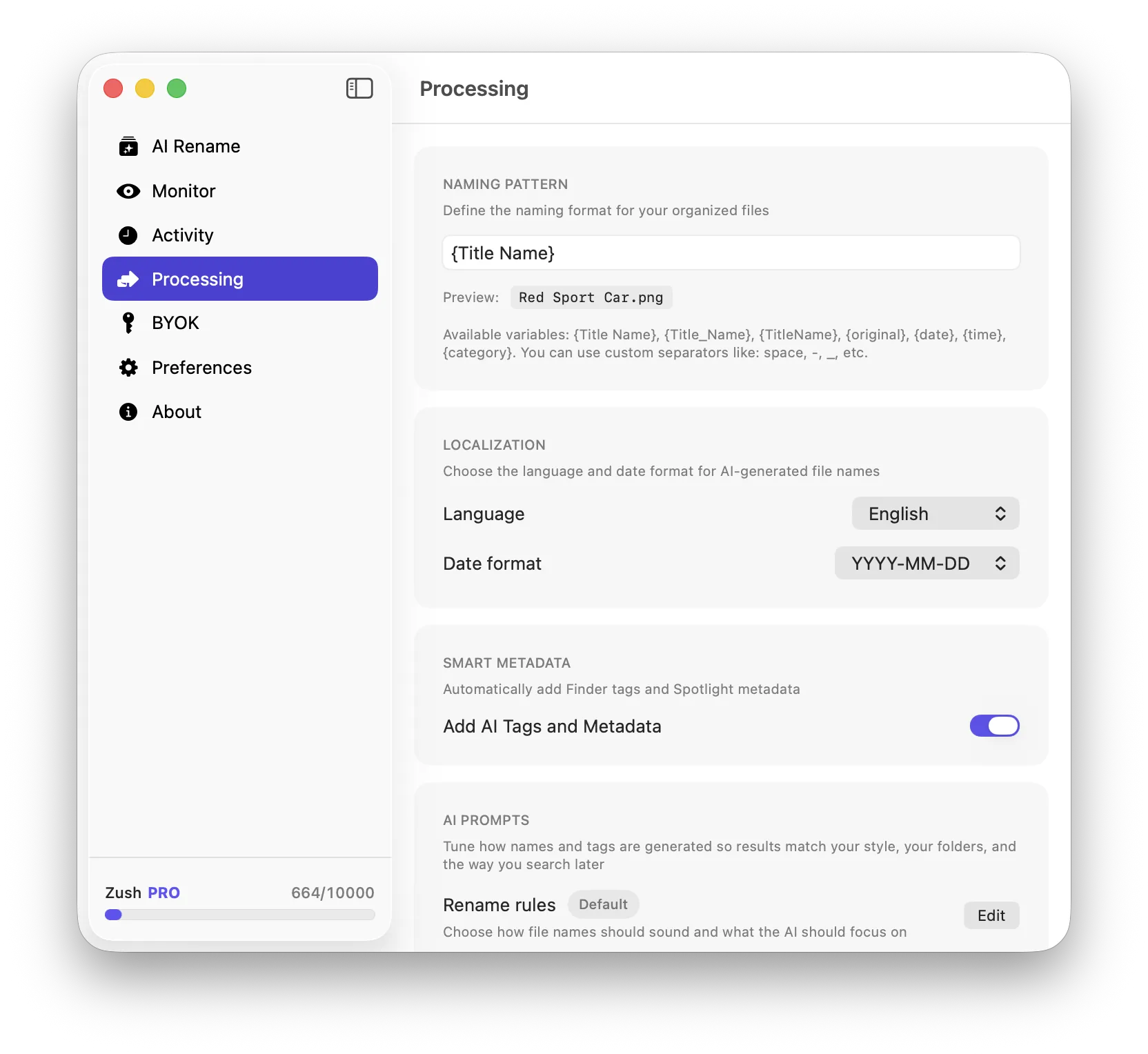
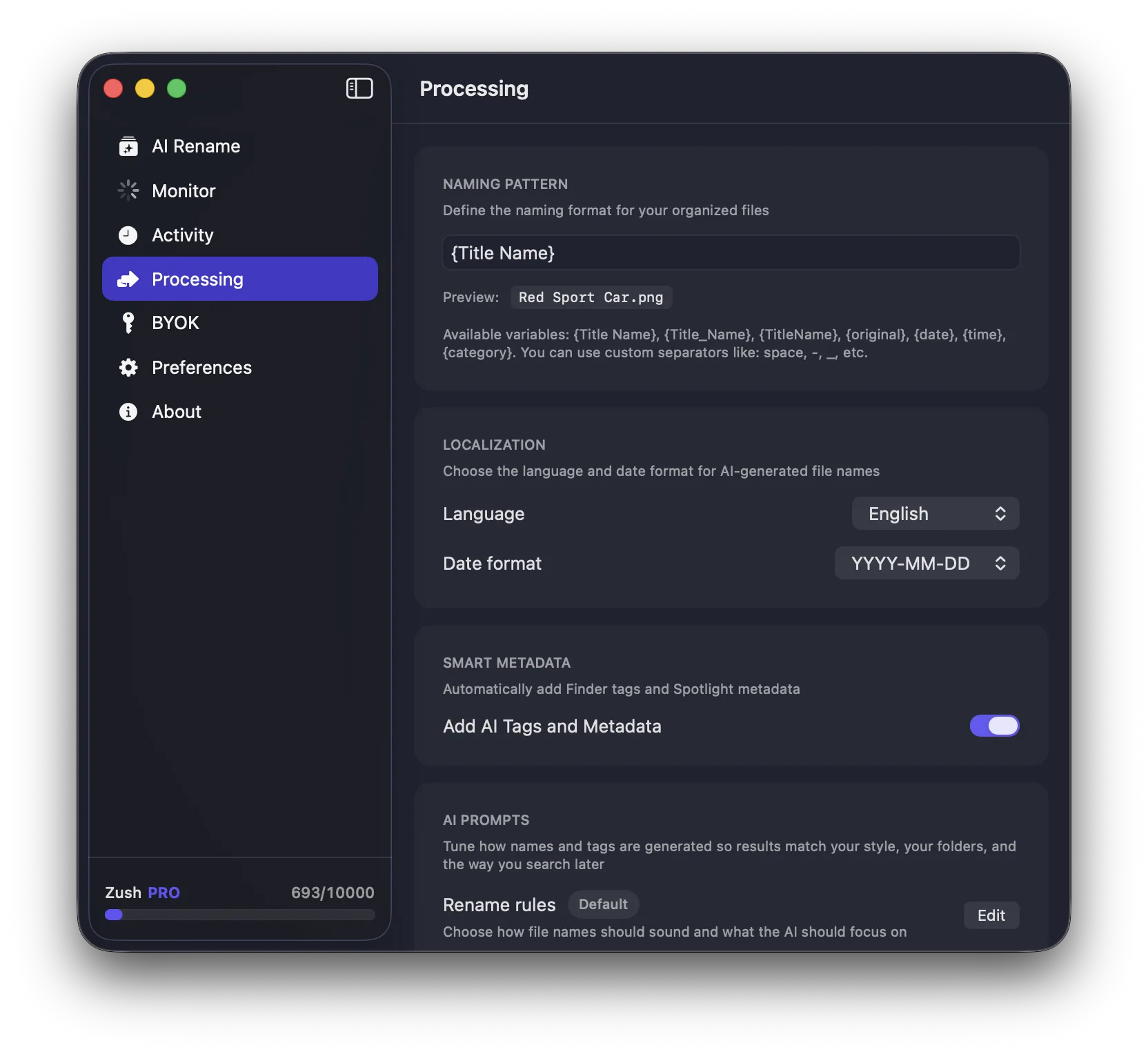
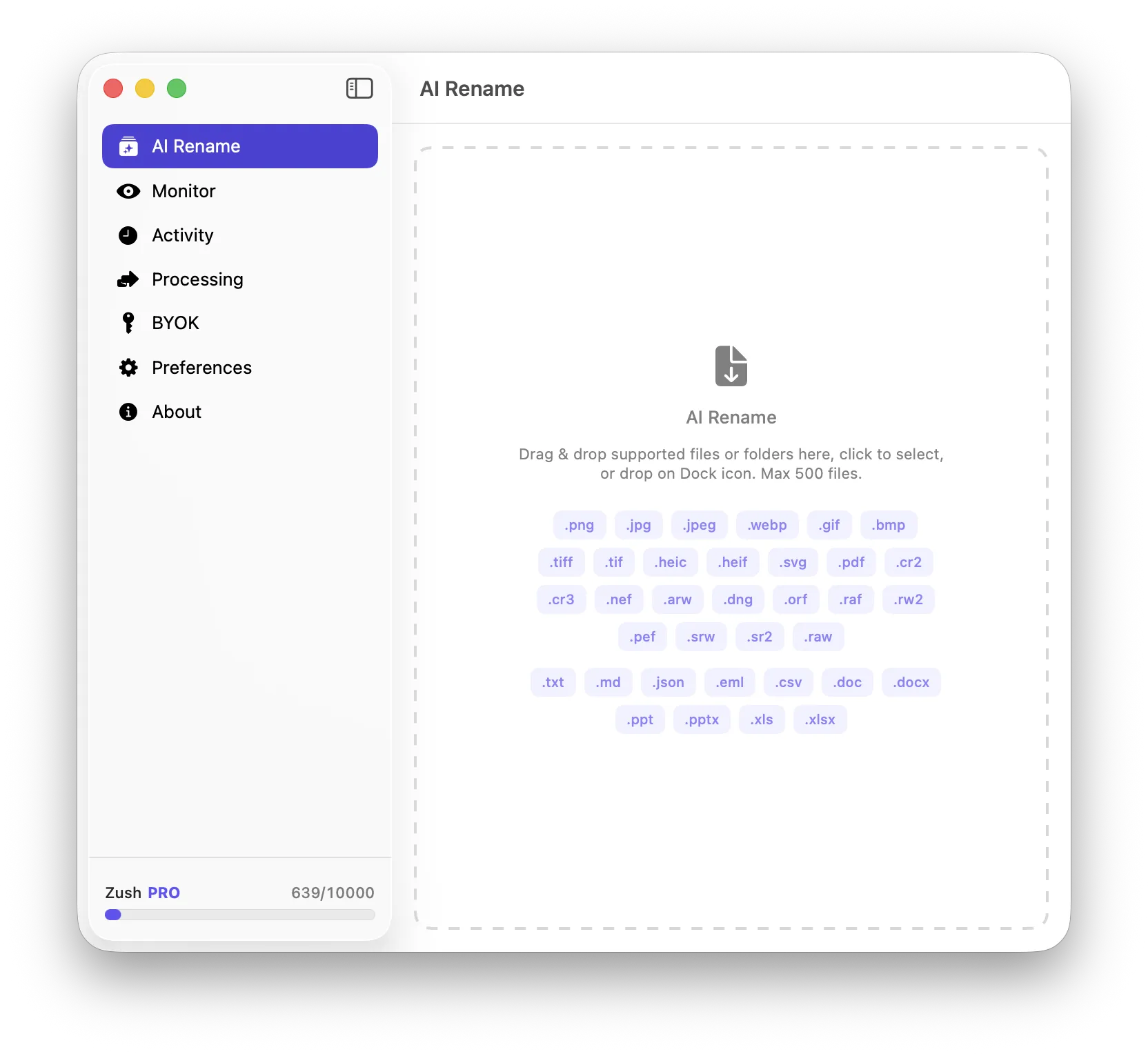
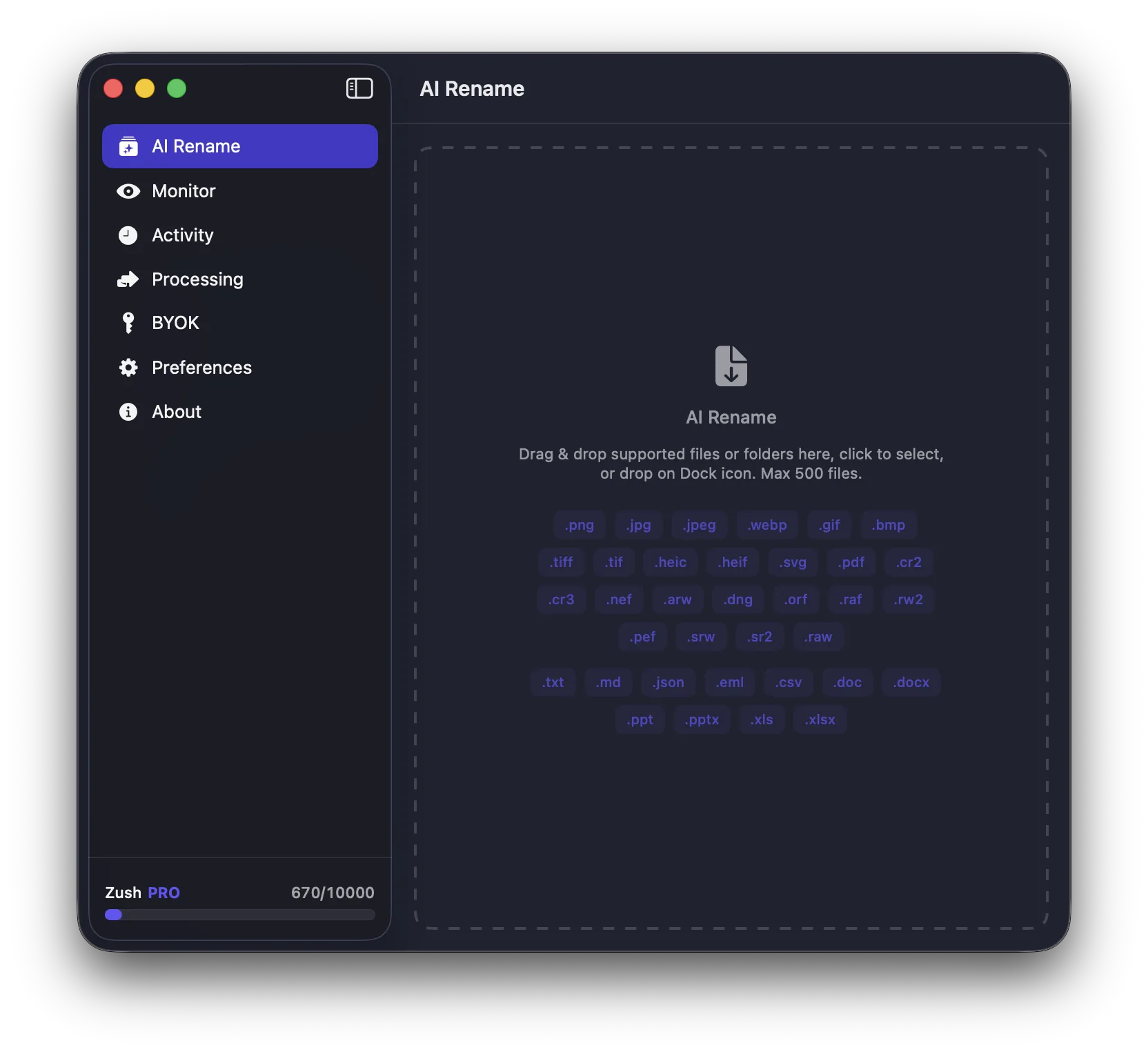
This is one reason AI-assisted naming helps on Mac. Zush can turn weak visual filenames into descriptive ones, which makes Spotlight much more useful later.
Best practices for better Spotlight results
- use descriptive filenames
- keep folder structures reasonably clean
- tag only the categories that actually help retrieval
- rebuild your index only when results are clearly broken
Related tools
- Finder Tags Guide: How to Organize Files on Mac with Color Tags
- How to Find Photos on Your Mac: The Ultimate Search Guide
- Smart Folders on Mac: The Complete Guide to Automatic Organization
Conclusion
Spotlight is already powerful. The real upgrade comes from giving it better material to search. Strong filenames, tags, and metadata make it dramatically more effective.