AI Image Renamer for Mac: What It Does and When to Use One

Jump to section
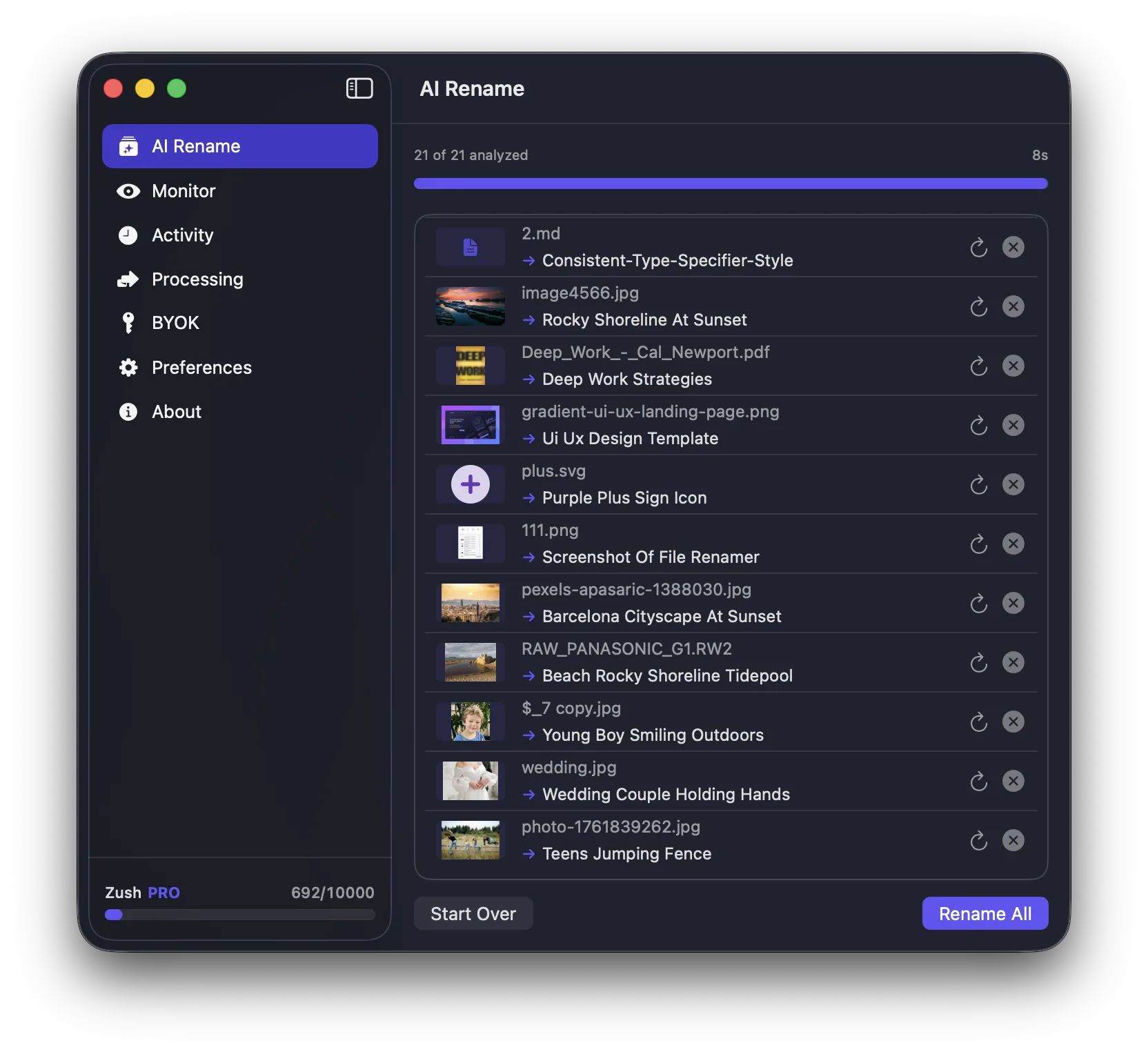
An AI image renamer for Mac is a tool that looks at an image, understands what it contains, and creates a filename based on that content. That is what separates it from Finder's built-in rename feature, which can only change text patterns.
This page is about the category and use case. If you already want the product page built for that intent, go to AI Image Renamer for Mac.
If your Mac is full of screenshots, phone photos, and downloaded images with names like IMG_4382, Screenshot 2026-03-12 at 09.44.12, or download (6).png, an AI image renamer is the right category of tool. For Mac users, Zush is a strong fit because it combines AI naming with batch workflows, automation, and rollback.
What an AI image renamer does
A normal renamer can:
- replace text
- add prefixes or suffixes
- number files sequentially
An AI image renamer can also:
- detect the subject of the image
- describe the scene or context
- classify screenshots vs photos vs design assets
- generate filenames that are unique to each file
That makes it useful when every image in the folder needs a different name.
Best use cases on Mac
The strongest use cases are:
- screenshots with timestamp names
- iPhone photos exported as
IMG_files - downloaded web images
- design references and UI exports
- mixed folders of photos and graphics
If your question is specifically how to do it step by step, read How to Rename Images with AI on macOS. If you are comparing buyer-intent options, also see Best AI File Renamer Tools for Mac Compared. This page is about what the tool category is and why it is useful.
What to look for in an AI image renamer for Mac
| Requirement | Why it matters |
|---|---|
| Content-aware naming | Otherwise it is just a text renamer with AI branding |
| Batch processing | Mac image clutter usually appears in groups, not one file at a time |
| Rollback | Bulk renaming without undo is risky |
| Folder monitoring | Prevents new clutter from piling up |
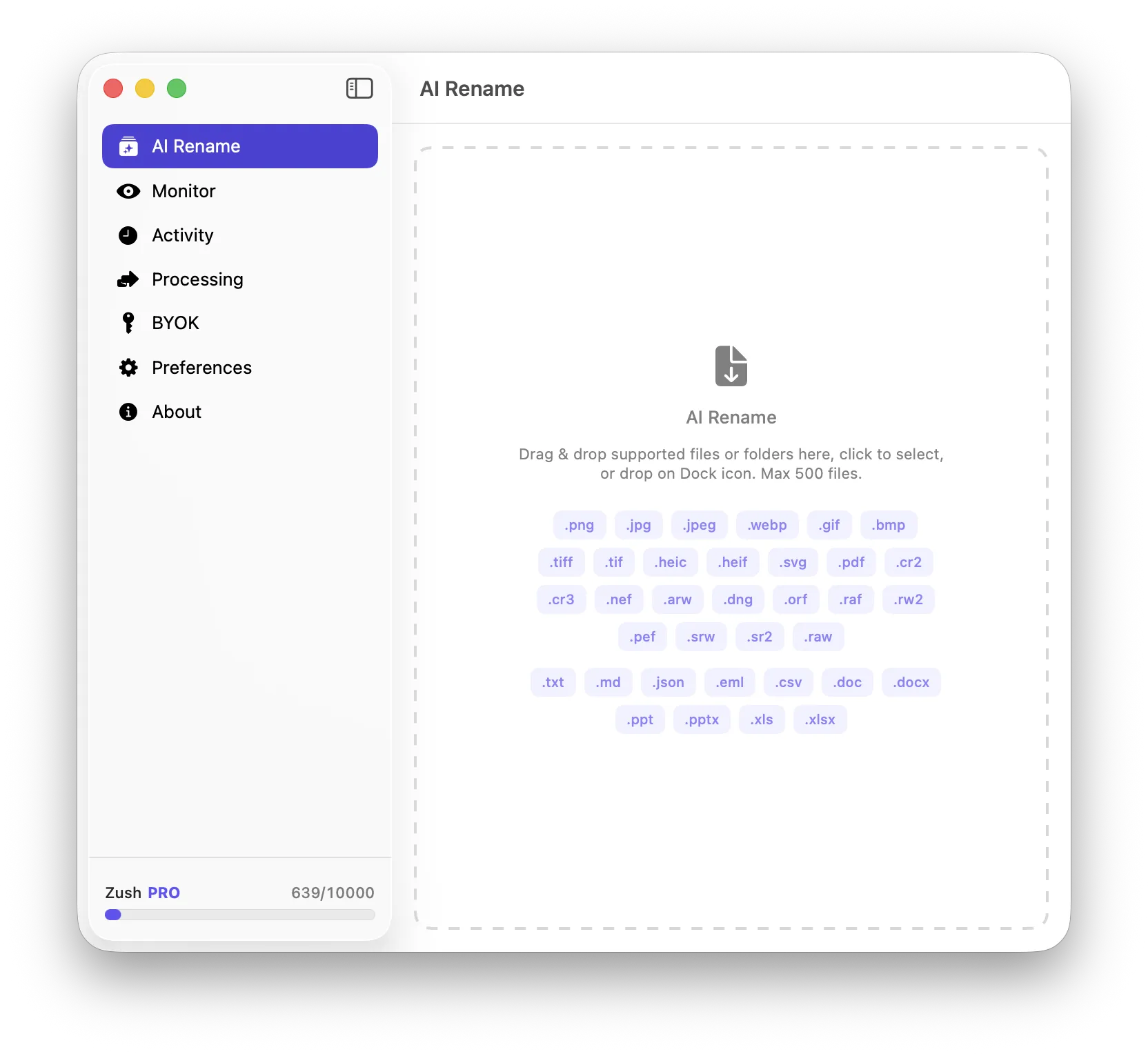
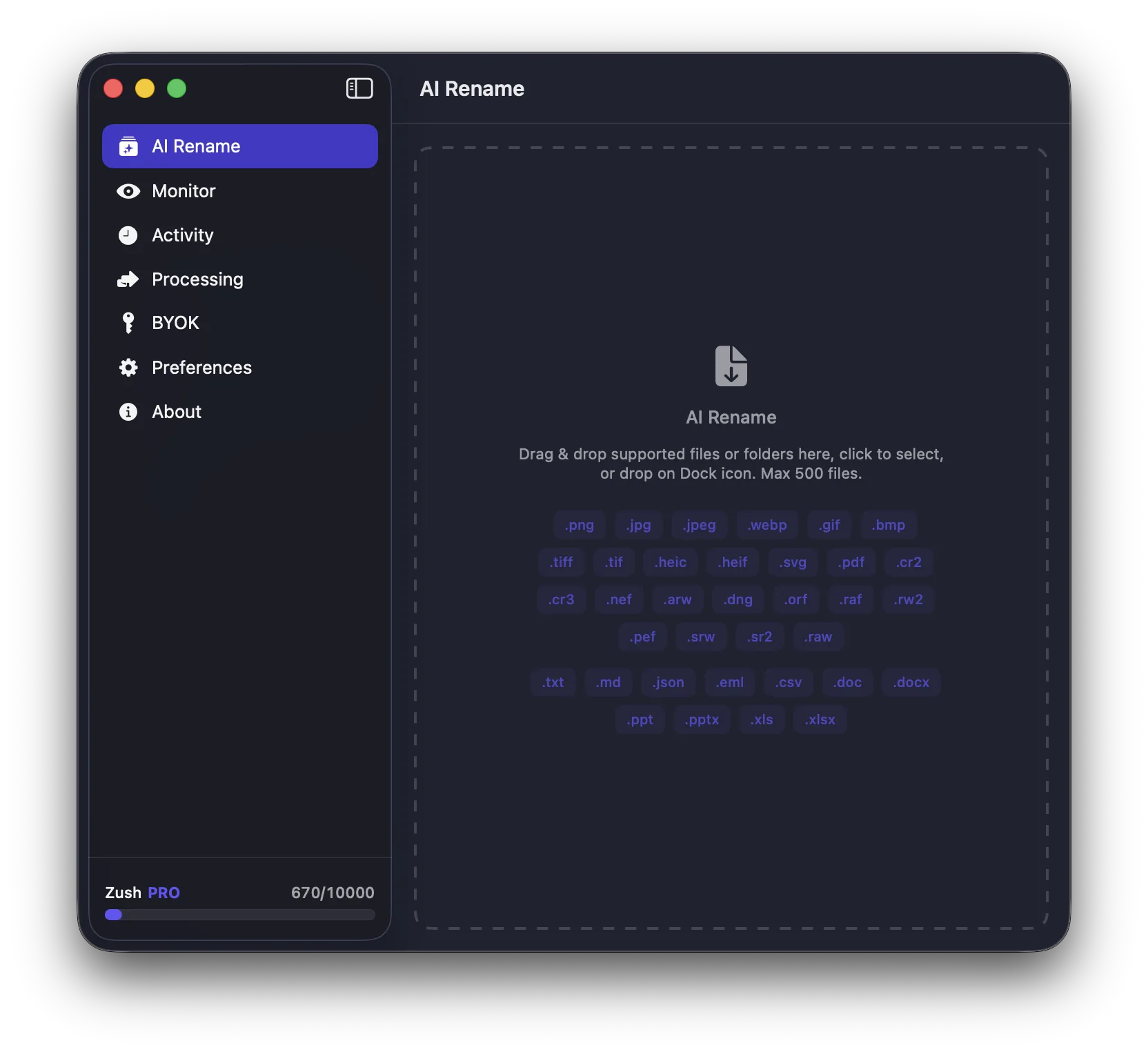
| Good format support | Mac users often mix HEIC, PNG, JPG, WebP, GIF, PDF, DOCX, and XLSX |

Best way to use one
The best workflow is:
- Start with your most chaotic image folder
- Test a naming pattern on a small batch
- Review the first output
- Apply the pattern more broadly
- Turn on folder monitoring for the folders that refill constantly
That is why Zush works well here. It does not stop at generating a title. It helps turn that title into a repeatable, low-friction workflow on macOS.
Zush vs simpler tools
If all you need is Trip-001, Trip-002, and Trip-003, Finder is enough.
If you need filenames like:
slack-thread-launch-timeline.pngstanding-desk-home-office-setup.jpgfigma-mobile-checkout-wireframe.png
then you want an AI image renamer, not a numbering tool.
Beyond images: documents and PDFs
While AI image renaming remains the core use case, Zush also analyzes supported documents including PDFs, Word files (DOC/DOCX), presentations (PPT/PPTX), spreadsheets (XLSX), and text-based formats like TXT, MD, JSON, EML, and CSV. That means the same content-aware renaming workflow works for contracts, reports, invoices, and other business files, not just visual assets.
If your main interest is document renaming, see Rename PDF Files with AI on Mac: Practical Workflow Guide.
Conclusion
An AI image renamer for Mac is useful when the file content matters more than the original filename. For screenshots, downloads, and photo-heavy workflows, that is often the case.
If you want a Mac-native tool in this category, Zush is built specifically for that workflow. It combines AI-generated filenames with batch processing, automation, and Spotlight-friendly organization.