Auto Image Renamer for Mac: Set Up Folder-Based Automation

Jump to section
An auto image renamer for Mac is useful when your problem is not just bad filenames, but the constant arrival of new bad filenames. Screenshots, iPhone photos, downloaded graphics, and exported assets keep landing under names like IMG_, Screenshot, and download (4).
This page is about the automation workflow. If you want the broader commercial page for watched-folder renaming, go to Auto Rename Files on Mac.
If you want those files renamed automatically instead of manually, you need two things: content-aware naming and folder monitoring. That is why Zush is a strong fit for this query. It can watch key folders and rename incoming images based on what they actually show.
What “auto image renamer” should mean
Automatic renaming should not mean applying the same prefix to every file. It should mean:
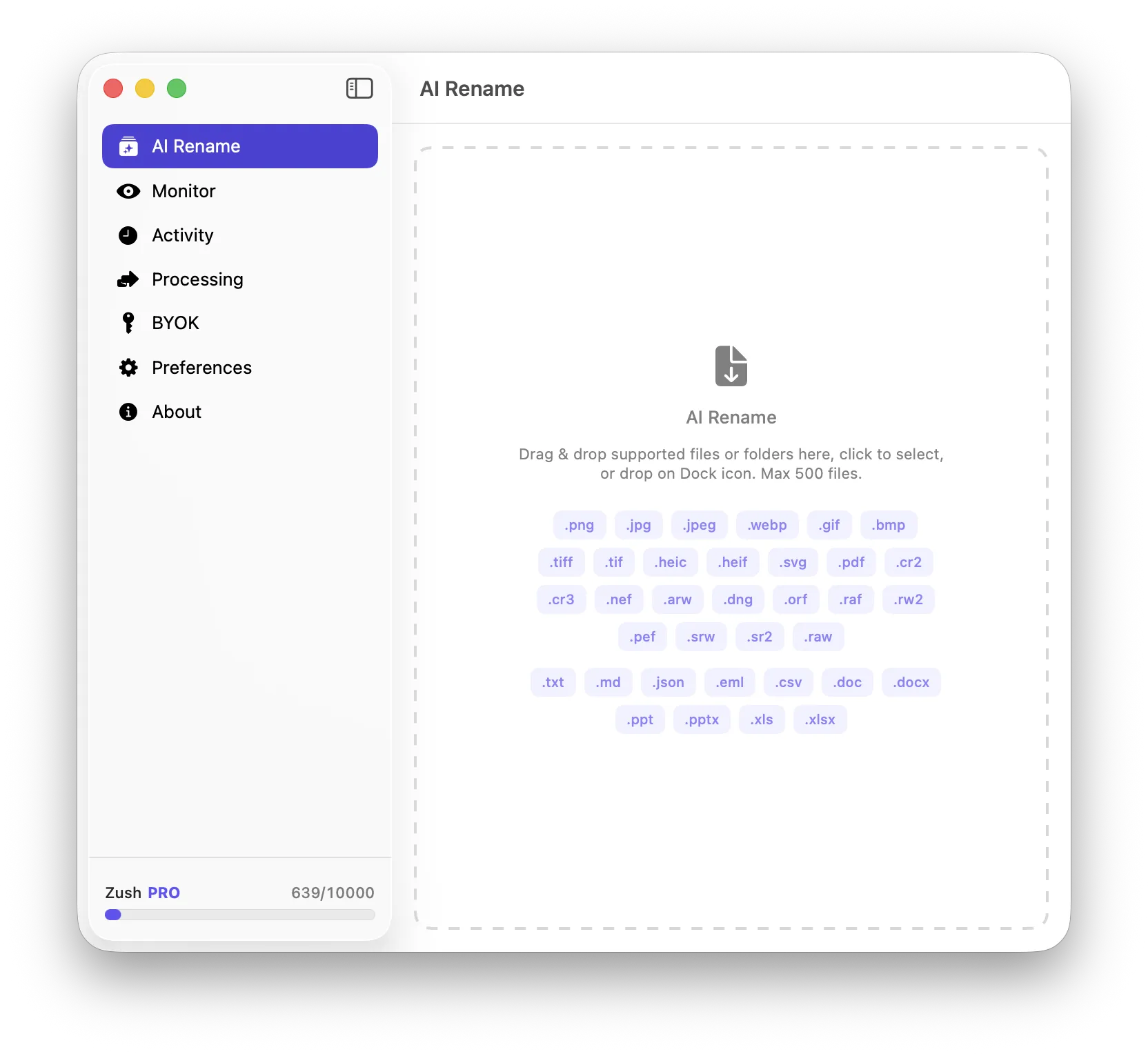
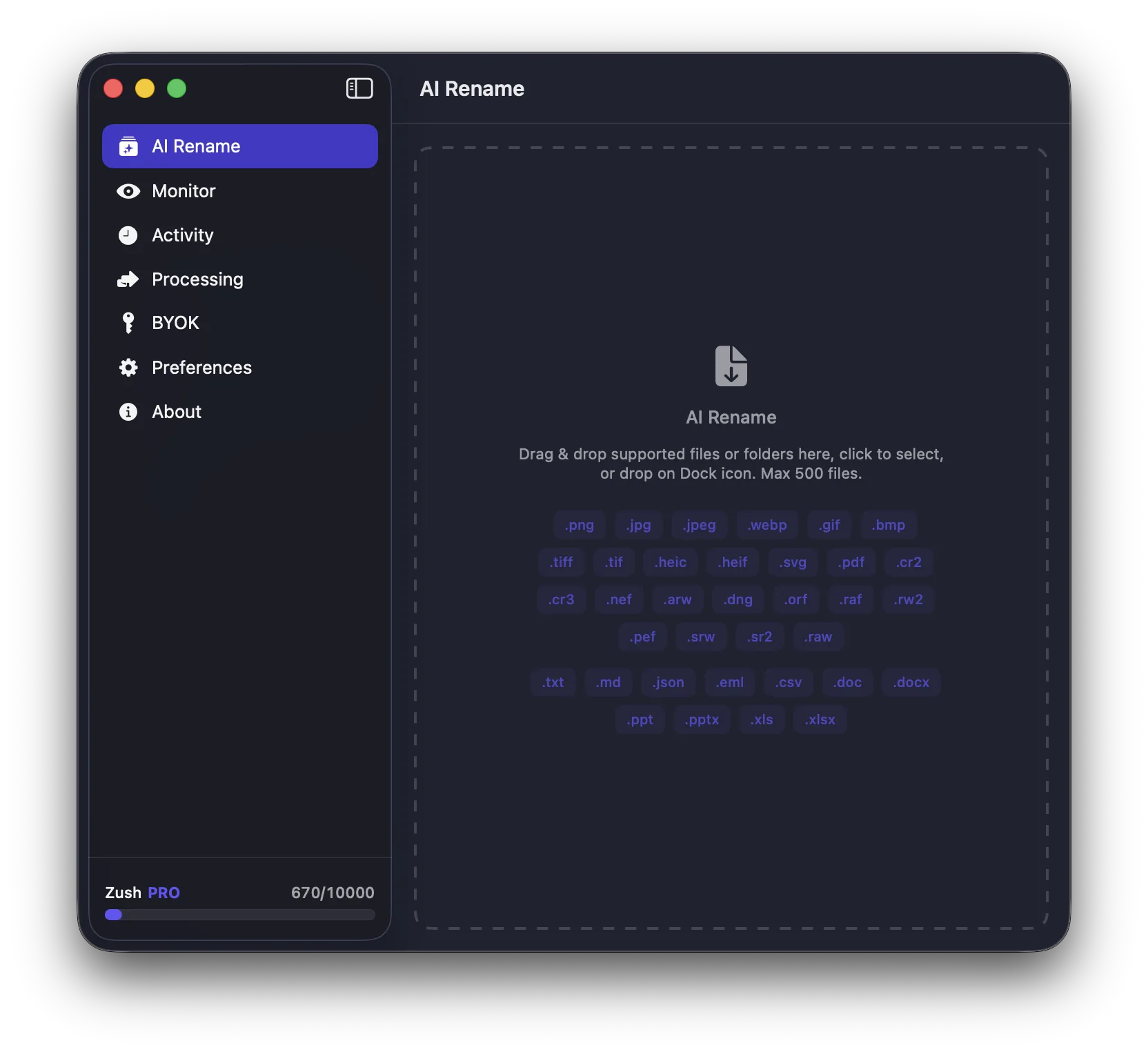
- watching a folder continuously
- identifying the content of each image
- assigning a descriptive title
- applying a consistent pattern
- keeping a rollback option
Without content awareness, automation just scales generic naming.
Best folders to automate on Mac
Start with the folders that refill every week:
- Screenshots
- Downloads
- Desktop
- camera import folders
- client asset staging folders
These are usually the places where filenames become useless fastest.
Why screenshots and downloads benefit most
Screenshots already contain timing information. What they lack is context. Downloaded images often have neither context nor structure.
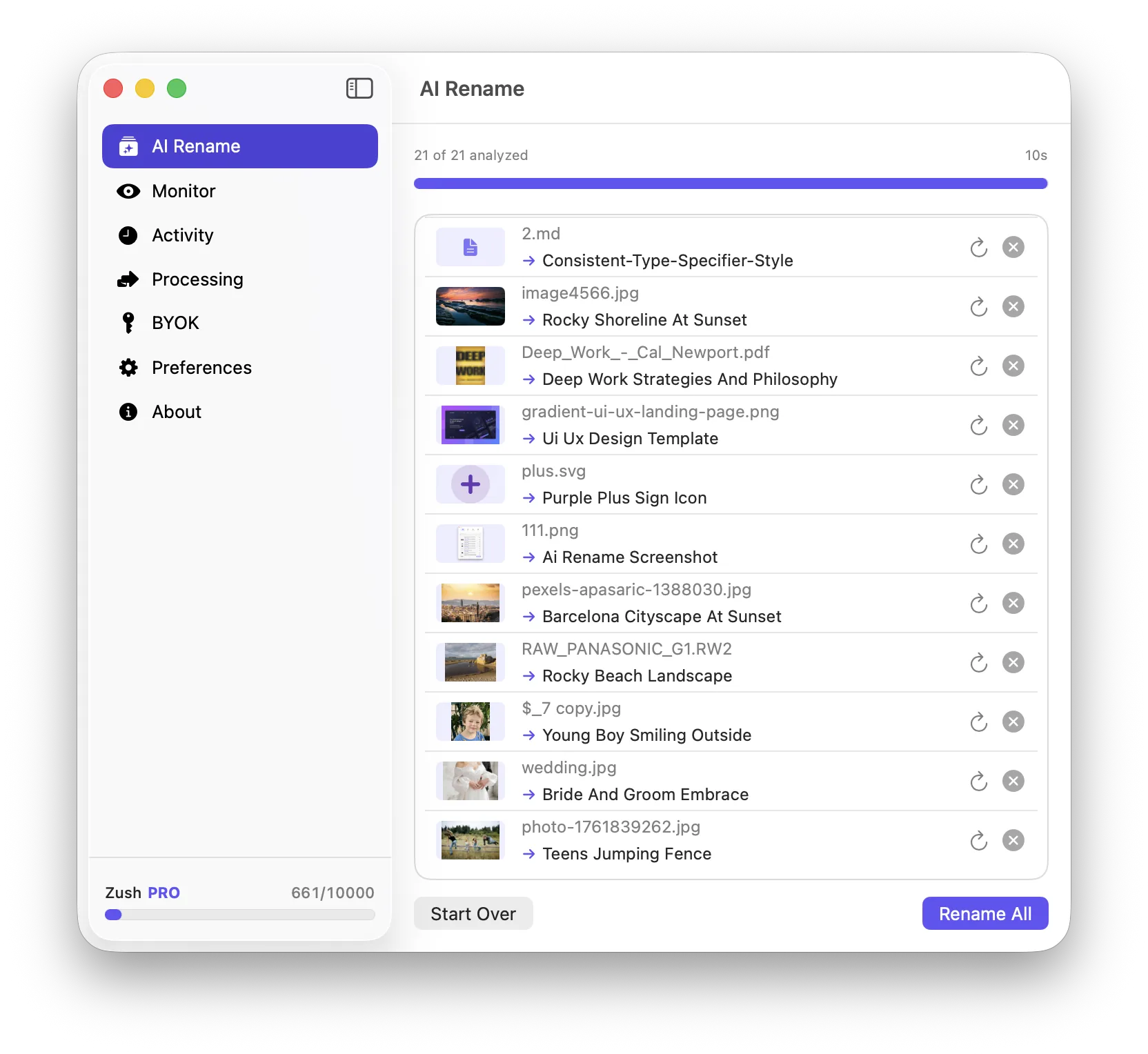
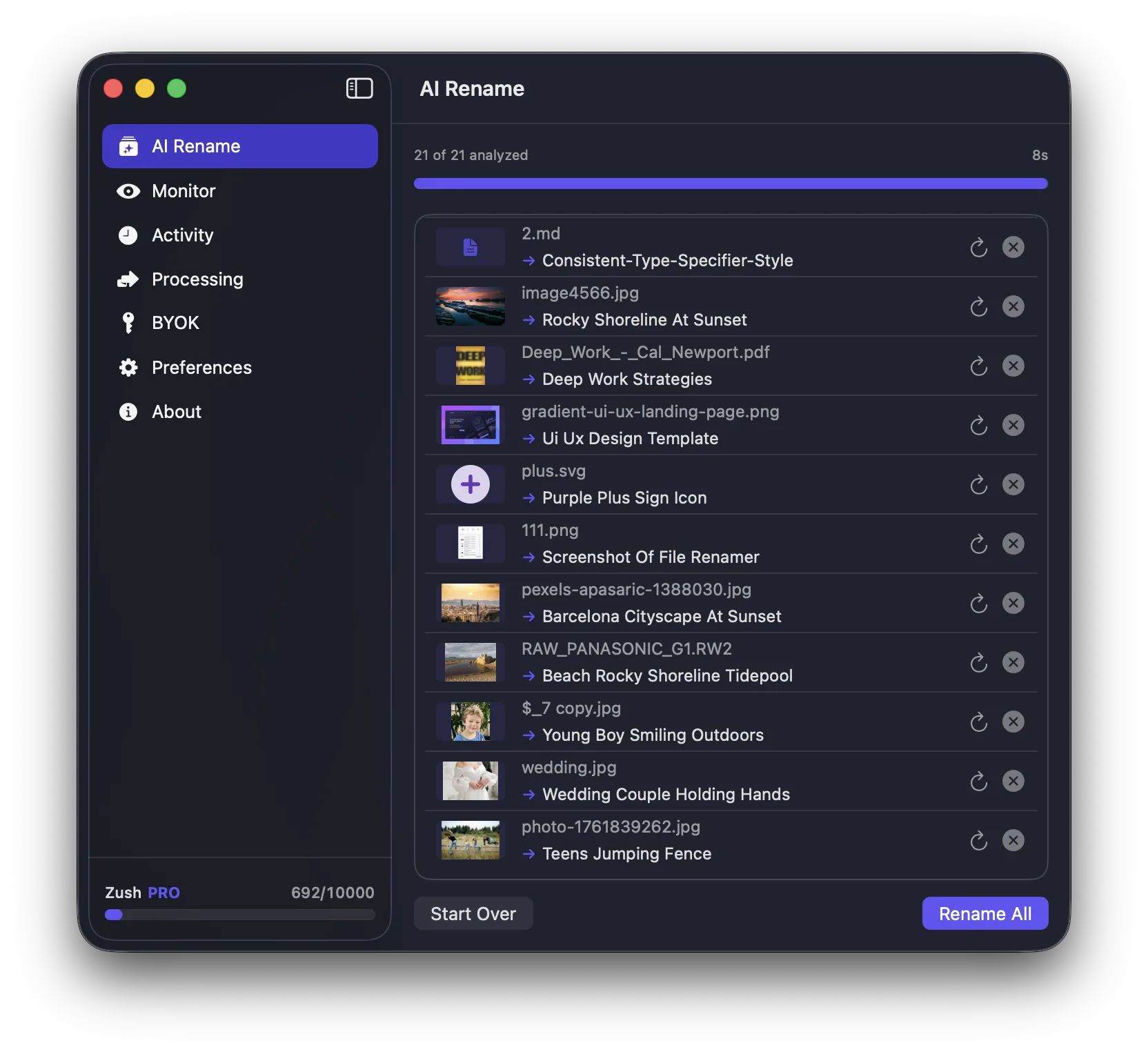
That makes them ideal for automatic AI renaming.
Examples:
Screenshot 2026-03-12 at 11.03.02.png->stripe-billing-settings.pngdownload (4).jpg->modern-kitchen-pendant-lighting.jpgIMG_8821.HEIC->dog-running-on-beach.heic
How to set up an automatic workflow
- Pick one high-friction folder
- Choose a naming pattern such as
{date}_{title}or{category}_{title} - Test the first few renames
- Leave the monitor running for future files
That is the practical value of Zush: you can move from cleanup to prevention without building your own scripts or Shortcuts workflow. If you want the broader category page, read AI Image Renamer for Mac: What It Is and the Best Way to Use One.
When automatic renaming is a bad fit
Skip full automation if:
- the folder contains many files that should never be renamed
- you need exact legal or accounting naming rules
- you are not ready to review the first batch and adjust the pattern
Automation is strongest when the incoming files are consistently poorly named, whether they are images, screenshots, PDFs, or documents.
Auto-renaming beyond images
Automatic renaming is not limited to visual files. Zush also monitors folders for supported document types including PDFs, DOCX, PPTX, XLSX, TXT, MD, JSON, EML, and CSV. When a new document arrives in a monitored folder, Zush reads its content and generates a descriptive filename automatically. That is useful for Downloads folders that accumulate email attachments, exported reports, and shared documents alongside screenshots and images.
For a focused guide on document renaming, see Rename PDF Files with AI on Mac: Practical Workflow Guide.
Conclusion
An auto image renamer for Mac should stop the clutter before it builds up. If your problem is recurring screenshots, downloads, or imported photos, folder monitoring plus AI naming is the right combination.
For that workflow, Zush gives you a practical Mac-native setup: descriptive filenames, batch cleanup, and automatic renaming for future files.