How to Organize Client Files as a Freelancer on Mac

Jump to section
Quick answer: freelancers should mirror folders per client, then per project, then per phase, with filenames like clientname-project-phase-asset.ext. Add a shared subfolder per client for assets you reuse, and archive old projects yearly.
Freelancer file organization on Mac breaks down for one reason: every client brings different files, different deadlines, and different expectations, but most people manage them with whatever folder structure happens to exist that week.
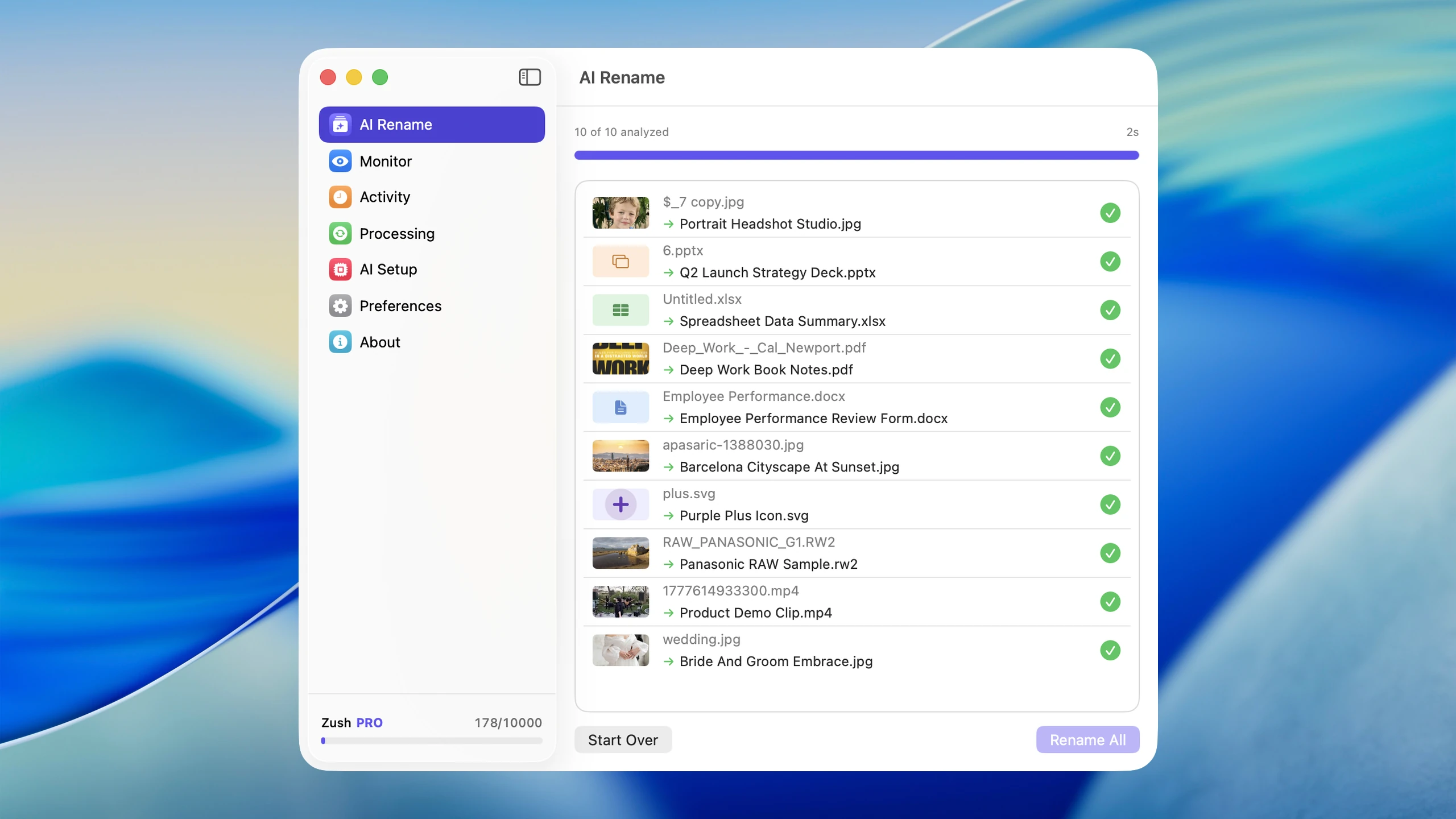
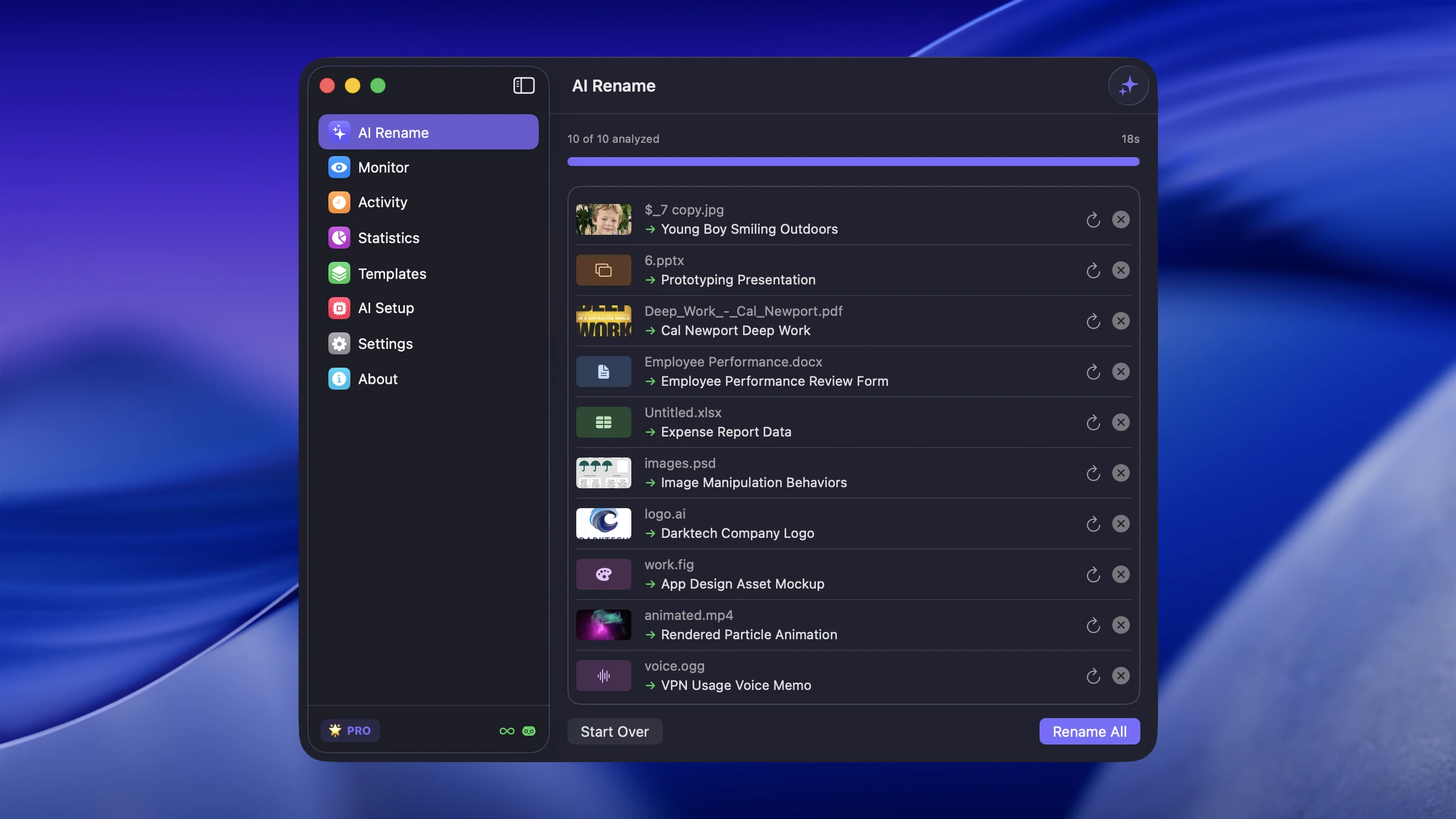
A better system is boring on purpose. Use the same top-level structure for every client, keep filenames consistent, and automate the visual files that would otherwise stay under names like IMG_4382, Screenshot 2026-03-01 at 09.41.22, or download (2). For that part of the workflow, Zush is especially useful because freelancer folders often accumulate screenshots, design exports, references, contracts, invoices, and client documents faster than they can be renamed manually.
Sort client files into folders with AI
Zush can give supported files descriptive names and group them into real folders by content in the same batch. AI folder sorting is in beta on Mac and Windows. Leave Folder rules empty for Auto grouping, or describe the groups in plain language. For client files, try:
Group files by client when the client is clearly identified. Put unclear files in Review.
- Add a small copied batch in AI Rename and select a Template.
- Enable + Sort and choose the Destination folder, which is the root for the sorted subfolders. Without a separate destination, the source folder remains the root.
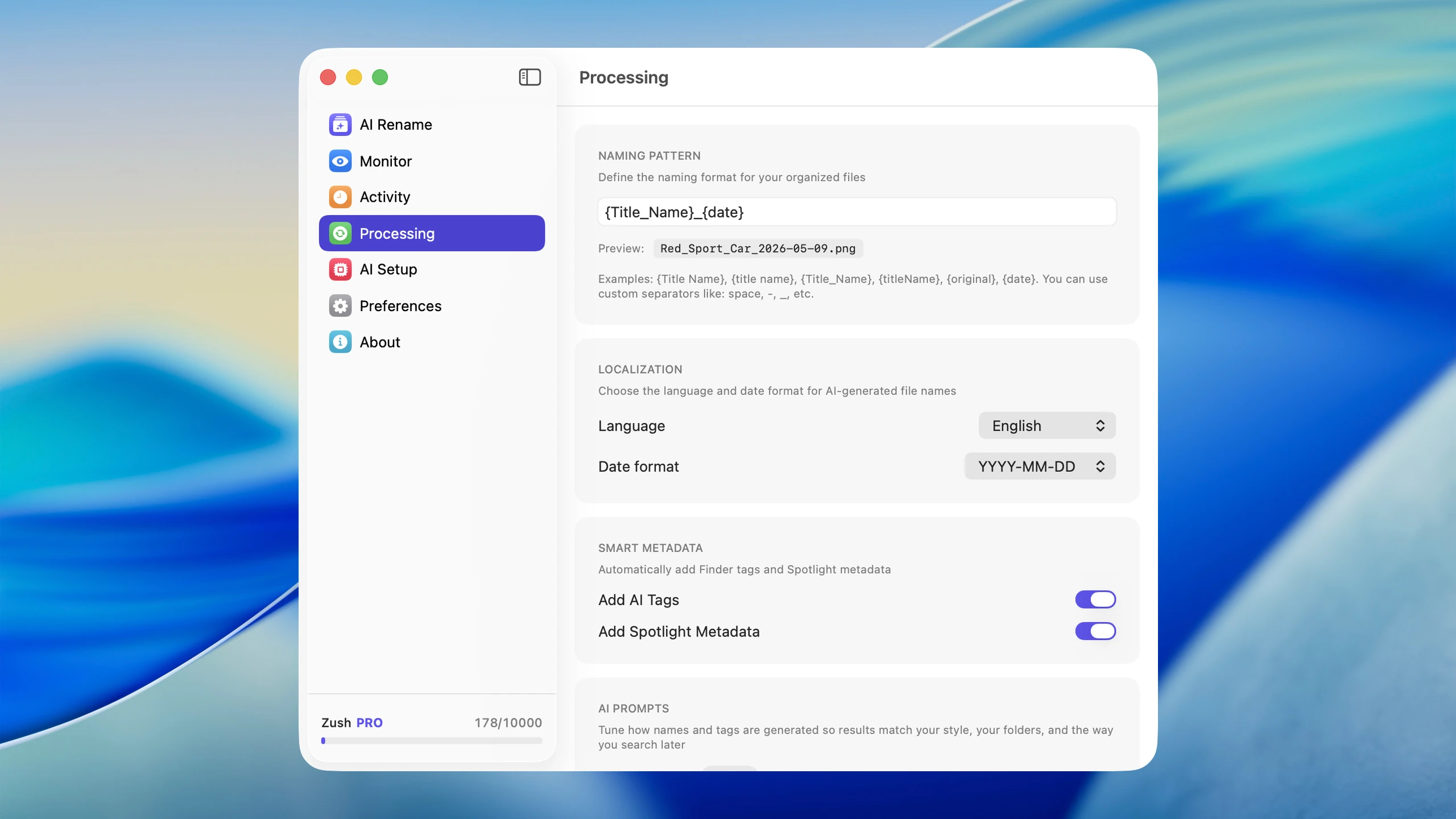
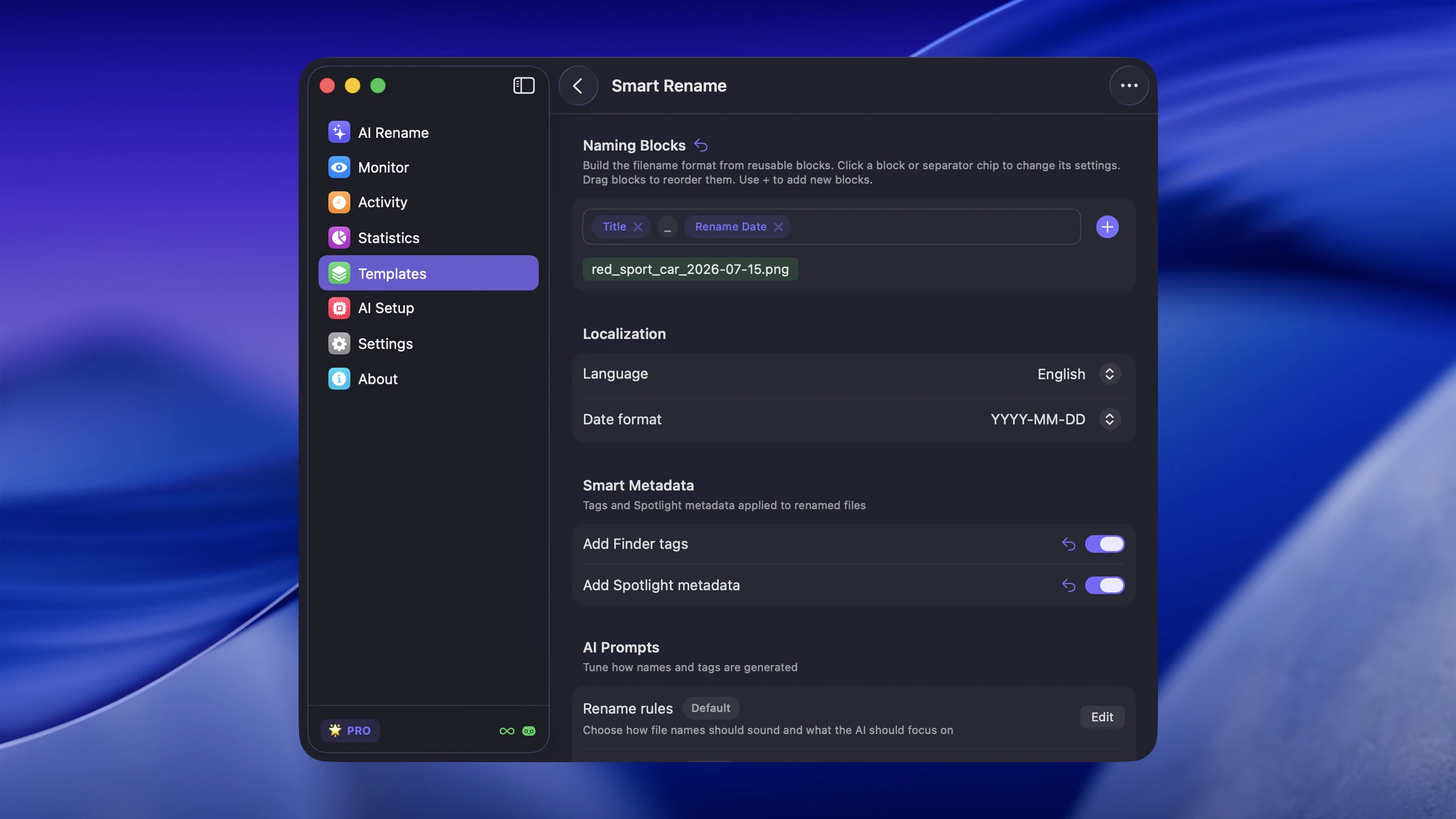
- Enter the grouping instruction in Folder rules. Naming Blocks set the filename format separately.
- Enable Reuse existing folders if suitable groups already exist inside the destination root. Zush can create a new folder when none fits.
- Review both the proposed names and folder groups. Correct folder names or file placement before applying the batch.
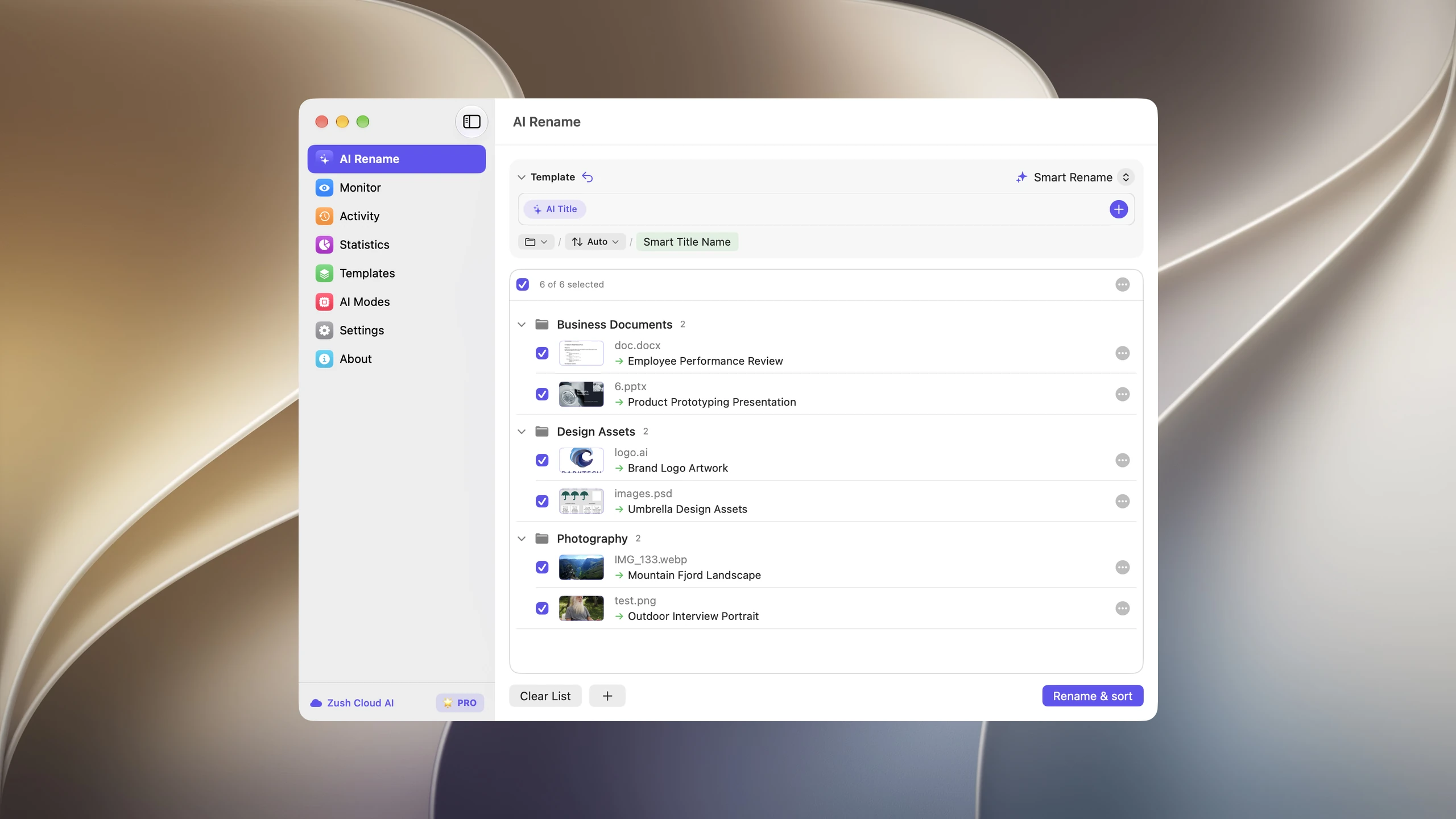
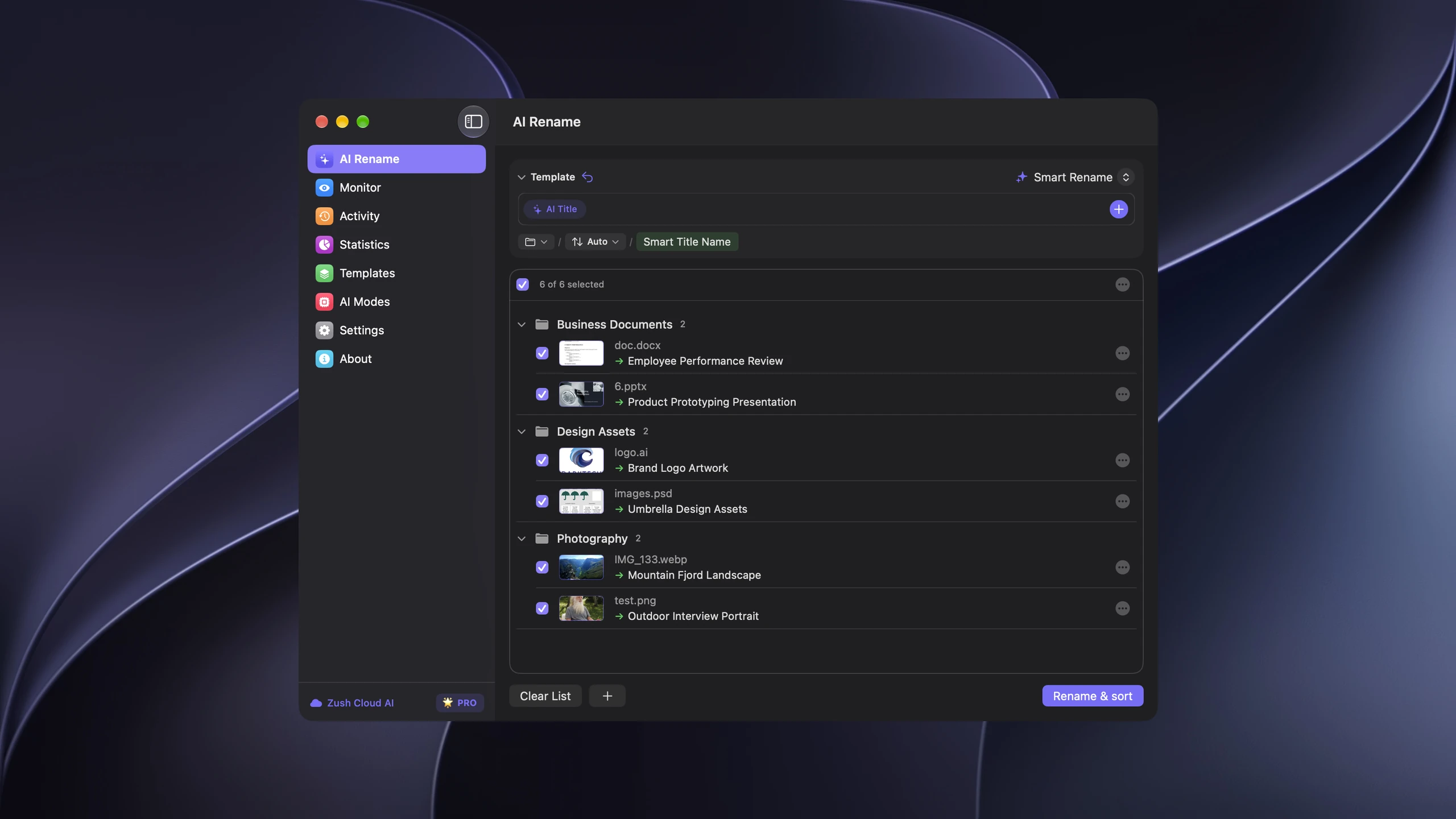
Save the tested destination and rules in the Template. Assign it to Monitor to rename and sort new files arriving directly inside the watched folder. This does not retroactively reorganize files already processed. With sorting off and the original destination selected, files keep their current folder.
Follow the step-by-step Mac sorting guide or see the folder sorting documentation and 30 example Folder rules.
A client folder structure that scales
At the top level, organize by client first:
Client-NameClient-Name/AdminClient-Name/ProjectsClient-Name/AssetsClient-Name/DeliverablesClient-Name/Archive
Within Projects, create one folder per active project. The point is not complexity. It is predictability.
Naming rules that reduce confusion
Use filenames that answer three questions:
- Which client is this for?
- What is it?
- Which version or date matters?
Examples:
acme-homepage-wireframe-v2.figacme-brand-guidelines-2026-03.pdfacme-instagram-carousel-export-01.pngacme-onboarding-feedback-call-notes.docx
Avoid filenames like final, latest, or homepage-new-new.
The files that usually cause the mess
For many freelancers, the worst folders are not contracts or invoices. They are visual assets:
- screenshots from client feedback
- downloaded references
- exported social media graphics
- design mockups
- phone photos used in content or marketing
- contracts and proposals as PDFs
- client briefs and feedback documents
- invoices and spreadsheets
These files often arrive under terrible names and then stay that way because manual renaming is slow. That is where Zush fits naturally into a freelancer workflow: it can batch rename file-heavy folders, whether they contain images, PDFs, or Word documents, and make those files easier to sort into the correct project afterward.
If your work is especially design-heavy, see Digital Asset Management for Designers on Mac.
A simple weekly maintenance routine
- Move loose files from Desktop and Downloads into the right client folder
- Rename any screenshots, exported assets, or loose PDFs that are still ambiguous
- Archive completed project folders
- Delete duplicate low-value exports
- Keep one active versioning pattern across the client account
This maintenance routine matters more than a theoretically perfect folder tree.
Conclusion
The best way to organize client files as a freelancer on Mac is to standardize the things you can control: folder structure, naming format, and content-heavy asset handling.
If screenshots, references, documents, and exported images are the bottleneck, Zush can remove a lot of the manual renaming overhead and make the rest of the system easier to maintain.


