File Juggler Alternatives: 5 Windows Organizers (2026)

Jump to section
Quick answer: if your rules keep missing files because those files have no pattern, the best File Juggler alternative is Zush for Windows. It reads each file, writes a descriptive name, and can sort the batch into folders from one plain-language instruction. If you want another rules engine instead, DropIt is free and Sortio adds AI on top of rules. File Juggler itself is still a good tool: it is maintained, inexpensive, and predictable.
Last checked: October 16, 2026. Written by the maker of Zush. File Juggler details come from its site, FAQ, and release notes; other tools from their official pages, linked in each section.
What File Juggler does well
File Juggler is a Windows automation tool built by an independent developer in Denmark. You create rules from three parts:
- Monitored folders, such as Downloads, Desktop, or a scanner folder.
- Conditions: file name and path, text inside the file, size, and created or modified date.
- Actions: move, copy, rename, change extension, delete or send to the Recycle Bin, extract archives, add to zip, run a command, or upload to Evernote.
It reacts almost instantly because it subscribes to folder change notifications instead of scanning on a timer. It can read text in PDFs, Word, and Excel files and reuse words and dates it finds in a new filename. Version 3.1.7 shipped in September 2026 and a 3.1.8 beta followed in October, so it is not abandoned.
Pricing is simple: $50 one-time before tax at checkout, valid for all future upgrades. One license covers one person on several PCs, or one PC shared by several people. The 30-day trial has every feature, and after it ends the app reminds you to buy but keeps working.
Why people look for an alternative
- No AI. Every rule must be written by hand. A rule cannot catch
Screenshot 2026-10-02 141203.pngorIMG_4382.jpg, because nothing in the name or text says what the file is. - No OCR. File Juggler’s FAQ says image-only scans have no searchable text, so you need a separate OCR program before its content rules can match them.
- Windows only. There is no Mac version. On a Mac, the equivalent is Hazel.
- Not a service. It runs while a user is logged in, so it is not a good fit for servers.
- The price, if you only need simple sorting by file type. Several free tools do that.
File Juggler alternatives at a glance
| Tool | Best for | Reads file content | Watches folders | Undo | Price |
|---|---|---|---|---|---|
| Zush | Files with no pattern: AI naming plus folder sorting (beta) | Yes, with AI: scans, photos, screenshots, Office, PDFs, video, audio | Yes (Monitor) | Rename History | 50 free renames; $10/mo or $48 one-time |
| DropIt | Free rules by name, size, date | Basic filters | Yes, timed scans | No | Free, open source |
| Sortio | AI folder plans plus classic rules | Yes, with AI | Yes (Smart Folders) | Yes | Free tier; Pro $14.99/mo or $99/yr |
| Wisfile | Free one-off cleanup of PDFs and Word files | PDFs and Word, local AI | No | No | Free |
| PowerShell + Task Scheduler | Anything you can script | Whatever you code | On a schedule | Only if you build it | Free |
| File Juggler | Exact rules that rename and move | PDF, Word, Excel text; no OCR | Yes, instant | Not documented | $50 one-time + tax |
1. Zush: for the files rules cannot describe
Zush for Windows runs on Windows 10 and 11 from the Microsoft Store. Instead of matching conditions, it reads the file: the text in a PDF or scan, the content of a photo or screenshot, the frames of a video. Then it proposes a name such as 2026-09-12_acme_invoice_1042.pdf or stripe-revenue-dashboard-september.png.
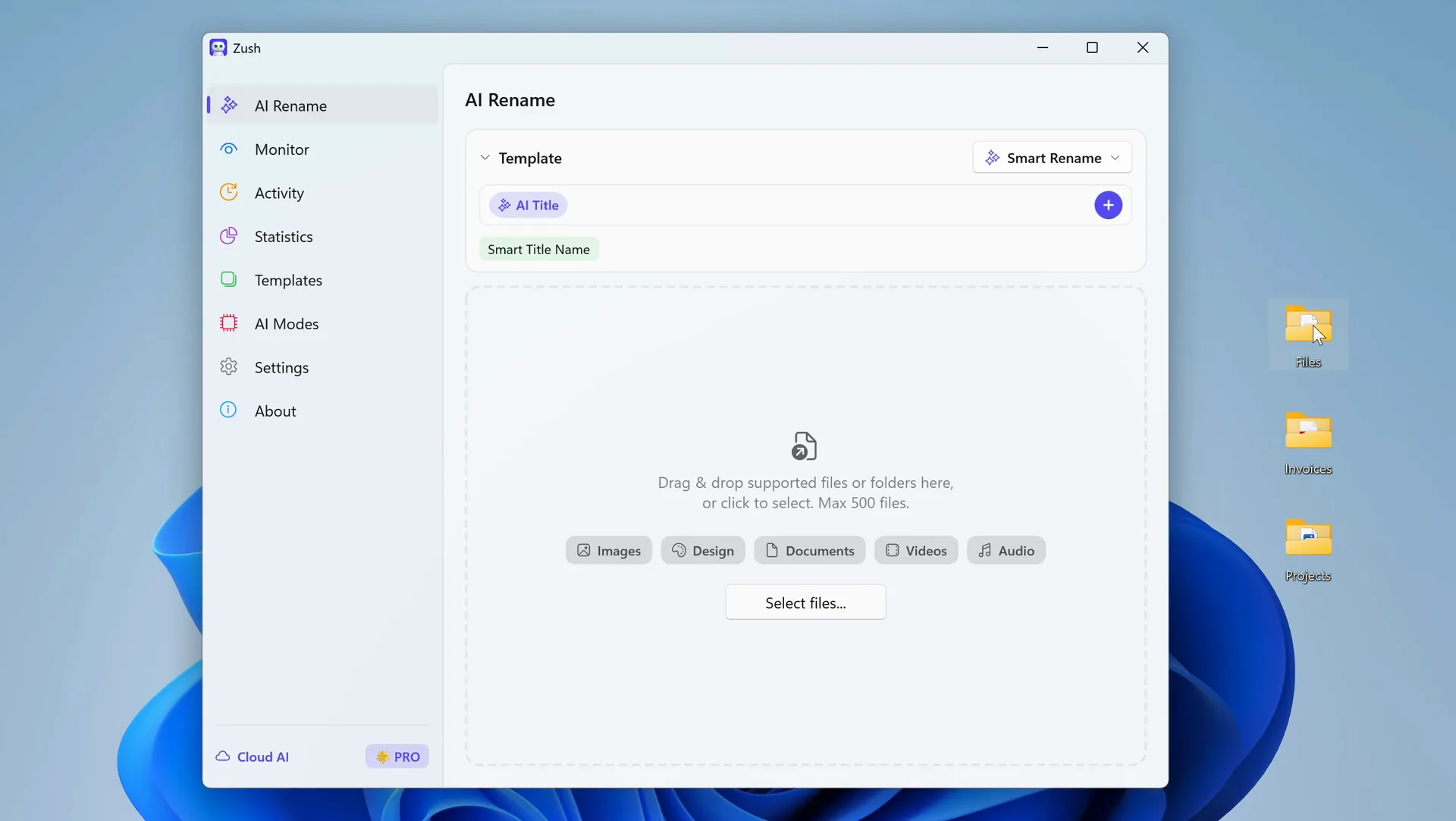
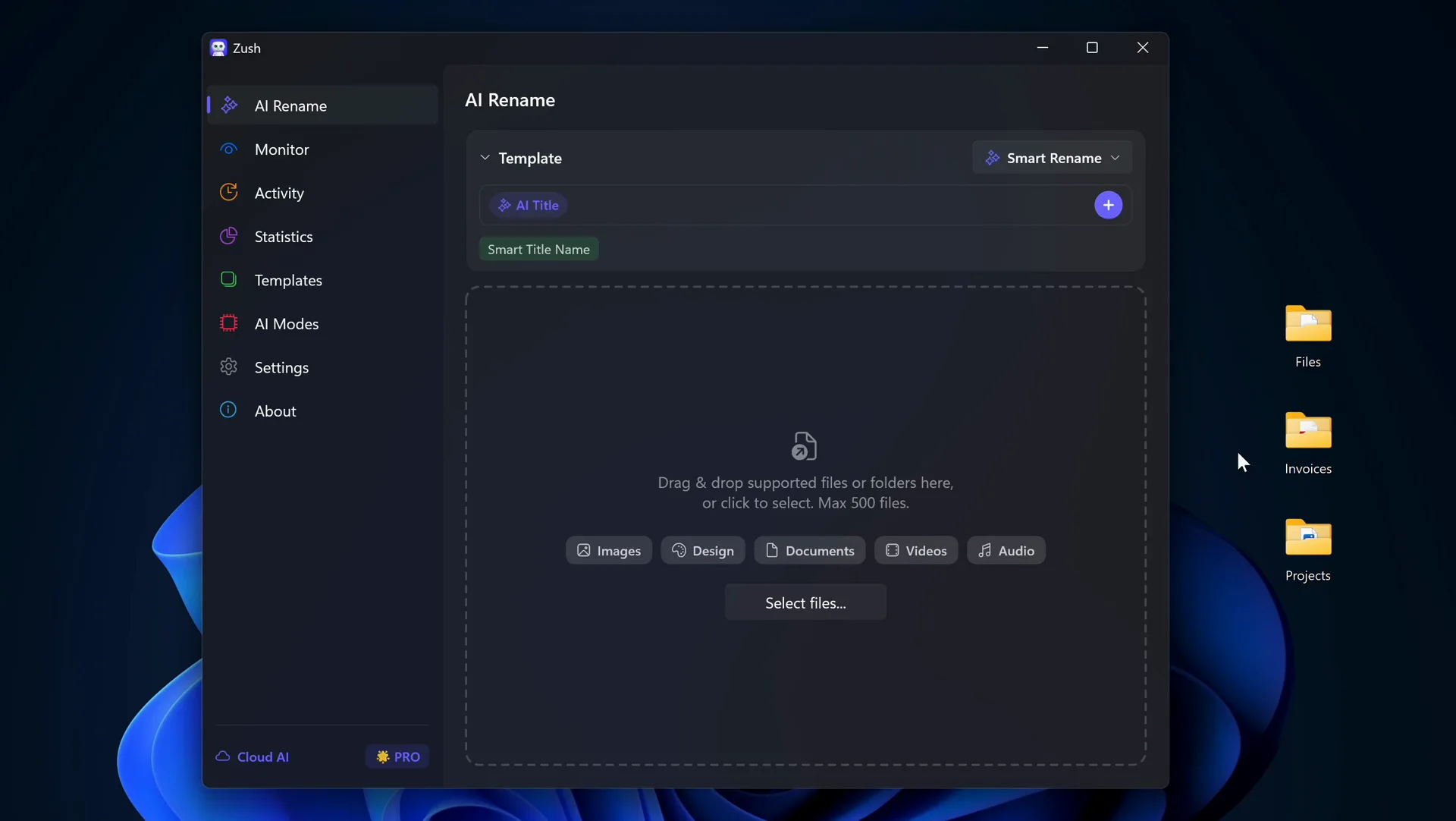
Where File Juggler needs one rule per destination, Zush takes one sentence in Folder rules, such as “Group invoices by company and receipts by month”, or groups files by content on Auto. You review proposed names and folders together before anything moves. Folder sorting is in beta, so check ambiguous files before applying.
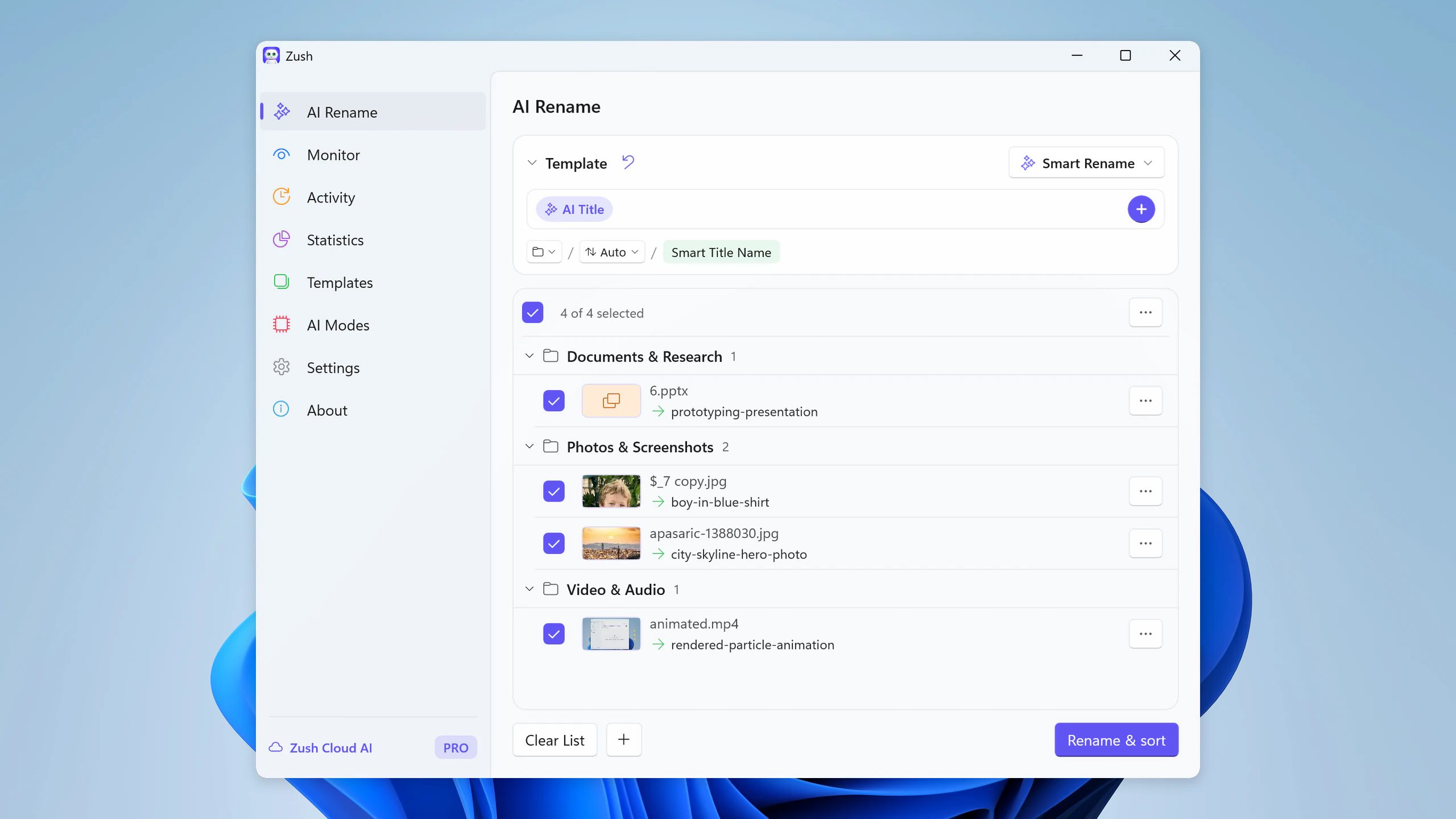
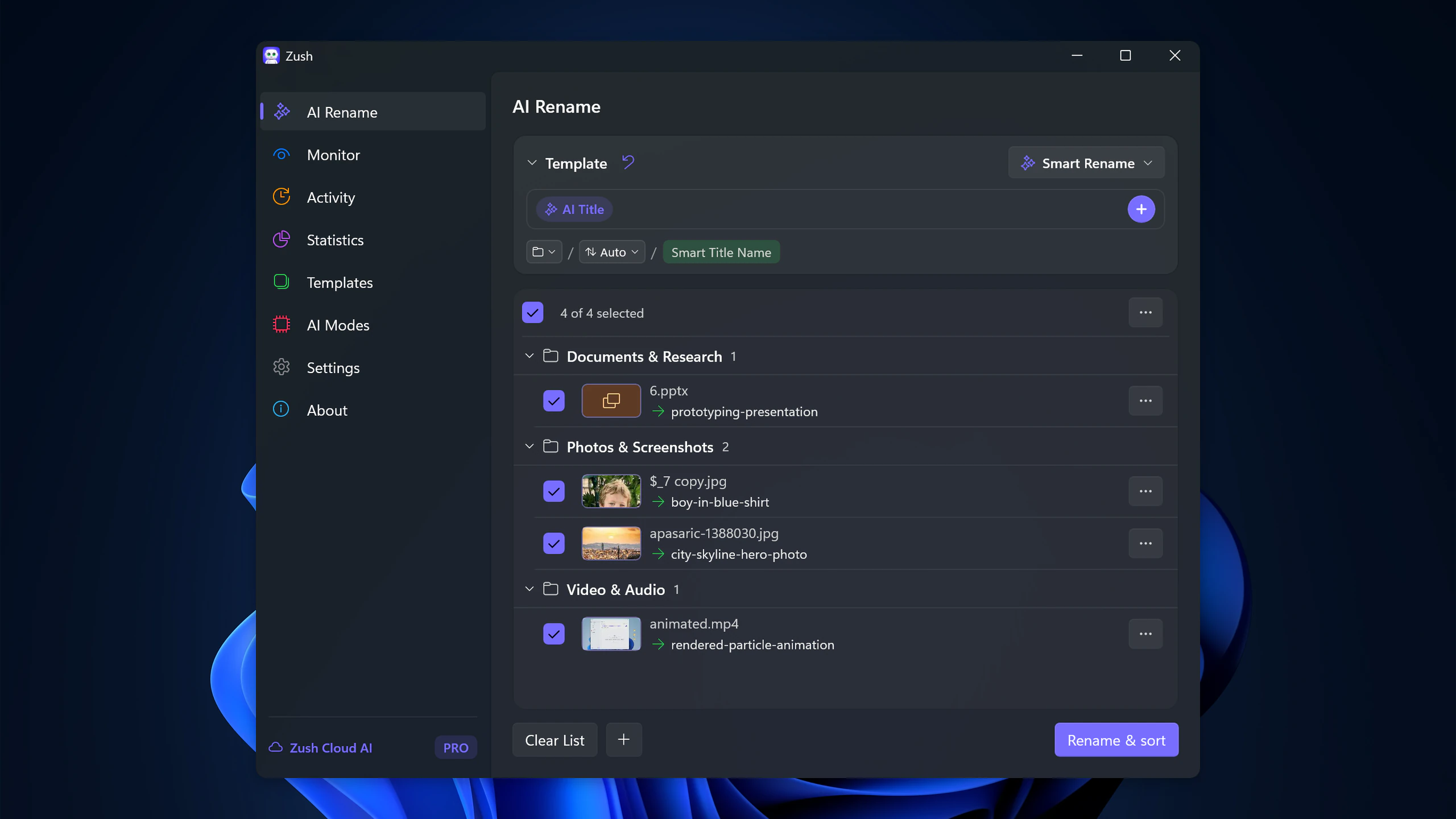
For the always-on part of File Juggler, save the setup in a Template and assign it to Monitor. New files in Downloads or a scanner folder are then renamed and sorted as they arrive. Rename History keeps the old and new names, so a bad batch can be reverted. AI runs through Zush Cloud AI, your own API key, or locally with Ollama or LM Studio when files should stay on the PC.
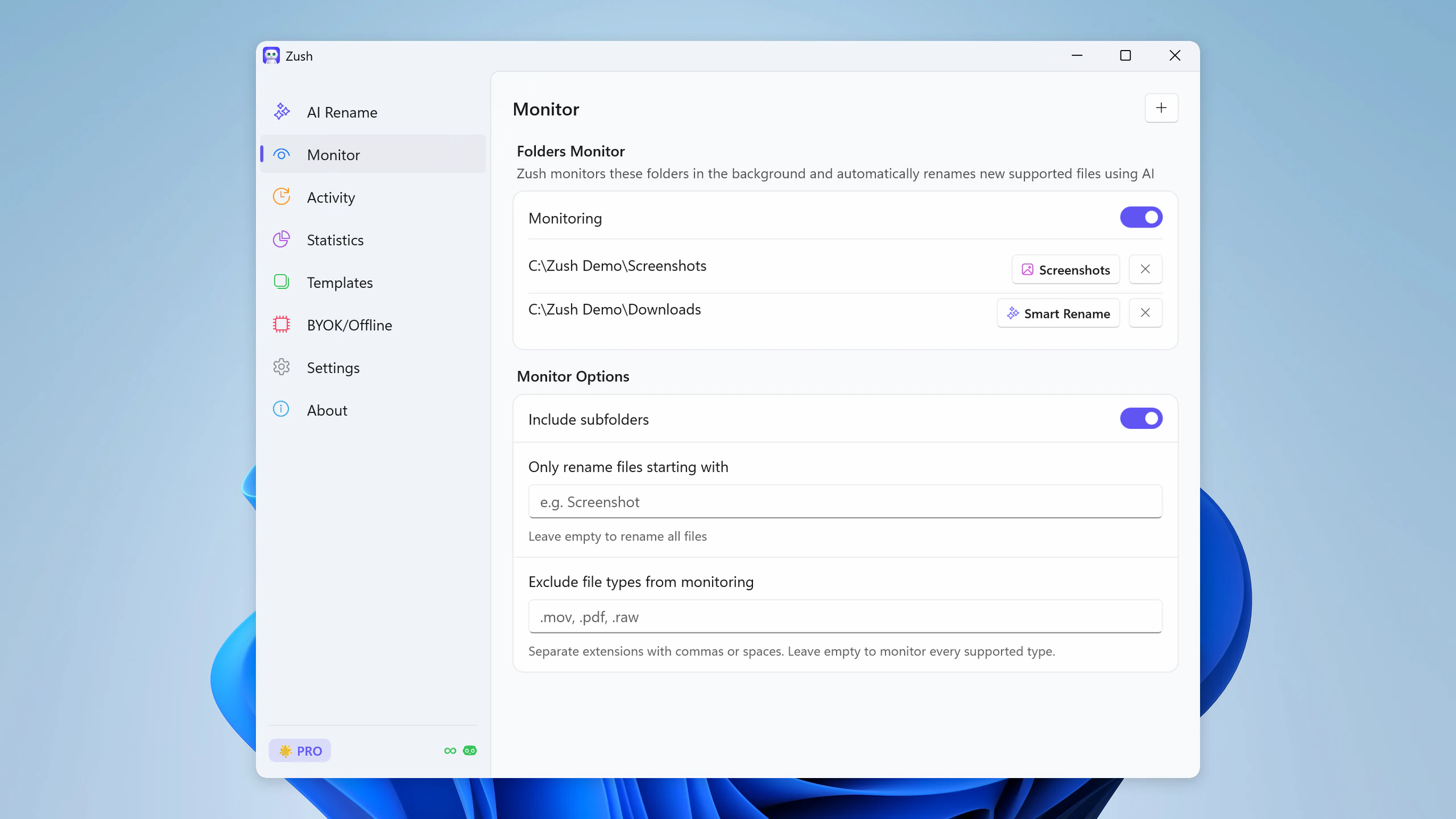
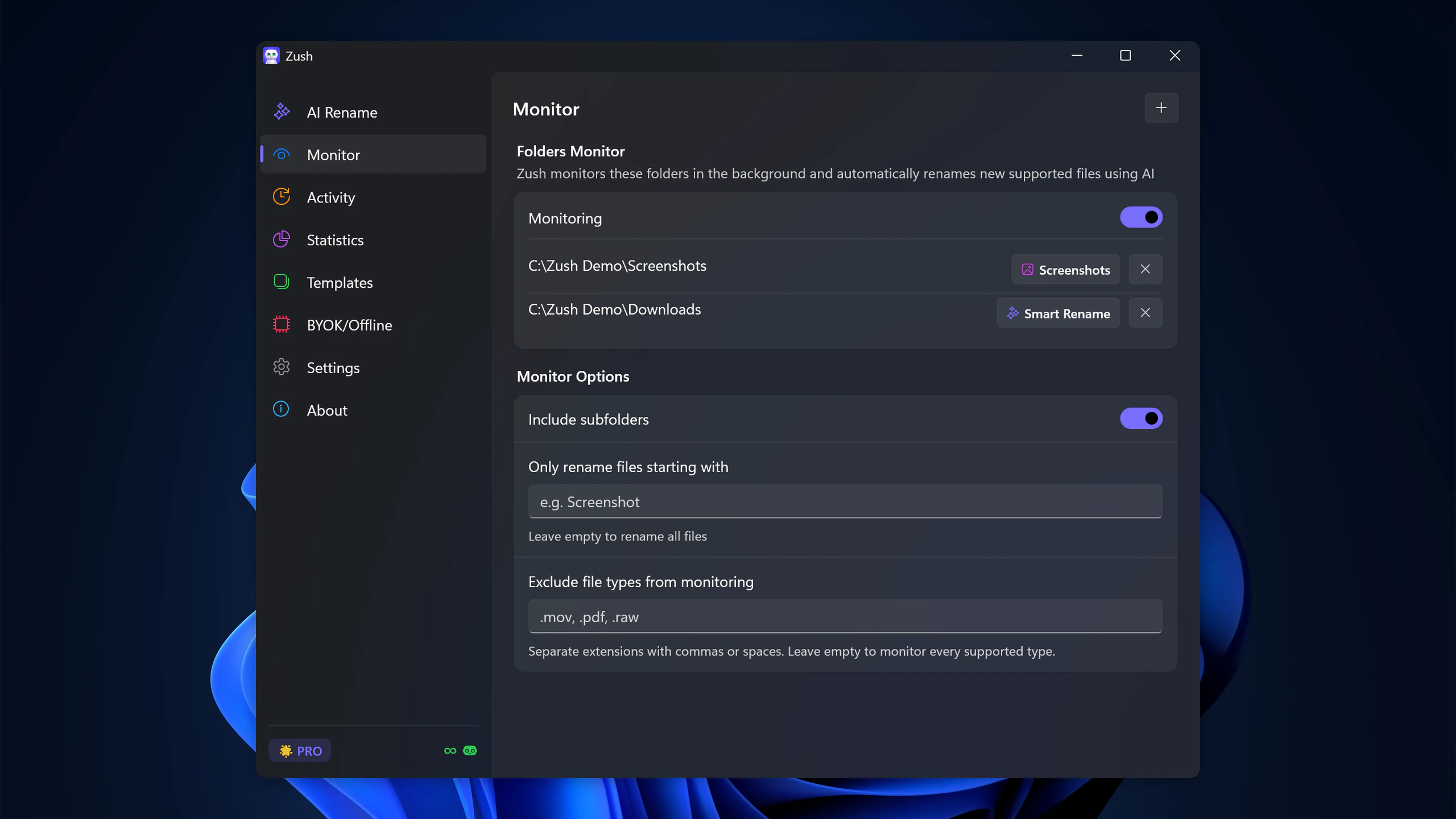
Choose Zush when your rule list keeps growing and still misses files. Step-by-step: sort files into folders with AI on Windows and 30 ready-made folder rules.
2. DropIt: the free rules engine
DropIt is free and open source. Rules match files by name, size, date, properties, or regular expressions, and 21 actions cover move, copy, rename, compress, extract, and more. You drag files onto a floating target or let it scan monitored folders on a timer.
The latest release, 8.5.1, is from October 2018. It still runs, but expect no new features and no AI.
Choose DropIt when you only need “PDFs go here, images go there” and paying is not an option.
3. Sortio: AI plans with rules underneath
Sortio mixes both approaches. You can write classic rules or describe the organization in plain English, review a plan, then let it rename, create folders, and move files. Smart Folders keep applying the plan to new arrivals. It runs on Windows, macOS, and Linux.
The free plan includes rule-based sorting with up to five rules, watch folders, undo, and a one-time AI trial. Pro is $14.99 per month or $99 per year with a monthly AI allowance; Ollama keeps processing local.
Choose Sortio if you want File Juggler-style rules and AI in one app, or need Linux. Compare it in detail: Zush vs Sortio.
4. Wisfile: free AI cleanup for documents
Wisfile is free, runs locally on Mac and Windows, and renames documents from their content with templates like Author-Year-Title. It can also group a batch into topic folders. Its FAQ lists Word and PDF as the supported formats.
There is no folder monitoring or scheduling: you drag files in and run it each time. Its FAQ also says there is no built-in undo, so test on copies first.
Choose Wisfile for a one-time cleanup of a paper or document archive. See Zush vs Wisfile for a closer look.
5. PowerShell and Task Scheduler: the DIY route
Windows can do basic File Juggler jobs without extra software. PowerShell moves and renames files; Task Scheduler runs the script at login or every few minutes:
Get-ChildItem "$env:USERPROFILE\Downloads" -Filter *.pdf | Move-Item -Destination "$env:USERPROFILE\Documents\PDFs"It is free and as flexible as your scripting. You also own duplicate names, locked files, logging, and undo. More options: how to organize your Downloads folder on Windows.
Keep File Juggler, or switch?
- Your files follow fixed patterns (same bank, same layout, same name prefix): keep File Juggler.
- Screenshots, scans, phone photos, and random downloads with meaningless names: Zush.
- Free sorting by extension or name: DropIt or PowerShell.
- Rules and AI in one tool, or Linux: Sortio.
- A free one-off pass over PDFs and Word files: Wisfile.
You can also run both. Zush monitors Downloads and writes predictable names like 2026-10-02_acme_invoice.pdf, and File Juggler moves *_invoice.pdf to a fixed Finance folder. Each tool does the part it is good at. Test any setup on copies first; our checklist on how to safely batch rename files covers what to check.
For a broader comparison of AI tools, see the best AI file organizers for Windows 11.
FAQ
Is there a free alternative to File Juggler?
Yes. DropIt is free and open source but has not been updated since 2018. Sortio’s free plan includes up to five rules. PowerShell with Task Scheduler is free if you can script. Zush includes 50 free AI renames if your problem is unclear filenames.
Is File Juggler still maintained?
Yes. Version 3.1.7 was released in September 2026 and a 3.1.8 beta in October 2026, according to its release notes.
Does File Juggler use AI?
No. It matches conditions you write, including words found inside PDFs and Office files. It cannot read image-only scans without separate OCR.
Is there a File Juggler for Mac?
No, File Juggler is Windows-only. Hazel is the closest Mac equivalent for rules, and Zush for Mac covers AI naming and folder sorting. See our Hazel alternative page.
Can Zush replace File Juggler completely?
For naming files by content and sorting them into folders, yes, including monitored folders. File Juggler still has actions Zush does not offer, such as running a command, extracting archives, or uploading to Evernote. If you rely on those, keep it next to Zush.


