Duplicate Photos on Mac: Exact Copies vs Similar Shots

Jump to section
Quick answer: if the photos live in the Photos library, open the Duplicates album in Photos and merge what it finds. If they are ordinary files in Finder folders, a content check pairs the exact copies, and a similar-image app is needed for shots that only look alike. These are three separate tools because they solve three separate problems.
Three problems that get called the same thing
Exact copies. The same image file saved twice. IMG_2291.png and IMG_2291 copy.png, a folder imported from a card reader twice, a drive copied across and back. The files are byte-for-byte identical and one of them is redundant.
Library duplicates. The same photo imported into Photos more than once, sometimes at different sizes or from different devices. Photos knows about these.
Similar shots. Six frames of the same scene, an edit saved next to its original, a JPEG export of a RAW file. No two of these files match. Deciding which to keep is a judgement call about which frame is best, and no tool makes that call well.
Most of the frustration with photo cleanup comes from pointing a tool built for one of these at another.
Duplicates in the Photos library
Photos has handled this itself since macOS Ventura. Open Photos, find Duplicates in the sidebar under Utilities, and review what it collected.
Merging rather than deleting is the important part: Photos keeps the highest quality version and carries over keywords, favorites, captions, and album membership from the copies it removes. Doing the same cleanup by hand in Finder would lose all of that.
The album sees only what is in the library. Images in ~/Pictures as ordinary files, on an external drive, or in a folder of exports are invisible to it.
Exact copies in Finder folders
For loose files, compare contents. These three lines list every exact duplicate in a folder and change nothing:
find ~/Pictures/Exports -type f -print0 | xargs -0 shasum -a 256 | sort > /tmp/hashes.txtawk '{print $1}' /tmp/hashes.txt | uniq -d > /tmp/dupes.txtgrep -F -f /tmp/dupes.txt /tmp/hashes.txtFiles printed together are the same image, whatever they are called. Files that are not printed are different images, even when they look identical on screen.
That second sentence is where photo libraries surprise people. Rotating an image, adding a keyword to its metadata, or exporting it again at the same size all rewrite the file, so the hash changes. The pairs a content check finds are copies in the strict sense: something copied the file without touching it.
Similar shots need a different tool
For near-identical frames, you need an app that compares images rather than bytes. Gemini 2 and dupeGuru’s picture mode both do this, with an adjustable similarity threshold.
Expect to review every group. A threshold loose enough to catch burst frames is also loose enough to pair two different photos of the same room, and no setting avoids that trade. Delete to the Trash, keep the Trash for a few days, and be careful with any feature that picks the keeper on your behalf.
Clearing copies while you fix the names
Photo folders usually arrive with both problems: duplicates, and names that say nothing. IMG_2291.png tells you nothing about what is in the picture, which is why the folder is hard to search and why nobody notices the copy sitting next to it.
Zush handles both in one batch. Detect duplicate files matches copies by content, labels each with the file it matches, and keeps them out of the analysis entirely, so a folder that is a third copies costs nothing extra to process.
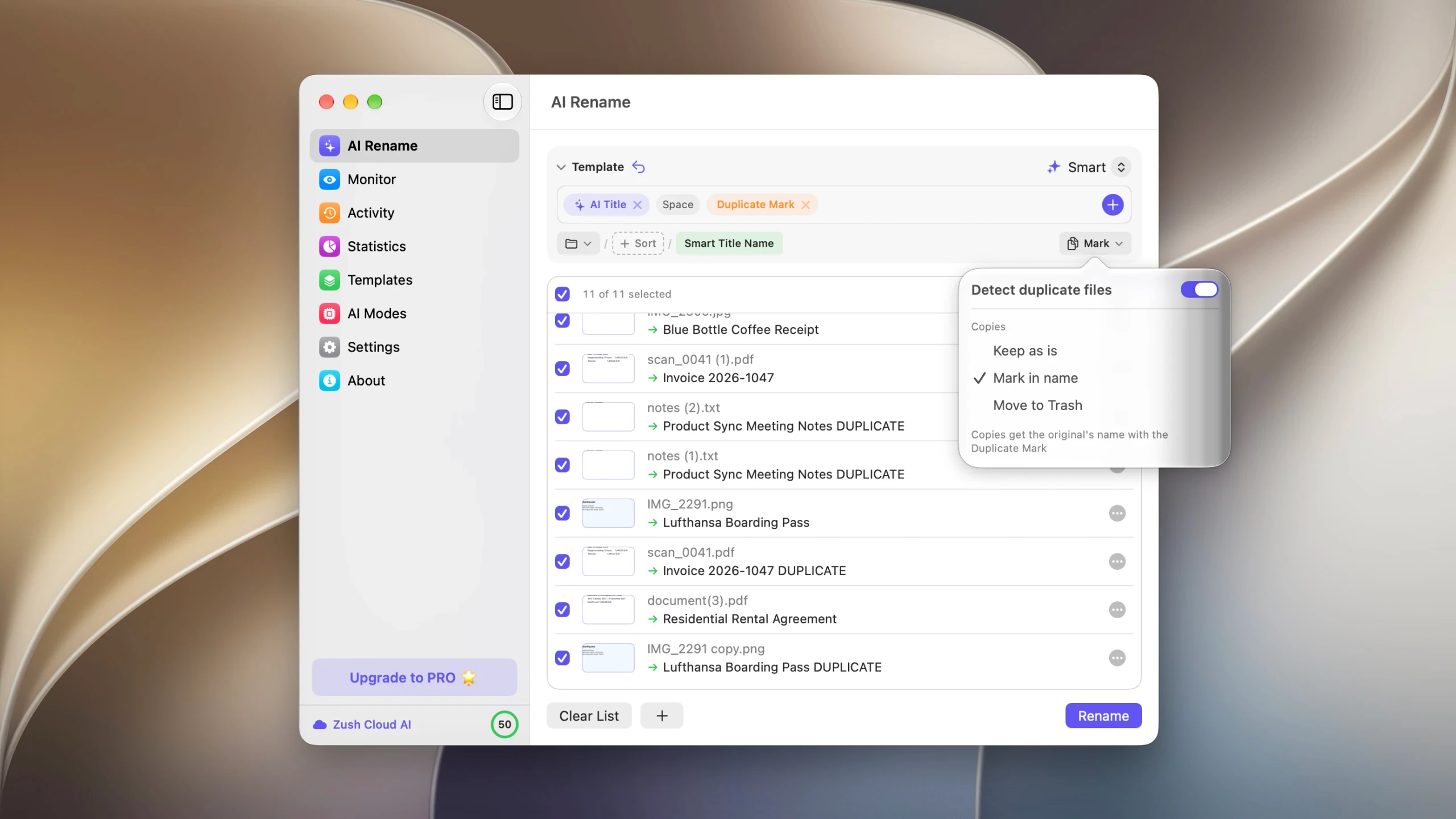
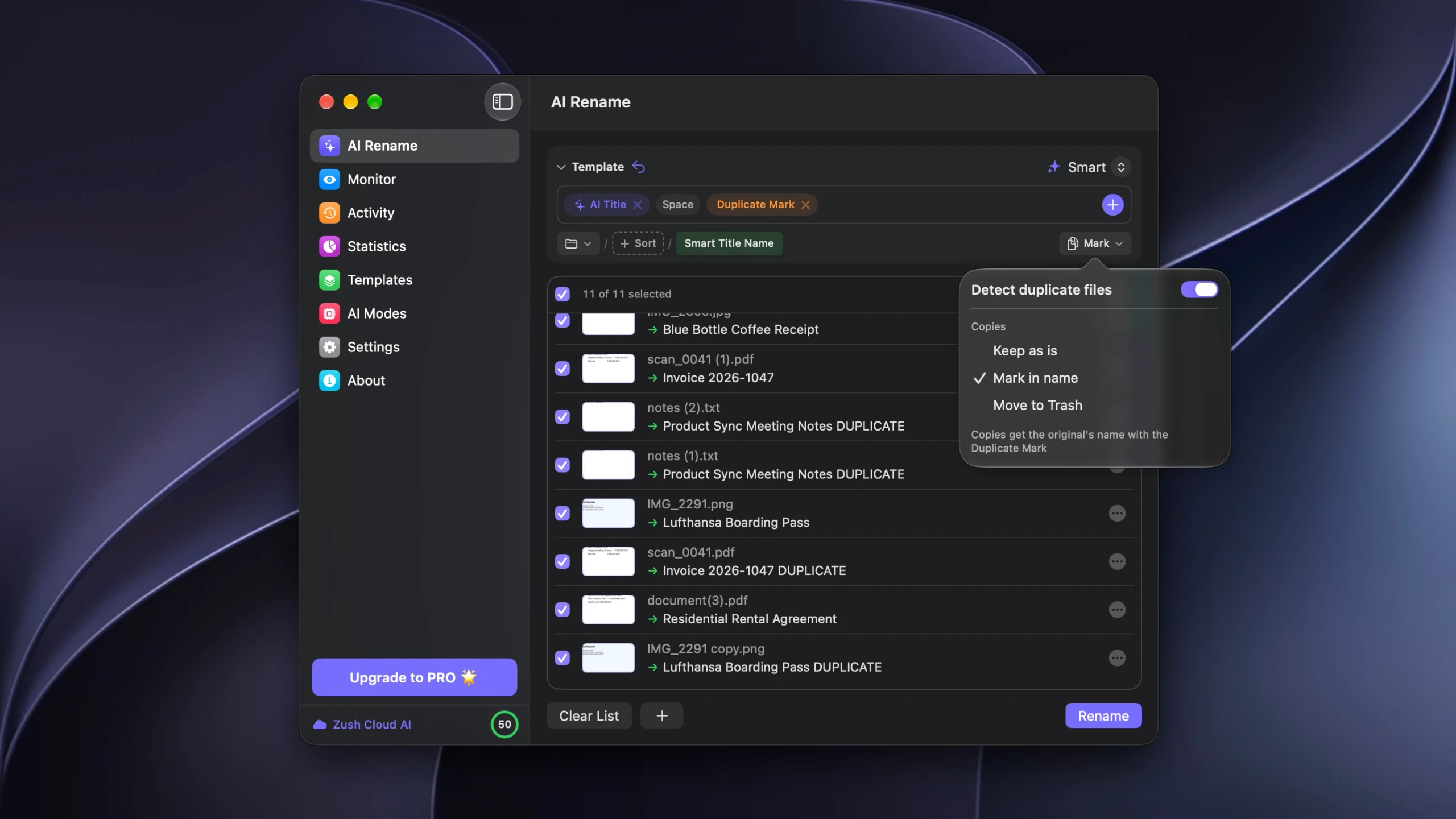
In the screenshot above the copies take the original’s new name with a Duplicate Mark added, so IMG_2291 copy.png becomes Lufthansa Boarding Pass DUPLICATE.png and sorts next to its original. The other two options are leaving the copies untouched, or moving them to the Trash when the batch is applied, with the removals recorded in Activity so Undo can put them back.
This is exact matching only. Zush does not compare how similar two pictures look, does not cull burst frames, and is not a replacement for the Photos library: albums, faces, and editing all stay where they are.
Which tool for which folder
| Where the photos are | Use |
|---|---|
| The Photos library | The Duplicates album in Photos |
| Finder folders, exact copies | A content check, or a rename pass that clears copies |
| Finder folders, similar shots | Gemini 2 or dupeGuru’s picture mode |
| A card or drive you just imported | Check for copies before import, not after |
Two things to leave alone
The Photos library package. It looks like a single file and behaves like a folder. The images inside it are referenced by a database, so removing one by hand breaks the library. Clean it from inside Photos.
Catalogued originals. Lightroom and Capture One track files by path. Moving or deleting an original outside the app leaves a broken link in the catalog. Do that work through the app that owns the files.
FAQ
Does macOS have a duplicate photo finder?
Yes, for the Photos library. The Duplicates album appears under Utilities in the sidebar and merges copies while keeping the best version and its metadata. It does not see image files sitting in ordinary folders.
Why does Photos show no Duplicates album?
The album only appears when Photos has found duplicates, and it takes time to analyze a large library, usually while the Mac is idle and plugged in. An empty result means it found nothing, not that the feature is missing.
Will a duplicate finder catch two photos of the same thing?
Only one built for similar-image matching will, and it asks you to confirm each pair. A content check matches files that hold the same data, so two separate shutter presses never pair.
Is a JPEG export a duplicate of its RAW file?
Not to any of these tools. Different formats mean different data, and most photographers keep both deliberately. That pairing is something you manage by naming and foldering rather than by deduplication.
How do I stop importing the same photos twice?
Import into the Photos library rather than copying card contents into folders, since Photos checks for duplicates on import. For folder-based workflows, import into a dated folder per card so a second import of the same card lands somewhere obvious instead of merging into the pile.


