Deduplicate First, Rename Once: Handling Copies in a Batch

Jump to section
Quick answer: clear duplicates before you rename, not after. Renaming first gives every copy its own polished name and erases the (1) and copy suffixes that were the only visible sign of which file was the spare. In Zush, both happen in one batch: copies are matched by content before anything is analyzed, and you choose whether they stay, get marked in the name, or go to the Trash.
What renaming first costs you
Take a Downloads folder with scan_0041.pdf and scan_0041 (1).pdf in it. Rename it with any content-aware tool and you end up with two files called something like Invoice 2026-1047.pdf and Invoice 2026-1047 1.pdf.
Three things just went wrong. The names no longer tell you which file is the spare, because both describe the same invoice equally well. The suffix that did tell you is gone. And you paid to analyze the same invoice twice.
The last point is the easy one to miss. Content-aware renaming reads each file, which costs either credits, an API call on your own key, or local compute and time. A folder that is a third duplicates costs a third more than it should, every time you process it.
Matching by content, not by name
A name-based check would pair scan_0041.pdf with scan_0041 (1).pdf and stop there. It would miss IMG_2291 copy.png next to IMG_2291.png only if the copy had been renamed, which is exactly what tends to happen, and it would wrongly pair two unrelated downloads that a browser numbered on the same day.
Content matching compares the bytes. Two files are a pair when they hold exactly the same data, whatever they are called and wherever they sit in the batch. That catches the copy you renamed to invoice final.pdf six months ago, and it refuses to pair two different PDFs that happen to share a name pattern.
Turn it on per Template, under Processing:
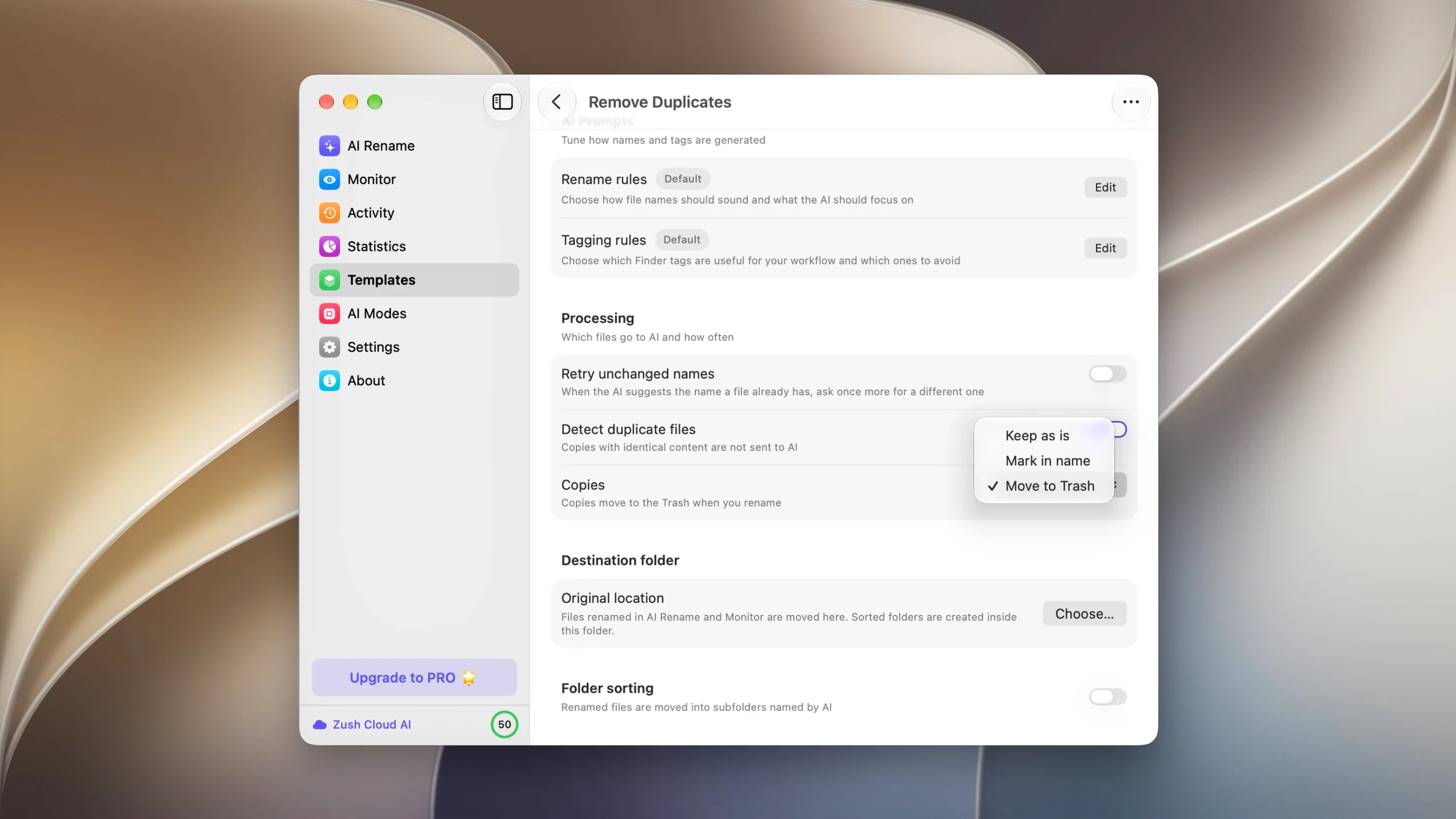
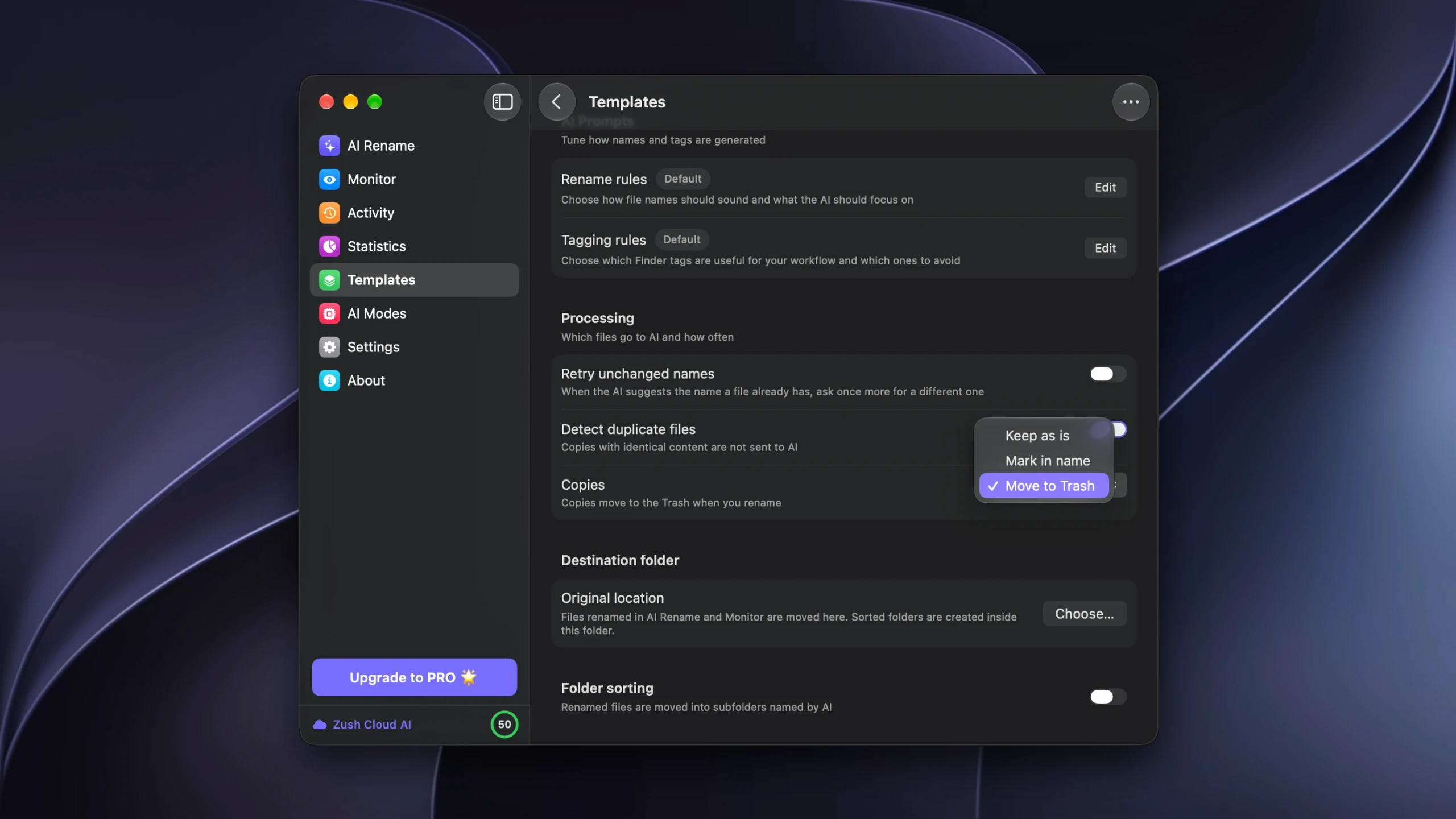
Once it is on, every copy in the batch is labelled with the file it matches, and none of them are sent to the AI. The analysis cost of a duplicate is zero regardless of what you do with it next.
Three ways to deal with a copy
The right answer depends on how much you trust the match, which depends mostly on the folder.
Keep as is changes nothing. Copies are unchecked in the list and skipped by Rename; the originals get their new names as usual. The labels stay visible, so you can read the pairings and decide later. This is the setting for a first run on a folder you have not looked at in a year, and for folders where two copies are deliberate: a working file and its archived version, or the same contract filed under two clients.
Mark in name renames each copy to whatever the original became and appends the Duplicate Mark block. Product Sync Meeting Notes.txt gets a sibling called Product Sync Meeting Notes DUPLICATE.txt.
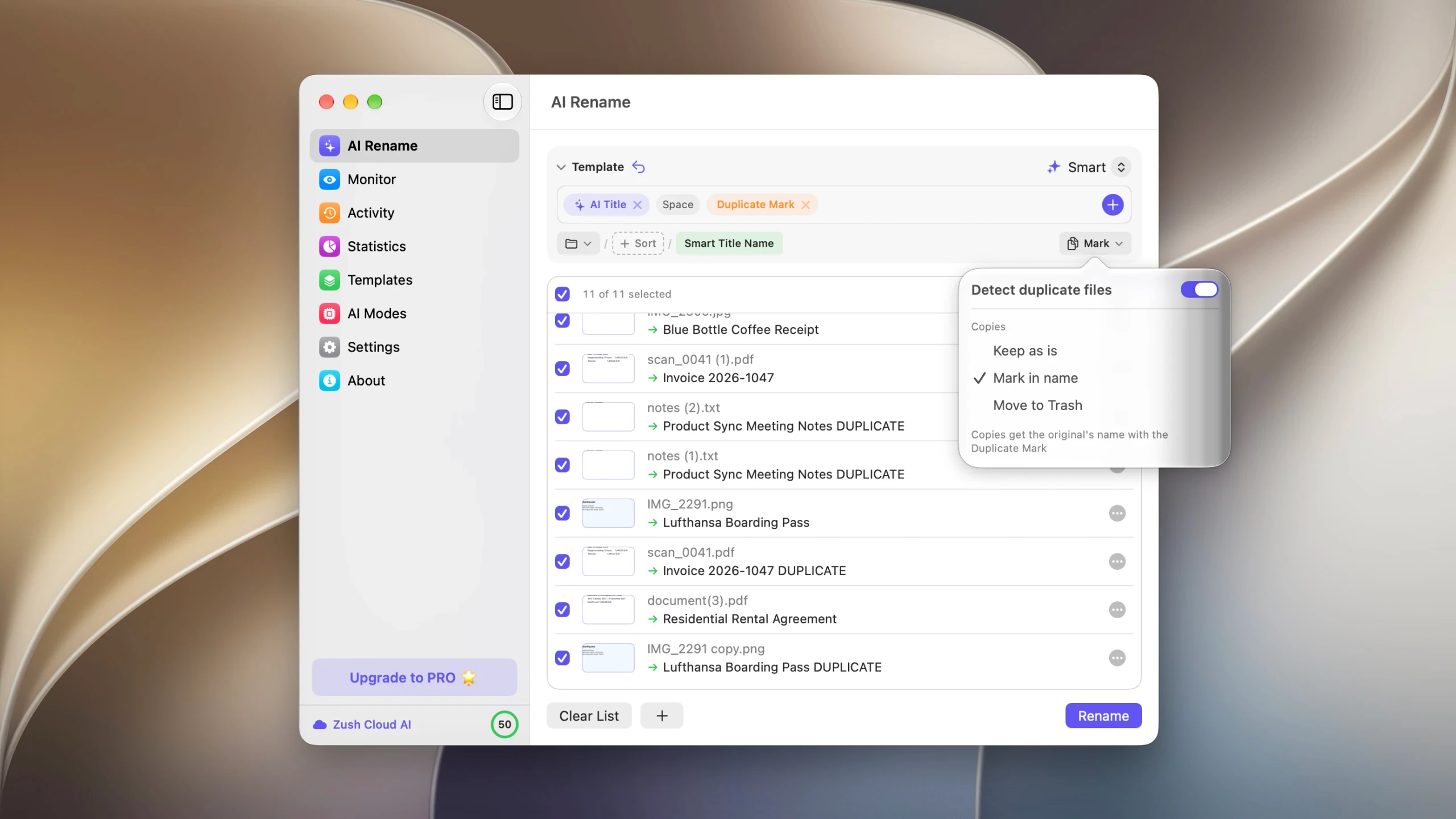
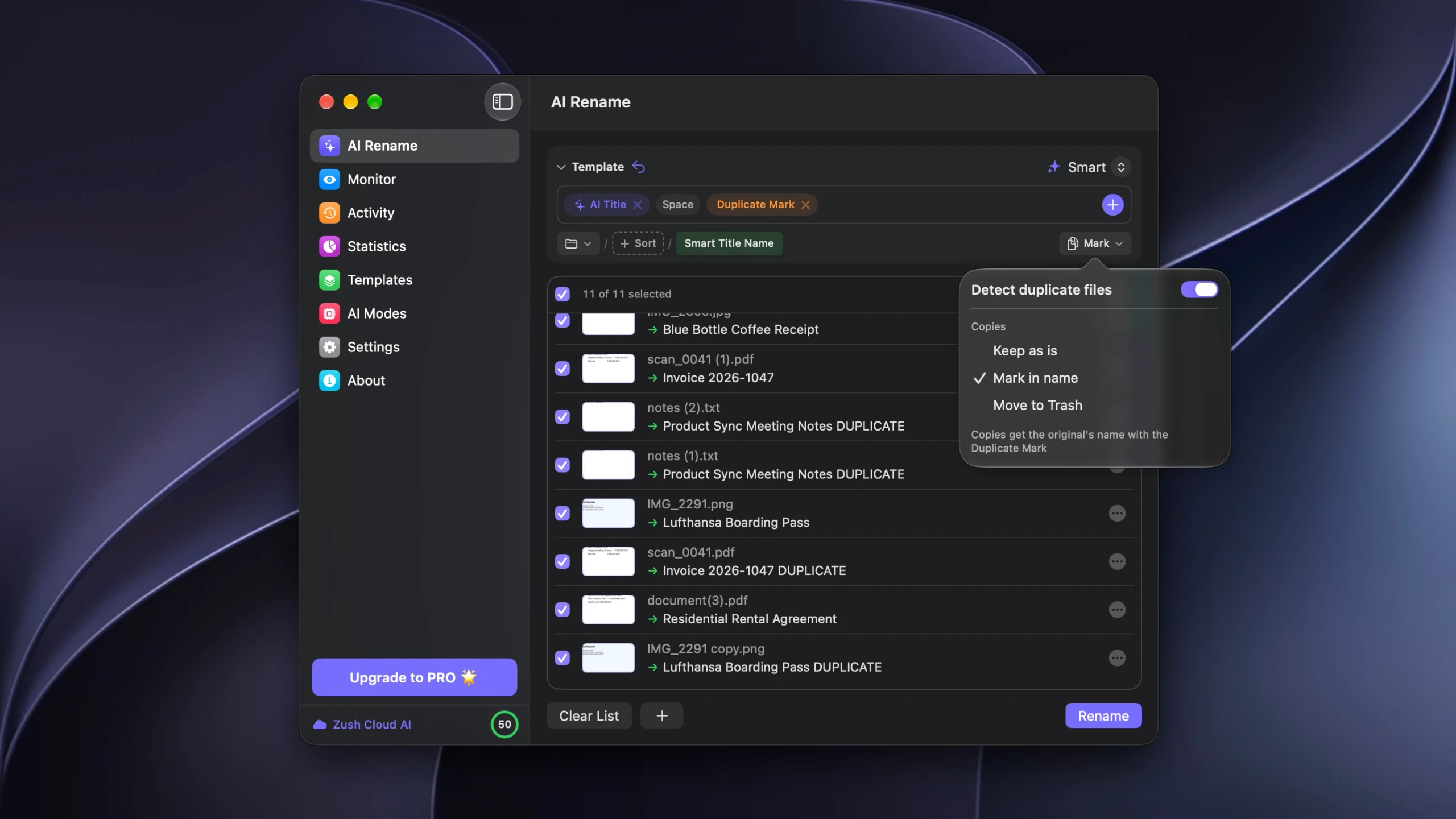
Nothing is deleted and nothing moves, but the copies now sort next to their originals in Finder and File Explorer, which turns the cleanup into a single sorted pass you can do later with the arrow keys. It is also the honest option for shared folders, where deleting a file someone else put there is not your call to make.
Move to Trash removes the copies when you apply the batch. Each one is flagged in red in the preview, and a count appears next to the Rename button so the scale of the removal is visible before you click it.
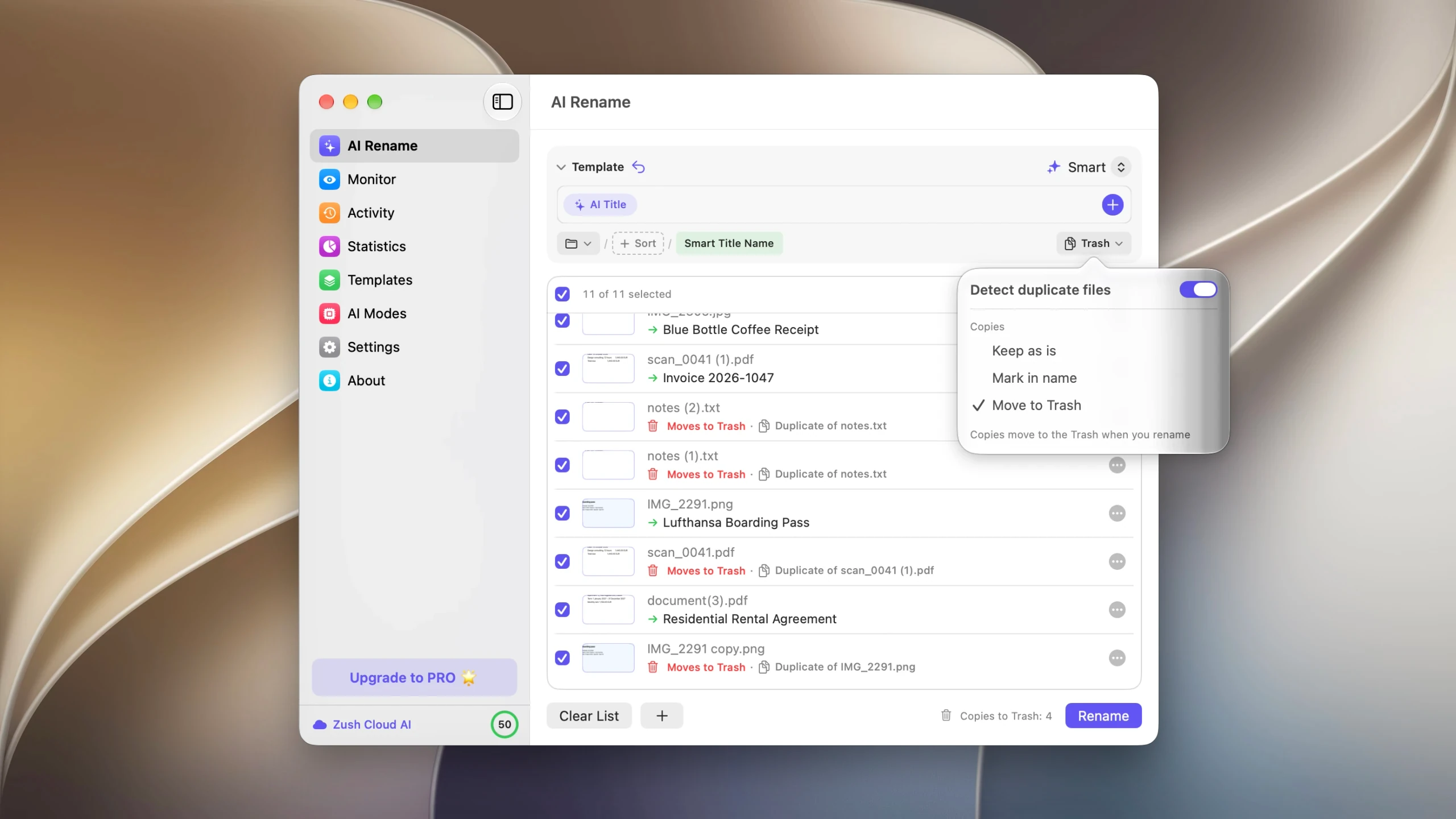
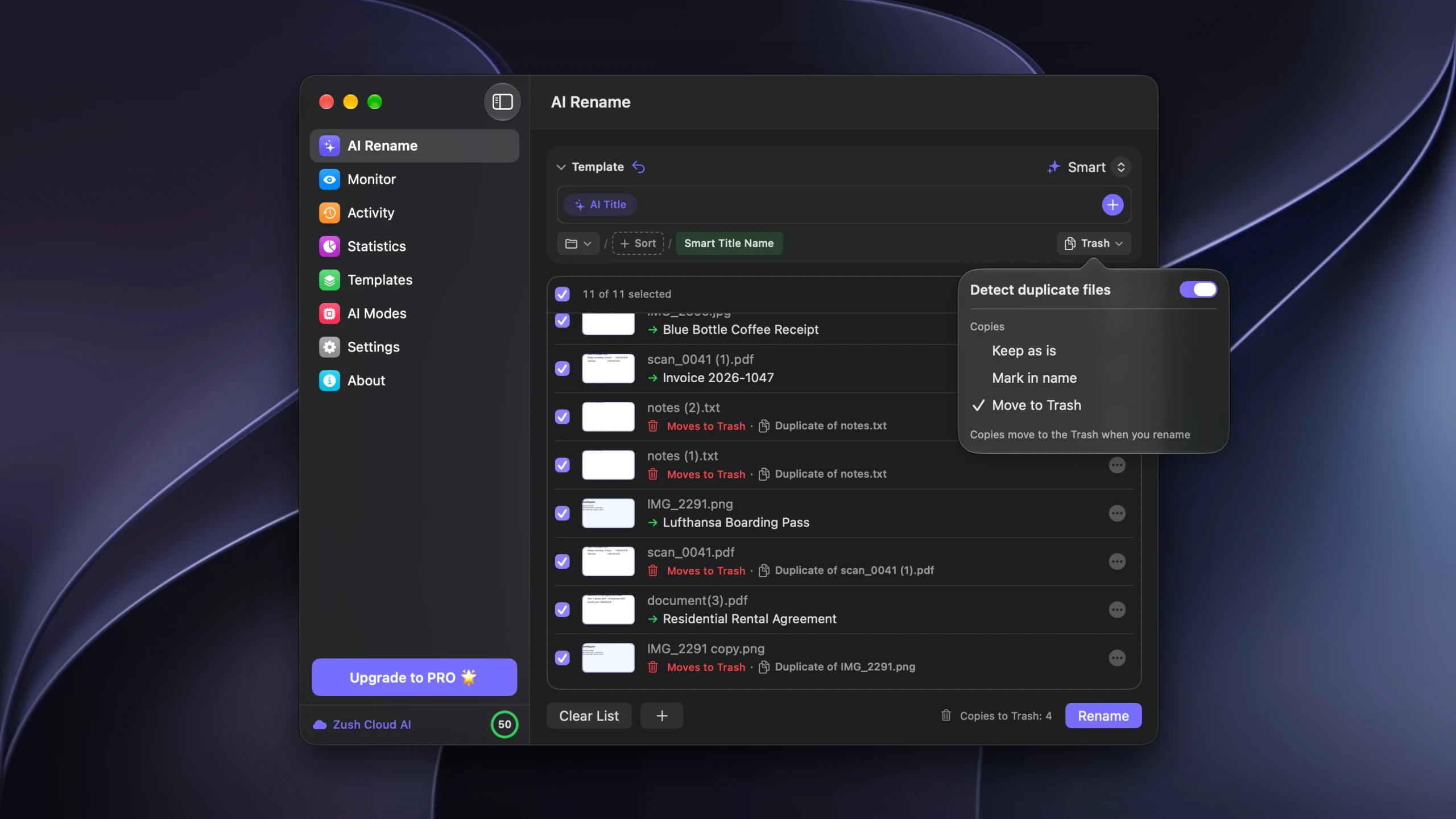
On Windows the copies go to the Recycle Bin instead. Either way they are recoverable: the removals are recorded in Activity next to the renames, and Undo restores the copies to their original folders under their original names. That stops working once the Trash is emptied, which is the one irreversible step in the whole sequence and the one you control.
When the folder does not need renaming
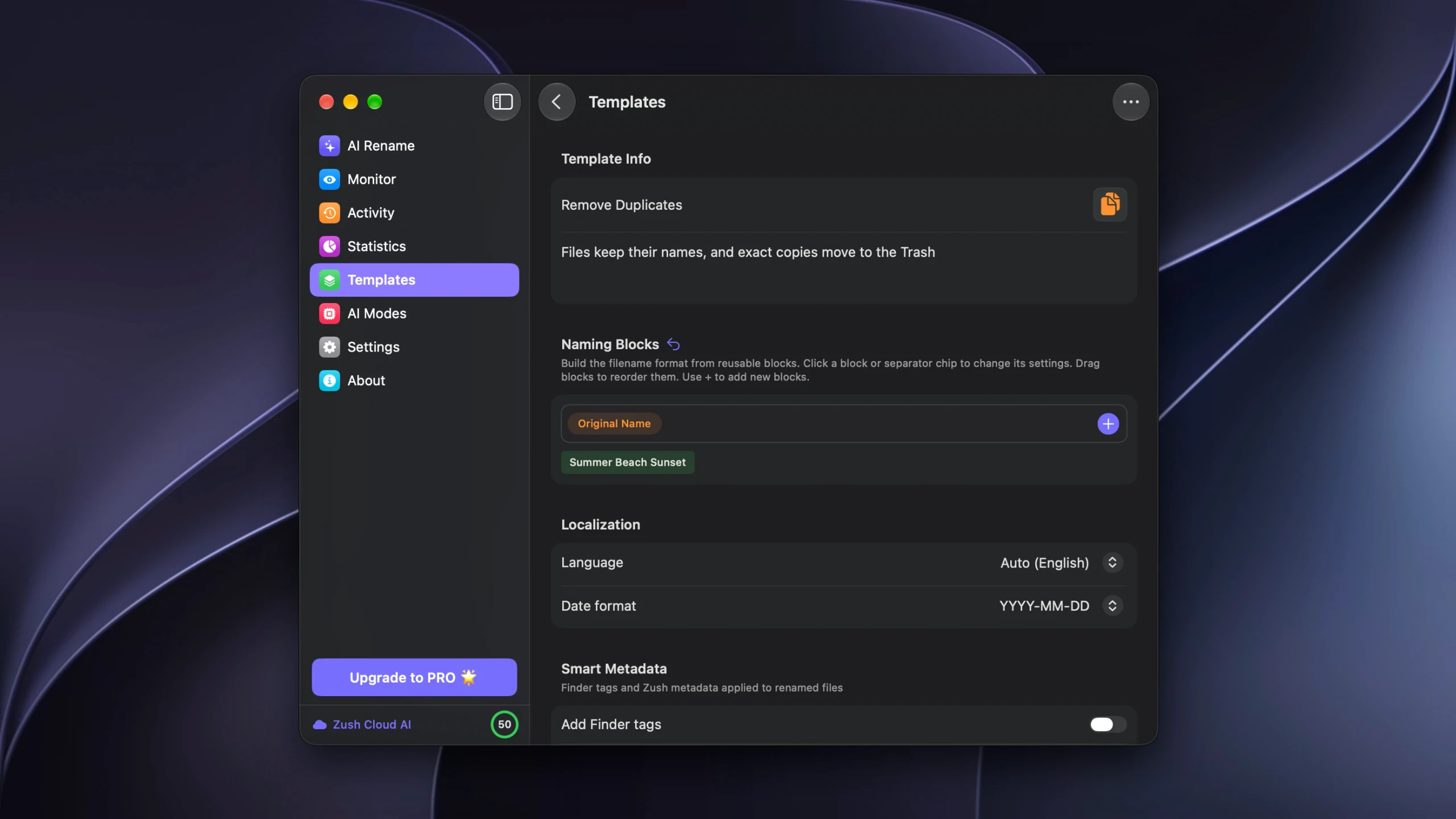
Sometimes the names are already fine and the only problem is that half the files are there twice. The Remove Duplicates Template covers that: its pattern is a single Original Name block, so every file keeps the name it has, and its Copies setting is Move to Trash.
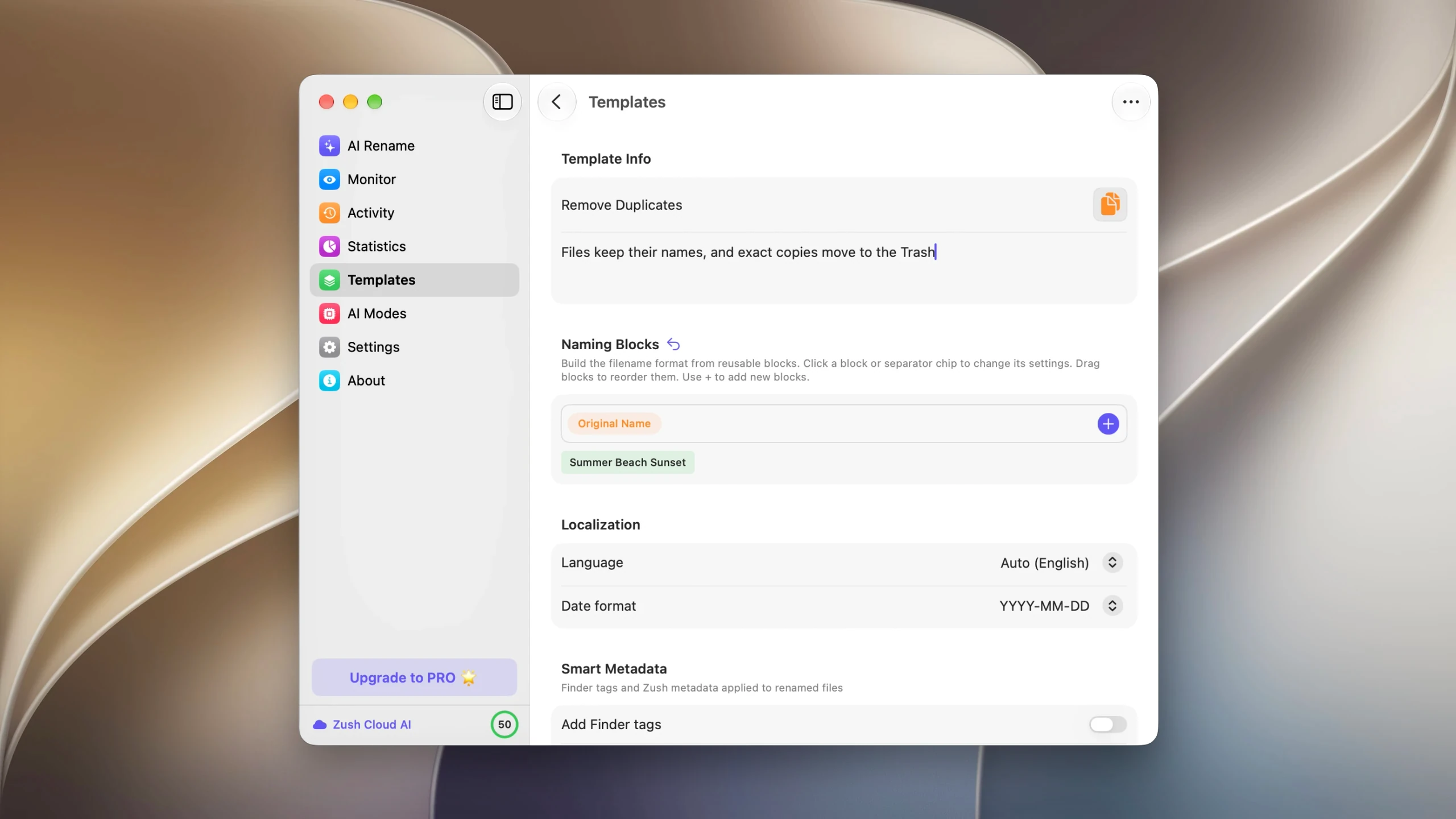
It is the closest thing here to a conventional duplicate cleaner, with the difference that the preview shows you every pairing first and Activity remembers what it did.
What this does not catch
Byte-for-byte matching is exact, which is its strength and its limit. Files that merely look alike are not matched:
- Two scans of the same sheet of paper. Each pass through the scanner produces a different image.
- A photo and its edited version, or the same photo exported at two sizes.
- The same document saved as
.docxand again as.pdf. - A PDF opened in Preview and re-saved, which usually rewrites enough of the file to change the bytes even when the page is unchanged.
For those you need visual or text similarity matching, which belongs to a different category of tool and always involves judging each pair by hand. For the ordinary case, where a file was copied, downloaded twice, or synced back from a drive, exact matching is the right instrument and it does not produce false pairs.
Running it on a monitored folder
A Template assigned to a watched folder applies its Copies setting too, and Monitor applies without a preview. A Template set to Move to Trash will therefore delete new arrivals that match something already in the folder, unattended.
That is useful for a scanner output folder, where re-scanning the same page is a routine mistake. It is a bad idea for a shared drop folder, where a second copy of a file might be the only copy someone else has. Test the Template in AI Rename on a batch you can inspect first, and prefer Mark in name for anything unattended that you have not watched run for a week.
The order that works
Get the duplicates out first, then name what is left, in a single batch rather than two tools and two passes. The copies cost nothing to detect, the originals get the names you wanted anyway, and the whole thing stays reversible until you empty the Trash.
For the Mac-specific alternatives, including a Terminal command that lists duplicates without touching them, see how to find and remove duplicate files on Mac. The settings themselves are documented in duplicate file handling.
FAQ
Do duplicate files use AI credits?
No. Copies are identified before analysis and are never sent to the AI. A folder where half the files are duplicates costs the same to process as the same folder with one of each.
Which file does Zush treat as the original?
One file in each matching group is kept as the original and renamed by the Template. The others are listed as copies, and each label names the file it matched, so the pairing is visible in the preview before anything is applied.
Can I detect duplicates without deleting or renaming anything?
Yes. Set Copies to Keep as is. Copies are listed and labelled but left untouched, and the originals are the only files Rename acts on.
What happens if I rename first and deduplicate afterwards?
The detection still works, because it compares contents rather than names. What you lose is the information in the old names: after the rename both files describe the same thing, so deciding which to keep means checking dates or locations instead of reading the suffix.
Does this work the same way on Windows?
Yes, with one difference in wording. Copies go to the Recycle Bin rather than the Trash, and the same Activity entry and Undo apply.
Can a copy be marked in the name instead of a Template rename?
Yes. The Remove Duplicates Template keeps every original filename through a single Original Name block. Switch its Copies setting from Move to Trash to Mark in name if you want the copies flagged rather than removed.


