Duplicate Mark: Flag Copies Instead of Deleting Them

Jump to section
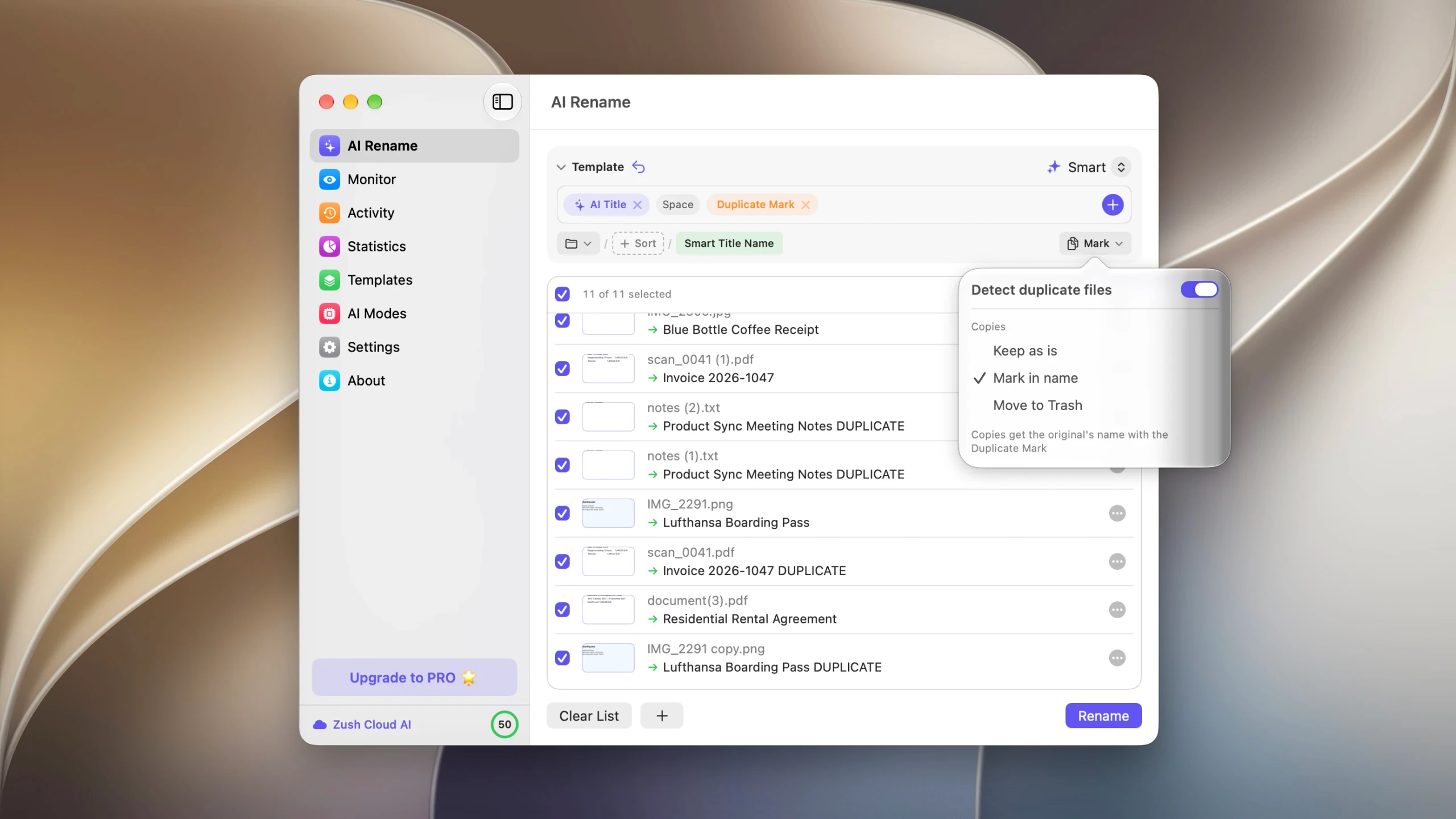
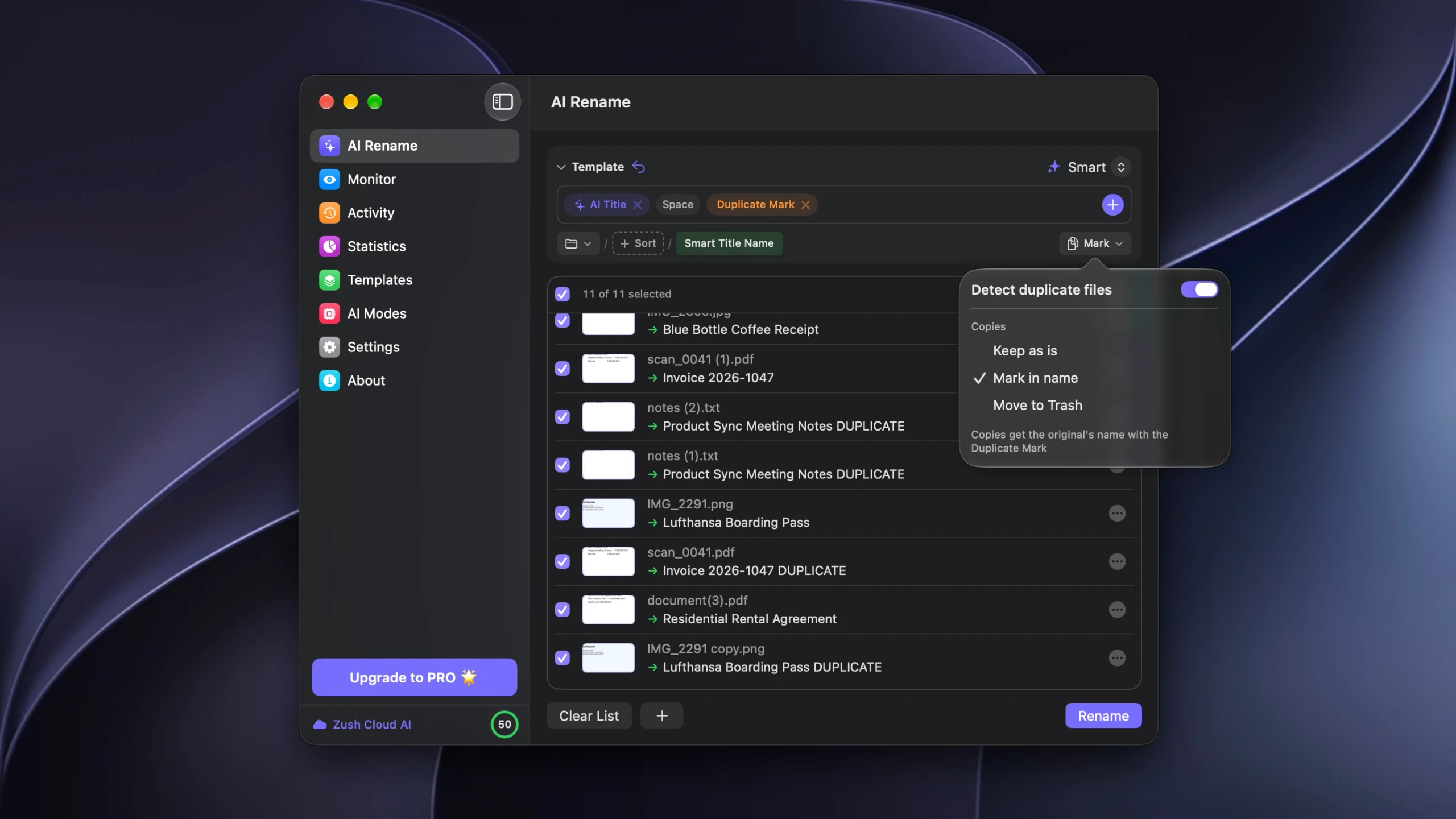
Quick answer: Duplicate Mark is a Naming Block that labels a copy in its own filename. Turn on Mark in name and each detected copy is renamed to whatever its original became, with the mark appended: Invoice 2026-1047.pdf gets a sibling called Invoice 2026-1047 DUPLICATE.pdf.
Nothing is deleted and nothing moves. The copies simply become visible and sort next to the files they duplicate.
Why a mark rather than a deletion
Deleting is the obvious thing to do with a duplicate, and in a folder you own it usually is the right thing. Three situations where it is not.
Shared folders. A copy someone else filed may be the only version they know about. Removing it is a decision about their work, made without them.
A folder you have not looked at in a year. The first run of any duplicate detection is a test of whether the matches mean what you think. Marking lets you be wrong without consequences.
Deliberate copies. The same contract filed under two clients, a working version alongside an archived one, a master file and its copy on a project drive. Content matching pairs them because they are identical, and only you know that both should stay.
In all three cases the useful output is not a smaller folder. It is a folder where the duplicates are labelled, so a decision can be made later by whoever should be making it.
How it works
Pick Mark in name under Copies, either in the Template’s Processing section or from the button at the right of the Template row in AI Rename.
Three things then happen in the batch:
The originals are renamed by your Template as usual. scan_0041 (1).pdf becomes Invoice 2026-1047.pdf because the AI read the invoice, exactly as it would with duplicate handling off.
The copies take that same new name, with the Duplicate Mark block added. They are never analyzed themselves, so they cost no credits and cannot be given a different name by accident.
The Duplicate Mark block joins the Template’s pattern, where you can see it alongside the other blocks. Open the Naming Blocks row to change the word it inserts or to move it, in the same way as any other block.
The sorted pass this buys you
A folder where copies carry their originals’ names sorts into pairs. In Finder or File Explorer, Invoice 2026-1047.pdf and Invoice 2026-1047 DUPLICATE.pdf land on consecutive rows, and so does every other pair in the folder.
That turns a scattered problem into a single pass down a list. Arrow key, look, decide, move on. The original is always directly above its copy, which is the part a conventional duplicate finder cannot give you: its grouping lives inside the app and disappears when you close it.
Searching for the mark narrows the folder to the copies alone. Spotlight and File Explorer both find them by filename, and so does any tool that works on names, including a scripted cleanup later.
The other two settings
| Copies setting | What happens | Use when |
|---|---|---|
| Keep as is | Copies are unchecked and left exactly as they are. Only originals get renamed. | You want the pairings listed and nothing touched at all. |
| Mark in name | Copies take the original’s new name plus the Duplicate Mark. | You want the copies visible and sorted, with the decision deferred. |
| Move to Trash | Copies go to the Trash when you apply the batch. | The folder is yours and you have seen enough runs to trust the matches. |
They are per Template, so a Template for a client drop folder can mark while a Template for your own Downloads clears. That is usually the right split: shared folders mark, private folders clear.
A word of caution on the mark itself
A marked copy is still a complete file. It takes the same space, it still syncs, and it will still turn up in search results, now with a confusing name that matches a document you kept.
Marking is a staging step, not a destination. Work through the pairs and either delete the copies or decide they are intentional. A folder where every duplicate has been labelled and nothing has been decided for six months is worse than the folder you started with, because now two files claim to be the same invoice.
FAQ
Can I change the word that Duplicate Mark inserts?
Yes. It is a Naming Block like any other, so you can edit what it adds and where it sits in the pattern from the Naming Blocks row of the Template.
Do marked copies use AI credits?
No. Copies are identified before analysis and never sent to the AI. They inherit the original’s name rather than getting one of their own.
What if the original cannot be renamed?
The copy follows whatever name the original ends up with. If the original keeps its existing name, as it does with the Remove Duplicates Template and its single Original Name block, the copy gets that name plus the mark.
Does marking work in a monitored folder?
Yes, and it is the safer of the two active settings for unattended work. Monitor applies a Template without a preview, so a Template set to Move to Trash will delete new arrivals that match existing files. Mark in name makes the same detection visible without removing anything.
How do I find the marked copies later?
Search the folder for the mark text. Because it is part of the filename, Spotlight, File Explorer search, and any script that matches filenames will all find them.
Can I switch to deleting after marking?
Yes. Change the Template’s Copies setting to Move to Trash and run the batch again. Detection does not depend on names, so the copies you marked earlier are still recognized as copies of their originals.


