How to Organize Invoices and Receipts (Digital System, 2026)

Jump to section
Quick answer: the system that survives contact with real life has three parts — one intake folder where every invoice and receipt lands, automatic content-based naming so each file becomes 2026-06-12 – Acme Supply – INV-10234 – 1,204 USD.pdf the moment it arrives, and shallow year-based folders. Zush handles the naming step automatically, including photographed receipts and scans, which is what makes the other two parts sustainable.
Most invoice-organization advice fails at the same point: it prescribes a beautiful folder taxonomy (Finance/2026/Q2/Software/…) and assumes someone will file every document into it, correctly, forever. Nobody does. The fix is to invert the design: make the filename carry the information and keep the folders almost trivially simple, so filing takes zero decisions and retrieval is a search box.
This article explains the filing system rather than evaluating software. Accountants and bookkeepers looking for the complete product workflow should use AI file renamer for accountants and bookkeepers. For the naming convention itself see the invoice naming convention guide; for the renaming mechanics, use the invoice automation guide.
Sort invoices and receipts into folders with AI
Zush can give supported files descriptive names and group them into real folders by content in the same batch. AI folder sorting works on Mac and Windows. Leave Folder rules empty for Auto grouping, or describe the groups in plain language. For invoices and receipts, try:
Group invoices by supplier and receipts by month. Name month folders YYYY-MM.
- Add a small copied batch in AI Rename and select a Template.
- Enable + Sort and choose the Destination folder, which is the root for the sorted subfolders. Without a separate destination, the source folder remains the root.
- Enter the grouping instruction in Folder rules. Naming Blocks set the filename format separately.
- Enable Reuse existing folders if suitable groups already exist inside the destination root. Zush can create a new folder when none fits.
- Review both the proposed names and folder groups. Correct folder names or file placement before applying the batch.
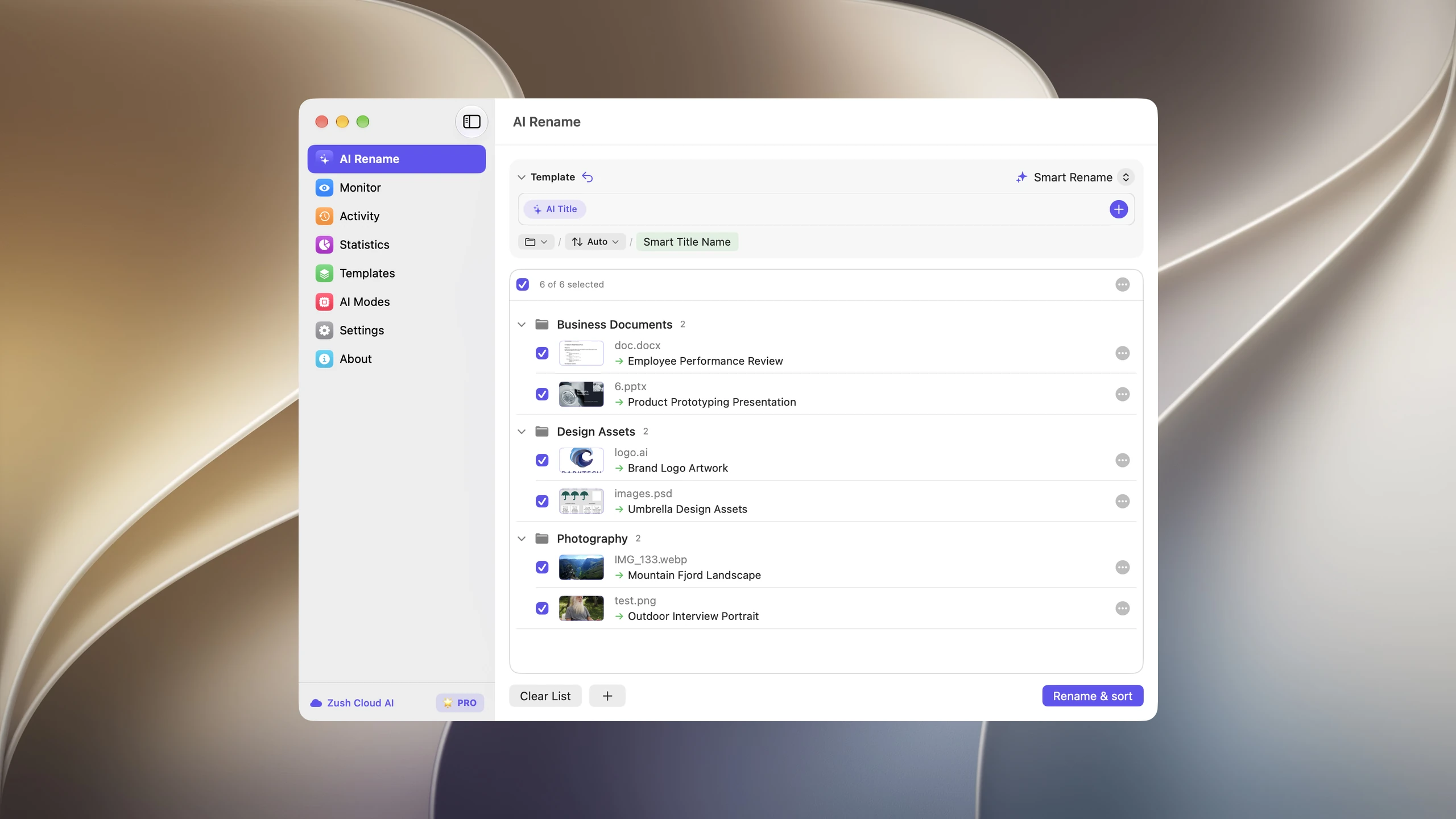
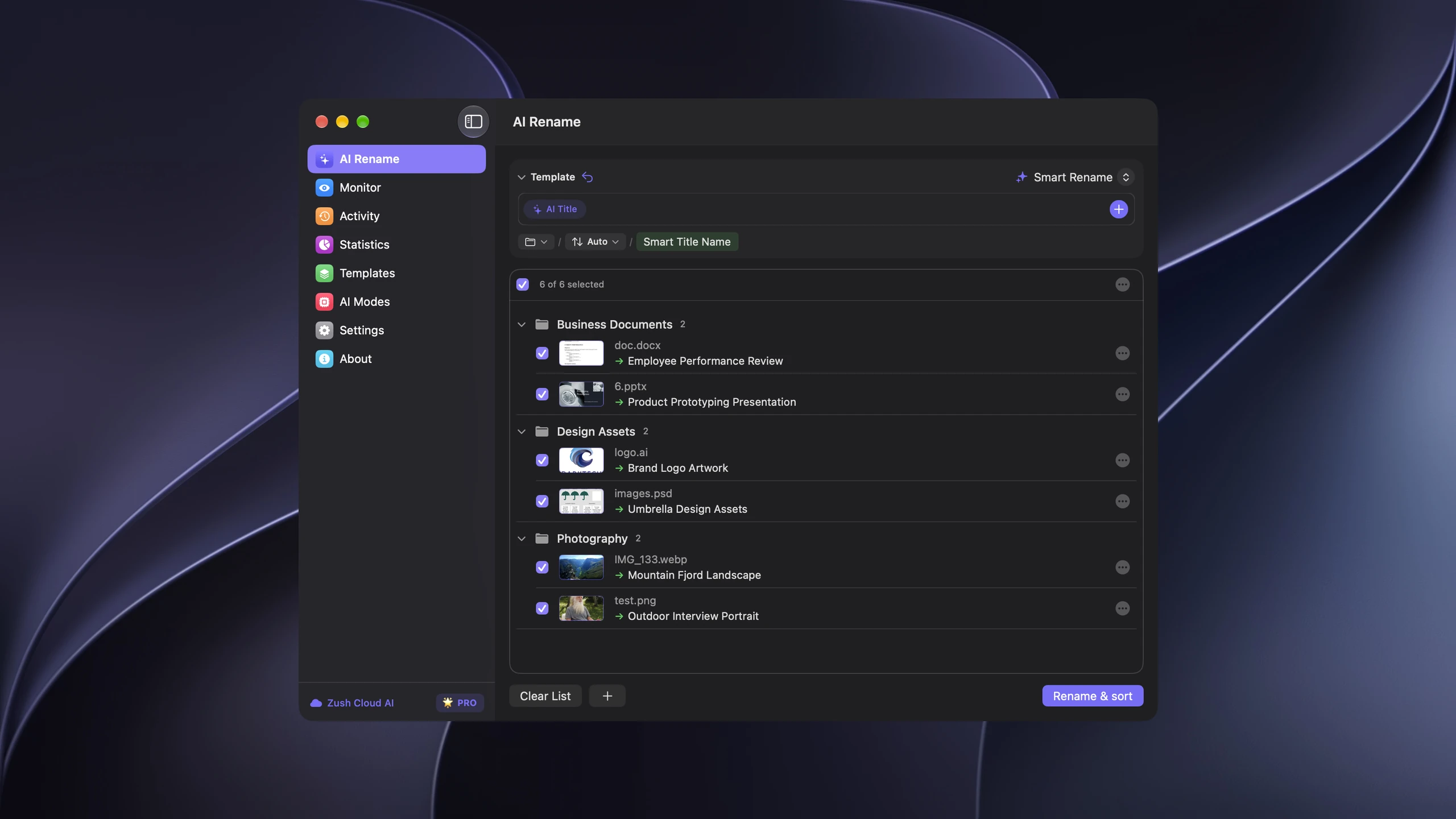
Save the tested destination and rules in the Template. Assign it to Monitor to rename and sort new files arriving directly inside the watched folder. This does not retroactively reorganize files already processed. With sorting off and the original destination selected, files keep their current folder.
Follow the step-by-step Mac sorting guide or see the folder sorting documentation and 30 example Folder rules.
Step 1: one intake folder, all sources
Invoices and receipts arrive through at least five doors: email attachments, vendor-portal downloads, the office scanner, phone photos of paper receipts, and accounting-system exports. The single highest-leverage move is making them all land in one folder:
- Email: save attachments to the intake folder — or use your mail client’s rules to do it.
- Downloads: point vendor-portal downloads there, or treat
Downloadsitself as the intake and let automation clean it. - Scanner: set the scanner’s output directory to the intake folder — its
Scan0001.pdfnames stop mattering in step 2. - Phone photos: a cloud-synced folder (iCloud, Dropbox, Drive) that lands on the desktop;
IMG_2041.jpgreceipt photos are inputs like any other.
One folder means one place to automate, and — during tax season or an audit — one place something can possibly be.
Step 2: name by content, automatically
This is the step that used to make such systems collapse, because it demanded discipline at the worst moment: renaming download (7).pdf correctly requires opening it. Content-aware renaming removes the human from the loop:
The AI invoice renamer reads each arrival — text PDFs directly, scans and photos with AI vision — and applies one convention:
2026-06-12 – Acme Supply – INV-10234 – 1,204 USD.pdf ← invoice2026-06-03 – Whole Foods – 84 USD – Receipt.jpg ← receipt photo2026-05-28 – Shell Gas – 52 USD – Receipt.pdf ← emailed receiptWith folder monitoring on the intake folder, the naming happens as files land; each batch is previewed and reversible. A Custom AI Block can add an expense category (– Software, – Travel, – Meals) chosen from your list — which quietly does the “categorize expenses” job most people buy separate software for.
Receipts and invoices can share the intake and the Template; the fields differ slightly (receipts rarely have numbers; the receipt workflow leans on store, date, amount) but the convention family is one.
Step 3: file shallow, retrieve by search
With descriptive names, folders only need to answer “how far back”:
Finance/ Inbox/ ← intake, monitored 2026/ 2025/ Archive/ ← older years, zipped or cold storageMove files from Inbox/ to the year folder monthly — a one-minute drag, because nothing needs sorting into anything. Everything else is retrieval by search: type “Acme 2026” or “Travel 2026-05” into Spotlight or Windows Search, and the filenames do the work. Vendor folders, category trees, month subfolders — each is a place to misfile, and the filename already knows.
Two audiences tighten this differently:
- Freelancers: put the client dimension in accounts-receivable filenames (
2026-06-01 – Vertex – INV-0088 – PAID.pdf) and keep one2026/folder; the client-files guide covers the broader project layout. - Bookkeepers with multiple clients: partition folders by client at the top (
Clients/Vertex/2026/…), keep filenames structurally identical across clients, and reuse one Zush Template for all of them.
Monthly close: the 10-minute loop
- Skim the intake preview batch in Zush if anything is pending — approve or fix names.
- Drag the month’s files from
Inbox/to the year folder. - Reconcile from filenames: amounts and dates are visible in the listing, so matching bank-feed lines rarely requires opening a PDF.
- Anything unmatched is visible as a gap — a vendor with a June invoice but no May one stands out in a sorted listing.
That loop is the entire system’s maintenance cost, and every part of it degrades gracefully: skip a month and nothing breaks — the intake folder just holds more, already correctly named.
Comparing tools for this job? See the best AI document organizers for PDFs, scans, and invoices.
FAQ
What is the best way to organize invoices and receipts digitally?
One intake folder for all sources, automatic content-based naming (date – vendor – number – amount), and shallow year folders. Retrieval comes from searching descriptive filenames rather than navigating category trees.
Should I organize receipts by category or by date?
By date in folders, with the category in the filename if you need it. A category folder tree forces a filing decision per document and breaks on multi-category months; a category token added by AI during renaming gives the same reporting ability without the tree.
How do I handle paper receipts?
Photograph or scan them into the intake folder and let the same naming pass handle them — Zush reads receipt photos (HEIC, JPG) and scans with AI vision, extracting store, date, and amount. Keep or discard the paper according to your local tax rules.
How long should I keep invoices and receipts?
Commonly six to seven years for tax-relevant documents, but the requirement varies by country and entity type — check your jurisdiction. Year-based folders make retention mechanical: when a year expires, archive or delete that folder.
Can this replace expense-tracking software?
For a solo operation, largely yes: named-and-dated files plus a category token cover reporting and audit needs. Accounting software still owns reconciliation and filing; this system feeds it clean, findable source documents — see the QuickBooks and Xero workflow.


