How to Organize Scanned Medical Records in a Small Practice

Jump to section
Quick answer: a small medical practice can organize scanned records with one intake folder for scanner and fax output, one reusable naming Template, and one review step before files enter the archive. Zush for medical practices handles the file-renaming layer: it reads image-only scans, proposes names from the fields your team chooses, and applies the batch in place with undo available.
This workflow is for files around the EHR: scanner output, fax downloads, outside records, signed intake forms, lab reports, and exported attachments. It does not replace the EHR or decide the practice’s records policy. Its job is narrower — turn Scan0001.pdf into a consistent, searchable filename before the document is imported, archived, or handed to another approved system.
Sort approved local copies into folders with AI
Zush can give supported files descriptive names and group them into real folders by content in the same batch. AI folder sorting is in beta on Mac and Windows. Leave Folder rules empty for Auto grouping, or describe the groups in plain language. For approved local copies, try:
Group documents by document type. Put unclear documents in Review.
- Add a small copied batch in AI Rename and select a Template.
- Enable + Sort and choose the Destination folder, which is the root for the sorted subfolders. Without a separate destination, the source folder remains the root.
- Enter the grouping instruction in Folder rules. Naming Blocks set the filename format separately.
- Enable Reuse existing folders if suitable groups already exist inside the destination root. Zush can create a new folder when none fits.
- Review both the proposed names and folder groups. Correct folder names or file placement before applying the batch.
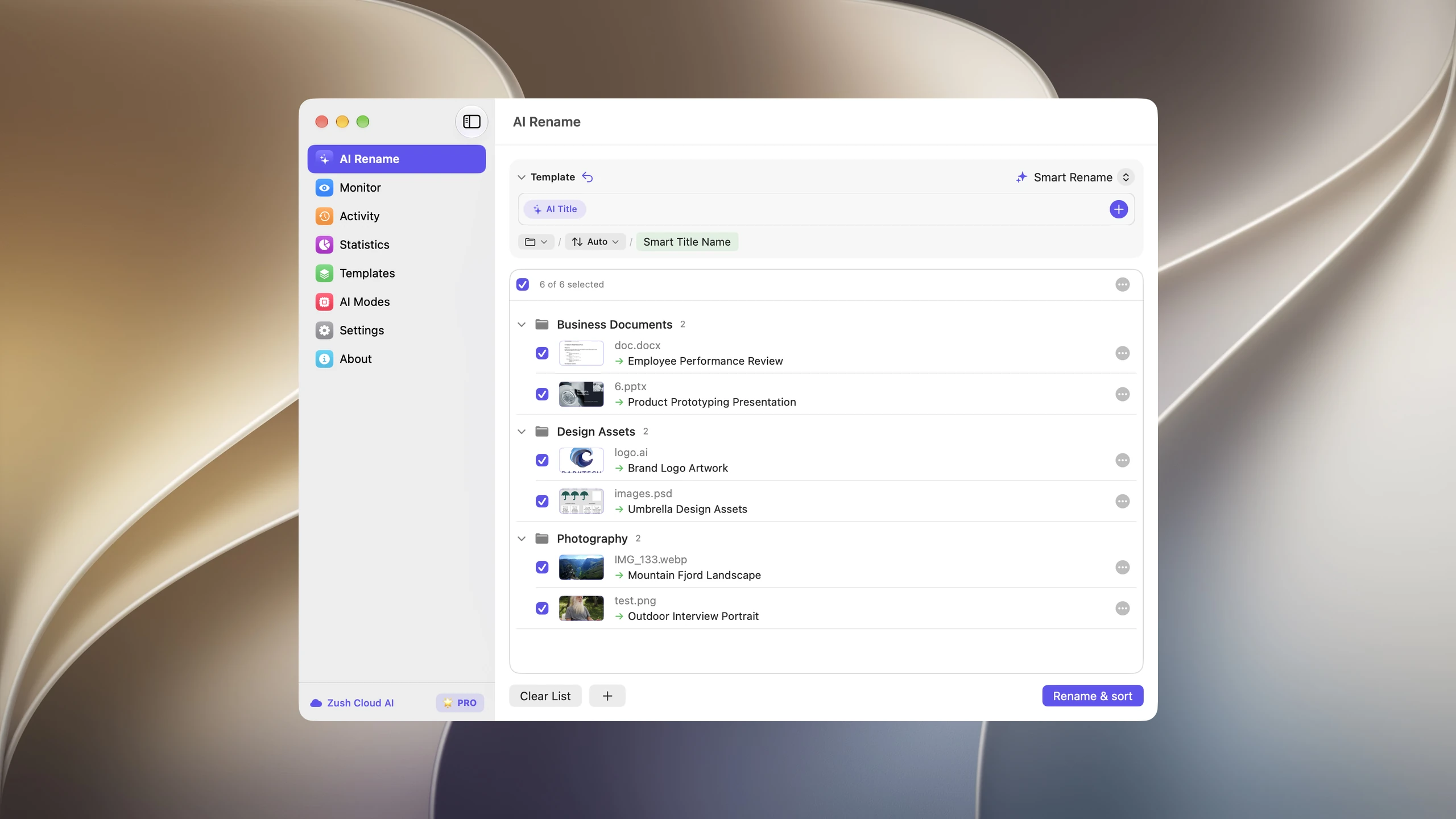
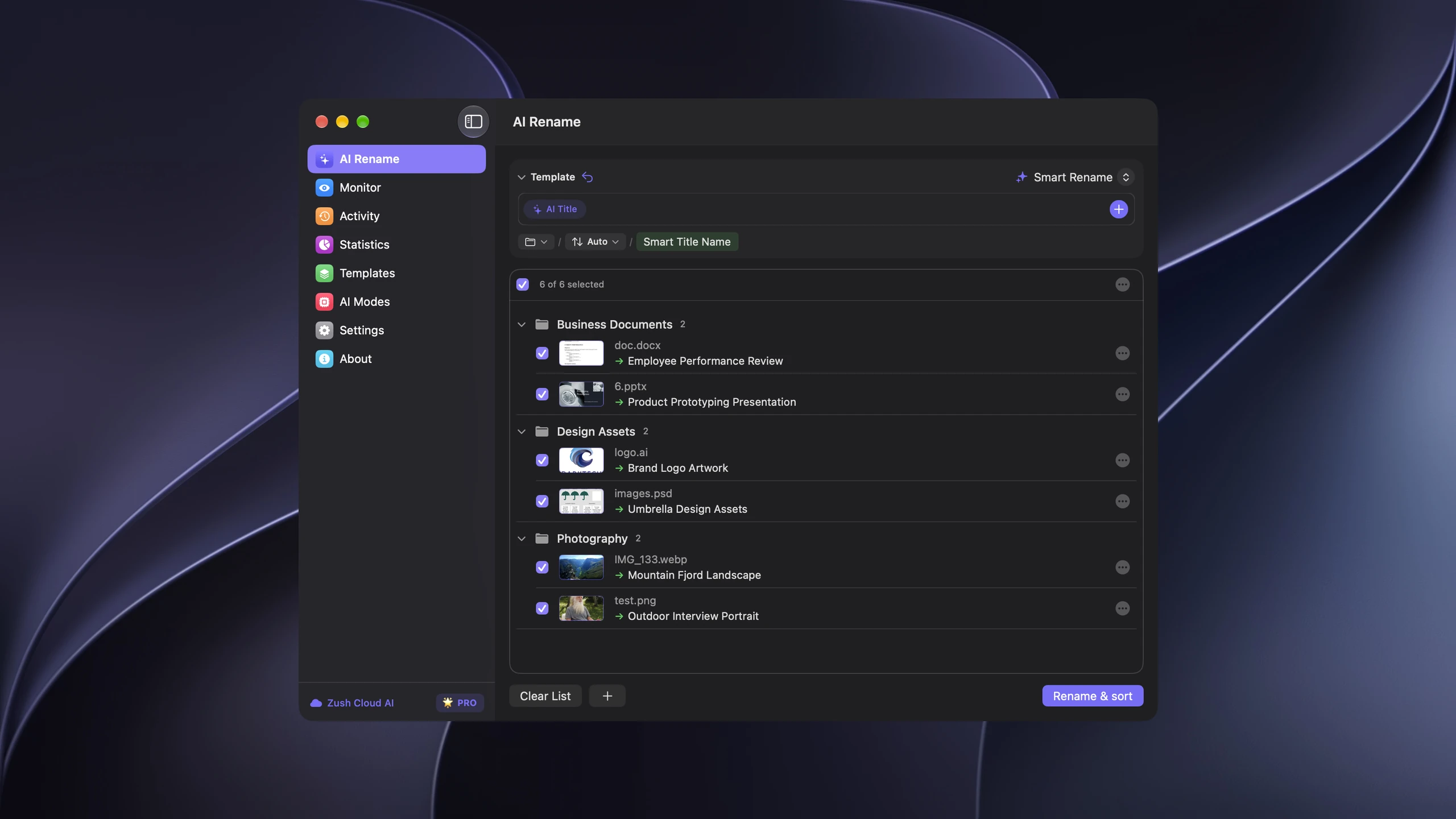
Save the tested destination and rules in the Template. Assign it to Monitor to rename and sort new files arriving directly inside the watched folder. This does not retroactively reorganize files already processed. With sorting off and the original destination selected, files keep their current folder.
Use sorting only for local copies whose placement you are authorized to change. Keep the official record system, access rules, and retention process in place. Review ambiguous identifiers; AI suggestions do not establish identity or record status.
Follow the step-by-step Mac sorting guide or see the folder sorting documentation and 30 example Folder rules.
1. Give every source one intake destination
The first improvement is not a more elaborate folder tree. It is one predictable place where unprocessed documents arrive. A practice may have several sources:
- the multifunction scanner at the front desk;
- fax software saving incoming documents as PDFs;
- outside records downloaded from a portal;
- attachments waiting to be added to a chart;
- paper intake and consent forms scanned after a visit;
- EOBs, ERAs, and claim correspondence for the billing team.
Point each source at a controlled intake folder when the software allows it. If clinical and billing documents are handled by different people or follow different policies, use two folders — for example Records Intake and Billing Intake — rather than mixing everything into one queue.
The intake folder is temporary. It shows what still needs review; it is not the long-term archive and it should not become a second EHR.
2. Choose the AI mode before adding real records
Decide how the practice wants document analysis to run before testing the naming workflow.
- Offline AI uses local Ollama models on the Mac or Windows PC running Zush. For supported files, analysis stays on that machine and is not sent to Zush or a third-party AI provider.
- BYOK routes analysis through the AI provider account and API key controlled by the organization. BYOK is still provider-based processing; the organization chooses the provider, model, account, and key used by the workflow.
Test the selected mode with copied sample documents first. Confirm that the model reads the scan quality produced by the office scanner and that the proposed names contain only the fields the team expects. The medical records landing page shows both modes in the context of scanner and fax folders, while the privacy and security documentation explains what each mode processes.
3. Build one medical records Template
A Template keeps the naming rule out of individual staff members’ heads. A practical starting structure is:
{Internal ID} – {Date of service} – {Document type}For example:
MRN-48211 – 2026-06-12 – Lab Results.pdfMRN-30177 – 2026-06-02 – Referral – Cardiology.pdfMRN-51402 – 2026-06-05 – Consent Form.pdfThe internal identifier connects the file to the practice’s existing system, the date keeps records chronological, and the document type makes a folder readable without opening every PDF. The exact fields belong to the organization’s own naming policy; details that do not need to appear in a folder listing can stay inside the document.
Use a fixed document-type vocabulary rather than letting each batch invent new labels. A small practice can usually start with Lab Results, Referral, Consult Note, Progress Note, Imaging, Intake, Consent Form, Outside Records, and Correspondence. Billing should have a separate Template with labels such as EOB, ERA, Claim, and Denial.
The medical records Template guide shows how to assemble the internal ID, detected date, document type, and optional Custom AI Blocks in Zush.
4. Test on a copied batch
Do not begin with the full archive. Copy 10–20 representative files into a test folder:
- a clean text PDF;
- an image-only scanner PDF;
- a fax with visible compression;
- a multipage outside record;
- a handwritten form with printed labels;
- one document that should be difficult to classify.
Run the Template and compare the proposed filenames with the practice’s rule. Adjust the Custom AI Block instructions until the same field is extracted consistently across layouts. A prompt such as “the date of service, not the scan date” is more useful than a broad request for “the date.”
The difficult example matters. The desired failure mode is a generic name that a person notices in preview, not a confident but incorrect classification that silently enters the archive.
5. Make preview part of the workflow
The preview is the handoff between AI assistance and the practice’s records process. Before applying a batch, check:
- the internal identifier matches the document;
- the correct date was selected;
- the document type comes from the approved vocabulary;
- no unnecessary detail was added to the filename;
- low-quality scans have been flagged for manual naming.
Apply the batch only after this review. Zush records the rename in history, so the batch can be reverted if the Template needs another pass. That makes testing and incremental rollout much safer than renaming an archive with a one-way script.
6. Add folder monitoring after the Template is stable
Once the copied test batch is reliable, assign the Template to the scanner or fax output folder with folder monitoring. New files can then receive proposed names as they arrive instead of accumulating as Scan0001.pdf, Scan0002.pdf, and fax_received.pdf.
Keep the monitored folder narrow. Watch the actual intake location rather than a broad shared drive, and use separate monitored folders when clinical records and billing documents need different Templates. This keeps each automation predictable and makes the preview queue easier to understand.
7. Keep the archive shallow
Descriptive filenames reduce the need for a deep folder tree. Two simple layouts cover most small-practice file workflows:
Records/ MRN-48211/ MRN-30177/or:
Records/ 2026/ 2025/The first groups files around an internal patient record. The second fits a chronological intake or migration project. In both layouts, the filename carries enough context to remain understandable after an export or system change.
Storage, access, backup, retention, and deletion rules remain decisions for the organization and the systems that officially hold the records. Zush does not replace those controls. Zush can optionally move renamed files into AI-named folders (beta); keep sorting disabled and the original destination when records must stay in place.
A one-hour rollout checklist
- Create a dedicated test intake folder.
- Copy 10–20 representative scans into it.
- Select Offline AI or the organization’s BYOK setup.
- Build the internal-ID/date/document-type Template.
- Review every proposed name and refine extraction instructions.
- Revert and rerun the batch once to verify undo history.
- Assign the stable Template to the real scanner or fax folder.
- Document who reviews proposed names and where approved files go next.
The result is intentionally modest: one intake queue, one predictable filename pattern, and one visible review step. That is enough to stop scanner counters from becoming the practice’s permanent filing system.
FAQ
Can Zush replace an EHR or medical document management system?
No. Zush handles the file-naming layer around those systems: scanner output, fax PDFs, exported records, and attachments waiting to be imported or archived. It does not connect to, read from, or modify records stored inside an EHR.
Can it read image-only scanned PDFs?
Yes. Zush can read the page image with AI vision when a PDF has no selectable text layer, so a separate OCR pass is not required for filename generation. Scan quality still matters, which is why the copied test batch and preview step are important.
Can analysis stay on the practice computer?
Yes, for supported files in Offline AI mode. Zush uses a local Ollama model on Mac or Windows, so the analysis content stays on that machine. BYOK is the alternative when the organization wants to use its own provider account and API key.
Can Zush rename new scanner files automatically?
Yes. Folder monitoring can watch the scanner or fax output folder and apply the assigned Template to new files. Keep preview and rename history in the process so uncertain documents remain visible and reversible.
How should a practice handle an old archive backlog?
Start with copied batches grouped by document flow rather than the entire archive at once. Tune one Template on representative files, review and apply the batch, then increase the batch size. Keep clinical records and billing documents separate when their naming fields differ.


