How to Organize Candidate Files for Recruiting

Jump to section
Quick answer: keep the ATS as the recruiting system of record, group temporary exports by requisition or role, and name downloaded files Candidate – Role – DocumentType – DateOrStage.ext. For example: Rivera Sofia – Product Designer – Interview Scorecard – Round 02.pdf. Use one controlled download folder, review every proposed name, and move only the records required by policy into the employee file after a hire.
Recruiting creates filenames from many sources: resumes downloaded from an ATS, portfolios from email, scorecards exported from interview tools, background documents from approved providers, and offers returned through e-signature. The purpose of a convention is to keep those temporary handoffs understandable without creating a shadow ATS on a shared drive.
Sort candidate documents into folders with AI
Zush can give supported files descriptive names and group them into real folders by content in the same batch. AI folder sorting is in beta on Mac and Windows. Leave Folder rules empty for Auto grouping, or describe the groups in plain language. For candidate documents, try:
Group documents by candidate name when it is clearly stated. Put unclear documents in Review.
- Add a small copied batch in AI Rename and select a Template.
- Enable + Sort and choose the Destination folder, which is the root for the sorted subfolders. Without a separate destination, the source folder remains the root.
- Enter the grouping instruction in Folder rules. Naming Blocks set the filename format separately.
- Enable Reuse existing folders if suitable groups already exist inside the destination root. Zush can create a new folder when none fits.
- Review both the proposed names and folder groups. Correct folder names or file placement before applying the batch.
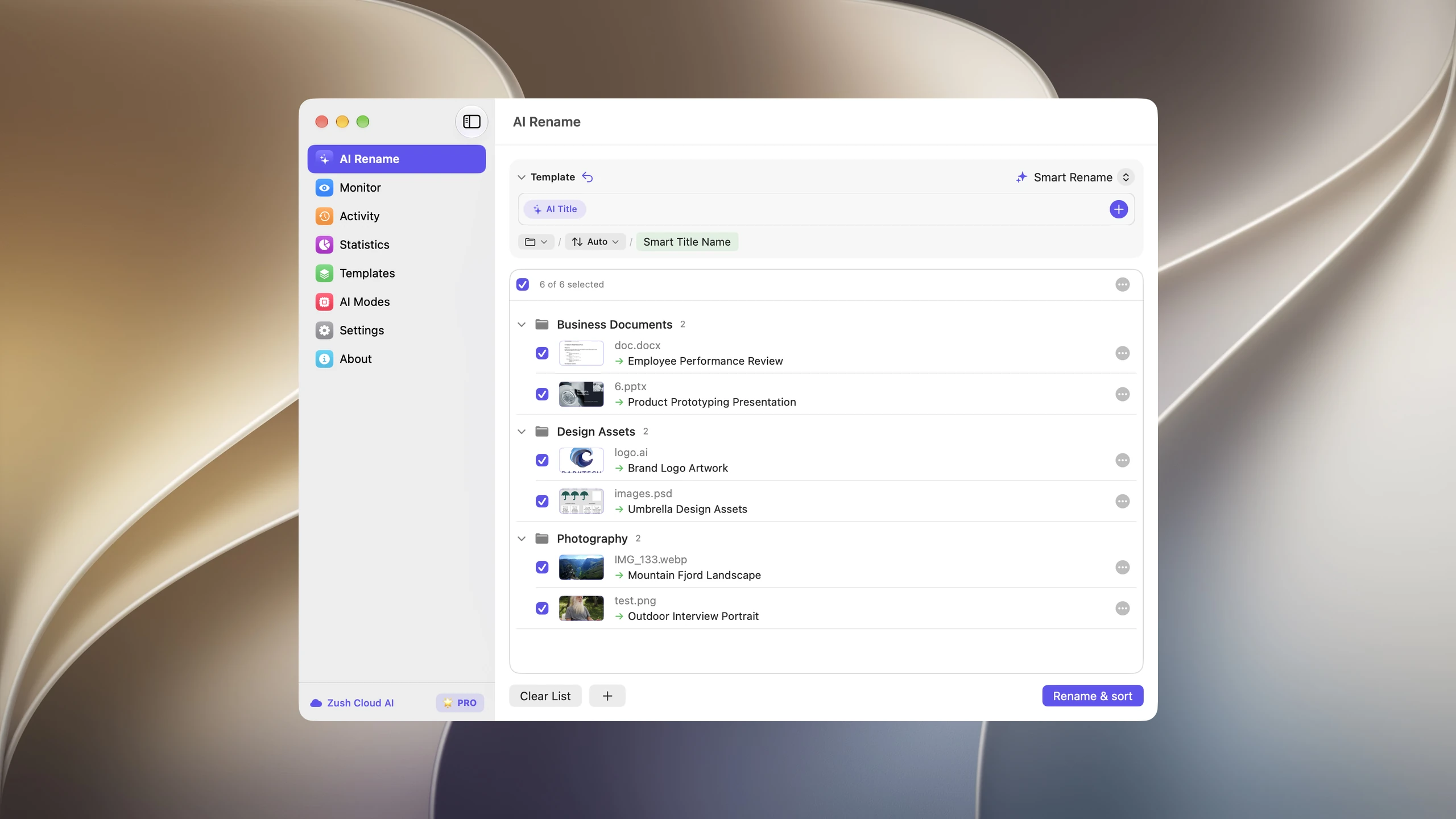
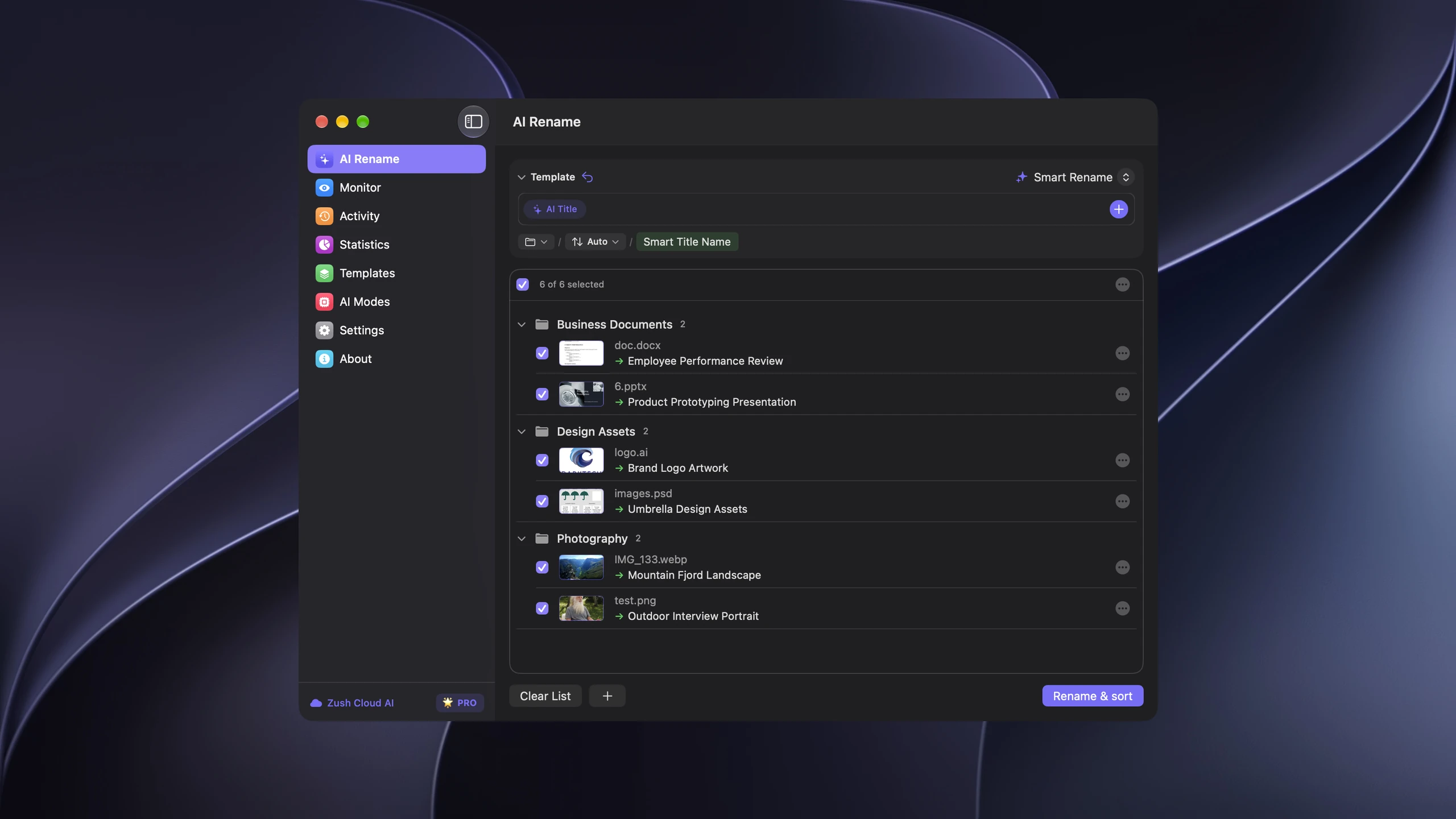
Save the tested destination and rules in the Template. Assign it to Monitor to rename and sort new files arriving directly inside the watched folder. This does not retroactively reorganize files already processed. With sorting off and the original destination selected, files keep their current folder.
Use sorting only for local copies whose placement you are authorized to change. Keep the official record system, access rules, and retention process in place. Review ambiguous identifiers; AI suggestions do not establish identity or record status.
Follow the step-by-step Mac sorting guide or see the folder sorting documentation and 30 example Folder rules.
Separate the ATS record from downloaded files
The ATS should remain the authoritative location for candidate status, communication history, interview feedback, consent, and disposition. A local or shared folder is useful only for approved workflows that require files outside the ATS: interview packets, hiring-manager review, e-signature handoff, migration, or controlled export.
This distinction prevents two common failures:
- a shared folder becomes the unofficial source of truth after the ATS record changes;
- candidate documents remain scattered across Downloads folders after the hiring decision.
Name the files so they are understandable during the handoff, then complete the workflow back into the approved system.
Organize the intake by requisition or role
Use the recruiting unit that already exists in the ATS. A requisition ID is the most precise option because similar roles may be open simultaneously:
Recruiting Intake/ REQ-2026-041 Product Designer/ REQ-2026-056 Finance Analyst/For a small organization without requisition IDs, use a stable role label and opening date. Avoid organizing only by candidate name at the top level; recruiters usually work across a role’s entire slate and need to compare the same stage or document type.
Use a candidate-specific naming convention
A practical pattern is:
{Candidate} – {Role} – {Document type} – {Date or stage}Examples:
Rivera Sofia – Product Designer – Resume – 2026-07-18.pdfRivera Sofia – Product Designer – Portfolio – 2026-07-18.pdfRivera Sofia – Product Designer – Interview Scorecard – Round 02.pdfRivera Sofia – Product Designer – Offer – Signed.pdfPut the candidate first when a folder contains several applicants. Put the requisition first when exports from multiple roles share one folder:
REQ-2026-041 – Rivera Sofia – Resume – 2026-07-18.pdfPick one pattern for each intake location. A convention that changes field order from file to file is not a convention.
Define a controlled recruiting document vocabulary
Use labels tied to actual recruiting artifacts:
- Resume
- Cover Letter
- Portfolio
- Work Sample
- Interview Guide
- Interview Notes
- Interview Scorecard
- Reference Document
- Offer
- Candidate Correspondence
Keep protected or restricted document classes in the systems and locations approved for them. Do not add sensitive findings, demographic information, or evaluative commentary to filenames.
Use stages only when the file belongs to a stage
Round 01, Panel, or Hiring Manager can be useful for scorecards and interview guides. It adds little to a resume, portfolio, or signed offer. A short pattern is easier to maintain and exposes less process detail.
Prefer factual states such as Sent, Signed, or Declined for offer documents. Avoid current, best, top, or reject; those labels are subjective, unstable, or unnecessarily revealing in a filename.
Build one download-to-review workflow
Create a controlled location for files that must leave the ATS. The simplest sequence is:
- Download or export files into the role or requisition intake folder.
- Run the relevant naming Template.
- Review candidate identity, role, document type, date, stage, and status.
- Correct unmatched or ambiguous documents.
- Apply the filenames with rename history available.
- Complete the approved handoff, then clear temporary copies according to policy.
This turns the Downloads folder from an invisible endpoint into a visible queue with a start and finish.
Automate extraction without automating identity mistakes
The HR file renaming workflow can read resumes, letters, Word documents, PDFs, and scans, then propose filenames from a reusable Template. Custom AI Blocks can define fields such as:
- “the candidate’s full name as FamilyName GivenName”;
- “the role title exactly as stated in the offer or job description”;
- “the interview stage, limited to Round 01, Round 02, Panel, or Final”;
- “the offer status as Draft, Sent, Signed, or Declined.”
If the document contains no reliable candidate identity or role, the proposal should remain incomplete for review. Do not resolve ambiguity by matching a name to the closest folder automatically.
Choose a processing mode before using candidate data
Recruiting files contain personal information. Decide which analysis mode is approved before using real documents:
- Offline AI runs supported file analysis through a local Ollama model on the Mac or Windows PC.
- BYOK uses the AI provider account, model, key, and terms controlled by the organization.
- Managed AI is appropriate only for samples or document classes approved for that processing path.
The mode is part of the workflow design, not a last-minute toggle. Test Templates with synthetic or redacted examples while approval is still being decided.
Handle the hired-candidate handoff deliberately
Candidate and employee records serve different purposes. After hire:
- create or confirm the employee ID in the HRIS;
- identify which recruiting documents the organization’s policy transfers to the employee record;
- rename those selected files under the employee file naming convention;
- import or store them in the approved employee system;
- handle remaining recruiting copies according to candidate-record retention policy.
Do not copy the entire candidate folder into the employee folder. Interview notes, scorecards, and other recruiting artifacts may follow different access and retention rules.
Review checklist for each batch
Before applying names, confirm:
- the candidate identity matches the document;
- the role or requisition is correct;
- the type comes from the controlled vocabulary;
- dates and stages describe the document, not the download event;
- the filename avoids sensitive or subjective commentary;
- the temporary copy has a defined destination or disposition.
Zush renames in place and records the batch for undo. With sorting off and the original destination selected, local files keep their current folder. Optional AI sorting (beta) can move local copies; it does not change records or status inside the ATS, enforce permissions, or delete temporary files.
FAQ
What is the best way to name resume files?
Use Candidate – Role – Resume – YYYY-MM-DD.pdf, or add the requisition ID first when multiple roles share a folder. This is more searchable than resume-final.pdf and avoids relying on a download timestamp.
Should candidate files be organized by person or role?
Recruiting work is usually role-centered, so group intake by requisition or role and include the candidate in every filename. Use candidate folders only when an approved workflow needs a complete packet for one person.
Can AI distinguish resumes, portfolios, scorecards, and offers?
Yes. Zush can classify documents using their content and extract candidate, role, date, stage, and status into a proposed filename. A person should review the batch before applying changes.
Should interview notes move into the employee file after hire?
Only if the organization’s policy requires or permits it. Candidate and employee records often have different purposes, access, and retention rules, so transfer selected records deliberately rather than copying the full recruiting folder.
Does Zush replace an ATS?
No. Zush organizes files around ATS downloads, exports, and handoffs. It does not track candidates, schedule interviews, communicate with applicants, decide disposition, or store the recruiting record.


